

You received a CSV from a German supplier, a French bank, or a Spanish subsidiary. You double-click it, and Excel shows every row crammed into column A, semicolons and all. The file isn’t broken — it’s a semicolon-delimited CSV, the standard export format across much of Europe and Latin America. To convert a semicolon CSV to Excel properly, you need to import it with the semicolon delimiter selected instead of letting Excel guess (and guess wrong).
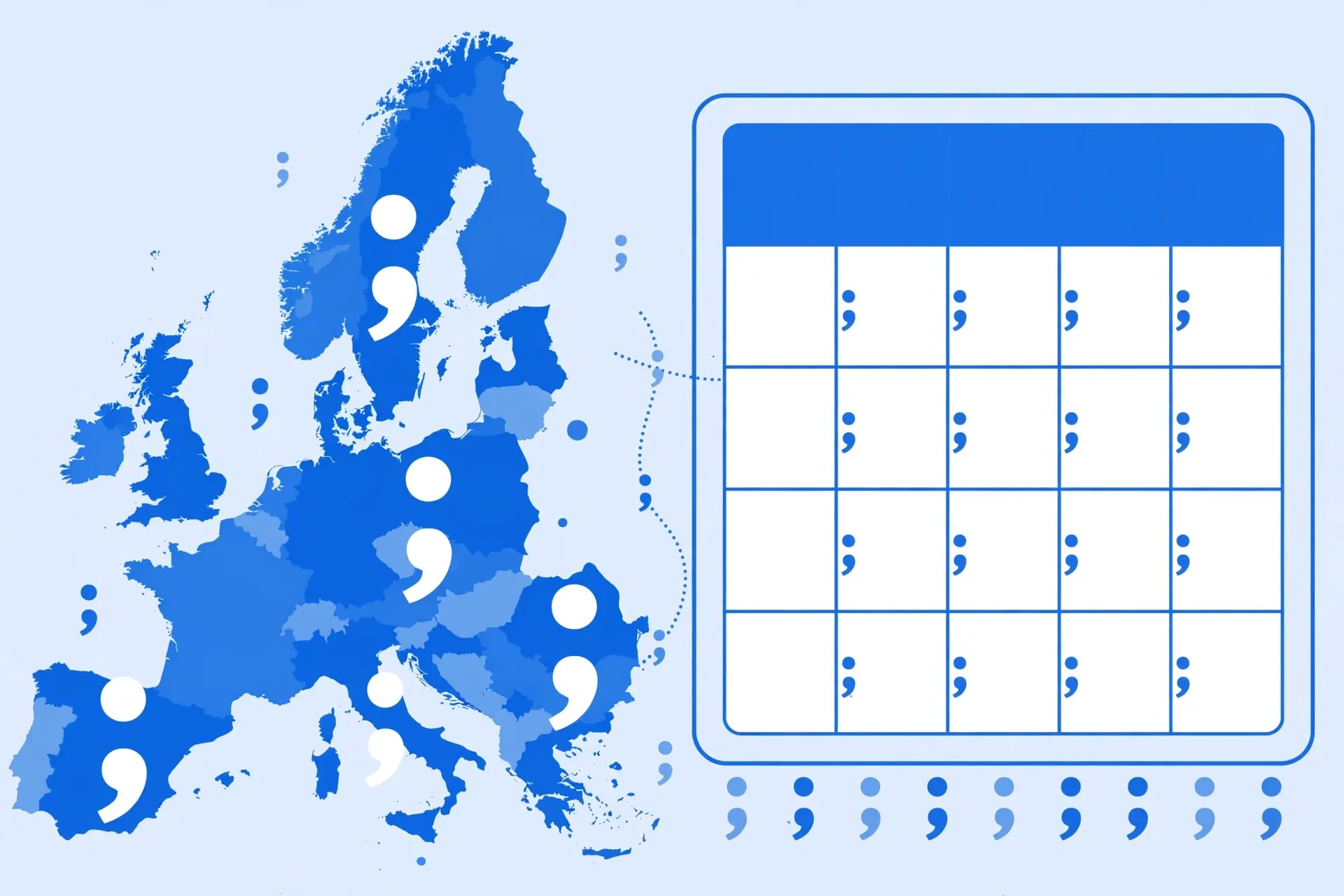
Why do semicolons exist at all? In Germany, France, Spain, Italy, Brazil, and dozens of other countries, the comma is the decimal separator — 1,5 means “one and a half.” A comma can’t separate fields when it’s already busy inside numbers, so these locales use the semicolon as the CSV semicolon separator. The moment such a file lands on a US, UK, Indian, Canadian, or Australian machine — where Excel expects commas — it opens as the infamous one-column mess. This guide covers the import-wizard method, the Power Query method, how to convert semicolons to commas when you need to, the permanent Windows fix, and the one-click converter route.
Why Semicolons: The European Locale Story
The semicolon delimiter isn’t a quirk — it’s a necessity born from how different countries write numbers. In the US/UK/India system, one thousand two hundred thirty-four and a half is written 1,234.5: comma groups thousands, period marks decimals. In the German/French system, the same number is 1.234,5: period groups thousands, comma marks decimals. Now imagine a CSV line with a comma delimiter in the German system:
Name,Price,City
Müller,1.234,5,Berlin
Is that three fields or four? Ambiguous — which is exactly why German, French, Spanish, Italian, Dutch, Brazilian, and many other locales standardized on the semicolon:
Name;Price;City
Müller;1.234,5;Berlin
Unambiguous. So when you get a semicolon-delimited CSV in Excel that won’t open right, you’re not looking at a broken file — you’re looking at a file from a different numeric culture. SAP, DATEV, French banking portals, Spanish government data, and countless European web apps all export this way. Our locale delimiter guide maps which countries use which separator.
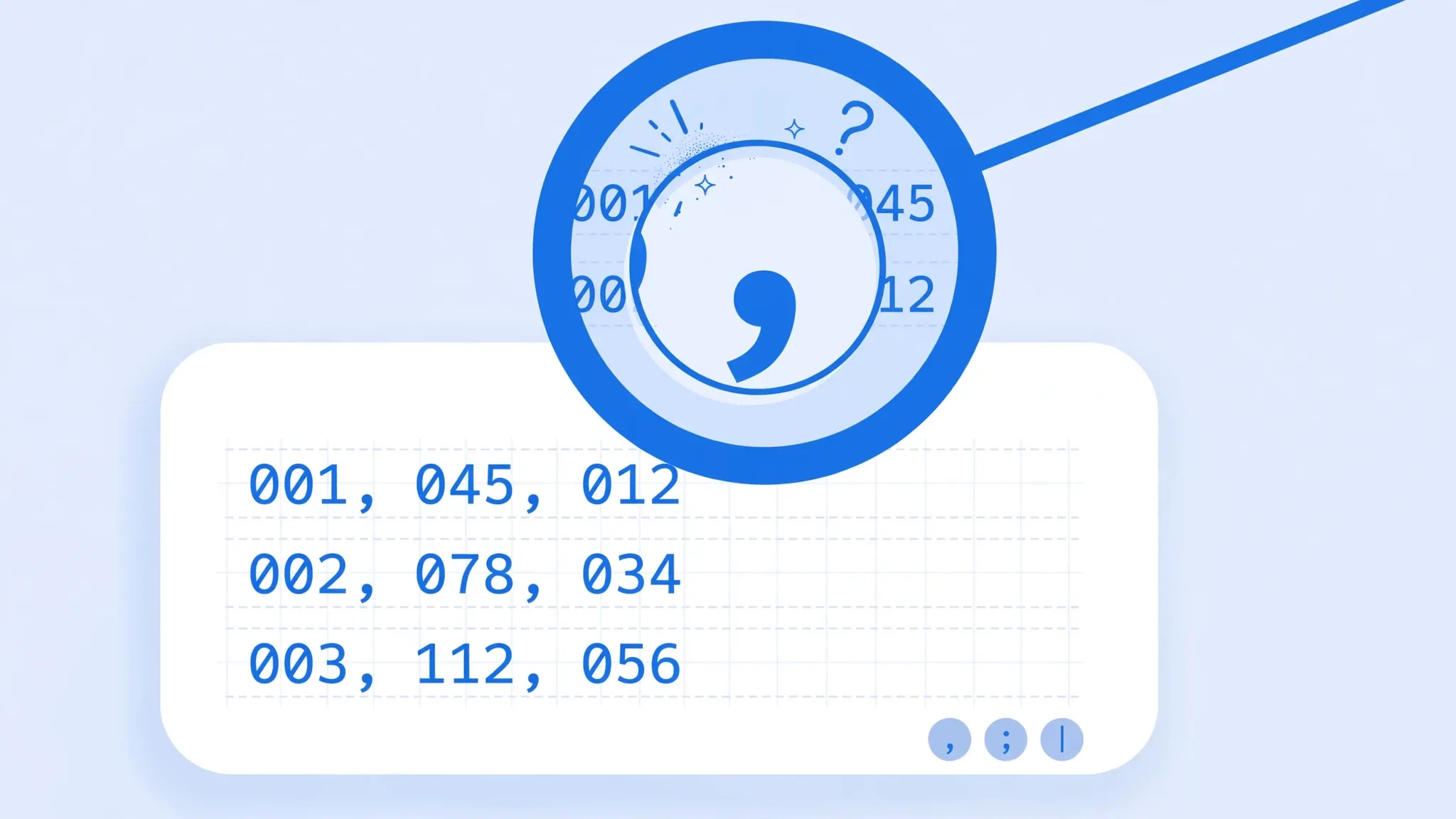
Confirm It’s Semicolons (30 Seconds)
Before importing, verify the delimiter so you tick the right box first time:
- Right-click the file → Open with → Notepad.
- Look for the repeating character between fields.
Name;Email;City— semicolons confirmed. - Check the numbers:
1.234,56style decimals confirm a European-locale file — semicolons are near-certain.
Also note whether text fields are quoted ("Müller; GmbH") — the import wizard’s text qualifier handles those automatically, as our delimiter troubleshooting guide explains.
You’ll meet semicolon CSVs most often from: German ERP exports (SAP, DATEV), French bank statements, Spanish and Italian government open-data portals, Brazilian e-commerce platforms, and any web app whose developers set the locale to continental Europe. If your role touches international vendors, customers, or subsidiaries, semicolon files aren’t an edge case — they’re a regular Tuesday. The five minutes you spend learning the import flow below pays for itself the very first time.
Fix 1: Import Wizard with Semicolon Ticked
The classic method to convert a semicolon CSV to Excel, reliable in every desktop Excel version:
- Open a blank workbook — don’t double-click the CSV.
- Data → Get Data → Legacy Wizards → From Text (Legacy), select the file. (Enable legacy wizards at File → Options → Data if needed.)
- Step 1: Delimited → Next. Set File Origin to 65001: Unicode (UTF-8) if the file has accented characters (Müller, café) — see our UTF-8 guide.
- Step 2: untick Tab, tick Semicolon. The preview should snap into clean columns. Keep the text qualifier as
". Click Next. - Step 3: set column types — Text for code/ZIP columns (see our leading zeros guide), and for numeric columns with European decimals, you may need to handle the comma-decimal issue (see below). Click Finish → OK.
1.234,56 import as text on a US-locale machine because Excel expects 1,234.56. After import, convert them with Data → Text to Columns → Delimited → Next → Next and set the column to the right locale, or use =SUBSTITUTE(SUBSTITUTE(A1,".",""),",",".") to normalize. Better: keep them as text if they’re just for display.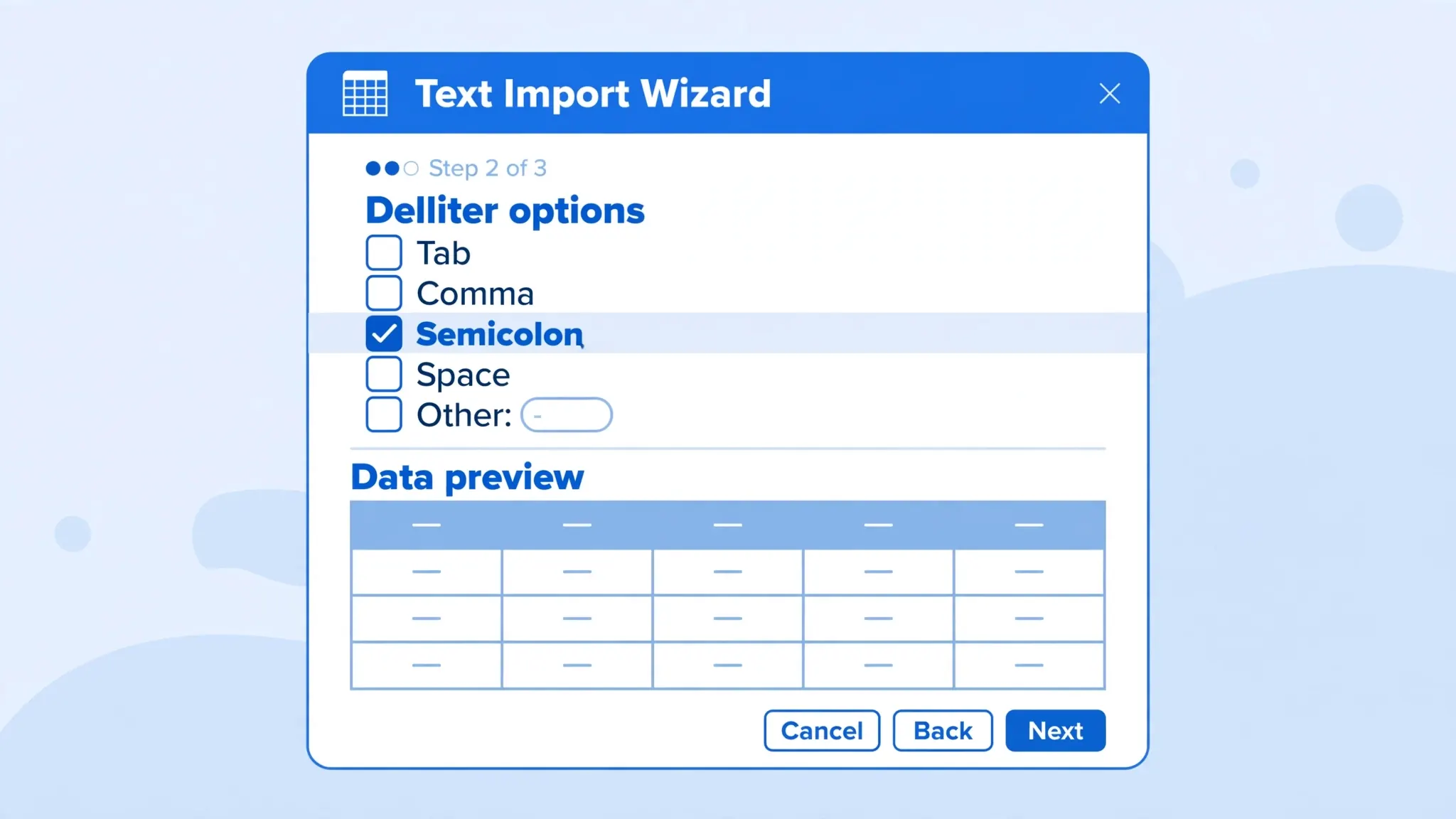
Fix 2: Power Query Semicolon Import
For Excel 2016+ (including Microsoft 365), Power Query is the smoother path — and it remembers the semicolon choice for next time:
- Open a blank workbook → Data → From Text/CSV, select the file.
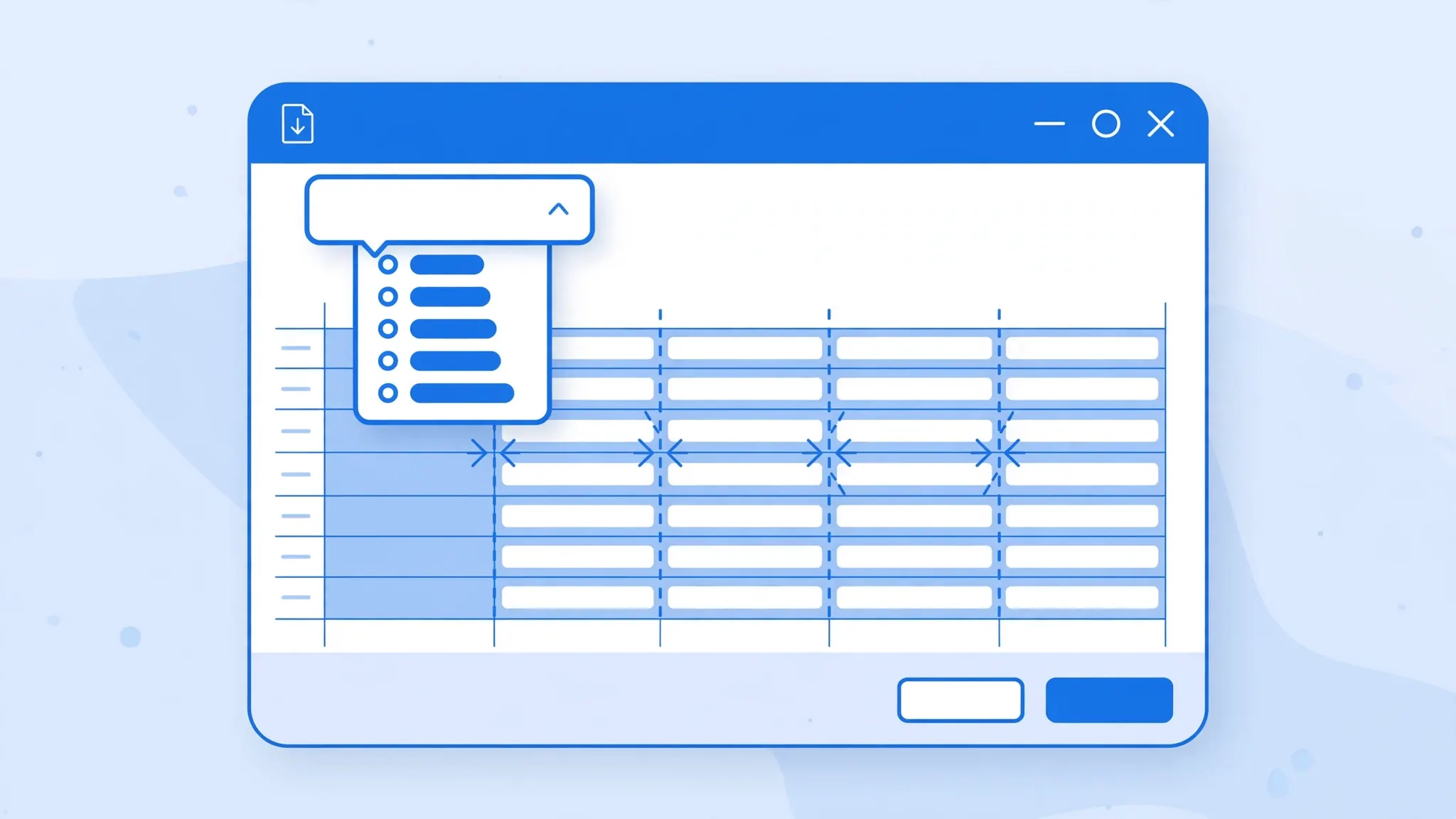
- In the preview, change the Delimiter dropdown from Comma to Semicolon. The preview re-splits instantly.
- Check File Origin too — set 65001: Unicode (UTF-8) for accented text.
- Click Load (or Transform Data first to set column types, then Close & Load).
The saved query is the real win: when next month’s export arrives, overwrite the old file and hit Refresh — the semicolon delimiter, encoding, and column types all reapply automatically. For a deeper tour, see our Power Query CSV import guide.
Fix 3: Convert Semicolons to Commas
Sometimes you don’t just want to open the file — you want to convert a semicolon-delimited CSV into a standard comma-delimited one, e.g., for a system that only accepts comma CSVs. Two safe ways:
Method A: Import, then save as CSV
Import the file with the semicolon delimiter (Fix 1 or 2), then File → Save As → CSV (Comma delimited). Excel writes the data back out with commas. Caveat: on a European-locale machine, Excel’s CSV export uses the system separator — semicolons again. To force commas, temporarily set the Windows list separator to comma (see Fix 4), save, then set it back.
Method B: Careful find-and-replace
In a text editor, replacing every ; with , works only if no field legitimately contains a semicolon. Check first: search for ; inside quoted fields. If the file has quoted semicolons ("Note: call; urgent"), a blind replace corrupts them. When in doubt, use Method A — Excel’s parser respects quotes; Notepad’s find-and-replace doesn’t.
1.234,56 values saved as comma-CSV is still full of European-format numbers that US Excel reads as text. Normalize decimals separately if the numbers need to calculate.Fix 4: The Permanent Windows List-Separator Fix
If all your incoming files are semicolon-separated — you work with European vendors daily — make it permanent:
- Close Excel.
- Control Panel → Clock and Region → Region → Additional settings.
- Change List separator from comma to semicolon. Click OK twice.
- Reopen Excel and double-click your semicolon CSV — it opens in clean columns.
Trade-offs to know: this is system-wide, so Excel will also save CSVs with semicolons afterward — fine for European recipients, confusing for American ones. And it does nothing on Mac. For mixed sources (some comma, some semicolon files), per-file import beats the system change. Full details in our delimiter settings guide.

Fix 5: One-Click Converter Route
The zero-effort path: upload the file to our free CSV to Excel converter. It auto-detects the semicolon delimiter in your browser, splits the columns, and returns a clean .xlsx workbook — no wizard, no settings, no locale knowledge required. Ideal when you’re on a borrowed machine, handling a one-off file, or batch-converting a folder of European exports (see our batch guide).
Semicolon CSV to Excel on Mac
Mac users hit the same wall: double-clicking a semicolon CSV in Excel for Mac dumps everything into column A, because macOS has no Windows-style list separator to adjust. The fixes that work:
- Power Query (Microsoft 365): Data → From Text/CSV, change the Delimiter dropdown to Semicolon, Load. Same as Windows.
- Text to Columns: if the file is already open in one column, select column A → Data → Text to Columns → Delimited → tick Semicolon → Finish.
- Numbers detour: Apple Numbers auto-detects semicolons far better than Excel. Open the CSV in Numbers, then File → Export To → Excel.
Our Mac CSV guide has the full macOS workflow including encoding settings.
Opening Semicolon CSVs in Google Sheets
Google Sheets’ File → Import dialog has a Separator type dropdown — choose Custom and enter ;. Sheets also auto-detects semicolons reasonably well on upload. Once imported cleanly, File → Download → Microsoft Excel (.xlsx) gives you a proper workbook. This is a handy free route when you don’t have Excel handy at all — see our CSV to Google Sheets guide.
Automating Semicolon CSV Conversion
When semicolon files arrive daily, automate the conversion instead of wizarding each one:
Python (pandas)
import pandas as pd
df = pd.read_csv("export.csv", sep=";", encoding="utf-8")
df.to_excel("export.xlsx", index=False)
Two lines: read with the semicolon separator, write a real workbook. Add dtype=str to keep leading zeros, and decimal="," if you need European decimals parsed as numbers. Our Python CSV guide covers the edge cases.
PowerShell
On Windows, Import-Csv -Delimiter ';' parses semicolon files natively — pipe it to Export-Csv -Delimiter ',' to convert delimiters, or hand the objects to the ImportExcel module to write .xlsx directly. See our PowerShell guide.
Power Automate
For no-code automation, a scheduled Power Automate flow can watch a folder or inbox, parse the semicolon CSV, and write rows into an Excel table — useful for recurring vendor feeds.
Bonus: Semicolons Inside Excel Formulas Too
Here’s a related gotcha that bites the same users: in European-locale Excel, formulas also use semicolons as argument separators. Where a US user writes =VLOOKUP(A1,B:C,2,FALSE), a German user writes =SVERWEIS(A1;B:C;2;FALSCH) — semicolons between arguments, and localized function names to boot. So if you copy a formula from an American tutorial into European Excel, it breaks until you swap commas for semicolons (and vice versa). The delimiter setting and the formula separator both follow the same Windows Region list separator — change one and you change both. Keep this in mind when rebuilding formulas after importing a semicolon CSV: any formulas you retype must use your locale’s separator.
European Decimals in Excel: Making Numbers Calculate
The delimiter is only half the European-CSV story — the numbers themselves are formatted differently, and getting them to calculate on a US/UK-locale machine takes deliberate steps. A value like 1.234,56 imports as text (Excel doesn’t recognize the format), so SUM formulas ignore it. Three ways to fix it:
Method 1: Formula normalization
For a column of European-formatted numbers in A2:A100, this converts them to real numbers: =VALUE(SUBSTITUTE(SUBSTITUTE(A2,".",""),",",".")). The inner SUBSTITUTE strips thousand separators, the outer swaps the decimal comma for a period, and VALUE converts to a number. Copy down, then paste as values over the original column.
Method 2: Text to Columns with locale
Select the column → Data → Text to Columns → Delimited → Next → untick all delimiters → Next → click Advanced → set Decimal separator to comma and Thousands separator to period → OK → Finish. Excel now parses 1.234,56 as the number 1234.56.
Method 3: Power Query locale
In the Power Query Editor, select the column → Transform → Data Type → Using Locale → choose Decimal Number with a German/French locale. This is the cleanest method for recurring files because the locale choice is saved with the query.
Which to choose? For one-off files, Method 2 is fastest. For monthly reports, Method 3. For a column mixed with text notes, Method 1’s formula gives row-by-row control. And if the numbers are just for display (reference prices nobody sums), leave them as text — no conversion needed.
Semicolon CSV Checklist for Teams
If your whole team handles European files, standardize once instead of everyone rediscovering the fix:
- Document the source locales: a shared note listing which vendors send semicolons vs commas.
- Build one Power Query template per recurring feed (semicolon delimiter, UTF-8, correct column types, locale-aware decimals) and share the workbook.
- Agree on the handoff format: internal sharing in
.xlsxso nobody re-fights the delimiter. - For outbound files, match the recipient’s locale or ask which delimiter their system expects.
- Train the 30-second Notepad check — new hires who can diagnose a delimiter never file a “broken CSV” ticket.
Special Cases: Semicolons Inside Fields, Mixed Files
Semicolons inside quoted fields
Notes fields like "Call client; urgent" are safe — both the wizard and Power Query respect the " text qualifier and won’t split inside quotes. Problems only arise when quotes are unbalanced (a missing closing quote), which shifts every subsequent row. Fix the quoting in a text editor.
Mixed comma and semicolon rows
Concatenated exports sometimes mix delimiters. Import with the majority delimiter (usually semicolon), then select the straggler rows and run Data → Text to Columns with the other delimiter on just those rows.
Tab-separated files from Europe
Some European database exports use tabs. Same workflow — tick Tab instead of Semicolon in the wizard. Our TSV guide covers those.
Prevent It Forever
- Know your sources’ locales — European sender means semicolons; ask once, configure once.
- Save recurring imports as Power Query queries — the semicolon choice persists across refreshes.
- Share .xlsx, not .csv — workbooks store columns explicitly, immune to locale.
- When exporting for others, match the recipient’s locale or send both delimiter versions with a note.
- Normalize European decimals at import time if the numbers need to calculate on a US-locale machine.
Wrapping Up
Converting a semicolon CSV to Excel is a two-minute job once you know the trick: don’t double-click — import with the semicolon delimiter selected (Text Import Wizard or Power Query), or let our free converter detect it automatically. Semicolons aren’t an error; they’re how half the world writes CSVs, because the comma is busy being a decimal mark. Match the delimiter to the file’s origin and the columns land perfectly every time. If you’re wrestling with a mixed-locale pipeline — say, German exports feeding a US reporting system — join the discussion in our community forum and describe your setup; standardizing that flow is exactly the kind of problem the community loves to solve.
Frequently Asked Questions
Why does my CSV use semicolons instead of commas?
In many European and Latin American locales, the comma is the decimal separator (1,5 means one and a half), so it cannot safely separate fields. Systems in those locales export CSVs with semicolons as the delimiter instead. It’s standard, not broken.
How do I convert a semicolon-separated CSV to Excel?
Import the file instead of double-clicking it: use the Text Import Wizard (Data → Get Data → Legacy Wizards → From Text) or Power Query (Data → From Text/CSV) and select Semicolon as the delimiter. The data splits into clean columns.
Can I change semicolons to commas in a CSV file?
Yes. The safe way is to import the file with the semicolon delimiter and then save it as a comma-separated CSV or as XLSX. A raw find-and-replace in a text editor also works but risks corrupting fields that legitimately contain semicolons — check quoted fields first.
Why does Excel open my semicolon CSV in one column?
Your Windows list separator is a comma, so Excel looks for commas to split on, finds none, and puts each whole row into column A. Import with the semicolon delimiter selected to fix it — see our one-column fix guide for the quick Text to Columns method.
How do I make Excel always open semicolon CSVs correctly?
Change the Windows list separator to a semicolon (Control Panel → Region → Additional settings) for a permanent system-wide fix, or always import files with Power Query where the semicolon choice is remembered per query. The full trade-offs are in our delimiter settings guide.
Will the free converter handle semicolon-separated CSV?
Yes. The free converter at csvtoexcel.site/ auto-detects semicolon delimiters and converts the file to a clean XLSX workbook with all columns in place — no settings needed.