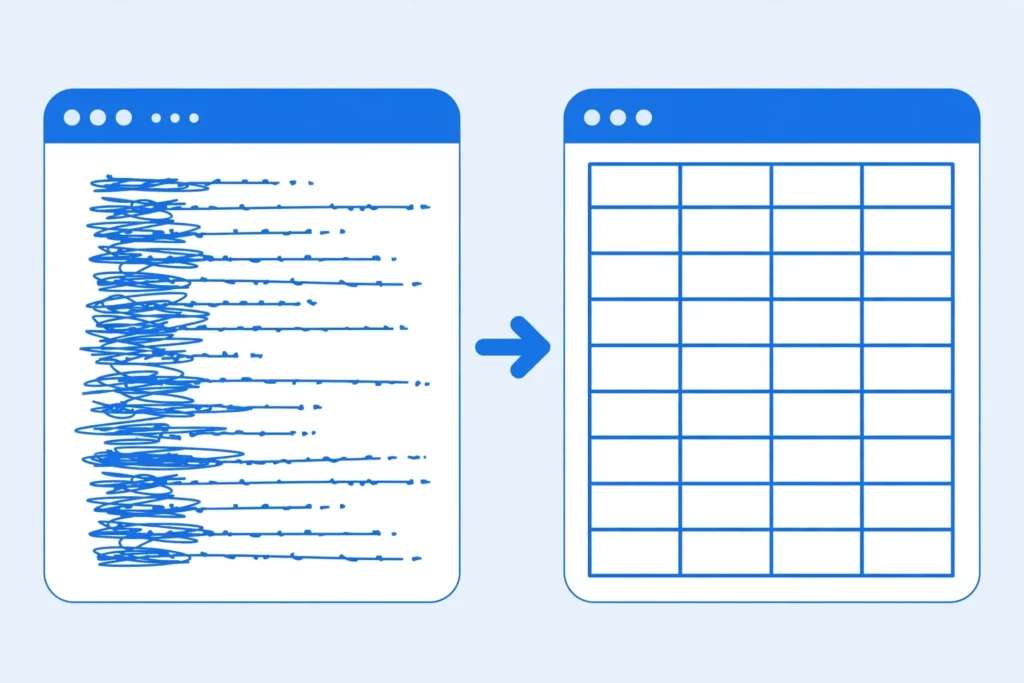
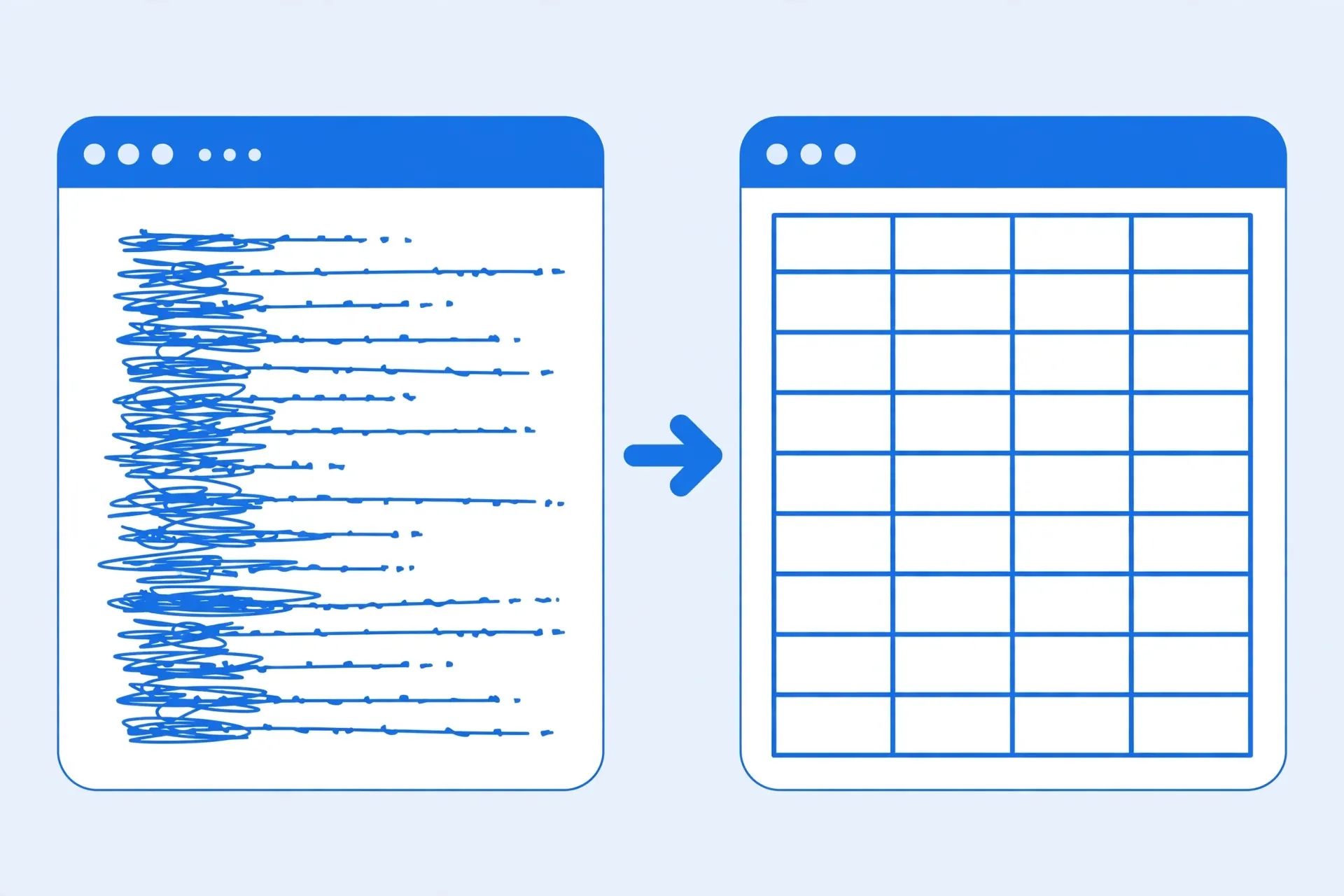
You open a CSV file and every row is jammed into column A: Priya Sharma;priya@example.com;Mumbai;14 all in one cell, stretching off the screen. The data is all there — it’s just not split. When a CSV opens in one column in Excel, the file is almost never damaged. Excel simply didn’t find the character it expected between the fields, so it gave up splitting and dumped each whole row into a single cell.
Why does this happen? A CSV file is plain text with no instructions about which character separates its columns. When you double-click it, Excel splits each line using your Windows list separator — a comma in the US, UK, India, Canada, and Australia. If your file was exported with semicolons (standard across Germany, France, Spain, and much of Europe, where the comma is the decimal mark), tabs, or pipes, Excel finds none of its expected commas and the entire row lands in column A. The good news: you don’t need to re-download anything or ask the sender for a new file. Excel has a built-in tool literally designed for this exact moment — Text to Columns — and it fixes the problem in about two minutes.
In this guide you’ll get the full Excel Text to Columns CSV walkthrough step by step, a 30-second diagnosis trick so you pick the right delimiter on the first try, the Power Query alternative for files you import repeatedly, and the permanent prevention habits that stop CSV all data in one column from ever happening again. Let’s split some columns.
Why Your CSV Opens in One Column in Excel
When a CSV opens in one column Excel squeezes every value into column A, the cause is almost always a delimiter mismatch — Excel expected commas, but your file uses semicolons, tabs, or pipes.
Picture what happens when you double-click a CSV. Excel opens the file as text, reads it line by line, and cuts each line wherever it sees your system’s list separator. On an English-locale machine that’s the comma. Now imagine the file looks like this:
OrderID;Customer;City;Total
1042;Priya Sharma;Mumbai;1250.00
1043;John Carter;London;890.50
Excel scans the first line for commas. There are none — the fields are separated by semicolons. So Excel shrugs and puts the whole line, semicolons and all, into cell A1. Row two goes into A2. Congratulations: you have a spreadsheet where column A contains your entire dataset and columns B through Z are empty.
This is the same root cause behind the broader CSV delimiter problem in Excel — a mismatch between the file’s delimiter and your system’s separator. The one-column variant is just its most dramatic symptom. Common sources of mismatched files: exports from European systems (SAP, DATEV, French banking portals) that use semicolons; database dumps that use tabs but keep the .csv extension; pipe-delimited feeds from telecom or logistics systems; and files where someone replaced commas with another character “to be safe” before sending.
One important reassurance: your data is not lost. Every character of the original file is sitting in column A. Splitting it into columns is a display operation — Text to Columns rearranges what’s already there. You won’t corrupt anything by trying, and you can always undo with Ctrl+Z if the split looks wrong.
30-Second Diagnosis: Find the Real Delimiter
If a CSV opens in one column Excel on your machine, run this 30-second delimiter check before trying anything else.
Before splitting, spend half a minute confirming which character actually separates your fields. Guessing wrong just gives you a different flavor of mess.
- Right-click the CSV → Open with → Notepad (or TextEdit on Mac).
- Read the first line. The character repeated evenly between every field is the delimiter:
,comma,;semicolon, wide gaps mean tab,|pipe. - Check that the pattern holds on lines two and three. Consistent pattern means a clean split is one minute away.
If you see semicolons, you’re holding a European-locale export — our semicolon CSV guide goes deeper on those. If you see tabs, tick Tab in the wizard. Now you know exactly which box to tick, so let’s do the split.

Fix 1: Excel Text to Columns — Split It in 2 Minutes
This is the fastest fix when the file is already open in Excel with everything in column A. It works in every Excel version on Windows and Mac, and it takes about two minutes including reading these steps the first time — under 30 seconds once you’ve done it.
- Select column A. Click the “A” column header so the entire column is highlighted. (If your data starts in a different column, select that one instead.)
- Go to Data → Text to Columns. The Convert Text to Columns Wizard opens at Step 1 of 3.
- Step 1 — Choose “Delimited”. Your data is separated by a character (not fixed widths), so pick Delimited and click Next. (If your data is aligned in fixed-width positions with no separator character at all, pick Fixed width instead and drag the break lines where you want them.)
- Step 2 — Tick the right delimiter. Untick Tab if it’s on, and tick the delimiter you diagnosed: Semicolon, Comma, Tab, Space, or Other (type
|for pipes). Watch the Data preview — vertical lines should now fall exactly between your columns. Keep Text qualifier as the double-quote"so values like"Sharma, Priya"stay in one cell. Click Next. - Step 3 — Set the destination and formats. The Destination defaults to $A$1, which overwrites column A with the split result — that’s what you want. Optionally click a column in the preview and set its format to Text for ZIP codes or ID numbers (stops Excel stripping leading zeros — see our leading zeros guide). Click Finish.
Done. Column A fans out into B, C, D, and however many columns your data actually has. If the split looks wrong — say you ticked Comma but the file used Semicolons — just press Ctrl+Z and run the wizard again with the other delimiter ticked. It takes ten seconds to retry.

When Text to Columns is greyed out
If the button is disabled, one of these is usually the cause: the worksheet is protected (Review → Unprotect Sheet), you’re mid-edit inside a cell (press Enter or Esc), multiple sheets are selected (click one sheet tab), or the workbook is shared in a way that locks structure. Fix the blocker and the button comes back.
Text to Columns vs. re-importing
Text to Columns is perfect for a file that’s already open. But note its limits: it can’t fix encoding problems (garbled characters stay garbled — see our UTF-8 encoding guide), and it works on the data as it currently sits in the sheet. If the file hasn’t been opened yet, importing properly from the start (Fix 2 or 3) is cleaner because you also get to set encodings and column types.
Fix 2: Re-import the File with the Text Import Wizard
Text to Columns fixes a file that’s already open. But if you haven’t opened the CSV yet — or the open went badly — importing it properly from the start is the cleaner route. When a CSV opens in one column in Excel, re-importing with the Text Import Wizard lets you choose the delimiter before Excel makes its wrong guess, and you also get to set the file encoding and column formats in the same pass.
- Start from a blank workbook — don’t double-click the CSV.
- Go to Data → Get Data → Legacy Wizards → From Text (Legacy). (Enable it first at File → Options → Data → Show legacy data import wizards if the menu item is missing.)
- Select your CSV and click Import to launch the wizard.
- Step 1: choose Delimited, click Next.
- Step 2: tick the delimiter you diagnosed in Notepad — Semicolon, Comma, Tab, or Other for pipes. Confirm in the Data preview that vertical lines now fall between real columns, then click Next.
- Step 3: set column formats — Text for ZIP codes and ID numbers so leading zeros survive, Date with the right order (MDY/DMY) for date columns. Click Finish, choose the destination, click OK.
The wizard route has a bonus the quick Text to Columns fix doesn’t: the File Origin dropdown on step 1. If your one-column file also shows garbled characters (é instead of é), the encoding is wrong too — pick 65001: Unicode (UTF-8) there. Our UTF-8 encoding guide covers that problem in full.

Fix 3: The Power Query Alternative for Repeatable Imports
If the same report lands in your inbox every week with the same one-column problem, stop fixing it manually. Power Query (built into Excel 2016 and later, including Microsoft 365) remembers your delimiter choice, so next month’s file is a one-click refresh.
- Open a blank workbook and go to Data → From Text/CSV.
- Select the CSV. Power Query shows a 200-row preview.
- Change the Delimiter dropdown from Comma to whatever your file uses — Semicolon, Tab, or Custom for pipes. The preview re-splits instantly.
- Click Load. The data lands in a proper Excel table with real columns.
The magic: that import is now a saved query. When next week’s file arrives, save it over the old one (same name, same folder), right-click the table, and hit Refresh. Power Query re-applies the delimiter, the encoding, and any column-type choices automatically. For files you touch more than twice, this beats Text to Columns every time. Our Power Query CSV import guide walks through the advanced options.

Fix 4: Convert First and Skip the Splitting Entirely
Honestly, the fastest escape hatch when a CSV opens in one column Excel is to skip Excel’s import quirks entirely: convert the file with a dedicated tool that lets you pick the delimiter up front.
Here’s the pragmatic option: if you don’t want to learn wizardry, convert the file before Excel ever sees it. Upload the CSV to our free CSV to Excel converter — it auto-detects the delimiter (comma, semicolon, tab, or pipe) in your browser, splits the columns correctly, and hands you a clean .xlsx file. Your data never leaves your computer.
This is the best route when you’re on a machine where you can’t change settings, when the file needs to go to colleagues who’ll hit the same one-column wall (an .xlsx stores columns explicitly, so the problem can’t recur), or when you’re batch-converting dozens of files — see our batch conversion guide. One conversion ends the delimiter question permanently for that file.

Still One Column? Deeper Troubleshooting
If your CSV opens in one column Excel even after the fixes above, check for a mismatched text qualifier or a file saved with the wrong line endings.
Sometimes you tick the right delimiter and the data still won’t split. Here’s the checklist for stubborn files:
The file has no delimiter at all
Some exports are actually fixed-width text (columns aligned by spaces) saved with a .csv extension. In Notepad, the fields line up in columns but there’s no consistent separator character. Fix: in Text to Columns, choose Fixed width instead of Delimited and drag the break lines into place.
Everything is wrapped in quotes
A file like "Name,Email,City" on every line — where the entire row is one quoted field — won’t split because Excel sees one big text value. This happens with some web-app exports. Fix: in a text editor, remove the wrapping quotes from each line (a careful find-and-replace of " at line starts/ends), or import with Power Query and split by delimiter ignoring quotes.
Line breaks inside fields
Address fields sometimes contain real line breaks, so one logical row spans two physical lines. Excel splits rows at every line break, and the second half looks like a broken fragment. Fix: import with Power Query, which handles quoted line breaks correctly, instead of double-clicking.
Merged cells or filters blocking the split
Text to Columns refuses to overwrite merged cells and can behave oddly with active filters. Unmerge (Home → Merge & Center → Unmerge Cells), clear filters, then retry.
The file opens fine on your colleague’s machine
This one confuses teams: the same CSV opens perfectly for a colleague in Berlin but collapses into one column for you in Chicago — or vice versa. It’s not a broken file or a broken Excel; it’s the locale difference described above. Their Windows list separator matches the file’s delimiter and yours doesn’t. The fix isn’t to email the file back and forth — it’s for each person to import with the right delimiter, or for the team to standardize on sharing .xlsx workbooks so nobody’s locale matters.
The “delimiter” is actually multiple spaces
Copy-pasted data sometimes uses runs of spaces. Tick Space in the wizard and check Treat consecutive delimiters as one — otherwise you get a forest of empty columns.
Prevent It Forever
Fixes are satisfying; never needing them is better. A few habits that keep CSV-all-data-in-one-column from recurring:
- Stop double-clicking CSVs. Make Data → From Text/CSV your default way to open them. Thirty extra seconds, zero surprises.
- Know your sources’ locales. German, French, or Brazilian sender? Expect semicolons. US, UK, Indian, or Australian? Expect commas. Ask once.
- Save recurring imports as queries. One Power Query setup per repeating report; refresh forever.
- Share .xlsx, not .csv. When you send data onward, send a workbook. Columns stored explicitly can’t collapse into one.
- For system-wide permanence on Windows, change the list separator (Control Panel → Region → Additional settings) to match your dominant file type — but only if nearly all your files share one delimiter.
Wrapping Up
When a CSV opens in one column in Excel, it’s a delimiter mismatch, not a broken file: Excel split on commas while your file used semicolons, tabs, or pipes. The two-minute cure is Data → Text to Columns with the right delimiter ticked; the durable cures are importing via the Text Import Wizard or Power Query, or converting to .xlsx once with our free converter so the problem can never recur. And if you run into a truly stubborn file that resists every method here, join the discussion in our community forum and post the first two lines as they appear in Notepad — someone has almost certainly seen the same quirk before.
Frequently Asked Questions
Why does my CSV open in one column in Excel?
Short answer: the file’s delimiter doesn’t match what Excel expects. This “CSV opens in one column Excel” problem hits hardest with European semicolon files and tab-separated exports. Because Excel split the file on a different delimiter than the one the file actually uses. When you double-click a CSV, Excel uses your Windows list separator (a comma in the US, UK, and India) without inspecting the file. If the file uses semicolons or tabs, Excel finds nothing to split on, so every row lands in column A. It’s the most visible symptom of the CSV delimiter mismatch problem.
How do I fix CSV with all data in one column?
Select column A, go to Data → Text to Columns, choose Delimited, tick the correct delimiter, and click Finish. Alternatively, re-import the file with Data → From Text/CSV (Power Query) and pick the delimiter in the preview window.
Why is Text to Columns greyed out in Excel?
It is usually greyed out because the worksheet is protected, you are currently editing a cell, or multiple sheets are selected. Unprotect the sheet (Review → Unprotect Sheet), press Enter or Esc to leave edit mode, click a single sheet tab, and try again.
Can Text to Columns handle tab-separated or pipe-delimited data?
Yes. In the Convert Text to Columns Wizard, tick Tab for tab-separated data. For pipe-delimited files, tick Other and type the pipe character |. The preview pane shows the split before you commit, so you can verify before clicking Finish. See also our pipe-delimited CSV guide.
How do I stop CSV files opening in one column permanently?
Either change the Windows list separator to match your files’ delimiter (Control Panel → Region → Additional settings), or stop double-clicking CSVs and always import them with Power Query, where you choose the delimiter each time. Converting files to .xlsx with a proper converter also ends the problem, because workbooks store columns explicitly.
Does the one-column fix work in Excel for Mac?
Yes. Excel for Mac includes Data → Text to Columns and Power Query’s From Text/CSV import. The Windows list-separator setting does not exist on macOS, so the import and Text to Columns methods are the way to go on a Mac — see our CSV to Excel on Mac guide for the Mac-specific steps.