
You have received a data file, you double-click it, and Excel dumps everything into a single column — or shows a strange grid where the columns refuse to split. Chances are you are looking at a TSV file, and learning to convert TSV to Excel properly takes about three minutes once you know the trick. TSV stands for tab-separated values: it is CSV’s calmer cousin, using tab characters instead of commas to separate columns. Because tabs almost never appear inside normal text, TSV files dodge the biggest headache of CSV — commas inside addresses, product descriptions, and company names breaking your columns apart.
In this guide you will learn exactly what a TSV file is, how to open TSV in Excel with the tab delimiter (the Text Import Wizard method that never fails), how to use a free online TSV to XLSX converter when you just want the job done, and how to fix the classic problems: everything landing in one column, mangled characters, and lost leading zeros. We will also cover converting TSV on Mac, in Google Sheets, and with Python for automation, plus when to choose TSV over CSV in the first place. Whether you are a researcher in Toronto cleaning survey exports, a marketer in London handling ad-platform reports, or a shop owner in Delhi working with supplier price lists, these steps work on every version of Excel from 2016 through Microsoft 365.

What Is a TSV File? (And How It Differs from CSV)
A TSV file is plain text where each line is a row and each tab character marks the boundary between columns. Open one in Notepad and you will see something like this (tabs shown as arrows):
name → city → orders → total
Aarav Sharma → Mumbai → 14 → 289.50
"Smith, Emily" → Austin → 3 → 59.99
Notice the second row: the name contains a comma, but because the delimiter is a tab, no quoting gymnastics are needed — that is the entire reason TSV exists. CSV would require "Smith, Emily" to be wrapped in quotes, and one missing quote can corrupt a whole file. With TSV, the only character you must avoid inside a field is the tab itself, which virtually never appears in names, addresses, or descriptions.
TSV files usually carry a .tsv or .txt extension. They are the default export of several tools: many SQL database clients, some analytics platforms, and a good number of government open-data portals publish TSV. If you work with data from the US Census, UK Office for National Statistics bulk downloads, or bioinformatics datasets (where TSV is the lingua franca), you will meet this format constantly.
The format’s one weakness is invisibility: you cannot see a tab character, so a TSV file looks like raggedly spaced text in an editor. That invisibility is also why Excel sometimes fails to detect the delimiter on double-click — it sees a .txt file and guesses wrong. The import methods below remove the guesswork by telling Excel explicitly: the delimiter is a tab.

Method 1: Free Online TSV to Excel Converter
For a one-off file, nothing beats a browser converter: no settings, no wizard, no installs.
- Open the converter. Go to the free converter on csvtoexcel.site/ — it detects tab-separated input automatically and runs entirely in your browser.
- Upload your .tsv file. Drag and drop it, or click to browse. Files with a
.txtextension work too, as long as the content is tab-separated. - Preview the grid. Check that columns split where you expect. The most common surprise is a file that is actually comma-separated despite the .tsv name — if the preview shows one giant column, your file is not really TSV (see troubleshooting).
- Download the .xlsx. Save the workbook and open it in Excel, Sheets, or Numbers.
Method 2: Open TSV in Excel with the Text Import Wizard
This is the classic, bulletproof method. It works in every Excel version and gives you full control over delimiters, data types, and encoding.
- Do NOT double-click the file. Instead, open Excel first to a blank workbook.
- Go to File → Open → Browse and navigate to your TSV file. In the file-type dropdown (bottom right), choose All Files (*.*) or Text Files so the .tsv file appears.
- The Text Import Wizard launches. Step 1: confirm the file origin/encoding is 65001: Unicode (UTF-8) — this keeps characters like é, ü, or हिन्दी intact. Click Next.
- Step 2: choose Delimited (not Fixed width). In the delimiter list, check Tab and uncheck everything else. The preview below should snap into neat columns. Click Next.
- Step 3: set column data formats. Click any column in the preview and set its format: Text for phone numbers, ZIP/PIN codes, and IDs with leading zeros; Date (choosing the right order, MDY vs DMY) for date columns; General for everything else. Click Finish.
- Choose where to put the data (existing sheet, cell A1 is fine) and click OK.
- Save as .xlsx via File → Save As so you keep a proper workbook.
The critical insight: step 3 is where data loss happens or is prevented. Excel’s default “General” format converts anything that looks like a number — including a 10-digit Indian mobile number 09876543210 (loses the leading zero) or a UK postcode-like SKU. Marking text-like columns as Text before finishing is a thirty-second habit that saves hours of cleanup. For more on this family of problems, see our guide to keeping leading zeros in Excel.

Method 3: Import TSV with Power Query
Power Query (Data → Get Data → From File → From Text/CSV) handles TSV beautifully and makes the import refreshable — perfect when a supplier or system drops a new TSV export on a schedule.
- Go to Data → Get Data → From File → From Text/CSV and select your .tsv file.
- In the preview dialog, change the Delimiter dropdown from Comma to Tab. The preview re-renders instantly into columns.
- Check Data Type Detection — set it to “Do not detect” if Power Query is over-eagerly converting your ID columns to numbers.
- Click Transform Data to open the editor (fix types, filter rows, rename columns) or Load to drop it straight into a sheet.
- Next week, just right-click the table → Refresh when the source file updates.
Power Query also shines when the TSV is messy: it can skip blank lines, trim whitespace, split columns further, and merge the TSV with other tables — all as replayable steps. Our Power Query import guide covers the editor in depth.
Method 4: Google Sheets, Mac Numbers & Mobile
Google Sheets
Sheets detects tab delimiters on import automatically. Go to File → Import → Upload, drop the TSV, and choose “Replace spreadsheet” or “Insert new sheet(s)”. Under “Separator type” confirm Tab is detected. Then File → Download → Microsoft Excel (.xlsx) if you need a workbook.
Apple Numbers (Mac, iPhone, iPad)
Numbers opens TSV directly: double-click the file or use File → Open, and columns split on tabs. Then File → Export To → Excel to get your .xlsx. On iPhone or iPad, our iPhone conversion guide walks through the mobile workflow — the steps are identical for TSV.
Android
Google Sheets on Android imports TSV the same way as desktop. Alternatively, use the browser-based converter — no app install needed.

Method 5: Convert TSV to Excel with Python
For batch jobs — say, converting 200 supplier TSVs every morning — a short Python script is unbeatable:
import pandas as pd

# sep="\t" tells pandas the delimiter is a tab
df = pd.read_csv("prices.tsv", sep="\t", dtype=str)  # dtype=str protects leading zeros
df.to_excel("prices.xlsx", index=False)

# Batch-convert a whole folder:
import glob
for f in glob.glob("*.tsv"):
    pd.read_csv(f, sep="\t", dtype=str).to_excel(f.replace(".tsv", ".xlsx"), index=False)
print("done")
The dtype=str trick reads every column as text, sidestepping Excel’s number-mangling entirely — you can then convert specific columns to numbers or dates deliberately with pd.to_numeric() or pd.to_datetime(). For the full Python spreadsheet workflow, see our CSV to Excel with Python guide.
Complete Worked Example: A Supplier Price List
Theory is nice; let’s do a real one. Imagine you run a small electronics shop in Manchester, and your supplier emails a prices.tsv every Monday. Here is a sample of what it looks like when opened in Notepad (tabs shown as →):
sku → product_name → category → cost_gbp → stock → last_updated
EL-1042 → Wireless Mouse, Ergonomic → Peripherals → 12.50 → 340 → 2026-10-05
EL-1043 → USB-C Hub (7-in-1) → Peripherals → 24.99 → 120 → 2026-10-05
EL-2091 → 27" 4K Monitor → Displays → 289.00 → 45 → 2026-10-05
Notice the commas inside product names — “Wireless Mouse, Ergonomic” and “USB-C Hub (7-in-1)” — which would wreak havoc in a comma-separated file but are completely harmless in TSV. Here is the full conversion workflow:
- Save the attachment to a folder like
Documents\Supplier\. Don’t rename it — keep the date in the filename if the supplier includes one. - Open Excel → File → Open → Browse, set the file filter to All Files, and select
prices.tsv. - Wizard step 1: confirm File origin is 65001: Unicode (UTF-8). The £ sign and any accented characters in product names depend on this.
- Wizard step 2: choose Delimited, check Tab, uncheck the rest. The preview should show six clean columns.
- Wizard step 3: click the
skucolumn and set it to Text (SKUs likeEL-0042must never become numbers); setcost_gbpto General; setlast_updatedto Date: YMD. Click Finish, place at A1. - Format as a table: select the data and press Ctrl+T to make it an official Excel Table — you get filter arrows and banded rows for free.
- Add a margin column: in G1 type
margin, and in G2 enter=[@cost_gbp]*1.35to compute your retail price at a 35% markup. The table auto-fills the formula down. - Save as .xlsx with a dated name:
prices_2026-10-05.xlsx.
Total time: under five minutes, and next Monday you can do it in two — or set it up once in Power Query and reduce it to a single Refresh click.
Automating TSV Imports for Teams
If TSV files arrive on a schedule — daily exports from a warehouse system, weekly supplier feeds, monthly survey dumps — manual conversion does not scale. Three automation paths cover nearly every team:
Power Query refresh (no code). Set up the import once as described in Method 3, pointing at a fixed folder path like \\server\imports\latest.tsv. Whoever drops the new file in that folder just opens the workbook and clicks Data → Refresh All. This works brilliantly for small businesses where the “data team” is one person with a spreadsheet.
Scheduled Python script (light code). The batch script from Method 5, run by Windows Task Scheduler or cron, can convert a whole folder of TSVs to dated XLSX files overnight and even email a summary. Add pandas validation — for example, assert the row count is within 10% of last week’s — and you will catch supplier format changes before they corrupt a report.
Shared Google Sheet (collaboration). For teams spread across time zones — say, buyers in London and a warehouse in Mumbai — a Google Sheet with a scheduled Apps Script import gives everyone the same live view without emailing files around. Each person can then download their own .xlsx copy when needed.
Going the Other Way: Save Excel as TSV
Sometimes you need to produce TSV — a legacy system or a bioinformatics pipeline may demand it. In Excel: File → Save As, and in the “Save as type” dropdown choose Text (Tab delimited) (*.txt). Rename the extension to .tsv if the receiving system expects it. Two caveats: only the active worksheet is saved (repeat per sheet), and all formatting and formulas are lost — TSV stores values only. In Google Sheets: File → Download → Tab-separated values (.tsv).
Troubleshooting: When TSV Imports Go Wrong
Everything lands in one column
The file is not actually tab-separated, or Excel guessed the wrong delimiter. Open it in a plain-text editor: if columns are separated by commas or semicolons, treat it as that format instead (see our delimiter troubleshooting guide and the semicolon CSV guide — the latter is especially relevant in Germany, France, and Brazil, where semicolons are the norm).
Columns split in the wrong places
A stray tab inside a field (often pasted from another document) creates phantom columns. In Power Query or Python, inspect the row with the extra columns and clean the source. Prevention: when generating TSV, strip tab characters from field values.
Weird characters (é instead of é)
Encoding mismatch. Re-import and explicitly set UTF-8 in the Text Import Wizard’s step 1 or the Power Query file-origin dropdown. Our UTF-8 encoding guide covers this in detail.
Leading zeros vanish
Set the column to Text in the wizard’s step 3 (or dtype=str in pandas) before the data loads. Fixing it afterward requires re-entering values.
Dates flip day and month
04/05/2026 means April 5 in the US but 4 May in the UK, India, and Australia. In the wizard’s step 3, set the date column to Date and pick the correct order (DMY/MDY). Better yet, ask data providers for ISO dates (2026-05-04), which are unambiguous.
File opens fine but some rows have fewer columns
Ragged rows usually mean embedded newline characters inside a field. Power Query’s preview flags these; in pandas, they parse correctly only if the field is quoted. If the source system can quote fields containing newlines, ask for that.
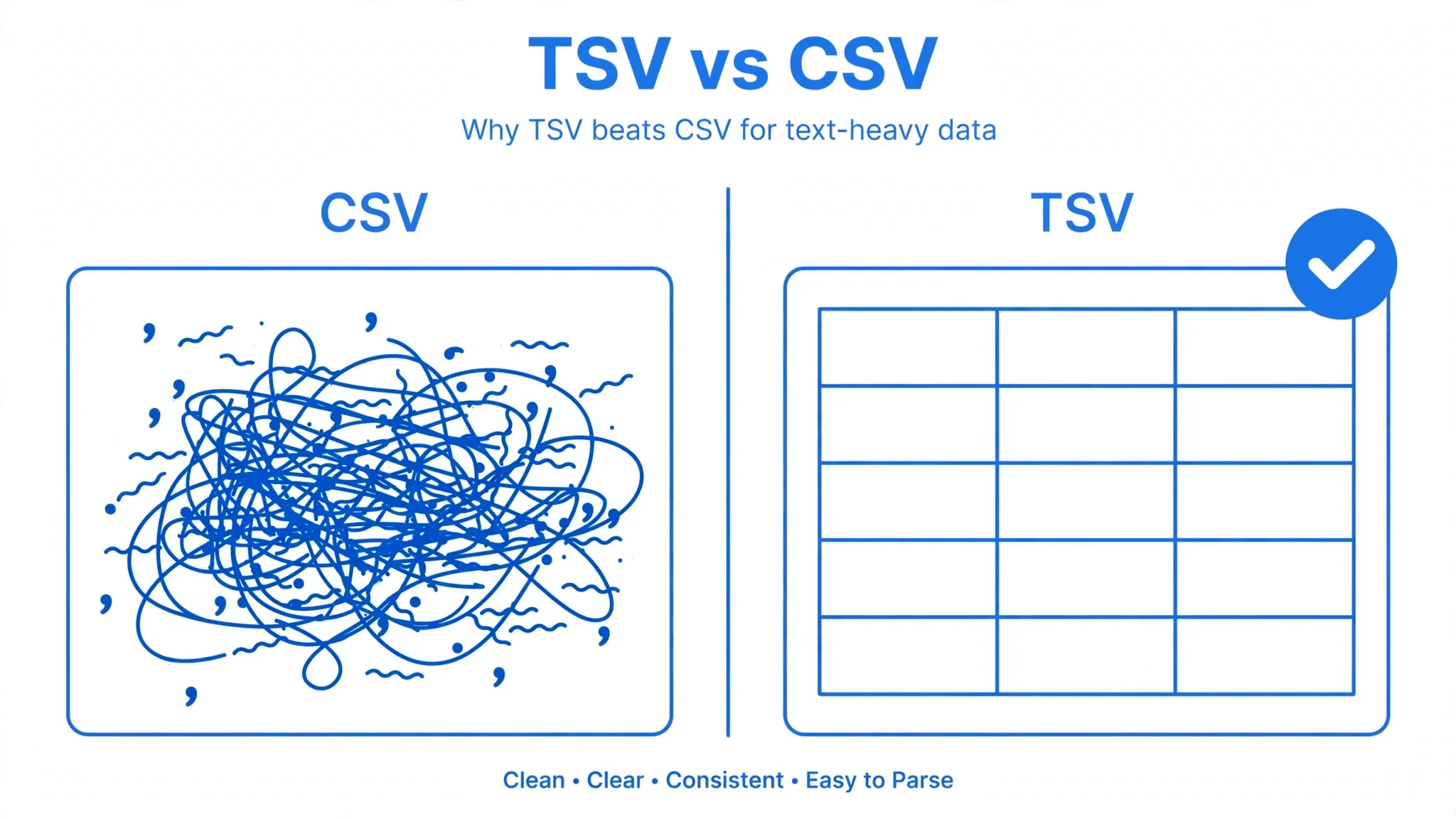
TSV vs CSV: Which Should You Use?
| Factor | TSV | CSV |
|---|---|---|
| Delimiter | Tab | Comma (sometimes semicolon) |
| Data with commas | No quoting needed | Must be quoted |
| Human readability in a text editor | Good — columns roughly align | Poor — commas everywhere |
| Universal support | Very good | Excellent (the default everywhere) |
| Locale issues | Rare | Common (comma vs semicolon by region) |
| Best for | Text-heavy data, databases, science | Maximum compatibility, finance exports |
Rule of thumb: if your data contains lots of commas — addresses, descriptions, names like “Smith, Emily” — TSV will cause fewer headaches. If you are sending a file to someone and have no idea what they will open it with, CSV is the safer bet because every tool on earth expects it. Either way, converting to XLSX at the end gives your recipient the friendliest possible file.
Pro Tips for Clean TSV Conversions
- Always import; never double-click. The Text Import Wizard or Power Query gives you delimiter, encoding, and type control that double-clicking never will.
- Verify with a row count. After conversion, compare Excel’s row count against the source file’s line count (minus the header). A mismatch means a delimiter or newline problem.
- Freeze the header row (View → Freeze Panes → Freeze Top Row) before scrolling through a large import to check columns.
- Use Find for tab characters when auditing: in Notepad++, enable “Show Symbol → Show White Space and TAB” to see exactly where tabs sit.
- Standardize on UTF-8. If you control the export, always export TSV as UTF-8 — it eliminates an entire category of bug reports from international colleagues.
- For recurring imports, save the Power Query. A refreshable query turns a weekly 20-minute chore into a 5-second right-click.
- Watch Excel’s limits: 1,048,576 rows and 16,384 columns per sheet. Oversized TSVs need splitting first — see our large CSV guide, which applies equally to TSV.
- Keep the original TSV. Disk space is cheap; re-exporting from a source system is not always possible.

Dealing with a supplier file that mixes tabs, commas, and semicolons in creative ways? join the discussion in our community forum — the community has untangled worse delimiter messes than yours.
Frequently Asked Questions
What is the difference between TSV and CSV?
TSV (tab-separated values) uses tab characters to separate columns, while CSV uses commas. TSV is safer when your data contains commas — addresses, descriptions, names like “Smith, Emily” — because tabs almost never appear inside normal text.
How do I open a TSV file in Excel?
Open Excel first (don’t double-click the file), then go to File → Open → Browse, select your .tsv file, and the Text Import Wizard appears. Choose Delimited, check Tab as the delimiter, set column types in step 3, and click Finish.
Why does my TSV file open in one column in Excel?
Excel didn’t detect the tab delimiter — this usually happens when the file is double-clicked instead of imported. Use File → Open or the Text Import Wizard and explicitly choose Tab as the delimiter. If it still fails, the file may actually be comma- or semicolon-separated despite its extension.
Can I convert TSV to XLSX online for free?
Yes. A free online TSV to XLSX converter like the one at csvtoexcel.site/ converts tab-separated files to Excel workbooks entirely in your browser — no upload, no sign-up, no watermarks.
Does Excel save TSV files?
Yes. In Excel, use File → Save As and choose Text (Tab delimited) (*.txt) as the file type. Only the active worksheet is saved, and formatting is lost — TSV stores values only. Rename the extension to .tsv if needed.
How do I convert TSV to Excel on a Mac?
On a Mac you have three free options: Excel’s File → Open with the Text Import Wizard (Tab delimiter), Apple Numbers (opens TSV natively, then Export to Excel), or a browser-based converter that works on any device.