
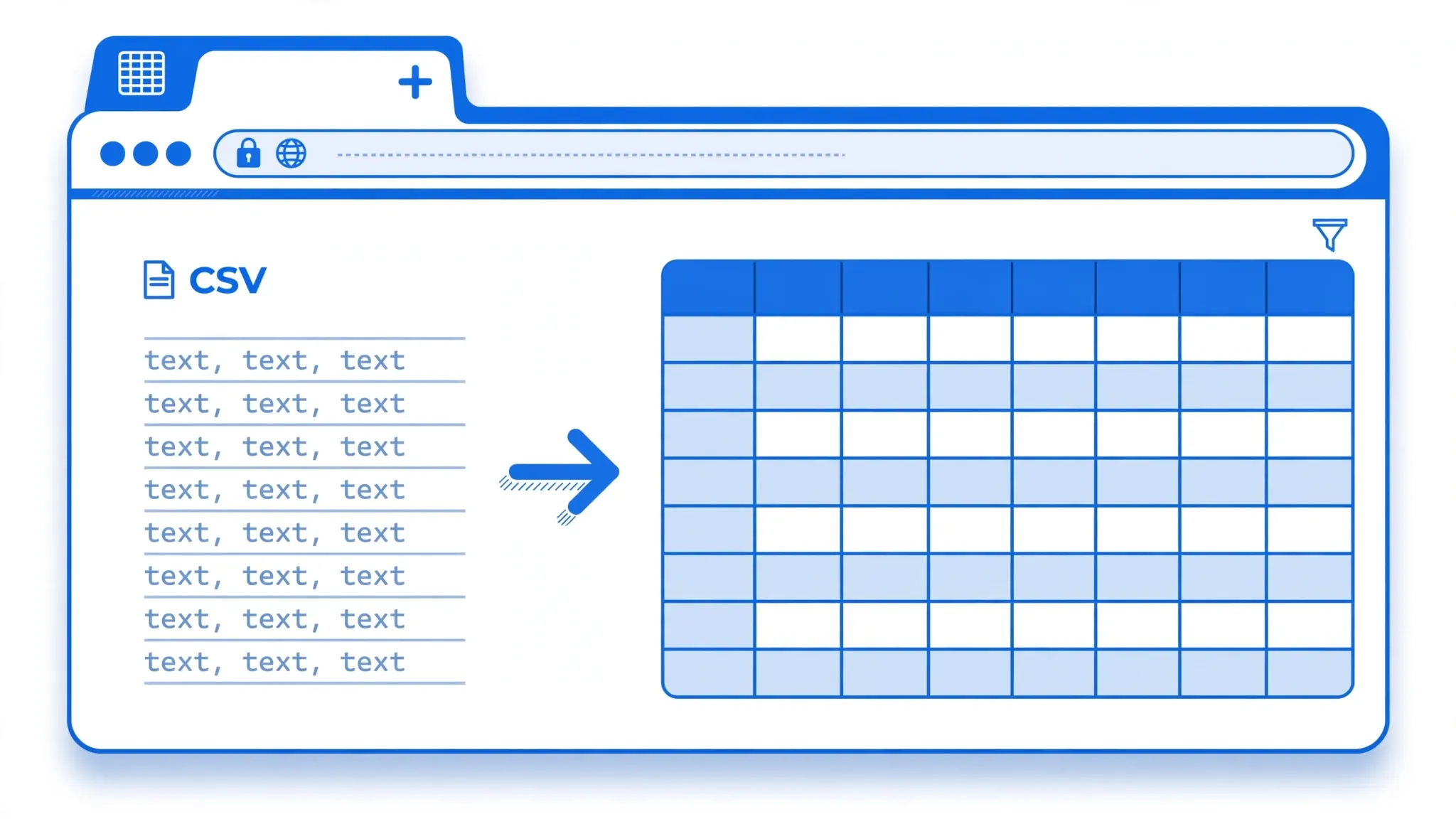
Google Sheets is where millions of people do their spreadsheet work — no installs, automatic saving, effortless sharing — but raw data usually arrives as CSV files, and getting from one to the other smoothly is a skill worth having. Learning to convert CSV to Google Sheets properly means understanding the File → Import dialog: where to put the data, which separator your file uses, and which character encoding keeps international text intact. Get those three choices right and any CSV becomes a clean, shareable sheet in under a minute; get them wrong and you get the classic symptoms — everything in one column, or a sea of é gibberish.
This guide covers every route: the standard File → Import → Upload flow with all its settings explained, drag-and-drop and Google Drive uploads, the IMPORTDATA function for CSVs published at a URL (live-linked data that refreshes itself), and how to go back the other way with Download as XLSX when someone needs an Excel file. We’ll work a realistic sales example, fix the classic import failures, and share the pro habits that make Sheets imports boring and reliable. Whether you’re a teacher in Melbourne collecting survey responses, a freelancer in Toronto wrangling client exports, or a startup team in Bengaluru sharing a metrics sheet, these steps work identically on desktop and mobile browsers.

Why Import CSV into Google Sheets?
CSV is the lingua franca of data exports — every database, analytics tool, and e-commerce platform speaks it — while Google Sheets is the lingua franca of collaboration. Importing bridges the two: the CSV brings the data, Sheets brings simultaneous editing, version history, comments, and sharing without email attachments. Common scenarios: survey platforms (Typeform, Google Forms exports) deliver CSVs that teams analyze together; ad platforms export campaign CSVs that marketers pivot collaboratively; developers hand CSVs to non-technical colleagues who live in Sheets.
Sheets also sidesteps Excel’s classic import pitfalls. Its separator detection is excellent, UTF-8 is the default assumption, and the import dialog previews everything before committing. For anyone without Excel — Chromebook users, Linux users, or teams standardized on Google Workspace — opening a CSV in Sheets is simply the default workflow.
There’s a collaboration dividend too. Once the CSV lives in Sheets, version history (File → Version history) records every change with authorship, so a bad edit is always reversible — something a emailed-around CSV can never offer. Comments let reviewers discuss specific cells (“Is this total right?”) without side-channel emails, and filter views let five people slice the same dataset five ways without stepping on each other. The import takes a minute; the collaborative payoff lasts the life of the project.
Sheets vs Excel for CSV work: when each wins
Choose Google Sheets when the data will be shared, edited by several people, accessed from multiple devices, or refreshed from a URL — collaboration and accessibility are its superpowers, and it’s free. Choose Excel when the file is very large (a million rows), needs Power Query transformations, uses complex macros, or must work offline — desktop Excel remains the heavyweight for big and complex jobs. Many teams use both: Sheets as the collaborative front end where data is reviewed and annotated, Excel (or Python) as the processing back end for heavy lifting. The two interoperate cleanly via XLSX download and CSV exchange, so you’re never locked into one.
Method 1: Convert CSV to Google Sheets with File Import
The canonical route, step by step:
- Open a spreadsheet. Go to sheets.google.com and open a blank spreadsheet (or the existing one you want to add data to).
- File → Import → Upload. Drag your .csv file into the upload area, or click “Select a file from your device” and browse to it.
- Choose the import location:
- Create new spreadsheet — the CSV becomes a brand-new sheet (best for standalone datasets).
- Insert new sheet(s) — adds the CSV as new tab(s) in the current spreadsheet (best for combining sources).
- Replace spreadsheet / Replace current sheet / Append / Replace data at selected cell — for updating existing data in place.
- Check the separator and encoding (details in the next section) — the preview updates live.
- Click Import data. Your CSV is now a sheet.

Import Settings Explained: Delimiters, Encoding, and More
The import dialog’s two critical settings:
Separator type
Sheets auto-detects, but verify: Comma for standard CSVs, Tab for TSV files, Semicolon for European exports (Germany, France, Brazil), Custom for pipes (|) or anything exotic — just type the character. Wrong separator = everything in one column; the fix is a re-import with the right choice, thirty seconds lost, nothing more.
Character encoding
Leave on UTF-8 unless you know otherwise. Legacy Windows exports (from old accounting software, for instance) may use a regional encoding — if accented characters or non-Latin scripts render as gibberish, re-import and try the matching legacy option. Our encoding guide covers the detective work.
Convert text to numbers, dates, and formulas
Sheets offers to auto-convert on import. Usually leave it Yes — but if ID codes are losing leading zeros or long numbers are flipping to scientific notation, re-import with No and convert columns deliberately afterward (Format → Number). Prevention beats repair, as our leading-zeros guide explains.
What “Replace” vs “Append” really do
The import-location options deserve a closer look because two of them destroy data by design. Replace spreadsheet wipes every tab and starts over — use it only on a blank or disposable spreadsheet. Replace current sheet clears just the active tab, handy for refreshing one dataset inside a multi-tab workbook. Replace data at selected cell overwrites downward and rightward from your cursor, useful for slotting fresh data into a template with headers and formulas around it. Append to current sheet adds rows beneath existing data — the right choice for accumulating monthly exports — but it does no deduplication, so importing the same file twice doubles your rows. When accumulating, keep a “source file” column or import log so duplicates are traceable.
Method 2: Drag-and-Drop and Other Upload Routes
Drag and drop: drag a .csv file directly onto an open Google Sheet — Sheets opens the import dialog with the file pre-loaded. Google Drive: upload the CSV to Drive, double-click it, and choose Open with → Google Sheets; Drive converts it to a Sheets file (a copy — the original CSV stays untouched). Mobile: in the Sheets app, tap + → Import is limited; easier is uploading via the Drive app, then opening with Sheets. All routes land in the same import dialog, so the settings knowledge from Method 1 applies everywhere.

Method 3: IMPORTDATA for CSVs Published at a URL
When a CSV lives at a public URL — a government open-data feed, a published dataset, a generated report — IMPORTDATA pulls it live:
=IMPORTDATA("https://example.com/data/sales.csv")Type it in cell A1. Sheets fetches the CSV and spills it into neighboring cells, refreshing roughly every hour. Optional second argument sets the delimiter: =IMPORTDATA("https://example.com/data.CSV", ";") for semicolon files. Limits: the URL must be public (no logins), the file must be a reasonable size, and IMPORTDATA caps around 50,000 characters per fetch for very wide data — for bigger feeds, import the file directly instead. For HTML tables rather than CSVs, the sibling function IMPORTHTML does the same job (see our HTML-table guide).
=NOW()) so viewers can see when the data last refreshed.Automating recurring imports with Apps Script
When the same CSV must be pulled on a schedule — a daily export dropped on a web server, a weekly report URL — a tiny Apps Script removes the manual step. Open Extensions → Apps Script and use UrlFetchApp.fetch(url).getContentText() to grab the CSV, Utilities.parseCsv(text) to parse it (it handles quoting correctly), then write the values into a sheet with getRange().setValues(). Add a time-driven trigger (Triggers → Add Trigger → Time-driven) to run it every morning before the team arrives. Compared with IMPORTDATA, the script approach handles authentication headers, logs errors visibly, and lets you transform the data (renaming columns, filtering rows) before it lands. For most teams this thirty-line script is the difference between “someone remembers to update the sheet” and “the sheet is just always current.” Start from a dated archive tab so every run preserves history, and add email alerts on failure so a broken source never goes unnoticed for days.
Going Back: Download Your Sheet as XLSX
Collaboration done, and now someone needs an Excel file? File → Download → Microsoft Excel (.xlsx) converts the entire spreadsheet — all tabs, formatting, formulas, charts — into a workbook. Two things to know: Sheets functions with no Excel equivalent (like GOOGLETRANSLATE or IMPORTDATA) export as static values or errors, so flatten live formulas (copy → Paste Special → Values) before downloading if the recipient doesn’t need them live. And very large sheets (approaching the 10-million-cell limit) may hit Excel’s own row ceiling — filter first. Our Sheets-to-Excel guide covers the round trip in full.
What survives the Sheets-to-Excel trip
Most things: cell formatting, number formats, formulas (translated to Excel equivalents), charts, conditional formatting, data validation, and multiple tabs all carry over cleanly. What doesn’t: Google-specific functions (GOOGLEFINANCE, IMPORTDATA, IMPORTRANGE becomes a static value or #REF!), filter views (only the base data exports), and very long formulas that exceed Excel’s limits. Protected ranges become sheet protection with a best-effort mapping — verify after download. The practical workflow: duplicate the sheet, flatten or replace exotic functions in the copy, download the copy, and spot-check the five most complex tabs. Five minutes of verification beats an embarrassing “the file is broken” email from a client.
Worked Example: Sales CSV to Shared Sheet
A boutique in Melbourne emails its monthly sales CSV to two partners who need to annotate it together:
order_id,customer,product,total_aud,sale_date
ORD-101,"Smith, Emily",Ceramic Vase,89.50,2026-09-14
ORD-102,José García, linen Throw,120.00,2026-09-15- File → Import → Upload the CSV; choose Create new spreadsheet.
- Confirm Separator: Comma (auto-detected) — note
"Smith, Emily"stays in one column thanks to quoting. - Confirm encoding UTF-8 —
José GarcíaandLinenrender correctly. - Click Import data. Rename the tab
sep_2026, freeze the header row (View → Freeze → 1 row). - Select the data and Insert → Table for filterable headers, then Share with the partners (Commenter access if they should annotate, not edit).
- Add a notes column where partners flag returns or VIP customers — the CSV stays pristine in the original columns.
Total time: three minutes, and all three collaborators see the same live sheet — no more “which version is current” email threads.
Sharing settings that protect the data
Before you hit Share, decide what collaborators may touch. Viewer for people who only read; Commenter for annotators who shouldn’t alter values; Editor for true collaborators. For mixed needs, share as Viewer and then protect the data range (Data → Protect sheets and ranges) while leaving a dedicated “Notes” column editable — partners annotate freely without risking the imported data. Enable notifications (Tools → Notification settings) so you’re told when the sheet changes, and name a version (File → Version history → Name current version) right after import — if someone mangles the data next week, you restore the pristine import in two clicks.
Troubleshooting CSV Import Problems
Everything lands in one column
Wrong separator type. Re-import via File → Import and set it explicitly — Comma, Tab, Semicolon, or Custom. European files with semicolons are the usual suspect; see our semicolon guide.
Gibberish characters (é instead of é)
Encoding mismatch — re-import as UTF-8, or match the file’s legacy encoding. The original characters are intact in the CSV; only the interpretation was wrong.
Leading zeros vanish
Re-import with “Convert text to numbers” set to No, then format ID columns as Plain Text (Format → Number → Plain text) before converting anything else.
Dates flip day and month
04/05/2026 is ambiguous. Sheets uses your locale’s date order — check File → Settings → Locale and set it to match the file’s origin (Australia/UK/India: DMY; US: MDY).
IMPORTDATA shows an error
Common causes: the URL requires login, the file moved, or it exceeded size limits. Test the URL in a browser tab — if it downloads there, IMPORTDATA should handle it; if it shows a login page, it can’t.
Numbers with thousand separators misbehave
1,234.56 vs 1.234,56 depends on locale. Set File → Settings → Locale to match the data’s origin before importing, or the separators will be misread.
The import dialog never appears — the file just opens as text
This happens when you open a CSV via Google Drive’s preview instead of importing: Drive shows the raw text and offers no import settings. Close the preview and use Open with → Google Sheets (which converts properly) or go through File → Import → Upload inside an existing sheet for full control over separators and encoding. The same applies to CSV attachments opened directly from Gmail’s preview — download first, then import deliberately.

Pro Tips for Sheets Imports
- Preview before committing. The import dialog shows exactly what you’ll get — read it.
- Prefer “Create new spreadsheet” for unfamiliar files; merge later once verified.
- Freeze the header row immediately (View → Freeze → 1 row) — future scrolling thanks you.
- Convert to a Table (Insert → Table) for filters, structured references, and a professional look.
- Set the locale first for international files (File → Settings → Locale) — dates and number formats depend on it.
- Keep the original CSV in Drive alongside the sheet — re-importing beats re-requesting.
- Use IMPORTRANGE to reference another sheet’s data live instead of copying it — one source of truth.
- Version with named versions (File → Version history → Name current version) before big transformations.
- Clean with TRIM and CLEAN —
=TRIM(A2)strips stray spaces,=CLEAN(A2)removes non-printing characters that imports often smuggle in. - Split combined columns on import day one — Data → Split text to columns fixes “name, city in one cell” problems before they spread into formulas.
- Document the source in a README tab: filename, import date, separator, and any transformations applied.
- Re-import rather than patch when the source CSV updates — patching individual cells diverges from the source of truth and creates silent inconsistencies.

Importing a CSV with a particularly stubborn encoding or a delimiter Sheets won’t detect? join the discussion in our community forum — import puzzles are a specialty there.
Frequently Asked Questions
How do I import a CSV into Google Sheets?
In Google Sheets, go to File → Import → Upload and select your CSV file. Choose whether to create a new spreadsheet, insert new sheets, or replace data, verify the separator and encoding in the preview, then click Import data.
Why does my CSV open in one column in Google Sheets?
Sheets didn’t detect the separator. In the Import dialog, set Separator type to match your file: Comma, Tab, Semicolon, or Custom (type the character, e.g. | for pipe-delimited files).
How do I fix garbled characters when importing CSV?
Set the character encoding correctly in the import dialog — most files are UTF-8. Legacy Windows exports may need a regional encoding. Re-import with the right encoding; the original characters in the CSV are intact.
Can I import a CSV from a URL into Google Sheets?
Yes — use =IMPORTDATA("https://example.com/data.csv") in any cell. Sheets fetches the CSV live and refreshes it periodically. The URL must be publicly accessible.
How do I download Google Sheets as Excel?
Go to File → Download → Microsoft Excel (.xlsx). All tabs, formatting, and formulas download as an Excel workbook. Live functions like IMPORTDATA export as static values.
Is there a size limit for CSV imports in Google Sheets?
Google Sheets supports up to 10 million cells per spreadsheet. Very large CSVs may need splitting, filtering, or aggregating before import — or a database instead of a spreadsheet.