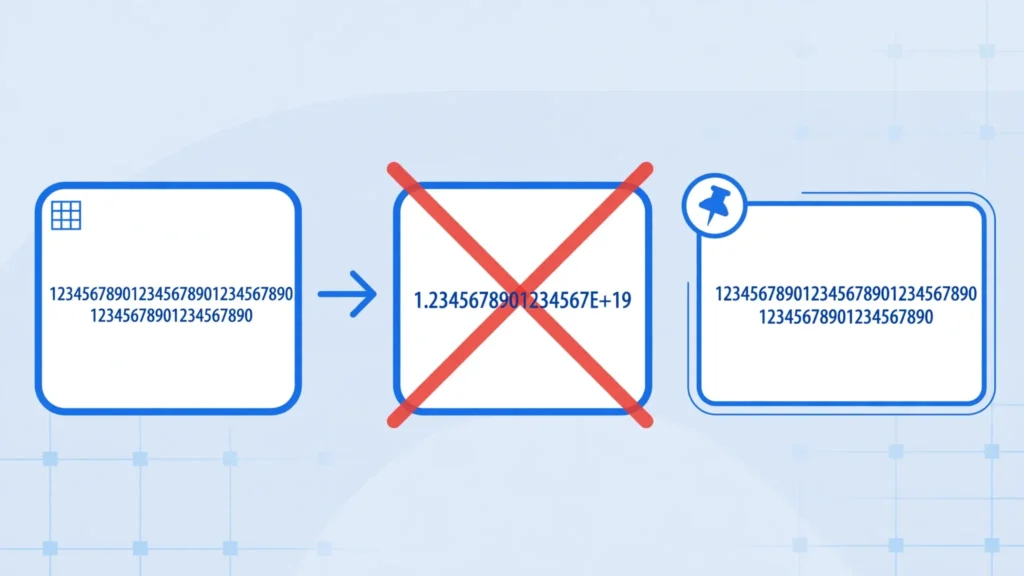
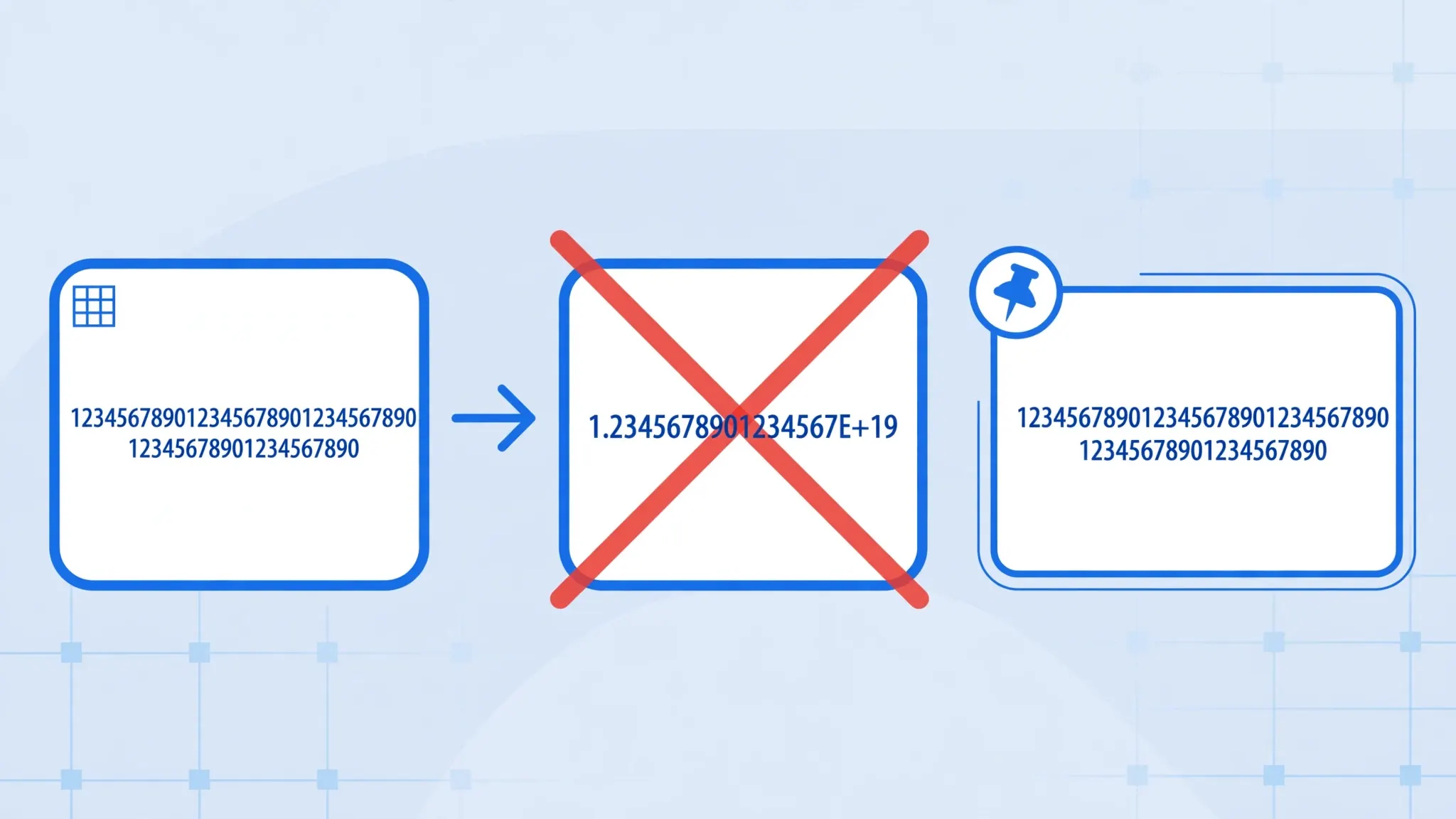
You open a CSV of transaction IDs and 4532123456789012 shows as 4.53212E+15. A phone number became 9.87654E+11. Your first instinct — widen the column — sometimes works. But sometimes the digits are gone, replaced by zeros, and no amount of formatting brings them back. When Excel converts a number to E+ from a CSV, you’re facing two separate problems wearing one disguise: a display problem (scientific notation, fixable) and a precision problem (the 15-digit limit, permanent).
This guide untangles both. You’ll learn why CSV scientific notation in Excel appears, how to tell display issues from data loss in ten seconds, the 15-digit precision limit that destroys long numbers, and every fix: import-as-text, pre-formatting, the apostrophe trick, Power Query typing, and the converter route. If your files contain credit-card numbers, national IDs, IBANs, or any long numbers from CSV in Excel, this is the most important CSV guide you’ll read — because this is the problem that silently corrupts data.
Why Excel Turns CSV Numbers into E+ Notation
Excel’s default General format is space-efficient: when a number doesn’t fit its column width, General switches to scientific notation rather than showing #####. So 987654321012 in a narrow column displays as 9.87654E+11 — meaning 9.87654 × 10¹¹. The underlying value is intact; only the display changed. Double-click the column border to auto-fit, and the full number reappears.
That’s the benign version of the CSV scientific notation Excel problem. The malignant version happens at import: Excel parses the CSV’s digit strings into its numeric storage, which holds at most 15 significant digits. A 16-digit card number 4532123456789012 becomes 4532123456789010 — the last digit silently zeroed — and then displays as 4.53212E+15. Widening the column reveals 4532123456789010: the E+ is gone, but the number is wrong. This is why the next section’s test matters so much.
Display Problem vs Data Loss: The 10-Second Test
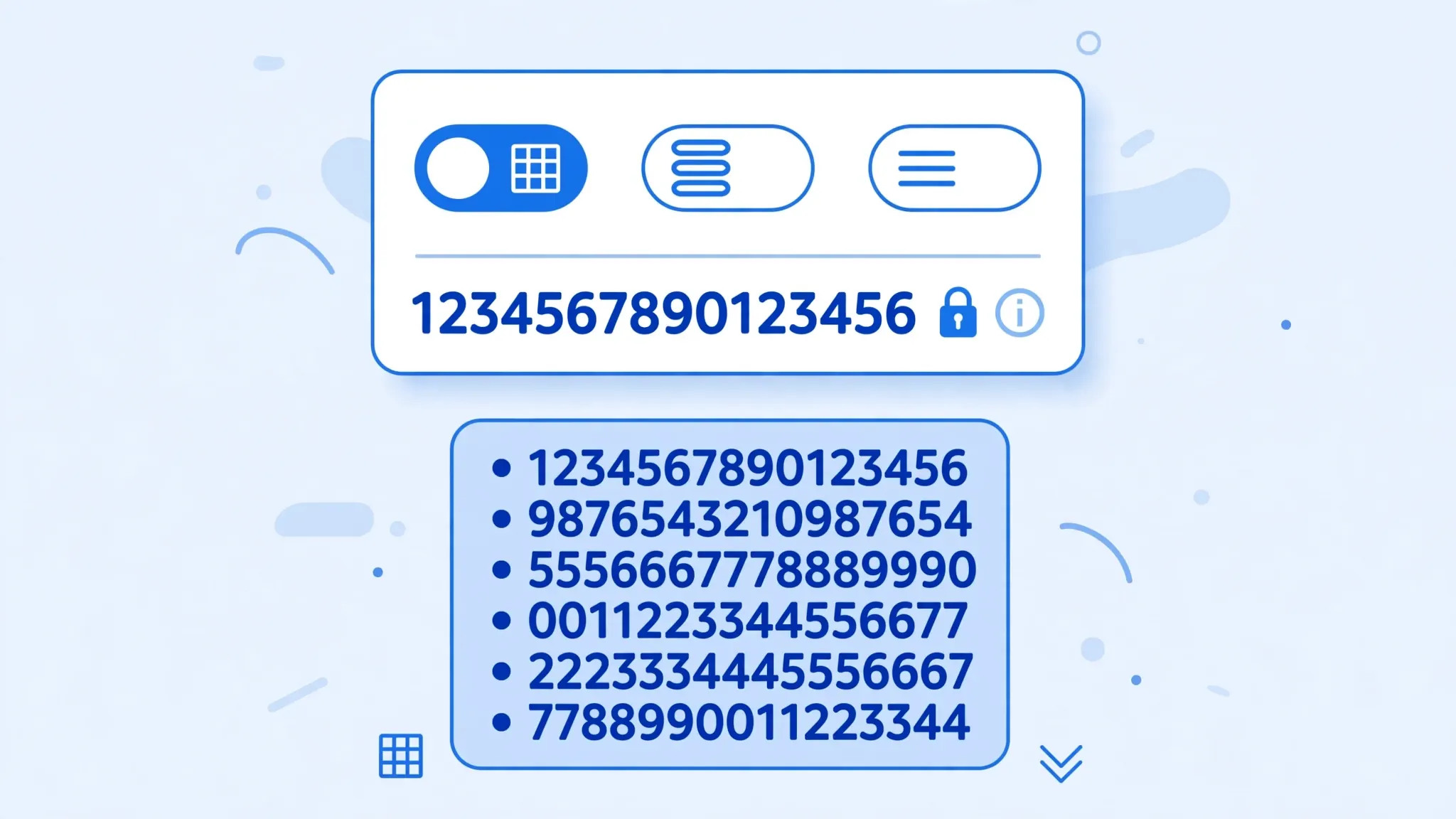
Click the E+ cell and read the formula bar. The formula bar always shows the true stored value:
- Formula bar shows all digits correctly (e.g.,
987654321012) → display problem only. Widen the column or apply a Number format. Your data is safe. - Formula bar shows trailing zeros (e.g.,
4532123456789010when the CSV had...9012) → precision data loss. The digits are gone; you must re-import as Text from the source file.
Make this test a reflex. It takes ten seconds and tells you whether you’re dealing with cosmetics or corruption — the essential first step in any CSV scientific notation Excel triage. Everything below is organized around that distinction: Fixes 1–3 and 5 prevent data loss; Fix 4 handles cosmetics.
The 15-Digit Precision Limit (The Real Killer)
Excel stores numbers as IEEE 754 double-precision floats: 15–17 significant decimal digits, and Excel caps display/storage at 15. Digits beyond the 15th are set to zero — not rounded, zeroed. This is a hard architectural limit, not a setting you can change. It affects every Excel version on every platform, and it applies the moment a digit string becomes a number: on CSV import, on paste, on typing.
Concrete damage: a 16-digit card number loses its last digit. A 20-digit transaction ID becomes 15 digits followed by five zeros. An 18-digit IBAN-derived number is mangled. And because the corruption is silent — the cell still shows a number — it sails through unnoticed into reports, joins, and uploads. The only defense is never letting these strings become numbers in the first place: store them as Text from the very first import.
Auditing an existing sheet for precision damage: add a helper column with =LEN(TEXT(A2,"0")) — for a column that should hold 16-digit IDs, any result under 16 means damage (though note TEXT on an already-damaged number shows the zeros, so compare against the source CSV’s lengths, not the sheet’s). Better: =RIGHT(A2,4) on a sample and compare the last four digits against the raw file in Notepad. If they don’t match, the column is corrupted and needs re-import. For sheets you can’t re-import, document the damage explicitly — a known-corrupt column flagged as unreliable beats a silently-corrupt one trusted blindly.

What Gets Destroyed: Cards, IDs, IBANs, Phones
Any identifier longer than 15 digits is at risk, and several common ones sit right in the danger zone:
- Credit/debit card numbers (16 digits): last digit zeroed. Also a PCI-DSS concern — card numbers shouldn’t live in casual spreadsheets at all; if they must, text-only, encrypted, access-controlled.
- IBANs (up to 34 characters): alphanumeric, so Excel usually leaves them as text — usually. A numeric-only IBAN (some countries’) gets number treatment. Import as Text regardless.
- National IDs: India’s Aadhaar (12 digits — safe from precision loss but E+ display likely), US SSNs (9 digits — safe), various 16–20 digit tax IDs worldwide (not safe).
- Phone numbers (10–15 digits): precision-safe under 15 digits, but E+ display is near-guaranteed in narrow columns — and leading zeros vanish too (see our leading zeros guide).
- IMEI numbers (15 digits): exactly at the limit — safe, but one digit more would kill them.
The pattern: identifiers are not quantities. Nothing is ever summed, averaged, or multiplied — so there’s no reason for them to be numbers. Text is their correct type, always.
CSV Scientific Notation Excel: Import Long Numbers as Text
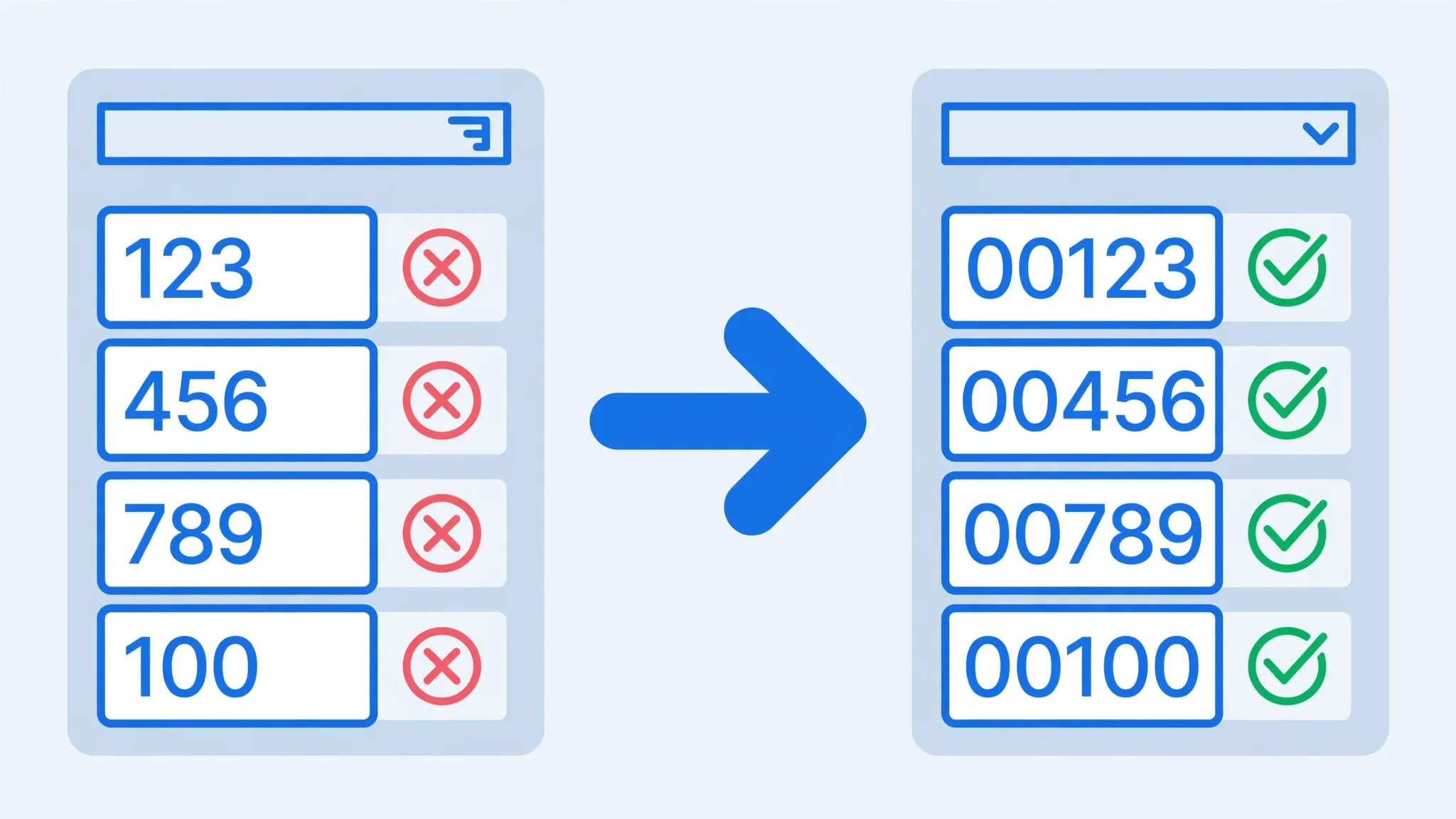
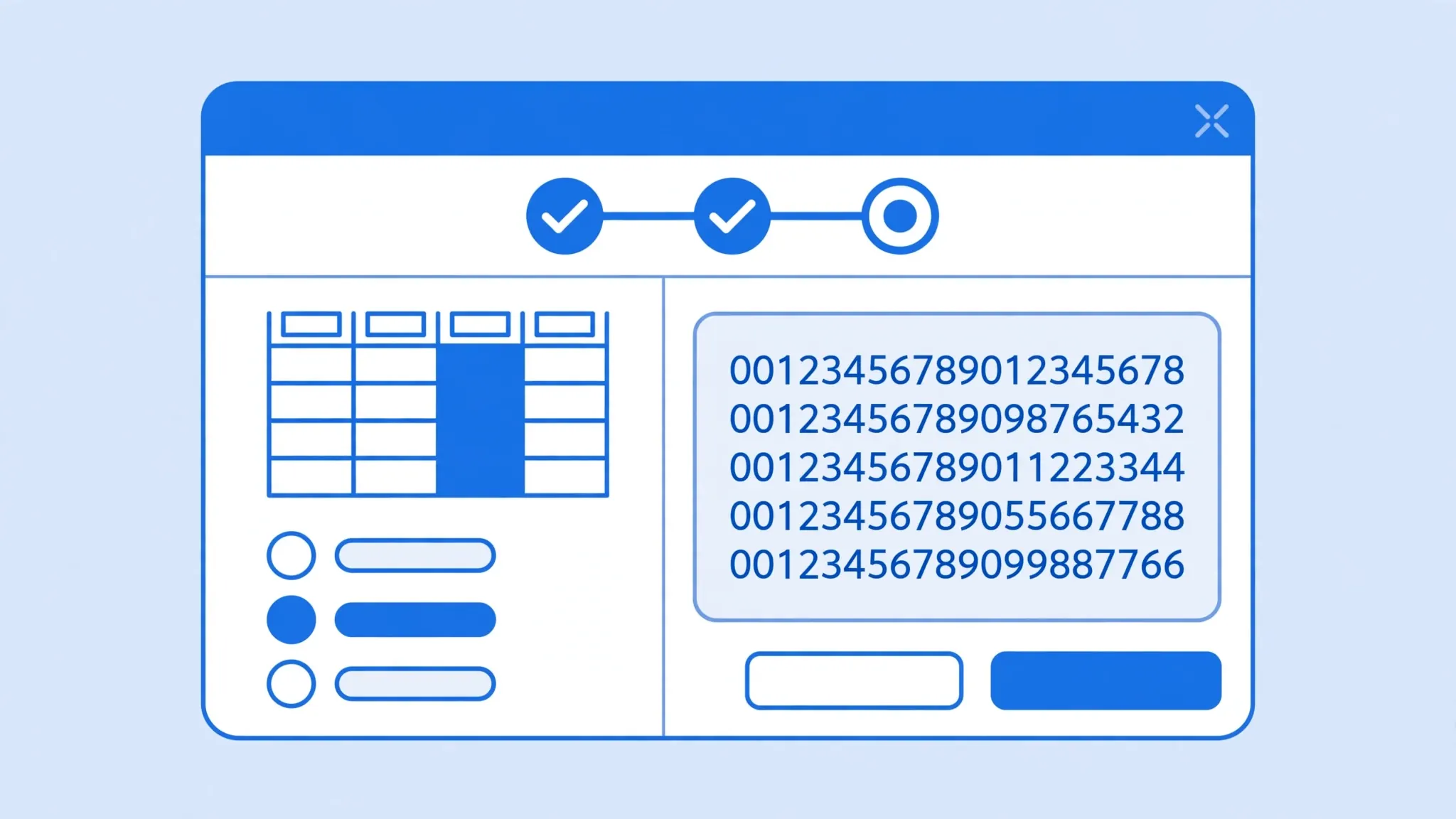
The definitive fix: declare the column as Text during import, before Excel’s numeric engine touches the digits.
- Open a blank workbook — don’t double-click the CSV.
- Data → Get Data → Legacy Wizards → From Text (Legacy), select the file.
- Steps 1–2: Delimited → tick your delimiter → Next.
- Step 3: click the long-number column’s header in the preview, set Column data format to Text. Repeat for every ID/code column. Click Finish → OK.
Verify with the formula-bar test: every digit should match the CSV exactly, including the 16th digit of card numbers. The green “number stored as text” triangle may appear — that’s confirmation, not an error. This single habit — Text for identifiers, General for genuine quantities — eliminates the entire class of CSV scientific notation Excel data loss.
Fix 2: Pre-Format Columns as Text Before Paste
When copying numbers from a CSV opened in a text editor (or from a web page):
- Select the destination column in Excel, press Ctrl+1, choose Text, click OK.
- Paste the numbers. Because the cells are pre-formatted as Text, Excel stores the digit strings verbatim — no E+, no precision loss.
Order matters critically: format first, paste second. Pasting into General cells and formatting afterward is the classic failure — the digits are already destroyed. For large paste jobs, use Paste Special → Text as a belt-and-braces alternative.
Fix 3: The Apostrophe Prefix
Typing '4532123456789012 (apostrophe first) forces text storage for hand-entered values — Excel hides the apostrophe and keeps all 16 digits. Useful for patching individual cells, useless for bulk imports (and don’t put apostrophes in the CSV itself — importers may show them literally). For bulk hand-entry, pre-formatting (Fix 2) beats prefixing every cell.

Fix 4: Fixing Pure Display Issues (Widen + Number Format)
When the 10-second test shows the digits are intact and it’s only the E+ display annoying you:
- Widen the column: double-click the right edge of the column header to auto-fit. Often that’s the entire fix.
- Set Number format: select the cells → Ctrl+1 → Number → set Decimal places to 0 → OK. The full digits display without E+.
- For IDs you’ll never calculate on, consider converting to Text anyway (Data → Text to Columns → Text) — it future-proofs the column against accidental numeric handling.
Fix 5: Power Query Text Typing
For recurring feeds: Data → From Text/CSV → Transform Data → select the ID column → set type to Text (ABC icon) → Close & Load. Power Query applies text typing before any numeric conversion, so 16+ digit values survive intact — and the query remembers the typing for every future refresh. It also flags values that fail conversion, catching source-data anomalies early.
The Green Triangle: “Number Stored as Text”
After importing long numbers as Text, Excel flags each cell with a small green triangle and the message “Number Stored as Text.” New users panic and click “Convert to Number” — don’t. The triangle is Excel telling you the value is text, which is exactly what you want for identifiers. Converting back to Number re-triggers E+ display and the 15-digit limit.
If the triangles annoy you, silence them properly: select the column → click the warning icon → Ignore Error. That dismisses the indicator without changing the text storage. What you must never do is File → Options → Formulas → Error Checking → uncheck “Numbers formatted as text” globally to hide them — that just blinds you to genuine text-number mismatches elsewhere. And note the reverse indicator doesn’t exist: Excel never warns you when it destroys digits via the precision limit. The dangerous direction is silent; the safe direction is flagged. Remember that asymmetry.
Scientific Notation in Formulas and Exports
E+ problems don’t stop at display — they leak into formulas and files you send onward:
- Concatenation:
="ID-"&A2where A2 is numeric4.53212E+15producesID-4.53212E+15— the E+ leaks into your constructed strings. Fix: store A2 as text first, or wrap with=TEXT(A2,"0")(only safe under 15 digits). - VLOOKUP mismatches: looking up text
"4532123456789012"against numeric4532123456789010fails — different values and different types. Normalize both sides to Text before joining. - CSV re-export: saving a sheet with E+ display writes the displayed scientific notation into the CSV in some export paths — corrupting the downstream file. Always convert ID columns to Text before saving as CSV.
- Copy-paste to other apps: pasting E+ cells into email or documents carries the notation along. Paste as text from text-stored cells instead.
Case Study: Rebuilding a Corrupted ID Column
A real-world recovery walkthrough. You receive transactions.csv with 18-digit transaction IDs, double-click it, and the IDs show as 1.23457E+17. Widening reveals 123456789012345000 — trailing zeros. The last three digits are destroyed. Here’s the triage:
- Assess: formula-bar test on five rows. Trailing zeros confirm precision loss — this copy is unrecoverable.
- Recover: get the source CSV again (ask the sender; check email attachments, downloads folder, or the originating system).
- Re-import correctly: blank workbook → Text Import Wizard → ID column set to Text → Finish.
- Verify: compare five IDs character-by-character against the raw CSV in Notepad. All 18 digits must match.
- Lock it in: save as
.xlsximmediately so nobody re-opens the CSV and repeats the disaster. Document “ID column is Text” for the team.
The lesson: with precision loss, there’s no clever formula — only the source file saves you. Which is why prevention (Fix 1) beats every cure.
When Excel Is the Wrong Tool for Huge Numbers
Sometimes the honest advice is to step outside Excel. If your workflow involves 20+ digit identifiers with regular numeric operations (checksums, modulo-10 validation), Excel’s 15-digit ceiling makes it structurally unsuitable — text storage preserves digits but can’t do math on them. Better homes: a real database (PostgreSQL NUMERIC handles arbitrary precision), Python with its arbitrary-precision integers (int has no digit limit), or Power Query’s Decimal type for ETL work. Use Excel for viewing and reporting on such data (as text), and do the computation where precision is safe. Our Python CSV guide shows the handoff pattern.
Fix 6: Convert with Digits Preserved
The free CSV to Excel converter carries your digit strings through as text, preserving every character exactly as written — no E+ conversion, no 15-digit truncation. Upload the CSV, download the .xlsx: long numbers arrive intact and stay intact, because the workbook stores them as text from the start. For accountants and analysts handling ID-heavy files regularly, our accountants’ CSV guide has more preservation workflows.
Explaining It to Non-Technical Colleagues
The 15-digit limit is hard to believe until you’ve been burned, so here’s the 30-second version for training your team: “Excel can only remember 15 digits of any number. Our transaction IDs have 18. If Excel thinks an ID is a number, it forgets the last three digits — forever. So we always import ID columns as Text. Text has no digit limit.” Pair it with a live demo: import a sample file both ways and show the formula bar. One demonstration converts skeptics faster than any policy document. Add “ID columns = Text” to your team’s data-handling checklist next to the delimiter and encoding checks from our other guides, and this class of silent corruption disappears from your workflows.
Prevent It Forever
- Rule of thumb: identifiers are Text, quantities are numbers. Decide per column, before import.
- Never double-click ID-heavy CSVs — import with Text columns set.
- Audit with the formula-bar test on a few long values after every import.
- Share .xlsx, not .csv, once numbers are safely stored as text.
- For system exports you control, quote identifier fields and document that they’re text.
Wrapping Up
When Excel turns CSV numbers into scientific notation, run the 10-second formula-bar test: intact digits mean a display problem (widen the column, set Number format); trailing zeros mean precision loss (re-import as Text — the data is gone). The 15-digit limit is architectural and unbeatable, so the real fix is always prevention: import long numbers as Text via the wizard or Power Query, pre-format before pasting, or convert with our free converter which preserves every digit. Treat identifiers as text from the first touch, and E+ will never eat your data again. If you’re dealing with an unusual numeric format — say, packed decimals or non-Western numerals — join the discussion in our community forum with a sample; the community has seen them all.
Frequently Asked Questions
Why does Excel convert my CSV numbers to E+ notation?
Excel’s General format switches to scientific notation when a number is too wide for its column — the most visible symptom of the CSV scientific notation Excel issue. Widening the column often reveals the full digits — but if the number exceeds 15 digits, the extra digits are permanently lost to the precision limit, so check the formula bar first.
How do I stop Excel turning numbers into scientific notation?
Import the column as Text (Text Import Wizard step 3 or Power Query’s Text type), or pre-format the destination column as Text before pasting. For pure display issues where digits are intact, widen the column or apply a Number format with zero decimals.
What is Excel’s 15-digit precision limit?
Excel stores a maximum of 15 significant digits per number; any digits beyond the 15th are converted to zeros. This is a hard architectural limit in every Excel version. Import long numbers as Text to preserve every digit — text storage has no precision limit.
Will formatting as Number fix the E+ display?
For display, yes: select the cells, press Ctrl+1, choose Number with 0 decimal places, and widen the column. But formatting cannot recover digits destroyed by the 15-digit precision limit — that data is gone and must be re-imported as Text from the source.
How do I keep credit card or ID numbers intact in Excel?
Always treat them as text, never as numbers. Import the column as Text so Excel stores every digit exactly — our leading zeros guide covers the same technique for shorter codes. Card numbers, IBANs, and national IDs should never pass through Excel’s numeric engine.
Does converting CSV to XLSX fix scientific notation?
Only if the conversion preserves the values as text. A converter that carries the original digit strings through as text keeps every number intact; one that parses them as numbers applies the same 15-digit limit as Excel. The free converter at csvtoexcel.site/ preserves text values.