
Choosing between CSV and XLSX is one of the most common format questions in spreadsheet work — and most explanations either drown you in technical detail or oversimplify into “CSV is simple, XLSX is better.” The real answer is more useful: they are fundamentally different kinds of files, each optimal for different jobs, and picking wrong costs you formatting, data fidelity, or compatibility at the worst moment.
This guide gives you the complete picture: the core technical difference (plain text vs workbook package), a feature-by-feature comparison table, honest numbers on file size and performance, compatibility across Excel, Google Sheets, and programming tools, the data-fidelity traps that bite when converting between them, and a decision guide that tells you which format to use for ten common scenarios. You will finish knowing exactly when to reach for each — and how to convert cleanly in both directions.
New to the CSV format itself? Start with our what is a CSV file explainer. Ready to convert? Our free CSV to Excel converter turns CSVs into polished XLSX files right in your browser.
CSV vs XLSX: The Core Difference
A CSV (comma-separated values) file is plain text — nothing more. Open one in Notepad and you see exactly what is there: rows of values separated by commas (or semicolons, tabs, or pipes), one row per line. There is no formatting, no formulas, no multiple sheets, no metadata. That simplicity is both its superpower and its limitation: any system built in the last forty years can read it, but it cannot remember that a cell was bold, blue, or a formula.
An XLSX file is a complete Excel workbook disguised as a single file. Technically it is a ZIP package containing XML documents that describe everything: cell values, number formats, fonts, colors, formulas, charts, pivot tables, images, multiple worksheets, print settings, and document metadata. Rename an .xlsx to .zip and you can literally unzip it and inspect the parts. That richness is why a formatted report must be XLSX — and why nothing but a spreadsheet application fully understands it.
The one-sentence version: CSV carries data; XLSX carries a spreadsheet. Everything else in this format debate flows from that distinction.
A bit of history explains why both refuse to die. CSV dates to the early days of computing — a plain-text convention so simple it predates the modern spreadsheet, which is exactly why every database, programming language, and data tool speaks it natively. XLSX arrived with Excel 2007, replacing the old binary .xls format with an open, zipped XML standard (Office Open XML) that fixed .xls file-size bloat and corruption issues. Nearly two decades later, the division of labor is stable: systems and pipelines trade in CSV, humans analyze in XLSX, and the boundary between them is where tools like converters, Power Query, and Python scripts live.

Feature-by-Feature Comparison Table
| Feature | CSV | XLSX |
|---|---|---|
| File nature | Plain text | Zipped XML workbook package |
| Formatting (fonts, colors) | None — impossible | Full |
| Formulas | None (values only) | Full, recalculating |
| Multiple sheets | No — one table per file | Yes, unlimited (memory-bound) |
| Charts, images, pivot tables | No | Yes |
| Data types stored | No — everything is text | Yes — dates, numbers, text distinguished |
| Max rows | No format limit | 1,048,576 per sheet |
| Max columns | No format limit | 16,384 per sheet |
| Readability without special software | Any text editor | Needs a spreadsheet app |
| Universal compatibility | Near-universal | Excellent, but Excel-centric |
| Macros / VBA | No | Via XLSM variant |
| Typical use | Data exchange, exports, imports | Analysis, reporting, sharing work |
Two rows deserve emphasis. Data types: a CSV stores no type information — “2026-01-15” is just characters until some program decides it is a date, which is exactly why dates get misinterpreted across locales. XLSX stores the type with the value, so a date stays a date. Row limits: CSV itself has no ceiling (a 50-million-row CSV is perfectly valid), while XLSX sheets hard-stop at 1,048,576 rows — the reason our large CSV guide exists.

File Size and Performance Compared
Conventional wisdom says CSVs are smaller — and usually they are, but the full picture is more interesting. XLSX is a compressed ZIP package, so highly repetitive data can actually compress smaller in XLSX than as raw CSV text. A 100 MB CSV of repetitive log data might become a 25 MB XLSX. But add formatting, and the balance tips hard: cell-by-cell formatting, embedded images, and dozens of sheets bloat workbooks fast. A heavily formatted 500,000-row report can easily be a 300 MB XLSX where the CSV equivalent is 60 MB.
Performance follows the same split. CSVs stream: programs read them line by line without loading everything, which is why Python and databases chew through multi-gigabyte CSVs comfortably. XLSX must be parsed as a document — Excel loads the whole workbook into memory, so a million-row XLSX opens slowly and recalculates slower. Rule of thumb: CSV for moving and storing big raw data, XLSX for working with data interactively at human scale.
Compatibility: What Opens Which Format?
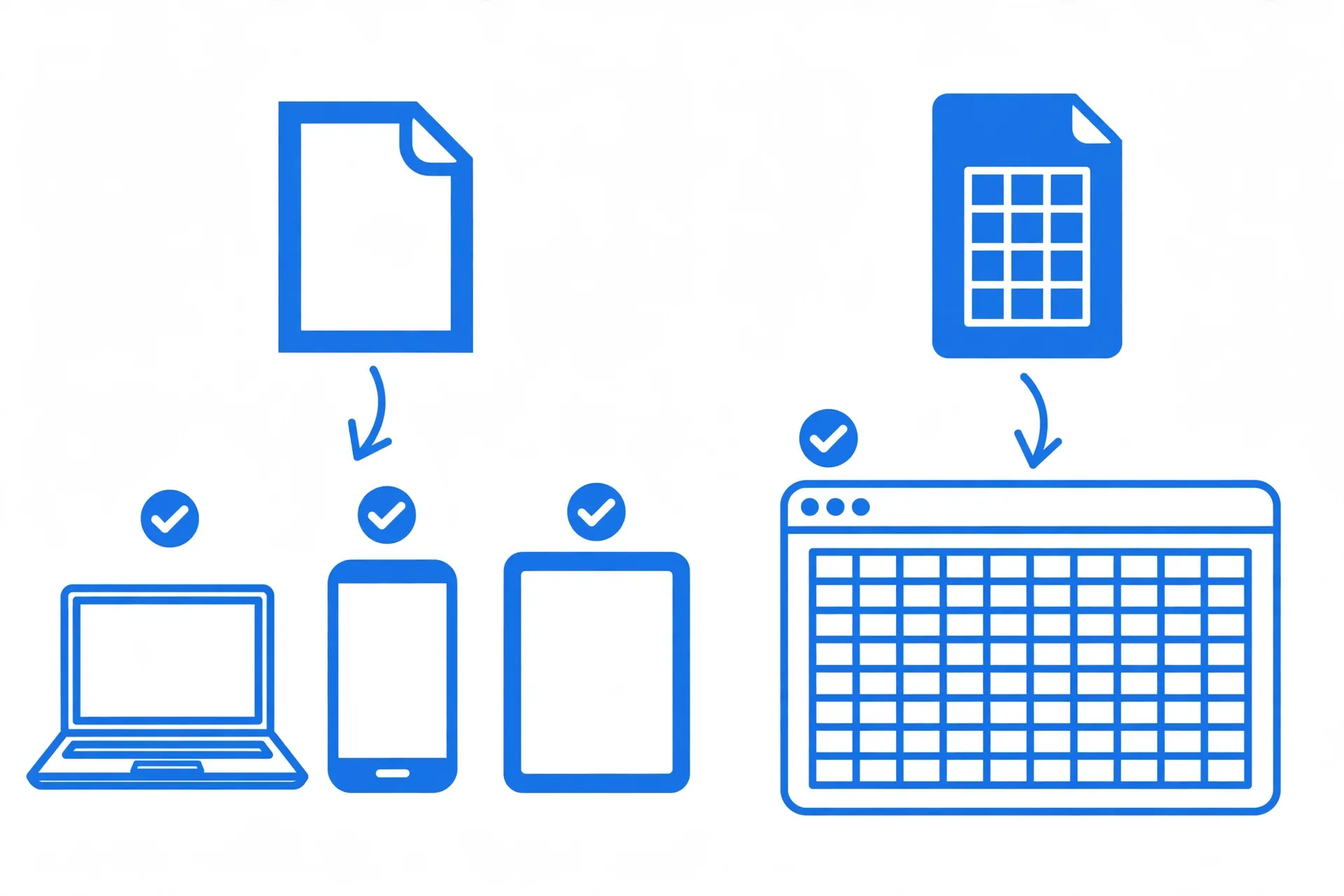
CSV wins on universality. Every spreadsheet app (Excel, Google Sheets, LibreOffice Calc, Apple Numbers), every database (via import), every programming language (Python, R, JavaScript), and every text editor opens CSVs. When a bank, a government portal, or a SaaS product offers a data export, it offers CSV — because it works for everyone, everywhere, with no licensing involved.
XLSX wins on fidelity within the spreadsheet world. Excel, Google Sheets, LibreOffice, and Numbers all open XLSX, though with caveats: complex formatting and array formulas sometimes render slightly differently outside Excel, VBA macros only run in Excel (and only in the XLSM variant), and very new Excel functions may not exist in other apps. For sharing a finished report with Excel users, XLSX is the right call; for feeding data into another system, CSV is.
Mobile deserves a mention too: on phones and tablets, CSVs preview instantly in any file manager or email app, while XLSX files need the Excel mobile app or Google Sheets installed — and large workbooks can be painfully slow on mobile hardware. If your audience reads data on phones (field teams, delivery drivers, event staff), a clean CSV or a PDF summary beats a heavy workbook every time. Our guides to CSV to Excel on iPhone and on Android cover the mobile workflows.
One practical note for international teams: CSV’s “universal” claim has a famous asterisk — the delimiter. US systems emit commas; much of Europe, Latin America, and parts of Asia emit semicolons (because the comma is their decimal separator). An XLSX never has this problem because it stores structure explicitly. If your CSV crosses borders, our locale delimiter guide will save you.
Data Fidelity Traps When Switching Formats
Converting CSV → XLSX is safe: the richer format can hold everything the simpler one has. The danger is XLSX → CSV, which silently discards everything CSV cannot represent. Know these traps before you convert in either direction:
Trap 1: Leading zeros vanish
“00123” in a CSV, opened in Excel and saved as XLSX without care, becomes the number 123 — the zeros are gone forever unless the column was typed as text on import. ZIP codes, product SKUs, and phone numbers are the classic victims. Our leading zeros guide covers every fix.
Trap 2: Dates reinterpret
CSV stores no date types, so “03/04/2026” becomes March 4th or April 3rd depending on the importing program’s locale. US users and UK users routinely corrupt each other’s date columns this way. Import with explicit locale parsing (see our date guide).
Trap 3: Precision loss on long numbers
Excel stores 15 significant digits. A 16-digit credit card number or 19-digit ID opened in Excel gets its tail rounded to zeros — silently. Import such columns as text, always. Details in our scientific notation guide.
Trap 4: Formulas become values (XLSX → CSV)
Saving a workbook as CSV keeps only the calculated values — the formulas themselves are discarded, along with all formatting, extra sheets, and charts. If you need the logic, keep the XLSX as the master and export CSV copies.
Trap 5: Encoding mangling
Excel’s “Save as CSV” historically writes in the system’s legacy encoding, not UTF-8, corrupting non-English characters. Use “CSV UTF-8” explicitly when saving, and verify with a text editor afterward.

Security and Privacy: An Overlooked Difference
The format choice has security implications most people never consider. A CSV is inert text: it cannot contain macros, cannot phone home, and cannot hide executable code. You can inspect every byte in Notepad before trusting it. That makes CSV the safer format to receive from untrusted sources — a random CSV from the internet cannot infect your machine (though its content can still mislead, and formula-injection attacks via cells starting with = are a real, documented threat when CSVs are opened in Excel — more on that below).
XLSX files, by contrast, are active documents. They can contain VBA macros (in the XLSM variant), external data connections that refresh from the internet, and embedded objects. Excel’s Protected View exists precisely because workbooks from email attachments have been a malware vector for decades. Practical rules: never enable macros in a workbook you did not expect; be wary of XLSX files that prompt you to “enable content” on open; and if you must open an untrusted CSV in Excel, be aware of CSV formula injection — a cell containing =cmd|'/c calc'!A0 can execute commands in vulnerable configurations. Sanitizing leading =, +, -, and @ characters (or importing the column as text via Power Query) neutralizes the attack.
Privacy cuts the other way: XLSX files carry metadata — author names, company names, edit history, and sometimes hidden sheets or comments you forgot about. Before sending a workbook externally, use File > Info > Check for Issues > Inspect Document to strip hidden data. A CSV carries no metadata at all, which is one reason privacy-conscious teams prefer it for data sharing.
The Two Formats for Developers and Automation
If you build pipelines rather than spreadsheets, the decision is usually made for you: CSV. It streams line-by-line (constant memory), diffs cleanly in git (so you can see exactly what changed between data versions), and every language parses it with a one-liner — Python’s csv module or pandas, R’s readr, JavaScript’s papaparse. Automated tests can assert on CSV content with plain text comparison.
XLSX in pipelines is heavier: generating it needs a library (openpyxl, xlsxwriter), reading it needs parsing the ZIP/XML package, and diffing two versions is meaningless binary comparison. Use XLSX at the end of a pipeline — when the automation’s output is a human-readable report — not in the middle. The professional pattern: systems exchange CSVs, scripts transform them, and the final step renders an XLSX for the humans. Our Python guide and PowerShell guide show both ends of that pipeline.
CSV vs XLSX Decision Guide: Which Should You Use?
Use this scenario list — find your situation, take the verdict:
- Exporting data from an app or database → CSV. Maximum compatibility; the recipient’s system will import it.
- Building a report with formatting and charts → XLSX. CSV cannot carry presentation.
- Sharing raw data with a colleague who uses Excel → XLSX (or CSV if they will import it into another tool).
- Feeding data into Python, R, or a database → CSV. Every data tool reads it natively and streams it efficiently.
- Dataset over 1 million rows → CSV for storage; convert slices to XLSX for analysis (see our large CSV guide).
- Archiving data long-term → CSV (UTF-8). Plain text will be readable in fifty years; proprietary formats are a gamble.
- Collaborative editing with tracked changes → XLSX (or Google Sheets).
- Sending data across countries → CSV with explicit delimiter/encoding notes, or XLSX to dodge locale issues entirely.
- Storing formulas and calculations → XLSX. CSV keeps values only.
- Automated pipelines and version control → CSV. Text diffs cleanly in git; binary XLSX does not.
The pattern: CSV is the interchange format, XLSX is the working format. Data travels as CSV and gets analyzed as XLSX. Most professionals use both daily — exporting CSVs from systems, converting to XLSX for analysis with our free converter, and exporting CSV again when the results feed another system.

Converting Between CSV and XLSX
CSV → XLSX (the safe direction)
For everyday files, our free CSV to Excel converter does it in seconds in your browser — no upload, no signup. For recurring or messy files, import with Power Query (full tutorial) to control delimiters, encodings, and data types. For automation, Python (pandas guide) or PowerShell (PowerShell guide) convert whole folders on a schedule.
XLSX → CSV (the careful direction)
In Excel: File > Save As > CSV UTF-8 — choose the UTF-8 variant explicitly to protect non-English characters. Remember: only the active sheet is saved, formulas become values, and formatting is discarded. If you need all sheets, save each one separately or use pandas:
import pandas as pd
xls = pd.ExcelFile("report.xlsx")
for sheet in xls.sheet_names:
    pd.read_excel(xls, sheet_name=sheet).to_csv(f"{sheet}.csv", index=False)
Our Excel to CSV guide and save CSV as XLSX guide cover both directions in full detail, including the round-trip pitfalls to watch for. Google Sheets users: File > Download offers both formats, and Sheets preserves most Excel formatting on import — though complex conditional formatting and array formulas deserve a visual check after conversion. Our Google Sheets to Excel guide walks through the full migration.
Troubleshooting Format Problems
CSV opens in Excel as a single column
Delimiter mismatch — your file uses semicolons or tabs but Excel expected commas. Do not re-save; import via Power Query and set the delimiter explicitly. Full fix in our delimiter guide.
XLSX file is enormous
Usually formatting applied to entire columns/rows (all 1,048,576 of them) or leftover pivot caches. Select truly-used ranges only, save, and compare sizes. As a last resort, copy the used range to a fresh workbook.
CSV shows gibberish characters
Encoding mismatch — open with the correct encoding (UTF-8 vs Windows-1252) via Power Query’s preview dialog instead of double-clicking.
Recipient “can’t open” my XLSX
They may have a very old Excel (pre-2007 needs the .xls format) or no spreadsheet app at all — send a CSV instead, or a PDF for read-only reports.
Format questions come up constantly in real workflows — encodings, locales, and legacy systems all have opinions — so if yours is unusual, join the discussion in our community forum and describe your setup; the community has navigated most of them.
Frequently Asked Questions
What is the difference between CSV and XLSX?
CSV is a plain-text format holding one table of raw values with no formatting, formulas, or multiple sheets. XLSX is Excel’s workbook format: a zipped package storing formatting, formulas, charts, multiple sheets, and metadata. CSV is universal and lightweight; XLSX is rich and Excel-native.
Should I use CSV or XLSX?
Use CSV for exchanging raw data between systems, for huge datasets, and when compatibility matters most. Use XLSX for analysis involving formatting, formulas, charts, or multiple sheets, and when sharing polished work with Excel users. Most professionals use CSV for interchange and XLSX for analysis.
Does converting CSV to XLSX lose data?
Converting CSV to XLSX never loses data — XLSX can hold everything a CSV can, plus formatting and types. The risk runs the other way: saving XLSX as CSV discards formatting, replaces formulas with their values, and drops extra sheets and charts.
Is XLSX bigger than CSV?
Usually yes, but not always. XLSX is a compressed ZIP package, so repetitive data can compress smaller than raw CSV text. With heavy formatting, embedded images, or many sheets, XLSX files grow much larger than their CSV equivalents.
Can Excel open CSV files?
Yes, Excel opens CSV files natively — but double-clicking applies default parsing that can mangle delimiters, dates, and leading zeros. Importing via Data > Get Data > From Text/CSV (Power Query) gives you full control over the process.
Which format is better for large data, CSV or XLSX?
CSV is better for very large raw datasets: it has no row overhead, streams efficiently, and every database and programming language reads it. XLSX caps at 1,048,576 rows per sheet and gets slow and memory-hungry approaching that scale.