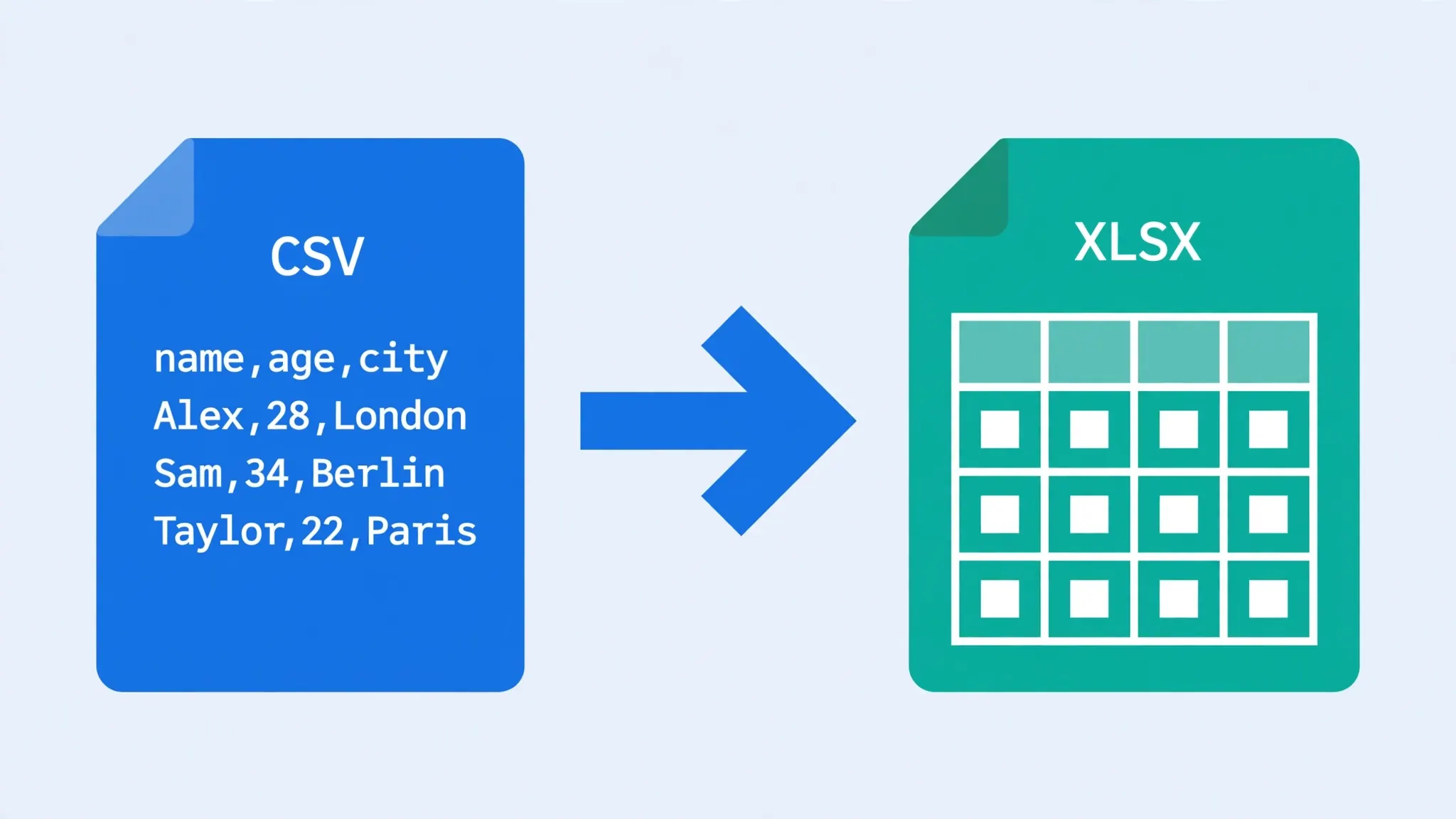
It sounds like the simplest task in computing: open a CSV, save CSV as XLSX, done. And yet this exact workflow — done the obvious way — is responsible for more mangled spreadsheets than any other: stripped leading zeros, flipped dates, garbled characters, and long numbers silently destroyed. The problem is not the Save As command; it is everything that happens before you click it.
This guide shows you how to save csv as excel the right way: the File → Save As walkthrough in Excel, the double-click trap that corrupts data before you even save, the import-first method that gives you full control over delimiters, encoding, and column types, and what to do when you do not have Excel at all. You will also learn what Save As cannot fix, and the two-minute polish that turns a raw conversion into a workbook you can share with confidence.
Whether you are preparing a bank statement for your accountant in Sydney, a sales export for your manager in New York, or a student dataset in Delhi, these steps make the humble csv save as xlsx operation boring and reliable — exactly as it should be.
Save CSV as XLSX in Excel: The Walkthrough
Here is the textbook File → Save As flow in Microsoft Excel:
- Open Excel (a blank workbook is fine — do not double-click the CSV).
- File → Open and select your CSV, or use Data → From Text/CSV for the import-first method below.
- Review the data on screen: headers in row 1, columns split sensibly, no garbled characters.
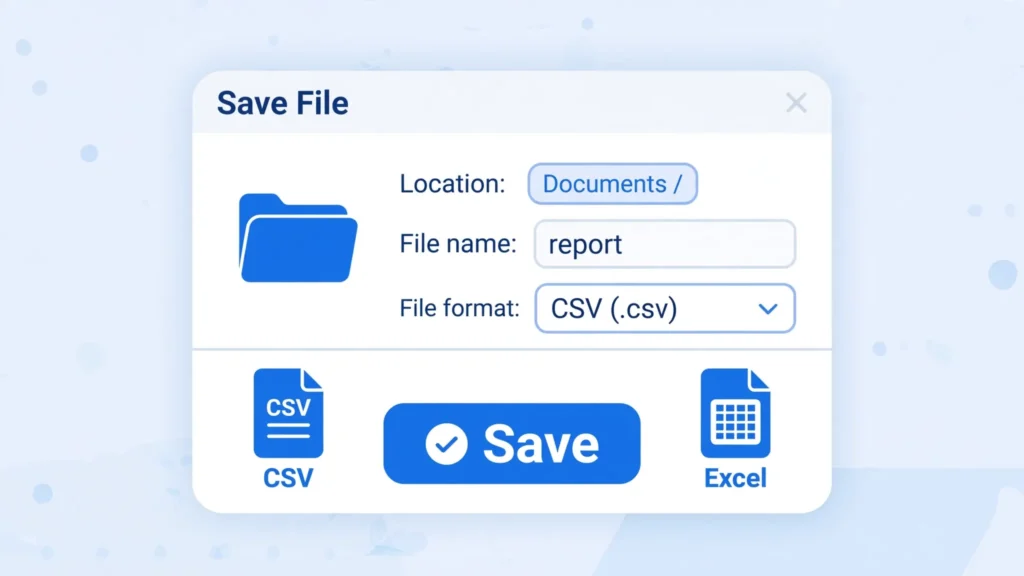
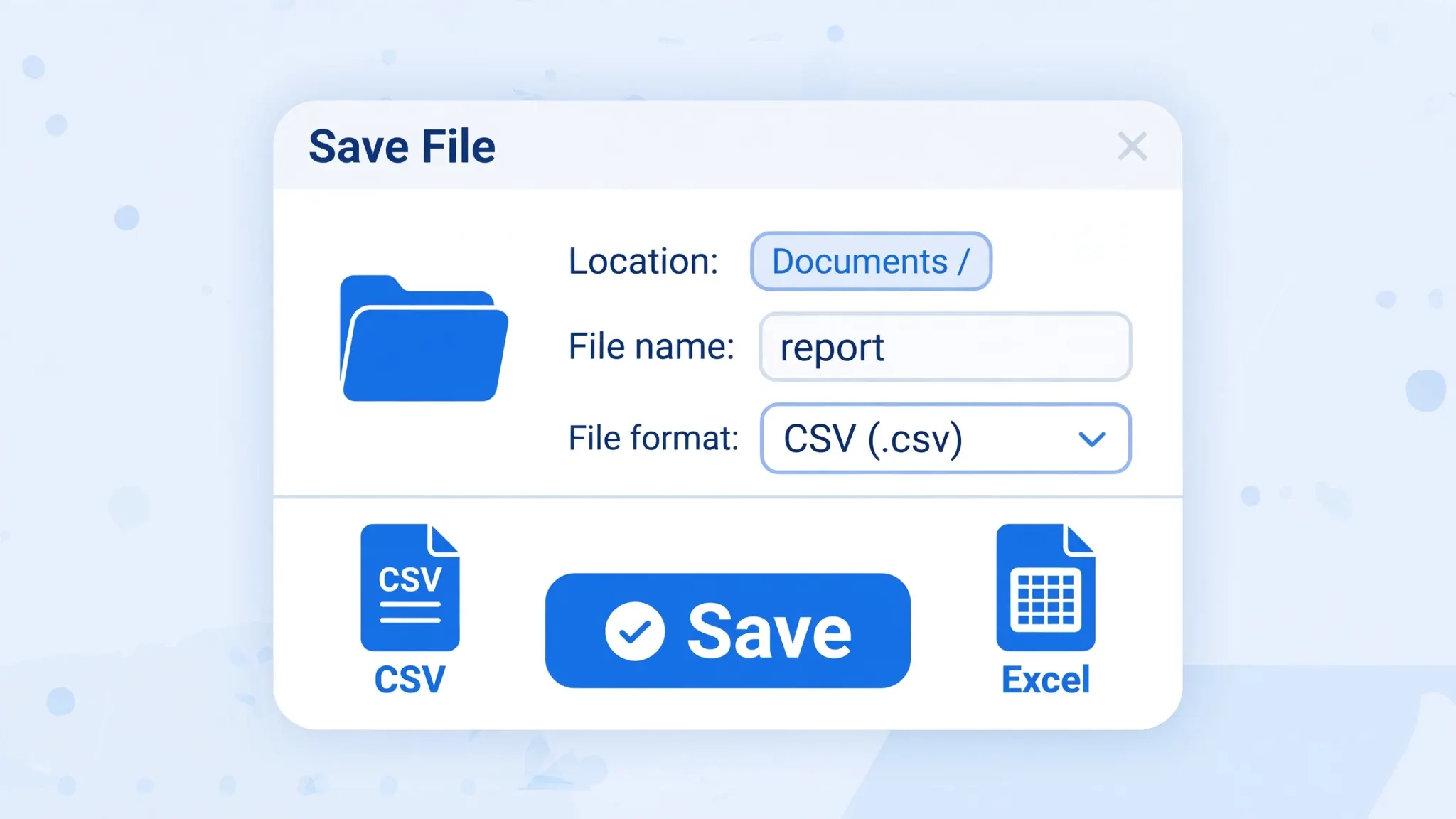
- File → Save As (or press F12).
- Choose the destination folder.
- In the “Save as type” dropdown, select Excel Workbook (*.xlsx).
- Give the file a clear name — consider keeping the original CSV untouched and naming the workbook distinctly (e.g.
sales-march.xlsxalongsidesales-march.csv). - Click Save. If Excel warns about compatibility, read the message (more on that below).
A note on file naming
Develop a naming habit now and future-you will thank you. Good patterns: sales-2026-03.xlsx (ISO dates sort chronologically), or sales-march-2026-v1.xlsx when versions matter. Avoid spaces in filenames if the file will travel through older systems or scripts — dashes and underscores are safer. And never name the XLSX identically to the CSV in the same folder without the extension difference being obvious; report.csv next to report.xlsx is fine, but double-check which one you attach to emails.
That is the mechanics. The catch — and the reason this guide exists — is step 2. How the CSV gets into Excel determines whether the saved XLSX contains your data or a corrupted imitation of it.
Understanding the “Save as type” dropdown
The dropdown holds dozens of formats; the ones relevant here:
- Excel Workbook (*.xlsx) — the modern default. This is what you want.
- Excel 97-2003 Workbook (*.xls) — the legacy binary format. Only choose this if the receiving system demands it (see our CSV to XLS guide).
- CSV (Comma delimited) (*.csv) — saves back to CSV. Dangerous after editing: Excel rewrites delimiters, quoting, and encoding silently.
- Strict Open XML Spreadsheet (*.xlsx) — a stricter ISO variant. Rarely needed; the regular workbook is fine.
- PDF (*.pdf) — for sharing read-only snapshots, not for data.
When in doubt, pick Excel Workbook (*.xlsx) and move on. The exotic options exist for edge cases, not daily work.
Save vs Save As vs Export: What’s the Difference?
Excel offers three ways to persist a file, and mixing them up causes real damage:
- Save (Ctrl+S): writes back to the current format. If you opened a CSV, Save rewrites the CSV — Excel may change delimiters, quoting, and encoding without asking. This is how source files get silently corrupted.
- Save As (F12): creates a new file in a format you choose, leaving the original untouched. This is the correct command for CSV → XLSX work.
- Export: creates a copy in another format (PDF, or “Change File Type”). Functionally similar to Save As for our purposes, with a few extra options.
The golden rule: after importing a CSV, your first save should always be Save As to .xlsx with a distinct filename. Only then does Ctrl+S become safe — because the active format is now XLSX, and saving preserves everything.
The Double-Click Trap
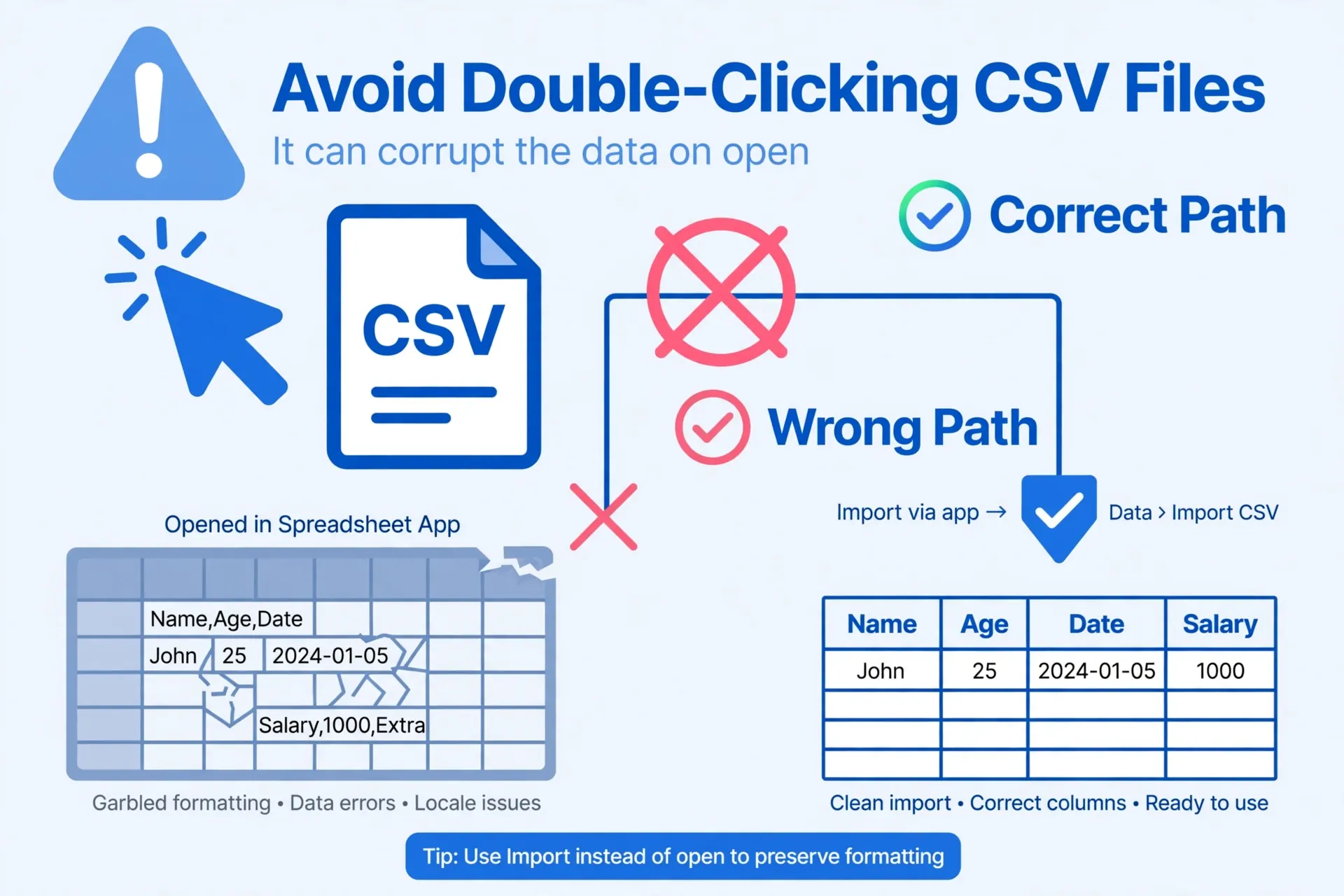
The obvious workflow — double-click the CSV, glance at it, press Ctrl+S or Save As — is a trap. When Excel opens a CSV by double-click, it makes four silent guesses with zero input from you:
- Delimiter: Excel assumes commas (or your system list separator). Semicolon- or tab-delimited files collapse into a single column.
- Encoding: Excel guesses, often wrongly. UTF-8 files without a BOM open as Windows-1252, garbling every accented character.
- Column types: digit-only columns become numbers — leading zeros stripped, long numbers flipped to scientific notation with precision loss past 15 digits.
- Dates: interpreted per your Windows region. A US-format file on a UK machine (or vice versa) scrambles every ambiguous date.
Here is the cruel part: once Excel has guessed wrong, saving as XLSX preserves the damage. The XLSX faithfully stores the misinterpreted data — the zeros are already gone, the dates already flipped. Save As cannot recover what the open destroyed. This is why “I just saved it as XLSX, why is my data wrong?” is one of the most common spreadsheet complaints in existence.
A real-world horror story
A payroll administrator in Manchester once double-clicked a 4,000-row employee export, saved it as XLSX, and sent it to payroll processing. Excel had stripped the leading zeros from sort codes and flipped several DD/MM dates to MM/DD. The file looked perfect — correct headers, correct row count, no error messages. Two dozen employees were paid wrong amounts that month. The root cause was not Save As; it was the double-click three minutes earlier. Import-first would have prevented all of it. When the data affects money, people, or compliance, the import step is not optional.
The Import-First Method (Recommended)
The reliable way to save CSV as XLSX starts with a controlled import:
- Open a blank workbook in Excel.
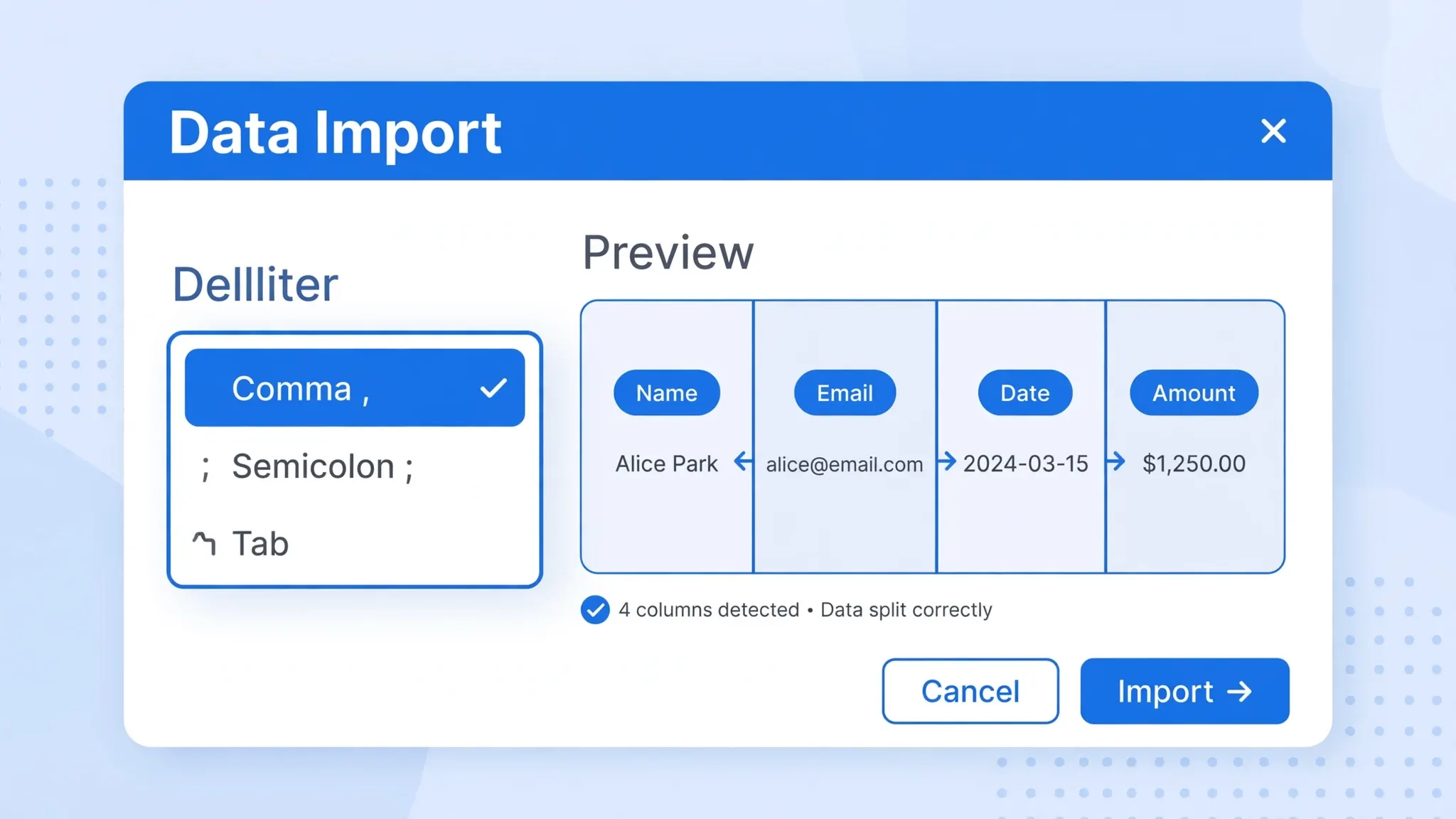
- Data → From Text/CSV and select your file.
- In the preview dialog, confirm the delimiter — switch to semicolon/tab/pipe if columns are merged.
- Set File Origin to 65001: UTF-8 if any characters look garbled.
- Click Transform Data to open Power Query. Set column types explicitly:
- ZIP codes, phone numbers, SKUs, account numbers → Text
- Date columns → Date with the correct locale
- Genuine numeric columns → Decimal Number
- Home → Close & Load.
- Now File → Save As → Excel Workbook (*.xlsx).
Why this works: every guess Excel would have made silently is now a decision you made explicitly. The Text type locks leading zeros; the locale-aware Date type stops month/day flips; UTF-8 stops mojibake. The saved XLSX contains exactly your data — verified in the preview before a single byte was committed.
Bonus: Power Query remembers the import steps. Next month’s identically-structured CSV converts via Data → Refresh All — the types, delimiter, and encoding are all saved with the query.
What “Save As” Cannot Fix
Save As changes the container, not the contents. It cannot:
- Recover data damaged on open. Stripped zeros and flipped dates are already gone — re-import from the original CSV.
- Add formatting that was never there. CSVs contain no fonts, colors, or styles. Format after saving (see the polish section).
- Fix a wrong delimiter. If everything landed in column A, the import was wrong — re-import with the right delimiter, then save.
- Repair encoding damage. Mojibake baked in at open time stays. Re-import as UTF-8.
- Exceed XLSX limits. 1,048,576 rows and 16,384 columns per sheet still apply — but you would need a truly enormous CSV to hit them.
- Create multiple sheets from one CSV. One Save As = current sheet(s) as they are. For multi-sheet workbooks, import each CSV to its own sheet first.
The pattern: every “Save As didn’t work” complaint is actually an “import didn’t work” complaint wearing a disguise. Fix the import; the save takes care of itself.
What Save As does preserve
To be fair to the command: once your data is correctly in Excel, Save As to XLSX preserves everything faithfully — values, types, number formats you applied, formulas you added, multiple sheets, charts, and print settings. The XLSX format is a complete snapshot of the workbook. The failures people blame on “Save As” happen upstream, in the thirty seconds between double-clicking the CSV and pressing F12. Get the import right and Save As is the most reliable step in the whole workflow.
After Saving: The 2-Minute Polish
You have a correct XLSX. Two minutes make it presentable:
- Rename the sheet: double-click the Sheet1 tab → meaningful name.
- Bold the header row and add a light fill color.
- Freeze the top row: View → Freeze Panes → Freeze Top Row.
- Enable filters: select headers → Data → Filter.
- Auto-fit columns: Ctrl+A, then double-click any column boundary.
- Set number formats: Ctrl+1 per column — Currency, Date, Percentage as appropriate.
Save again (Ctrl+S — now it saves as XLSX natively, no dialog). The file is ready to email, upload, or present. From here on, every Ctrl+S keeps the workbook format intact — the days of worrying about the CSV format are over.
Turn the polish into a template
If you repeat this workflow monthly, save the polished (but data-free) workbook as an Excel Template (*.xltx): File → Save As → Excel Template. Next month, open the template, import the fresh CSV into it via Power Query, and the headers, formats, filters, and freeze panes are already there. The two-minute polish becomes a zero-minute polish — the template remembers everything.
Saving as XLSX Without Excel
No Microsoft Excel? The same save-as-XLSX result is available several ways — each produces a file indistinguishable from Excel’s own output:
- LibreOffice Calc: open the CSV (Text Import dialog for delimiter/encoding/types), then File → Save As → Excel 2007–365 (.xlsx). Free forever.
- Google Sheets: upload to Drive, open with Sheets, File → Download → Microsoft Excel (.xlsx).
- Online converter: csvtoexcel.site/ — drop the CSV, check the preview, download the XLSX. No signup, client-side processing.
- Apple Numbers: open the CSV, File → Export To → Excel.
Every one of these writes a genuine, standards-compliant XLSX. See our guide to converting without Excel installed for the full comparison.
Saving as XLSX on a phone
On Android or iPhone, the browser-converter route is simplest: upload the CSV in Chrome or Safari, verify the preview, and download the XLSX to your Files/Downloads folder. Google Sheets’ mobile app works too — upload to Drive, open with Sheets, export as Excel. Either way, the result is a real workbook, not a renamed CSV, and it opens perfectly on any desktop later.
Troubleshooting
Leading zeros vanished after saving
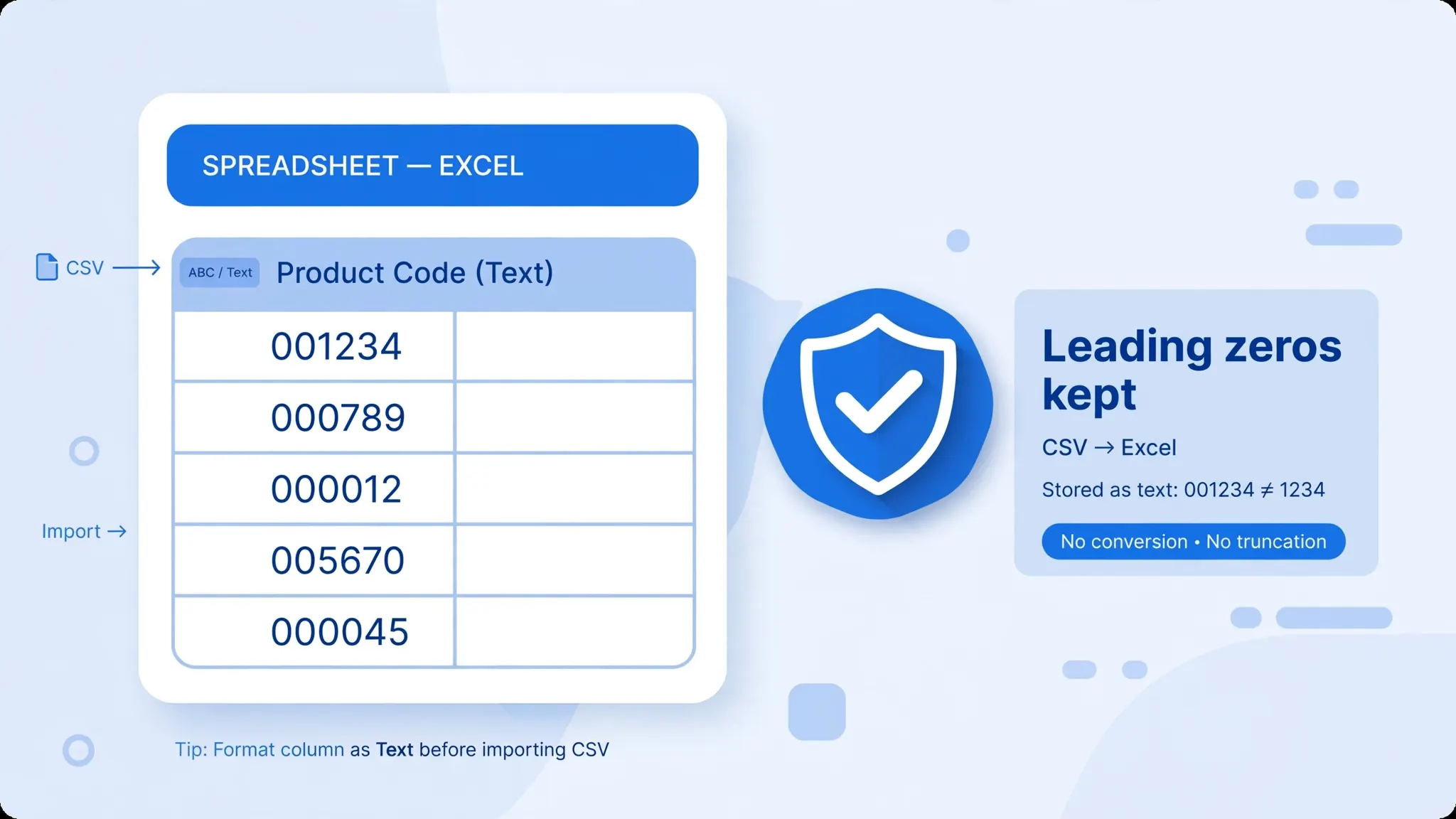
The column was numeric at import. There is no post-save fix that restores unknown zeros — re-import via Data → From Text/CSV with the column set to Text, then save again. For US ZIP codes, the TEXT formula (=TEXT(A2,"00000")) can reconstruct zeros only if you know the expected width.
Dates are wrong in the saved file
Locale mismatch at import. Re-import with Power Query, set the Date type with the correct locale (US vs UK/India/Australia), then save. Ambiguous dates like 03/04/2026 cannot be auto-fixed after the fact — you must know the source convention.
Special characters are garbled
Encoding misread at import. Re-import with File Origin 65001: UTF-8. If you control the CSV’s creation, save it with a UTF-8 BOM so Excel detects it automatically next time.
Excel shows a compatibility warning on save
Read it — it usually concerns features the original CSV-linked workbook had (rare) or simply confirms the format change. For a plain CSV import, it is safe to proceed.
The XLSX is huge
Large row counts inflate files, especially with formatting applied to whole columns instead of the used range. Keep formatting tight to the data, and consider whether a million-row file belongs in Excel at all versus a database.
I saved but the original CSV changed too
You pressed Save (Ctrl+S) while the CSV was still the active format, or saved over the original filename. Always use Save As with a distinct .xlsx name, and keep the source CSV archived separately.
Excel saved as “XLSX” but the file behaves like a CSV
You likely saved with only one sheet and no formatting — which is fine, the file is XLSX, it just looks plain. Add formatting and save again if you need it to look like a workbook. Alternatively, the extension was typed manually without changing the type dropdown — check File → Info to confirm the actual format.
My formulas disappeared after saving
CSVs cannot store formulas, so any formula-looking text imported as text stays text. After saving as XLSX, re-enter formulas in the workbook — or better, build them into a template so they exist before the data arrives.
After you save CSV as XLSX, do the sixty-second verification: row counts match, spot-checked codes and dates are correct, no garbled characters. Make it a habit rather than an exception — checking takes less time than explaining a data error later. The people who never seem to have spreadsheet disasters are not luckier; they simply verify, every single time. Hit a weird case — a file that resists every method above? join the discussion in our community forum, where readers troubleshoot the trickiest save-as scenarios together.
Frequently Asked Questions
How do I save CSV as XLSX without Excel?
Use LibreOffice Calc: open the CSV (set delimiter, encoding, and column types in the Text Import dialog), then File → Save As → Excel 2007–365 (.xlsx). Or Google Sheets: upload to Drive, open with Sheets, File → Download → Microsoft Excel (.xlsx). Or a free online converter — drop the file, verify the preview, download. All three produce genuine XLSX files.
Why does Excel warn me when I save a CSV as XLSX?
When you open a CSV directly, Excel warns that the CSV format cannot store workbook features (multiple sheets, formatting, formulas). The warning is about the source format’s limitations, not a problem with your data. Once you Save As XLSX, the new file supports everything and the warning is gone for good.
Does saving CSV as XLSX change my data?
The Save As operation itself preserves values faithfully. But opening the CSV in Excel before saving may already have changed data: stripped leading zeros, reinterpreted dates, scientific-notation damage to long numbers, and encoding garbling. The import-first method (Data → From Text/CSV with explicit types) prevents all of it.
Can I save CSV as XLSX with multiple sheets?
A single Save As preserves the workbook as it currently stands. To get multiple sheets, import each CSV onto its own sheet first — via repeated Data → From Text/CSV imports, a short Python script, or an online batch tool — then save the whole workbook as XLSX once.
What is the difference between Save and Save As for a CSV?
Save writes back to the original CSV format — and Excel may silently alter delimiters, quoting, and encoding in the process. Save As creates a new file in your chosen format (XLSX), leaving the original CSV untouched. For CSVs, always prefer Save As; treat Save as a last resort.
How do I keep leading zeros when saving CSV as XLSX?
Import via Data → From Text/CSV, click Transform Data, and set the code column’s type to Text before loading. Then File → Save As → Excel Workbook (*.xlsx). The zeros survive because the column was never treated as numeric — this must happen at import; no post-save trick recovers unknown zeros.