
Need to convert CSV to Excel on iPhone? It happens more often than you’d think: your accountant WhatsApps you a CSV of last quarter’s expenses, your boss emails a lead list while you’re in a cab, or you download a bank statement on your phone and need it as a proper Excel file before a meeting. The iPhone doesn’t make this obvious — tap a CSV and you get a plain-text preview with no “save as Excel” button in sight — but converting it takes under two minutes once you know where to look. If you typed “csv to excel iphone” into Google, you are in the right place — here are five methods that work entirely on your phone.
This guide covers every practical way to turn a CSV into an XLSX file on an iPhone: the fastest method (a free online converter in Safari that works straight from the Files app), Apple Numbers on iOS (free and already on most iPhones), the email-to-self workflow for files stuck in your inbox, and Microsoft Excel for iOS for those who already have it. We’ll also cover what to do when your CSV opens as one unreadable column, how to keep leading zeros and phone numbers intact, and how to get the finished Excel file back into Mail, WhatsApp, or iCloud Drive.

CSV to Excel iPhone: Why It Feels Tricky at First
On a desktop computer, converting a CSV is almost instinctive: double-click it, it opens in a spreadsheet app, hit Save As, done. The iPhone breaks every one of those assumptions. iOS has no visible file system the way Windows or macOS does — files live inside apps or in the Files app’s sandboxed storage — and tapping a CSV gives you a read-only text preview rather than an editable spreadsheet. There’s no universal “Save As Excel” button because no single app owns the CSV format on iOS.
The second wrinkle is getting the file into the right app in the first place. A CSV might arrive as a Mail attachment, a WhatsApp document, a Safari download, or a link in a message thread. Each of these has a slightly different sharing path to get the file into the Files app or into Numbers, and iOS doesn’t always make the path obvious. The Share sheet is your universal friend here: almost anywhere you see a CSV on iPhone, tapping Share gives you routes to Files, Numbers, Excel, or a browser.
The third wrinkle is the same one desktop users face, shrunk onto a small screen: delimiters and encodings. A CSV exported from a European accounting system may use semicolons; one from an older Indian payroll system may use a legacy encoding that turns names into gibberish. On a phone these problems feel worse because you can’t easily open the file in a text editor to inspect it. The good news: the conversion methods below either handle these cases automatically or give you an import screen where you can fix them in two taps.
Method 1: The easiest way — a free converter in Safari
This is the method to use when someone sends you a CSV and you need an Excel file now. No app to install, no account to create, no subscription — just Safari and your Files app.
- Make sure the CSV is saved in your Files app. (If it’s a Mail attachment, tap it, tap the Share button, then Save to Files. If it’s in WhatsApp, tap the file, tap Share, then Save to Files.)
- Open Safari and go to the free CSV to Excel converter.
- Tap the upload area and choose Browse, then navigate to your CSV in the Files app and select it.
- Check the preview to make sure your columns split correctly.
- Tap convert/download. Safari saves the
.xlsxfile — tap the download icon in the address bar, then tap the file and choose Save to Files to keep it.
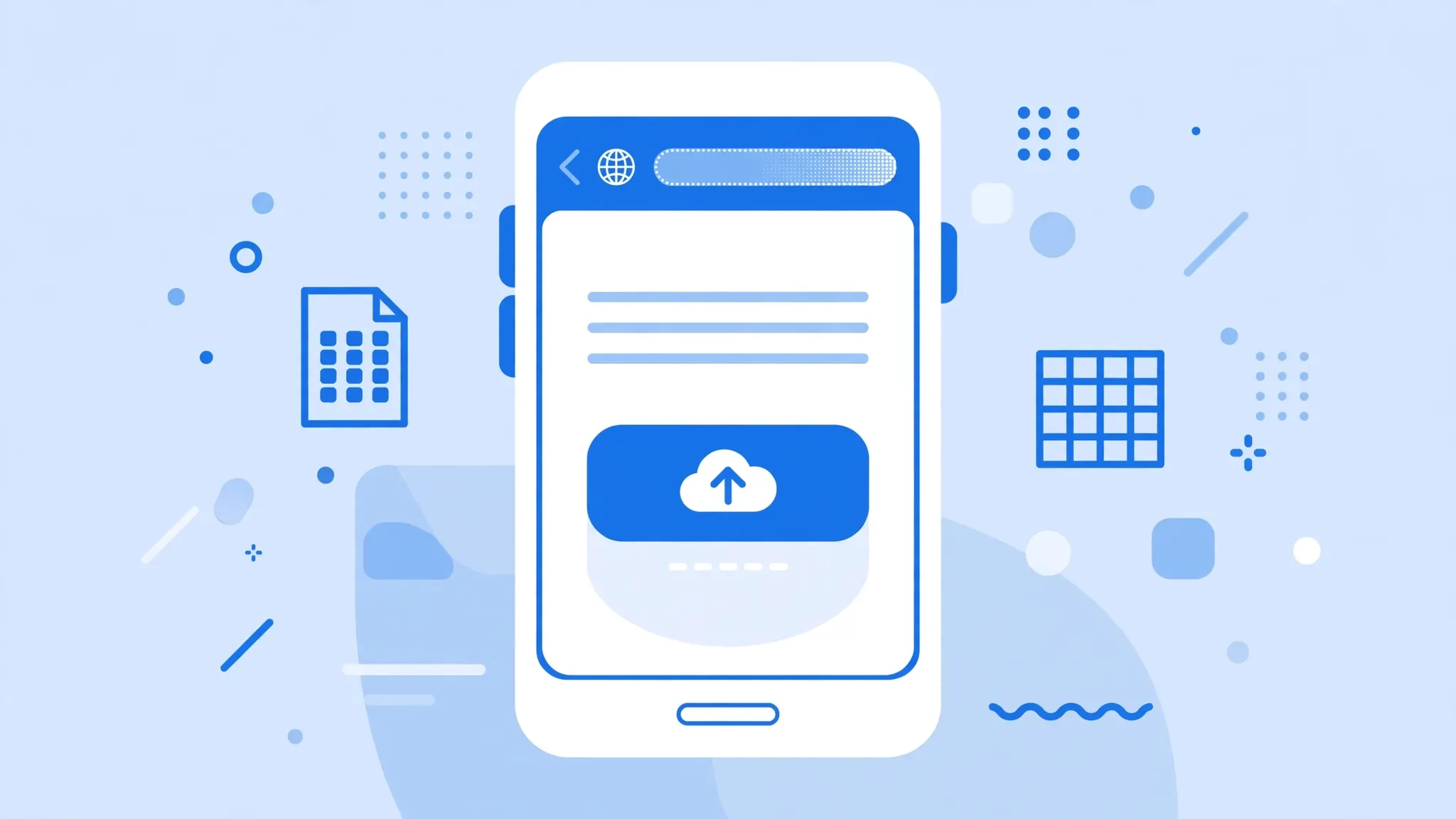
The whole thing takes under a minute on Wi-Fi. Because the conversion runs in the browser on your device, even confidential files — salary sheets, client lists — are safe: nothing is uploaded to a server.
Method 2: Convert with Apple Numbers on iOS
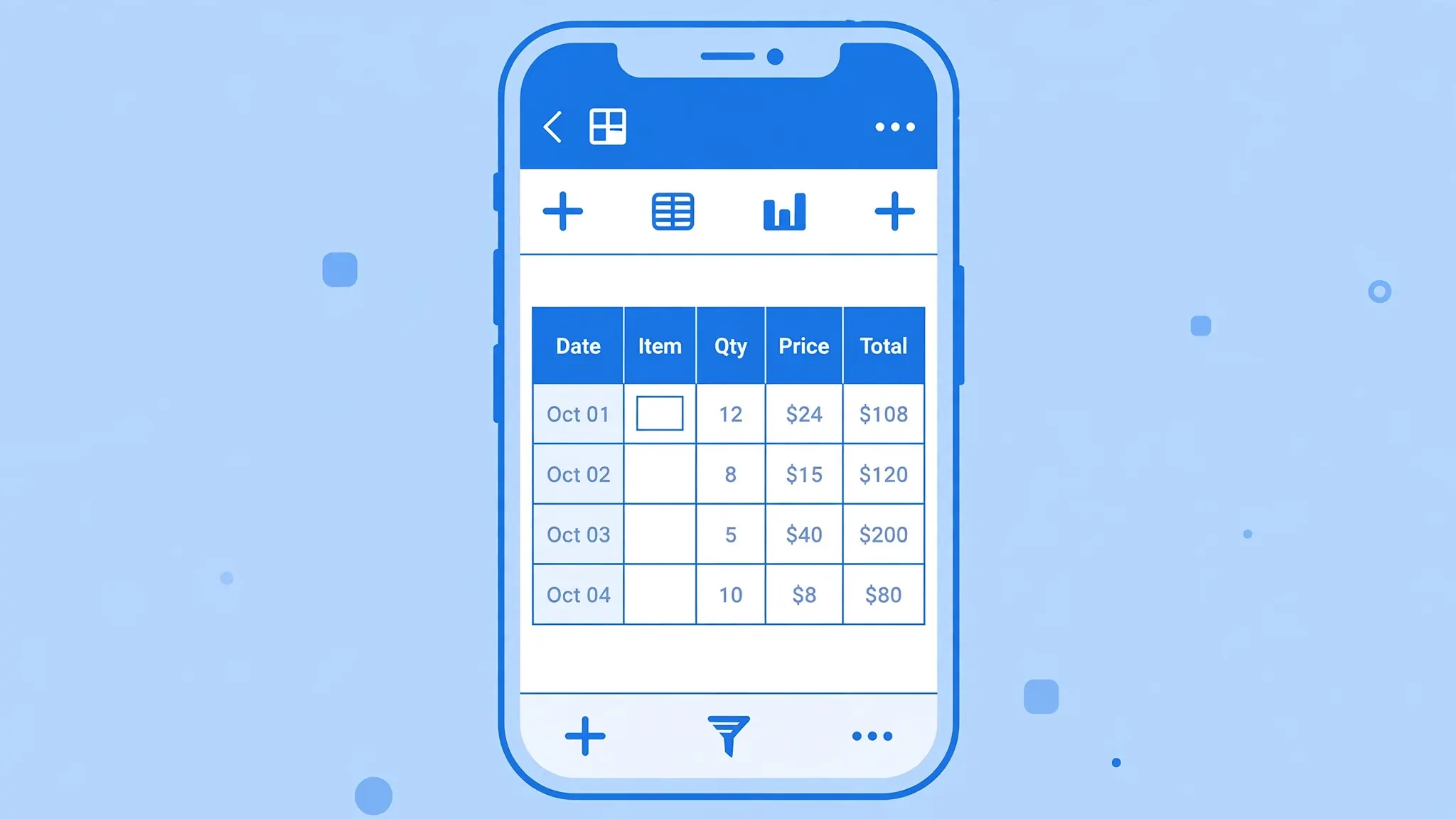
Apple Numbers comes free with every iPhone and handles CSV files natively. If you convert CSVs regularly — say you’re a freelancer who gets expense exports weekly — this is the method worth learning, because it also lets you tidy the data before exporting.
- Find your CSV in the Files app (or save it there from Mail/WhatsApp first).
- Tap and hold the CSV, tap Share, then choose Numbers from the app list. (If Numbers isn’t listed, tap More and enable it.)
- Numbers opens the CSV as a table. Scroll through to check that columns split correctly — if everything is in column A, the file uses a different separator (see the troubleshooting section).
- Tap the … (More) button at the top, then Export.
- Choose Excel as the format. Numbers creates the
.xlsxfile. - Use the Share sheet to send it via Mail, WhatsApp, or Save to Files.
Method 3: The email-to-self workflow
Sometimes the CSV isn’t on your phone at all — it’s sitting in your Gmail on a work computer, or a colleague says “I’ll send it over” and you need the Excel version before you reach your desk. The email-to-self workflow bridges that gap.
- On your computer (or wherever the CSV lives), attach the CSV to an email addressed to yourself and send it.
- On your iPhone, open the Mail app and find the message.
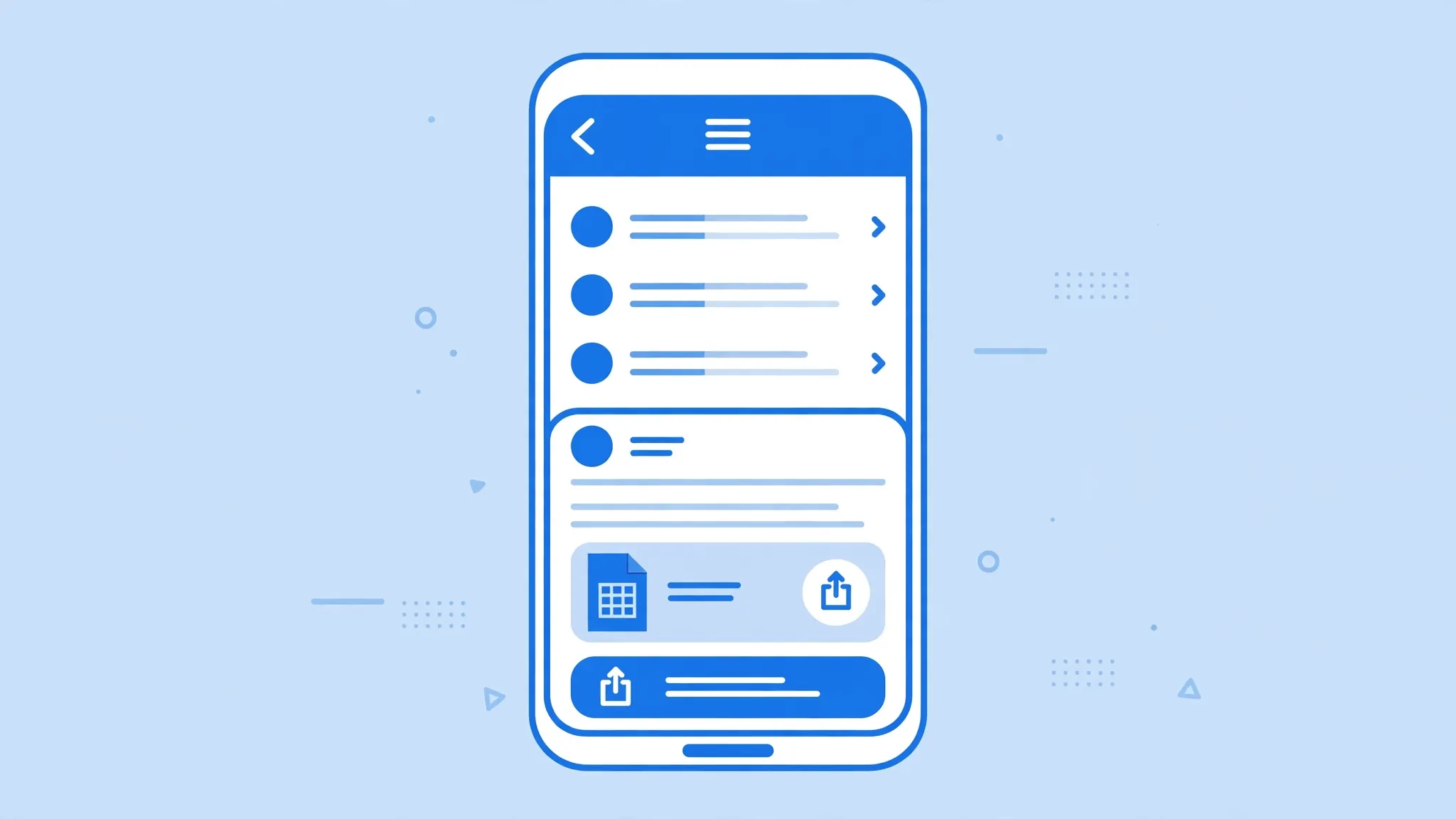
- Tap the CSV attachment to download it, then tap the Share button.
- Choose Save to Files (pick iCloud Drive or On My iPhone), then convert using Method 1 or 2 above.
This sounds roundabout, but it’s the most reliable way to move a file from a PC to an iPhone without cables, AirDrop range limits, or third-party apps — and it works identically whether you’re on office Wi-Fi in London or mobile data in Delhi.
Method 4: Microsoft Excel app for iOS
If you already use Microsoft 365, the Excel app for iOS is a natural home for your CSVs. Opening a CSV in the Excel app and saving it as .xlsx is straightforward:
- Install Microsoft Excel from the App Store and sign in with your Microsoft account (free for basic use).
- In the Files app, tap and hold your CSV, tap Share, and choose Excel.
- The file opens in the Excel app as a workbook.
- Tap the … menu or the file name at the top, choose Save a Copy or Export, and pick the Excel Workbook (.xlsx) format.
- Save it to OneDrive, iCloud Drive, or On My iPhone.
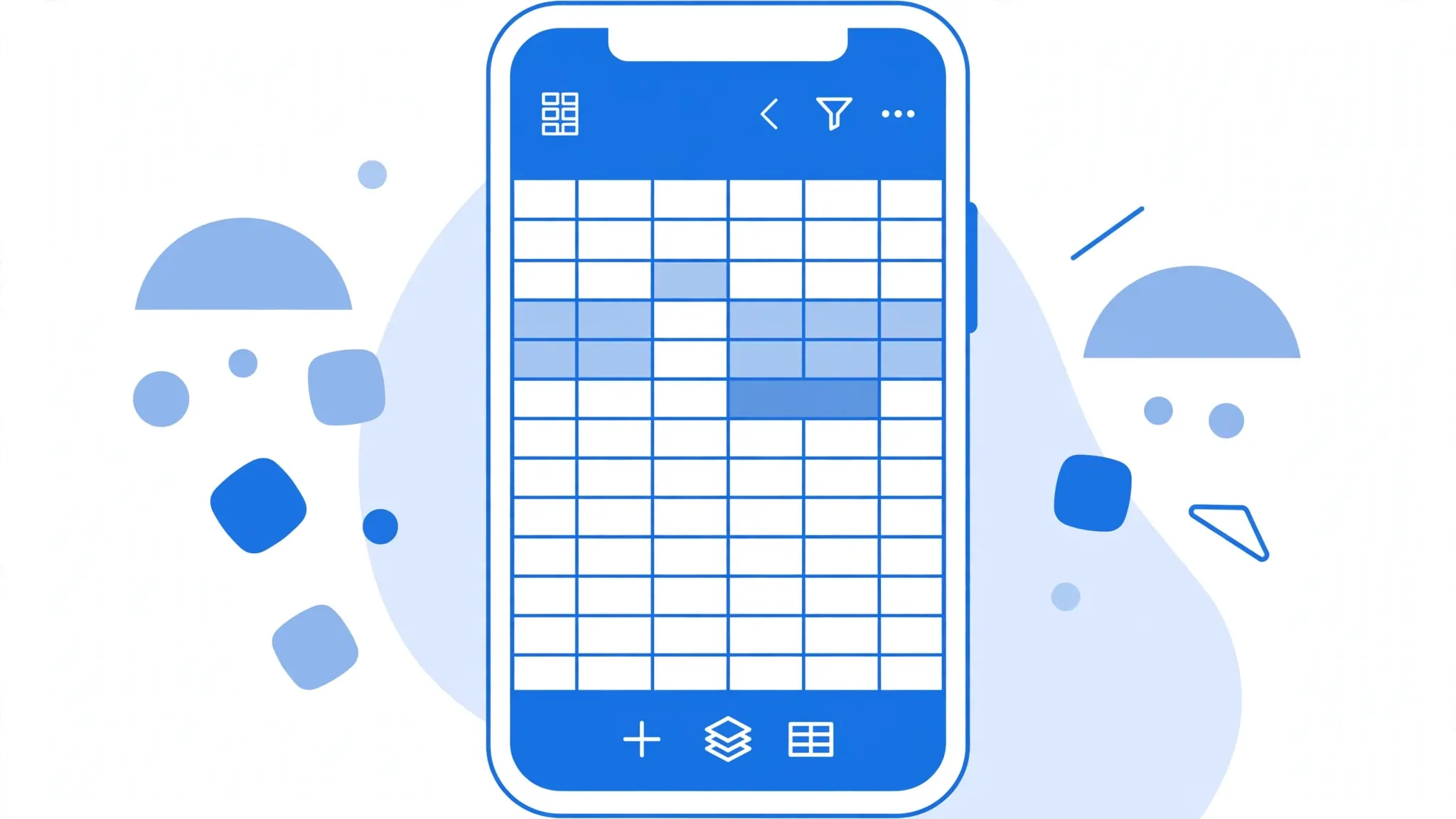
One honest note: on iPhones the free Excel app is view-and-light-edit only for larger screens; basic conversion and saving works fine, but heavy editing pushes you toward a Microsoft 365 subscription. For pure CSV-to-Excel conversion, the free tier is plenty.
Method 5: Google Sheets app on iPhone
If you already use Google’s apps, the Sheets app is a solid conversion route — with one quirk: the iOS app itself doesn’t offer a direct “Save as Excel” button, so you go through the mobile browser instead.
- Install Google Sheets and Google Drive from the App Store and sign in.
- Upload your CSV to Drive: in the Drive app, tap + › Upload › Browse and pick the CSV from the Files app.
- Tap the uploaded CSV in Drive and choose Open in Sheets (or open it directly in the Sheets app).
- Once it’s a proper spreadsheet, open Safari, go to sheets.google.com, and open the same spreadsheet.
- Tap the ⋮ menu (or File), choose Download › Microsoft Excel (.xlsx), and save the file to the Files app.
It’s a few more taps than the other methods, but it’s the natural choice if the CSV already lives in your Google Drive — which, for many people, is where email attachments end up anyway.
CSV files from WhatsApp and other apps
A huge share of iPhone CSV conversions start in a chat app, not an email. The pattern is the same everywhere: get the file into the Files app first, then convert.
WhatsApp: Tap the CSV document in the chat to download it, tap it again to preview, tap the Share button, then Save to Files. Telegram: Tap the file, tap Share, Save to Files. Slack: Tap the file, tap the Share icon, Save to Files. iMessage: Tap the attachment, tap Share, Save to Files. Once the CSV sits in Files (iCloud Drive or On My iPhone), every method in this guide — Safari converter, Numbers, Excel app — can reach it.
One WhatsApp-specific tip: large CSVs sometimes arrive with a generic name like document.csv. Rename it in the Files app (tap and hold › Rename) before converting, so your finished Excel file has a sensible name too.
Keeping phone numbers and leading zeros intact
This is the number-one data-quality issue in phone-based conversion. Spreadsheet apps see 09876543210 and think “number!” — dropping the leading zero to give you 9876543210. US ZIP codes (02134 → 2134), Indian mobile numbers, product SKUs, and ID codes all suffer the same fate.
- Open the CSV in Numbers (Method 2) before converting.
- Tap the column header of the affected column to select it.
- Tap the Format (paintbrush) button and set the cell format to Text.
- Now export to Excel — the zeros survive the trip.
The same Text-format trick protects extra-long numbers (16-digit card or Aadhaar-style IDs) from collapsing into scientific notation, and international phone numbers starting with + from being reinterpreted as formulas. Do it before exporting — once Excel has eaten the zeros, they’re gone for good.
Troubleshooting on iPhone
The CSV won’t open at all. It’s probably still sitting in the sending app. Save it to the Files app first (Share › Save to Files), then convert from there.
Everything is in one column. The file uses semicolons or tabs instead of commas — common in European exports. Import it through Numbers or Google Sheets and set the delimiter manually during import.
Names show as gibberish. Encoding mismatch (often with files from older Windows systems). The Safari converter and Sheets auto-detect most encodings; if they fail, the file needs a desktop pass — see our UTF-8 encoding guide.
The file is enormous. iPhones handle surprisingly large CSVs, but a 200MB export will choke mobile Safari. Split it on a computer first, or use our large CSV guide.
Can’t find the downloaded XLSX. Check the Files app under Browse › Downloads (Safari saves) or iCloud Drive (if you chose Save to Files). Use the Files search bar and type .xlsx to surface every Excel file on the phone.
The converted file looks right but prints badly. Phone-converted files sometimes need print-area tweaks. Open the XLSX in the Excel app, set the print area and fit-to-page options, and you’re done.
Pro tips for frequent iPhone converters
If converting CSVs on your iPhone is a weekly (or daily) habit rather than a one-off, a few setup tweaks will save you serious time. First, pin your tools: add the converter page to your Home Screen (Safari › Share › Add to Home Screen) so it’s one tap away, and move Numbers and Files into your dock. Second, standardize your file landing zone: create a “CSV Inbox” folder in the Files app and always save incoming CSVs there — when conversion time comes, you’re not hunting through WhatsApp threads and email attachments.
Third, learn the delimiter habits of your regular senders. If your German supplier’s exports always use semicolons, or your Indian distributor’s Tally exports always need the encoding fixed, write the two-tap fix on a note and keep it in your phone — or better, ask them once for comma-delimited UTF-8 exports and never think about it again. Most export tools (Shopify, Stripe, Google Ads, bank portals) let the sender choose the format; one polite request upstream saves you a hundred manual fixes downstream.
Fourth, for recurring reports, consider whether the iPhone should be in the loop at all. A lightweight automation — a scheduled script on a home computer, or a simple cloud flow — can convert the weekly CSV and drop the XLSX into a shared iCloud Drive or Google Drive folder, so your phone just receives the finished file. Your future self, converting expense reports in an airport at midnight, will thank you.
Finally, verify before you forward. Phone screens hide sins: a quick scroll through the converted spreadsheet in the Excel or Numbers app catches the classic issues — a column of dates that flipped format, a phone-number column that lost its zeros — before your boss or client sees them. Thirty seconds of scrolling beats an embarrassing follow-up email every time.
One more power move for the truly frequent converter: the Shortcuts app. Build a simple shortcut that takes a CSV from the share sheet, uploads it to your conversion workflow, and saves the result back to a “Converted” folder in Files. It takes ten minutes to set up once, and turns every future conversion into a single tap from any app. Pair it with a Focus mode that files incoming CSVs automatically, and your iPhone basically runs its own little document pipeline while you get on with your day.
Still stuck on a stubborn file? join the discussion in our community forum — describe what the CSV looks like and what you’ve tried, and you’ll usually get a fix within a day.
What About Really Large CSVs on iPhone?
Honesty time: the iPhone is brilliant for everyday CSVs, but it’s the wrong tool for monsters. A 500MB export with two million rows will choke mobile Safari, exhaust the Files app’s patience, and possibly crash Numbers. The iPhone’s browser tabs get aggressively purged from memory, and there’s no progress-friendly desktop app to fall back on. If your file is over ~50MB or ~200,000 rows, do yourself a favor and convert it on a computer — then AirDrop or email the finished XLSX to your phone for viewing.
That said, there’s a middle ground for files in the 10–50MB range: split before converting. If you have access to a computer even briefly, split the CSV into chunks (our large CSV guide shows how), convert each chunk with the Safari method, and keep the pieces in a Files folder. For viewing-only needs, Google Sheets handles surprisingly large files in mobile Safari — upload the CSV to Drive on a desktop, then browse and analyze it on your phone without converting at all. And if large files are your daily reality, that’s a strong signal to set up the automated pipeline described in the pro tips: let a computer do the heavy lifting on schedule, and let your iPhone be the window, not the workhorse.
Frequently Asked Questions
Can I convert CSV to Excel on iPhone without a computer?
Yes. Open the CSV in the Files app or Safari, then convert it with the free Apple Numbers app or a browser-based online converter — no computer or paid software needed.
What app opens CSV files on iPhone?
The built-in Files app previews CSV files. To edit or convert them, use Apple Numbers (free), Microsoft Excel for iOS (free for viewing, paid for editing large files), or Google Sheets (free).
How do I open a CSV attachment on iPhone and save it as Excel?
Tap the CSV attachment in Mail or WhatsApp, tap the Share button, and choose “Save to Files”. Then open it in Numbers and use the … menu › Export › Excel, or run it through a free online converter in Safari.
Is there a free iPhone CSV to Excel app?
Apple Numbers is free and pre-installed on most iPhones. It opens CSV files and exports them to Excel format with no watermarks or limits.
Why does my CSV look like one long column on iPhone?
The file probably uses semicolons or tabs as separators instead of commas, which is common in European CSV files. Import it through Numbers or Google Sheets and set the delimiter during import to split the columns correctly.
Can I convert CSV to Excel in Safari on iPhone?
Yes. A browser-based converter like csvtoexcel.site/ works entirely in Safari — upload the CSV from the Files app, convert, and download the XLSX back to Files, all on the phone.