
Every invoice you format from scratch, every tracker you rebuild each quarter, every budget sheet you reconstruct from memory is time you’ll never get back — and a fresh opportunity to introduce errors. Excel templates productivity is the discipline of never starting from a blank grid twice: you build (or download) a workbook once, with the formatting, formulas, validation, and structure baked in, and every future invoice, tracker, or report starts from that proven foundation. For freelancers in India sending their fiftieth invoice, operations managers in the US running weekly trackers, and finance teams in the UK closing monthly budgets, templates are the simplest high-ROI habit in Excel.
This guide covers the full template lifecycle: what templates actually are, where to find the best excel templates (free and trustworthy), the template types that pay for themselves fastest, a complete excel template tutorial for building your own, what separates a great template from a pretty-but-fragile one, and how to standardize templates across a team. Whether you want an excel templates download for today’s urgent invoice or a system your whole company runs on, you’ll find it here.

What an Excel template actually is (and isn’t)
Technically, an Excel template is a workbook saved in the .xltx format (or .xltm if it contains macros). The magic of the format: when you double-click an XLTX file, Excel doesn’t open the original — it creates a fresh, unsaved copy. The template itself can never be accidentally overwritten, which is exactly the failure mode that destroys “template” workbooks saved as plain .xlsx files (someone opens MASTER_Invoice.xlsx, types in it, hits Save, and the master is gone).
Colloquially, people also call any well-built starter workbook a “template” — a downloaded budget planner, a tracker you copy each month. The distinction matters less than the discipline: a template is a starting point with decisions already made. Layout decided. Formulas written. Formats set. Validation in place. Print settings configured. Every new document inherits all of it, which means every new document starts correct.
What a template isn’t: a finished document, a database, or a substitute for process. A beautiful invoice template won’t fix a chaotic billing process — but it will make the disciplined version of that process dramatically faster and more consistent.
Where to find the best Excel templates in 2026
You don’t need to hunt the web for your first templates — the best excel templates library is already inside Excel.
Inside Excel: File → New. The built-in gallery holds hundreds of Microsoft-made templates: budgets, invoices, calendars, schedules, trackers, dashboards. They’re free, macro-free, professionally designed, and — importantly — they follow decent structural practices. Search is built in: type “invoice” or “project tracker” and browse. This should always be your first stop.
Microsoft Create (create.microsoft.com). Microsoft’s online template hub with a far larger collection than the in-app gallery, including seasonal and niche templates. Same trust level as the in-app gallery — these are official.
Reputable third-party libraries. Several long-running template sites offer deep, specialized collections (industry-specific trackers, advanced dashboards). Quality varies enormously: the good ones are clean and documented; the bad ones are fragile formula spaghetti with macros you didn’t ask for. Rules for third-party downloads: prefer .xltx over .xltm (macro-free), never enable macros in a template from a source you don’t trust, and open every download in Protected View first to inspect it before trusting it with real data.
Your own organization. Often the best template is the one your colleague built three years ago and everyone quietly copies. Formalize it: clean it up, save as XLTX, distribute it properly (more on team rollout below). Institutional knowledge beats internet downloads when the template encodes your process.
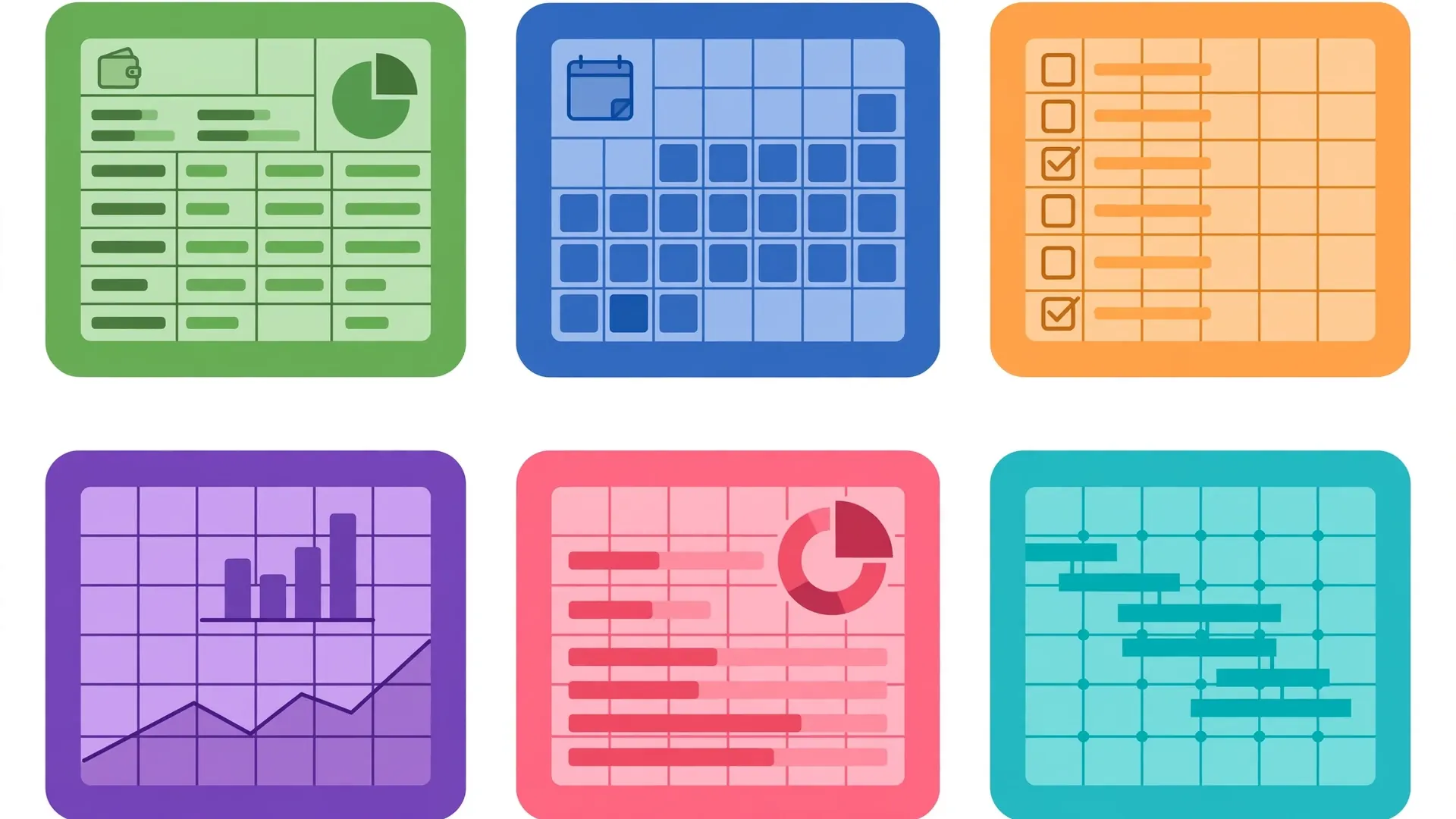
The templates that pay for themselves: invoices, trackers, budgets
Three template categories deliver the fastest, most obvious ROI. If you build nothing else, build these.
Invoices
The freelance and small-business staple. A good invoice template has: your business details and logo placeholder, bill-to fields, an item table (description, quantity, rate, amount) with automatic line totals, tax/GST/VAT calculation rows appropriate to your region, a grand total, payment terms and due date, and a professional print layout. The formula work is trivial (SUM, multiplication) but the consistency is the product: every invoice looks professional, totals always compute, and nothing gets forgotten. Freelancers in India billing in rupees with GST rows, contractors in the US with sales-tax lines, UK businesses with VAT — the structure is identical, only the tax rows change. Save each issued invoice as a dated XLSX or PDF; the XLTX master stays pristine.
Trackers
Project trackers, issue logs, content calendars, habit trackers, inventory logs — the family of “rows appear over time” workbooks. The template essentials: a proper Excel Table (Ctrl+T) so new rows inherit formatting and formulas, data validation dropdowns for status/priority/owner columns, conditional formatting that highlights overdue or blocked items, and a dashboard sheet with COUNTIFS summaries. A tracker template turns “let me set up a sheet for this” from a 30-minute chore into a 30-second File → New. Our data entry tips guide pairs perfectly here — validation and Flash Fill are what keep tracker data clean.
Budgets
Personal budgets, department budgets, project budgets, event budgets. The template essentials: income and expense categories pre-listed (customize once), monthly columns with annual totals, variance columns (budget vs. actual) with conditional formatting, and charts that visualize spending by category. The behavioral insight: people who track against a template budget stick to budgets measurably better than people with ad-hoc sheets — the structure does half the discipline for you. For business budgets, add a protected assumptions sheet so the numbers everyone argues about are at least the same numbers.

Excel template tutorial: building your own from scratch
Downloaded templates get you 80% there; custom templates encode your process. Here’s the full build sequence:
- Start from a copy, not a blank. Take the closest existing workbook (or a downloaded template) and strip it to structure — this is faster than blank-grid design and inherits proven layout.
- Design the input areas first. Decide exactly which cells users fill in. Shade them lightly (a pale fill color is the universal “type here” signal) and leave everything else unshaded. Users should never wonder what to touch.
- Build the formulas. Write every calculation the template needs: totals, taxes, variances, lookups, date math. Test with sample data, then clear the sample values (keep the formulas).
- Add data validation. Dropdowns for every categorical input (status, category, region, payment method). Validation is what keeps a template’s output trustworthy month after month — see our data entry guide for the techniques.
- Format for print and screen. Set number formats, freeze panes, define the print area, add headers/footers with filename and date. A template that prints badly will be “fixed” by every user, creating eleven versions.
- Protect the structure. Unlock only the input cells (Format Cells → Protection → uncheck Locked), then Review → Protect Sheet. Users can fill inputs but can’t break formulas or layout. This single step is what separates templates that survive contact with reality from ones that decay in a week.
- Document it. Add an “Instructions” sheet (or a clearly marked notes box) explaining what goes where. Future users — including future-you — will not remember your intentions.
- Save as XLTX. File → Save As → “Excel Template (*.xltx)”. Save to Excel’s Templates folder and it appears under File → New → Personal. Test it: close everything, File → New → Personal, open your template, confirm you get an unsaved copy.
Total time for a solid template: 1–3 hours. Payback period for a weekly-use template: typically under a month.
Template anatomy: what separates good templates from pretty ones
Pretty templates fail; structured templates endure. When you evaluate (or build) a template, check these structural markers:
Separation of input, calculation, and output. The best templates put raw inputs on one sheet (or a clearly marked zone), calculations in a middle layer, and presentation/dashboard on top. Users touch only the input layer. When everything is jumbled on one sheet, every edit risks breaking a formula.
Real Tables, not formatted ranges. Data areas should be Ctrl+T Tables — they auto-expand, keep formulas consistent down columns, and feed pivot tables and charts cleanly. A “template” built on plain ranges with manual formatting is a liability.
Named ranges for key values. Tax rate as TaxRate beats a hardcoded 0.18 buried in twelve formulas. When the rate changes, you change one cell, not twelve formulas — and the next person can actually understand the logic.
No hardcoded values inside formulas. Every assumption (rates, thresholds, dates, targets) lives in a visible, labeled cell. This is the number-one marker of a professionally built template.
Error handling. IFERROR wrappers on lookup formulas, graceful handling of empty inputs, and conditional formatting that flags problems (negative inventory, unbalanced totals) instead of silently computing garbage.
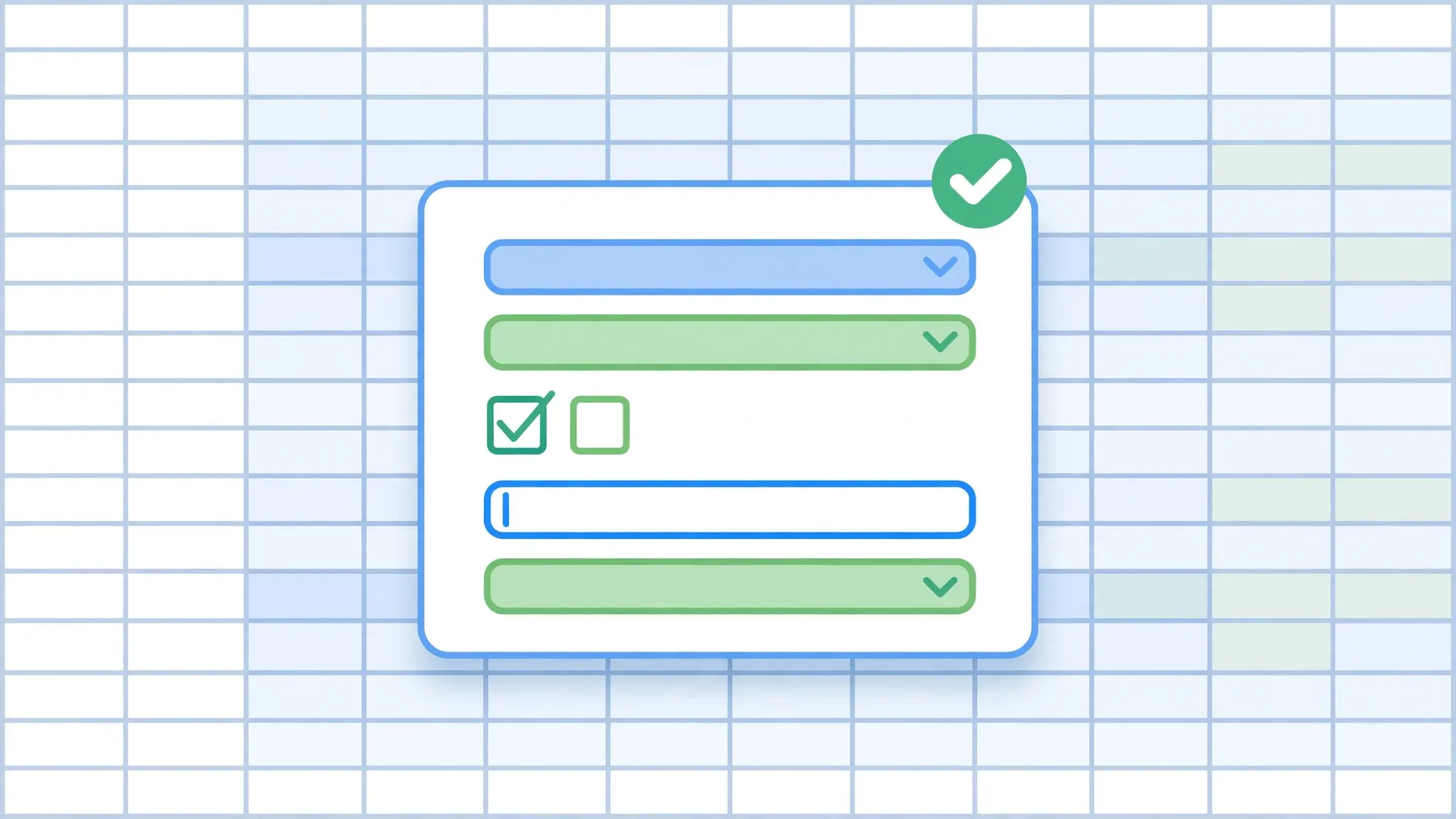
Validation baked in, not bolted on. The templates that survive longest are the ones where data validation was designed in from the start: dropdowns for every categorical field, numeric ranges for quantities, date bounds for timelines. A template without validation is a template waiting to be corrupted by its tenth user — our data entry guide has the full validation playbook, but the template-builder’s version is simple: for every input cell, ask “what’s the worst thing someone could type here?” and then make that impossible. List validations sourced from a dedicated Lists sheet (so categories update in one place), input messages that explain each field, and Stop-style error alerts on anything that must never be wrong. Validation is the difference between a template that produces clean data for years and one that needs monthly cleanup.
Print-ready. Defined print area, fit-to-page settings, repeating header rows, page numbers. The template that prints perfectly is the template people actually keep using.
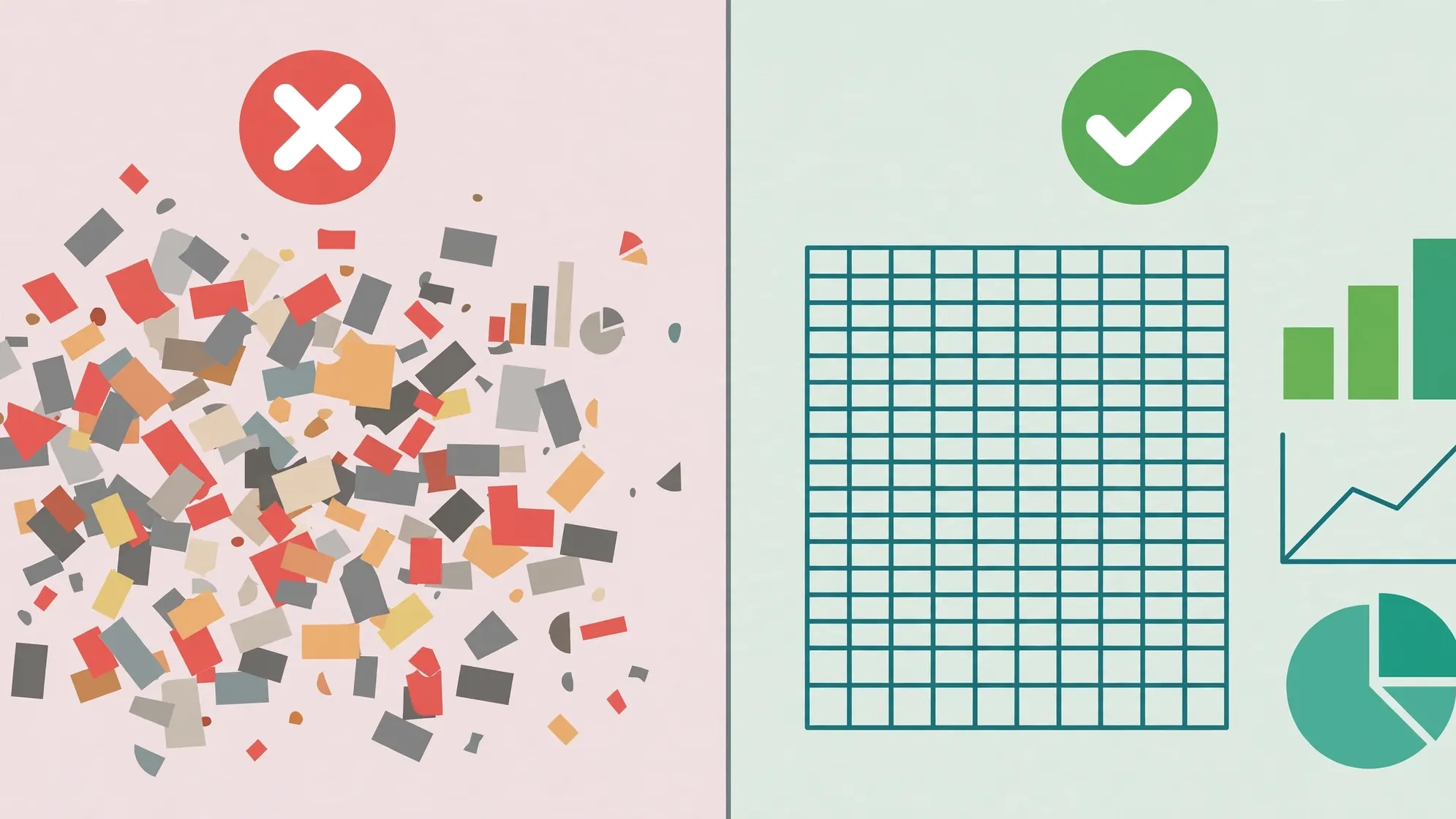
Sharing and standardizing templates across a team
A personal template saves you time; a team template standardizes everyone’s output. The rollout matters as much as the template:
Single source of truth. Store master templates in one shared location — a SharePoint library, a Teams files tab — with clear versioning. The moment two “current” versions circulate, standardization is dead. Name the library obviously (“Team Templates — USE THESE”) and link it in onboarding docs.
Distribute, don’t email. Emailing templates creates version chaos within a week. Point people at the shared location; better, have everyone set it as their default personal templates location (File → Options → Save → Default personal templates location) so the team templates appear in File → New.
Lock the formula layer. Team templates must be sheet-protected with only input cells unlocked. You are designing for the least careful user, not the most — and that’s a compliment to your template, not an insult to your colleagues.
Version deliberately. When the template changes, bump a version number on the Instructions sheet and announce what changed. Keep one archived copy of each major version — when someone asks “why did the Q2 numbers change,” the answer is often “the template changed,” and you want to prove it.
Collect feedback. The people using the template daily know its friction points. A quarterly “what annoys you about the tracker template” thread pays for itself — small fixes compound across every user.
For teams ingesting external data into templates — monthly CSV exports from banks, ad platforms, or suppliers — standardize the intake too: convert with the free CSV to Excel converter into the template’s expected shape, or better, build the template’s data sheet as a Power Query import so refresh is one click. Our scheduled data refresh guide shows how to automate that pipeline entirely.
Excel templates productivity: measuring the payoff
Templates feel like housekeeping; the numbers say they’re infrastructure. Do a quick audit: list the workbooks you (or your team) rebuild regularly, estimate the build time each, and multiply by frequency. A weekly 30-minute tracker setup is 26 hours a year — a template that cuts it to 2 minutes saves 24 hours annually per user. An invoice template that saves a freelancer 15 minutes per invoice, at 40 invoices a month, returns 10 hours a month.
But the bigger payoff is error reduction. Rebuilt-from-scratch workbooks carry fresh mistakes: a forgotten tax row, a misaligned column, a formula that references last month’s sheet. Templates eliminate the entire category of “setup errors” — the numbers that are wrong not because the data was wrong, but because the workbook was built wrong. For finance and compliance work, that consistency is worth more than the time savings.
There’s a third payoff people underestimate: cognitive ease. Opening a familiar template — same layout, same input cells, same validation — removes dozens of micro-decisions from repetitive work. You stop thinking about how to do the invoice and just do it. That mental lightness is why professionals describe good templates the way chefs describe a sharp knife: not as a tool, but as an extension of the hand. Build the template once, and every future repetition rides on rails.
Start this week: pick the single most-rebuilt workbook in your life, spend one focused hour templating it properly (structure, formulas, validation, protection, XLTX), and put it in File → New → Personal. Then notice how often you reach for it. That feeling — the small click of “oh, this is already done” — is excel templates productivity, and it compounds with every template you add. Pair it with the spreadsheet best practices in our companion guide, and your workbooks won’t just be fast to start — they’ll be clean, shareable, and built to last.
And keep a running list: every time you catch yourself rebuilding a familiar structure, add it to a “template candidates” note. Review the list monthly. The workbooks you rebuild most often are the ones screaming to become templates — listen to them, and the library builds itself.

Frequently Asked Questions
Where can I download free Excel templates?
Inside Excel itself: File > New shows Microsoft’s official template gallery with hundreds of free templates, and Microsoft’s Create site offers even more online. For third-party libraries, prefer .xltx (macro-free) files, inspect downloads in Protected View, and never enable macros from untrusted sources.
What is the difference between XLSX and XLTX?
XLSX is a regular workbook; XLTX is a template file. Opening an XLTX creates a fresh unsaved copy instead of opening the original, so the template itself can never be accidentally overwritten. Always save reusable starting points as XLTX.
How do I create my own Excel template?
Build the workbook exactly as every future copy should start — formatting, formulas, headers, validation, protection — then File > Save As and choose “Excel Template (*.xltx)”. Save it to the Templates folder and it appears under File > New > Personal.
Are free Excel templates safe to download?
Microsoft’s official gallery is safe. Third-party templates can contain macros, so never enable macros in a downloaded template unless you trust the source completely. Prefer .xltx files over .xltm (macro-enabled) from unknown sources.
How do I share an Excel template with my team?
Store the XLTX in a shared SharePoint or Teams location as the single source of truth, and have everyone set it as their default personal templates location so the templates appear in File > New. Protect formula cells so users can only edit input areas.
Can Excel templates include formulas and formatting?
Yes — that’s the whole point. A good template ships with formulas pre-built, number formats set, data validation in place, print areas defined, and headers configured. Every new file created from it inherits all of that, which is where the time savings come from.