
Learning to automate repetitive tasks in Excel is the closest thing knowledge workers have to a time machine. Think about your last month: the Monday report you rebuilt from the same CSV export, the Friday cleanup where you fixed the same formatting sins, the month-end ritual of copying twelve sheets into one summary. Each one felt small — fifteen minutes here, half an hour there — but together they quietly eat days of your year. The tragedy is that Excel already contains everything needed to make most of that Excel repetitive work disappear; people just do not know which tool fits which job.
This guide is the decision framework I wish someone had handed me years ago. You will learn how to spot the tasks worth automating (and the ones to leave alone), meet the six Excel automation tools that matter in 2026 — Power Query, VBA macros, Office Scripts, Power Automate, modern formulas, and Python — with a clear map of which job belongs to which tool, see three real workflows automated end to end (including how to automate reports in Excel that build themselves), run a 30-minute automation audit on your own work, and avoid the classic mistakes that make automation cost more than it saves. Whether you are in finance in New York, operations in London, or running a small business in Sydney or Toronto, by the end you will have a personal automation plan — not just theory.

How to spot tasks worth automating
Not every repetitive task deserves automation. The ones that do share three traits: frequency (you do it at least monthly), consistency (the steps are roughly the same each time), and cost of error (manual mistakes cause real pain — a wrong total in a client report, a missed row in payroll). The classic candidates: weekly/monthly reports from CSV exports, data cleanup (dedupe, reformat, standardize), consolidating many files into one, reformatting for different audiences, and scheduled distribution (email the PDF every Friday).
Do the payback math before you start: a task taking 30 minutes monthly costs you 6 hours a year. If automation takes 2 hours to build, you break even in four months and profit forever after — plus you eliminate the error risk. Conversely, a 10-minute task you do twice a year is never worth automating; just do it. The sweet spot for your first project is a monthly 30–60 minute chore with stable steps — big enough to matter, small enough to finish in an afternoon.
The Excel automation toolkit: six tools, six jobs
Here is the map. Each Excel automation tool below owns a distinct job; the art is matching them:
- Power Query → recurring data imports, cleaning, merging, reshaping. Refreshable, mostly no-code.
- VBA macros → formatting, report generation, workbook manipulation on desktop Excel. Deepest access.
- Office Scripts → the same idea as VBA but TypeScript-based and cloud-native for Excel on the web.
- Power Automate → orchestrating across apps: email attachments, approvals, scheduled runs, Teams notifications.
- Modern formulas → calculations that update themselves: XLOOKUP, FILTER, dynamic arrays, LET/LAMBDA.
- Python → heavy lifting at scale: huge files, complex logic, scheduled server-side jobs.
Most real automations combine two or three. A monthly sales report might use Power Query to import twelve CSVs, a macro to format the summary, and Power Automate to email the PDF. Thinking in combinations is the professional mindset — and this guide will show you exactly how the pieces fit.
Tool 1: Power Query — automate data imports and cleaning
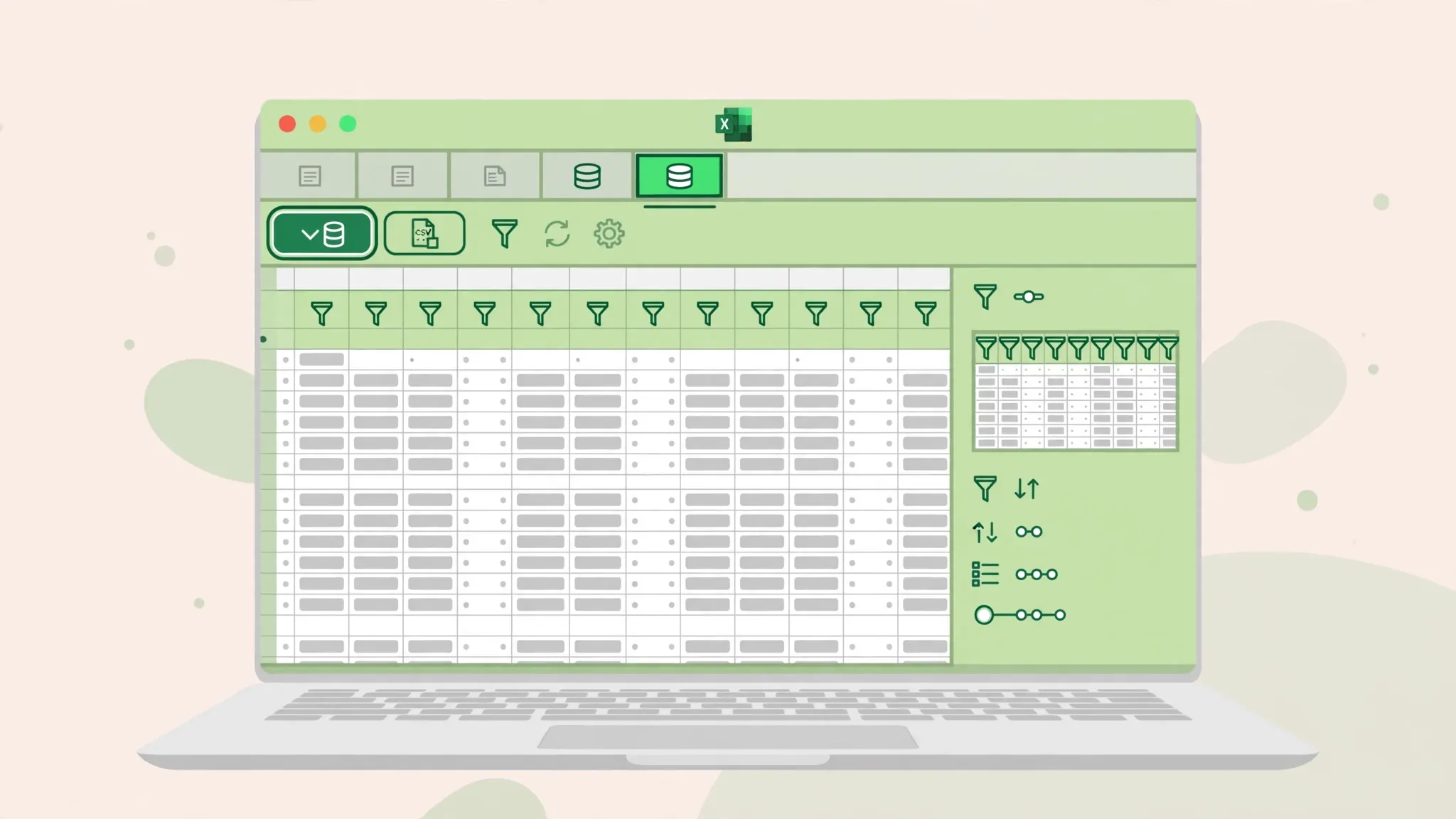
Power Query is Excel’s built-in ETL engine (Extract, Transform, Load), and it is the single best answer to “I clean the same CSV every week.” You build a query once — point it at the file or folder, record transformation steps (fix delimiters, set types, remove junk rows, merge files) — and thereafter Data → Refresh All replays everything. New month, same two clicks.
Its killer feature for reporting is the folder connector: point a query at a folder of CSVs and every new file dropped in gets included on refresh — twelve monthly exports become one self-updating table with zero monthly effort. Power Query is available in Excel for Windows and (with some limitations) Excel for Mac; it is refreshable, mostly point-and-click, and the transformation steps are visible and editable. Reach for it whenever the job is “get data in and shape it” — which covers the first half of most reporting workflows.
Tool 2: Macros and VBA — automate formatting and manipulation
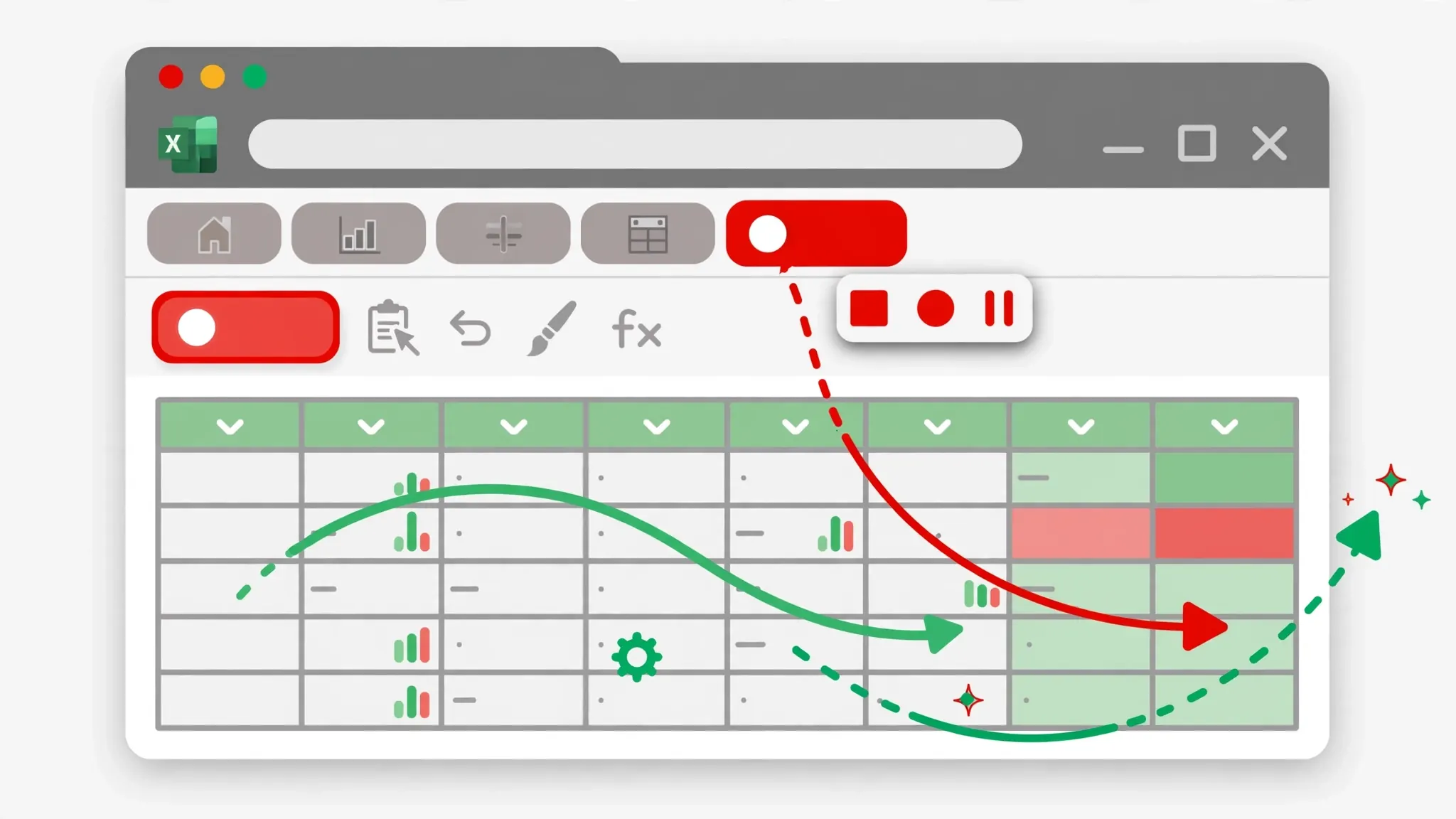
Where Power Query shapes data, VBA owns the workbook: formatting reports, creating sheets, building charts, looping through files, custom dialogs, talking to Outlook or databases. Start with the macro recorder (zero code — see our Excel macros tutorial), then learn to write VBA directly for logic the recorder cannot capture: loops, conditions, error handling (our VBA for beginners guide teaches exactly this progression).
The canonical VBA automation is the report formatter: Power Query loads clean data, the macro applies corporate formatting, builds the pivot tables and charts, sets print areas, and saves a PDF with today’s date. One click, five seconds, identical output every time. VBA’s advantage is depth — nothing else reaches as far into desktop Excel — and its thirty-year library of community code means every pattern you need already exists somewhere.
Tool 3: Office Scripts — automate Excel on the web
Office Scripts are Microsoft’s cloud-native successor to VBA: TypeScript code that runs on workbooks stored in OneDrive/SharePoint, in Excel for the web, and inside Power Automate flows. You can even generate a starter script with the built-in Action Recorder — the web equivalent of the macro recorder. Choose Office Scripts when your work lives in the cloud, when colleagues need to run the automation without desktop Excel, or when you want the script triggered by a Power Automate flow on a schedule. Our Office Scripts guide covers the full picture, including the honest VBA-vs-Scripts comparison.

Tool 4: Power Automate — automate across apps
Power Automate is the conductor: it watches for triggers (an email arrives, a file lands in OneDrive, 8 AM on the first Monday) and runs actions across apps — including running an Office Script on your workbook, refreshing data, converting to PDF, and emailing it. The classic flow: “when the supplier’s CSV hits this inbox, save it to OneDrive, run the cleanup script, and Teams-message me the summary.” No Excel window ever opens. For Excel workflow automation that spans email, files, approvals, and notifications, this is the tool — and its visual designer means non-programmers can build real flows.
Tool 5: Formulas and dynamic arrays — automate calculations
Do not overlook the humblest automation: formulas that eliminate manual calculation steps. Modern Excel’s dynamic arrays (FILTER, SORT, UNIQUE), XLOOKUP, and LET/LAMBDA let a single cell spill a whole report that updates itself when source data changes. Before writing any code, ask: “could a formula do this?” A well-built template with smart formulas often automates 80% of a reporting task with zero maintenance — and anyone can understand it.
Tool 6: Python — automate at scale
When files get huge, logic gets complex, or jobs must run unattended on a server, Python with pandas takes over: read any CSV dialect, clean and merge millions of rows, write formatted .xlsx files with openpyxl, and run on a schedule via cron or Task Scheduler. A ten-line script replaces an hour of Excel wrestling on a 2 GB export. Python is also the bridge tool — clean the monster file in Python, then let Power Query and macros handle the final Excel polish. Data teams in the US, UK, India, Canada, and Australia run entire reporting pipelines this way.
Three real workflows, automated end to end
Workflow 1: The monthly sales report (the classic)
Manual pain: download 12 regional CSVs, open each, fix dates, paste into one sheet, build pivots, format, PDF, email — 3 hours monthly. Automated: Power Query folder connector merges the CSVs and cleans them (build once); a VBA macro formats the summary, builds the charts, and saves the PDF; a calendar reminder (or Power Automate schedule) triggers it. Monthly effort: open the file, hit Refresh, run the macro — 5 minutes. Payback: first month.
Workflow 2: The Friday data cleanup
Manual pain: a supplier CSV arrives with inconsistent names, extra spaces, and wrong date formats — 45 minutes of Find & Replace every Friday. Automated: a recorded-then-tweaked VBA macro (trim spaces, standardize labels via a lookup table, fix dates, remove duplicates), stored in the Personal Macro Workbook. Friday effort: one keystroke. This is the perfect first automation: frequent, consistent, and painfully boring.
Workflow 3: The self-updating dashboard
Manual pain: ad-platform CSVs downloaded weekly, pasted into a dashboard, charts fixed, screenshots shared — 90 minutes weekly. Automated: Power Query imports and appends each week’s CSV to a history table; pivot charts read the table and update on refresh; Power Automate emails the PDF every Monday at 8 AM. Weekly effort: zero. The dashboard maintains itself while you sleep.

Automate repetitive tasks in Excel: your 30-minute action plan
Set a timer and do this now:
- List (10 min). Write down every Excel task you repeated in the last month — reports, cleanups, consolidations, formatting, distributions. Note frequency and minutes each.
- Score (5 min). For each, multiply minutes × monthly frequency. Circle the top three by total time.
- Match tools (10 min). For each of the three, identify the layers: data import/cleaning → Power Query or Python; formatting/presentation → macro, Office Script, or formulas; triggering/distribution → manual click, schedule, or Power Automate.
- Start smallest (5 min). Pick the simplest of the three — ideally the Friday-cleanup type — and record a macro for it today. Ship one automation this week; momentum beats perfection.
Most people discover 3–6 hours of monthly busywork in this exercise. Automating even half of it returns a full workweek per year — and the skills compound: your second automation takes half the time of your first.

Automation mistakes that cost more than they save
- Automating a broken process. Fix the workflow’s logic first; code only makes bad processes faster.
- Hard-coding what changes. File paths, sheet names, and “row 47” break the moment reality shifts. Use folder connectors,
CurrentRegion, and named ranges. - No error handling. What happens when the CSV is missing or empty? A macro that crashes cryptically at 6 AM is worse than manual work. Add basic checks and friendly messages.
- Automating rare tasks. A 10-minute annual job never repays automation effort. Automate the frequent, tolerate the rare.
- Building for an audience of one. If colleagues will run it, add a button, a short instruction, and graceful failure — or you become permanent tech support for your own macro.
- Skipping documentation. Future-you will not remember what the script does. A comment header with purpose, inputs, and date saves hours later.
The meta-lesson: automate repetitive tasks in Excel strategically, not compulsively. Each automation is a small piece of software you now maintain — so build the ones with real payback, build them robustly, and enjoy the hours they return to you every month.
Automate repetitive tasks in Excel — and keep them running
Building an automation is half the job; the other half is making sure it still works six months later when the data format drifts, a colleague “improves” the template, or you are on vacation. Professional Excel workflow automation includes maintenance by design.
Build defensively from day one
Assume everything that can change will change. Reference data by table and column names instead of hard-coded ranges — Excel Tables (ListObjects in VBA) expand automatically when rows are added. Validate inputs at the start of every script: does the expected sheet exist? Is the CSV non-empty? Are the critical columns present? A macro that says “Expected sheet ‘Data’ not found — did the export format change?” saves hours of detective work versus one that crashes on line 47 with “Subscript out of range.” Add a simple run log — date, runtime, rows processed, written to a hidden sheet or a text file — so failures leave footprints.
Document like your replacement is reading
Every automation needs a header comment answering four questions: what does this do, what are its inputs, when does it run, and who do I call when it breaks. Keep a one-page “automation inventory” listing each automation, its trigger, its owner, and its last successful run. When you hand work to a colleague — or return from leave to find something broke — this inventory is the difference between a five-minute fix and a forensic investigation.
Review quarterly, retire ruthlessly
Business processes evolve: the supplier changes their export format, the report nobody read gets cancelled, the team migrates to a new system. Once a quarter, spend thirty minutes reviewing your automations: run each one, confirm the output still makes sense, update anything that drifted, and delete what is obsolete. An automation graveyard of half-working scripts is worse than no automation — it creates false confidence. The goal was never to automate repetitive tasks in Excel once; it is to keep the right tasks automated as your work changes.
Automate repetitive tasks in Excel: three quick wins for this week
Do not wait for the perfect automation strategy — build momentum with these three starter projects, each completable in under an hour:
- The one-click formatter. Record a macro that bolds headers, autofits columns, freezes panes, and adds filters (see our macros tutorial). Store it in your Personal Macro Workbook. From today, no report ever starts ugly.
- The refreshable import. Take the CSV you clean most often and build a Power Query query for it: point, transform, load. Next time it arrives, Data → Refresh All does the cleaning (see our Power Query guide).
- The self-updating summary. Replace one manual copy-paste summary with formulas:
FILTERorXLOOKUPpulling from the raw data, so the summary updates itself when new rows arrive.
Three small wins, one week, and you will have touched a macro, a query, and dynamic formulas — the three pillars of everyday Excel automation. The bigger projects (scheduled reports, cross-app flows) stop feeling intimidating once these basics are muscle memory. Start small, ship fast, and let the payback fund your ambition.
Frequently Asked Questions
What is the best way to automate repetitive tasks in Excel?
It depends on the task: Power Query for recurring data imports and cleaning, VBA macros for formatting and workbook manipulation, Office Scripts for Excel on the web, Power Automate for cross-app workflows, and Python for large-scale processing.
Can Excel automate reports?
Yes. A typical automated report uses Power Query to import and clean the data, a macro or Office Script to format it, and Power Automate or a scheduled task to refresh and distribute it — turning hours of manual work into minutes.
How do I know if an Excel task is worth automating?
Automate tasks you do at least monthly that take 15+ minutes, follow consistent steps, and are error-prone when done manually. If a task takes 30 minutes monthly, a 2-hour automation pays for itself in four months.
Is VBA or Power Query better for Excel automation?
Power Query is better for importing, cleaning, and reshaping data because queries are refreshable. VBA is better for formatting, generating reports, and manipulating workbooks. Most real automations use both.
Can I automate Excel without programming?
Yes. The macro recorder, Power Query’s point-and-click editor, and Power Automate’s visual designer all automate Excel tasks without writing code. Programming (VBA, Office Scripts, Python) extends what is possible.
What are common Excel automation mistakes?
Automating a broken process instead of fixing it first, hard-coding file paths and ranges that change, skipping error handling, and automating rare tasks whose setup costs more than the manual work ever would.