Nothing erodes trust in a report faster than stale numbers. If your Monday dashboard still shows last Thursday’s figures because someone forgot to click refresh, excel scheduled data refresh is the fix: instead of manually re-importing data, you configure Excel (or the cloud services around it) to pull fresh data on a timetable — when the file opens, every N minutes, or on a true server-side schedule. For analysts in the US, UK, India, Canada, and Australia who maintain sales trackers, marketing dashboards, finance summaries, and operations reports, scheduled refresh turns a fragile manual ritual into infrastructure you can forget about.
This guide maps every way to schedule an excel report refresh, from the one-click “refresh on open” setting to cloud refresh in SharePoint and unattended Power Automate flows. You’ll learn how excel auto refresh data works in Power Query, how to refresh web and API data on a schedule, what breaks when refresh runs while you’re asleep (credentials, privacy levels, gateways), and the performance habits that keep refresh fast. Whether your data comes from a database, a website, a CSV drop, or another workbook, there’s a scheduled path for it — let’s find yours.
What “scheduled data refresh” actually means in Excel
Excel doesn’t have one single “scheduled refresh” button — it has a family of mechanisms that people lump under the term, and they behave very differently. Understanding which one you’re actually using is half the battle, because each has different requirements and failure modes.
Refresh on open: when the workbook opens, its queries re-run automatically. This is the simplest excel auto refresh data setup — every stakeholder who opens the file sees current numbers with zero training. The catch: someone has to open the file.
Timed refresh while open: the workbook re-queries every N minutes as long as it stays open. Good for wallboard dashboards on a shared screen in an office or a trading-desk-style monitor. The catch: Excel must be running, the file open, and the machine awake.
Cloud scheduled refresh: for workbooks stored in SharePoint or OneDrive (Microsoft 365), the service refreshes the data on a server schedule and stakeholders view the refreshed file in Excel for the web. The catch: it supports a subset of data sources, and on-premises sources need a data gateway.
Flow-driven refresh: a Power Automate recurrence flow updates the workbook’s tables on a schedule — even at 3 AM with every laptop in the company asleep. The catch: it writes rows through the Excel connector rather than re-running Power Query, so it suits operational updates more than heavy transformations.
Notice the pattern: the further you go down that list, the less any human has to do — and the more setup it takes. Most teams land on a combination: refresh-on-open for ad-hoc users, plus one cloud or flow-driven schedule for the official morning numbers.
Your refresh options, from simplest to most powerful
Here’s the decision map. Pick the row that matches your situation:
You email a workbook around and everyone opens it on their own PC: refresh on open (desktop). Simple, no cloud needed. Each user’s machine needs access to the data sources.
You display a dashboard on a shared screen: refresh every N minutes while open. Leave the workbook open on the display PC; it stays current all day.
Stakeholders view the report in a browser: store the workbook in SharePoint/OneDrive and use cloud scheduled refresh. Nobody needs desktop Excel, and refresh happens server-side.
You need the 7 AM numbers ready before anyone arrives: a Power Automate excel scheduled flow that updates tables overnight. True unattended scheduling.
Your data source is a database behind the company firewall: any of the above plus an on-premises data gateway for the cloud options. Desktop refresh just works if the user’s PC is on the network.
A word of caution before you automate everything: scheduled refresh multiplies the cost of a broken query. A query that fails once a month when you click it manually becomes a query that fails 30 times a month on a schedule — and each failure can email someone or leave yesterday’s numbers silently in place. Build monitoring (even a simple “last refreshed” timestamp cell) from day one. We’ll cover that in the failures section.
Power Query auto refresh: on open and on a timer
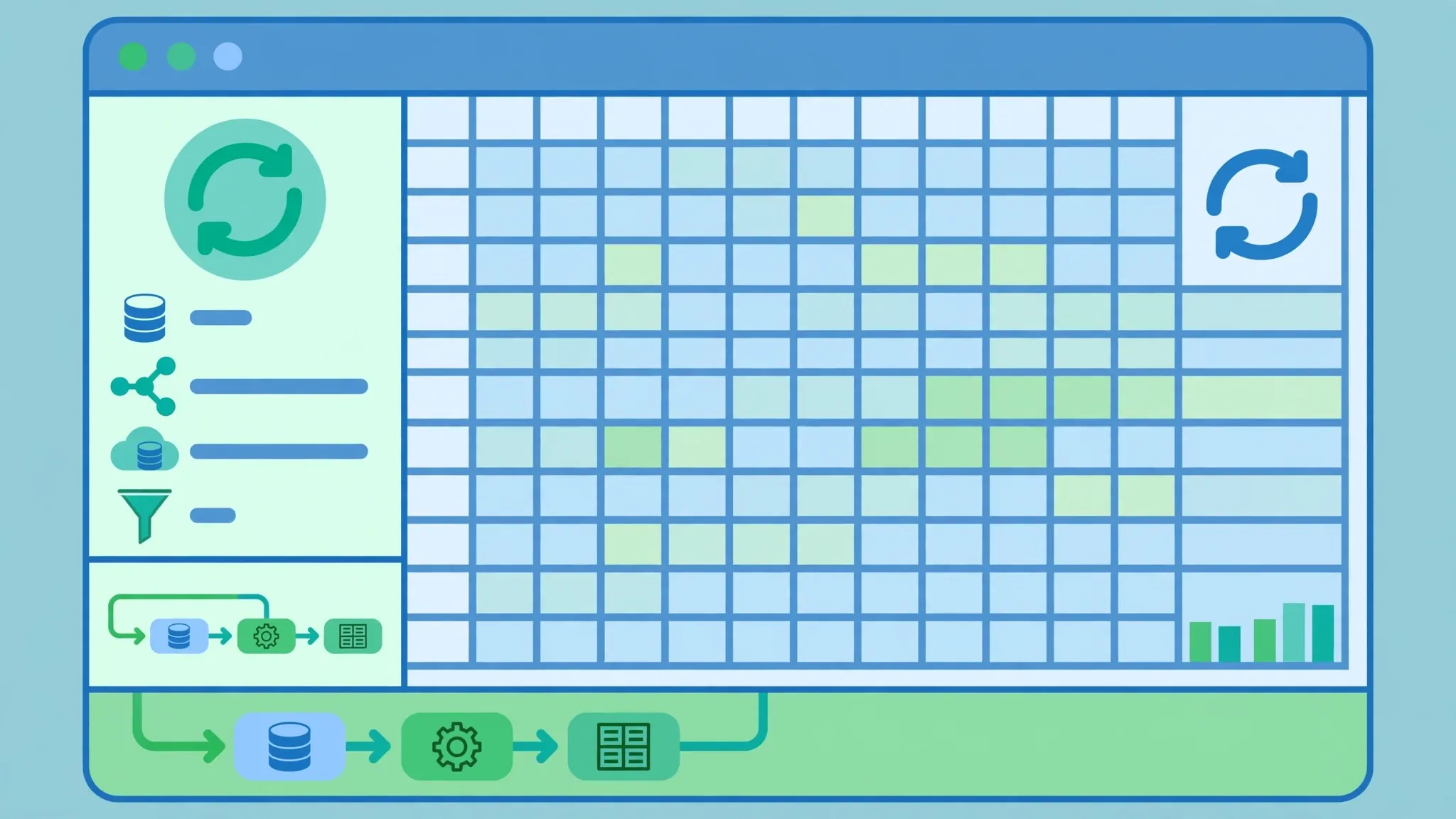
Power Query (Data → Get Data) is the modern import engine in Excel, and its queries are refreshable by design. Setting up excel power query refresh automation takes under a minute per query:
- Go to Data → Queries & Connections to open the queries pane.
- Right-click the query and choose Properties.
- Check “Refresh data when opening the file” — the query re-runs every time the workbook opens.
- Optionally check “Refresh every N minutes” and set the interval (e.g., 60) for wallboard-style auto refresh while the file stays open.
- Check “Refresh this connection on Refresh All” so Ctrl+Alt+F5 / Data → Refresh All includes it.
- Click OK. Save the workbook.
Two subtleties worth knowing. First, “refresh on open” runs the queries sequentially when the file opens, which can make a heavy workbook slow to open — if your file takes two minutes to become usable, consider whether every query truly needs it, or only the headline ones. Second, background refresh (a legacy connection property) lets you keep working while queries run, but it can also let you look at half-refreshed numbers; for reports where consistency matters, a foreground refresh that blocks until done is actually the safer default.
For legacy (non-Power Query) connections — old web queries, ODBC links — the same idea lives under Data → Refresh All → Connection Properties, with “Refresh data when opening the file” and “Refresh every N minutes” checkboxes. If you inherited a workbook from 2015, that’s where its automation lives.
Excel scheduled data refresh for web data and APIs
Web data is where scheduled refresh shines brightest — currency rates, stock prices, weather, sports scores, public datasets, and your own published APIs all update without anyone touching the file. The import itself is a Power Query web query: Data → Get Data → From Web, paste the URL, and shape the data in the Power Query editor. Once it loads as a table, all the scheduling options above apply to it identically.
A few web-specific realities. Authentication: many APIs need a key or token. Power Query supports API keys, OAuth, and basic auth per data source — enter them under Data Source Settings so unattended refresh can use them. Rate limits: a query refreshing every 5 minutes makes 288 calls a day; check the API’s terms before you schedule aggressively, especially with free tiers. Site structure changes: web queries that scrape HTML tables break when the site redesigns — prefer official APIs or CSV/JSON endpoints over scraping page markup. Blocking: some sites block non-browser user agents; Power Query identifies itself honestly, so if a source refuses automated access, respect that rather than spoofing headers.
For JSON APIs specifically, Power Query parses nested JSON into expandable records — click into the record icons in the editor to flatten the fields you need. One scheduled refresh of a well-built JSON query can replace a daily manual download-parse-paste cycle that used to eat 20 minutes. Pair it with refresh-on-open and your “morning numbers” ritual becomes “open the file”.

True scheduled refresh in the cloud: Excel for the web and SharePoint
When the workbook lives in SharePoint or OneDrive for Business, Microsoft 365 can refresh its data on the server — no open Excel, no running PC. Stakeholders open the file in Excel for the web (or desktop Excel, which syncs the refreshed file) and see current data. This is the closest Excel gets to a genuine “set it and forget it” excel scheduled data refresh.
Setup: store the workbook in a SharePoint document library or OneDrive, build the queries with supported sources (web, OData, SharePoint lists, and several databases are supported; some on-premises sources need the gateway), and configure the refresh schedule in the file’s settings. Microsoft documents the supported sources and the scheduling UI in its Excel support documentation — check the current list before committing, because unsupported-source errors are the number one surprise here.
The on-premises data gateway deserves its own mention: it’s a small service installed on a machine inside your network that lets cloud refresh reach your SQL Server, file shares, and internal systems. It needs an always-on machine, a service account, and someone who notices when it stops. Small companies often discover the gateway is more infrastructure than they want — in which case the pragmatic alternative is a scheduled Power Automate flow or simply refresh-on-open on a PC that stays on the network.
Schedule an Excel report refresh with Power Automate
When you need a true schedule — the numbers must be fresh at 7 AM whether or not anyone opens anything — Power Automate is the answer. A recurrence flow can list rows in a table, compute summaries, and write them back, all on Microsoft’s servers. Our companion Excel Power Automate tutorial walks through building these flows step by step; the pattern for scheduled refresh is: Recurrence trigger → list rows from the raw table → aggregate → add/update rows in the summary table.
Note the architectural difference: a flow doesn’t re-run your Power Query — it manipulates table rows through the Excel connector. That makes it ideal for operational updates (append today’s rows, update statuses, roll up totals) and less suited to heavy transformations (which belong in Power Query). Many mature setups use both: Power Query shapes the data when the file opens, and a nightly flow appends the new rows so the morning open is instant.
One more use case people miss: flows can refresh the data source itself. If your “source” is a CSV that lands in a SharePoint folder every night, a flow can convert and append it — or simply email you when the expected file hasn’t arrived, which is a refresh monitor in disguise. Scheduled refresh isn’t just about pulling data; it’s about knowing the pull happened.
Keeping CSV-sourced reports fresh without manual imports
A huge share of real-world reports start life as CSV: bank exports, ad-platform downloads, Shopify order exports, supplier price lists, IoT sensor dumps. The manual loop — download CSV, open in Excel, fix the formatting, paste into the master file — is exactly the kind of toil scheduled refresh should kill. You have three good options.
Option A: Power Query from the CSV file. Data → Get Data → From Text/CSV, point at the file, and shape it once. Every refresh re-reads the file — so if the source system overwrites the same filename daily (many bank and ERP exports do), your report refreshes itself with zero new work. This is the cleanest option when the filename and format are stable.
Option B: Convert once, then treat it as a workbook. If the CSV needs cleanup before it becomes report-grade, convert it with the free CSV to Excel converter, do your one-time cleanup, save as .xlsx in OneDrive, and build Power Query or flow logic on top of the workbook. Best when the CSV is a one-time seed rather than a recurring feed.
Option C: A flow that ingests the CSV. When a new CSV lands in a watched folder (email attachment, SharePoint upload), a Power Automate flow picks it up and appends its rows to the master table. This handles the messy real world — changing filenames, emailed attachments, multiple sources — at the cost of building the flow. Our Excel templates guide also shows how to standardize the master workbook so ingested data always lands in the right shape.

When refresh fails: credentials, privacy levels, and gateways
Scheduled refresh fails in predictable ways. Here’s the triage order that resolves 90% of cases:
1. Credentials. Unattended refresh can’t prompt you to log in, so every source needs stored credentials: Data → Get Data → Data Source Settings → Edit Permissions. After any password change, re-enter credentials here — this is the single most common cause of “it worked yesterday” failures. For cloud refresh, credentials are stored in the service and managed by the file owner.
2. Privacy levels (Formula.Firewall). Power Query’s privacy levels prevent data from one source leaking into another. When a query combines sources (say, a web API plus a local CSV), mismatched privacy settings block the refresh with a Formula.Firewall error. Fix it in Data Source Settings → Privacy Levels: set both sources to Organizational (or Private, consistently) — but understand what you’re asserting before you lower a barrier.
3. Gateway offline. If cloud refresh hits on-premises sources, the gateway must be running, patched, and reachable. Check the gateway status in the Power Platform admin center before debugging the query — a surprising number of “query broken” incidents are really “the gateway PC rebooted for updates”.
4. Source changed. APIs change schemas, websites redesign, database columns get renamed. When refresh suddenly fails after months of green runs, diff the source first: open the query in the Power Query editor and step through the applied steps to find where the shape diverged.
5. File moved or renamed. Queries reference sources by path. Someone reorganizing SharePoint folders breaks every query pointing at the old path. Re-point in Data Source Settings, and consider using SharePoint’s stable sharing links where possible.
Build yourself a safety net: add a “Last refreshed” timestamp to every scheduled report (a query step that stamps DateTime.LocalNow(), or a flow that writes it). When stakeholders can see the timestamp, stale data becomes a visible, debuggable event instead of a silent trust-killer. And for business-critical reports, configure failure notifications — Power Automate can email you when a scheduled flow fails, and SharePoint can notify on refresh failures.
Making refresh fast: performance habits that matter
A refresh that takes 40 seconds gets used; a refresh that takes 8 minutes gets disabled. These habits keep scheduled refresh snappy:
Filter early, shape in the query. Every row you filter out at the source is a row Excel never has to process. Push date filters and column selection into the Power Query steps (query folding sends them to the database when possible) rather than loading everything and filtering in the sheet.
Load only what you need. In the Power Query editor, right-click queries that are just intermediate steps and disable “Enable load” — they still feed downstream queries without materializing as tables. Fewer loaded tables means faster refresh and a cleaner workbook.
Kill volatile formulas around refreshed tables. Thousands of volatile functions (OFFSET, INDIRECT, TODAY recalculating constantly) re-fire on every refresh. Replace with structured references and non-volatile alternatives where you can.
Stage heavy data outside the report. If a query pulls a million rows to produce a 200-row summary, consider a staging workbook (or database) that refreshes on its own schedule, with the report querying the staged summary. Two fast refreshes beat one monstrous one.
Mind the schedule frequency. Refreshing every 5 minutes “just in case” hammers sources and burns API quotas. Match the frequency to how fast the data actually changes: stock dashboards every 15 minutes, sales reports hourly, finance summaries daily. Your future self — and your API provider — will thank you.


Frequently Asked Questions
Can Excel automatically refresh data on a schedule?
Yes, in several ways. Desktop Excel can refresh Power Query connections when the file opens and on a timed interval while open. Workbooks in SharePoint or OneDrive can use cloud scheduled refresh, and Power Automate recurrence flows can update tables on a true schedule — even when your computer is off.
How do I set Power Query to refresh automatically?
Go to Data > Queries & Connections, right-click the query, choose Properties, and enable “Refresh data when opening the file”. For timed refresh while the workbook stays open, also set “Refresh every N minutes” in the same dialog. These settings apply to every Power Query connection.
Why does my scheduled refresh fail with a credentials error?
Unattended refresh can’t prompt for a login, so each source needs stored credentials — update them under Data > Get Data > Data Source Settings after any password change. Also check Privacy Levels: combining sources with mismatched settings blocks refresh with a Formula.Firewall error until you align them.
Can I refresh Excel data from a website on a schedule?
Yes. Import with Data > Get Data > From Web, shape it in Power Query, then schedule it like any query — refresh on open, on a timer, via SharePoint cloud refresh, or through a Power Automate flow. Prefer official APIs over scraping page HTML, which breaks on redesigns.
Does refresh work when my computer is turned off?
Only cloud-based options keep working with your PC off: SharePoint/OneDrive scheduled refresh and Power Automate recurrence flows. Desktop “refresh on open” and “refresh every N minutes” need Excel open on a running, awake machine.
How do I stop Excel from refreshing data automatically?
Open Data > Queries & Connections, right-click each query, choose Properties, and uncheck “Refresh data when opening the file” and “Refresh every N minutes”. For legacy connections, check Data > Refresh All > Connection Properties too.