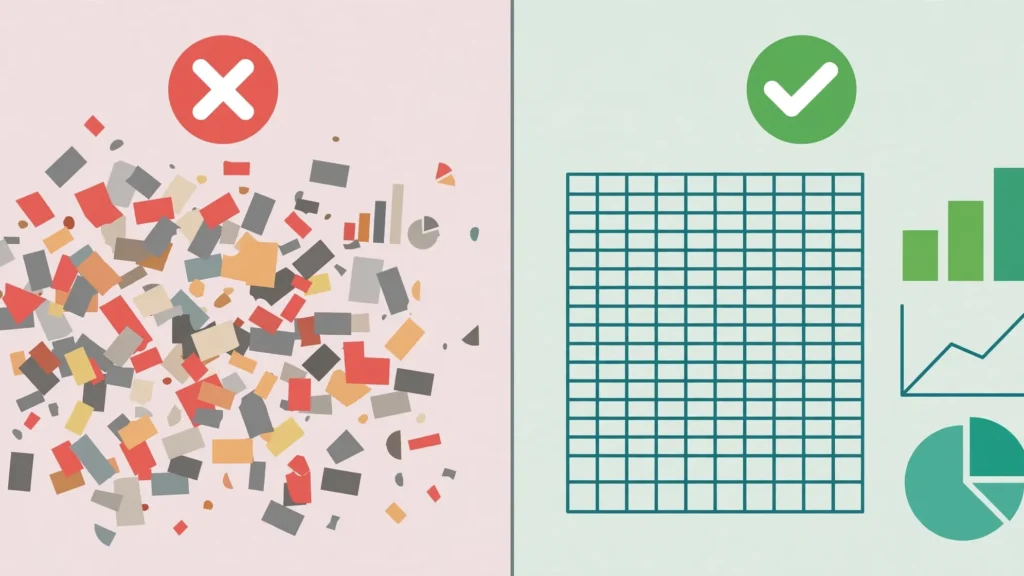
Everyone has received that spreadsheet: eleven tabs named Sheet1 through Sheet11, merged cells everywhere, formulas referencing cells three sheets away, numbers hardcoded inside calculations, and no indication of what any of it means. You stare at it, sigh, and rebuild it from scratch. This clean spreadsheet guide exists so you never inflict that on anyone — and so you can spot the warning signs in files you inherit. These spreadsheet best practices are universal: they work in Excel, Google Sheets, and LibreOffice Calc alike, because they’re about how humans read and trust grids of data, not about any one application’s buttons.
You’ll learn the mindset shift (build for the next person), structural rules for layout and tables, how to write auditable formulas, formatting restraint, data hygiene, documentation habits, sharing etiquette, and file-health practices. These are the excel best practices that separate workbooks people trust from workbooks people quietly rebuild — the spreadsheet design tips that matter whether you’re a student in Manchester, an accountant in Mumbai, or a founder in Melbourne.
The mindset: build for the next person
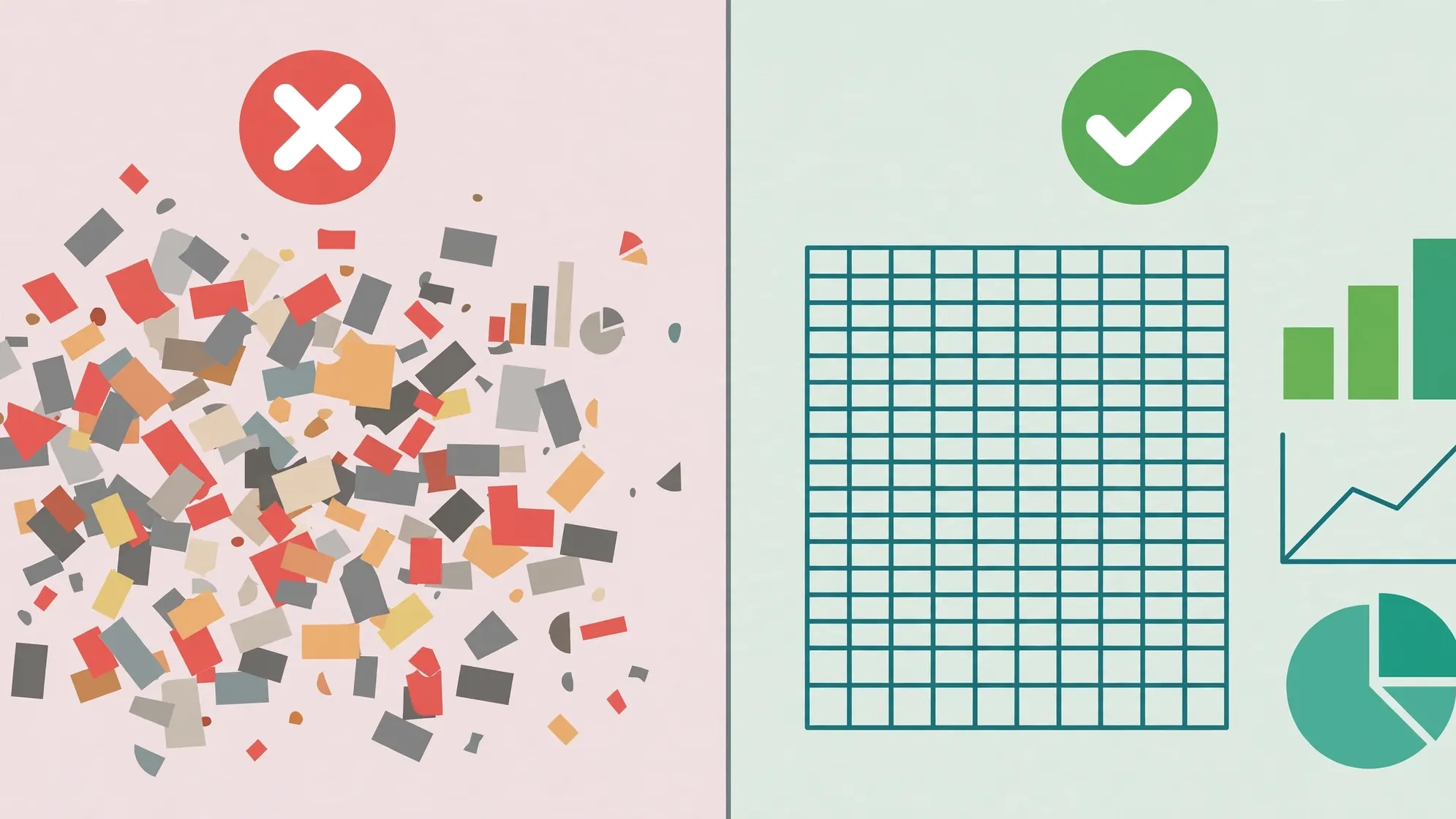
Every spreadsheet best practice flows from one principle: you are not the audience. The audience is your colleague opening this file in six months, your manager skimming it before a meeting, the auditor checking your numbers, or future-you with no memory of what you meant. “I’ll remember” is the most expensive sentence in spreadsheet work.
Practically, this means optimizing for legibility over cleverness. The elegant mega-formula that computes everything in one cell is worse than three helper columns that show their work — because the helper columns can be checked, and the mega-formula can’t. It means naming things: tabs, ranges, tables. It means writing down assumptions instead of embedding them. None of this is about dumbing down; it’s about respecting the reader’s time and attention, which are always scarcer than yours felt while building.
The corollary: consistency beats brilliance. A team where everyone structures sheets the same adequate way outperforms a team of geniuses with eleven incompatible styles. Standards — even boring ones — are a feature. If your team doesn’t have spreadsheet conventions, this guide is a fine starting draft.
Structure: one fact, one place
The deepest structural rule: every piece of data lives in exactly one place, and everything else references it. The moment the same number exists in two cells, they will diverge — someone updates one and not the other, and now you have two “truths”. This is the spreadsheet version of the database principle “don’t repeat yourself,” and violating it is the root cause of a shocking share of real-world errors.
In practice this means: separate input, calculation, and output. Raw data on one sheet (or a clearly marked zone) — typed or imported, never hand-edited after import. Calculations on another — formulas that transform raw data into results. Presentation on a third — the dashboard, the summary table, the print-ready report. Users touch only the input layer; everything downstream is formula-driven. When someone asks “where did this number come from,” you can trace it: output → calculation → input, each step visible.
Within the data layer, follow tidy data principles: one row per observation, one column per variable, one cell per value. No sub-headers mid-table, no totals rows mixed into the data (put totals below or on the summary sheet), no “notes” columns crammed between data columns. A tidy table can be sorted, filtered, pivoted, and imported anywhere; a decorated one can only be looked at.
Tab organization matters too: name every tab descriptively (never Sheet1), order them logically (inputs left, outputs right), and color-code by layer if your team agrees on a scheme. Delete truly empty sheets — they signal neglect and confuse navigation.
Layout rules: headers, tables, and the grid
These spreadsheet design tips govern the physical grid:
Headers in row 1, single row, no merges. Every column gets exactly one clear header. Merged cells in data areas break sorting, filtering, and automation — for a centered multi-column title effect, use Center Across Selection (Format Cells → Alignment) instead of merging. If you need two header rows (category + subcategory), reconsider the design — usually one row with combined labels (“Q1 Revenue”, “Q2 Revenue”) is cleaner.
Use real Tables (Ctrl+T). In Excel, Tables give you structured references, auto-expansion, banded rows, and filter buttons. In Google Sheets, the equivalent discipline is named ranges plus filter views. Either way: the data area should be a defined, named object — not an anonymous rectangle of formatted cells.
Left-to-right, top-to-bottom flow. Time flows left to right (oldest to newest columns) or top to bottom (oldest to newest rows) — pick one and be consistent. Key identifiers go in the leftmost columns; derived values to the right of their inputs. A reader should be able to scan in the natural reading direction and follow the logic.
Leave breathing room — deliberately. One blank row/column between logical sections is fine; seventeen scattered blank rows are not. Whitespace is punctuation: use it to separate, not to decorate.
Freeze panes. Freeze header rows (and key identifier columns) so context stays visible while scrolling. A 500-row table without frozen headers is a usability failure, full stop.

Formulas: write them like someone will audit them
Formulas are where spreadsheets earn their keep — and where they fail most dangerously, because a wrong formula looks exactly like a right one. These excel best practices keep formulas trustworthy:
No hardcoded values inside formulas. =B2*0.18 hides the tax rate where nobody can find it. Put 0.18 in a labeled cell (better: a named range called TaxRate) and write =B2*TaxRate. When the rate changes — and it will — you update one cell. Every assumption (rates, thresholds, dates, targets) deserves its own visible, labeled home. Our templates guide shows how to build an assumptions area into every reusable workbook.
Prefer simple over clever. Three helper columns with transparent steps beat one 400-character mega-formula. Helper columns can be checked, debugged, and understood; mega-formulas can only be feared. (Hide the helper columns on the presentation sheet if aesthetics demand it — but keep them visible where the logic lives.)
Use named ranges for key values. =Revenue*TaxRate reads like English; =$B$2*$Z$99 reads like a license plate. Name the important cells — inputs, rates, totals — and your formulas become self-documenting.
Handle errors explicitly. Wrap lookups in IFERROR/IFNA with a meaningful fallback (“Not found”) rather than letting #N/A cascade through the sheet. An explicit fallback tells the reader the case was considered; a raw error looks like breakage.
Keep formula direction consistent. Formulas in a column should all follow the same pattern (all referencing the same relative positions). The moment one row’s formula differs from its neighbors, that’s either a bug or a special case that deserves a comment.
Document the non-obvious. A cell comment or a notes column explaining why a formula does something unusual (“excludes intercompany sales per policy §4.2”) is worth more than the formula itself. Future auditors will bless you.
Formatting: restraint is a feature
Formatting should communicate, not decorate. Every color, border, and font choice should answer “what does this tell the reader”:
Format numbers, don’t fake them. Use number formats (currency, percent, dates) rather than typing symbols into cells. A cell containing 45% as a real percentage can be summed and averaged; a cell containing the text “45%” cannot. This is the most common formatting sin and it silently breaks math.
One meaning per color. If red means “over budget” in one place, it can’t mean “Q3 data” in another. Keep a tiny legend if you use more than two semantic colors. And remember accessibility: ~8% of men have color-vision deficiency — never make color the only signal; pair it with icons, bold, or labels.
Borders sparingly. Gridlines exist; you don’t need to draw boxes around everything. Use borders to delineate sections and totals, not to wallpaper the sheet. Banded Table rows already provide readability — trust them.
Consistent fonts and sizes. One body font, one header treatment, consistent sizes. The sheet should look like one document, not a ransom note. Calibri 11 (Excel’s default) is fine — the goal is invisibility, not typography awards.
Conditional formatting as instrumentation. Use it to surface what matters: duplicates in ID columns, values outside expected ranges, overdue dates, variances beyond tolerance. Conditional formatting is at its best when it’s an alarm system, not wallpaper.

Data hygiene: types, validation, and cleanliness
Clean data in, trustworthy results out. The hygiene checklist:
Correct data types per column. Dates as dates, numbers as numbers, IDs as text (to preserve leading zeros). Mixed types in a column (“N/A” among numbers, dates stored as text) break sorting, filtering, and every downstream formula. When importing CSVs, set types at import — the free CSV to Excel converter gives you a clean starting table, and our data entry tips cover keeping them clean.
Validate inputs. Dropdowns for categories, ranges for numbers, date bounds for timelines — data validation prevents bad data at the source. A sheet without validation on its input columns is a sheet waiting to be corrupted.
Kill the invisible dirt. Leading/trailing spaces (” New York”), non-breaking spaces from web pastes, inconsistent capitalization, duplicate rows. TRIM(), CLEAN(), and Remove Duplicates are the janitorial trio — run them on any inherited or imported data before trusting it.
One consistent representation. Dates in one format (ISO 8601 YYYY-MM-DD is the only sane choice for shared files across the US, UK, India, and Australia — no more 03/04 ambiguity). Categories from a controlled list. Currencies with explicit units. Inconsistency is a bug that hasn’t manifested yet.
Blanks mean missing — nothing else. Don’t use blanks to mean zero, “not applicable”, and “forgot to fill” simultaneously. Use explicit markers (0, “N/A”, truly blank) and document what each means. Ambiguous blanks corrupt every COUNT and AVERAGE that touches them.

Documentation: the sheet that explains itself
The most neglected of all spreadsheet best practices — and the highest-leverage for shared work:
A cover sheet. The first tab explains: what this workbook is, who built it, when, what data it contains, where the data came from, and how often it’s updated. Five minutes to write; it answers every “what is this file” question forever.
Assumptions documented. Every rate, threshold, and judgment call, listed with its source and date. “Tax rate 18% — GST Council notification, effective Oct 2026” beats a mysterious 0.18 in cell Z99.
Changelog. A small table (date, author, change) on the cover sheet. When numbers move unexpectedly, the changelog is the first place anyone looks — and “the template changed in v2.1” is a legitimate, checkable answer.
Cell comments for the weird stuff. Any formula or value that would surprise a competent reader deserves a comment explaining why. Not what it does (that’s readable) — why it does it that way.
Instructions where users act. Input sheets get a brief instructions box at the top: what to fill, what not to touch, who to ask. Don’t make users guess — and don’t make them read a separate manual.
Sharing: making spreadsheets other people can use
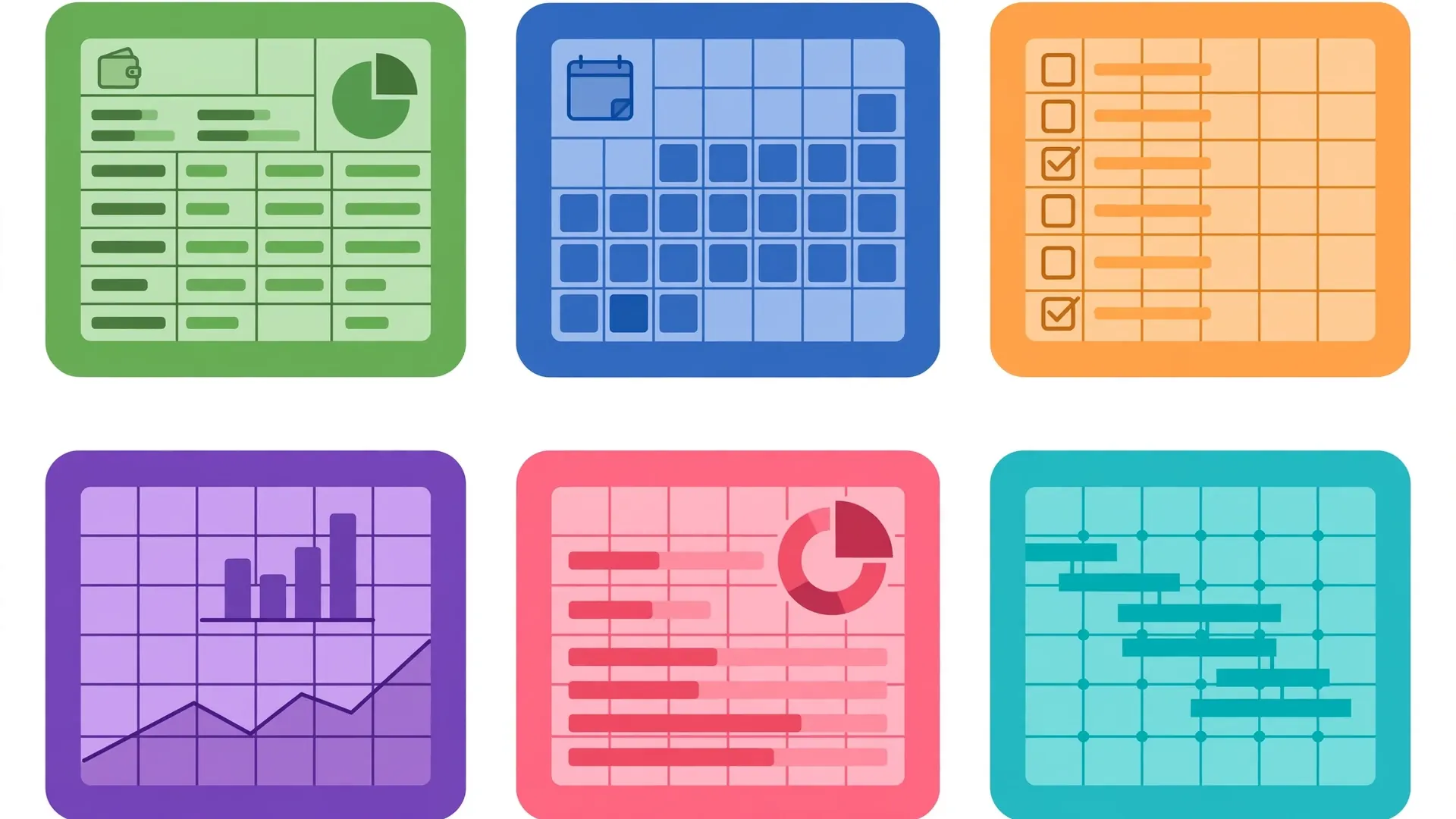
A workbook isn’t done when it’s correct — it’s done when others can use it safely:
Protect what users shouldn’t touch. Unlock input cells, then protect the sheet (Review → Protect Sheet). Formula cells, structure, and layout become unbreakable; users get clear, guided input areas. This is non-negotiable for shared workbooks.
One shared file, not eleven emailed copies. Use OneDrive/SharePoint/Google Drive sharing with proper permissions. Emailed copies diverge within days; a single shared file with version history is the only sane collaboration model. (See our Excel vs Google Sheets comparison for how the collaboration models differ.)
Set expectations in the filename. Q3_Sales_Report_v2.1_2026-10-08.xlsx tells a story; final_FINAL_v3.xlsx tells a tragedy. Date-stamp shared versions; keep the working file clearly identified.
Consider the recipient’s tools. Sharing with someone on LibreOffice or Google Sheets? Avoid volatile exotic functions, check compatibility (our Excel vs LibreOffice Calc guide covers the pitfalls), and prefer widely-supported features. A workbook that only opens correctly in your exact Excel build isn’t shared — it’s stranded.
Don’t share the kitchen sink. If the workbook contains sensitive salary data alongside the public dashboard, split them. Share the minimum necessary — linked or exported cleanly — rather than the everything-file with “just don’t look at Sheet7”.
Spreadsheet best practices for performance and file health
Clean workbooks are usually fast workbooks, but a few specific habits matter:
Mind volatile functions. OFFSET, INDIRECT, TODAY/NOW, RAND recalculate on every change anywhere. A few are fine; thousands bring workbooks to their knees. Prefer INDEX/MATCH and structured references.
Don’t format entire columns. Applying formats to all 1,048,576 rows bloats the file and slows everything. Format only the used range — or better, let Tables handle it.
Watch the used range. Ctrl+End reveals how far Excel thinks your data extends. Stray formatting or values in row 900,000 inflate file size enormously — delete the excess rows/columns properly and save.
Split when it’s really big. Past ~100k rows with heavy formulas, consider Power Query staging or a database backend with Excel as the presentation layer. Excel is a superb analytical frontend; it’s a mediocre data warehouse.
Keep a backup discipline. Version history (OneDrive/SharePoint) or dated copies before major surgery. The best practice isn’t “never break anything” — it’s “always be able to unbreak it”.
Adopt these practices and your spreadsheets become something rare: files people open with confidence instead of suspicion. Clean structure, honest formulas, restrained formatting, documented assumptions — that’s the whole game, and it works in every spreadsheet tool on earth. Start with the next workbook you build: headers in row 1, a real Table, no hardcoded values, a cover sheet. Then watch how differently people treat your work.
Frequently Asked Questions
What are the most important spreadsheet best practices?
Use one row per record with clean headers, format data as proper Tables, keep formulas readable with named ranges, never hardcode values inside formulas, separate input/calculation/output layers, validate inputs, and document assumptions. These seven habits prevent the vast majority of spreadsheet errors.
Should I use merged cells in Excel?
Avoid merged cells in data areas — they break sorting, filtering, copying, and automation. Use “Center Across Selection” (Format Cells > Alignment) for the visual effect of a merged header without the structural damage, and keep data grids strictly unmerged.
How do I make my spreadsheet easier for others to understand?
Add a cover sheet explaining the workbook’s purpose and data sources, shade input cells so users know what to touch, use clear header names, document assumptions, and keep a changelog. Design for someone opening the file cold in six months.
What’s wrong with hardcoding numbers in formulas?
Hardcoded values hide assumptions inside formulas where nobody can see or update them reliably. Put every rate, threshold, and assumption in a labeled cell (ideally a named range) and reference it — when the value changes, you update one cell instead of hunting through formulas.
How many tabs should a spreadsheet have?
As many as the logic needs, but organized: separate raw data, calculations, and presentation onto different sheets, name every tab descriptively, and keep a consistent order. One giant sheet doing everything is harder to audit than five focused ones.
Do these best practices apply to Google Sheets too?
Yes — nearly all are tool-agnostic. Clean headers, Tables, readable formulas, validation, and documentation work identically in Excel, Google Sheets, and LibreOffice Calc. See our Excel vs Google Sheets comparison for where the tools themselves differ.