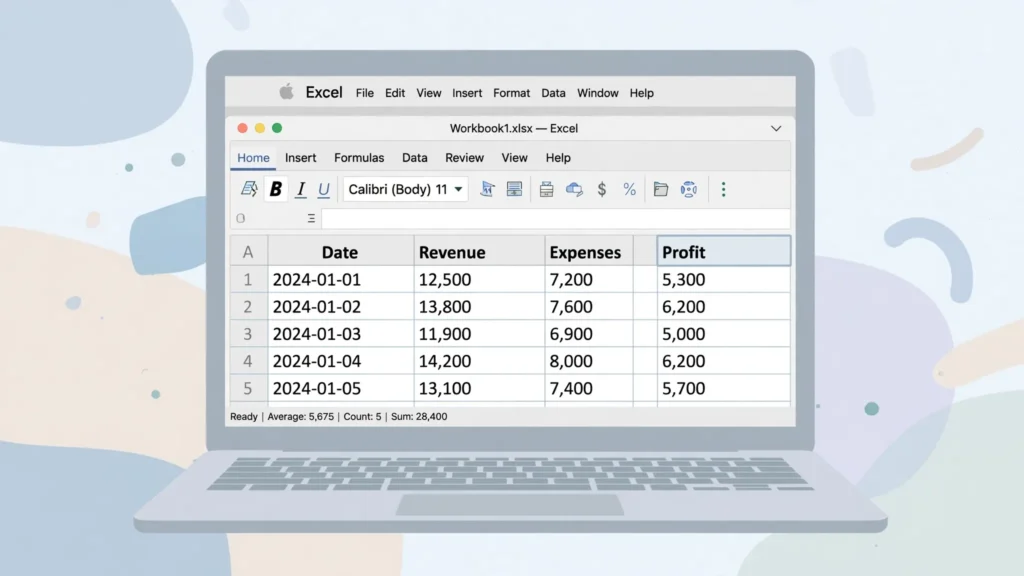
Welcome to the most practical Excel for Mac tutorial for absolute beginners. If you’ve just opened Microsoft Excel for Mac for the first time — on a MacBook Air, a MacBook Pro, or an iMac — and the ribbon of icons feels overwhelming, you’re in exactly the right place. This guide assumes zero spreadsheet experience: by the end, you’ll have built your first workbook, written real formulas, sorted and filtered data, imported a CSV file, and learned the Mac-specific quirks (hello, ⌘ key) that trip up every Windows switcher.
We’ll move in a deliberate order: first the lay of the land (what’s the same and what’s different versus Windows Excel), then your first workbook in ten minutes, then the core skills every beginner needs — formulas, sorting, filtering — then importing real-world CSV data, and finally the Mac-specific differences and beginner mistakes to dodge. You don’t need any add-ins, subscriptions beyond Excel itself, or prior knowledge. Open Excel on your Mac and follow along; every step works on both Apple Silicon and Intel Macs, from macOS Monterey to the latest release.
Is Excel for Mac different from the Windows version?
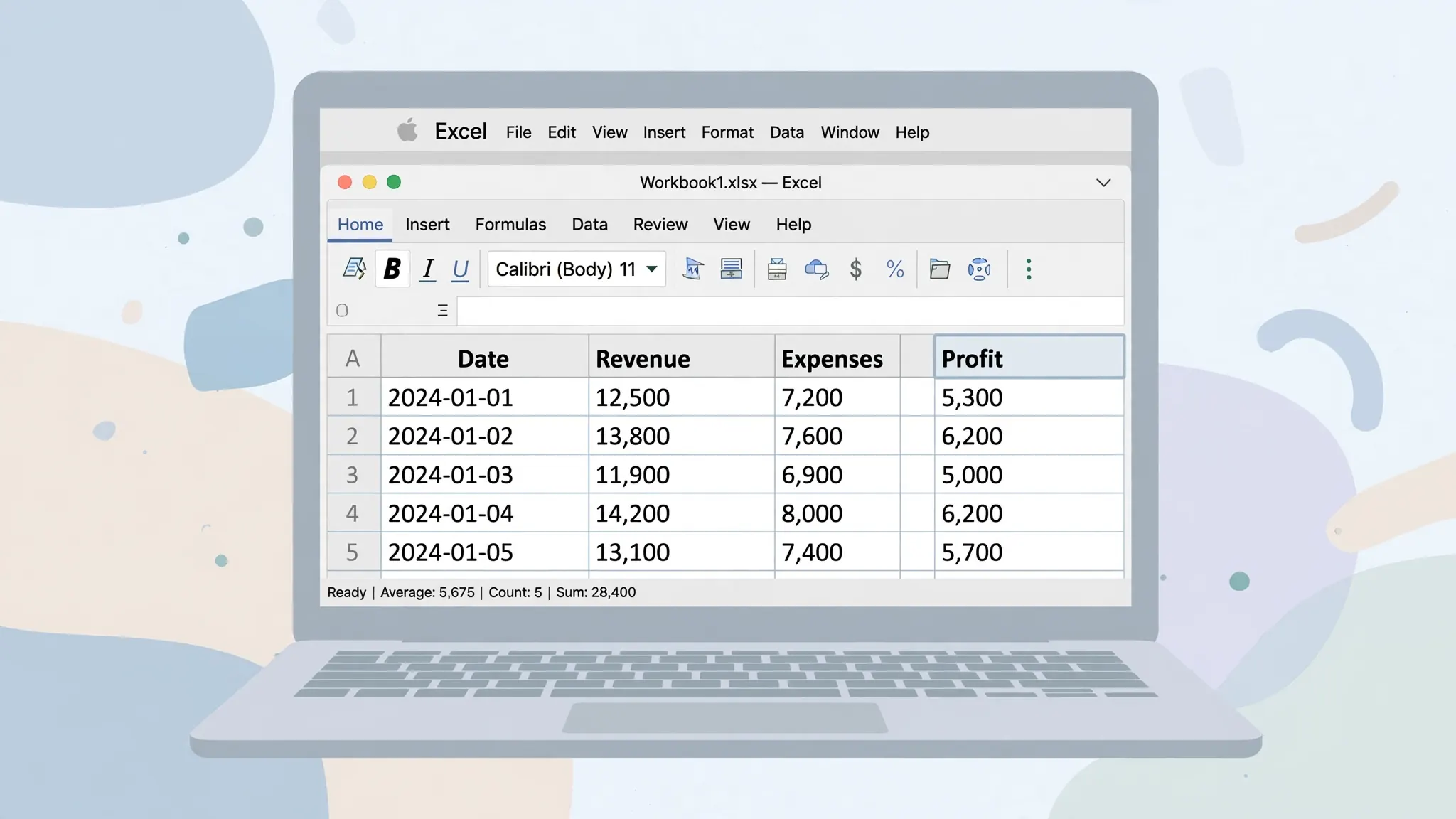
Short answer: about 95% identical. The grid is the grid, formulas are formulas, and a .xlsx file made on a Mac opens perfectly on Windows and vice versa — full fidelity, no conversion. If you follow a Windows Excel tutorial on your Mac, nearly everything transfers. The 5% that differs is almost entirely about Mac conventions rather than missing Excel features.
The differences you’ll actually notice: keyboard shortcuts use ⌘ (Command) where Windows uses Ctrl — ⌘+C copies, ⌘+V pastes, ⌘+S saves. The menu bar lives at the top of your screen, not the top of the Excel window, per macOS convention. Right-clicking works fine (two-finger tap on a trackpad, or Ctrl+click), and it took Apple years but the context menus are now at parity. File dialogs are macOS dialogs — you’ll navigate Finder-style rather than Windows Explorer-style.
Feature-wise, the gaps are narrow and shrinking: some legacy VBA form controls and Power Pivot are Windows-only, and a handful of brand-new features sometimes land on Windows a month or two before Mac. For beginner-to-intermediate work — budgets, lists, reports, charts, pivot tables — there is no meaningful difference. Our Excel Online vs Desktop comparison covers the bigger feature divide (web vs desktop), which matters far more than Mac vs Windows.
Excel for Mac tutorial: your first workbook in 10 minutes
Let’s build something real: a simple monthly budget. This Excel Mac tutorial for beginners works best if you follow along click-for-click.
- Open Excel from Applications, Launchpad, or Spotlight (⌘+Space, type “Excel”). Choose Blank workbook.
- Click cell A1 and type
Monthly Budget. Press Enter to move down. - In row 3, type headers across: A3
Category, B3Planned, C3Actual, D3Difference. - Fill in a few rows:
Rent,Groceries,Transportin column A with numbers in B and C. - In D4, type
=B4-C4and press Enter — your first formula. Drag the fill handle (the little square at the cell’s bottom-right corner) down to copy it. - Select your header row, click Bold on the Home tab, and give the numbers a currency format (Home › Number › Currency).
- Press ⌘+S, name it
My Budget.xlsx, and save it to Documents. Done — your first workbook.
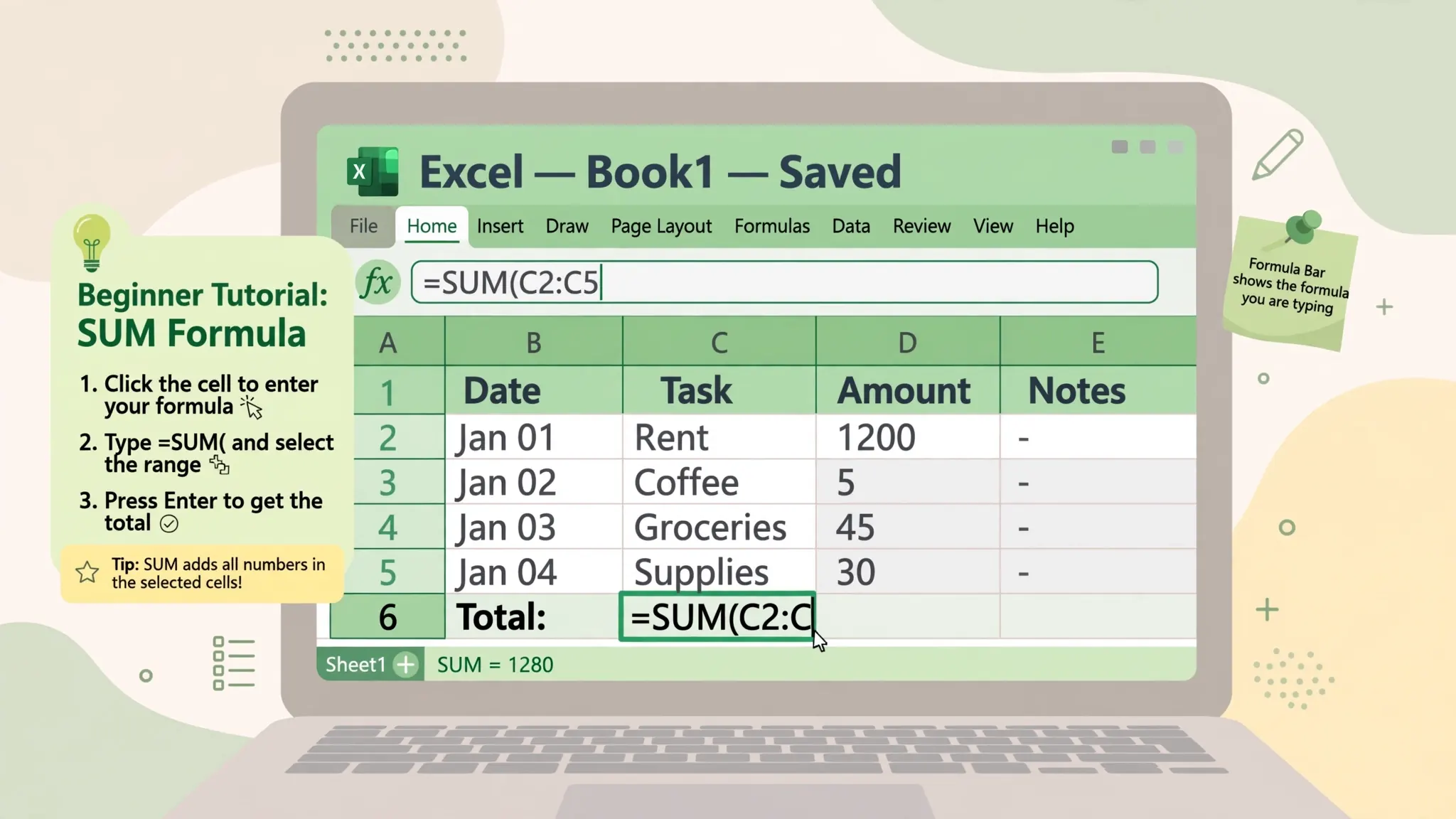
Notice what just happened: you learned the four atomic skills of Excel — entering data, formatting it, calculating with formulas, and saving the file. Everything else in Excel is elaboration on those four. The fill handle trick in step 5 is worth practicing: it copies formulas down while intelligently adjusting row references, and it’s the single biggest time-saver beginners discover.
The ribbon on Mac: where everything lives
The ribbon — the strip of tabs and icons across the top — is Excel’s command center, and on Mac it’s organized identically to Windows. Here’s the beginner’s map:
Home: your daily driver — font, alignment, number formats, bold/italic, fill color, borders, sort & filter, find. You’ll spend 70% of your time here. Insert: tables, charts, pictures, pivot tables. Draw: pen tools (fun with a trackpad, genuinely useful for annotating). Page Layout: margins, orientation, print area — visit before printing anything. Formulas: the function library and formula auditing. Data: sorting, filtering, text-to-columns, and Get Data for imports. Review: spell check, comments, sheet protection. View: freeze panes, gridlines, zoom.
Two Mac-specific ribbon notes. First, you can collapse the ribbon (⌘+Option+R) for more grid space on a 13-inch MacBook Air — the tabs stay visible, icons hide until clicked. Second, the Quick Access Toolbar above the ribbon is customizable: right-click any command › Add to Quick Access Toolbar, and put Save, Undo, and Print Preview one click away. Power users on Macs swear by it because it reduces trackpad travel.
Formulas, sorting, and filtering: the three beginner superpowers
Formulas are what turn a grid of numbers into a spreadsheet. Every formula starts with =. Master these five and you can handle most real tasks:
=SUM(B4:B10) adds a range. =AVERAGE(C4:C10) averages it. =IF(D4>0,"Under budget","Over budget") makes decisions. =VLOOKUP(A4,$F$4:$G$20,2,FALSE) looks up values in a table (the dollar signs lock the reference when copying — learn this early). =COUNTIF(A4:A100,"Rent") counts matches. Type = and start typing a function name — Excel’s autocomplete and the built-in helper text guide you through each argument.
Sorting: click any cell in your data, then Data › Sort. Always tick “My data has headers” so the header row stays put, and sort by the column you care about. Filtering: select your headers and press ⌘+Shift+F (or Data › Filter) — dropdown arrows appear on each header, letting you show only rows matching criteria. Filtering doesn’t delete anything; it just hides rows temporarily. These two features alone answer most “can you pull me a list of…” questions in seconds.
Importing CSV files into Excel on a MacBook
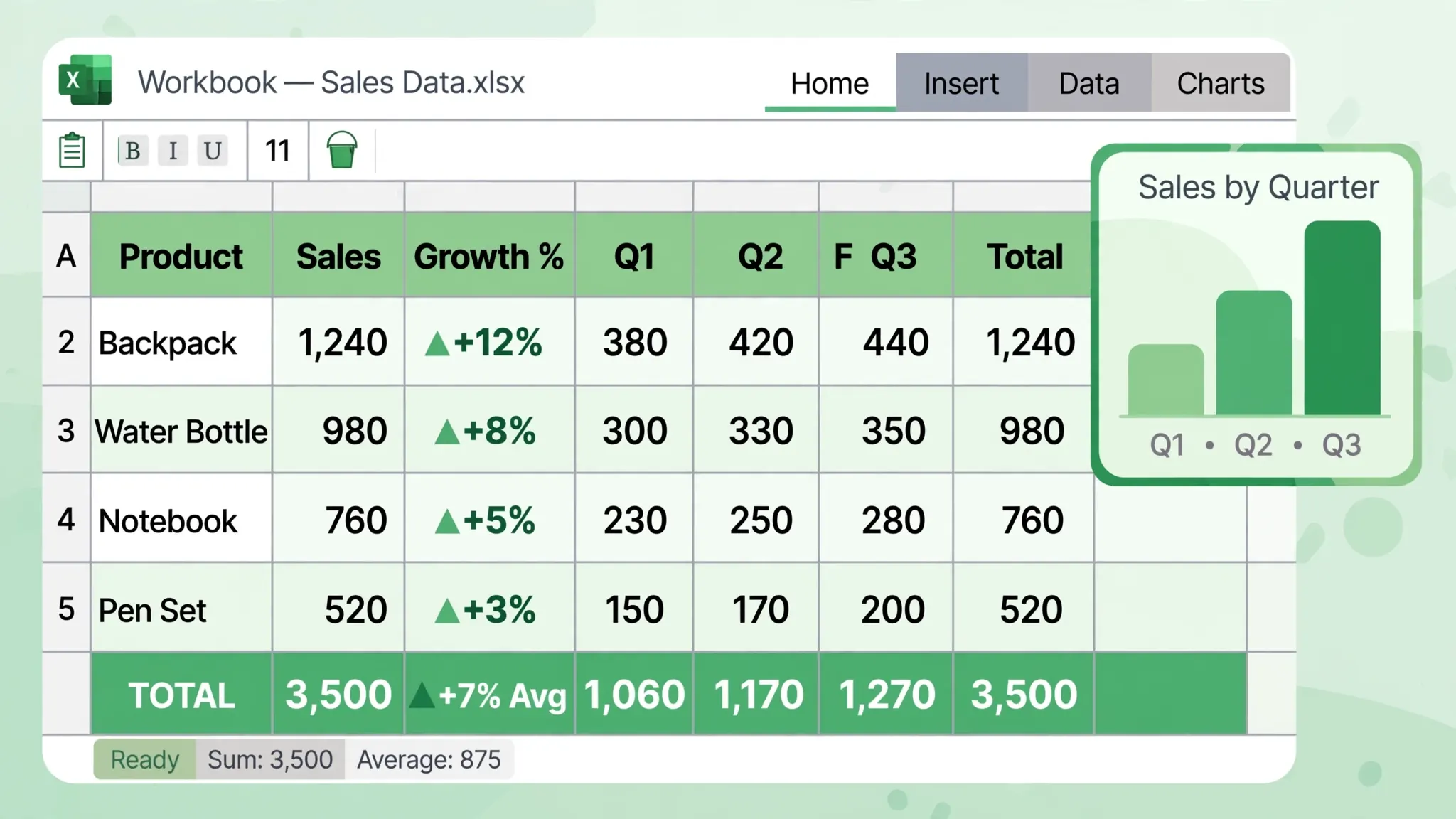
Real-world data arrives as CSV files — bank exports, store reports, downloaded datasets — and importing them correctly is a core skill. The golden rule on Mac: import, don’t double-click. Double-clicking a CSV lets macOS guess the delimiter and encoding; importing lets you decide.
- In Excel, open a blank workbook and go to Data › Get Data › From File › From Text/CSV.
- Select your CSV. Excel shows a preview — verify the delimiter (comma vs semicolon) and file origin (encoding).
- If columns look wrong, change the delimiter in the dropdown until the preview lines up.
- Click Load. Then File › Save As › Excel Workbook (.xlsx).
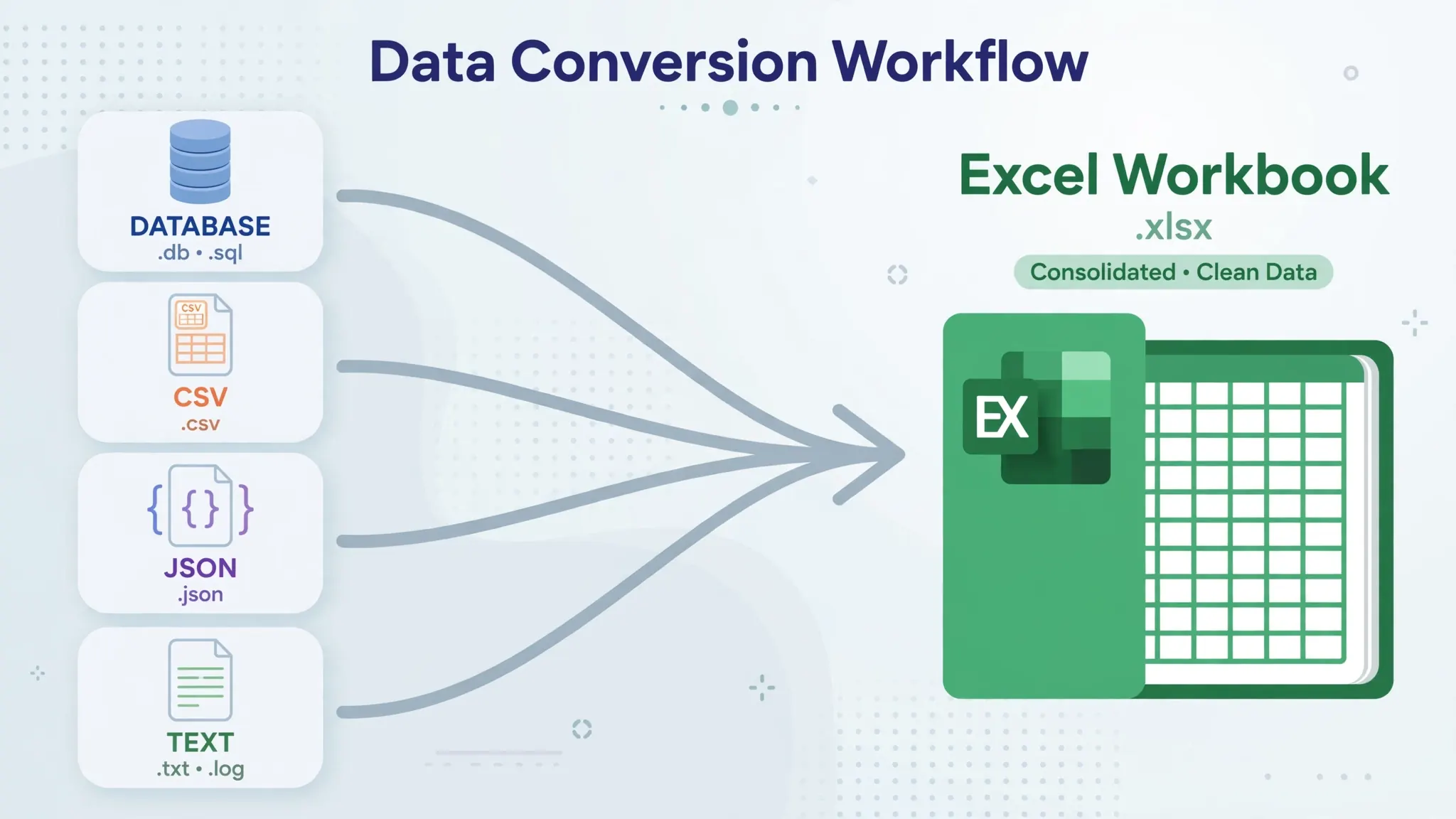
This is also where Mac users meet their first locale surprise: CSVs from continental Europe use semicolons (because those countries use commas as decimal separators), and the preview is where you catch it. For the full treatment — encodings, date formats, leading zeros — see our dedicated CSV to Excel on Mac guide. And when you need the reverse trip, our free CSV to Excel converter handles one-off conversions in the browser with no import dialog at all.
Mac-specific differences that trip up beginners
The ⌘ key replaces Ctrl for almost everything. ⌘+C/X/V (copy/cut/paste), ⌘+S (save), ⌘+Z (undo), ⌘+F (find), ⌘+B/I (bold/italic). Muscle memory from Windows transfers in about a day. Our Excel Mac keyboard shortcuts cheat sheet lists every essential swap.
Function keys need Fn. On MacBooks, F2 (edit cell) and F4 (repeat action) sit behind the Fn key by default — press Fn+F2, or flip the behavior in System Settings › Keyboard › “Use F1, F2 as standard function keys.” Right-click is a two-finger trackpad tap or Ctrl+click. Closing with the red dot closes the window but not the app (macOS convention) — Excel keeps running, which confuses exactly everyone the first time.
File paths look different. Mac paths use forward slashes (/Users/you/Documents), which matters when you graduate to Power Query or linked files. Autosave only works for files stored on OneDrive or SharePoint — for local files, build the ⌘+S habit. And Apple Numbers will try to steal your CSV files (macOS opens them in Numbers by default); right-click › Get Info › Change All fixes the association permanently.

10 beginner mistakes (and how to avoid them)
1. Typing numbers as text. If SUM ignores your numbers, they’re stored as text (often from a CSV import). Select them, click the warning icon, › Convert to Number. 2. Merging cells. Merged cells break sorting, filtering, and formulas. Use Center Across Selection instead. 3. Blank rows inside data. They break filters and pivot tables — keep data contiguous. 4. Typing the same header twice. One header row, always. 5. Hardcoding values in formulas (=B4*0.2 instead of referencing a tax-rate cell) — when the rate changes, you’ll hunt every formula.
6. Not using Tables. Select your data and press ⌘+T — Excel Tables add filters, banded rows, and formulas that auto-fill down. It’s the single best beginner upgrade. 7. Forgetting $ in lookups. Copy a VLOOKUP down without absolute references and the lookup table “moves” — hence the wrong answers. 8. Saving as CSV “to be safe.” CSV strips formulas, formatting, and extra sheets — save work as .xlsx, export CSV only when another system needs it. 9. One giant sheet instead of multiple sheets. Related data belongs on separate tabs with clear names. 10. Never backing up. Keep important workbooks on OneDrive, iCloud Drive, or Time Machine — a corrupted single copy is a rite of passage nobody wants.
Practice project: build a personal expense tracker
Reading about Excel and using Excel are different sports. This 20-minute project cements everything above — and leaves you with something genuinely useful. You’ll build an expense tracker with data entry, formulas, conditional formatting, and a summary dashboard, all on your Mac.
Set up the data sheet. Create a new workbook with two sheets: rename Sheet1 to Expenses and Sheet2 to Dashboard (double-click the tab to rename). On Expenses, enter headers in row 1: Date, Category, Description, Amount. Select A1:D1, press ⌘+T to make it an official Excel Table, and tick “My table has headers.” Now add 15–20 rows of realistic spending — groceries, fuel, subscriptions, dining out — with dates across the last two months. Because it’s a Table, every new row inherits formatting and formulas automatically.
Add intelligence with formulas. In column E, add a header Month and enter =TEXT([@Date],"mmm yyyy") in E2 — the Table auto-fills it down, extracting “Oct 2026” style labels from each date. Then switch to the Dashboard sheet and build a summary: list your categories in column A, and in B2 enter =SUMIF(Expenses!B:B,A2,Expenses!D:D), copying down. You’ve just built a category-wise spending summary that updates itself as you add expenses. Add =SUM(Expenses!D:D) for the grand total and =AVERAGE(B2:B10) for the average category spend.
Make it visual. Select your Dashboard summary and press ⌘+T to table-ify it, then select the Amount column and go to Home › Conditional Formatting › Data Bars — instant in-cell bar charts showing which categories dominate. Back on the Expenses sheet, select the Amount column and add Conditional Formatting › Highlight Cell Rules › Greater Than with a threshold like 100 to flag big purchases in red. Finally, select your category summary and Insert › Chart › Pie for the classic spending breakdown. Freeze the top row on both sheets (View › Freeze Panes › Freeze Top Row) so headers stay visible while scrolling.
Save it as Expense Tracker.xlsx and — this is the important part — actually use it for a week. Add expenses as they happen (the Table makes data entry painless), watch the Dashboard update, and notice which questions you start asking: “How much did dining out cost last month?” is a SUMIFS away, and by the time you want the answer, you’ll know exactly how to build it. That loop — real question, real data, real formula — is how beginners become the office “Excel person” within months.
Troubleshooting: when Excel for Mac misbehaves
Excel is slow or beach-balling. Usually a huge file, volatile formulas (NOW(), INDIRECT), or whole-column references (A:A). Limit ranges, save, and restart Excel. On Apple Silicon Macs, make sure you’re running the native build, not Rosetta.
Formulas show as text instead of calculating. The cell was formatted as Text before you typed. Change format to General, then click in the formula bar and press Enter. Or the sheet has Formulas › Show Formulas toggled on — toggle it off.
Dates are wrong. The 1904 date system (a Mac legacy!) can shift dates by 4 years when sharing with Windows. Check Excel › Preferences › Calculation › “Use 1904 date system” — uncheck it unless you need it.
Can’t find a feature from a Windows tutorial. Search the ribbon search box first; if it’s genuinely Windows-only (some Power Pivot/VBA bits), the Online vs Desktop guide notes the gaps. For everything mainstream, the Mac version has it — sometimes under a slightly different menu path.
Your next steps after this tutorial
You now have the foundation: navigation, data entry, formatting, formulas, sorting, filtering, CSV import, and Mac conventions. The highest-value next skills, in order: keyboard shortcuts (our cheat sheet — speed compounds), pivot tables (Insert › PivotTable — summarize thousands of rows in clicks), XLOOKUP (the modern VLOOKUP replacement), and conditional formatting (Home › Conditional Formatting — make insights visual).
Then practice on real data — that’s the step most tutorials skip. Download your bank’s CSV export, import it with the method above, and build a spending summary with SUMIF by category. Or grab a public dataset (government open-data portals in the US, UK, Canada, and Australia publish thousands) and answer one question with a pivot table. An hour of real practice beats five hours of videos, and every skill in this Excel for Mac tutorial transfers directly to Windows Excel, Excel for the web, and even Google Sheets.
Frequently Asked Questions
Is Microsoft Excel for Mac free?
Excel for Mac itself requires a Microsoft 365 subscription or a one-time Office purchase, but the Excel mobile app is free on iPhone/iPad and Excel for the web is free with a Microsoft account. Apple Numbers is a free pre-installed alternative on every Mac.
Is Excel for Mac the same as Excel for Windows?
Nearly — about 95% identical. The ribbon, formulas, and file format are the same. Differences are mostly Mac conventions: Cmd instead of Ctrl for shortcuts, the menu bar at the top of the screen, and a few Windows-only features (older VBA controls, Power Pivot) missing or limited.
How do beginners learn Excel on a MacBook fastest?
Learn in this order: navigating the grid, entering and formatting data, basic formulas (SUM, AVERAGE, IF), sorting and filtering, then charts. Practice on real data — your own budget or a downloaded CSV — rather than reading about features abstractly.
How do I import a CSV file into Excel on Mac?
Open a blank workbook, go to Data › Get Data › From File › From Text/CSV, select your file, check the delimiter and encoding in the preview, and click Load. Then save as .xlsx via File › Save As.
Why do Excel shortcuts feel different on a MacBook?
Because macOS uses the Cmd key where Windows uses Ctrl: Cmd+C to copy, Cmd+V to paste, Cmd+S to save. The functions are identical — only the modifier key changes. Our Excel Mac keyboard shortcuts cheat sheet lists every essential swap.
Can I use Excel for Mac without OneDrive?
Yes. OneDrive enables autosave and co-authoring, but Excel for Mac works fully offline with files stored anywhere — your Mac’s folders, an external drive, or iCloud Drive. Just use File › Save As like any Mac app.