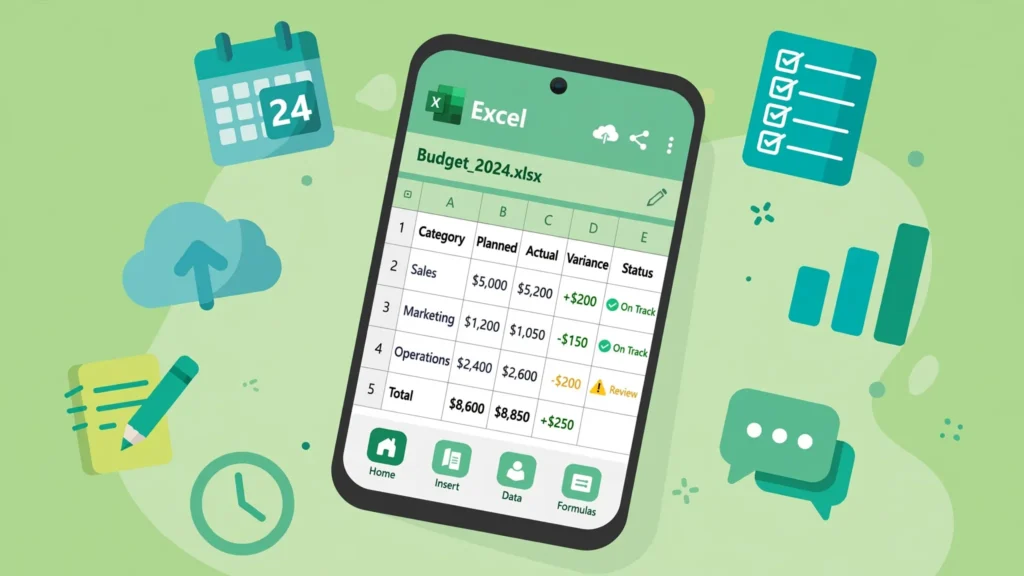
Your phone is a spreadsheet device now — and this Excel Android app tutorial proves it. Whether you want to check a budget on the train, update an inventory sheet from the shop floor, or review a report before a meeting, Microsoft Excel on Android puts a surprisingly complete spreadsheet app in your pocket. This guide walks you through installing the app, building your first mobile workbook, mastering touch editing on a small screen, writing real formulas, opening CSV files, and syncing everything through OneDrive.
The Excel mobile app tutorial below assumes no prior spreadsheet experience, but desktop users switching to mobile will find the adaptation notes just as useful. The honest framing: a phone won’t replace your computer for building hundred-tab financial models — but for viewing, quick edits, data capture, and collaboration, Excel on an Android phone is genuinely excellent. Let’s set it up.

Getting Microsoft Excel on Android
Open the Google Play Store, search “Microsoft Excel,” and install the official app (green icon, Microsoft Corporation). It’s free to download, and on phones the core features — viewing, creating, and editing workbooks — are free without a subscription. (The subscription paywall mostly affects larger tablets and premium features; phone users rarely hit it.)
Sign in with a Microsoft account — create one free if needed. This unlocks OneDrive saving (5 GB free), which is the backbone of everything below: autosave, cross-device sync, and sharing. While you’re at it, install OneDrive from the Play Store too; it gives you a proper file browser for your workbooks and makes the “open a file someone shared” flow painless.
One decision up front: phone vs tablet layout. The same app serves both, adapting its interface to screen size. Everything in this guide works on phones; on tablets you simply see more grid and a roomier ribbon. If you do serious mobile spreadsheet work, a 10-inch Android tablet with a keyboard cover hits a sweet spot — but the phone in your pocket right now is enough to start.
Excel Android app tutorial: your first mobile spreadsheet
Let’s build a weekly grocery tracker — small enough for a phone screen, real enough to teach the fundamentals.
- Open the Excel app and tap + New blank workbook.
- Tap cell A1, type
Grocerieson the keyboard, tap ✓. - In row 3: A3
Item, B3Price, C3Qty. - Add a few rows:
Milk,Bread,Eggswith prices and quantities. - In D3 type
Total; in D4 type=B4*C4and tap ✓. Drag the fill handle down to copy it. - Below your data, tap a cell, tap ƒx, choose SUM, and select your Total column.
- Select the header row, open the Home tab from the bottom toolbar, tap Bold. The file autosaves to OneDrive.

The key insight from this exercise: mobile Excel rewards simple layouts. One table per sheet, short headers, few columns — designs that are thumb-friendly also happen to be good spreadsheet design on desktop. If a sheet feels cramped on your phone, it’s probably overcomplicated everywhere.
The mobile interface: ribbon, formula bar, and keyboard
The Android app compresses the desktop ribbon into a bottom toolbar: tap the up-arrow/edit icon to open the full tab bar (Home, Insert, Formulas, Data, Review, View), pick a tab, and its commands appear as large touch-friendly buttons. It feels different from desktop for about ten minutes, then it feels obvious — the commands you need are one tap away instead of buried in a wide ribbon.
The formula bar sits above the grid: tap ƒx to browse the complete function library by category, each with a description and argument guide. The keyboard adapts too — when a cell is selected, Excel shows a numeric keypad variant with quick access to =, $, %, and operators, eliminating the constant keyboard-switching that makes phone data entry painful in other apps.
Essential gestures: tap selects, double-tap edits, tap-hold opens cut/copy/paste/fill, drag the handles to extend selections, pinch to zoom. The green fill handle (corner dot) drags to copy formulas down — the same time-saver as desktop, just with a fingertip.
Entering and editing data on a phone screen
Phone data entry works best with a rhythm: tap cell → type → tap ✓ (or tap the next cell) → repeat. Excel’s keyboard shows suggestions and, for repeated values, offers autocomplete from the column’s existing entries — accept with a tap and fly through repetitive lists. For dates, the keyboard’s date-aware input helps; for numbers, the numeric layout keeps digits front and center.
Three techniques make phone editing genuinely fast. Data validation dropdowns: on desktop (or in the app via Data › Validation), restrict a column to a list — on the phone it becomes a tap-to-pick dropdown, eliminating typos entirely. Perfect for status columns, categories, and names — the single biggest usability upgrade for any shared mobile sheet. Fill down: enter a value, select the range below via the fill handle, and drag — or copy (tap-hold › Copy) and paste across a selection. Voice typing: the microphone key on Gboard/Samsung Keyboard dictates into cells surprisingly well for notes and descriptions.
Editing existing cells: double-tap to place the cursor precisely, or select and edit in the formula bar for long content. To clear, select and use the keyboard’s delete or the context menu’s Clear. And internalize the mobile truth: autosave is always on for OneDrive files — there’s no save button and no “close without saving.” Version history (File › History) is your safety net.
Formulas that actually work on mobile
The full function library works on Android — SUM, AVERAGE, IF, VLOOKUP, XLOOKUP, COUNTIF, TEXT, DATE, and hundreds more calculate identically to desktop. The ƒx browser is your friend: pick a function, and the argument helper walks you through each input with tap-to-select range picking. Tapping cells to build =SUM(B2:B20) beats typing it on a phone keyboard every time.
Learn these five first — they cover most mobile scenarios: =SUM(range) for totals, =AVERAGE(range) for means, =IF(condition,"yes","no") for logic, =COUNTIF(range,"criteria") for counting matches, and =XLOOKUP(what,where,return) for lookups. For quick answers without any formula, select numbers and read the status bar — Sum, Average, Count appear automatically.
Mobile formula tips: keep formulas short (break complex logic into helper columns — easier to debug on a small screen), use Tables (select data › Insert › Table) so formulas auto-fill and references stay readable, and rotate to landscape when editing long formulas. If a formula shows an error, check for the classic culprits: text stored as numbers, mismatched parentheses, and locale list separators (some regions use ; instead of , between arguments).
Opening and editing CSVs on the go
CSVs land on phones constantly — email attachments, WhatsApp forwards, downloads. The flow: save the file to your phone or OneDrive, open the Excel app, tap Open › Browse, and select it. Excel parses the CSV into a worksheet. Then immediately Save As › .xlsx — working in the CSV itself means losing formatting and formulas the moment you save.
- Save the CSV attachment to Downloads or OneDrive.
- In the Excel app: Open › This device (or OneDrive) › select the CSV.
- Verify columns split correctly — if everything’s in column A, the file needs proper conversion (see below).
- Save As › Excel Workbook (.xlsx), then edit freely.
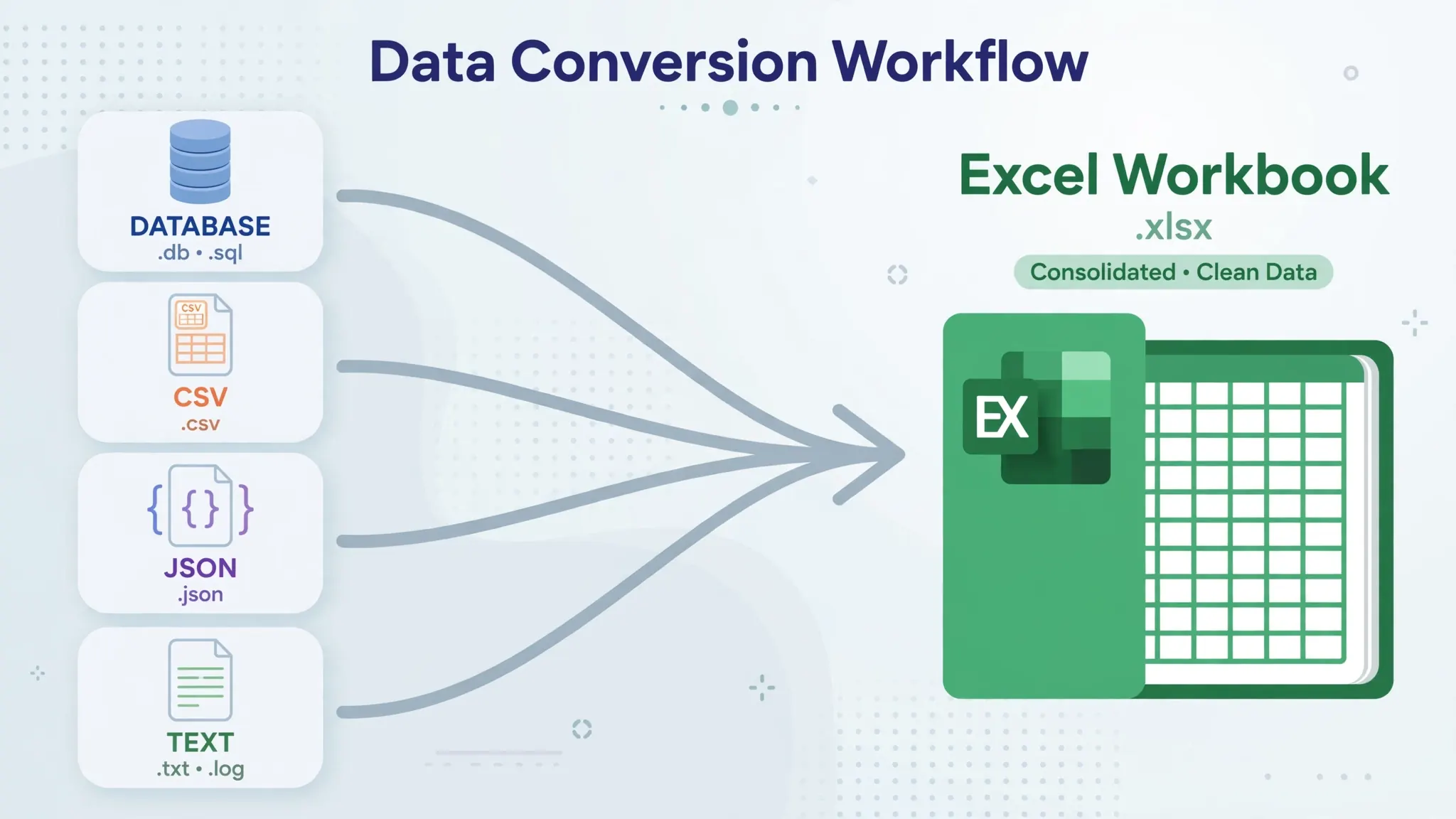
When the phone app mangles a CSV (single-column syndrome, garbled characters), don’t fight it on a small screen — convert first. Our free CSV to Excel converter runs in Chrome on your phone: upload the CSV, download a clean XLSX, open it in the Excel app. For the full technique once you’re back at a computer, see CSV to Excel on Android.
Saving, syncing, and collaborating via OneDrive
OneDrive turns the phone app from a toy into a tool. Files autosave there; open them later on your computer’s Excel (or Excel for the web) and everything — formatting, formulas, charts — is intact and current. The app’s Recent list spans devices, so a workbook you built on your laptop is two taps away on your phone.
Sharing is where mobile shines: Share › link (view or edit) straight into WhatsApp, email, or Teams. Co-authors’ cursors appear live; comments thread properly. A shop owner in India updating stock with a supplier, a US field team sharing a site tracker, a UK family managing a holiday budget — the pattern is the same: one live file, everyone current, no version chaos.
For offline stretches (flights, basements, rural sites), mark files Available Offline via the … menu — edits queue and sync later. Without this, opening a cloud file with no connection fails. Two seconds of foresight, zero frustration.
Offline editing itself is fully featured: formulas calculate, conditional formatting updates, charts redraw, and filters sort — everything runs locally on the device. What does not work offline: co-authoring (no live cursors or shared edits), opening OneDrive files you have never opened before, and cloud autosave (edits queue safely and sync when you reconnect). The one habit to build: before a flight or site visit, open each file you will need once so it caches — then the app behaves identically with or without a signal.
Android Excel limitations vs desktop
Honest boundaries: no VBA macros (they don’t run on mobile; Office Scripts offer limited automation on business plans), no Power Query authoring (refresh some existing queries at best), no Power Pivot, and a limited add-in selection. Performance caps out sooner — tens of thousands of rows are fine; hundred-thousand-row models with heavy formulas will stutter.
Interface limits are about screen, not capability: complex dialogs (advanced chart formatting, intricate conditional-formatting rules) are simplified, and precision tasks like pixel-perfect print layout belong on desktop. Very large workbooks should be built on desktop and used on mobile — a pattern that plays to each device’s strength.
The right mental model: phone for capture, review, quick edits, and sharing; desktop for building and heavy analysis. Our Online vs Desktop comparison maps the full capability spectrum, and the Android app sits near the web version — with the unique advantage of working in your pocket.
Best Android Excel workflows: templates that shine on a phone
Some spreadsheets are born for phones. Designing for the small screen from the start — rather than shrinking a desktop monster — produces tools people actually use daily. Here are four phone-native templates, each buildable in the app in under fifteen minutes.
1. The expense snap-log. Columns: Date, Category (data-validation dropdown: Food, Transport, Shopping, Bills, Other), Amount, Note. Enter spending the moment it happens — thirty seconds at the counter beats reconstructing a week on Sunday. Add a second sheet with =SUMIF per category and a pie chart. This single template replaces half the budgeting apps in the Play Store, with zero ads and your data in your own OneDrive.
2. The shared shopping/grocery list. Columns: Item, Qty, Store aisle, Got it? (dropdown: Yes/No). Share the link with family — everyone edits the live list, conditional formatting strikes through “Yes” rows, and nobody buys duplicate milk again. Filter to “No” before entering the store for a clean pick list.
3. The habit/fitness tracker. Rows: dates down column A; columns B onward: habits (Exercise, Read, Meditate, Water). Enter 1/0 daily, with =SUM streaks and conditional formatting turning the grid into a visual chain you won’t want to break. Fitness coaches across the US and UK hand versions of this to clients because it works on the device clients already carry.
4. The small-business field log. For shop owners, delivery drivers, and site workers: columns for Date, Client, Job, Amount, Paid? (dropdown). Capture jobs on-site, photograph receipts into adjacent cells via Insert › Pictures, and let a Dashboard sheet total the week’s revenue with =SUMIFS. At month’s end, the whole log opens perfectly in desktop Excel for accounting — the phone was the capture device, the computer is the analysis device, one file throughout.
The design rules behind all four: few columns (4–6 max — horizontal scrolling kills phone usability), dropdowns over typing (Data › Validation turns error-prone entry into taps), one table per sheet with a clear name, and a summary sheet up front so the insight is visible without scrolling. Build these once and they run for years — the humble phone spreadsheet, done right, quietly outperforms apps costing $10/month.
Troubleshooting: when the Android app misbehaves
App is slow or crashes. Close background apps, or the file is too big for mobile — split it, or keep a mobile-friendly summary sheet in the same workbook. Clearing the app cache (Settings › Apps › Excel › Storage › Clear Cache) fixes many mysterious slowdowns without touching your files.
Changes won’t sync. Verify you’re signed into the correct Microsoft account, check connectivity, and pull down on the file list to force refresh. Files saved to “This device” instead of OneDrive never sync — move them via Save As.
Can’t find a feature. It’s likely in the full tab bar — tap the edit/pencil icon to expand all tabs. If it’s genuinely absent (Power Query, VBA), that’s a platform limit, not a bug.
Keyboard hides the cell. Use the floating keyboard option or rotate to landscape; Gboard’s one-handed mode also helps on big phones.
File opens read-only. You’re likely in the free tier viewing a file that needs a subscription feature, or the file is marked read-only by the sharer — check the Share settings or save a local copy.
Your next steps
You now have the complete Excel Android app tutorial foundation: install, first workbook, touch editing, formulas, CSV handling, and OneDrive sync. The highest-value next moves: learn data validation dropdowns (they make phone data entry foolproof), try conditional formatting for visual status tracking, and build one shared tracker — a household budget, a team task list, a trip plan — that you actually use daily.
Then let the phone earn its place: update the grocery list from the store aisle, check project numbers before walking into the meeting, capture expenses the moment they happen instead of reconstructing them Sunday night. The phone stops being “the small screen I avoid” the week it saves you a trip back to your desk. Try building one of the templates from the workflows section above this weekend — the expense snap-log alone converts most skeptics within days. For the bigger screens in your life, where the same mobile skills transfer directly and everything simply gets roomier, see our Excel iPad tutorial and Excel on Chromebook guides — same skills, more elbow room.
Frequently Asked Questions
Is Microsoft Excel free on Android?
Yes — the Excel Android app is free to download from Google Play, and core viewing and editing features are free on phones. Some premium features require a Microsoft 365 subscription, but everyday spreadsheet work costs nothing.
Can I create a spreadsheet from scratch on my Android phone?
Absolutely. Open the Excel app, tap New blank workbook, and build away — data entry, formatting, formulas, and charts all work. The small screen rewards simple layouts: one table per sheet, big headers, minimal columns.
How do I open a CSV file in Excel on Android?
Save the CSV to your phone storage or OneDrive, open the Excel app, tap Open › Browse to find it. Excel parses it into a sheet — then immediately Save As .xlsx so formatting and formulas survive.
Does the Excel Android app support formulas?
Yes — the full function library works: SUM, AVERAGE, IF, VLOOKUP, XLOOKUP and hundreds more. Tap the fx button to browse functions by category, and tap cells to insert range references without typing them.
How do I sync Excel files between my Android phone and computer?
Sign into the Excel app with your Microsoft account and save to OneDrive. The file then opens in desktop Excel, Excel for the web, and other devices with every change synced automatically.
What’s the difference between Excel on Android phone vs Android tablet?
The same app adapts to screen size: tablets get a roomier ribbon and more visible grid, phones get a compact single-column-friendly layout. All features work on both; tablets are simply more comfortable for building, phones for quick edits.