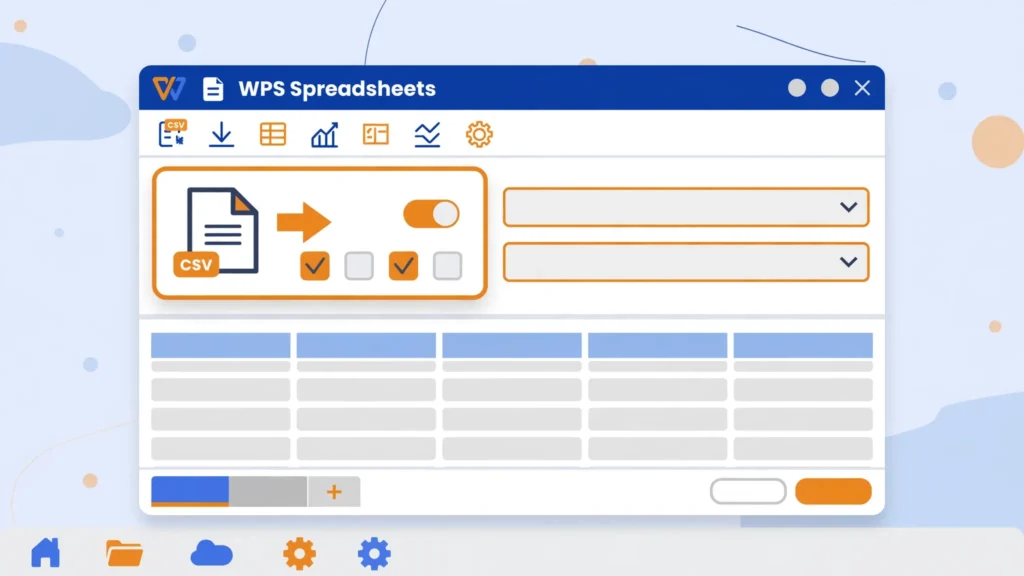
Learning WPS Office CSV to Excel conversion is the fastest way to get Excel-compatible workbooks without paying for Microsoft 365. Whether your CSV came from a bank export, a Shopify order dump, Google Ads, or a supplier in another country, WPS Spreadsheets — the spreadsheet app inside the free WPS Office suite — opens it, lets you fix delimiters and encoding on import, and saves it as a genuine .xlsx file that Microsoft Excel opens without a hiccup. If you have ever wished Excel were free, this is the closest you can get: the same ribbon interface, the same formulas, and a CSV workflow that takes under two minutes.
In this guide you will learn the complete WPS Office CSV to Excel workflow: how to perform a WPS Spreadsheet CSV import the right way (so columns split correctly and dates survive), how to save the result as a real Excel workbook, how the steps differ on Windows, Mac, Linux, Android, and iOS, and how to fix the classic CSV gremlins — semicolon delimiters, mojibake encoding, vanishing leading zeros. We will also compare WPS against the other free Excel alternatives, cover batch conversion, and answer the honest question: what does “free” actually cost you? By the end you will have a reliable, zero-cost CSV pipeline that works on every device you own.
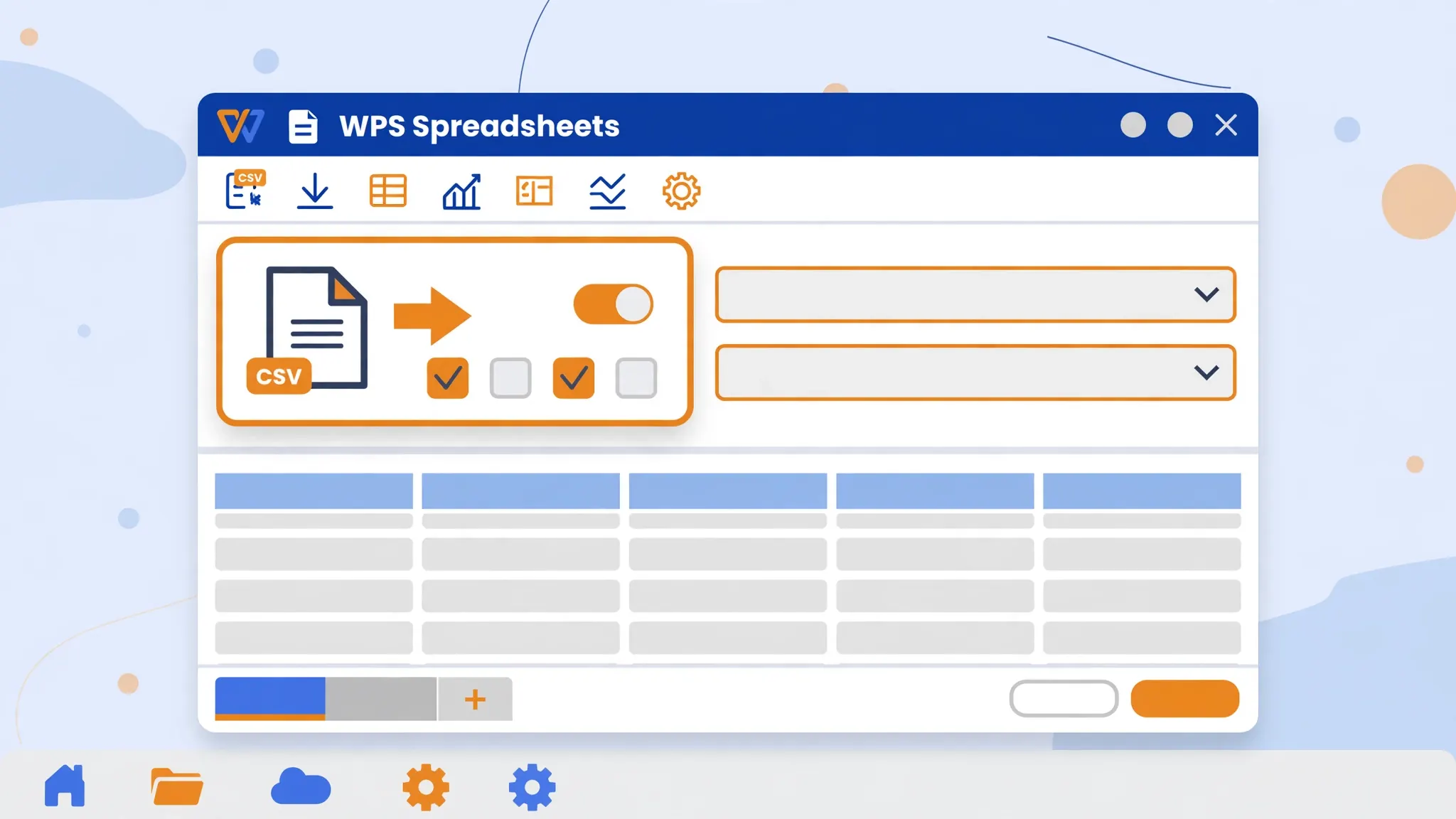
What is WPS Office, and why use it for CSV files?
WPS Office, made by Kingsoft, is a full office suite — Writer, Spreadsheets, and Presentation — with a free tier that has made it one of the most downloaded CSV to Excel free alternative options in the world, especially popular in India, Southeast Asia, and among students and small businesses in the US and UK who do not want a Microsoft 365 subscription. The WPS Office spreadsheet app, called WPS Spreadsheets, deliberately mirrors Microsoft Excel’s ribbon interface, so if you know Excel you already know WPS.
For CSV work specifically, WPS earns its place for three reasons. First, its Text Import Wizard handles the delimiter/encoding/column-type decisions that make or break a conversion. Second, it reads and writes the .xlsx format natively, so files you produce open in real Excel with formatting intact. Third, it runs on everything: Windows, macOS, Linux, Android, and iOS, with free cloud sync between them. A CSV is plain text — rows separated by line breaks, values separated by a delimiter, per RFC 4180 — and WPS turns that text into a formatted workbook with less friction than most alternatives.
WPS Spreadsheet CSV import: opening a CSV the right way
To open a CSV in WPS Office, you can double-click the file (if WPS is your default) or open WPS Spreadsheets and use Menu → Open to browse to it. Either way, the Text Import Wizard appears — and this dialog deserves your full attention, because every clean conversion starts here.
- Start the import. Open the CSV in WPS Spreadsheets. The Text Import Wizard opens automatically.
- Check the file origin (encoding). The default is usually UTF-8. If the preview shows garbled characters like é instead of é, try a different encoding from the dropdown before going further.
- Choose the delimiter. Tick the separator your file actually uses: Comma for US/UK/Indian exports, Semicolon for most European exports, Tab for TSV-style files. The preview below updates live — every value should sit in its own column.
- Set column formats. Click a column in the preview and set Text for IDs, ZIP codes, and phone numbers (this protects leading zeros), Date with the right order for date columns, and General for ordinary numbers.
- Finish. Click Finish and review the sheet — scroll to the bottom and check the last rows, where import errors love to hide.

Converting your imported CSV to a real Excel file
Once your data looks right in the grid, the actual conversion is one step: Menu → Save As → choose Excel Workbook (*.xlsx) as the file type, pick a name and location, and save. That is it — you now have a genuine Excel file. A few refinements make it professional:
- Format headers — bold the first row and freeze it (View → Freeze Panes) so long sheets stay readable.
- Set number formats — currency columns as Currency, dates as an explicit Date format, so the file displays correctly for recipients in other countries.
- Add filters — select the header row and apply AutoFilter for instant searching and sorting.
- Save a WPS master too — keep an
.et(WPS native) or.xlsxmaster and export sharing copies as needed.
Before sending the file to an Excel user, do a five-second sanity check: close WPS, reopen the saved .xlsx, and confirm everything survived. WPS-to-Excel compatibility is excellent for everyday workbooks, but this check catches the rare formula or formatting quirk before your recipient does.
WPS Office CSV to Excel on Windows, Mac, Linux, and mobile
Windows
The fullest experience. Install from wps.com, and during setup you can make WPS the default for CSV and Excel files. The ribbon, formulas, and pivot tables will feel instantly familiar to Excel users.
macOS
WPS Office for Mac covers the same WPS Spreadsheet CSV import and XLSX export workflow. Mac users who do not want to pay for Microsoft 365 often pair WPS with Apple Numbers — see how Numbers compares in our broader platform guides.
Linux
WPS Office for Linux is a standout free Excel alternative on Linux, with a native .deb/.rpm build. It coexists fine with LibreOffice — many Linux users keep both, using WPS when a file must look pixel-perfect in Excel. Our CSV to Excel on Linux guide and Ubuntu-specific walkthrough cover the full Linux landscape.
Android and iOS
The WPS mobile apps open CSV attachments directly from email and messaging apps, and can save them as XLSX on the device. For quick on-the-go checks of a supplier CSV or bank export, it is genuinely useful — though serious cleanup work still belongs on a desktop.

Fixing common WPS CSV problems: delimiters, encoding, dates
Everything in one column
The file uses a different delimiter than WPS guessed — almost always semicolons in European exports. Reopen the CSV and in the Text Import Wizard tick Semicolon instead of Comma. The preview will snap into columns immediately.
Garbled characters
A CSV saved in a legacy Windows encoding (Windows-1252) opened as UTF-8 produces mojibake. In the wizard’s File Origin dropdown, try the matching legacy encoding; the preview shows you instantly when it is right. For files with Hindi, Chinese, or Arabic text, UTF-8 is almost always correct.
Leading zeros vanished
00123 becoming 123 means the column imported as Number. Set the column format to Text in the wizard before finishing. If the damage is already done, the zeros are unrecoverable from the imported sheet — reimport with Text set.
Dates flipped
03/04/2026 reads as March 4 in the US but April 3 in the UK, India, Canada, and Australia. Set the column to Date with the correct day/month order in the wizard, then apply an explicit date format after import so recipients see it unambiguously.
WPS Office vs the other free Excel alternatives
How does WPS stack up for CSV work? LibreOffice Calc is fully open source with a superb import dialog, but its interface feels less like Excel. Google Sheets is free and collaborative but needs an internet connection and a Google account. Zoho Sheet — covered in our Zoho Sheet CSV import guide — is a strong cloud alternative with generous free limits. A plain browser-based CSV to Excel converter beats everything for one-off jobs with nothing to install.
WPS’s edge is familiarity: if you or your team already think in Excel’s ribbon, formulas, and shortcuts, WPS has the shortest learning curve of any free option, and its XLSX output is tuned for Excel compatibility. Its cost is the free tier’s ads and the fact that it is proprietary software, not open source. For most CSV-to-Excel workflows, any of these tools works — pick the one whose trade-offs bother you least.

Advanced: batch converting CSV files with WPS
WPS Spreadsheets has no built-in batch converter, but you have options. For a handful of files, the fastest path is still manual: open each, run the wizard, save as XLSX — about a minute per file once you are practiced. For dozens of files, step outside WPS: on Windows, a PowerShell script can drive the conversion; on Linux and Mac, Python with pandas converts a whole folder in seconds (pd.read_csv → df.to_excel), and the resulting XLSX files open perfectly in WPS afterward. If your source files need merging first — twelve monthly CSVs into one workbook — combine them with a script, then do your formatting polish in WPS where the GUI shines.

Is WPS Office really free? Plans and limitations
Yes — the free tier includes the full Spreadsheets app with CSV import and XLSX export, which is everything this guide needs. What the free tier costs you is attention: occasional ads and upsell prompts for WPS Premium. Premium (a yearly subscription) removes ads and adds cloud storage, PDF editing, and extra templates. There is also a privacy consideration worth knowing: WPS is proprietary software from a Chinese company, so if you handle sensitive financial or client data, review its privacy policy and consider whether an open-source tool like LibreOffice or a fully client-side browser converter fits your comfort level better. For everyday CSV work, though, the free tier is genuinely complete — no watermark, no feature-locked export.
WPS Office CSV to Excel: power-user tips
You know the basic WPS Office CSV to Excel workflow — import through the wizard, save as XLSX. These power-user techniques handle the situations that separate casual users from people whose conversions always come out perfect.
Build a reusable import checklist
Every CSV source has a personality: your bank’s export is comma-delimited UTF-8, your German supplier’s is semicolon-delimited Windows-1252, your analytics export buries metadata in the first three rows. Write each source’s settings on a sticky note — digital or physical — the first time you crack it: delimiter, encoding, which columns are Text, which are Date and in what order. Next month’s WPS Spreadsheet CSV import takes seconds because you are not re-discovering anything. Teams that share a wiki page of “our CSV sources and their settings” eliminate an entire category of recurring errors.
Clean before you import, not after
It is tempting to import a messy CSV and fix it in the spreadsheet, but the wizard is the cheapest place to solve problems. Delete metadata rows above the header in a text editor first. If a file mixes delimiters, normalize it before import. Set Text format for ID columns in the wizard rather than repairing lost leading zeros afterward — because afterward is too late. Ten minutes of pre-import hygiene routinely saves an hour of post-import surgery, especially on files from older accounting systems in India, the Middle East, and Latin America where export formats vary wildly.
Use templates for recurring reports
If you convert the same kind of CSV monthly, stop starting from a blank sheet. Create a WPS template (.ett) with your standard header formatting, frozen panes, filters, print setup, and summary formulas pointing at a “Data” sheet. Each month: open the template, import the new CSV into the Data sheet, and the report is done. Better still, keep the template in WPS Cloud so it follows you between your Windows desktop, your MacBook, and your phone.
Compare before you commit to one tool
WPS is superb, but the smartest users keep a second option installed for edge cases. A file with extremely complex formatting that must survive in Excel might convert more faithfully through LibreOffice Calc; a 2 GB monster file might need command-line preprocessing before any spreadsheet touches it. Having two free tools means you always have a plan B — and plan Bs are what keep deadlines safe.

WPS Office CSV to Excel: the 60-second version
In a hurry? Here is the entire WPS Office CSV to Excel workflow compressed: open the CSV in WPS Spreadsheets, set the delimiter and encoding in the Text Import Wizard, mark ID columns as Text, click Finish, then Save As → Excel Workbook (*.xlsx). Done — a genuine Excel file in under a minute.
And here is the slightly longer version worth remembering: the import wizard is the whole game. Ninety percent of “my CSV looks wrong” complaints — single-column data, garbled characters, lost leading zeros, flipped dates — are import-time settings, not broken files. Build the habit of pausing at the wizard, checking the preview, and setting column types deliberately, and your WPS Spreadsheet CSV import results will be flawless essentially every time.
Finally, remember where WPS sits in your toolkit. It is the best CSV to Excel free alternative for people who think in Excel’s ribbon and want maximum compatibility with Excel users — on Windows, Mac, Linux, and mobile. Pair it with a browser-based CSV to Excel converter for zero-install one-offs and a cloud sheet like Zoho for collaboration, and there is no CSV scenario you cannot handle. Free, familiar, and everywhere: that is the WPS proposition, and for CSV-to-Excel work it delivers — open your first CSV in WPS Spreadsheets today and see how quickly the workflow clicks.
When WPS isn’t the right tool
Honesty matters: WPS is not always the answer. For fully offline, open-source purists, LibreOffice Calc remains the principled choice. For 2 GB monster files, command-line preprocessing beats any spreadsheet. For deep collaboration, Google Sheets or Zoho Sheet win. And for a single quick conversion on a machine where you cannot install anything, a browser-based CSV to Excel converter is faster than any download. The mark of a skilled user is not loyalty to one app — it is knowing which free tool fits each job. WPS Office earns its place as the familiar, Excel-compatible workhorse; keep the others in your back pocket for everything else.
Frequently Asked Questions
Can WPS Office convert CSV to Excel?
Yes. Open the CSV in WPS Spreadsheets, adjust the import settings if needed, then use Save As and choose Excel Workbook (*.xlsx). The result is a genuine Excel file that opens in Microsoft Excel.
Is WPS Office really free?
Yes, WPS Office has a free tier that includes full Spreadsheets functionality including CSV import and XLSX export. A paid Premium plan removes ads and adds cloud storage and PDF tools, but conversion features work in the free version.
How do I open a CSV file in WPS Office?
Double-click the CSV file, or open WPS Spreadsheets and use Open to browse to the file. The Text Import Wizard appears, letting you choose the delimiter, encoding, and column formats before importing.
Why does my CSV open in one column in WPS Spreadsheets?
The delimiter was misdetected — common with semicolon-separated European CSVs. In the Text Import Wizard, change the delimiter from Comma to Semicolon and the data will split into columns correctly.
Is WPS Office available on Linux and Mac?
Yes. WPS Office has native apps for Windows, macOS, Linux, Android, and iOS. The Linux version is a popular free Excel alternative alongside LibreOffice, and the mobile apps open CSV files on the go.
WPS Office vs LibreOffice: which is better for CSV to Excel?
WPS Office looks and feels more like Microsoft Excel, which helps if you share files with Excel users. LibreOffice Calc has a slightly better CSV import dialog and is fully open source. Both convert CSV to XLSX for free.