
If you need to convert CSV to Excel on Windows 11, you’re dealing with the world’s most common spreadsheet headache on the world’s most common desktop OS. CSV files arrive from everywhere — bank exports, e-commerce platforms, HR systems, analytics dashboards — and Windows 11’s default reaction is deeply unhelpful: double-click a CSV and it either opens in Notepad as raw text, or it opens in Excel with every row crammed into a single column. Neither is what you want. This “convert csv to excel windows 11” walkthrough covers Excel’s import wizard, default-app fixes, PowerShell automation, and the fastest online route.
This step-by-step guide covers every reliable way to turn a CSV into a proper Excel (.xlsx) workbook on Windows 11: the classic Excel import (which fixes delimiter problems at the source), setting your default app so CSVs always open correctly, a quick Notepad sanity check before you convert, a PowerShell one-liner for automating the job, and the free online converter for when you just need it done in thirty seconds. Whether you’re in New York, London, Toronto, Sydney, or Mumbai, these methods work the same — with notes on the regional quirks (looking at you, semicolon-delimited European files) that trip people up.

Convert CSV to Excel Windows 11: Why the OS Handles CSVs This Way
To convert CSV to Excel on Windows 11 smoothly, it helps to know what’s happening under the hood. Windows decides which program opens a file based on the default app registered for its extension. Unlike macOS (which ships Numbers) or ChromeOS, Windows 11 ships with no spreadsheet application — Excel is a separate purchase or subscription. So on a fresh Windows 11 install, double-clicking a .csv file opens it in Notepad, showing you raw comma-separated text. Your data is fine; you just have no grid to look at it in.
The second Windows 11 quirk is the list separator. When Excel opens a CSV by double-clicking, it splits columns using the list separator defined in your region settings (Control Panel › Region › Additional settings). In the US, UK, India, Canada, and Australia, that’s a comma — so standard CSVs open perfectly. But in Germany, France, Spain, Italy, Brazil, and most of continental Europe and Latin America, the list separator is a semicolon (because those locales use commas as decimal separators). Open a semicolon-delimited CSV on a US-locale Windows 11 machine and Excel dumps each entire row into column A. Open a comma-delimited CSV on a German-locale machine and the same thing happens in reverse. This single setting causes more CSV grief worldwide than everything else combined.
The third quirk is encoding. Windows programs historically saved CSVs in regional encodings (like Windows-1252), while modern web exports use UTF-8. Open a UTF-8 CSV with special characters (é, ñ, ü, ₹, £) in an older Excel via double-click and you may get mojibake. The import wizard in Method 1 lets you pick the encoding explicitly, which is why power users prefer it over double-clicking. With that context, let’s walk through the methods from most reliable to fastest.
Method 1: Excel’s import wizard (most reliable)
If you have Excel installed (Microsoft 365 or a standalone copy), the import wizard is the gold standard for converting CSV to Excel on Windows 11. Unlike double-clicking — which makes Excel guess everything — the wizard shows you a preview and lets you correct the delimiter, encoding, and column types before the data lands.
- Open Excel to a blank workbook (don’t double-click the CSV).
- Go to Data › Get Data › From File › From Text/CSV. (In Excel 2019/2016 you may see Data › From Text/CSV directly; in older versions it’s Data › From Text, which launches the classic Text Import Wizard.)
- Select your CSV file. Excel shows a preview of how it will split the data.
- Check the Delimiter dropdown — if everything is in one column, switch from Comma to Semicolon (or Tab) until the preview looks right. Check File Origin too if you see garbled characters (try 65001: Unicode (UTF-8)).
- Click Load. The data appears as a proper table in your worksheet.
- Go to File › Save As, choose Excel Workbook (*.xlsx), name your file, and save.

Two pro moves: click Transform Data instead of Load if you want to clean the data in Power Query first (remove blank rows, fix headers, change types), and once you’ve dialed in an import, Excel remembers the query — refreshing next month’s identically-structured CSV is one click. For a deeper dive on the legacy wizard path, see our Excel 2019/2016 CSV guide.
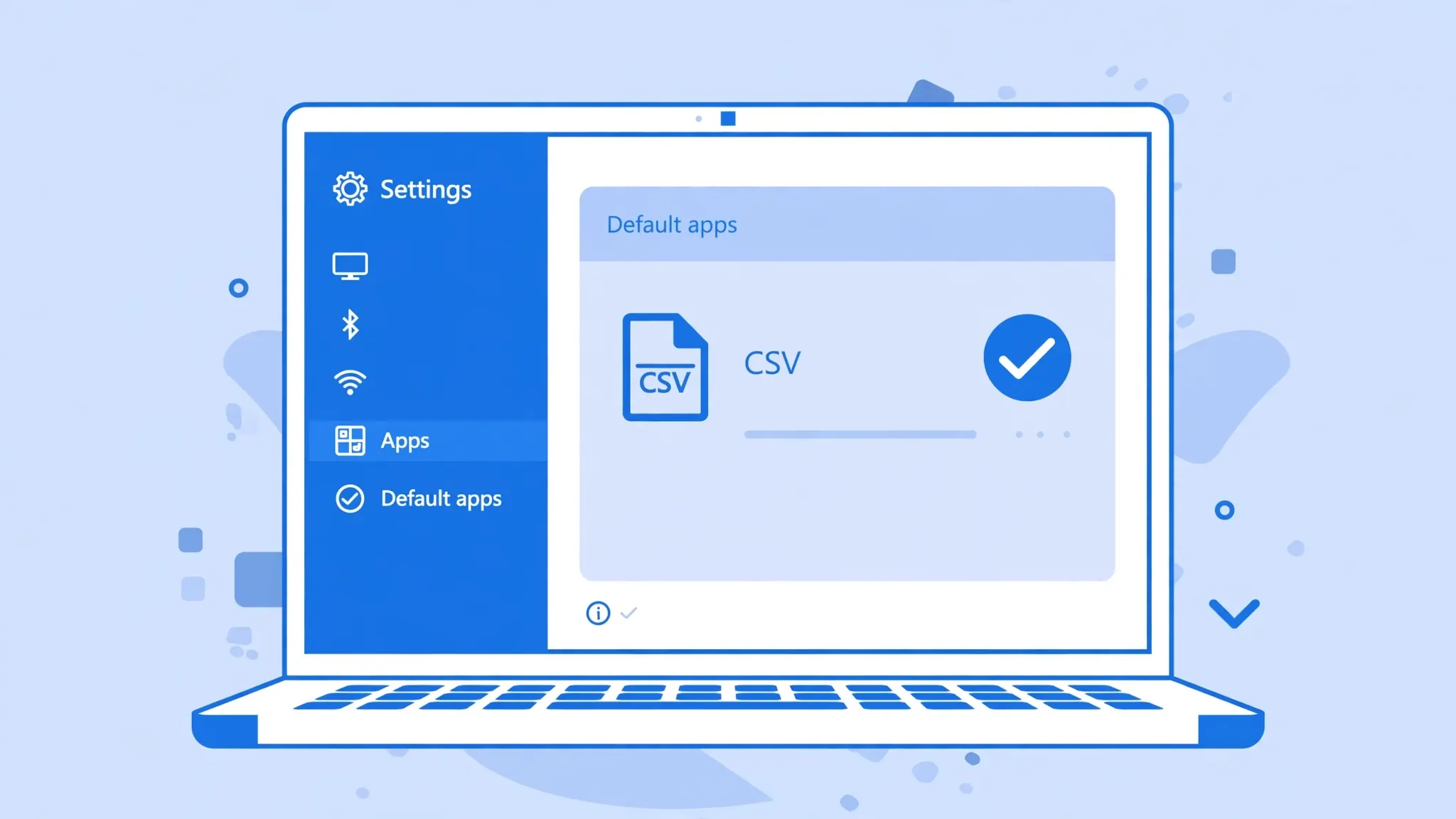
Method 2: Fix default app settings for .csv files
Tired of CSVs opening in Notepad? Set Excel (or your preferred spreadsheet app) as the default once, and every CSV opens correctly from then on.
- Open Settings › Apps › Default apps.
- In the search box, type .csv and select it.
- Click the current default (probably Notepad) and choose Microsoft Excel — or LibreOffice Calc, WPS, or any spreadsheet app you prefer.
Shortcut alternative: right-click any CSV in File Explorer › Open with › Choose another app › select Excel › tick “Always use this app to open .csv files” › OK. Same result, fewer clicks.
Method 3: The Notepad sanity check + quick convert
Before converting a suspicious CSV, spend ten seconds in Notepad. Right-click the file › Open with › Notepad, and look at the raw text: Can you see whether values are separated by commas, semicolons, or tabs? Is the first line a header row? Are there weird characters? This tells you exactly what to set in the import wizard — no more guessing.
Notepad in Windows 11 handles UTF-8 well, so if the text looks clean here but garbled in Excel, you’ve confirmed an encoding mismatch (fix it with File Origin 65001 in the import dialog). If the raw text itself looks broken — rows split mid-field, quotes everywhere — the file was exported badly, and you should request a clean re-export rather than fight it.
Method 4: PowerShell one-liner (automation)
Converting one CSV is a chore; converting fifty every morning is a job for automation. An honest note first: PowerShell cannot write .xlsx files natively — the format is a zipped XML package, not text. But with Excel installed, you can drive it via COM automation:
- Press Win + X and open Terminal (or Windows PowerShell).
- Paste and adapt this script:
$excel = New-Object -ComObject Excel.Application $excel.DisplayAlerts = $false $wb = $excel.Workbooks.Open("C:\data\report.csv") $wb.SaveAs("C:\data\report.xlsx", 51) # 51 = xlOpenXMLWorkbook $wb.Close(); $excel.Quit() [System.Runtime.Interopservices.Marshal]::ReleaseComObject($excel) - For a whole folder, wrap it in a loop over
Get-ChildItem *.csv.

Prefer a cleaner approach? The free ImportExcel PowerShell module (Install-Module ImportExcel) writes real .xlsx files with no Excel installation at all — Import-Csv report.csv | Export-Excel report.xlsx is genuinely a one-liner. Our CSV to Excel with PowerShell guide covers both approaches in full, including scheduled tasks that convert your reports before you’ve had coffee.
Method 5: Free online converter (fastest)
No Excel? No problem — and even with Excel, sometimes you just want the file converted without opening a heavy application. A browser-based converter handles the whole job:
- Open Edge or Chrome and go to the free CSV to Excel converter.
- Drag your CSV onto the page or click to browse.
- Check the preview — columns split correctly, characters intact.
- Download the
.xlsx. It lands in Downloads, ready to open in Excel, Google Sheets, or LibreOffice.

This is the method to recommend to colleagues and family members who “don’t do computers” — there’s nothing to install, nothing to configure, and the file never leaves their machine since conversion happens locally in the browser.
Fixing the “everything in one column” problem
This deserves its own section because it’s the single most-searched CSV problem on Windows. You open the file, and instead of a table you get column A containing entire rows like Name;Email;Phone. The cause is always the same: the file’s delimiter doesn’t match your Windows list separator.
Quick diagnosis: open the CSV in Notepad. If values are separated by semicolons, you have a European/Latin American file on a US/UK/Indian/Australian system (or vice versa). Fix option 1 (best): re-import via Data › Get Data › From File › From Text/CSV and set the delimiter manually in the preview. Fix option 2: select column A, go to Data › Text to Columns, choose Delimited, tick Semicolon, and Finish. Fix option 3 (permanent, for files you receive regularly): change your system’s list separator in Control Panel › Region › Additional settings — but beware, this affects every program, so most people prefer the import-time fix.

Related reading: our deep dives on CSV opens in one column and delimiters not working in Excel cover edge cases like tab-delimited files and mixed-delimiter exports.
Troubleshooting on Windows 11
Excel isn’t installed — what now? Use Excel for the web (free with a Microsoft account), LibreOffice Calc (free, open-source), or the browser converter. All produce genuine .xlsx files.
Special characters show as gibberish. Encoding mismatch. In the import dialog set File Origin to 65001: Unicode (UTF-8); for older files try the Western European (Windows) option. Details in our UTF-8 encoding guide.
Leading zeros disappeared. During import, set the column’s data format to Text. After the fact, the zeros are unrecoverable — re-import. Our leading zeros guide has the full playbook.
Dates flipped (US vs UK format). Your region settings interpret 04/05/2026 differently than the file intended. Import the column as Text, or temporarily match your region to the file’s origin.
The CSV is enormous. Excel caps at 1,048,576 rows. Bigger files need splitting first — see large CSV to Excel.
PowerShell COM automation throws errors. Make sure Excel is installed (COM needs it), run PowerShell as the same user that installed Office, and release COM objects properly to avoid ghost EXCEL.EXE processes.
Something weirder going on? join the discussion in our community forum — post your Windows version, Excel version, and a few sample rows (with private data removed) and you’ll get unstuck quickly.
Automating Recurring CSV Conversions on Windows 11
Converting one CSV is a task; converting the same report every morning is a workflow begging for automation. Windows 11 gives you everything needed to make CSV-to-Excel conversion happen while you sleep.
The Task Scheduler + PowerShell approach
The most robust setup pairs the COM automation script from Method 4 with Task Scheduler. Save your conversion script as convert-daily.ps1, then open Task Scheduler › Create Basic Task, set your trigger (daily at 6 AM, say), and point the action at powershell.exe -File "C:\scripts\convert-daily.ps1". Every morning the fresh CSVs in your watched folder become XLSX files before you’ve opened your laptop. Add email notification via Send-MailMessage if you want confirmation — or an alert when a source file is missing.
The ImportExcel module approach
If you’d rather not depend on an Excel installation (a server, a VM, a PC where Office isn’t licensed), the free ImportExcel module is the cleaner tool: Install-Module ImportExcel once, then Get-ChildItem C:\in\*.csv | ForEach-Object { Import-Csv $_.FullName | Export-Excel "C:\out\$($_.BaseName).xlsx" } converts a whole folder with no COM objects, no ghost processes, and no licensing footprint. It also writes proper tables, autofits columns, and can add conditional formatting in the same pass — genuinely a better report builder than raw COM automation.
The Excel-native approach: refreshable queries
Don’t overlook the no-code option. If the CSV lands in the same location with the same structure each time (the classic daily export), import it once via Data › Get Data › From Text/CSV, do your cleaning in Power Query, and save the workbook. From then on, Data › Refresh All pulls the new file through the same pipeline — delimiter fixes, type changes, and all. For analysts who live in Excel, this is often the highest-leverage automation of the three: no scripts, no scheduler, just a workbook that updates itself.
Whichever route you pick, build in verification: log row counts before and after conversion, and have the script bail out loudly (not silently) when a source file is malformed. An automated pipeline that converts garbage into a pretty XLSX without complaining is worse than no pipeline at all. Start small — automate one report, watch it for two weeks, then expand. The confidence you build from a single reliable pipeline is what turns automation from a side project into infrastructure your whole team depends on.
Converting CSV to the Older .xls Format
Everything in this guide produces the modern .xlsx format — but some readers land here needing the older .xls format (Excel 97–2003). Ancient government portals, legacy ERP systems, and industrial equipment software sometimes accept nothing else. Here’s how to go there deliberately.
In desktop Excel: after importing your CSV, go to File › Save As and choose Excel 97-2003 Workbook (*.xls) from the format dropdown. Excel will warn you about features that don’t survive the downgrade — for plain CSV data, there’s nothing to lose, so proceed. In PowerShell COM automation, change the SaveAs format code from 51 (xlOpenXMLWorkbook) to 56 (xlExcel8). Note the ImportExcel module writes .xlsx only, so for scripted .xls output use COM automation or LibreOffice headless (soffice --headless --convert-to xls).
Know the limits before you downgrade: .xls caps at 65,536 rows and 256 columns (vs 1,048,576 × 16,384 for .xlsx), supports fewer colors and no modern features, and produces files that trigger security warnings in current Excel. Only use .xls when the receiving system truly demands it — for every other purpose, .xlsx is smaller, safer, and more capable. And if a portal accepts CSV directly, consider skipping Excel entirely: our Excel to CSV guide covers the reverse trip.
Frequently Asked Questions
How do I convert CSV to Excel on Windows 11 without Excel installed?
Use a free browser-based converter, Excel for the web (free with a Microsoft account), or LibreOffice Calc. All three turn a CSV into a genuine .xlsx file with no paid software.
How do I change the default app for CSV files in Windows 11?
Open Settings › Apps › Default apps, search for .csv, and set your preferred application (e.g. Excel). Alternatively, right-click a CSV file › Open with › Choose another app, tick “Always use this app”, and select Excel.
Why does my CSV open in Notepad on Windows 11?
Windows 11 has no built-in spreadsheet app, so if no program has claimed the .csv extension, files open in Notepad. Install Excel, LibreOffice, or set a default app to fix it.
What is the PowerShell command to convert CSV to Excel?
PowerShell cannot write .xlsx natively, but with Excel installed you can automate it via COM: create an Excel.Application object, open the CSV with Workbooks.Open, then SaveAs with file format 51 (xlOpenXMLWorkbook). The ImportExcel module is a cleaner alternative that needs no Excel install.
Why does Excel put all my CSV data in one column on Windows 11?
Excel splits CSVs using your region’s “list separator”. If the file uses a different delimiter (e.g. semicolons in European files on a US system), everything lands in column A. Fix it in the import wizard or with Data › Text to Columns.
Can I convert many CSV files to Excel at once on Windows 11?
Yes. A PowerShell loop with Excel COM automation or the ImportExcel module can batch-convert a whole folder of CSVs to XLSX unattended.