
Excel for small business isn’t a compromise — it’s how most of the world’s businesses actually run their numbers. Before the accounting software, before the ERP, before the dashboards, there’s a spreadsheet: the boutique in Mumbai tracking daily sales, the plumbing contractor in Texas logging expenses, the café in Melbourne watching cash flow. Excel wins for small businesses because it’s already there, it bends to any workflow, and it costs nothing beyond the Office license many owners already have. This guide gives you the complete playbook: the five spreadsheets every small business needs (sales, expenses, inventory, cash flow, payroll), how to set each one up properly, the handful of formulas that do 90% of the work, and honest guidance on when you’ve outgrown the grid.
Whether you’re launching this month or have been winging it with a shoebox of receipts, you’ll finish this guide with a working financial system you can build in a weekend.

Why Excel still runs the world’s small businesses
Software vendors love to declare the spreadsheet dead. Meanwhile, the spreadsheet quietly runs millions of businesses. The reasons are structural, not sentimental. Zero marginal cost: if you have Microsoft 365, Google Workspace, or even just a phone, you already own a spreadsheet — no per-seat SaaS subscription for your five-person team. Infinite flexibility: accounting software forces your business into its workflow; Excel bends to yours, whether you sell samosas, software, or plumbing services. No training required: everyone has opened a spreadsheet; almost nobody needs onboarding to use one.
There’s a deeper reason too: Excel grows with you. The sales tracker you build on day one becomes the data source for the PivotTable reports you build in year two and the cash-flow model you build in year three. The skills compound — every formula you learn pays dividends across every sheet you’ll ever build. That’s why “Excel for small business” isn’t a starter topic; it’s a durable competitive advantage for owners who master it.
The 5 spreadsheets every small business needs
Forget the 47-tab monster workbooks. A small business runs on five sheets, each with one job. Build these and you can answer any financial question about your business within minutes.
1. The sales tracker
Every sale, one row: date, customer, product/service, quantity, unit price, total, payment method, status (paid/pending). This is your revenue truth — the raw material for everything else. Add a PivotTable on a second tab summarizing sales by month and by product, and you instantly see seasonality, best sellers, and slow movers. Pro tip: enter sales daily, not monthly. Five minutes a day beats a painful weekend of reconstruction, and daily data reveals patterns (weekday vs weekend, payday spikes) that monthly totals hide.
2. The expense tracker
Every rupee, dollar, or pound out the door, one row: date, vendor, category (rent, supplies, salaries, marketing, utilities, other), amount, payment method, receipt reference. Categories are the whole game — consistent categories turn a list into an analysis. At month’s end, a SUMIFS by category tells you exactly where the money went, and comparing categories month-over-month surfaces the creeping costs (that software subscription, the rising supply bill) that silently eat margins.
3. The inventory sheet
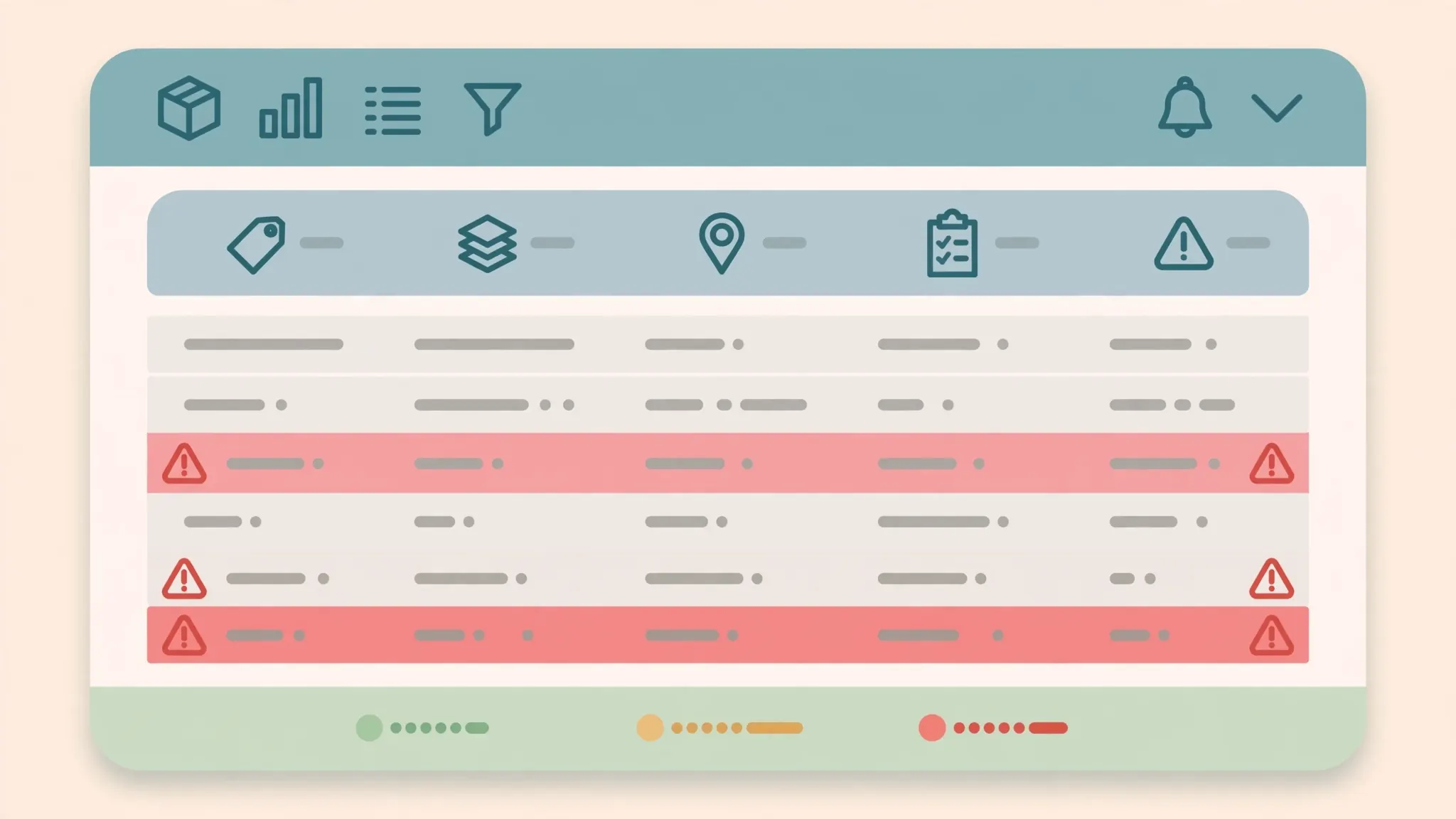
If you sell physical goods, this sheet is your money sitting on shelves: SKU, product name, category, supplier, cost price, selling price, quantity on hand, reorder level. Two formulas run it: stock value (quantity × cost price) tells you how much cash is tied up, and conditional formatting flags anything at or below its reorder level in red. Update quantities when stock arrives and when it sells — or daily from your sales tracker with a SUMIFS. Our Excel inventory management guide builds this into a complete system with reorder alerts.
4. The cash flow forecast
Profit is theory; cash is oxygen. The cash flow sheet looks forward where the others look back: rows for each coming week or month, columns for expected inflows (confirmed orders, receivables due, recurring revenue) and outflows (rent, salaries, supplier payments, loan installments), and a running balance. The one rule: update it weekly, religiously. Businesses don’t usually die from unprofitability — they die from a cash gap in week six that nobody saw coming. A simple forecast you actually update beats a sophisticated model you abandon.
5. The payroll and people sheet
Even with two employees, track it properly: name, role, start date, salary/wage rate, pay frequency, tax/benefits deductions, net pay, payment dates. This sheet feeds your expense tracker (salaries are usually the biggest line) and keeps you compliant — when tax season or a labor question arrives, the answers are one filter away instead of a archaeological dig through bank statements. Our Excel for HR guide expands this into full onboarding checklists and leave trackers as your team grows.
How to use Excel for small business: getting started in a weekend
Here’s how to use Excel for small business without drowning in setup. Saturday morning: create one workbook with five tabs (Sales, Expenses, Inventory, CashFlow, Payroll) using the column structures above. Enter the last 30 days of data from bank statements and receipts — bank CSV exports are perfect for this; convert them with the free CSV to Excel converter and paste them in. Don’t aim for perfection; aim for started.
- Create the workbook and the five tabs with the column headers from this guide.
- Import the last 30 days: convert bank/processor CSV exports to xlsx and paste them into Sales and Expenses.
- Set up data validation dropdowns for categories, payment methods, and statuses — this prevents the typo drift that ruins analysis later.
- Build one PivotTable on sales by month and one SUMIFS summary on expenses by category.
- Set a weekly 30-minute calendar appointment: update everything, review the cash flow forecast.
Saturday afternoon: add the dropdowns and the two summaries. Sunday: enter your inventory counts and build the cash flow forecast for the next 12 weeks. By Sunday evening you have a working financial system. The weekly 30-minute habit is the entire secret — spreadsheets don’t fail from bad design, they fail from neglect. Put the appointment in your calendar before you close the laptop.
Excel for business management: the formulas that actually matter
Excel for business management doesn’t require formula wizardry — five tools answer nearly every question a small business asks. Master these and you’re set for years.

SUMIFS/COUNTIFS — conditional totals. “Total sales of Product X in March.” “How many expenses were over $500?” These two functions turn your raw logs into answers. XLOOKUP (or VLOOKUP) — pulling data across sheets. Match a product name to its cost price; match an employee ID to a pay rate. IF — basic logic. Flag overdue invoices, categorize transactions, mark low stock. PivotTables — instant summaries. Drag fields, get cross-tabs: sales by month by product, expenses by category by quarter. If you learn one “advanced” feature, make it this one — PivotTables replace hours of manual summarizing.
Learn them in that order, with your own data. A formula learned on your actual sales figures sticks; one learned on a tutorial’s sample data evaporates. And resist the urge to get fancy — a readable SUMIFS beats a clever array formula that nobody (including future you) can debug at tax time.
Small business Excel templates: build vs download
Should you download small business Excel templates or build your own? Both, in sequence. Start with downloads to see how the pros structure things — Microsoft’s template gallery has solid invoice, budget, expense-report, and inventory templates, and they’re free. Use one for a month exactly as designed.
Then build your own, borrowing the best ideas. Why? Because no template knows your business: your categories, your workflow, your quirks. A home-built sheet with 8 columns you understand beats a downloaded template with 40 you don’t — and when something breaks (it will), you’ll know exactly where to look. The sweet spot most owners land on: download for inspiration, build for production, and keep improving monthly. If you’d rather skip Excel’s cost entirely, our Excel vs WPS comparison shows how the free WPS suite handles the same templates.
Invoicing in Excel: getting paid on time
Nothing matters more to a small business than getting paid, and Excel handles invoicing cleanly with two linked sheets. The invoice register logs every invoice: number, date issued, client, amount, due date, status (sent / paid / overdue), and date paid. The invoice template itself is a printable sheet — your logo, business details, client details, line items with quantities and rates, tax, total, payment terms, and bank details — that pulls client info via XLOOKUP from a small client list so you’re not retyping addresses.
Three practices separate businesses that get paid from those that chase: number invoices sequentially (INV-2026-001, INV-2026-002) — gaps look unprofessional and complicate tax records; send immediately — the invoice goes out the day the work is done, not “when I get around to it,” because every day of delay is a day added to your wait; and follow up systematically — conditional formatting that turns overdue rows red, plus a weekly 15-minute routine of polite reminders. The data is sobering across every market from the US to India to the UK: polite, prompt follow-up shortens payment times dramatically, and the businesses that systematize it in a spreadsheet get paid weeks faster than those that rely on memory.
Link invoicing to your sales tracker (every paid invoice is a sales row) and your cash flow forecast (every unpaid invoice is a future inflow with a date). When those three sheets agree with each other, you have something most small businesses lack: a single, trustworthy picture of money in.
Tax season: making your spreadsheets accountant-ready
Tax season is where good spreadsheet habits pay for themselves — literally. An accountant handed five clean, categorized sheets quotes you a fraction of what they’d charge to reconstruct your year from bank statements and shoeboxes. Here’s how to be the client accountants love.
Year-round: keep categories consistent and tax-relevant from January — separate personal from business spending ruthlessly (one business bank account makes this almost automatic), log every expense with its receipt reference, and record income when invoiced and when paid (accrual vs cash matters for taxes in many jurisdictions). Quarterly: reconcile each sheet against bank statements — every bank transaction should appear in your sheets and vice versa. The 20-minute reconciliation catches the missing entries while you still remember them. Year-end: freeze the year’s workbook (save a dated copy, then start fresh), run your category summaries, and export the lot to xlsx for your accountant along with a one-page summary: total revenue, total expenses by category, asset purchases, and anything unusual.
Two warnings from hard experience. First, back up: keep dated copies monthly (January.xlsx, February.xlsx…) in cloud storage — a corrupted file in April shouldn’t erase March. Second, know your jurisdiction’s rules: whether you’re dealing with GST in India, VAT in the UK, or sales tax in the US, the categories and records your tax authority expects differ — ask your accountant in month one what they need, and build your sheets to produce exactly that. A spreadsheet shaped around your accountant’s requirements turns tax season from a crisis into an errand.
Knowing when you’ve outgrown the spreadsheet
Excel carries most businesses further than they expect — but not forever. Watch for these signals: multiple daily editors with version conflicts and “who changed this?” mysteries; transaction volume where manual entry eats hours weekly and errors creep in; compliance needs (audit trails, access controls) that a grid can’t provide; maintenance cost — when keeping the spreadsheets working costs more than software subscriptions would.
The graduation path is well-trodden: accounting software (for the books), inventory systems (for stock), HR platforms (for people) — with Excel demoted (promoted?) to the analysis layer it was born for. Export from each system to xlsx, analyze in Excel, and you keep the flexibility while gaining the structure. There’s no failure in outgrowing Excel; it means the business worked.
A final note on timing: don’t migrate in a panic during your busiest season or at tax time. The right moment is a quiet month when you can run old and new systems in parallel for 30 days, compare outputs, and switch over with confidence. And keep your historical spreadsheets — even after migrating, last year’s Excel files remain the fastest way to answer “what did we do back then?” without logging into three different platforms.
Verdict: Excel for small business in 2026
Excel for small business remains the highest-ROI software a small company can “buy” — mostly because it’s already bought. Five spreadsheets (sales, expenses, inventory, cash flow, payroll), five formula tools, one weekly 30-minute habit: that’s a financial system that has carried millions of businesses from launch to success. Build it this weekend, maintain it weekly, and let it grow with you.

Start with the sales tracker today — it’s the highest-value first step, since revenue data feeds everything else. Add the expense tracker this week, inventory and cash flow next. And remember the unglamorous truth behind every “Excel success story”: the tool didn’t do it; the habit did. The best spreadsheet is the one you actually update, so build the system you’ll maintain, not the one that impresses on paper. A year from now, you’ll either have a year of clean data guiding every decision — or another year of guessing. The spreadsheet is ready; the only variable is you.
Frequently Asked Questions
How can small businesses use Excel?
Small businesses use Excel for five core jobs: tracking sales, recording expenses, managing inventory, forecasting cash flow, and running payroll. These five spreadsheets cover the financial heartbeat of most small companies.
Is Excel enough for small business accounting?
For early-stage businesses, yes — Excel handles invoicing records, expense tracking, and basic profit-and-loss well. As transaction volume grows or tax complexity increases, most businesses graduate to dedicated accounting software while keeping Excel for analysis.
What Excel formulas should small business owners learn?
Start with SUMIFS and COUNTIFS for conditional totals, XLOOKUP or VLOOKUP for pulling data between sheets, IF for logic, and PivotTables for summaries. These five tools answer roughly 90% of small-business questions.
Are there free Excel templates for small business?
Yes. Microsoft offers free templates for invoices, budgets, expense reports, and inventory through its template gallery, and many are also available for Google Sheets and WPS. Building your own from the structures in this guide often fits better, though.
When should a small business move from Excel to dedicated software?
Consider moving when multiple people edit the same files daily, transaction volume makes manual entry error-prone, you need audit trails for compliance, or maintaining the spreadsheets costs more time than software subscriptions would.
Can I run my entire small business on Excel alone?
Many micro-businesses do exactly that, especially in the first couple of years. Excel works as the system of record until scale, team size, or regulatory needs demand specialized tools — at which point it gracefully becomes the analysis layer rather than the database.