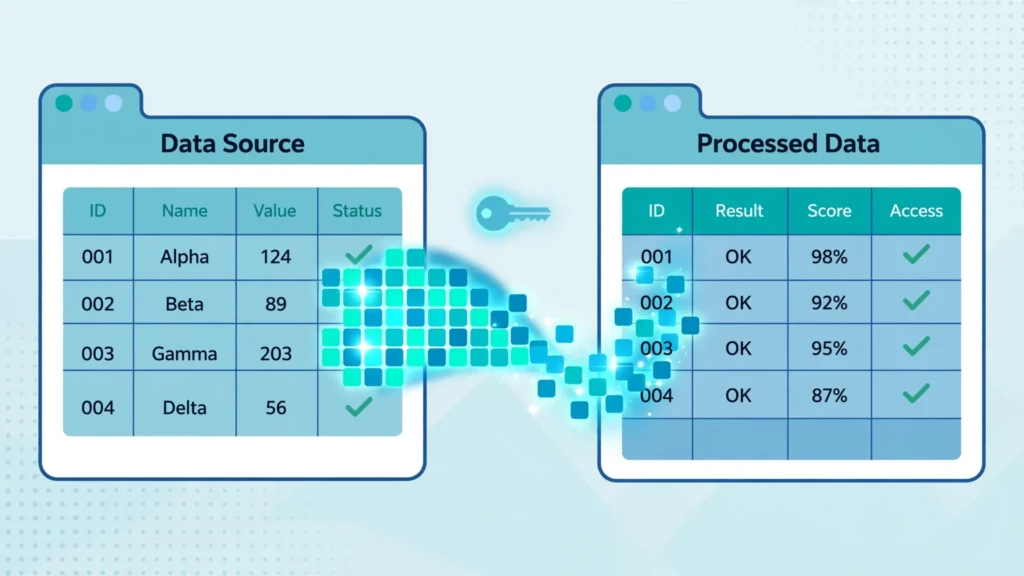
Every growing team hits the same wall: the data lives in one spreadsheet, but the report needs to live in another. Copy-paste works exactly once — then the source updates and your report is silently stale. This Google Sheets IMPORTRANGE tutorial teaches you how to use IMPORTRANGE in Google Sheets to pull live, self-updating data across spreadsheets: the two-minute setup, the permission prompt everyone asks about, power combinations with QUERY and XLOOKUP, and every fix for when IMPORTRANGE is not working.
IMPORTRANGE is the connective tissue of serious Google Sheets workflows. Regional sales files feed a consolidated dashboard. An HR master list feeds every department’s roster. A supplier’s price sheet feeds your quoting tool. Instead of fragile copy-paste chains, you get live links: change the source, and every destination updates within minutes. Finance teams in the US, UK, India, Canada, and Australia run entire reporting stacks on this one function.
It is also the function with the most mysterious failure modes — permission quirks, silent size limits, refresh delays — so half of this guide is a troubleshooting manual. By the end, you will build cross-file systems confidently instead of superstitiously.
What IMPORTRANGE Does (and What It Doesn’t)
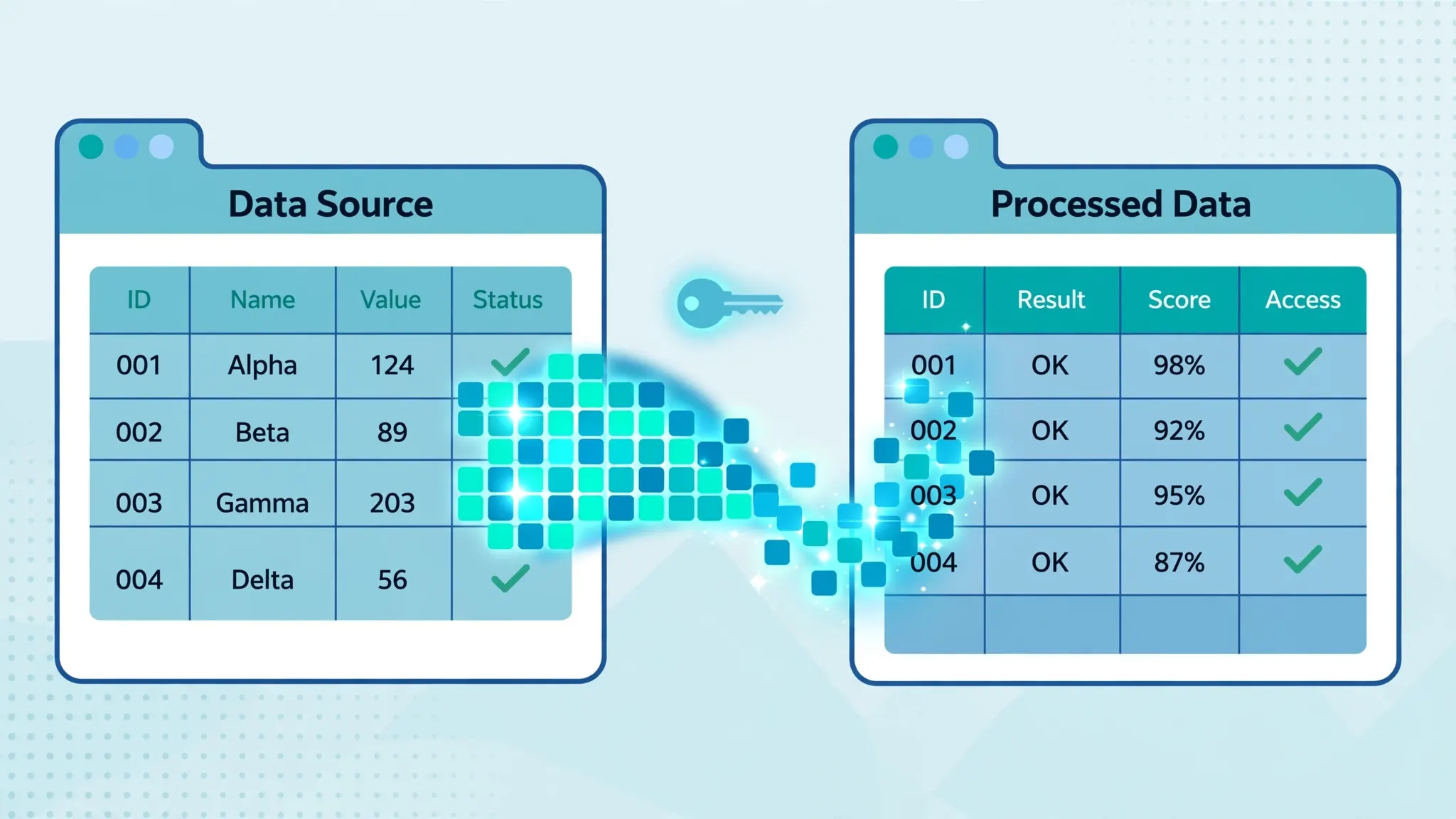
IMPORTRANGE imports a range of cells from one spreadsheet into another, live. The import is read-only and one-directional: the destination mirrors the source, but editing the destination does nothing to the source (in fact, you cannot edit imported cells at all — Sheets blocks it). Formatting does not come along either — only values (and the results of formulas, not the formulas themselves).
What it does not do: it does not sync both ways, it does not import charts or images, and it does not run on a schedule you control — refreshes happen automatically within minutes, on Google’s timetable. Understanding these boundaries up front prevents the two classic disappointments: “why can’t I edit the imported cells?” and “why didn’t it update instantly?”
Google Sheets IMPORTRANGE Tutorial: Step-by-Step Setup
How to use IMPORTRANGE in Google Sheets for the first time
- Open the source spreadsheet and copy its URL from the browser address bar (everything up to
/edit). - In your destination spreadsheet, click the cell where the import should start.
- Type
=IMPORTRANGE(", paste the URL, type", ", then the range string — e.g.Sales!A1:D100— then")and press Enter. - The cell shows #REF!. Hover it and click Allow access in the popup.
- The data flows in. Done — the link is now live.
The full formula looks like this: =IMPORTRANGE("https://docs.google.com/spreadsheets/d/abc123xyz/edit", "Sales!A1:D100"). You can also use just the spreadsheet key ("abc123xyz") instead of the full URL — shorter and equally valid.
The IMPORTRANGE “allow access” prompt, explained
The IMPORTRANGE allow access step confuses everyone the first time. Google requires an explicit grant before spreadsheet A may read spreadsheet B — a security boundary so that merely knowing a file’s URL is not enough to slurp its data into your own file’s logic. (Note: you still need view access to the source file itself; the grant connects the two files, it does not bypass sharing settings.)

Each unique source spreadsheet needs the grant once per destination file. If you later add a second IMPORTRANGE pointing at a different source file, you will grant again. If colleagues open your destination file, they do not need to re-grant — the connection belongs to the file, not the viewer — but they do need view access to the source, or they will see #REF! where you see data.
IMPORTRANGE Syntax and Smart Range Design
Beyond the basics, a few syntax details matter. The range string uses the familiar SheetName!A1:D format — and yes, you can use open-ended ranges like "Sales!A:D" to import whole columns, which future-proofs the import as rows are added. Sheet names with spaces need single quotes: "'Q1 Sales'!A1:D100".
Design tip: import more than you need into a hidden “raw import” sheet, then build all your formulas against the local copy. This gives you one IMPORTRANGE call per source (faster), letter-based column references everywhere (simpler), and a single place to debug when something looks wrong. Ten formulas each calling IMPORTRANGE on the same source is ten times the load and ten times the confusion.
"Sales!A:Z" is convenient but imports over a thousand empty rows per column. Prefer bounded ranges (A1:Z5000) or filter at import time with QUERY to keep workbooks snappy.Google Sheets IMPORTRANGE Not Working? 9 Fixes
When Google Sheets IMPORTRANGE is not working, the error message usually tells you which of these nine problems you have. Work through them in order:
- #REF! — access not granted. Hover the cell, click Allow access. The most common “failure” is simply a missed click.
- #REF! — “You don’t have permission.” You lack view access to the source file. Ask the owner to share it with you (Viewer is enough).
- #REF! — source deleted or unshared. The source file was trashed or sharing was revoked. Re-share or restore it.
- Wrong sheet name.
"Sale!A1:D"vs"Sales!A1:D"— one letter breaks it. Copy the tab name exactly, minding spaces and case. - Malformed URL. Paste the full
/d/KEY/editURL or just the KEY — not a shortened or “pubhtml” link. - Import too large. Tens of thousands of cells can time out. Import fewer columns, bound the rows, or split across sheets.
- Stale data. Refreshes take minutes, not seconds. If it has been over an hour, check that the source actually saved (offline edits sync late).
- Circular import. File A imports from B which imports from A — Sheets refuses. Break the cycle with a one-way architecture.
- Viewer sees #REF! but you see data. The viewer lacks access to the source file. Share the source with them (or accept that the dashboard is for granted users only).
Google’s official Sheets help documents the function reference, but real-world debugging is almost always one of the nine above. When in doubt, rebuild the formula in a blank cell with a tiny range ("Sheet1!A1:A5") — if that works, the problem is scale or the range string, not permissions.
Combining IMPORTRANGE with QUERY, XLOOKUP, and FILTER
IMPORTRANGE is a data pipe; the magic happens when other functions drink from it. The three canonical combos:
QUERY + IMPORTRANGE — filter and aggregate the remote data at import: =QUERY(IMPORTRANGE("url","Sales!A1:E"), "SELECT Col1, SUM(Col5) GROUP BY Col1", 1). Remember Col1 notation — letters do not work when data comes from a function. Full clause guide in our QUERY tutorial.
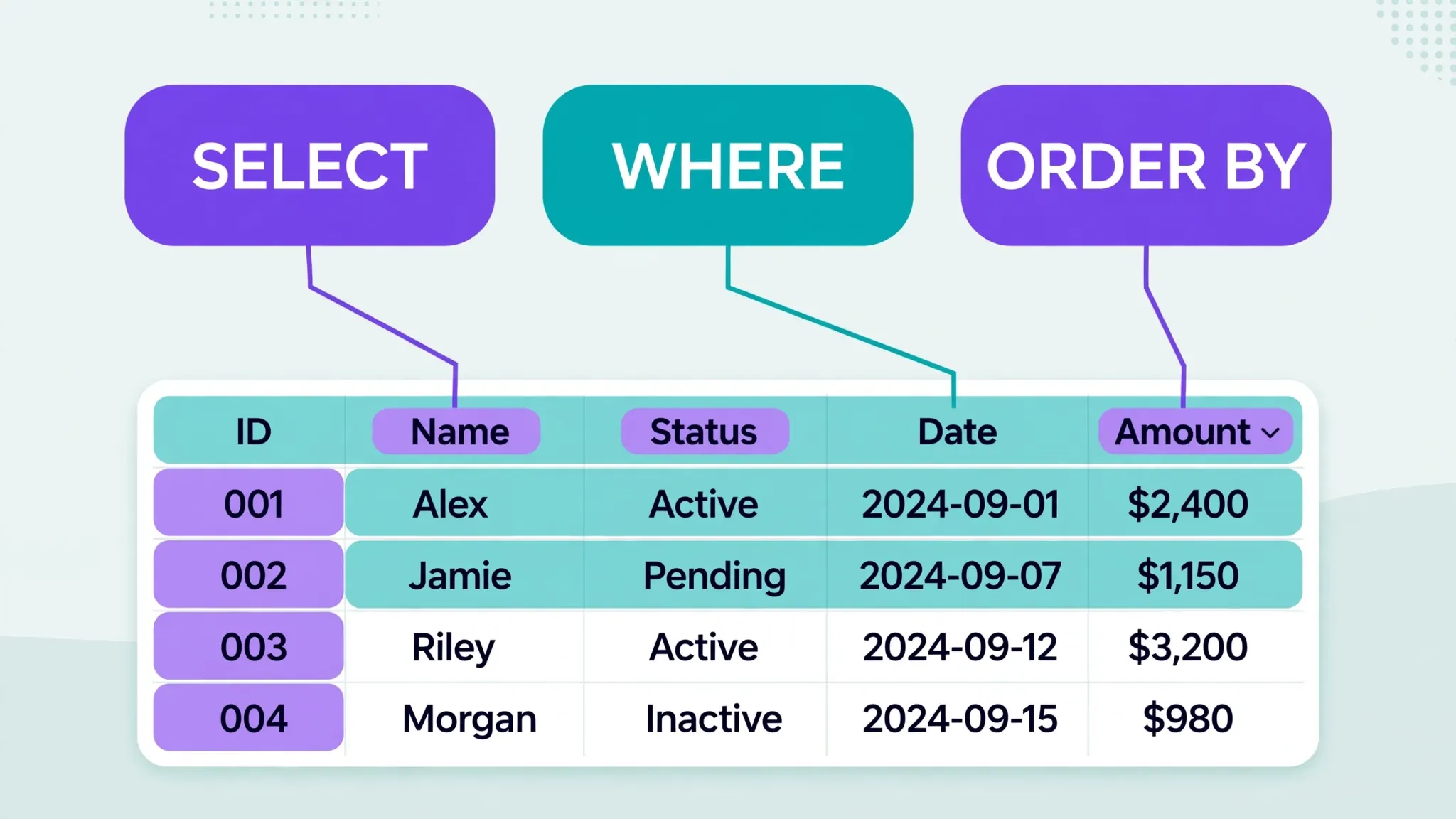
XLOOKUP + IMPORTRANGE — look up values in another file: =XLOOKUP(A2, IMPORTRANGE("url","Catalog!A2:A"), IMPORTRANGE("url","Catalog!C2:C"), "Missing"). For large catalogs, import once to a helper sheet first — see our XLOOKUP guide.

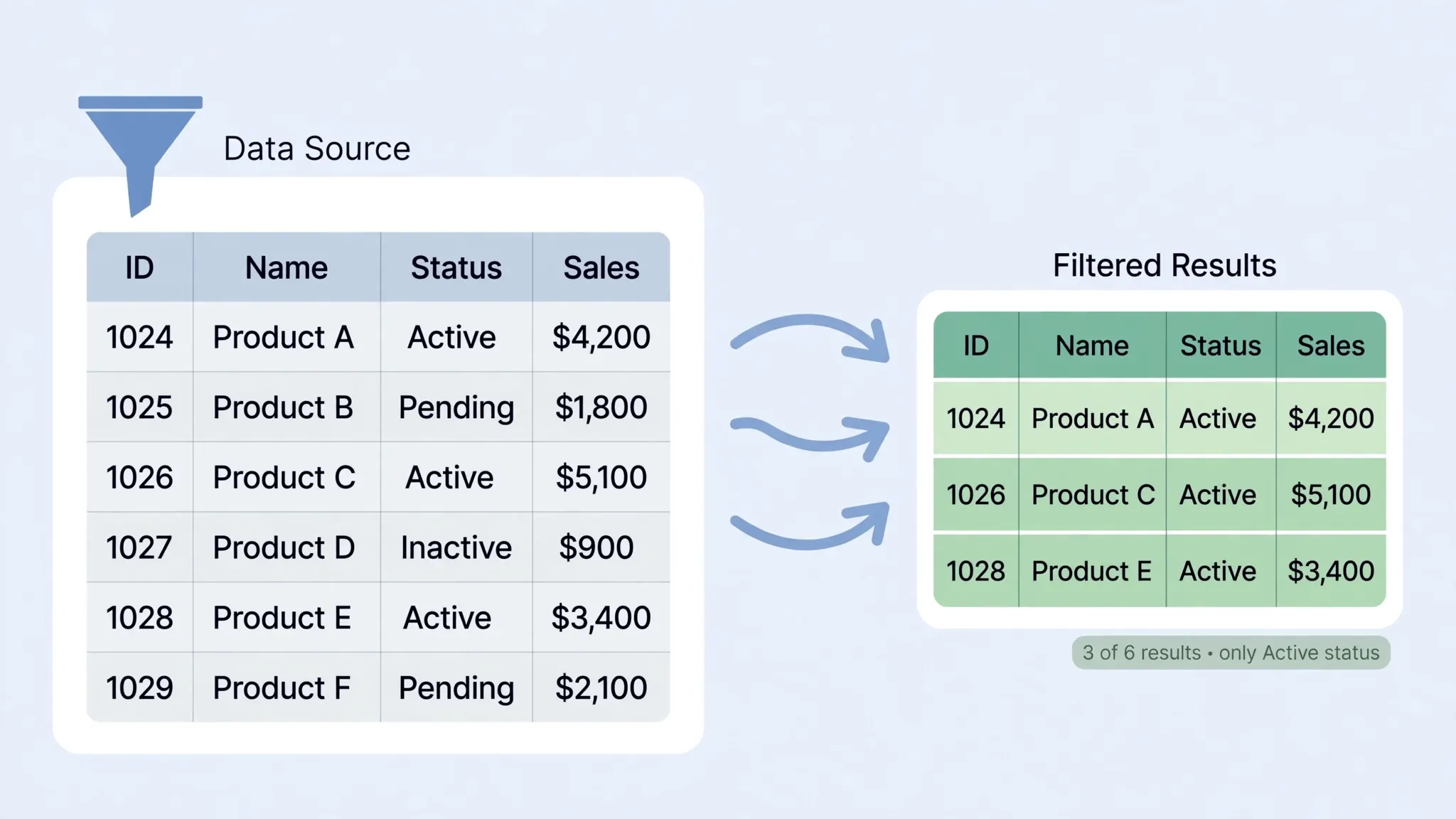
FILTER + IMPORTRANGE — dynamic multi-row extraction: =FILTER(IMPORTRANGE("url","Orders!A2:D"), IMPORTRANGE("url","Orders!B2:B")="West"). Again, the helper-sheet pattern halves the fetches — our FILTER tutorial has the patterns.
IMPORTRANGE vs IMPORTDATA vs IMPORTHTML vs IMPORTXML
Google Sheets has a whole IMPORT family — pick by source: IMPORTRANGE for other Google Sheets; IMPORTDATA for CSV/TSV files at a URL (see our IMPORTDATA guide); IMPORTHTML for tables/lists on web pages; IMPORTXML for anything addressable by XPath. They compose with the same downstream functions, so learning one teaches you the pattern for all four.
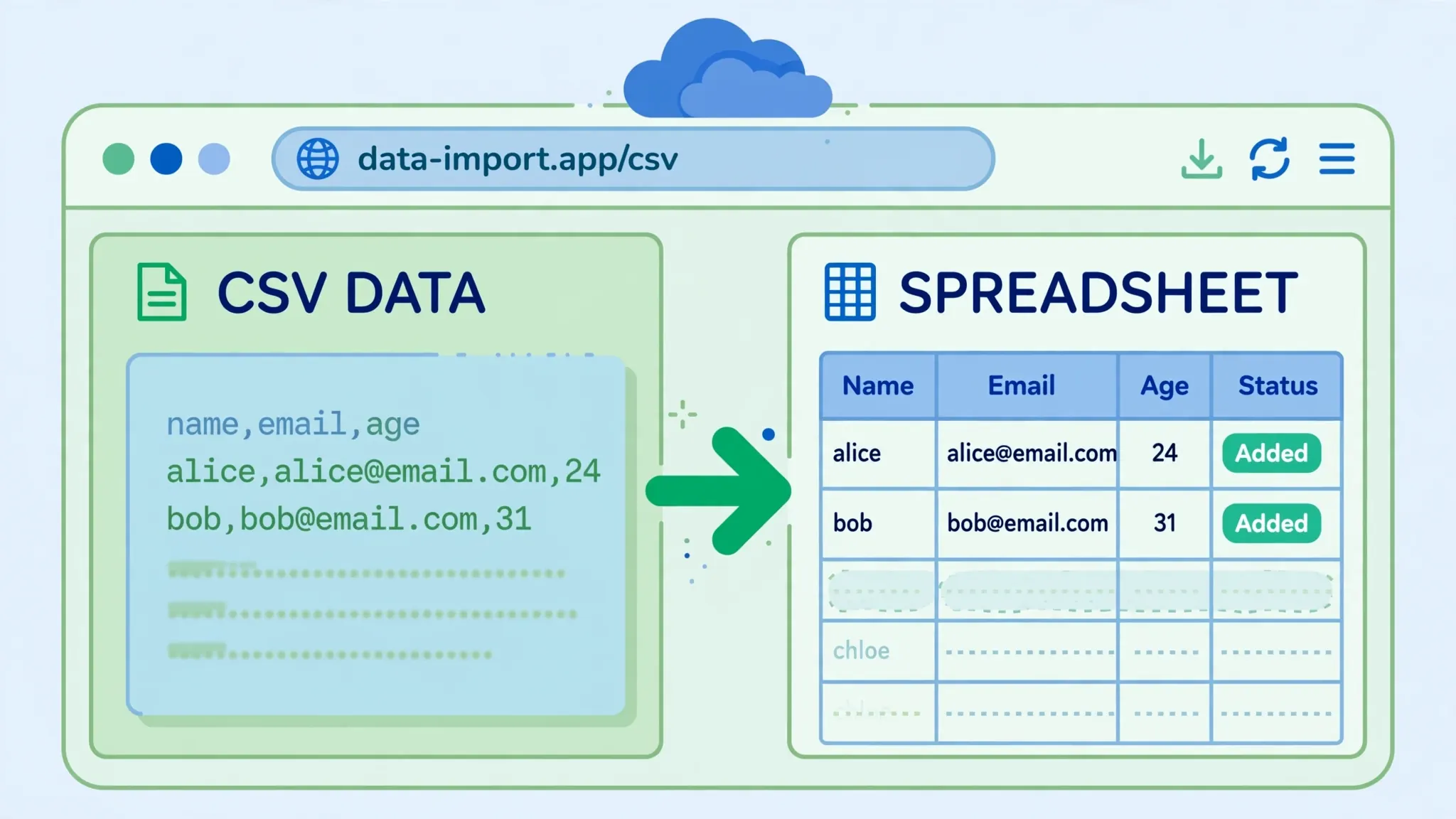
Rule of thumb: if the source is a Google Sheet you control, IMPORTRANGE. If it is a published CSV/TSV URL, IMPORTDATA. If it is a webpage table, IMPORTHTML. Mixing them in one dashboard is normal — a sales dashboard might IMPORTRANGE the CRM export, IMPORTDATA the ad-platform CSV, and QUERY them together.
Performance, Limits, and Refresh Behavior
IMPORTRANGE recalculates when the source changes, typically reflecting updates within a few minutes. There is no manual “refresh now” button — a frequent feature request Google has never granted. Workarounds like toggling the formula off and on do force a re-fetch, but do not build processes around them.
On limits: Google publishes no exact cell cap, but practitioners report reliable imports up to the tens of thousands of cells, with failures beyond that depending on complexity. Each IMPORTRANGE call also counts against the spreadsheet’s overall calculation budget — a dashboard with fifty live imports will feel sluggish. Consolidate: one import per source into a staging sheet, then reference locally. Your collaborators’ browsers will thank you.
Security and Sharing: Who Sees What
The permission model deserves clarity because money and HR data flow through these links. Facts: (1) the file owner/grantor needs view access to the source; (2) anyone who can open the destination sees the imported values only if they can also view the source; (3) removing someone’s source access blanks their view of the imports; (4) the import shows values, never the source’s formulas or edit history.
Practical consequences: you cannot use IMPORTRANGE to hide sensitive source data from destination viewers who lack source access — they simply see #REF!. Conversely, granting destination access to someone effectively exposes whatever the imports show, so treat import ranges as part of your sharing review. For salary or PII pipelines, prefer a proper access-controlled database over clever spreadsheet links. Google’s sharing model is documented for Google Drive, which underpins all Sheets permissions.
Building a Multi-File Dashboard with IMPORTRANGE
The canonical IMPORTRANGE project is the consolidated dashboard: five regional sales files feeding one executive view. The architecture that scales: each region owns its file (they control their data, their sharing, their chaos); your dashboard file contains one hidden staging sheet per region, each with a single IMPORTRANGE pulling that region’s table; then a combine sheet stacks them with an array literal ={Region1!A2:E; Region2!A2:E; Region3!A2:E}; finally, QUERY or pivot tables build the executive summary on the combined data.
Why this layering matters: when the West region restructures their columns, only one staging import breaks — the dashboard’s formulas keep working against the combine sheet’s stable structure. Debugging becomes “which staging sheet is red?” instead of archaeology through fifty formulas. Each layer has one job: stage (fetch), combine (unify), present (summarize). Teams that skip the staging layer inevitably end up with IMPORTRANGE calls embedded inside twenty different formulas, and a single source change becomes a twenty-formula fire drill.
Access management for the dashboard: the dashboard file needs grants to each source (five allow-access clicks, once ever), and each viewer needs view access to the sources whose data they should see. This composes nicely with regional privacy — the East manager sees only East data if you only grant East — but it also means onboarding a new executive requires sharing five files, not one. Document the source list in a README sheet inside the dashboard; future maintainers will otherwise never find all five links.
When Not to Use IMPORTRANGE: Alternatives
IMPORTRANGE is the right default for human-scale reporting, but know its exits. Google Apps Script replaces it when you need scheduled pulls (hourly snapshots into a history log — IMPORTRANGE only shows the current state, never history), transformations during import, or imports from dozens of files that would crush recalculation. A ten-line script with SpreadsheetApp.openById() runs on a time trigger and writes values — simple, controllable, and debuggable.
BigQuery (or any real database) is the answer when rows exceed the tens of thousands, when multiple people need simultaneous reliable access, or when you need true history and audit trails. The migration path is gentle: keep Sheets as the presentation layer with Connected Sheets pulling from BigQuery, and retire the IMPORTRANGE web one source at a time. Manual CSV workflows still beat live links for monthly snapshots that must never change — a board pack frozen for the record should be pasted values, not a live feed that rewrites history when the source is corrected.
The rule of thumb: IMPORTRANGE for live operational views under ~50k cells; scripts for scheduled snapshots and heavy lifting; databases when the data is the business. Most teams live happily in tier one for years — just recognize when you have outgrown it instead of building a skyscraper on a garden shed.
IMPORTRANGE Architectures by Team Size
Solo / duo: point IMPORTRANGE directly where you need it. One or two imports, full visibility, zero ceremony. The staging-sheet pattern is overkill here — keep it simple until simplicity hurts.
Small team (3–15): adopt the staging-layer architecture from the dashboard section: one hidden import sheet per source, all logic downstream. Nominate one “data owner” per source file who approves structural changes, and keep a README sheet listing every source URL and its owner. This is the sweet spot where IMPORTRANGE shines brightest — enough structure to stay sane, not enough to need engineering.
Department (15–100): split into a hub-and-spoke model. A central “data hub” spreadsheet holds all IMPORTRANGE imports and cleaned combine tables; department dashboards import from the hub, never from raw sources. Sources change? Only the hub breaks, and one person fixes it for everyone. Add the freshness-check pattern per source so staleness is visible, and protect the hub’s staging sheets so curious editors cannot break the pipes.
Company-wide: you have outgrown IMPORTRANGE. Migrate the hub to BigQuery or a data warehouse with scheduled ETL, keep Sheets as the presentation layer via Connected Sheets. The migration can be gradual — move the largest or most failure-prone source first, prove the pattern, then continue. Teams that skip this step end up with a “spreadsheet hairball” of circular imports that nobody dares touch — the most expensive technical debt in business analytics.
Diagnosing Refresh Delays
“I changed the source an hour ago and the import still shows old data” has a short diagnostic list. First, confirm the source actually saved — check the source file’s “Last edit” timestamp; offline or conflicted edits sync late. Second, check whether you see stale data or everyone does — a per-viewer cache issue resolves with a hard refresh (Ctrl+Shift+R), while a global issue points at the import itself.
Third, look for calculation overload: a destination file with dozens of heavy imports recalculates slowly, and IMPORTRANGE queues behind it. The fix is consolidation — fewer, bigger imports into staging sheets — as covered in the performance section. Fourth, verify the source range still covers the changed cells; if someone added rows beyond your A1:D100 bound, the import is faithfully showing exactly what you asked for — just not what you meant. Open-ended ranges or whole columns prevent this class of staleness permanently.
If all four check out and data is still hours stale, rebuild the formula (cut, paste back) to force a fresh fetch — a legitimate one-time nudge, not a workflow. Persistent multi-hour delays on a healthy file are rare and usually resolve on Google’s side; document the incident and move on rather than rebuilding working architecture around a transient blip.
Frequently Asked Questions
What is the IMPORTRANGE syntax in Google Sheets?
=IMPORTRANGE(spreadsheet_url, range_string) — the full source URL (or just its key) plus a range like "Sales!A1:D100". The first run shows an allow-access prompt you must approve.
Why does IMPORTRANGE say I need to allow access?
Google requires an explicit grant before one spreadsheet reads another. Hover the #REF! cell, click Allow access, and the import starts. Each source file needs this once per destination.
How often does IMPORTRANGE refresh?
Usually within minutes of source changes, on Google’s own schedule. There is no manual refresh button. Very large imports update less frequently.
Why is my IMPORTRANGE not working?
Run the nine-fix checklist above: ungranted access, missing source permissions, deleted source, misspelled sheet name, bad URL, oversized import, stale cache, circular imports, or viewers lacking source access.
Can I use IMPORTRANGE with QUERY?
Yes — it is a classic combo. This Google Sheets IMPORTRANGE tutorial’s combo section shows the pattern; remember Col1/Col2 notation inside the query string.
Is there a limit to how much IMPORTRANGE can import?
No published exact limit, but tens of thousands of cells generally work while much larger imports time out. Import only needed columns and bound your ranges.