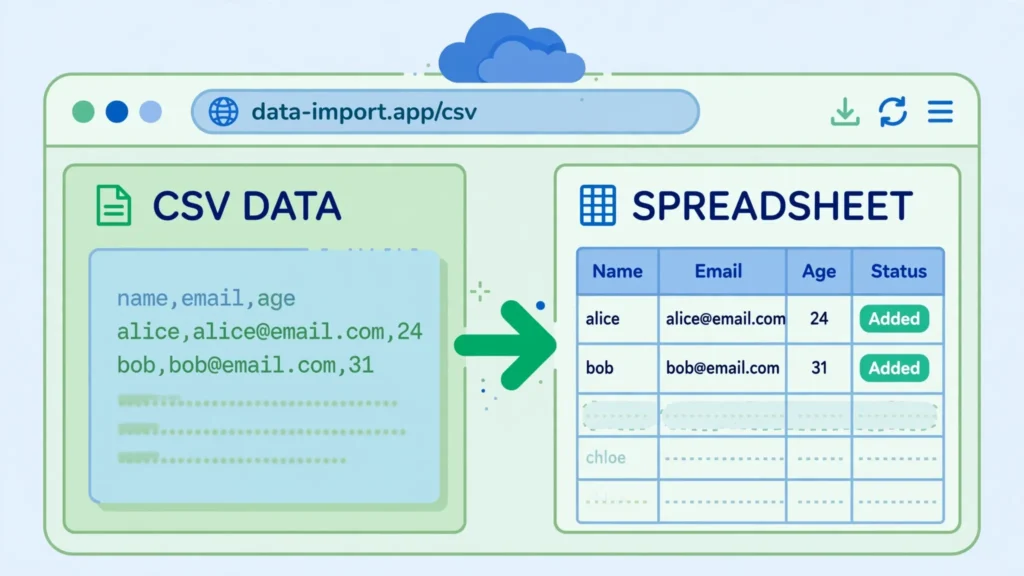
Somewhere on the internet, a CSV file updates every day with the data you need — currency rates, product catalogs, public statistics, sports scores. Downloading it manually is a chore you will eventually forget, and then your report goes stale. The Google Sheets IMPORTDATA function ends that chore: point it at the file’s URL once, and your spreadsheet pulls fresh data automatically. This guide shows you how to import CSV from URL in Google Sheets, fix the delimiter problems that plague real-world files, and combine the live feed with QUERY and VLOOKUP for self-updating dashboards.
IMPORTDATA is deceptively simple — one required argument — but real CSV files are messy: semicolon delimiters from European publishers, tab-separated exports, quoted fields with embedded commas, and encodings that turn names into mojibake. We will cover each failure mode with its fix, so your import works on the first try instead of the fifth. Analysts in the US, UK, India, Canada, and Australia use these patterns daily to keep reports fresh without lifting a finger.
By the end, you will have a reusable playbook: the core Google Sheets IMPORTDATA formula, the IMPORTDATA delimiter fix for non-comma files, refresh-timing expectations, and the QUERY/VLOOKUP combinations that turn a raw feed into answers.
What IMPORTDATA Does: Live CSV Feeds for Your Spreadsheet
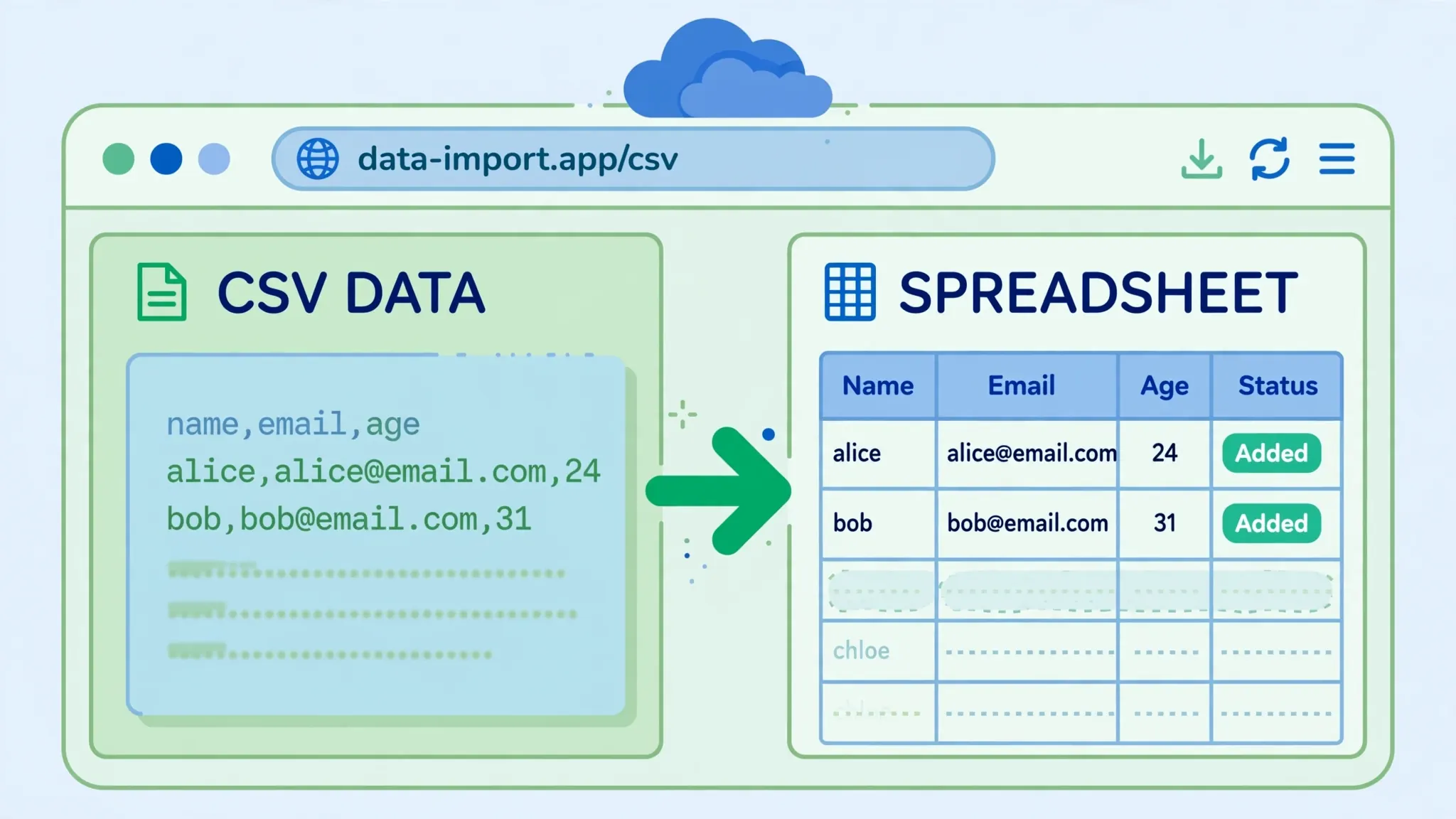
IMPORTDATA fetches a CSV or TSV file from a URL and spills its contents into your sheet as a live range. The import re-fetches automatically, so when the publisher updates the file, your spreadsheet follows — no re-downloading, no copy-paste. It is the simplest possible data pipeline: one formula, zero maintenance. Google documents the function alongside its siblings in the Sheets help center.
The function fetches anonymously — no login, no cookies, no API keys — which means it only works with publicly accessible URLs. It also only understands delimited text: CSV, TSV, and similar. It cannot parse Excel files, PDFs, or JSON (use IMPORTXML or Apps Script for those). And like all IMPORT functions, its output is read-only: build your analysis around the import, never inside it.
How to Import CSV from URL in Google Sheets: Step by Step
- Find the direct URL of the CSV file — it should end in
.csv(or servetext/csv). Test it in a browser: you should see raw comma-separated text, not a download prompt or a login page. - Click the cell where the import should start (top-left corner of the incoming table).
- Type
=IMPORTDATA(", paste the URL, type"), press Enter. - Sheets shows “Loading…” then spills the table. Leave empty space below and to the right — the import needs room to expand.
Example with a real public dataset pattern: =IMPORTDATA("https://example.com/daily-prices.csv"). (Replace with your actual feed URL.) If the data lands correctly, you are done — the two-minute version really is that short. If everything lands in one column, or characters look wrong, read on: the next two sections fix 95% of real-world mess.

Google Sheets IMPORTDATA Function: Syntax Deep Dive
=IMPORTDATA(url, [delimiter], [locale])
- url — the file’s web address, in quotes (or a cell reference holding the URL — handy for switching feeds).
- delimiter — optional: the character separating fields. Default is comma; pass
";","\t"(tab), or"|"as needed. - locale — optional: a locale code like
"en_US"affecting how numbers and dates parse.
Putting the URL in a cell (say Z1) and writing =IMPORTDATA(Z1) is a small habit with big payoffs: swapping feeds becomes a one-cell edit, and you can build the URL dynamically — =IMPORTDATA("https://example.com/data-"&TEXT(TODAY(),"yyyymmdd")&".csv") fetches a dated daily file automatically. Just be careful with that pattern: if the publisher misses a day, the import errors until the file appears.
IMPORTDATA Delimiter Fix: Commas, Semicolons, Tabs, and Pipes
The number-one IMPORTDATA complaint — “everything landed in one column” — is always a delimiter mismatch. Much of the world does not use commas: European publishers emit semicolons (because the comma is their decimal separator), many systems export tabs, and pipes appear in logs. The IMPORTDATA delimiter fix is the second argument:
=IMPORTDATA("https://example.com/data.csv", ";") — semicolon files.
=IMPORTDATA("https://example.com/data.tsv", "\t") — tab-separated.
=IMPORTDATA("https://example.com/data.psv", "|") — pipe-separated.
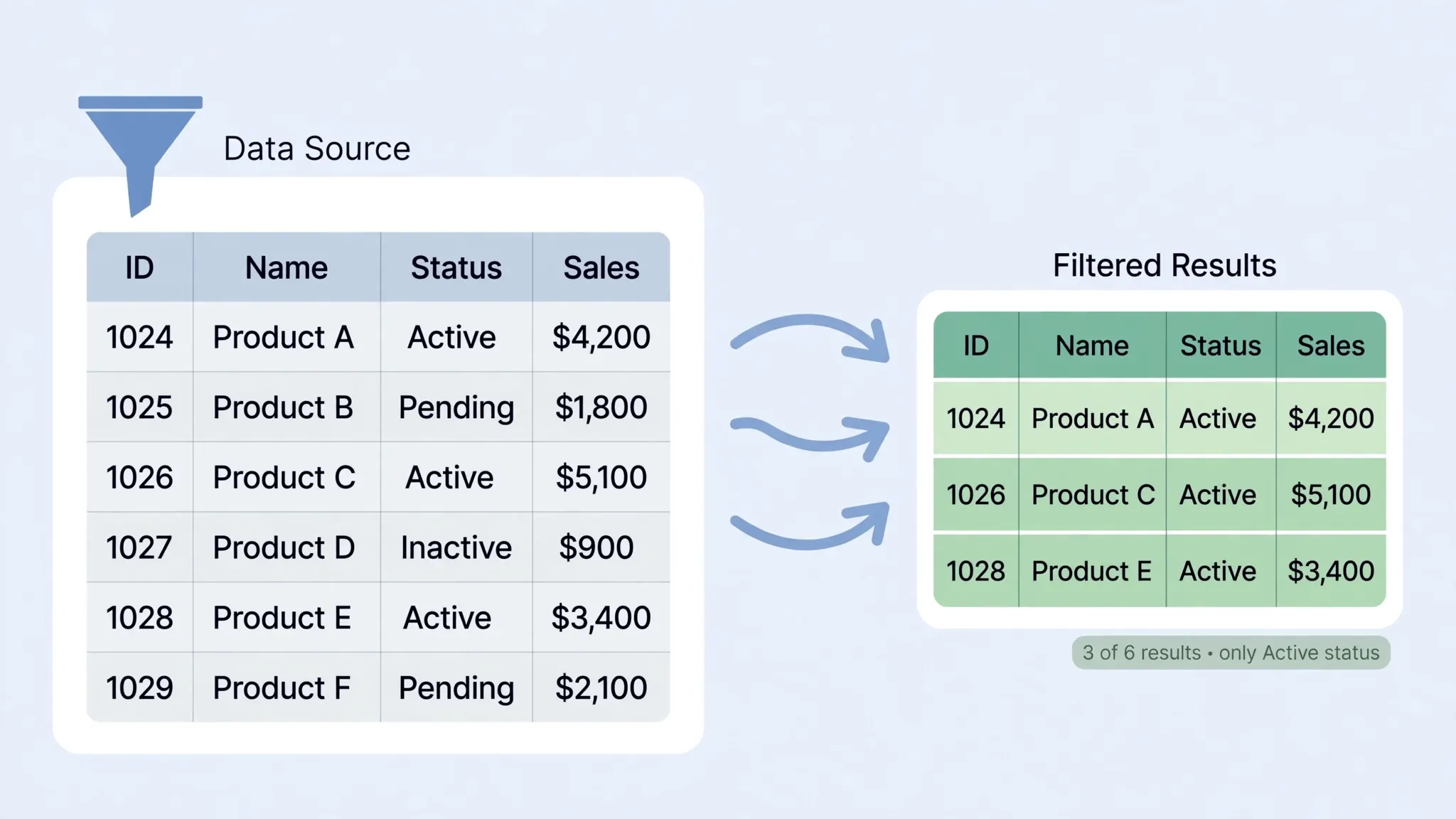
How to diagnose: open the URL in a browser and look at the raw text. Commas between fields? Default works. Semicolons? Pass ";". Visible gaps that are actually tabs? Pass "\t". If the delimiter argument still fails, the file may use inconsistent quoting — download it once and run it through our free CSV to Excel converter to inspect and clean it, then decide whether the feed is salvageable.
de_DE CSV with 1.234,56 number formatting will parse wrong under default US locale. Passing the locale (=IMPORTDATA(url, ";", "de_DE")) fixes number and date parsing in one move — a lifesaver for pan-European data feeds.Refresh Behavior: How Often IMPORTDATA Updates
IMPORTDATA re-fetches roughly every hour for typical feeds, though Google documents no exact schedule and timing varies with load. There is no manual refresh button and no settings panel — the cadence is Google’s, full stop. For daily-published data (price lists, stats dumps), hourly is plenty. For intraday trading data, it is not — use a proper market-data API instead.
Two practical notes. First, Sheets caches aggressively: if you are testing a feed, changes can take a couple of cycles to appear — do not assume your formula is broken after five minutes. Second, every IMPORTDATA call in a workbook fetches independently, so ten formulas hitting the same URL means ten fetches. Import once into a staging sheet and reference it locally — the same consolidation advice as IMPORTRANGE.
IMPORTDATA Errors and Fixes
- “Could not fetch URL” — the URL is wrong, the server blocks bots, or the file requires login. Verify in an incognito browser window: if you cannot see raw CSV text without logging in, IMPORTDATA cannot either.
- Everything in one column — delimiter mismatch; apply the delimiter fix above.
- Garbled characters (mojibake) — the file is not UTF-8. Sheets assumes UTF-8; for legacy encodings, download and convert first — our free CSV to Excel converter handles encoding cleanup.
- #REF! array not expanded — something blocks the spill area. Clear cells below/right of the formula.
- Numbers as text — quoted numeric fields import as text. Wrap downstream formulas with
VALUE()or clean the column once. - Dates as text — same story; use
DATEVALUE()or the locale argument. - Stale data — wait out the refresh cycle; check the publisher actually updated the file (compare the URL’s Last-Modified header).
Combining IMPORTDATA with QUERY, VLOOKUP, and Pivot Tables
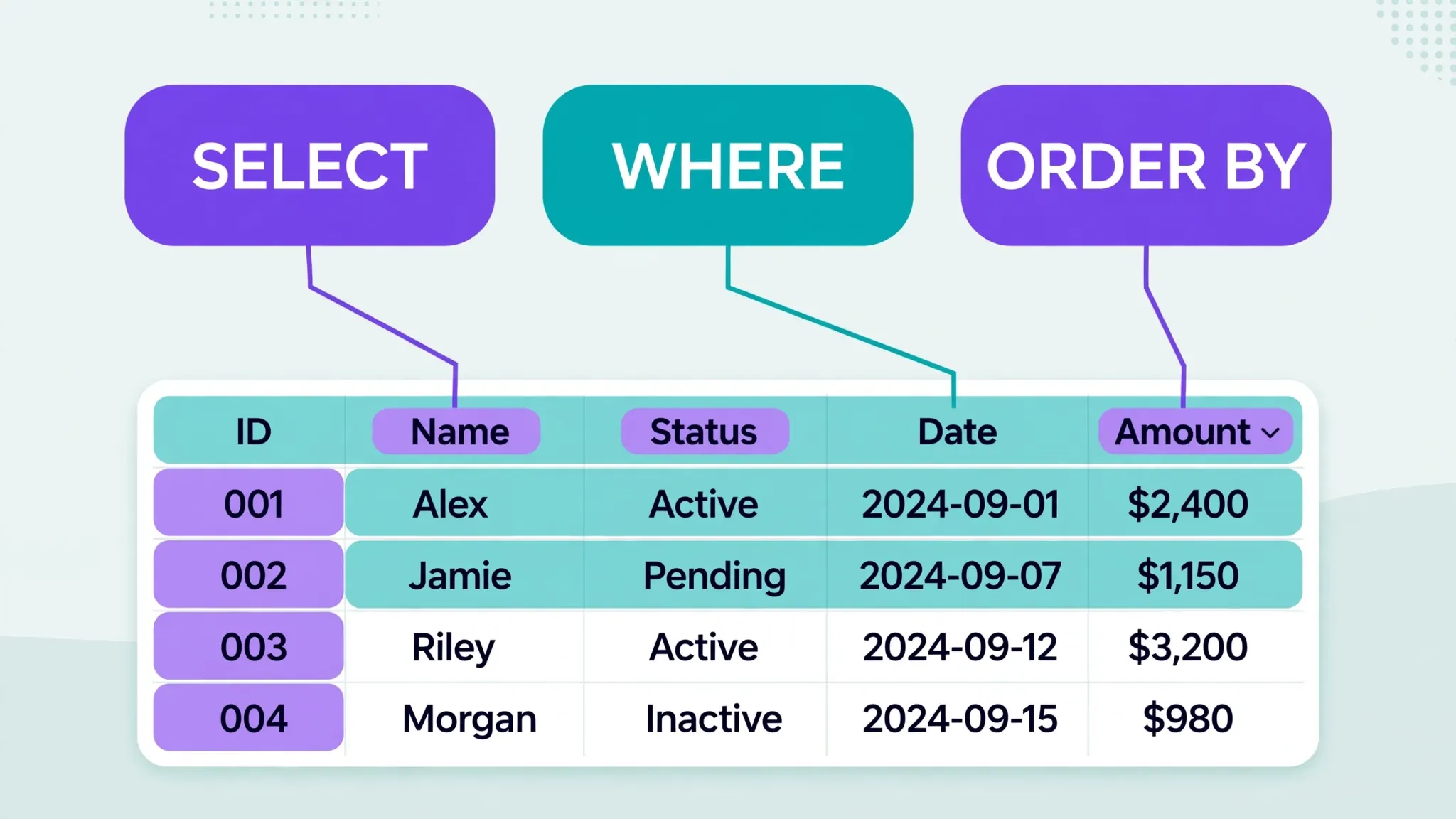
A raw feed is ingredients; these combos are the meal. QUERY + IMPORTDATA filters at the source: =QUERY(IMPORTDATA("https://example.com/sales.csv"), "SELECT Col1, SUM(Col5) GROUP BY Col1", 1) — note Col1 notation, since the data comes from a function. Our QUERY tutorial has the full clause reference.
VLOOKUP/XLOOKUP + IMPORTDATA turns any published CSV into a lookup table: =XLOOKUP(A2, INDEX(IMPORTDATA(url),,1), INDEX(IMPORTDATA(url),,3), "Missing") — or cleaner, import once to a staging sheet and look up against it. See our VLOOKUP guide and XLOOKUP guide.
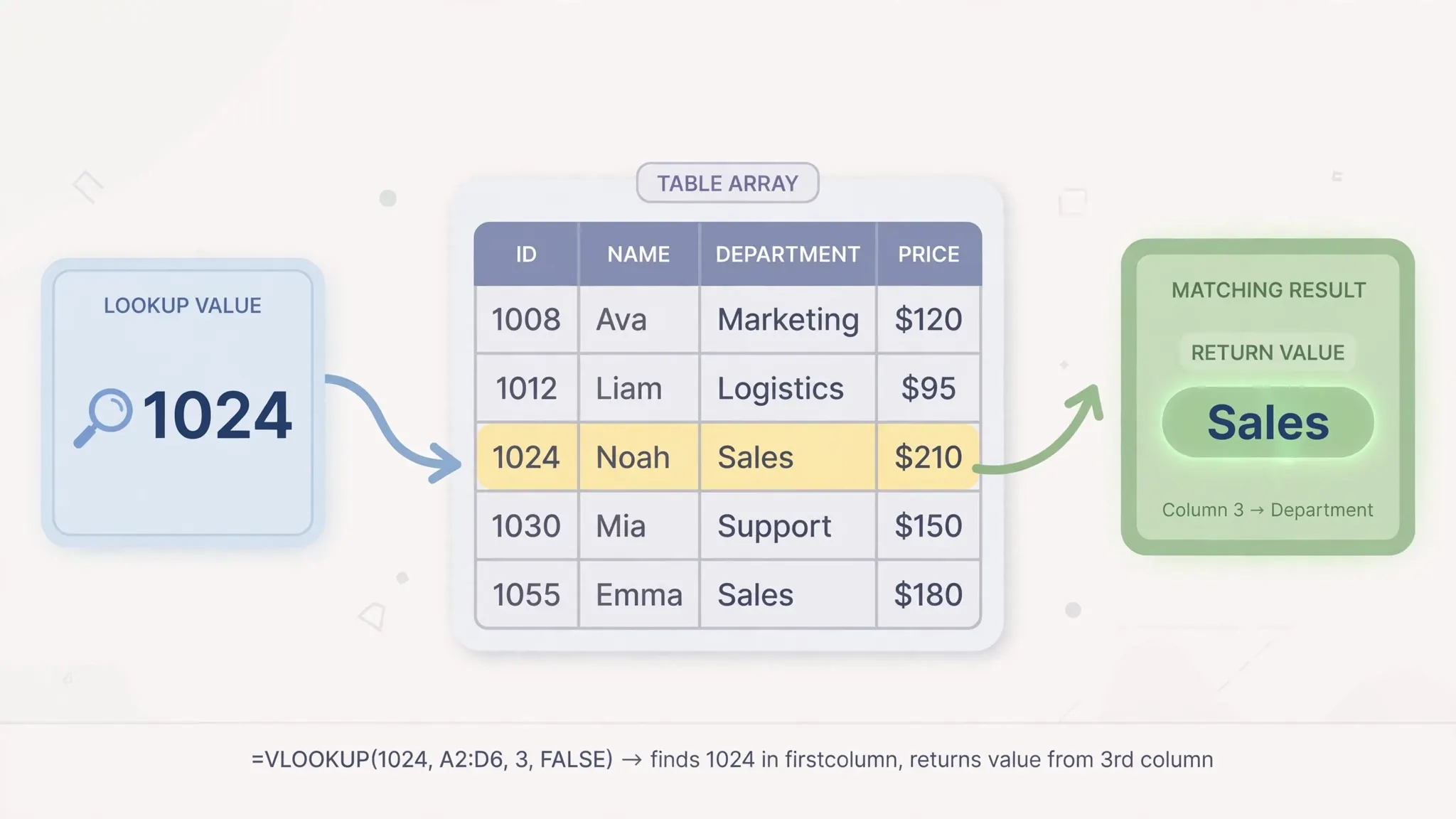
Pivot tables can use the import range as source data directly (Data → Pivot table, point it at the staging sheet). The pivot will not auto-refresh its cache on every feed update, but right-click → Refresh picks up new rows. For a fully hands-free summary, prefer the QUERY aggregation pattern above — our pivot table tutorial covers the click-path version.
IMPORTDATA vs IMPORTHTML vs IMPORTXML vs IMPORTRANGE
Quick chooser: IMPORTDATA = CSV/TSV at a URL. IMPORTHTML = a <table> or list on a web page (=IMPORTHTML(url, "table", 1)). IMPORTXML = anything on a page addressable by XPath, including RSS feeds. IMPORTRANGE = a range in another Google Sheet (see our IMPORTRANGE tutorial).

When a publisher offers both a CSV download and an HTML table, prefer the CSV + IMPORTDATA: tables on web pages change layout without warning, while CSV schemas tend to stay stable. Stability of the source format is the difference between a dashboard that runs for years and one that breaks quarterly.
Real-World Uses: Prices, FX Rates, and Public Datasets
Where do people actually point this function? FX rates: central banks (the ECB, the Fed) publish daily CSVs — a classic IMPORTDATA feed for multi-currency reporting. Product catalogs: distributors publish price/stock CSVs; retailers XLOOKUP against them. Public statistics: government open-data portals (data.gov, data.gov.uk, data.gov.in) serve CSVs perfect for research dashboards. Sports and weather: hobbyist dashboards everywhere run on IMPORTDATA feeds.
A word on reliability: free public feeds change URLs, go down for maintenance, and occasionally alter schemas without notice. For anything business-critical, add a sanity check — a cell that verifies the import’s row count or latest date, plus conditional formatting that turns red when the feed looks stale. A dashboard that shows its own freshness is worth ten that silently rot.
Scheduling and Monitoring IMPORTDATA Feeds
Because IMPORTDATA refreshes on Google’s inscrutable schedule, production dashboards need a freshness check — a cell that proves the feed is alive. If the CSV includes a date column, add =MAX(INDEX(IMPORTDATA(url),,1)) (adjust the column) to surface the latest data date, then conditional-format it red when it is older than expected: =$Z$1<TODAY()-2. One glance tells you whether the dashboard is current or coasting on stale data.
For feeds without dates, monitor the row count: =ROWS(IMPORTDATA(url)) in a check cell, compared against yesterday’s count that you log manually or via a tiny Apps Script. A sudden drop to 1 row usually means the publisher’s file 404’d and Sheets imported an error page; a sudden doubling suggests a schema change. Either way, the check cell turns your silent failure into a visible one — the difference between catching a broken feed in an hour and discovering it in next month’s review.
When hourly freshness is not enough — intraday prices, live scores — IMPORTDATA is simply the wrong tool. Its cadence is fixed and undocumented. Step up to the publisher’s API with Apps Script’s UrlFetchApp (full control over timing, authentication, and parsing) or a dedicated data platform. IMPORTDATA is a convenience, not infrastructure; treat feeds that the business depends on accordingly.
Cleaning IMPORTDATA Output: Types, Dates, and Numbers
Raw IMPORTDATA output is untrusted input until proven otherwise. Build a cleaning layer between the import and your analysis: import into a hidden staging sheet, then reference cleaned versions. The big three fixes: =ARRAYFORMULA(TRIM(A2:A)) strips the invisible spaces that break VLOOKUPs and dedups; =ARRAYFORMULA(VALUE(B2:B)) coerces text-numbers to real numbers (wrap in IFERROR to keep genuine text); =ARRAYFORMULA(DATEVALUE(C2:C)) converts text dates, after which you format the column as Date.
Quoted fields with embedded commas (“Acme, Inc.”) parse correctly per RFC 4180 — Sheets handles those fine. What breaks is inconsistent quoting: some rows quoted, others not, or quotes used as inch marks in product descriptions. When a feed is that dirty, download it once and inspect it in a proper tool — our free CSV to Excel converter shows you exactly how each row parses — then decide whether to clean at the source (email the publisher; they often fix it) or write defensive formulas.
One more subtle trap: header drift. Publishers occasionally rename columns (“Revenue” → “Total Revenue”), which breaks every downstream reference by position… actually by header name if you use MATCH-based lookups, which is precisely why the cleaning layer should map by header: =MATCH("Revenue", 1:1, 0) finds the column dynamically. A five-minute defensive pattern that saves a 2 AM debugging session when the feed changes without warning.
IMPORTDATA Alternatives for Tough Sources
When IMPORTDATA cannot reach a source, work up this ladder. Rung 1 — IMPORTHTML: if the data also appears as a table on a webpage, =IMPORTHTML("https://example.com/page", "table", 1) grabs it. Fragile (page redesigns break it) but zero-setup. Rung 2 — Google Apps Script: UrlFetchApp.fetch(url) with custom headers, basic auth, or API keys, plus full parsing control — the professional answer for authenticated or oddly-formatted feeds. A 20-line script on an hourly trigger beats IMPORTDATA on every axis except simplicity.
Rung 3 — scheduled downloads: for sources that need a login, automate the download outside Sheets (a scheduled script with curl, a Power Automate flow, even a calendar reminder) and drop the file into Google Drive, where a script or manual File → Import picks it up. Unglamorous, reliable. Rung 4 — publisher outreach: email the data publisher and ask for a stable, public, UTF-8 CSV URL. Surprisingly effective — publishers who bother publishing data usually want it used, and “your CSV breaks our import because of mixed quoting” is actionable feedback they can fix in minutes.
Rung 5 — change the architecture: if a “simple CSV feed” needs authentication, transformation, and monitoring, it is not a spreadsheet problem anymore — it is a data pipeline. Tools like BigQuery scheduled queries, Airbyte, or even a small Python cron job writing to a shared sheet via the Sheets API are the honest solutions. IMPORTDATA got you started; knowing when to graduate is the skill.
IMPORTDATA + QUERY: The Self-Updating Report Pattern
The highest-value IMPORTDATA pattern is the self-updating report: one QUERY over the live feed that produces a finished summary. =QUERY(IMPORTDATA("https://example.com/orders.csv"), "SELECT Col2, SUM(Col5) GROUP BY Col2 ORDER BY SUM(Col5) DESC LABEL Col2 'Region', SUM(Col5) 'Revenue'", 1) — regional revenue ranking that refreshes itself whenever the publisher updates the file. No staging sheet, no manual steps, no maintenance.
Make it robust with three habits. One: keep the raw import in a hidden staging sheet and QUERY the local copy — debugging a broken report is infinitely easier when you can see the raw feed beside the query. Two: use Col1 notation defensively and LABEL your outputs, so a publisher column reorder changes positions but your report headers stay meaningful. Three: add the freshness check from the monitoring section — a self-updating report that silently stops updating is worse than a manual one, because nobody checks it.
This pattern scales to multi-feed reports: QUERY can only take one data argument, but array literals stack feeds first — =QUERY({IMPORTDATA(url1); IMPORTDATA(url2)}, "SELECT ...", 1) unions two CSVs vertically before querying. Both feeds must share the same column layout (pad with blank columns if needed). Two publishers, one report, zero hands — the closest spreadsheets get to a real data pipeline without code.
URL Hygiene: Keeping Feed Links Alive
IMPORTDATA formulas die most often from link rot, not syntax. Protect your feeds: prefer URLs that end in .csv over query-string download links (the latter change when sites redesign); avoid links with session tokens or timestamps embedded; and document each feed’s publisher and expected update cadence in a README sheet. When a feed breaks, the README tells the next maintainer who publishes it and how often it should refresh — turning a mystery into a support email. Once a quarter, click every feed URL in a browser to confirm it still serves raw CSV; ten minutes of hygiene prevents the Monday-morning “the dashboard is empty” surprise.
Frequently Asked Questions
What is the IMPORTDATA syntax in Google Sheets?
=IMPORTDATA(url, [delimiter], [locale]). Only the URL is required. The optional delimiter handles semicolon/tab/pipe files and the locale fixes regional number and date parsing.
How often does IMPORTDATA refresh?
Roughly hourly for typical feeds, on Google’s undocumented schedule. There is no manual refresh button — plan around the cadence rather than fighting it.
Why is my IMPORTDATA putting everything in one column?
Delimiter mismatch. The Google Sheets IMPORTDATA function defaults to comma; pass the real delimiter explicitly, e.g. =IMPORTDATA(url, ";") — the IMPORTDATA delimiter fix from this guide.
Can IMPORTDATA import from a URL that needs a login?
No — it fetches anonymously. For protected sources, download the file yourself (or via our free CSV to Excel converter) and import it manually.
What is the size limit for IMPORTDATA?
No published exact limit; tens of thousands of cells generally work. For bigger feeds, ask whether the publisher offers a filtered endpoint or split files.
IMPORTDATA vs IMPORTRANGE — which should I use?
IMPORTDATA for CSV/TSV files at a web URL; IMPORTRANGE for ranges inside another Google Sheet. Same live-import philosophy, different sources.