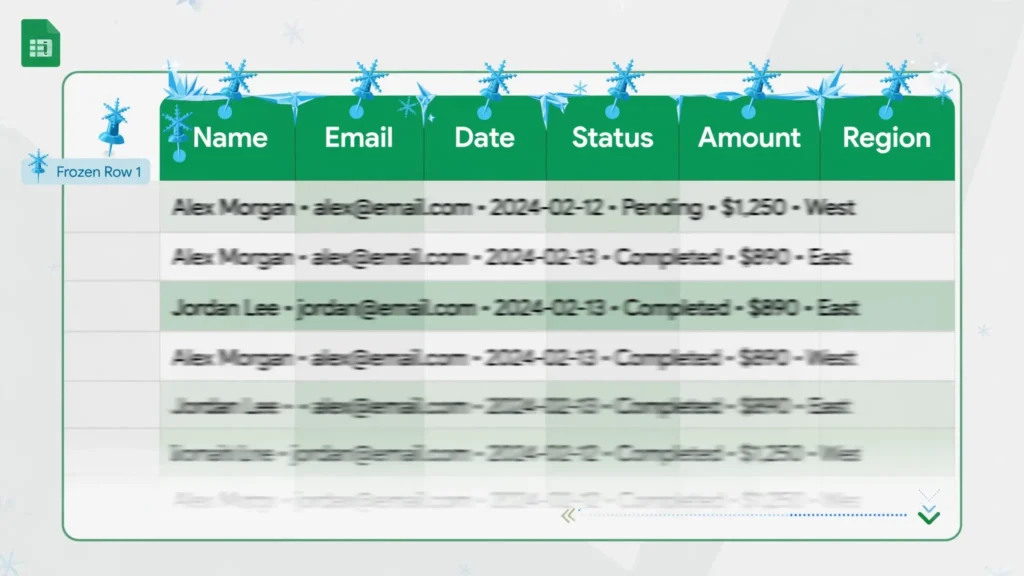
Learning how to freeze rows in Google Sheets is a five-second skill with an outsized payoff: it keeps your header row visible no matter how far you scroll. Anyone who has worked with a 5,000-row CSV import knows the pain — you scroll down to row 800, look at a wall of numbers, and have no idea which column is which. You scroll back up, memorize “column D is Revenue,” scroll down again, and forget by row 900. Freezing ends that loop permanently.
This guide covers everything: the 30-second method to freeze row in Google Sheets, the one-click Google Sheets freeze top row case, freezing multiple rows, how to freeze column in Google Sheets for wide tables, freezing rows and columns together, the drag-the-bar shortcut, unfreezing, mobile steps, and how frozen headers interact with filters, sorting, and printing. If your sheets come from long CSV imports — sales logs, ad reports, bank statements — from the US, UK, India, Canada, or Australia, freezing is the first thing to do after the data lands.

What freezing actually does (and what it doesn’t)
Freezing pins rows (or columns) in place so they stay visible while the rest of the sheet scrolls. A thick gray line marks the freeze boundary — everything above it (or left of it) is pinned. That is all it does: it changes viewing, not data. Frozen rows still sort, filter, and calculate exactly like unfrozen ones; formulas referencing them work identically; nothing about the values changes.
What freezing does not do: it does not lock cells against editing (that is Data › Protect sheets and ranges), it does not repeat headers on printed pages by itself (that is a separate print setting — covered below), and it does not hide anything (that is hiding rows/columns). People conflate these constantly, so it is worth being explicit: freeze = pinned view, nothing more, nothing less.
How to freeze rows in Google Sheets: the 30-second method
The standard way to freeze row in Google Sheets:
- Click any cell in the sheet (or select the row you want as the last frozen row).
- Go to View › Freeze.
- Choose 1 row, 2 rows, or Up to row N (based on your current selection).
- A thick line appears below the frozen rows. Scroll down — the headers stay put.
The “Up to current row” option is the flexible one: select row 3 and it freezes rows 1–3. Use it when your sheet has a title row plus a header row, or two tiers of headers (common in financial exports where row 1 says “Q3 2026” and row 2 holds the actual column names).

Google Sheets freeze top row: the one-click case
The Google Sheets freeze top row maneuver — far and away the most common freeze — is simply View › Freeze › 1 row. One menu trip, done in two seconds. Make it a reflex: import CSV → freeze top row → start working. Some teams even add it to their import checklist alongside trimming whitespace and checking date formats.
Why does the top row matter so much? Because CSV imports from every system on earth put headers in row 1, and because every subsequent operation — sorting, filtering, splitting text to columns, building charts — is easier when you can see what each column is. It is the cheapest readability upgrade in spreadsheets.
Freeze multiple rows (titles plus headers)
Two-row freezes handle the common “title + headers” layout: row 1 might read “Acme Corp — October Sales Report” while row 2 holds Order ID, Date, Customer, Amount. Freeze 2 rows and both stay visible. Use View › Freeze › 2 rows, or select row 2 and choose Up to row 2.
A practical note: keep frozen regions small. Every frozen row eats vertical screen space permanently. Three or more frozen rows on a laptop screen leaves little room for actual data — if you need that many pinned rows, consider whether some belong on a separate “README” tab instead.
Freeze column in Google Sheets: pin the first column too
Wide tables need horizontal freezing: when you scroll right past column Z, which row is which? To freeze column in Google Sheets, go to View › Freeze and choose 1 column (or more) from the columns side of the menu. Column A — usually the ID, name, or date column — pins to the left while the rest scrolls.
The classic use case is a wide monthly report: freeze column A (product names) and row 1 (month headers) so the grid always shows both labels. Another is CSVs with dozens of columns where the first column is the record key — freezing it turns horizontal scrolling from disorienting to trivial.
Freeze rows and columns together
Row and column freezes compose: freeze 1 row and 1 column and you get a pinned top-left corner — the spreadsheet equivalent of a table with fixed headers on both axes. Set them independently under View › Freeze (rows section and columns section are separate choices in the same menu). The corner cell region (A1 in a 1×1 freeze) stays doubly pinned.
This is the configuration for serious data tables: financial models with account names down the left and months across the top, survey results with respondent IDs left and questions across, any matrix where both dimensions need labels. If you only remember one freeze setup beyond the top row, make it this one.
The faster way: drag the freeze bar
Menus are for learning; the freeze bar is for speed. Look at the top-left corner of the grid, just above row 1’s header and left of column A — there is a small thick handle (it looks like a stubby grab bar). Drag it down to freeze rows, right to freeze columns, or diagonally to freeze both. It is the fastest freeze method once you know it exists, and it is oddly undiscoverable — most Sheets users go years without noticing the handle.
Keyboard-adjacent tip: there is no default single shortcut for freezing, but Alt+V opens the View menu, then Z… actually menu accelerators vary — the reliable keyboard path is Alt+/ (menu search), type “freeze”, Enter. Our keyboard shortcuts guide covers the navigation keys that pair best with frozen panes.
How to unfreeze rows and columns
To release a freeze: View › Freeze › No rows (and No columns if columns are frozen). The thick line vanishes and scrolling returns to normal. You can also drag the freeze bar back to the top-left corner. Unfreezing is per-sheet, not per-workbook — each tab keeps its own freeze state, which is exactly what you want (freeze the data tabs, leave the README tab alone).
Freeze rows on the mobile app
On Android and iOS: tap the row number to select the row, tap it again (or open the three-dot menu), and choose Freeze. The same flow freezes columns from a column letter. To unfreeze, repeat and choose the unfreeze option. Mobile freezing is slightly more limited — no “up to row N” granularity in older app versions — but the essential 1-row/1-column freezes work fine. For complex freeze setups, configure them on desktop; they carry over to mobile viewing.
Frozen headers meet filters, sorting, and printing
Filters: freezing and filtering are best friends. Freeze row 1, then Data › Create a filter — the filter dropdown arrows sit in the frozen header, so you can filter a 20,000-row import without scrolling up to reach the controls. Add a data validation dropdown in a frozen header row and data entry stays consistent even deep in the sheet.

Sorting: frozen rows are not excluded from sorts automatically. When sorting, always select the data range below the header (or use Data › Sort range › Data has header row) so the header row does not get sorted into the data. This is the classic freeze-related mistake: the freeze keeps the header visible, but the sort does not know it is a header unless you say so.
Printing: freezing does not repeat headers on printed pages — that is a separate setting. In the print dialog (File › Print), under Headers & footers / Row and column headers, enable Repeat frozen rows (and columns). Now every printed page carries the headers — essential for PDF reports from long tables. Set your freeze first, then check this box; the print setting keys off the freeze.
Scripting: Apps Script freezes rows programmatically — sheet.setFrozenRows(1) — which is handy when a macro builds a fresh report tab each week and you want the freeze applied automatically. See our Apps Script tutorial for the full macro pattern.

Troubleshooting: when freezing misbehaves
The Freeze menu is grayed out. You need edit access — viewers cannot freeze. Also check no cell is in edit mode (press Enter/Escape to exit) and no dialog is open.
Frozen rows disappeared after sorting. You sorted the header row into the data. Undo, then sort with “Data has header row” checked.
Freeze line is in the wrong place. Drag the freeze bar to the right spot, or re-select via View › Freeze. If a filter view is active, exit it first — filter views can override the visible freeze.
Headers repeat on screen but not on print. Freezing is view-only; enable “Repeat frozen rows” in File › Print settings.
Too much screen eaten by frozen rows. Unfreeze and re-freeze fewer rows, or move title rows to a separate tab. Two frozen rows is the practical maximum on small screens.
Freeze not working in an embedded/published sheet. Published web versions have limited interactivity — freezing applies in the editor, not always in the published view. Share with edit or comment access instead when freezing matters.
Freeze like a pro: patterns for serious sheets
Once you know how to freeze rows in Google Sheets at the basic level, these patterns handle the setups that large, shared, long-lived workbooks actually need.
Freeze every tab via script. Workbooks with twenty monthly tabs should not need twenty manual freezes. One Apps Script line per sheet — sheet.setFrozenRows(1) inside a loop over getSheets() — freezes headers everywhere in one run. Better: put it in the template script that creates each month’s tab, so new tabs arrive pre-frozen. Our Apps Script tutorial shows the full loop.
Freeze the dashboard, not just the data. Reporting tabs that pull from IMPORTRANGE or QUERY refresh underneath you — freeze their headers too, so the layout stays readable as new rows stream in. Dashboards are read far more than they are edited; readability is the whole product.
Match freeze depth to header depth. Financial exports with two-tier headers (row 1: quarter label, row 2: metric names) need 2 frozen rows; single-header CSVs need 1. The mistake is freezing too many — title art, logos-as-rows, and notes rows do not deserve permanent screen space. Keep frozen rows to actual headers; move everything else to a README tab.
Teach the habit, not just the feature. Teams that share sheets should put “freeze row 1” in their import checklist alongside trimming whitespace and checking dates. It takes one person ten seconds and saves every future reader cumulative hours of scroll-and-remember. The best spreadsheet teams have three-line import checklists, and freezing is always line one.
Know when not to freeze. Small tables (under ~30 rows) gain nothing — everything is visible anyway. Print-first layouts should use print titles instead. And sheets designed for phone viewing: frozen rows eat precious vertical space on small screens, so freeze 1 row maximum there, or none.
Combine with named ranges for navigation. On monster workbooks, pair frozen headers with Data › Named ranges for key tables — then jump between tables by picking the name from the name box (left of the formula bar). Freeze keeps you oriented vertically; named ranges teleport you between tables. Together they make 50-tab workbooks navigable.
Freeze vs the alternatives: group, hide, and filter views
Freezing is one of four ways to manage long sheets — pick by intent. Freeze pins headers in view: use it for orientation while scrolling. Group (View › Group rows/columns) collapses detail sections behind a plus/minus toggle: use it for hiding supporting detail without deleting it, like monthly breakdowns under quarterly summaries. Hide (right-click › Hide row/column) removes rows from view entirely until unhidden: use it for scratch columns and intermediate calculations you do not want readers tripping over. Filter views (Data › Filter views) save personal filter-and-sort states per user without disturbing collaborators: use them when different people need different slices of the same big table. They compose freely — a sheet can have frozen headers, grouped detail rows, hidden helper columns, and three named filter views all at once, each solving a different problem.
One more distinction worth making: freeze panes vs filter views solve different problems and stack nicely together. Freezing is about orientation — keeping headers visible while you scroll through ten thousand rows. Filter views are about personal slicing — each teammate saves their own filtered view of the same table without disturbing anyone else. A busy shared sheet wants both: frozen headers for scrolling sanity, plus a named filter view per region or owner. If you only need a quick temporary look at a subset, though, skip both — a plain filter (Data › Create a filter) is the lightest option of all.
Coming from Excel? Freeze translator
Excel users: Sheets’ View › Freeze is Excel’s View › Freeze Panes with simpler choices. Excel’s “Freeze Top Row” = Sheets’ Freeze › 1 row. Excel’s “Freeze First Column” = Sheets’ Freeze › 1 column. Excel’s “Freeze Panes” (based on selected cell) = Sheets’ “Up to current row/column”. What Excel calls Split (the draggable split bars) has no direct Sheets equivalent — the closest is opening the same spreadsheet in two windows side by side. And one behavioral note: Excel freezes travel inside the workbook file; Sheets freezes are per-tab view settings stored with the sheet — both survive sharing, so collaborators see your frozen headers either way.
Frequently Asked Questions
How do I freeze a row in Google Sheets?
Select any cell in the row, go to View › Freeze, and choose how many rows to freeze (e.g. ‘1 row’). The rows above the freeze line stay visible while you scroll. To freeze just the top row, View › Freeze › 1 row is the fastest path.
How do I freeze the top row in Google Sheets?
Go to View › Freeze › 1 row. The header row pins to the top and stays visible no matter how far down you scroll. You can also drag the thick freeze bar below row 1 for the same effect.
How do I freeze a column in Google Sheets?
Go to View › Freeze and pick ‘1 column’ (or more) under the columns section. The leftmost columns pin in place while you scroll horizontally — ideal for keeping ID or name columns visible.
How do I unfreeze rows in Google Sheets?
Go to View › Freeze › No rows (and No columns if columns are frozen). The freeze line disappears and the sheet scrolls normally again.
Can I freeze rows in the Google Sheets mobile app?
Yes. Tap a row number to select the row, tap it again (or the three-dot menu), and choose Freeze. You can freeze rows and columns the same way; use No rows / No columns to unfreeze.
Why can’t I freeze rows in Google Sheets?
Usually the sheet is protected or you only have viewer access — freezing needs edit rights. Also check you are not inside a filter view, and that no dialog is open blocking the View menu.