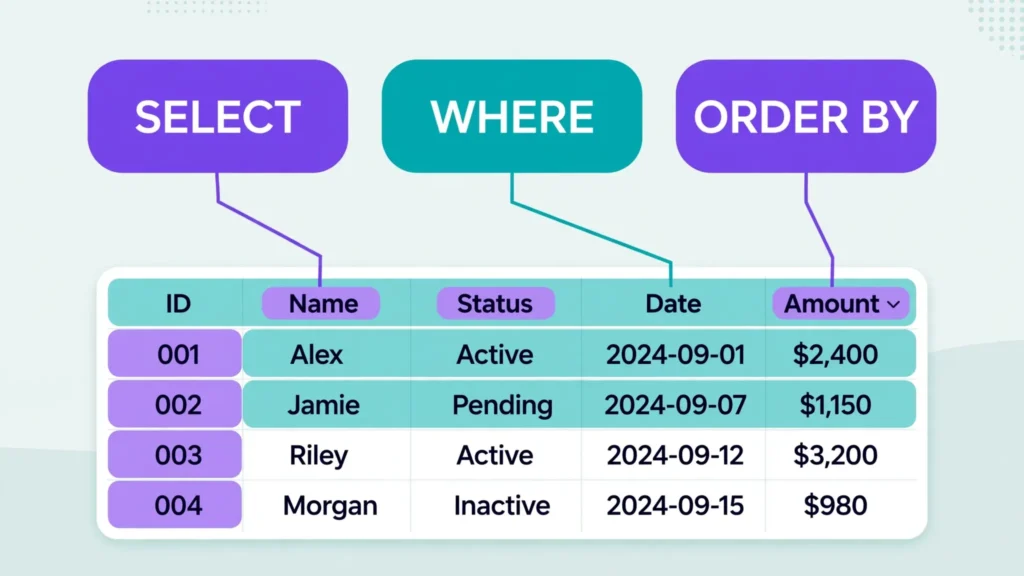
Of every function in Google Sheets, QUERY has the highest leverage per character typed. It lets you filter, sort, aggregate, and reshape a dataset with a single formula written in a mini SQL dialect — no helper columns, no nested functions, no pivot-table rebuilds. This Google Sheets QUERY function tutorial starts from absolute zero and builds to GROUP BY aggregations, date filtering, and cross-spreadsheet queries, with copy-paste QUERY function examples for each clause.
If you have ever written (or wanted to write) SQL, you already know 80% of QUERY: SELECT, WHERE, ORDER BY, GROUP BY, and LIMIT all work the way you expect. If you have never touched SQL, this is the gentlest possible introduction — you will learn the world’s most valuable data language while solving real spreadsheet problems. Data teams in the US, UK, India, Canada, and Australia use QUERY daily to tame CSV exports, build live dashboards, and replace fragile formula chains with one readable line.
Fair warning: QUERY has strong opinions about data types and quoting, and its error messages are famously cryptic. We will cover every common failure mode with fixes, so the “Unable to parse query string” dread becomes a five-second diagnosis. Let us write your first query.
What the QUERY Function Is (SQL Without the Database)
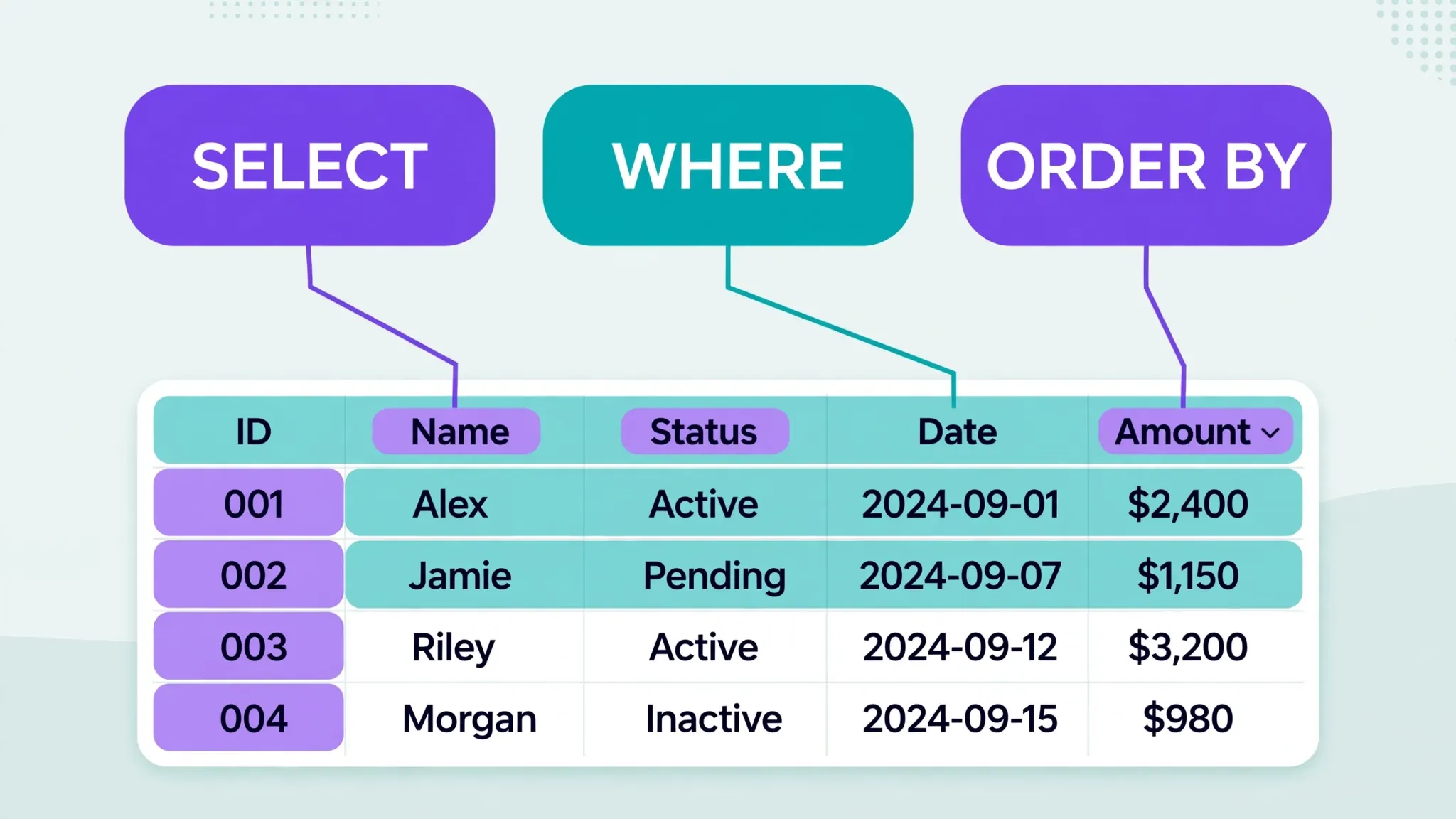
QUERY runs a SQL-like query against a range and spills the result. The syntax: =QUERY(data, query, [headers]). The data is any range (or the output of another function). The query is a text string containing clauses. The optional headers argument tells Sheets whether the first row of your data holds headers (1, the default) or not (0).
Google’s implementation is based on the SQL dialect documented in the Sheets help center, with a spreadsheet twist: columns are referenced by letter (A, B, C) instead of by name. That is the whole conceptual leap. Everything else — filtering with WHERE, sorting with ORDER BY, grouping with GROUP BY — transfers directly from SQL knowledge, and learning it here makes you dangerous in databases later.
How to Use QUERY in Google Sheets: Your First Formula
Take a sales table in A1:E500: Date (A), Region (B), Rep (C), Product (D), Revenue (E). The simplest useful query returns everything, which teaches you the skeleton:
=QUERY(A1:E500, "SELECT *", 1)
That "SELECT *" means “all columns.” The 1 says row 1 holds headers. Run it and you get a live mirror of the table — change the source, the mirror updates. Now make it do something: pull just the West region’s rows, newest first, showing only three columns:
=QUERY(A1:E500, "SELECT A, C, E WHERE B = 'West' ORDER BY A DESC", 1)

Three things to notice. Text values need single quotes inside the double-quoted query string ('West'). Column letters refer to the data range’s columns, so if your range starts at C1, then A means column C of the sheet. And the whole query is one text string — you can build it by concatenating pieces, which is how you inject cell references (more on that below).
SELECT and WHERE in Google Sheets QUERY
Selecting specific columns
SELECT A, C, E picks columns; SELECT * takes all. You can reorder freely — SELECT E, A puts Revenue first — and you can even repeat a column. Unlike dragging columns around, the source data never moves; only the output is reshaped. This makes SELECT the cleanest way to build presentation views on top of a raw data sheet.
Filtering rows with WHERE
WHERE supports the operators you would expect: =, <>, >, <, >=, <=, plus contains, starts with, ends with, matches (regex!), and is null / is not null. Text comparisons need single quotes; numbers do not:
=QUERY(A1:E500, "SELECT A, C, E WHERE E > 1000", 1) — revenue over 1000.
=QUERY(A1:E500, "SELECT * WHERE D contains 'Pro'", 1) — products containing “Pro”.
=QUERY(A1:E500, "SELECT * WHERE C is not null", 1) — rows with a rep assigned.
AND, OR, and NOT logic
Combine conditions naturally: WHERE B = 'West' AND E > 1000. Use parentheses for grouped logic: WHERE (B = 'West' OR B = 'East') AND E > 1000. NOT negates: WHERE NOT B = 'West'. One gotcha: QUERY’s AND/OR precedence follows SQL rules, so when mixing them, parenthesize explicitly — future-you will thank present-you.
&, reopen. Example: =QUERY(A1:E500, "SELECT * WHERE B = '"&G1&"'", 1) filters by whatever region is typed in G1. For numbers, skip the inner quotes: "... WHERE E > "&G2. This pattern turns static queries into interactive dashboards.ORDER BY, LIMIT, and OFFSET: Shaping Results
ORDER BY E DESC sorts by revenue descending; add ASC for ascending (the default). You can sort by multiple columns: ORDER BY B ASC, E DESC groups by region, then ranks revenue within each. LIMIT 10 returns only the first 10 rows — the classic “top 10” query: "SELECT C, E ORDER BY E DESC LIMIT 10" gives your top 10 reps by revenue.
OFFSET 5 skips rows — combine with LIMIT for pagination: LIMIT 10 OFFSET 10 shows rows 11–20. This is genuinely useful for building paged report views without scripts. And because these clauses compose with WHERE and SELECT in one string, a “top 10 West-region reps this quarter” report is a single formula, not a pivot table plus manual filtering.
Aggregation: GROUP BY, COUNT, SUM, AVG
This is where QUERY graduates from filter to analyst. GROUP BY collapses rows by a column and computes aggregates:
=QUERY(A1:E500, "SELECT B, SUM(E), AVG(E), COUNT(A) GROUP BY B", 1)
That one line produces per-region total revenue, average revenue, and transaction count — a summary that would otherwise need a pivot table or a SUMIFS forest. Available aggregations: SUM, AVG, COUNT, MIN, MAX. Rules: every non-aggregated SELECT column must appear in GROUP BY, and you can add ORDER BY SUM(E) DESC to rank the groups.
The data-type trap: aggregation columns must be uniformly numeric (or uniformly text for COUNT). A single text cell — a “N/A” typed into a revenue column, a stray space — in an otherwise numeric column makes QUERY treat the whole column as text and SUM returns nothing or errors. This is the same cleanup discipline our free CSV to Excel converter helps with at import time: clean types in, reliable aggregations out.
QUERY Function Examples: 8 Real-World Recipes
Copy-paste starters for the jobs people actually need. Assume data in A1:E500 as above (Date, Region, Rep, Product, Revenue).
- All rows for one rep:
=QUERY(A1:E500, "SELECT * WHERE C = 'Priya Sharma'", 1) - Revenue by region (sorted):
=QUERY(A1:E500, "SELECT B, SUM(E) GROUP BY B ORDER BY SUM(E) DESC", 1) - Top 5 products:
=QUERY(A1:E500, "SELECT D, SUM(E) GROUP BY D ORDER BY SUM(E) DESC LIMIT 5", 1) - This year’s big deals:
=QUERY(A1:E500, "SELECT * WHERE A >= date '2026-01-01' AND E > 5000", 1) - Monthly revenue trend:
=QUERY(A1:E500, "SELECT YEAR(A), MONTH(A)+1, SUM(E) GROUP BY YEAR(A), MONTH(A) ORDER BY YEAR(A), MONTH(A)", 1) - Reps with no sales recorded:
=QUERY(A1:E500, "SELECT C WHERE E is null", 1) - Case-insensitive product search:
=QUERY(A1:E500, "SELECT * WHERE LOWER(D) contains 'pro'", 1) - Deduplicated rep list:
=QUERY(A1:E500, "SELECT C, COUNT(C) GROUP BY C", 1)— or just useUNIQUE(); see our deduplication guide.
Recipe 5 deserves a note: MONTH() in QUERY is zero-based (January = 0), hence the +1. This trips up everyone once. Recipe 4 shows the date-literal syntax — date '2026-01-01' — which is mandatory; comparing a date column to a plain string silently returns nothing.
Headers, Labels, and Formatting Inside QUERY
Aggregated outputs get ugly auto-headers like “sum Revenue”. Fix them with LABEL: ... GROUP BY B LABEL B 'Region', SUM(E) 'Total Revenue'. You can also blank a header with LABEL SUM(E) ''. For the headers argument itself: use 1 when row 1 holds headers, 0 when your data has no header row (QUERY then generates Col1-style headers), or -1… actually just use 0 or 1; they cover everything.
Number formatting: QUERY inherits formats imperfectly, so wrap if needed — =TEXT(QUERY(...), ...) is clumsy; better to apply Format → Number to the output range after the fact. And remember the output is a live spill: never type in cells below a QUERY result, or you will get the #REF! “array result was not expanded” error when it grows.
QUERY with IMPORTRANGE: Querying Another Spreadsheet
The power combo: run SQL against a different file entirely. =QUERY(IMPORTRANGE("url", "Sales!A1:E"), "SELECT Col1, SUM(Col5) GROUP BY Col1", 1). Note the Col1 notation — when data comes from another function rather than a direct range, letters are unavailable and you must use Col1, Col2, etc. This is the single most common “why did my query break” moment when graduating from local to remote data.
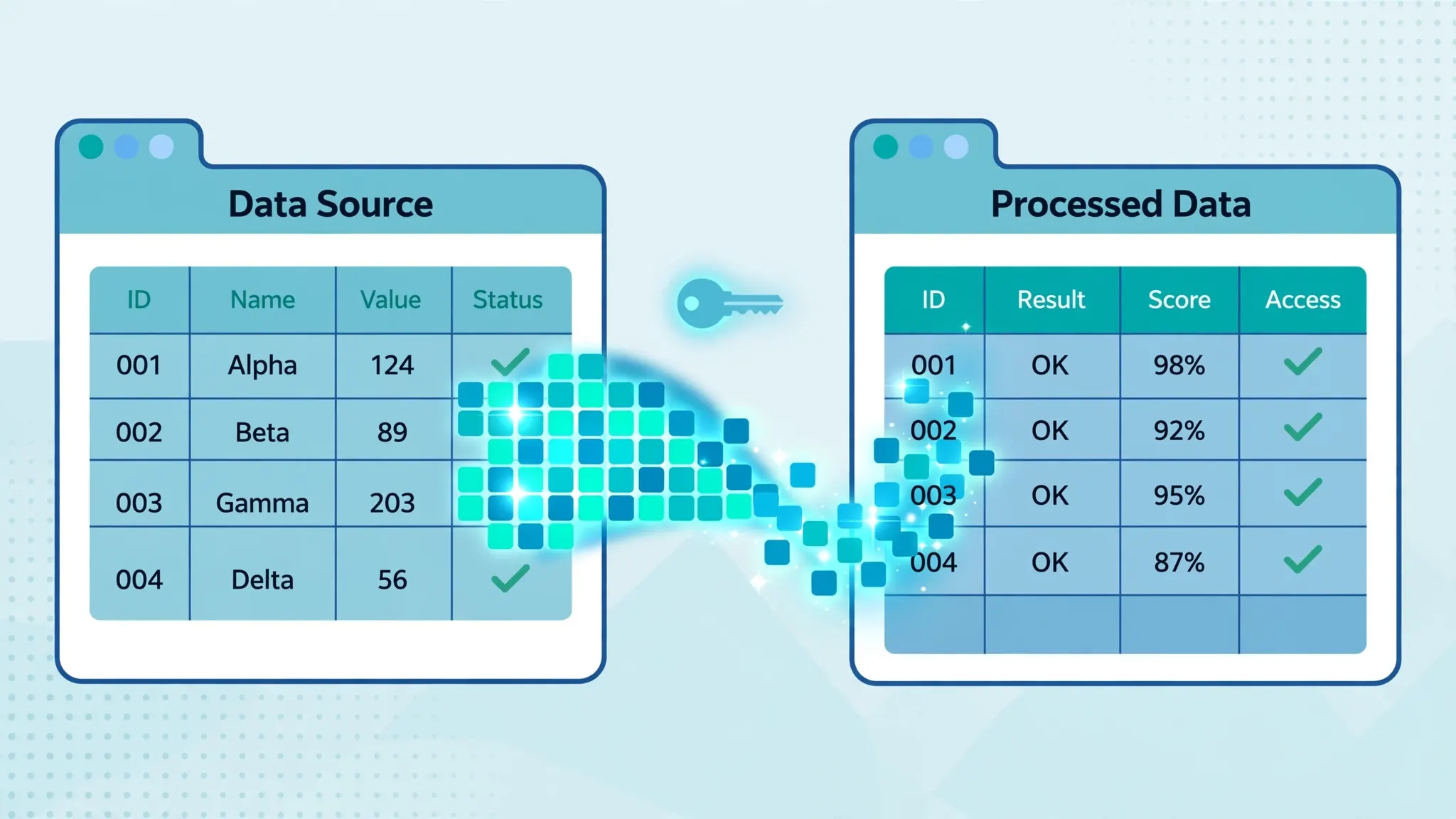
First run triggers the access-permission prompt — allow it once and the query stays live. For details on grants, refresh timing, and the “results too large” limits, see our IMPORTRANGE tutorial. Pro pattern: keep one hidden “imports” sheet per source file, then run all your QUERYs against local ranges with letter notation — faster and far easier to debug.
QUERY vs Pivot Tables vs FILTER
Pivot tables win for exploratory, drag-and-drop analysis — especially for non-technical colleagues. But they are manual objects: add a column to the source and the pivot may need rebuilding; share the file and someone drags a field by accident. QUERY versions of the same summaries are formulas: versionable, copy-pasteable, and self-updating. Our pivot table tutorial covers the click-path for when that is the right tool.
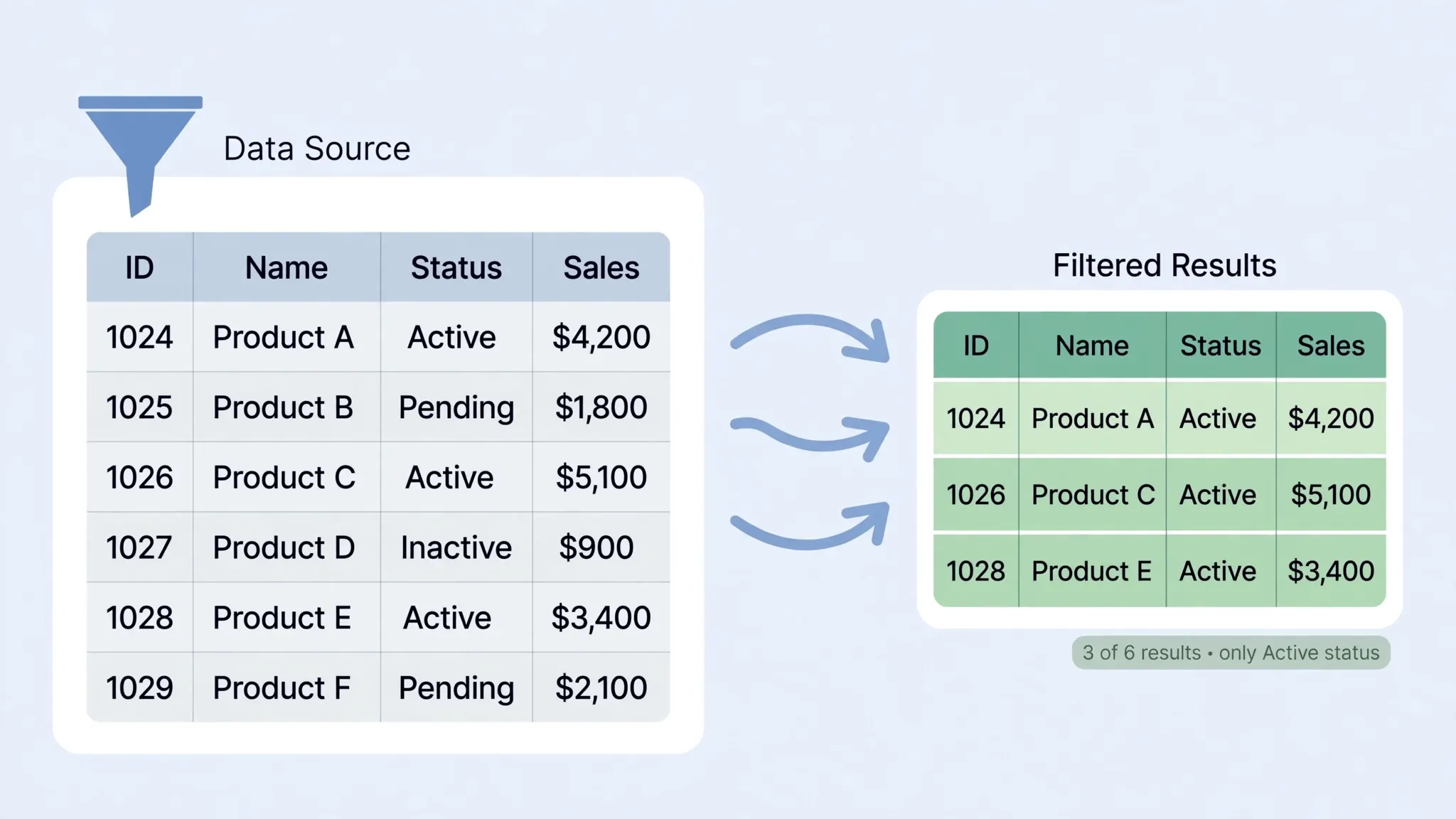
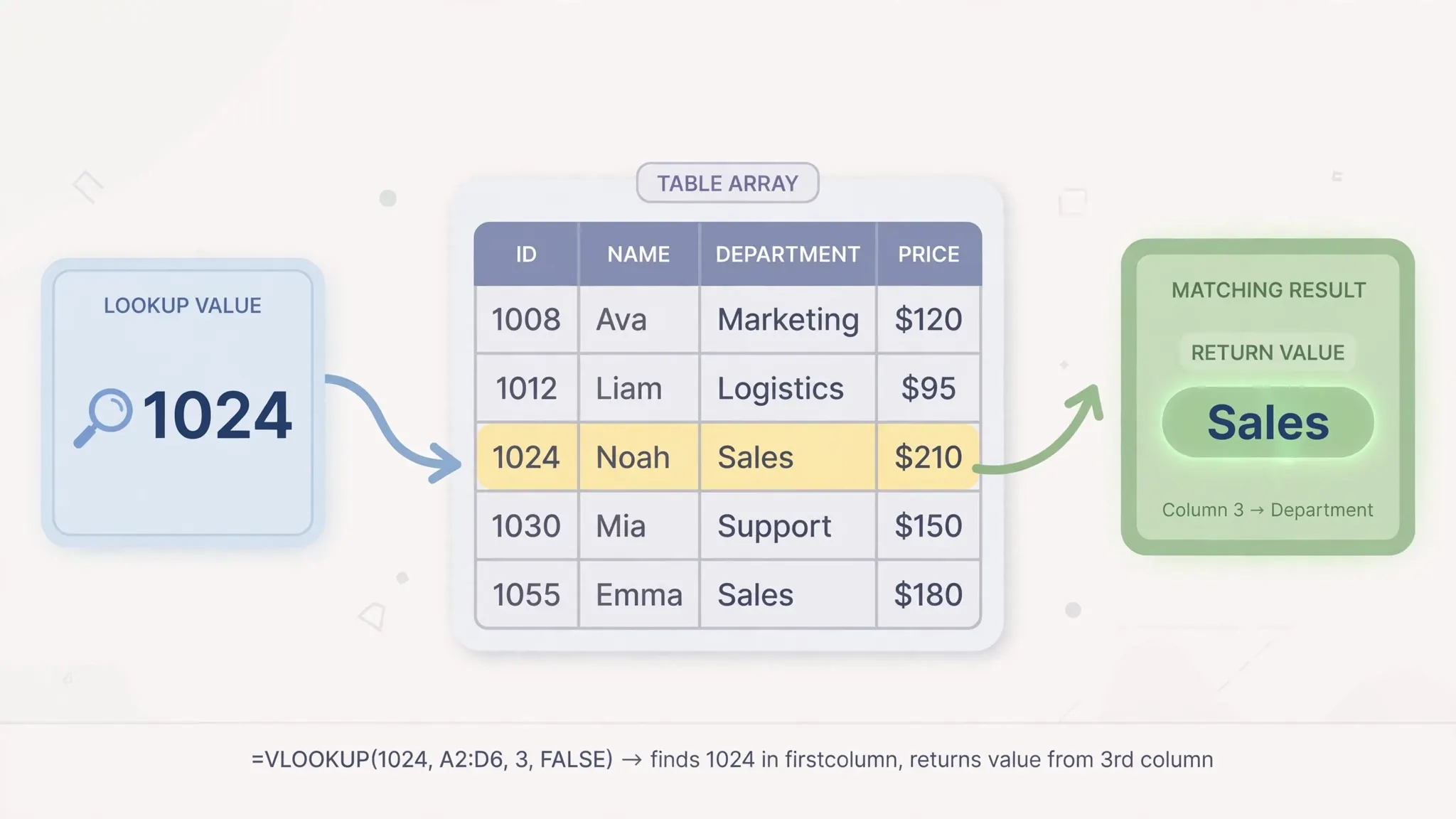
FILTER wins for simple conditions — =FILTER(A:E, B:B="West") is shorter and more readable than the QUERY equivalent. QUERY wins the moment you need aggregation, multi-column sorting, column reordering, or LIMIT. VLOOKUP/XLOOKUP win for single-value lookups; QUERY wins for set operations. Learn all four and you will reach for the right one instinctively — see our FILTER guide and XLOOKUP guide for the others.
Common QUERY Errors and Fixes
- “Unable to parse query string” — quoting issue. Text needs single quotes inside the double-quoted string; cell references must be concatenated outside the quotes. Read the “Details” expander — it usually names the exact character position.
- Wrong results, no error — column letters refer to the range, not the sheet. If your range is
C1:G500, thenAmeans sheet column C. - Aggregations return blank — mixed data types in the column. Find the text intruder with
=FILTER()onISTEXT()and clean it. - Dates compare wrong — use
date 'YYYY-MM-DD'literals, never plain strings, and confirm the column is actually formatted as Date. - #VALUE! on import — IMPORTRANGE inside QUERY with Col letters instead of Col1/Col2 notation.
- Output overwrites data — QUERY needs empty spill space below. Clear the area or move the formula.
=QUERY(A1:E, Z1, 1) where Z1 holds the assembled string. You can see the final SQL, which makes quoting bugs obvious.Google Sheets QUERY Function Tutorial: Advanced Patterns
Once the core clauses feel natural, three advanced patterns multiply what QUERY can do. First, array literals as data sources: =QUERY({A2:B; D2:E}, "SELECT Col1, SUM(Col2) GROUP BY Col1", 0) stacks two ranges vertically (semicolon) before querying — the trick for combining this month’s and last month’s tables, or unifying identically-structured regional sheets. Use commas to stack horizontally. Remember Col1 notation whenever the data comes from braces rather than a direct range.
Second, QUERY inside QUERY: the inner query reshapes, the outer refines. =QUERY(QUERY(A1:E, "SELECT B, SUM(E) GROUP BY B", 1), "SELECT * WHERE Col2 > 10000", 1) aggregates by region, then filters to regions over 10,000. Each layer stays readable because each does one job — the alternative is a single monstrous query string nobody can debug. Nested QUERYs also work around the “no HAVING clause” gap: aggregate inside, filter the aggregates outside.
Third, the PIVOT clause: =QUERY(A1:E, "SELECT B, SUM(E) GROUP BY B PIVOT D", 1) produces a crosstab — regions as rows, products as columns, revenue at the intersections. It is a pivot table in formula form: self-updating, copy-pasteable, and immune to the “pivot didn’t refresh its range” problem. The catch: PIVOT generates one column per distinct value, so high-cardinality columns (thousands of SKUs) explode sideways — keep PIVOT columns to a dozen or so distinct values.
A final advanced habit: parameterize everything. Build the query string with concatenation referencing input cells — region in G1, threshold in G2, date in G3 — so one formula serves as an interactive report. =QUERY(A1:E, "SELECT * WHERE B = '"&G1&"' AND E > "&G2&" AND A >= date '"&TEXT(G3,"yyyy-mm-dd")&"'", 1) looks intimidating, but each & segment is just “insert cell value here.” Add data-validation dropdowns to the input cells and you have shipped a dashboard, not a spreadsheet.
QUERY Performance and Limits
QUERY is efficient — one formula replacing thousands of cell-formulas is almost always a net win — but it has boundaries. Sheets queries slow down noticeably past ~100k rows with complex GROUP BYs; the recalculation blocks editing while it runs. Mitigations: pre-filter with a WHERE clause before aggregating (fewer rows into GROUP BY), avoid SELECT * when you need three columns, and point the query at a bounded range rather than whole columns.
Hard limits to respect: QUERY output cannot exceed the sheet’s grid (10 million cells), text strings in queries have practical length limits (build very long queries in a helper cell if needed), and QUERY cannot reach outside its own spreadsheet — cross-file queries go through IMPORTRANGE first. There is also no query timeout setting; a query that takes minutes will simply take minutes, on every recalculation.
When you outgrow QUERY, the graduation path is clear: BigQuery for datasets over a few hundred thousand rows (Connected Sheets keeps the spreadsheet frontend), or a proper database with a reporting layer. QUERY remains the right tool for human-scale analysis — which, honestly, is 95% of spreadsheet work. Use it confidently right up to its limits; just recognize the limits when you hit them.
Frequently Asked Questions
What is the QUERY function syntax in Google Sheets?
=QUERY(data, query, [headers]). The data is the range, the query is a text string with clauses like SELECT, WHERE, ORDER BY, GROUP BY, and LIMIT, and headers is 1 if the first row holds headers or 0 if not.
Do I use column letters or Col1 in QUERY?
Letters (A, B, C) for direct ranges like A1:D100; Col1, Col2 notation when the data comes from another function like IMPORTRANGE. Mixing them up is the most common QUERY bug.
Why does my QUERY return a parse error?
Almost always quoting: text values need single quotes inside the double-quoted query string, and cell references must be concatenated outside the quotes. Mixed data types in one column also break things.
Can QUERY do VLOOKUP-style joins?
There is no JOIN clause, but you can stack ranges with array literals like {A2:B;D2:E} or filter one range on another’s values. For true multi-table work, combine XLOOKUP with FILTER instead.
How do I filter dates in QUERY?
Use date literals: WHERE A > date '2026-01-01'. The date keyword plus an ISO-format string in single quotes is required.
Is QUERY faster than many VLOOKUPs?
Usually yes — one QUERY over 50,000 rows beats 50,000 individual lookup formulas on both speed and maintainability. This Google Sheets QUERY function tutorial’s recipes are a good starting point for replacing formula forests.