Welcome to Excel VBA for beginners — the guide that takes you from “I have never written a line of code” to a working automation that cleans up a messy monthly report in seconds. VBA (Visual Basic for Applications) is the programming language built into Excel, and it is quietly one of the most beginner-friendly languages ever made: it reads almost like English, it runs inside the app you already use every day, and every line you write produces a visible result in your spreadsheet instantly. If you have recorded a macro before (see our Excel macros tutorial), you have already seen VBA — now you are going to learn to write it yourself.
This VBA tutorial for Excel assumes zero programming experience and builds the Excel VBA programming basics one concept at a time: the object model (how VBA “sees” your workbook), variables (storing values), loops (repeating work), ranges (talking to cells), and conditions (making decisions). Then we combine everything into your first genuinely useful automation — a report cleaner you will actually use. Along the way you will learn to debug without fear, avoid the classic beginner traps, and see where to go next. Whether you are an analyst in the US, an accountant in India, or a student in the UK, by the end of this guide you will learn VBA Excel skills that pay off every single week.
What is VBA, and why learn it in 2026?
VBA — Visual Basic for Applications — is a programming language embedded in Microsoft Office. In Excel, it lets you write small programs (called procedures or macros) that manipulate workbooks: reading cells, writing values, formatting, creating sheets, building charts, even talking to other applications. It has been around since the 1990s, which is precisely its strength: thirty years of books, forums, and copy-pasteable code examples mean every problem you hit has been solved publicly already.
Is it still worth learning? For desktop Excel automation, absolutely. Nothing else reaches as deep into Excel on Windows and Mac — Power Query shapes data beautifully but cannot format a report; Office Scripts are cloud-native but cannot touch desktop-only features. VBA remains the full-access key. And as a first programming language it is ideal: immediate visual feedback, forgiving syntax, and a macro recorder that writes your first drafts for you. Microsoft’s official VBA documentation is the definitive reference once you are rolling.
Setting up: the VBA editor tour
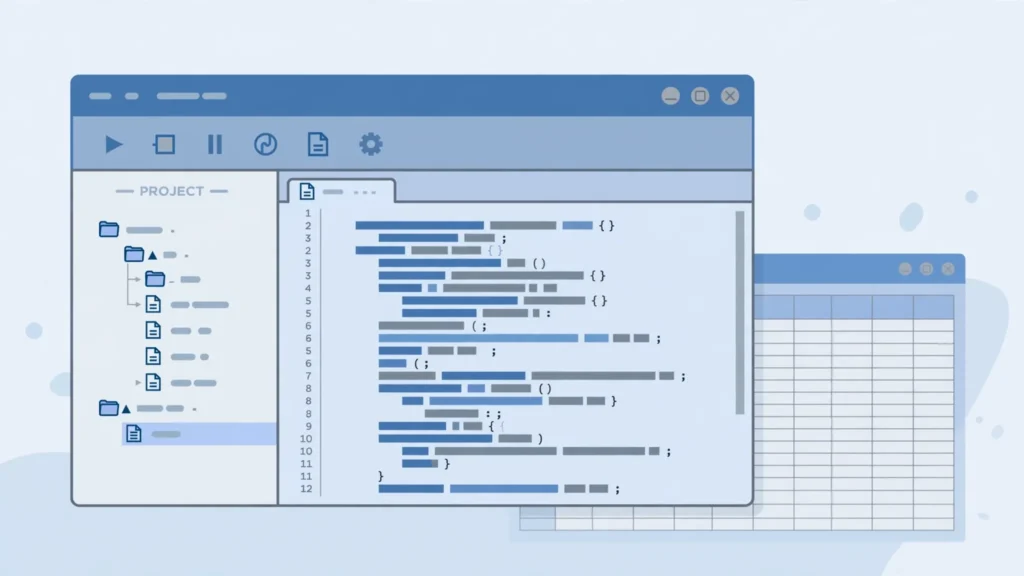
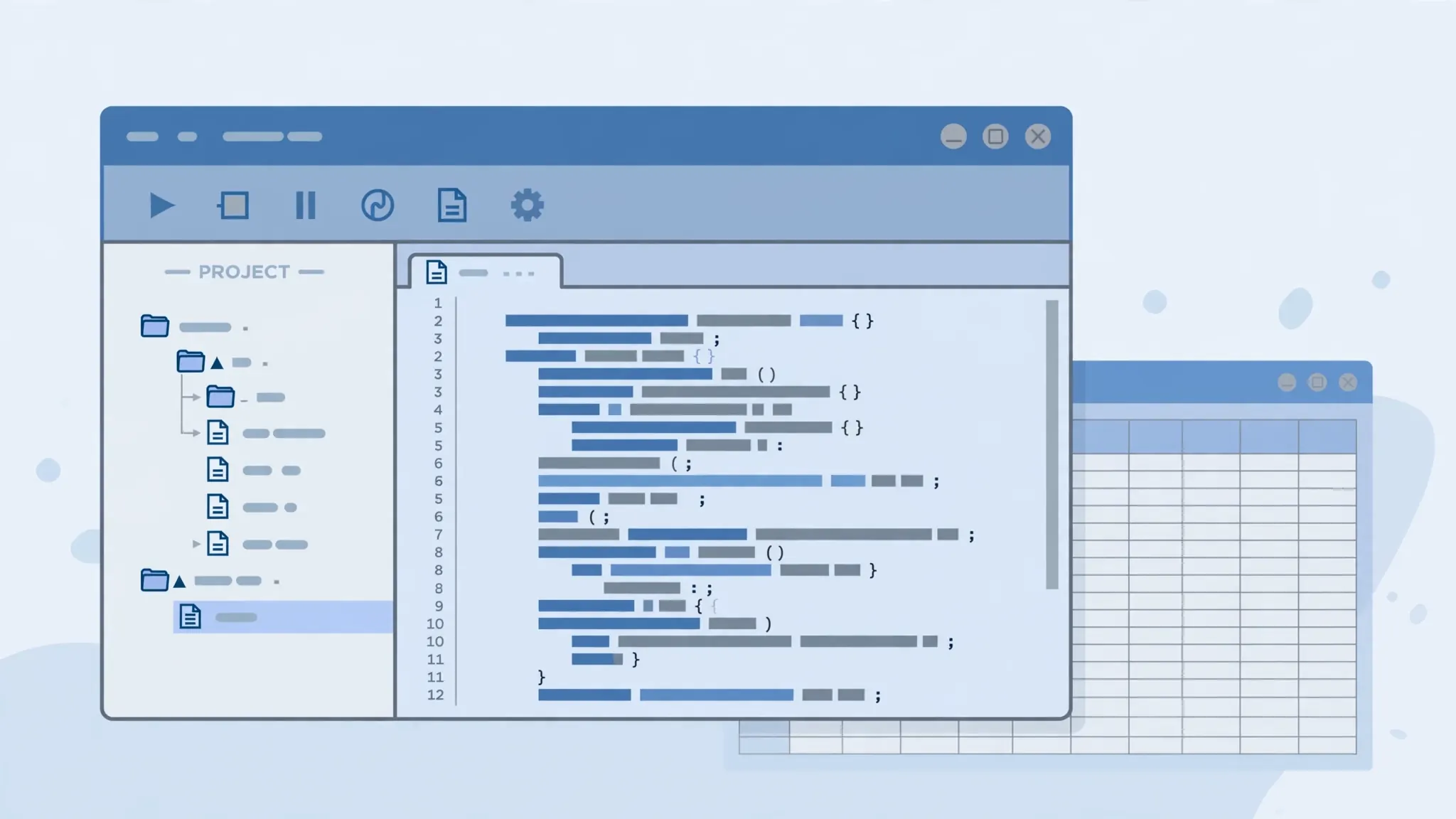
Press Alt+F11 (Windows) or Fn+Option+F11 (Mac), or click Visual Basic on the Developer tab. The editor opens in its own window with three panes that matter:
- Project Explorer (left) — a tree of your open workbooks. Each workbook has Microsoft Excel Objects (its sheets) and Modules (where your code lives).
- Code window (center) — where you type. Double-click a module (or Insert → Module to create one) and start writing.
- Properties window (below) — settings for the selected object; mostly ignorable at first.
Your first program — type this into a module and press F5 with the cursor inside it:
Sub SayHello()
    MsgBox "Hello from VBA!"
End Sub
A message box pops up. You just wrote and ran a program. Every VBA code Excel example in this guide follows the same pattern: a Sub with a name, lines of instructions, End Sub.
Excel VBA programming basics: the object model
VBA sees Excel as a hierarchy of objects: the Application contains Workbooks, each Workbook contains Worksheets, each Worksheet contains Ranges, each Range has properties (Value, Font, Interior) and methods (Copy, Delete, AutoFit). You navigate it with dots, reading right to left:
Workbooks("Report.xlsm").Worksheets("Sales").Range("A1").Value = 100
This says: in that workbook, on that sheet, in cell A1, set the value to 100. Most of the time you can skip the workbook and sheet parts — VBA assumes the active ones — so Range("A1").Value = 100 usually suffices. The object model is the single most important of the Excel VBA programming basics: once you think in objects-properties-methods, everything else is vocabulary you pick up as you go. The recorder is a great teacher here — record an action and read the code it writes.
Variables: storing values your macro can use
A variable is a named box that holds a value your code can reuse. Declare it, put something in, use it:
Sub UseVariables()
    Dim reportName As String
    Dim totalSales As Double
    reportName = "Q3 Sales"
    totalSales = Range("B100").Value
    MsgBox reportName & " total: " & totalSales
End Sub
Dim declares the variable; As String / As Double / As Long / As Boolean say what kind of value it holds. Why bother? Three reasons: readability (totalSales beats Range("B100").Value repeated five times), speed (reading a cell is slow; reading a variable is instant — pros read data into variables, crunch, then write back once), and flexibility (change the value in one place). Beginner rule: declare every variable, give it a clear name, and match the type to the data.
Loops: doing things many times without writing them many times
Loops are VBA’s superpower — the thing the macro recorder cannot do. The For loop repeats a set number of times:
Sub BoldHeaders()
    Dim i As Long
    For i = 1 To 12
        Worksheets(i).Range("A1").Font.Bold = True
    Next i
End Sub
Twelve monthly sheets get bold headers in a blink — try doing that by recording. The For Each loop is even more useful: it walks through a collection without counting:
Sub CleanAllSheets()
    Dim ws As Worksheet
    For Each ws In Worksheets
        ws.Columns.AutoFit
    Next ws
End Sub
And the workhorse pattern for data: loop down rows until the cells run out:
Dim lastRow As Long
lastRow = Cells(Rows.Count, 1).End(xlUp).Row
This finds the last used row in column A — the standard way to say “process all the data, however much there is.” Combine it with a For loop and you can touch ten thousand rows as easily as ten.
Ranges and cells: talking to the worksheet
You will spend most of your VBA life reading and writing cells. The essentials:
Range("B5").Value— read or write one cell.Range("B5").Value = "Done"writes.Cells(5, 2)— same cell by row/column numbers; perfect inside loops (Cells(i, 2)walks down column B).Range("A1:D100")— a block; use with.Copy,.Clear,.Font.Bold = True.Range("A1").CurrentRegion— the whole contiguous data block around A1; ideal for “whatever the data is today.”Range("A1").Offset(1, 0)— one row down;.Resize(10, 3)— expand a range.
Two performance commandments: first, never select things — the recorder writes .Select everywhere, but Range("A1").Font.Bold = True works without selecting and runs far faster. Second, wrap big jobs in Application.ScreenUpdating = False … Application.ScreenUpdating = True so Excel does not redraw the screen a thousand times. These two habits separate beginner code from professional code.
Conditions: making your macro think
If statements let your code make decisions — the other thing the recorder cannot do:
Sub FlagBigOrders()
    Dim i As Long, lastRow As Long
    lastRow = Cells(Rows.Count, 2).End(xlUp).Row
    For i = 2 To lastRow
        If Cells(i, 2).Value > 1000 Then
            Cells(i, 2).Interior.Color = RGB(255, 200, 200)
        End If
    Next i
End Sub
Every order over 1000 gets a pink highlight — a five-line program replacing ten minutes of manual scanning. If…Then…Else…End If handles either/or logic; Select Case handles multiple categories cleanly. Conditions plus loops plus ranges: that trio automates roughly 80% of real-world Excel chores.
Your first useful automation: the monthly report cleaner
Time to combine everything. The scenario: every month you receive a CSV export, convert it (our free CSV to Excel converter handles that in seconds), and spend fifteen minutes cleaning it — deleting blank rows, fixing headers, formatting dates, highlighting big orders. Here is a macro that does it all:
Sub CleanMonthlyReport()
    Dim i As Long, lastRow As Long
    Application.ScreenUpdating = False
    ' Find the data
    lastRow = Cells(Rows.Count, 1).End(xlUp).Row
    ' Bold headers, autofit, filter
    Rows(1).Font.Bold = True
    Cells.EntireColumn.AutoFit
    Range("A1").AutoFilter
    ' Delete blank rows (bottom-up!)
    For i = lastRow To 2 Step -1
        If WorksheetFunction.CountA(Rows(i)) = 0 Then Rows(i).Delete
    Next i
    ' Highlight big orders in column B
    lastRow = Cells(Rows.Count, 1).End(xlUp).Row
    For i = 2 To lastRow
        If Cells(i, 2).Value > 1000 Then Cells(i, 2).Interior.Color = RGB(255, 200, 200)
    Next i
    Application.ScreenUpdating = True
    MsgBox "Report cleaned!"
End Sub
Study it: variables hold the row count, loops walk the data, conditions decide, ranges do the work. Deleting rows goes bottom-up (Step -1) so row numbers do not shift under you — a classic pro trick. Run this on next month’s export and fifteen minutes become five seconds. This is why people learn VBA in Excel.
Debugging: when your VBA code misbehaves
Every programmer debugs; beginners just need permission to do it calmly. Your toolkit:
- Read the error message. “Object required” means VBA cannot find the thing you named — check sheet names and range addresses for typos.
- Debug → Compile. Catches syntax errors before you run.
- F8 to step through. Click inside the procedure and press F8 repeatedly — each line executes one at a time while you watch the sheet change. The bug reveals itself.
- Hover to inspect. In break mode, hover over any variable to see its current value.
- MsgBox as a probe. Sprinkle
MsgBox lastRowto check what a variable actually holds. - The Immediate Window (Ctrl+G). Type
?Range("A1").Valueand press Enter to ask VBA questions live.
Ninety percent of beginner errors are typos, wrong sheet names, or assuming a cell contains a number when it contains text. Step through with F8 and the truth appears.
Excel VBA for beginners: practice projects to build this week
Reading about Excel VBA for beginners concepts is useful; building with them is transformative. Here are five graduated projects — each introduces one new idea and produces something genuinely useful. Do them in order, on copies of your real data.
Project 1: the sheet formatter (variables + ranges)
Write a macro from scratch — no recorder — that formats the active sheet: bold headers, autofit columns, freeze top row, add filters. Use a Worksheet variable for the active sheet instead of relying on ActiveSheet everywhere. This teaches clean referencing and gives you a macro you will actually use. Time: 20 minutes.
Project 2: the multi-sheet styler (loops)
Extend Project 1 with a For Each ws In Worksheets loop that applies the formatting to every sheet in the workbook. Add a condition to skip sheets named “Raw” or “Archive”. You just learned the two most powerful VBA structures working together. Time: 15 minutes on top of Project 1.
Project 3: the duplicate hunter (conditions + loops)
Write a macro that scans column A, and whenever it finds a duplicate value, highlights both cells yellow and writes “DUPLICATE” in column Z. This combines loops, conditions, and writing values — the core of real data-cleaning automation. Bonus: count the duplicates and report the total in a message box. Time: 30 minutes.
Project 4: the report splitter (loops + workbooks)
Given a master sheet with a Region column, write a macro that creates one new workbook per region containing only that region’s rows, saved with the region name in the filename. This introduces working with multiple workbooks, filtering, and file operations — genuinely valuable for anyone who distributes regional reports. Time: 45 minutes.
Project 5: the CSV consolidator (file system + ranges)
Write a macro that loops through every CSV in a folder, imports each into its own sheet named after the file, and builds a summary sheet listing file names and row counts. This is the VBA answer to Power Query’s folder connector, and it teaches file-system interaction via Dir(). Time: 1 hour — and you will use it monthly.
Excel VBA for beginners: where to go next after the basics
You now hold the complete Excel VBA programming basics toolkit: objects, variables, loops, ranges, conditions, debugging. The fastest way to grow is to automate your own real chores — each one teaches a new corner of the language. When you are ready: learn WorksheetFunction to call Excel formulas from code, explore UserForms for custom dialogs, and read other people’s code on forums to absorb idioms. Pair VBA with Power Query for data shaping (our Power Query guide), graduate to Office Scripts for cloud scenarios (our Office Scripts guide), and see the big picture in our Excel automation decision guide. The journey from “never coded” to “the person who automated the department’s reporting” is shorter than you think — you just took the first big step.

Excel VBA for beginners: essential glossary
VBA documentation throws jargon fast. Keep this glossary handy while you learn VBA in Excel:
- Procedure / Sub: a named block of code that performs actions.
Sub MyMacro() … End Sub. - Function: like a Sub, but returns a value — the VBA equivalent of a worksheet formula you define yourself.
- Object: a thing VBA can manipulate — Workbook, Worksheet, Range, Chart.
- Property: a characteristic of an object you can read or set, e.g.
Range("A1").Value. - Method: an action an object can perform, e.g.
Range("A1").Copy. - Module: a container in the editor where your code lives (Insert → Module).
- Variable: a named storage box for a value, declared with
Dim. - Array: a variable that holds many values at once — essential for fast bulk data processing.
- Collection: a group of similar objects, e.g.
Worksheets— loop through them withFor Each. - Event: something that triggers code automatically, like opening a workbook (
Workbook_Open) or changing a cell. - Breakpoint: a marker that pauses execution so you can inspect — click the gray margin in the editor.
- Immediate Window: a panel (Ctrl+G) for asking VBA questions live while debugging.
You do not need to memorize these — just recognize them when they appear. Each term maps to something you have already touched in this guide, and fluency comes from use, not study.
Frequently Asked Questions
Is VBA hard to learn for beginners?
No. VBA is one of the most beginner-friendly programming languages because it reads almost like English and you see results instantly in Excel. Most people automate their first real task within a week of starting.
Do I need programming experience to learn Excel VBA?
No. This guide assumes zero programming experience. If you can use Excel formulas, you can learn VBA — the concepts (variables, loops, conditions) are introduced one at a time with Excel-specific examples.
Is VBA still worth learning in 2026?
Yes for desktop Excel automation. VBA remains the deepest automation tool for Windows and Mac Excel, with decades of libraries and community code. Office Scripts complement it for cloud scenarios but do not replace desktop VBA.
What is the difference between a macro and VBA?
VBA is the programming language; a macro is a VBA procedure. The macro recorder writes VBA code for you automatically, and learning VBA lets you write and edit that code directly for far more powerful automation.
How do I open the VBA editor in Excel?
Press Alt+F11 on Windows (Fn+Option+F11 on Mac), or go to the Developer tab and click Visual Basic. The editor opens in a separate window where you write and run your code.
Why does my VBA code give an error?
Common causes: typos in object names, referring to a sheet or range that does not exist, and type mismatches (like doing math on text). Use Debug > Compile and step through with F8 to find the failing line.