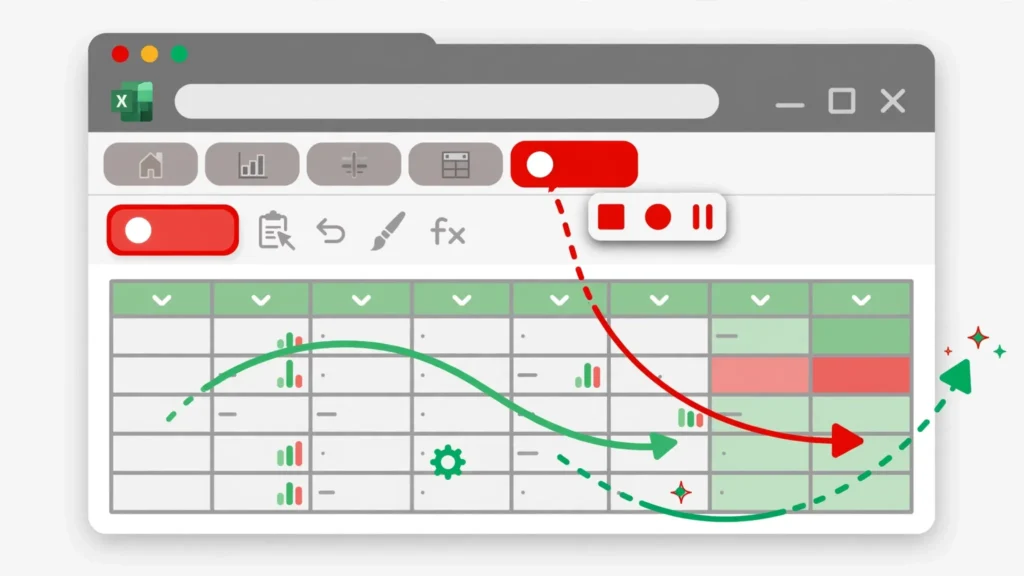
This Excel macros tutorial will take you from “macros sound scary” to running your first real automation in about twenty minutes — no programming experience required. If you have ever formatted the same weekly report the same way for the tenth time — bold headers, freeze panes, autofit columns, add filters, set print titles — and thought “there has to be a better way,” you are exactly who Excel macros for beginners are for. A macro is simply Excel watching you work once, writing down every step, and replaying it perfectly every time you ask.
In the next few minutes you will learn how to use macros in Excel from absolute zero: what a macro actually is, how to enable the hidden Developer tab, how to record a macro in Excel that formats a messy CSV import in seconds, how to run and edit your macros, what the recorder writes under the hood (your first glimpse of VBA), five beginner projects that save real time every week, how to stay safe with macro security, and when you are ready to graduate from recording to real VBA programming. Whether you are an accountant in India drowning in bank exports, a student in the US, or an office manager in the UK, this is the highest-leverage Excel skill you can learn this month.
What is an Excel macro, really?
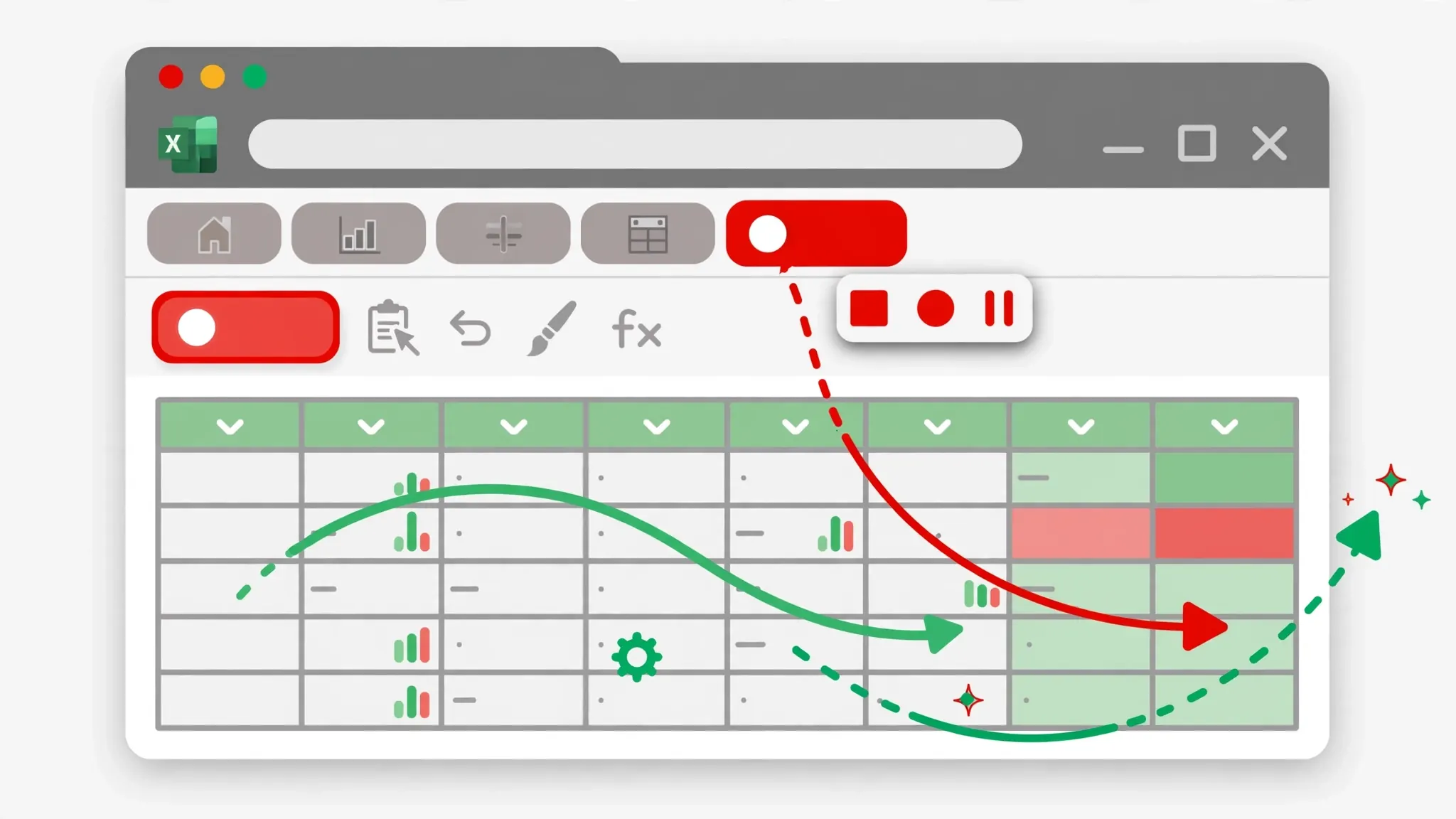
An Excel macro is a recorded sequence of actions that Excel can replay. Click Record, do your work — format cells, insert rows, apply filters, type formulas — click Stop, and Excel has written a small program (in a language called VBA, Visual Basic for Applications) that performs those exact steps. Run the macro later and the whole sequence executes in a fraction of a second, identically every time.
The magic for beginners is that you do not write the program — Excel writes it by watching you. That makes the macro recorder the perfect on-ramp: you learn automation by doing your normal job, and the code appears as a side effect. Later, when you want logic the recorder cannot capture (“do this for every sheet” or “only if the total exceeds 1000”), you open the code and extend it — which is exactly how most VBA programmers started. Our VBA for beginners guide picks up precisely where this tutorial ends.
Before you start: enable the Developer tab
The macro tools live on the Developer tab, which Excel hides by default. Turn it on once and it stays:
- Windows: File → Options → Customize Ribbon → in the right-hand list, tick Developer → OK. On Mac: Excel → Preferences → Ribbon & Toolbar → tick Developer.
- Find the Code group. On the Developer tab you will see Record Macro, Stop Recording, Macros, and Visual Basic — your new command center.
- Check macro security. Still on the Developer tab, click Macro Security and confirm it is set to “Disable all macros with notification” — the safe default. Excel will ask before running macros in files you open.
.xlsx files cannot store macros. When you save a workbook containing macros, Excel will prompt you to save as Excel Macro-Enabled Workbook (.xlsm). Say yes — or your macro vanishes with the save.Your first macro: record a formatting job step by step
Let us automate the most universal Excel chore: turning a raw data dump (like a freshly converted CSV) into a clean, readable report. First, grab some practice data — convert any CSV with our free CSV to Excel converter so you have a realistic messy sheet to work with.
- Open your messy workbook and select any cell in the data.
- Click Record Macro on the Developer tab. Name it
FormatReport(no spaces), optionally assign a shortcut like Ctrl+Shift+F, choose “This Workbook” for where to store it, and add a description. Click OK — the red recording indicator appears. - Perform the formatting, deliberately:
- Select row 1 (the headers) and make it bold.
- Select all data (Ctrl+A) and double-click a column boundary to autofit every column.
- With headers selected, apply AutoFilter (Data → Filter).
- Select cell B2 (below the headers) and Freeze Panes (View → Freeze Panes).
- Apply a light fill color to the header row.
- Click Stop Recording. That is it — you have recorded a macro.
- Test it. Undo everything (or open a fresh messy file), place the cursor anywhere in the data, and press your shortcut or run it from Developer → Macros → Run. Watch a minute of formatting happen in under a second.
Congratulations: you now know how to use macros in Excel at the most practical level. Next week’s report gets the same treatment with one keystroke.
Running, editing, and deleting macros
Running
Three ways: the shortcut key you assigned, Developer → Macros → select → Run, or assign the macro to a button (Developer → Insert → Button, draw it on the sheet, pick the macro). Buttons are wonderful for shared workbooks — your colleagues get one-click formatting without knowing macros exist.
Editing
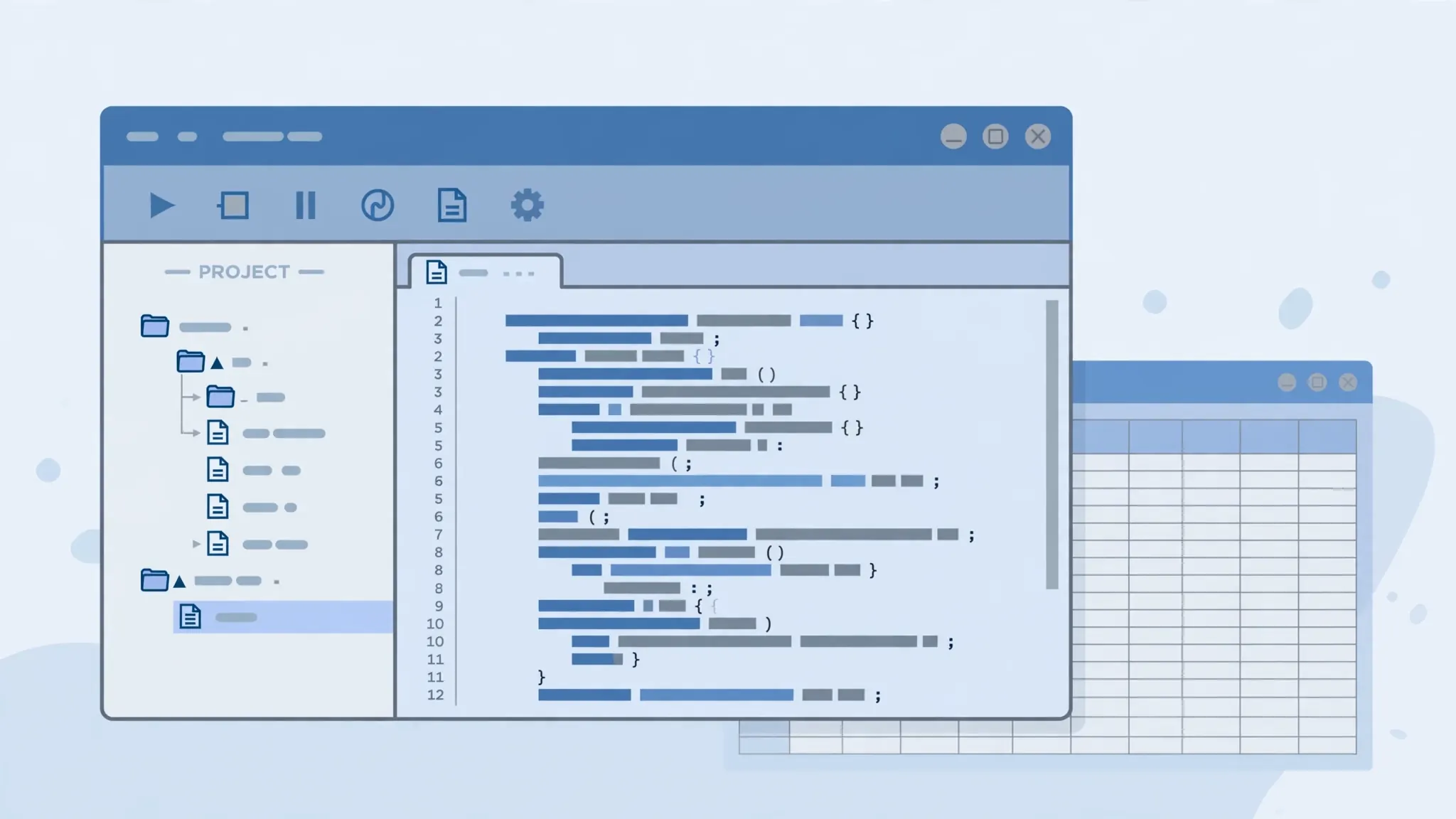
Developer → Macros → select your macro → Edit opens the Visual Basic Editor with the generated code. You do not need to understand all of it yet — but try this: find a line like Range("A1:E1").Select and change the range, then run the macro again. You just edited a program. Tweak colors, add a step, delete a line you do not want — experimentation here is safe as long as you work on a copy of your data.
Deleting
Developer → Macros → select → Delete. Or delete the code module in the editor. No trace remains.
The Personal Macro Workbook
When recording, “Store macro in: Personal Macro Workbook” makes the macro available in every workbook you open — perfect for universal utilities like your FormatReport. Excel creates PERSONAL.XLSB once and loads it silently at startup.
A peek under the hood: what recording actually writes
Open your FormatReport macro in the editor and you will see something like this (simplified):
Sub FormatReport()
    ' Bold the header row
    Rows("1:1").Font.Bold = True
    ' Autofit columns
    Cells.EntireColumn.AutoFit
    ' Add filters
    Range("A1").AutoFilter
End Sub
Read it aloud and it almost makes sense: a Sub names the macro, each line does one thing to an object (Rows, Cells, Range), and End Sub finishes. That readability is VBA’s gift to beginners — recorded code is verbose but legible, and every line maps to something you did with the mouse. This is why the recorder is the best VBA macro tutorial ever built: it generates personalized examples from your own work.
Five beginner macro projects that save real time
Once the first macro clicks, these five projects cover the chores nearly everyone repeats:
- The weekly report formatter — the FormatReport macro above, stored in your Personal Macro Workbook. Run it on every CSV export you convert.
- Print-setup macro — set landscape orientation, fit-to-one-page, repeating header rows, and footer page numbers in one click. Nobody enjoys the Page Setup dialog twice.
- Data-cleanup macro — trim extra spaces, remove duplicates, convert text-numbers to real numbers, apply consistent date formats. Record it once on a typical messy import.
- Multi-sheet setup — insert and name the twelve monthly sheets (or four quarterly ones), apply identical headers and formatting to each. A loop you will learn in VBA does this in milliseconds.
- Export-and-email prep — hide helper columns, set the print area, save a PDF copy with today’s date in the filename. Pair with the print-setup macro for a full reporting pipeline.
Each project follows the same pattern: do it manually once while recording, test on fresh data, save as .xlsm. If you process CSV reports regularly, our guide to automating repetitive Excel tasks shows how macros fit into a bigger automation strategy.
Macro security: staying safe with VBA
Macros are powerful, which means malicious macros exist — usually in phishing email attachments. The rules are simple: record your own macros freely; only enable macros in files from people you trust. Excel’s default “disable with notification” setting shows a yellow security bar on files containing macros; click Enable Content only if you expected macros in that file. Never enable macros in a random downloaded workbook, and be extra cautious with .xlsm files from email. Your own recorded macros, stored in your Personal Macro Workbook, run without prompts and are completely safe.

When to stop recording and start learning VBA
The recorder has limits: it cannot make decisions (“format red only if negative”), loop (“do this on every sheet”), or interact (“ask me which month”). The moment you catch yourself thinking “I wish the macro would…”, you are ready for real VBA. The good news: you already know the object model intuitively — Range, Cells, Font.Bold — because you have seen the recorder write it. Learning variables, loops, and If statements from there is a small step with an enormous payoff, and our Excel VBA for beginners guide teaches exactly that progression with your first genuinely useful automation.
Also know the landscape: Power Query (see our Power Query on Mac guide) handles refreshable data imports better than any macro, and Office Scripts (our Office Scripts guide) are Microsoft’s cloud-native macro successor for Excel on the web. Macros remain unbeatable for desktop formatting and manipulation — pick the tool that fits the job.
Common macro mistakes and how to fix them
- Macro disappeared after saving → you saved as
.xlsx; re-save as.xlsm(Macro-Enabled Workbook). - Macro only works on one sheet layout → the recorder hard-coded cell addresses; edit the code to use relative references (record with “Use Relative References” toggled on).
- Nothing happens when I run it → check that macros are enabled for the file, and that the macro is stored where you think (This Workbook vs Personal).
- It formats the wrong range → you had different cells selected when recording; re-record with the cursor in a representative spot, or generalize the code with
CurrentRegion. - Shortcut key conflicts → Ctrl+Shift+letter is safer than Ctrl+letter, which overrides built-in shortcuts like Ctrl+C.
- Screen flickers during the run → normal for recorded macros; learning
Application.ScreenUpdating = Falsein VBA fixes it.
Excel macros tutorial: quick-start recap and leveling up
Let us consolidate everything this Excel macros tutorial taught you into a repeatable system — and map the path from “I recorded one macro” to “I automate confidently.”
Your macro starter kit: the five-minute setup
Every Excel user who is serious about how to use macros in Excel should do this once: enable the Developer tab, create a Personal Macro Workbook (record any trivial macro with “Store in: Personal Macro Workbook” and Excel creates it), record your FormatReport macro into it, and assign it Ctrl+Shift+F. From this moment on, every workbook you open — every CSV export, every downloaded report — is one keystroke away from clean formatting. That single setup, done in five minutes, pays dividends for years. Add a print-setup macro and a cleanup macro over the next month and you own a personal automation toolkit that colleagues will envy.
From recorder to reader: learning to read code
The bridge between recording and programming is reading. Open every macro you record in the Visual Basic Editor and read it line by line, matching each line to the mouse action that created it. You will notice patterns within days: Range("A1").Select followed by Selection.Font.Bold = True is just “bold A1.” Start deleting the .Select lines and combining the actions (Range("A1").Font.Bold = True) — the macro still works, runs faster, and you just took your first step toward writing code instead of recording it. Our VBA for beginners guide continues exactly from this point.
Leveling up: the skill ladder
Think of macro mastery as four rungs. Rung 1 (you are here): record and run macros, save as .xlsm, use the Personal Macro Workbook. Rung 2: edit recorded code — tweak ranges, delete unwanted steps, use relative references. Rung 3: write small procedures from scratch using variables, loops, and If statements to handle “for every sheet” and “only if” logic. Rung 4: build complete solutions — user forms, error handling, multi-workbook processing. Most office workers never need rung 4; rungs 2 and 3 automate 95% of real chores. Climb one rung at a time, always on real tasks, and the skills stick because they earned their keep immediately.
Macros in a team: sharing without chaos
When colleagues want your macros, resist emailing .xlsm files around — version chaos follows. Better options: store shared macros in a single Personal Macro Workbook you distribute once with instructions, or for cloud-based teams, rebuild the key automations as Office Scripts that run in Excel for the web with proper sharing and permissions. Document each macro with a one-line comment describing what it does and a button on the sheet labeled in plain English (“Format this report”) so nobody needs to know what a macro is to benefit from one.

Excel macros tutorial: your first-week practice plan
Knowledge fades; habits stick. Here is a one-week plan to make this Excel macros tutorial permanent:
- Day 1: enable the Developer tab, create your Personal Macro Workbook, and record the FormatReport macro from this guide. Run it on three different files.
- Day 2: open the recorded code and read every line. Delete one
.Selectline pair and confirm the macro still works. - Day 3: record a print-setup macro (landscape, fit to one page, repeating headers). Assign it Ctrl+Shift+P.
- Day 4: re-record FormatReport with “Use Relative References” on and notice how the code changes. Understand why.
- Day 5: add a button to a real report that runs your macro. Share the file with a colleague and watch them use it.
- Day 6: deliberately break something — record a macro, change the data layout, run it, and read the error. Debugging practice is priceless.
- Day 7: pick your most annoying weekly chore and record a macro for it. Your first real automation.
Seven days, maybe two hours total, and you will have moved from “macros sound scary” to owning a personal toolkit. The recorder taught you the motions; the practice week makes them instinct. When you are ready for logic the recorder cannot express — loops, conditions, decisions — our VBA for beginners guide is the natural next step.
Remember: every expert was once confused by the Developer tab. The difference between people who automate and people who do not is rarely talent — it is simply that the automators recorded their first macro on an ordinary Tuesday and never looked back. Your Tuesday is today.
Frequently Asked Questions
What is an Excel macro for beginners?
An Excel macro is a recorded sequence of actions — clicks, formatting, formulas — that Excel can replay on demand. You create one with the Record Macro button; no programming required to start.
How do I record a macro in Excel?
Enable the Developer tab (File > Options > Customize Ribbon), click Record Macro, give it a name and shortcut key, perform your actions, then click Stop Recording. Run it anytime from the Macros dialog or its shortcut.
Are Excel macros safe?
Macros you record yourself are safe. Only enable macros in files from trusted sources, because malicious macros can harm your computer. Excel’s macro security settings let you control this.
Do macros work in Excel for Mac?
Yes, VBA macros work in Excel for Mac (Microsoft 365), including the macro recorder. Some Windows-specific features like ActiveX controls are unavailable on Mac.
What is the difference between a macro and VBA?
VBA (Visual Basic for Applications) is the programming language; a macro is a VBA procedure. Recording a macro writes VBA code for you, which you can later edit or extend by learning VBA.
Why won’t my macro save?
Regular .xlsx files cannot store macros. Save the workbook as Excel Macro-Enabled Workbook (.xlsm) via Save As, or store the macro in your Personal Macro Workbook to use it in any file.