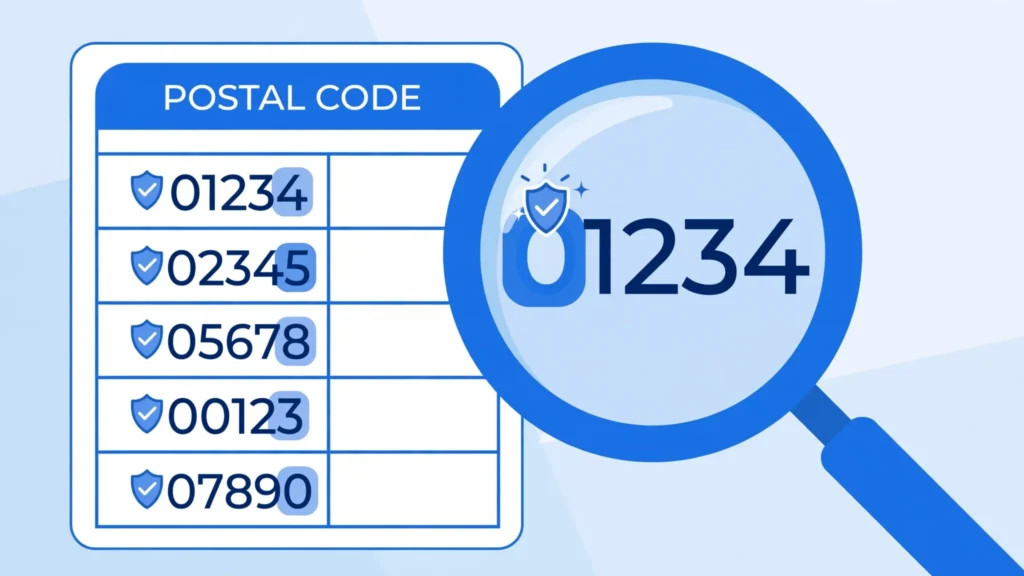
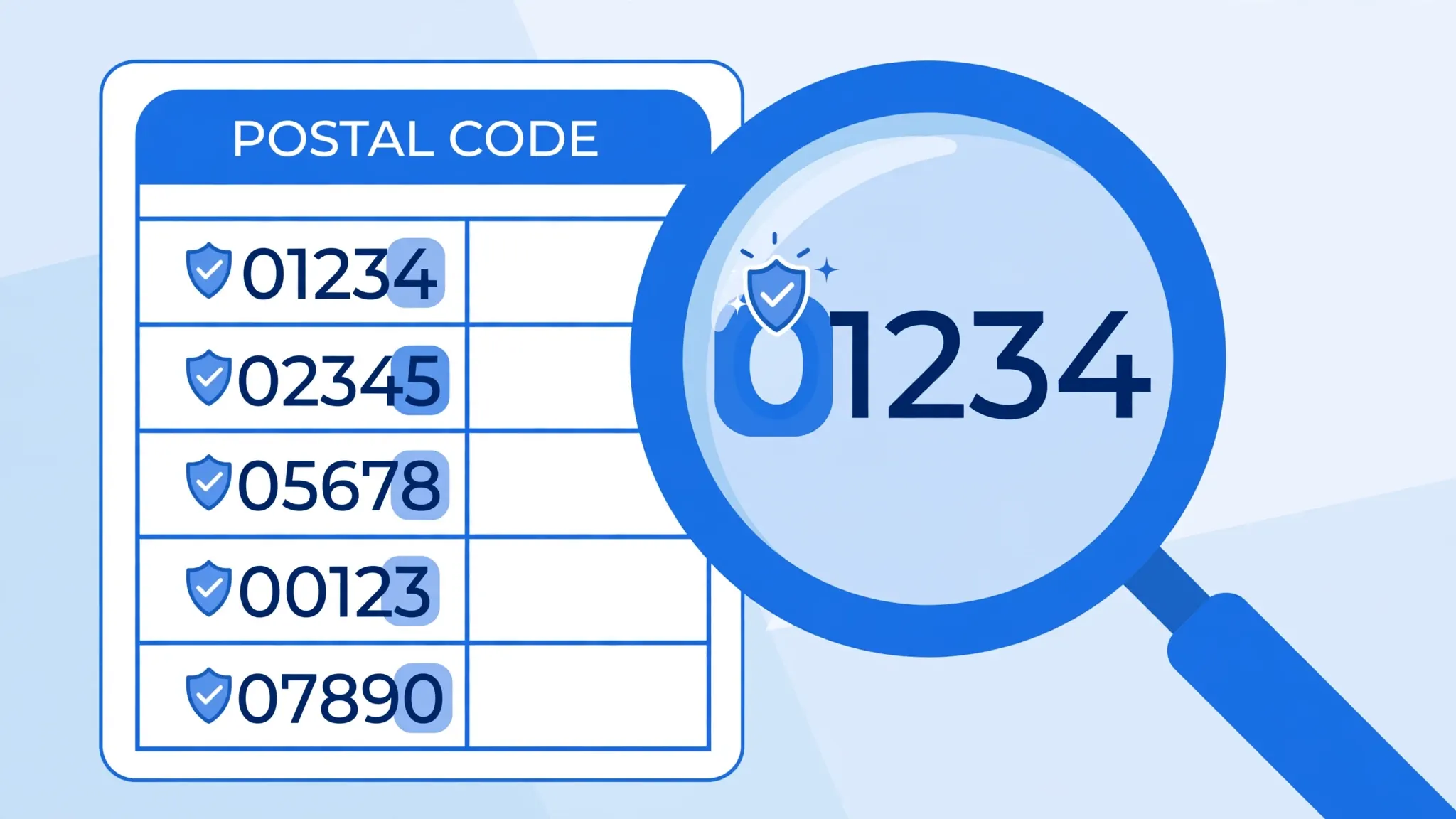
You open a CSV of customer addresses and the Boston ZIP code 02139 has become 2139. Your product SKUs like 00417 are now 417. Phone numbers lost their leading zero. Nothing is “wrong” with the file — Excel removes leading zeros from CSV files because it thinks your codes are numbers, and the number 2139 is 02139 as far as arithmetic is concerned. But ZIP codes aren’t arithmetic. Neither are SKUs, ID numbers, or phone numbers — and when Excel strips their leading zeros, the data is corrupted for every downstream use: mail merges fail, barcode lookups miss, and VLOOKUPs against the original codes return nothing.
The fix is to stop Excel from guessing. A CSV file carries no formatting — it’s just text — so Excel assigns each column a type on import, and anything that looks like digits becomes a Number. To keep leading zeros when converting CSV to Excel, you tell Excel before it imports that the column is Text. In this guide you’ll learn the import-as-text method (the correct fix), the apostrophe trick (the quick fix), why Format Cells can’t resurrect zeros that are already gone, and how to handle ZIP codes, phone numbers, and SKUs across US, UK, Indian, and international formats.
Why Excel Strips Leading Zeros from CSV Files
Understanding the mechanism makes every fix obvious. Excel cells hold two things: a value and a format. When you type 007 into a fresh cell, Excel’s General format looks at it, decides it’s numeric, stores the value 7, and displays 7. The leading zeros were never stored — they were discarded at entry because numbers don’t have leading zeros.
A CSV import works the same way, column by column. The file says 02139 — plain characters, no type information. Excel’s importer sees digits, assigns the Number type, and stores 2139. The original text 02139 is gone from the workbook. This is also why CSV leading zeros in Excel behave differently from, say, dates or currency: those at least survive as values with wrong formatting, while stripped zeros are data loss — the information no longer exists in the file, and no formatting trick can reconstruct whether the original was 02139 or 002139.
Note the asymmetry: Excel is helpful when it converts "1,234" to a number, and destructive when it converts "02139" to one. It can’t tell which digit-strings are quantities and which are codes, so it treats them all as quantities. This CSV leading zeros Excel behavior is the reason the only reliable defense is declaring the column as Text before Excel gets to guess — which is exactly what the import-as-text method does.
What the Damage Looks Like: ZIP Codes, SKUs, Phones
Leading-zero stripping hits hardest in a few specific data types. US ZIP codes are the classic: 02139 (Cambridge, MA) becomes 2139, and every New England ZIP starting with 0 is mangled. ZIP+4 codes like 02139-1234 often survive the first five digits’ fate only to lose zeros in the extension. UK postcodes (E1 6AN) and Canadian postal codes (K1A 0B1) contain letters, so Excel leaves them alone — small mercy.
Product SKUs and barcodes are worse because the damage is silent: 00417 → 417 still looks like a plausible code, so nobody notices until a warehouse scan fails or an inventory VLOOKUP misses. Phone numbers lose trunk zeros — an Indian mobile stored as 09876543210 becomes 9876543210 (usually harmless for dialing, fatal for exact-match joins), and international numbers with 00 prefixes get truncated. Employee IDs, ticket numbers, and bank branch codes all suffer the same fate.
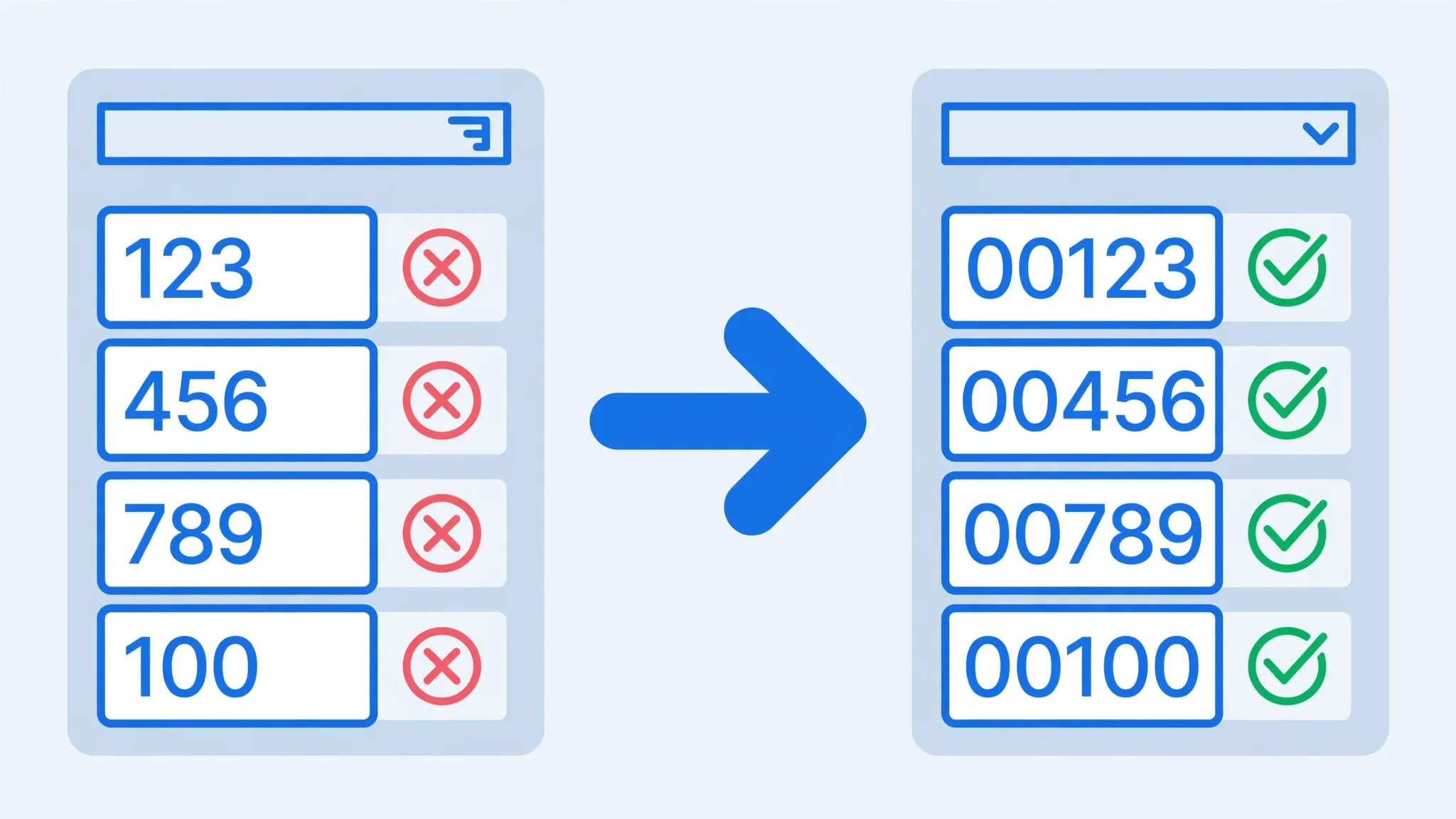
Here’s the before-and-after of a typical import:
CSV file (correct)        Excel after double-click (wrong)
02139                     2139
00417                     417
09876543210               9876543210
If your data already looks like the right column, the zeros are gone and you need the source file again — see Fix 3 for why formatting can’t save you, then re-import properly.
Fix 1: Import the Column as Text (The Correct Fix)
This is the fix professionals use: intercept the import and declare the code column as Text before Excel converts anything. It works in every desktop Excel and preserves every character exactly as written in the CSV.
- Open a blank workbook. Do not double-click the CSV.
- Go to Data → Get Data → Legacy Wizards → From Text (Legacy) and select your CSV. (In Microsoft 365 you can also use Data → From Text/CSV and set the column type in Power Query — see Fix 4.)
- Step 1: choose Delimited, set File Origin to 65001: Unicode (UTF-8) if you have international characters, click Next.
- Step 2: tick your delimiter (usually Comma), verify the preview splits correctly, click Next.
- Step 3 — the key step: click the header of your ZIP/SKU/phone column in the preview to select it, then under Column data format choose Text. Repeat for every code column. Leave genuine number columns as General. Click Finish.
- Choose the destination and click OK. Your codes land with every leading zero intact.
Verify the result: click a code cell and look at the formula bar — it should show 02139, all five characters. If the formula bar shows 2139, the column wasn’t set to Text and you should redo the import. The green triangle “number stored as text” indicator may appear on these cells — that’s Excel confirming the values are text, which is exactly what you want in any CSV leading zeros Excel workflow. Leave it alone.
Fix 2: The Apostrophe Trick
The fastest manual fix: type an apostrophe before the digits. Entering '02139 into a cell stores the text 02139 — Excel treats the leading apostrophe as a “store as text” signal, hides it from display, and keeps every zero. The formula bar shows '02139 with the apostrophe visible, confirming text storage.
This trick is perfect for small, already-open sheets: a dozen codes you need to patch by hand. Click each cell, press F2, add the apostrophe at the start, press Enter. For a whole column, you can use a helper formula — ="'"&A1 won’t help (that adds a literal quote character), so instead convert with =TEXT(A1,"00000") for fixed-length codes, then copy and paste as values.
But know its limits. The apostrophe trick works on data already in Excel; it can’t recover zeros lost during import (there’s nothing to prefix — the zero is gone). And don’t put apostrophes inside the CSV file itself hoping Excel will honor them: some import paths treat the apostrophe as a literal character, and you’ll end up with '02139 displayed including the quote. For files, import-as-text (Fix 1) is always cleaner.

Fix 3: Format Cells — and Why It Can’t Bring Zeros Back
Everyone tries this first: select the column, press Ctrl+1, choose Text, click OK — and nothing happens. The 2139 stays 2139. Here’s why: formatting changes how Excel displays a stored value; it cannot change the stored value itself. The zero was discarded at import, so there’s nothing for the format to display.
There is one legitimate use of Format Cells here: before data entry. If you format an empty column as Text and then paste or type codes into it, the zeros survive — because the values were stored as text from the start. The sequence matters: format first, data second. Format-after-import is the sequence that fails.
The exception is fixed-length codes, where a custom number format can re-display zeros. US 5-digit ZIPs: select the column, Ctrl+1, Custom, type 00000 — 2139 displays as 02139. This works because every ZIP is exactly five digits; the format pads with zeros. But the underlying value is still 2139, so exports, CSV saves, and exact-match lookups against text codes will still fail. Use it for display only, never as a data fix. And it can’t help variable-length codes like SKUs or phone numbers at all.
Fix 4: Power Query Column Types
For recurring reports, set the column type once in Power Query and never think about it again:
- Data → From Text/CSV, select your file.
- In the preview, click Transform Data to open the Power Query Editor.
- Select your code column(s), then change the type icon at the top of the column to Text (the “ABC” icon).
- Home → Close & Load. The zeros are preserved, and the query remembers the Text type for next month’s refresh.
Power Query is also the best tool when a file mixes types — say a “code” column that’s mostly numeric but occasionally contains letters. The legacy wizard’s Text setting handles that fine too, but Power Query shows you exactly which rows would error under a numeric type, so you can catch data problems early.
Special Cases: ZIP Codes, Phone Numbers, SKUs
US ZIP codes and ZIP+4
Import the ZIP column as Text — it handles 5-digit ZIPs, ZIP+4 (02139-1234), and the occasional alphanumeric military code uniformly. If you must keep the column numeric for some reason, the custom format 00000 pads display to five digits, but remember it’s display-only.
UK, Canadian, and international postal codes
Alphanumeric codes (UK E1 6AN, Canada K1A 0B1) are safe from zero-stripping because the letters force text detection. Pure-numeric postal codes (many European and Latin American systems) need the Text import treatment.
Phone numbers
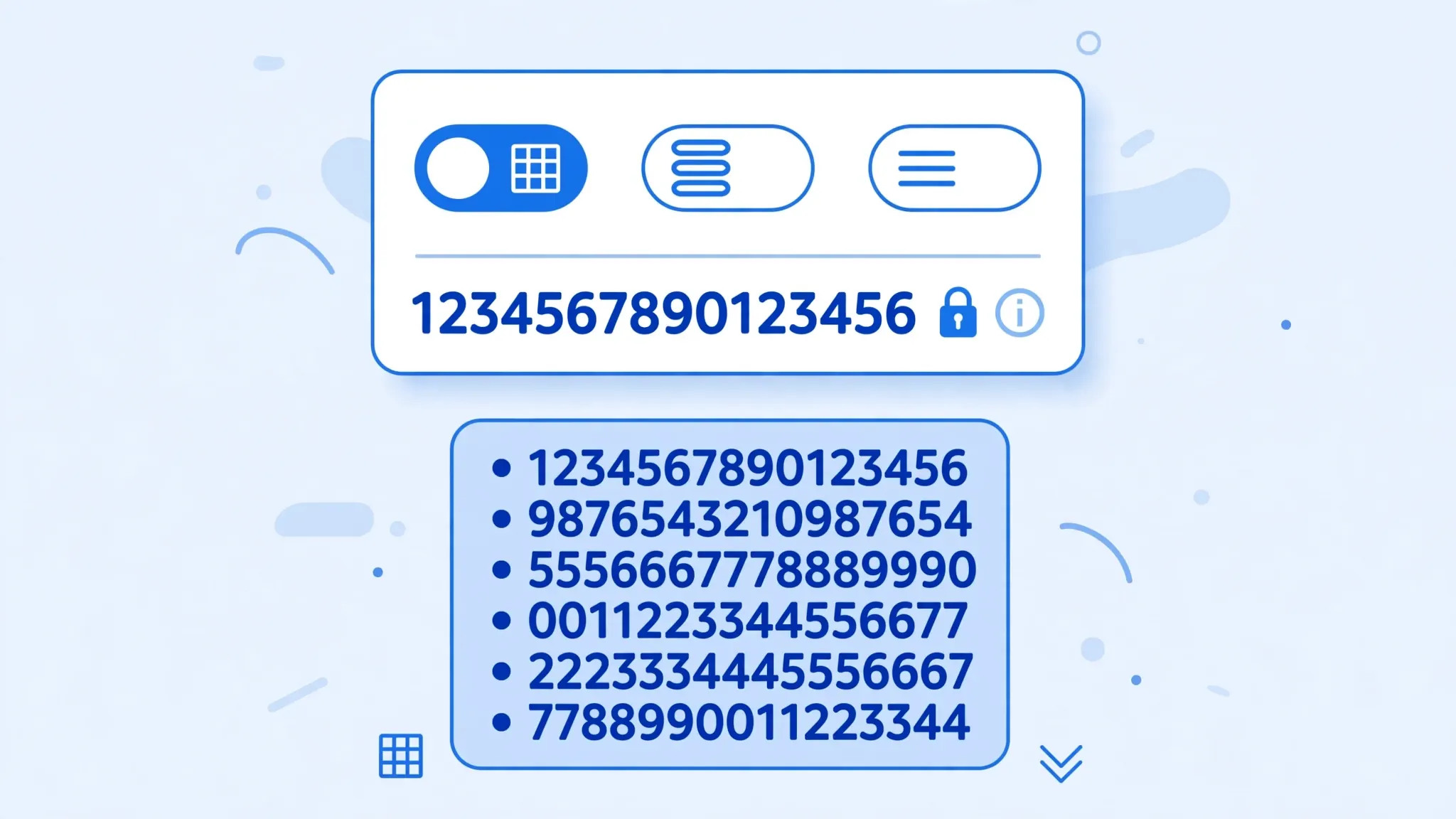
Phone numbers should always be text — they’re identifiers, not quantities; you’ll never do arithmetic on them. Import as Text to preserve trunk zeros (020 7946 0018 in London, 09876543210 in India) and leading + signs. Note that Excel may also “helpfully” convert long phone numbers to scientific notation — our scientific notation guide covers that sibling problem.
Product SKUs and barcodes
SKUs are the silent killers because stripped codes still look valid. If your SKU scheme uses fixed-length codes with leading zeros, import as Text, period. For extra safety, consider adding a data-validation check after import: a helper column with =LEN(A2) should show the expected length for every row — any shortfall means zeros were lost and you need to re-import.
CSV Leading Zeros Excel: How to Audit a File for Lost Zeros
Don’t trust your eyes — verify. CSV leading zeros in Excel disappear silently, so build a quick audit into your workflow, especially for files you’ll share or upload elsewhere:
- Length check: in a helper column, enter
=LEN(A2)and fill down. If your SKU scheme mandates 8 characters, every row should read 8. Anything shorter lost zeros. - Formula-bar spot check: click five random code cells. The formula bar shows the true stored value — if it shows fewer characters than the CSV had, re-import.
- Compare against the source: if you have the original CSV, open it in Notepad and compare a handful of codes against the Excel column. Mismatches mean the import type was wrong.
- Leading-character check:
=LEFT(A2,1)="0"flags rows that should start with zero (useful when you know a subset of codes does).
For files you receive regularly, save the audit as part of a Power Query flow: add a custom column with the length check, filter for anomalies, and you’ll catch zero-loss the moment a fresh file arrives.
CSV Leading Zeros in Excel for Common Workflows
Payroll and HRIS exports
Employee IDs like 004521 are everywhere in payroll systems. When HR sends a CSV and finance opens it by double-click, IDs lose zeros and the subsequent VLOOKUP against the HR database fails silently — rows just don’t match. Fix it at the process level: whoever owns the import sets Text on the ID column once in Power Query and refreshes monthly.
E-commerce inventory uploads
Marketplace seller SKUs (Amazon, Flipkart, eBay) often carry leading zeros. Stripping them before uploading inventory feeds means your spreadsheet no longer matches the marketplace’s catalog — listings fail to update. Always import the SKU column as Text, and validate with the LEN check before exporting the feed file.
Bank and payment reconciliations
Branch codes, routing references, and transaction IDs with leading zeros are common in bank CSV exports. Reconciliation joins on these references break when zeros vanish. Import the reference columns as Text, and never let Excel “helpfully” convert them — a reference is an identifier, not a number.
Fix 5: Convert First with Zeros Preserved
If the import wizard feels like too many steps, convert the CSV before Excel touches it. The free CSV to Excel converter preserves your codes’ original text exactly — 02139 stays 02139 — because it carries the characters through as written rather than re-typing them as numbers. Upload, convert, download the .xlsx: the workbook stores the values as text, so the zeros survive every future open, sort, and share.
Prevent It Forever
- Never double-click code-heavy CSVs. Import with Text columns set, every time.
- Document which columns are codes. A one-line note in the file (“columns C and F are text IDs”) saves the next person.
- Share .xlsx instead of .csv when codes are involved — workbooks remember text formatting.
- Validate after import: spot-check the formula bar on a few known codes, and use
=LEN()checks on fixed-length code columns. - For system-generated exports you control, consider prefixing codes in a way that forces text detection — though the apostrophe-in-CSV is unreliable, quoting every field (
"02139") at least keeps the characters together.
Wrapping Up
Excel removes leading zeros from CSV because it mistakes your codes for numbers — and once the zeros are stripped at import, no formatting can bring them back. The real fix is declaring code columns as Text during import (Text Import Wizard or Power Query), the quick fix is the apostrophe trick for hand-entered cells, and the zero-effort fix is converting with our free CSV to Excel converter which preserves your codes exactly. Set the type before the data arrives, and your ZIP codes, SKUs, and phone numbers will keep every zero they were born with. If you’re dealing with an unusual code format that resists these methods, join the discussion in our community forum — describe the code pattern and someone will suggest the right import settings.
Frequently Asked Questions
Why does Excel remove leading zeros from CSV?
Excel interprets fields made only of digits as numbers, and the number 7 is the same as 007 to Excel — so it drops the zeros. A CSV file stores no formatting information, so Excel has to guess each column’s type, and it guesses Number for anything that looks numeric. For accountants dealing with code-heavy files, our accountants’ CSV guide has more type-preservation tips.
How do I keep leading zeros when converting CSV to Excel?
Import the file instead of double-clicking it: use the Text Import Wizard or Power Query (Data → From Text/CSV) and set the code column’s type to Text before loading. That tells Excel to treat the values as text strings, preserving every leading zero. This import-as-text approach is the canonical CSV leading zeros Excel fix — our no-formatting-loss guide covers the broader version of this workflow.
Does the apostrophe trick work for CSV leading zeros?
Inside Excel, typing an apostrophe before digits (like '007) forces the cell to store text and keeps the zeros. But putting apostrophes inside the CSV file itself is unreliable — some importers show the apostrophe literally. Setting the column to Text during import is the cleaner method.
Why doesn’t Format Cells → Text bring my zeros back?
Because the zeros are already gone. Excel converted 007 to the number 7 at import time and discarded the leading zeros permanently. Formatting changes how a value displays, not the value itself. You must re-import the file with the column set to Text — there is no way to reconstruct zeros from the stripped value.
How do I keep leading zeros in ZIP codes specifically?
Import the ZIP code column as Text — this works for US 5-digit ZIPs, ZIP+4 codes, UK postcodes, and Canadian postal codes alike. A custom number format like 00000 also works for fixed-length US ZIPs, but Text is the universal safe choice.
Will converting CSV to XLSX preserve leading zeros?
Only if the conversion treats the column as text. A converter that auto-detects types can still strip zeros, so use one that preserves the original text values — the free converter at csvtoexcel.site/ keeps your codes exactly as written.