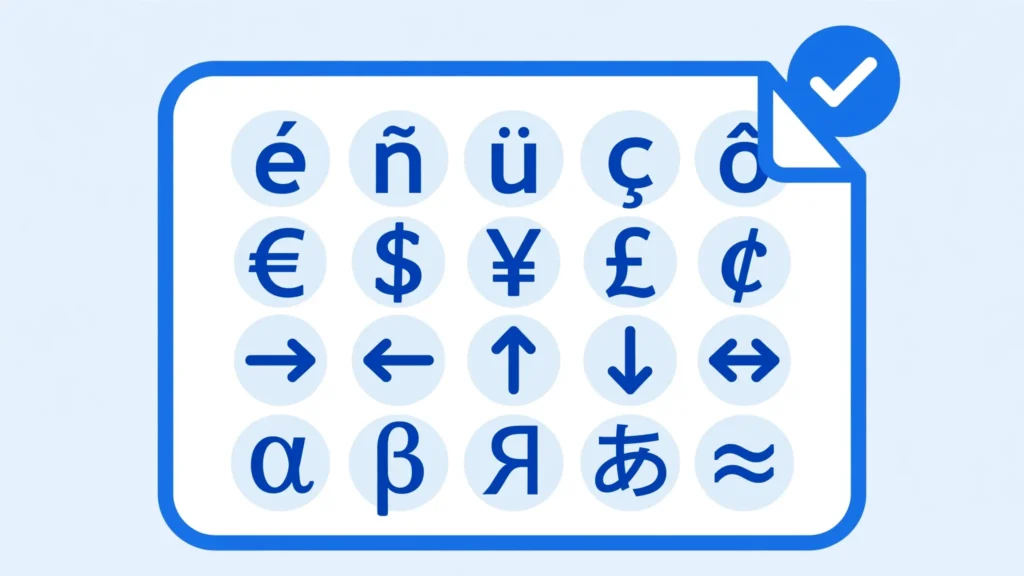
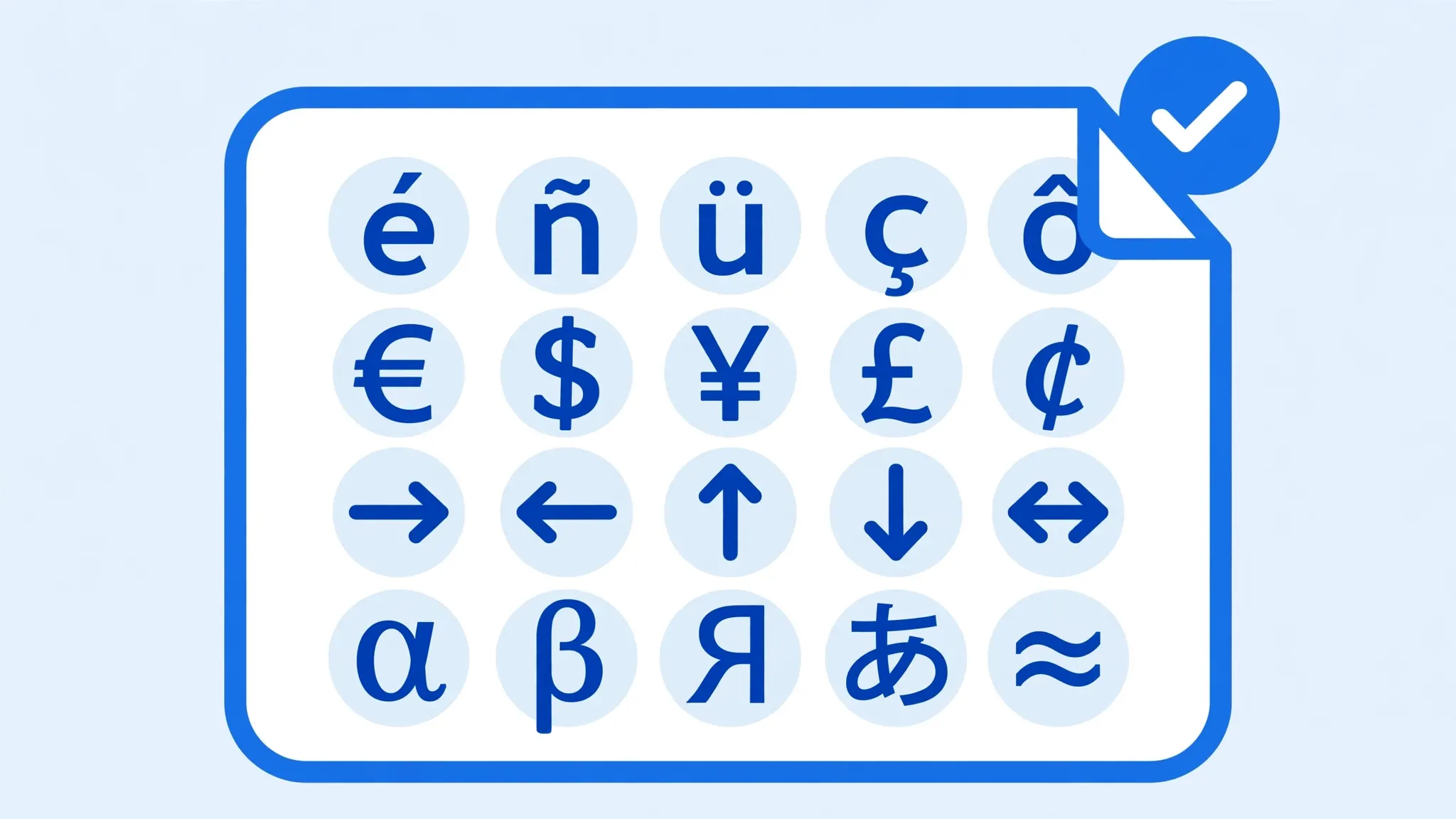
Your supplier’s name shows as Müller instead of Müller. Prices in euros read €. A customer’s name in Hindi is a row of empty boxes. When CSV special characters break in Excel, there are always two suspects: the encoding (how the file’s bytes are decoded into characters) and the font (whether Excel can draw the resulting characters). Fix the wrong layer and nothing changes — which is why this guide starts with a 30-second diagnosis that tells you exactly which layer is broken.
You’ll learn how to distinguish mojibake (encoding) from tofu boxes (fonts), how to fix Excel CSV accented characters with the UTF-8 import workflow, how to handle currency and math symbols, how to render Hindi, Arabic, Chinese, and right-to-left text correctly, and the save-and-share habits that keep CSV symbols wrong from ever recurring. Whether your data spans Paris, Mumbai, Dubai, or Shanghai, the same two-layer method applies.
CSV Special Characters Excel: Encoding or Font Problem?
Thirty seconds of diagnosis saves thirty minutes of wrong fixes. Look at the broken characters:
- Wrong but consistent characters (
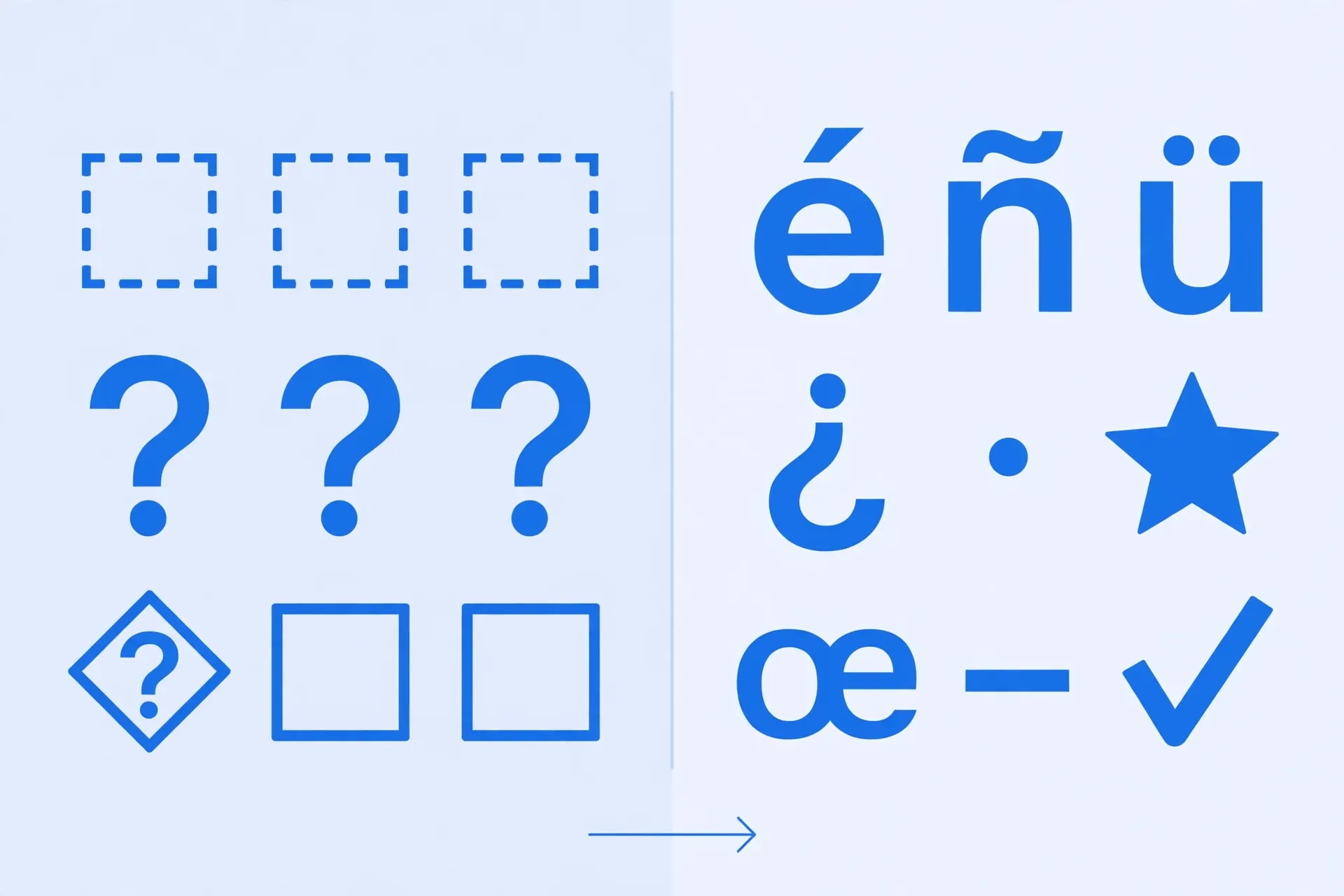
é→é,€→€) → encoding problem. The bytes are being decoded with the wrong decoder. Fix: import as UTF-8. - Empty boxes (□) or question marks in diamonds → font problem (sometimes called “tofu”). The characters decoded fine, but the current font has no glyph to draw them. Fix: change the font.
- Question marks (?) everywhere → ambiguous: could be either. Check the raw file in Notepad — if Notepad shows the characters correctly, it’s a font issue in Excel; if Notepad also shows garbage, it’s encoding.
The two causes also stack: a Hindi CSV opened as ANSI and displayed in a Latin-only font fails twice. Work the layers in order — encoding first (get the right characters), then font (draw them correctly). This two-layer CSV special characters Excel diagnosis is the foundation for every fix below.
Cause 1: Encoding Mismatch (Mojibake)
Mojibake is what happens when a UTF-8 file is decoded as ANSI (Windows-1252). UTF-8 represents é as two bytes; ANSI reads those two bytes as two separate characters, é. The pattern is perfectly consistent — every é in the file becomes é — which is both the diagnosis and the reassurance: the data is intact, only the decoder is wrong.
The fix, in full: don’t double-click the CSV. Import it with the Text Import Wizard (Data → Get Data → Legacy Wizards → From Text) or Power Query (Data → From Text/CSV) and set File Origin to 65001: Unicode (UTF-8). The preview heals instantly. Our UTF-8 encoding guide covers this in depth, including the BOM’s role and Mac-specific steps.
One caution: if the file was saved from Excel as plain “CSV (Comma delimited),” it may genuinely be ANSI — in that case UTF-8 import makes things worse, and File Origin 1252 is correct. When in doubt, open the CSV in Notepad and use File → Save As to see the actual encoding.

Cause 2: Missing Font Glyphs (Tofu Boxes)
When the characters are correct but Excel can’t draw them, you get □□□. Excel’s default fonts (Calibri, Aptos) cover Latin, Greek, Cyrillic, and more — but not every script. The fix is trivial: select the cells and change the font to one that covers the script:
- Devanagari (Hindi, Marathi): Nirmala UI, Mangal (Windows); Kohinoor Devanagari (Mac).
- Arabic: Arial, Times New Roman, or Traditional Arabic.
- Chinese: Microsoft YaHei, SimSun (Simplified); PMingLiU (Traditional).
- Japanese: MS Gothic, Yu Gothic. Korean: Malgun Gothic, Batang.
- Thai, Vietnamese: Leelawadee UI, Tahoma.
How to confirm it’s the font: copy a broken cell’s content and paste it into a browser search box or Word with a different font — if the characters appear, the data was always fine. Pro tip: set the font before sharing the file, or recipients on other machines hit the same tofu.
Accented Latin Characters: é, ñ, ü, ç
Western European accents are the most common special-character case worldwide — French é è ê, German ä ö ü ß, Spanish ñ, Portuguese ã õ ç. They’re all in Windows-1252 and UTF-8, which creates a specific trap: a UTF-8 file decoded as ANSI shows the classic doubled gibberish (ü → ü), while an ANSI file decoded as UTF-8 can show replacement characters or fail on the € and smart quotes that 1252 adds beyond standard Latin-1.
The universal fix remains UTF-8 import (File Origin 65001), since the modern world writes UTF-8. Fonts are rarely the issue here — Calibri and Aptos cover all Western European glyphs. One exception: Turkish ğ ş ı and Central European ř ě ů ő ű need the encoding right but render fine in standard fonts. If accented capitals (É, Ü) specifically break while lowercase works, suspect a legacy system exporting in a regional codepage — try File Origin 1250 (Central European) or 1254 (Turkish).

Currency and Math Symbols: €, £, ¥, ₹
Currency symbols are multi-byte in UTF-8 and therefore prime mojibake victims: € → €, £ → £, ¥ → Â¥. The Indian rupee sign ₹ (U+20B9, added to Unicode in 2010) has an extra wrinkle: very old fonts predate it and show tofu even with correct encoding — use a current font.
Beyond fixing the display, think about what currency symbols do to your numbers: a price written as €1.234,56 is text, not a number, and won’t sum. For calculating, strip symbols and normalize decimals at import (see our semicolon guide’s European-decimals section), keeping a display column with symbols if needed. And when saving CSVs with currency symbols, always use “CSV UTF-8” — plain CSV (ANSI) preserves Western symbols but destroys ₹ and ¥ for recipients.

Hindi, Arabic, Chinese, and Right-to-Left Text
Hindi and Indic scripts
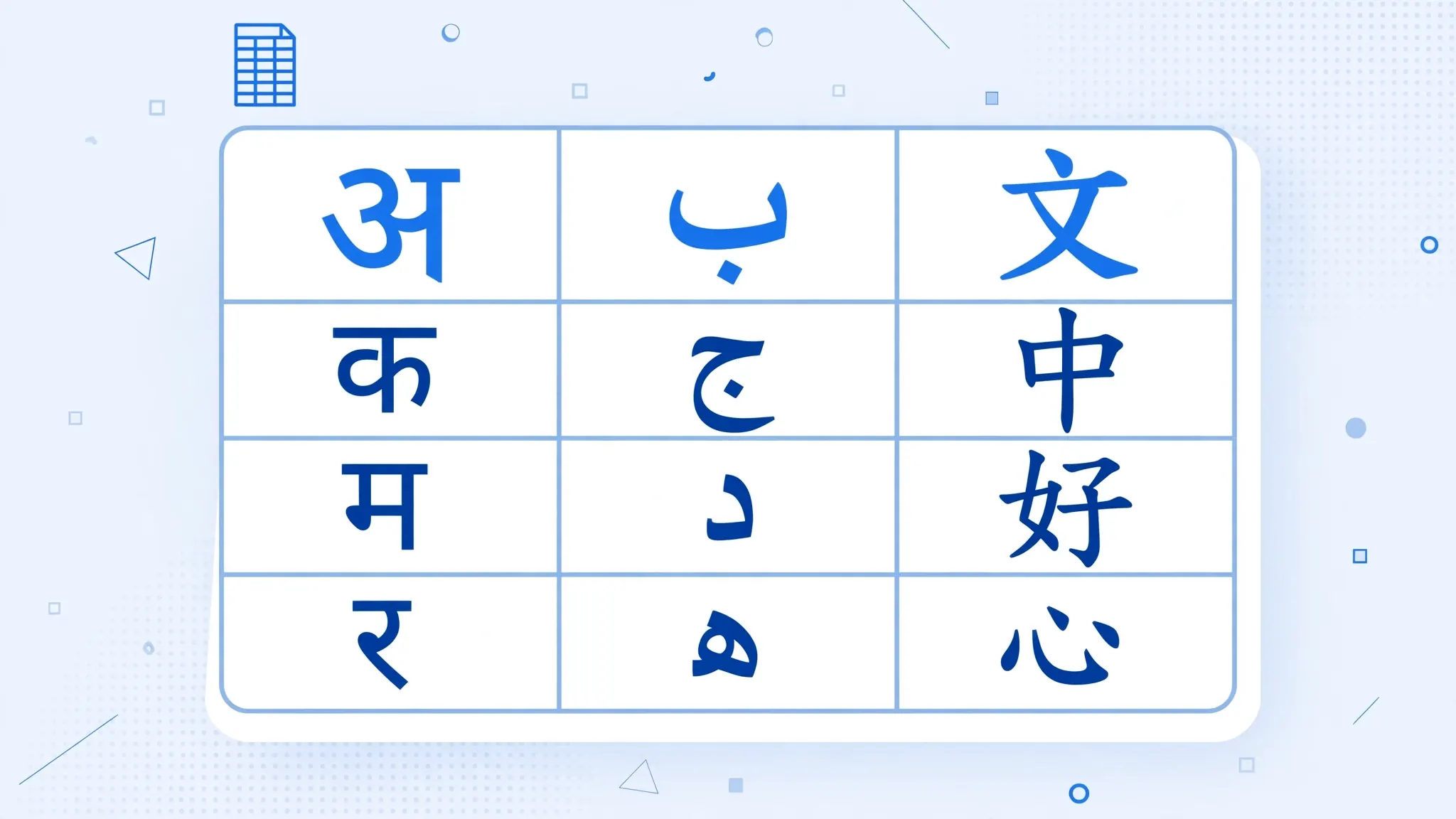
Devanagari needs UTF-8 import plus a Devanagari-capable font (Nirmala UI on Windows). Watch for a font-specific issue: broken conjuncts (characters that should merge but display separated) mean the font’s OpenType shaping is weak — switch fonts before blaming the data. Sorting Hindi text alphabetically works once the encoding is right, since Unicode collation handles Devanagari order.
Arabic, Hebrew, and right-to-left layout
Two extra steps beyond UTF-8 import and font: set the sheet direction to right-to-left (Page Layout → Sheet Right-to-Left) so text flows correctly, and be aware that mixed-direction cells (Arabic name + Latin email) need Unicode bidi controls to display in the right order — Excel handles most cases automatically, but verify visually. Numbers inside RTL text can also jump position; check totals columns carefully.
Chinese, Japanese, Korean
CJK text is three bytes per character in UTF-8 — maximum mojibake when misdecoded, instantly fixed by UTF-8 import. Use a CJK font (Microsoft YaHei, MS Gothic, Malgun Gothic). Note mainland-Chinese legacy systems sometimes export GB2312/GBK: if UTF-8 import still shows garbage, try File Origin 936.
Emoji and Pictographs in CSV
Modern CSVs increasingly contain emoji — in product reviews, chat exports, social media data. Emoji are four-byte UTF-8 sequences, so ANSI decoding destroys them utterly (each emoji becomes four mojibake characters). UTF-8 import restores them, but display needs a color-emoji font: Segoe UI Emoji on Windows, Apple Color Emoji on Mac. In monochrome contexts (some PDF exports, older Excel), emoji fall back to outline glyphs or boxes — the data is still correct underneath.
Working with emoji in formulas: LEN() counts UTF-16 code units, so a single emoji can report length 2 — use this knowledge when validating field lengths. LEFT()/RIGHT() can split surrogate pairs and produce invalid characters; prefer TEXTBEFORE/TEXTAFTER on delimiters instead of positional slicing for emoji-containing text.
Smart Quotes, Dashes, and “Invisible” Characters
A special category of character trouble: characters that look right but break matching. Curly quotes (“ ” vs "), em/en dashes (— – vs -), and non-breaking spaces (U+00A0, invisible but not a real space) cause VLOOKUPs to fail on visually identical strings. The classic symptom: two cells look the same, =A2=B2 returns FALSE.
Diagnosis: =CODE(LEFT(A2,1)) reveals the true first character; =LEN(A2) vs visible length exposes hidden characters. Cleanup: =TRIM(CLEAN(SUBSTITUTE(A2,CHAR(160)," "))) strips most junk — CLEAN removes non-printables, the SUBSTITUTE targets non-breaking spaces (CHAR(160)), TRIM normalizes spacing. For curly-quote normalization, a targeted SUBSTITUTE chain converts them to straight quotes. Run this cleanup on join keys before any VLOOKUP across systems — it’s the number-one fix for “but they look identical!” mismatches.
Line Breaks and Tabs Inside CSV Fields
Well-formed CSVs can contain real line breaks inside quoted fields — addresses spanning multiple lines, multi-paragraph notes. Excel’s import handles these (the row stays one row), but double-click opening can split them into extra rows. After import, enable Wrap Text to display them properly; in formulas, CHAR(10) represents the line break (=SUBSTITUTE(A2,CHAR(10),", ") flattens an address to one line).
Stray tab characters inside fields cause a different headache: they look like column separators but aren’t, misaligning visual inspection. =SUBSTITUTE(A2,CHAR(9)," ") cleans them. And if your delimiter detection keeps failing, check for these hidden characters first — they’re the usual suspects when “the delimiter looks right but the split is wrong.”
Sorting and Searching Multilingual Text
Once characters display correctly, working with them has its own rules. Excel sorts Unicode text by code-point order, which is mostly alphabetical per script but not always linguistically correct (e.g., Spanish ñ sorts after n in code points — correct — but some accented orderings surprise). For critical multilingual sorting, verify the order against expectations rather than assuming.
Searching: SEARCH() is case-insensitive and works across scripts; FIND() is case-sensitive. Neither is accent-insensitive — searching for cafe won’t match café. For accent-insensitive matching, normalize with a SUBSTITUTE chain on the accented variants, or use Power Query’s transformation functions. And EXACT() compares with full Unicode precision — useful for catching the invisible-character mismatches described above.
The Complete UTF-8 Workflow
Putting both layers together — the end-to-end routine for any international CSV:
- Inspect: open the CSV in Notepad. Correct there? The file is fine; Excel is the problem. Garbage there too? Note the encoding shown in File → Save As.
- Import: blank workbook → Data → From Text/CSV → set File Origin 65001 (UTF-8) → set the delimiter → set column types (Text for codes!) → Load.
- Font check: scan for tofu boxes; change the font per script if needed.
- Direction check: for RTL languages, set sheet right-to-left.
- Save correctly: File → Save As → CSV UTF-8 (with BOM) for CSV handoffs, or
.xlsxfor Excel users — both preserve every character.
Run this checklist once per data source and international text stops being scary. As a CSV special characters Excel routine, it covers both failure layers in about two minutes per file. The full encoding deep-dive lives in our UTF-8 guide.
Quick Reference: Common Mojibake Patterns
Recognize the pattern, name the cause, apply the fix:
é, è, êfor é, è, ê → UTF-8 read as ANSI. Fix: File Origin 65001.ü, ä, öfor ü, ä, ö → same cause, same fix.ñfor ñ,çfor ç → same cause, same fix.€for €,£for £ → same cause, same fix.“ â€for curly quotes → same cause, same fix.at file start → a BOM displayed as ANSI; harmless, or re-save properly.åã©-style triple garbage for CJK → UTF-8 read as ANSI; same fix.- Correct in Notepad, boxes in Excel → font issue, not encoding. Change the font.
Print this list and tape it to your monitor. Ninety percent of character complaints match one of these lines.
When to Escalate: Truly Broken Files
Not everything is a simple misdecode. Escalate when you see:
- Double-encoded UTF-8: mojibake of mojibake (
é) — the file was decoded as ANSI and re-saved as UTF-8, baking the corruption in. Recovery: decode the current bytes as UTF-8, then re-encode as ANSI bytes, then decode as UTF-8 again — a Python one-liner (open(f,encoding='utf-8').read().encode('cp1252').decode('utf-8')), or ask the source for a fresh export. - Mixed encodings in one file: concatenated exports where half the rows are UTF-8 and half ANSI. No single File Origin fixes both — split the file by row ranges and import each with its encoding, or normalize with a script first.
- Control characters as data: binary junk (NULL bytes, ESC sequences) from mainframe extracts. Strip with CLEAN() or a preprocessing script before Excel ever sees the file.
For all three, the pragmatic answer is often “get a clean export” — but when the source is gone, the techniques above recover what automation cannot.
Convert Once, Keep Every Character
The free CSV to Excel converter decodes your file as UTF-8 (auto-detecting the BOM) and writes a native .xlsx workbook where every character — accents, currency symbols, Devanagari, Arabic, CJK — is stored as Unicode. No File Origin to set, no font guesswork at import (though you may still want a script-capable font for display). It runs entirely in your browser, so sensitive multilingual data never leaves your machine.
Prevent It Forever
- Standardize on UTF-8 with BOM for all CSVs your team produces.
- Save from Excel as “CSV UTF-8” — never plain CSV — for international data.
- Set script-capable fonts in templates used for multilingual data.
- Share .xlsx with Excel users — Unicode is native, no decoding involved.
- Document the encoding for machine-consumed files.
- Clean invisible characters (non-breaking spaces, curly quotes) on join keys before cross-system VLOOKUPs.
- Test with real multilingual samples — a test file containing é, €, Devanagari, and CJK text catches encoding regressions before they reach production data.
Wrapping Up
Special characters break in Excel for two reasons — wrong decoder (mojibake) or wrong font (tofu boxes) — and the 30-second diagnosis tells you which. Fix encoding with UTF-8 import (File Origin 65001), fix fonts by switching to a script-capable typeface, handle RTL layout for Arabic/Hebrew, and save as CSV UTF-8 or .xlsx to keep everything intact. The same two-layer method covers French accents, euro signs, Hindi names, and Chinese product lists alike. If you’re fighting a particularly exotic script or a legacy codepage, join the discussion in our community forum with a sample of the raw bytes — script puzzles are welcome there.
Frequently Asked Questions
Why do special characters break when opening CSV in Excel?
Two possible causes: an encoding mismatch (a UTF-8 file decoded as ANSI, producing mojibake) or a font that lacks the glyphs (producing empty boxes). This CSV special characters Excel diagnosis — wrong-but-consistent characters means encoding, missing boxes means font — tells you which layer to fix.
How do I fix accented characters in an Excel CSV?
Import the file with the Text Import Wizard or Power Query and set File Origin to 65001: Unicode (UTF-8). Accented characters like é, ñ, and ü decode correctly under UTF-8. Standard fonts render them fine — no font change needed.
Why do I see empty boxes instead of characters?
The tofu boxes mean the current font has no glyph for that character. The data underneath is fine — change the cell font to one covering the script (Nirmala UI for Devanagari, Microsoft YaHei for Chinese, Arial for Arabic). Confirm by pasting the text into a browser, where it will render.
How do I handle Hindi, Arabic, or Chinese text in CSV?
Import the CSV as UTF-8, set a font supporting the script, and for right-to-left languages (Arabic, Hebrew) set the sheet direction to right-to-left under Page Layout. Each step fixes a different layer. Our UTF-8 guide has the full multilingual playbook.
Why are my currency symbols wrong in Excel CSV?
Symbols like €, £, and ¥ are multi-byte in UTF-8, so decoding the file as ANSI garbles them (€ becomes €). Importing with File Origin 65001 (UTF-8) restores them. For the Indian ₹, also ensure a current font, since very old fonts predate the symbol.
Does converting CSV to XLSX preserve special characters?
Yes. XLSX stores text as native Unicode, so once the characters are decoded correctly during conversion, they are preserved permanently with no encoding to guess. The free converter at csvtoexcel.site/ decodes as UTF-8 automatically.