

You double-click a CSV file, Excel opens it — and every row is crammed into a single column, or the columns land in all the wrong places. Your first thought is that the file is broken. It usually isn’t. In almost every case, the CSV delimiter is not working in Excel simply because Excel is splitting the file on a different character than the one the file was saved with.
A CSV (“comma-separated values”) file is really just plain text. There is no metadata inside the file that tells Excel “hey, I use semicolons” or “I use tabs.” So when you double-click, Excel makes an assumption: it uses your Windows list separator — a system setting tied to your region. In the US, UK, India, Canada, and Australia, that separator is the comma. In Germany, France, Spain, Italy, Brazil, and much of Europe and Latin America, it’s the semicolon, because the comma is already used there as the decimal separator. If the file’s delimiter and your system’s separator don’t match, you get the one-column mess.
The good news: this is a two-minute fix once you know where Excel hides its delimiter controls. In this guide you’ll learn how to diagnose the real delimiter in any CSV in under 30 seconds, how to change the delimiter in Excel using the Text Import Wizard and Power Query, how to adjust the Windows list-separator setting when you want a permanent fix, and how to handle tricky cases like quoted commas, tabs, and pipe-delimited files. You’ll also learn a zero-effort route — converting the file first with our free CSV to Excel converter, which detects the delimiter for you — so you never have to wrestle with this again.
What a Broken Delimiter Actually Looks Like
Delimiter trouble shows up in a few recognizable ways. The most common: you open a CSV and all the data sits in column A, each row looking like Name;Email;City stretched across one cell. That means the file uses semicolons and Excel was looking for commas. The reverse happens too — a comma-separated file opened on a German Windows machine splits on semicolons that don’t exist, producing the same single-column result.
Sometimes the symptom is subtler. The file splits, but into the wrong number of columns: dates merge with names, or you get five columns in row one and nine in row twelve. That usually means the file contains quoted fields — like "Smith, John" — and the import didn’t respect the quotes, or the file mixes delimiters (commas in some rows, semicolons in others) because it was hand-edited. Another classic: tab-separated data (common in exports from older databases and some accounting software) pastes into Excel as one column of tab-spaced text.
Here’s a concrete before-and-after. Say your CSV looks like this in Notepad:
Name;Email;City;Orders
Priya Sharma;priya@example.com;Mumbai;14
John Carter;john@example.com;London;7
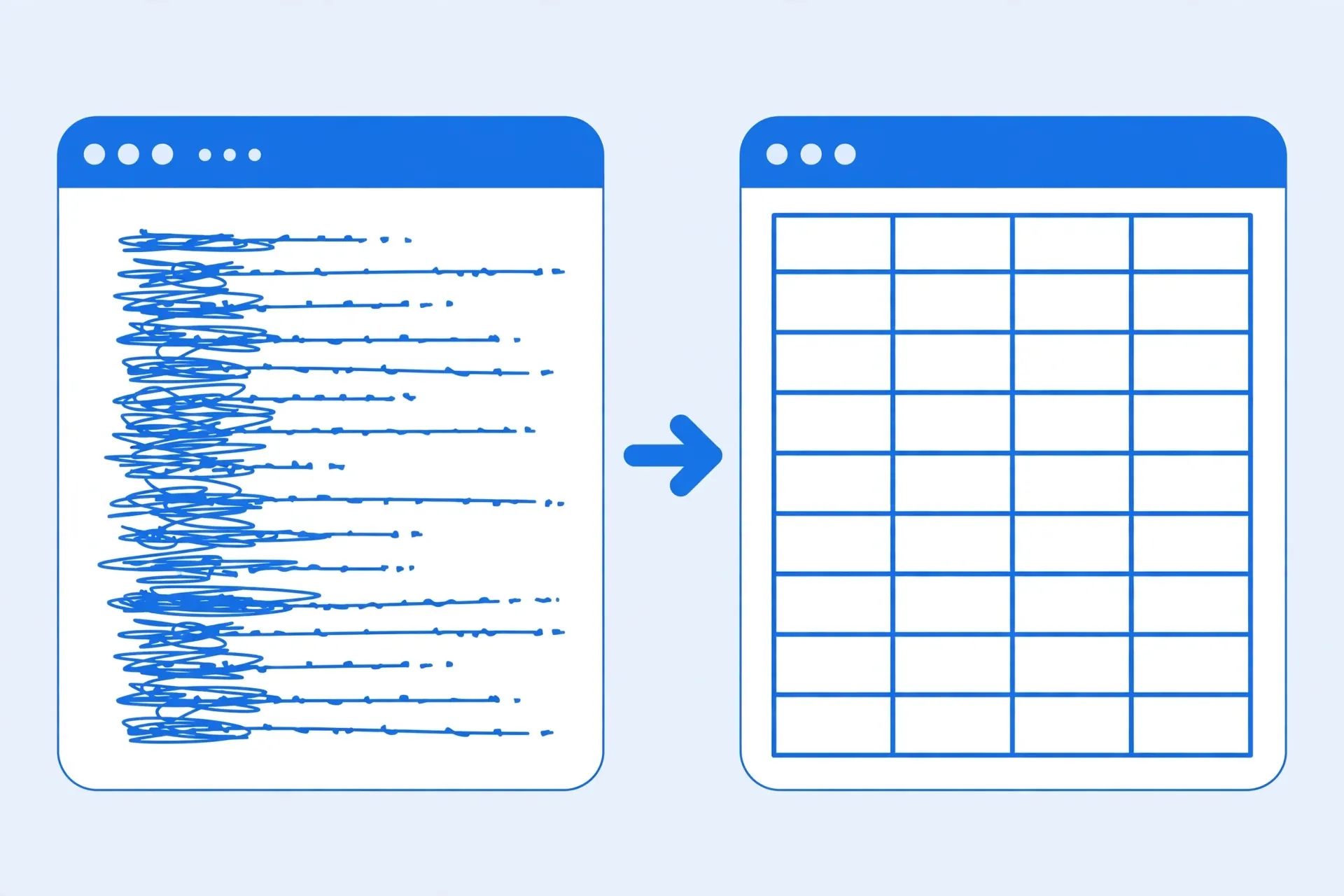
Opened by double-click on a US Windows machine, Excel looks for commas, finds none, and puts Name;Email;City;Orders entirely into cell A1. After importing with the semicolon delimiter selected, you get four clean columns — Name, Email, City, Orders — exactly as the sender intended. The file never changed; only the delimiter Excel used to split it changed.
CSV Delimiter Not Working in Excel: Why It Happens
To fix this confidently, it helps to understand what Excel is actually doing. A CSV file contains no formatting, no column-width information, and no delimiter declaration — it’s just lines of text. When you double-click a .csv file, Excel opens it the fast way: it reads each line and splits it wherever it finds your system’s list separator. It does not scan the file and guess. That single design decision is the root of nearly every “CSV delimiter not working in Excel” complaint.
Your list separator comes from Windows Region settings, which follow your locale. English-speaking locales (United States, United Kingdom, India, Canada, Australia) use the comma. Much of continental Europe and Latin America uses the semicolon, because in those locales the comma is the decimal mark — writing 1,5 means “one and a half,” so a comma can’t safely separate fields. That’s why a CSV exported from SAP in Germany, a bank statement from France, or a Shopify export configured for a European store arrives semicolon-separated, and then looks broken on an American or Indian machine.
There are other ways files end up with unexpected delimiters. Some systems export tab-separated values but still name the file .csv. Pipe-delimited files (|) are common in telecom and healthcare data feeds. And some exports quote every field and separate with commas, which is fine — until someone opens the file in a text editor, “fixes” something, and saves it with the editor’s default line endings or encoding, occasionally mangling the structure.
The key insight: the delimiter is a property of the file, and the separator is a property of your system. A mismatch between the two is not corruption, and you should never “fix” it by find-and-replacing characters inside the file blindly — that risks breaking quoted text. Instead, tell Excel which delimiter to use during import, which is exactly what the next three fixes do.
Diagnose the Real Delimiter in 30 Seconds
Before changing any settings, look at the raw file. This takes half a minute and prevents you from guessing.
- Right-click the CSV file and choose Open with → Notepad (Windows) or TextEdit (Mac). Do not open it in Excel yet.
- Look at the first two lines. The character that appears consistently between every field is your delimiter.
Name,Email,City→ comma.Name;Email;City→ semicolon. Wide gaps → tab.Name|Email|City→ pipe. - Check the second and third lines too. If the character pattern changes between rows, the file has mixed delimiters or unquoted commas inside fields (like
1,000written without quotes) — note it, because you’ll want the text qualifier set correctly during import. - Glance at the decimal marks. If numbers look like
1.234,56, the file came from a European locale and almost certainly uses semicolons. If they look like1,234.56, expect commas.
Write down the delimiter you found. You’ll use it in the very next step. If you see commas inside quoted fields — "Acme, Inc.",42 — don’t worry: a proper import treats the text qualifier (the double-quote character) correctly and won’t split inside the quotes. This is one reason importing beats double-clicking: the import wizards understand quoting; the double-click path is dumber about it.
Fix 1: Change the Delimiter in Excel with the Text Import Wizard
The Text Import Wizard is the classic way to change the delimiter in Excel, and it’s still the most reliable method in every desktop version of Excel, including Excel 2019, Excel 2021, and Microsoft 365. Instead of double-clicking the file, you import it and tell Excel exactly which delimiter to split on. Here’s the full walkthrough.
- Open a blank Excel workbook. Don’t open the CSV directly — start from a fresh, empty workbook so the wizard runs properly.
- Go to the Data tab. In the Get & Transform Data group, click Get Data → From File → From Text/CSV if you want the modern import, or Get Data → Legacy Wizards → From Text (Legacy) for the classic three-step wizard. (If you don’t see Legacy Wizards, enable it under File → Options → Data → Show legacy data import wizards.)
- Select your CSV file and click Import. The Text Import Wizard opens at Step 1 of 3.
- Step 1 — Choose “Delimited”. The wizard asks whether the file is Delimited or Fixed width. Pick Delimited. Set “Start import at row” to 1 unless your file has header junk above the real data. Click Next.
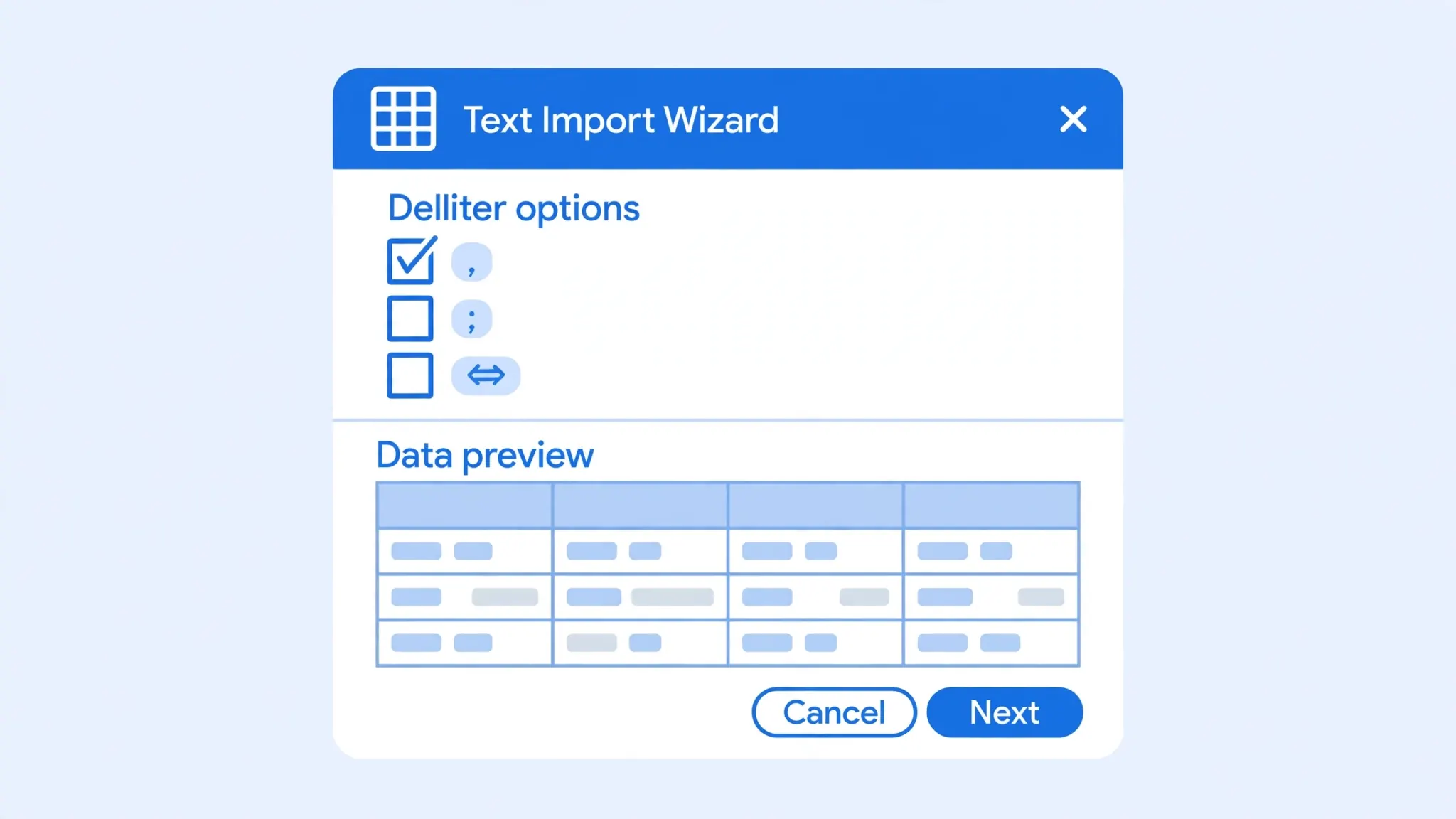
- Step 2 — Tick your delimiter. This is the money step. Untick whatever is checked and tick the delimiter you diagnosed earlier: Semicolon, Comma, Tab, Space, or Other (type a pipe
|or any custom character). Watch the Data preview pane at the bottom — the vertical lines should now fall exactly between your columns. Keep Text qualifier set to the double-quote"so quoted commas like"Smith, John"stay together. Click Next. - Step 3 — Set column data formats. Click a column in the preview and set its format. This step is gold for the other classic CSV problems: set ZIP-code or ID columns to Text so Excel never strips leading zeros, and set date columns to Date with the right order (MDY for US files, DMY for European files). Then click Finish.
- Choose where to put the data (existing worksheet is fine) and click OK. Your data lands in clean columns.
Notice what just happened: you changed the delimiter in Excel for this import without touching any system setting. The wizard remembered nothing permanently, so your other files are unaffected. If you import semicolon files often, bookmark this flow — it takes about 20 seconds once you’ve done it twice.
What if the wizard doesn’t appear?
In Microsoft 365, Data → From Text/CSV opens the Power Query preview instead of the legacy wizard — that’s Fix 2 below, and it’s just as good. If you specifically want the legacy wizard and it’s missing from the ribbon, the toggle at File → Options → Data → Show legacy data import wizards brings it back. On Excel for Mac, the legacy wizard isn’t available at all — use Power Query (Fix 2) or the converter route (Fix 4).
Fix 2: Pick the Delimiter with Power Query (Data > From Text/CSV)
Power Query is the modern import engine in Excel 2016 and later (including Microsoft 365), and it’s the best choice when your CSV delimiter is not working in Excel because it shows you a live preview and lets you switch delimiters with one dropdown — no wizard steps, no system changes.
- Open a blank workbook and go to Data → From Text/CSV.
- Select your CSV file. Power Query opens a preview window showing the first 200 rows.
- Find the Delimiter dropdown in the preview header. If Excel guessed wrong, change it: Comma, Semicolon, Tab, Space, Colon, or Custom (for pipes and anything exotic).
- Watch the preview update instantly. Columns should snap into place. If some rows still look off, check the File Origin dropdown too — a wrong encoding (say, 1252 Western European instead of UTF-8) can mimic delimiter trouble by garbling characters. Our guide on fixing CSV encoding problems in Excel covers that in depth.
- Click Load to drop the data into a new worksheet, or Load To to choose a specific location or load into the Data Model.
Power Query has two extra superpowers worth knowing. First, the import is repeatable: if you get a fresh copy of the same report every week with the same semicolon layout, right-click the query and hit Refresh instead of redoing the import. Second, Power Query handles files the legacy wizard chokes on — mixed line endings, very long rows, and files over a million rows (it can aggregate or filter before loading). For a full walkthrough of the Power Query route, see our guide to importing CSV with Power Query in Excel.
Fix 3: Excel CSV Delimiter Settings — the Windows List Separator
If every CSV you receive uses semicolons — say you work with European vendors or a German ERP system — fixing each file individually gets old. The permanent fix is to change the Excel CSV delimiter setting at its source: the Windows list separator. After this change, double-clicking a semicolon-separated CSV will “just work.”
- Close Excel completely. The setting is read when Excel starts.
- Open Control Panel → Clock and Region → Region. (On Windows 11, you can also go to Settings → Time & language → Language & region → Administrative language settings, which opens the same Region dialog.)
- Click “Additional settings…” at the bottom of the Formats tab.
- Find the “List separator” field and change it to the delimiter your files use — for example, change the comma to a semicolon.
- Click OK, then OK again, and reopen Excel. Double-click your CSV: it should now split into columns correctly.
A few honest caveats before you do this. The list separator is system-wide, not an Excel-only preference. Other programs that read the setting — some accounting tools, database clients, and even Excel’s own behavior when saving CSVs — will follow the new separator. Notably, when you save a workbook as CSV afterward, Excel will use your new separator in the exported file, which can surprise whoever receives it. Also, this setting does nothing on Mac, and it won’t help if your files genuinely mix delimiters.

Our recommendation: use Fix 3 only when all your incoming files share one delimiter that differs from your locale default. For one-off files from mixed sources, the per-file import (Fix 1 or Fix 2) is safer and keeps your system defaults intact. And remember — changing the list separator changes how Excel opens CSVs by double-click, but files you import through the wizard or Power Query still let you pick the delimiter manually each time.
Special Cases: Quotes, Tabs, Pipes, and Mixed Files
Most delimiter problems are comma-vs-semicolon, but the tricky ten percent deserve their own playbook.
Quoted fields containing the delimiter
A well-formed CSV wraps fields that contain the delimiter in double quotes: "Acme, Inc.",42,New York. Both the Text Import Wizard and Power Query respect the text qualifier by default, keeping Acme, Inc. in one cell. Trouble starts when a file was hand-edited and a quote is missing or doubled incorrectly — then columns shift from that row onward. The symptom is unmistakable: everything looks fine until row 47, then chaos. The cure is to fix the quoting in a text editor (or ask the sender for a clean export), not to change delimiters.
Tab-separated files named .csv
Database exports and some payroll systems emit tabs but keep the .csv extension. In Notepad you’ll see wide gaps between fields. During import, tick Tab (wizard) or choose Tab in the Power Query delimiter dropdown. If you do this often, consider our TSV to Excel guide — renaming to .tsv doesn’t change Excel’s behavior, but importing with the tab delimiter does.
Pipe-delimited files
Pipes (|) are popular in system-generated feeds because the character almost never appears in real data. Neither the wizard nor Power Query lists “pipe” as a preset — choose Other (wizard) or Custom (Power Query) and type the pipe character. See also our dedicated pipe-delimited CSV to Excel guide.
Mixed delimiters in one file
Sometimes a file uses semicolons in most rows and commas in a few — usually because two systems’ exports were concatenated, or someone edited rows by hand. No single delimiter setting will parse this perfectly. The pragmatic approach: import with the majority delimiter, then use Data → Text to Columns on the straggler rows with the other delimiter. For recurring messes, Power Query’s “Split Column by Delimiter” applied selectively is the cleaner long-term fix.
Semicolons inside European data
In semicolon-separated files from Europe, decimals look like 1.234,56 and the semicolon separates fields — consistent and safe. But addresses or notes fields sometimes contain stray semicolons without quotes. If one or two rows mis-split, fix those rows manually after import rather than fighting the whole file.

Fix 4: Convert First and Skip the Delimiter Fight
When your CSV delimiter is not working in Excel and you just need the data now, conversion is the path of least resistance. Our free CSV to Excel converter runs entirely in your browser — your file never leaves your computer — and it auto-detects the delimiter (comma, semicolon, tab, or pipe) before building a clean .xlsx workbook with every column in its place.
This route shines in a few specific situations. You’re on a borrowed or locked-down machine where you can’t change Windows settings. You’re on a Mac or Chromebook where the legacy wizard doesn’t exist. The file is one of fifty you need to convert today — batch the lot through the converter instead of wizarding each one (see our batch conversion guide). Or you simply don’t want to think about delimiters ever again: drag, drop, download, done.
One more advantage: a proper .xlsx file remembers its structure. CSVs re-trigger the delimiter question every single time anyone opens them. Converting once to Excel format ends the cycle — the columns are stored explicitly, so the next person who opens the file sees exactly what you saw, regardless of their locale or list-separator setting.
Prevent It Forever: A Delimiter Checklist
Fixes are good; never needing them is better. Run through this checklist and delimiter problems mostly disappear:
- Know your counterpart’s locale. Receiving files from Germany, France, or Brazil? Expect semicolons. From the US, UK, India, or Australia? Expect commas. Ask once, configure once.
- Standardize at the source. If you control the export (a web app, a database query, a script), pick one delimiter and document it. Comma with proper quoting is the most portable choice worldwide.
- Convert to .xlsx for sharing. When you send data to colleagues, send an Excel workbook, not a CSV. It eliminates the delimiter question for everyone downstream.
- Never “fix” a CSV by find-and-replace in Notepad. Replacing every semicolon with a comma will also replace semicolons inside quoted text and addresses, creating worse problems. Import with the right delimiter instead.
- Keep a template import. If the same report arrives monthly, save a Power Query connection once and just hit Refresh — the delimiter choice is stored with the query.
- Watch the preview. Whatever method you use, the 5-second preview check (do the vertical lines fall between real columns?) catches every delimiter mistake before it costs you an hour of cleanup.

Wrapping Up
A CSV delimiter not working in Excel is never a broken file — it’s a mismatch between the character your file uses and the character your system expects. Diagnose the real delimiter in Notepad, then either change the delimiter in Excel during import (Text Import Wizard or Power Query), adjust the Windows list-separator setting for a permanent fix, or skip the whole dance by converting with our free CSV to Excel converter. Pick the fix that matches your situation — one-off file, recurring report, or a whole new locale of data — and the columns will land where they belong, every time. If you hit an edge case this guide didn’t cover, join the discussion in our community forum and describe what your file looks like in Notepad.
Frequently Asked Questions
Why is my CSV delimiter not working in Excel?
When you double-click a CSV file, Excel does not guess the delimiter. It simply splits the file using your Windows list separator (set in Region settings). If your file uses semicolons but your system expects commas, Excel finds no commas, so every row lands in a single column. The fix is to import the file instead of double-clicking it: use Data → From Text/CSV or the Text Import Wizard and pick the correct delimiter yourself.
How do I change the delimiter in Excel?
Excel has no single global delimiter switch for opening files. You change the delimiter per import: open the Text Import Wizard (Data → Get Data → Legacy Wizards → From Text), tick the right delimiter on step 2, and finish the import. Alternatively, change the Windows list separator in Control Panel → Region → Additional settings, which affects how Excel opens CSVs by double-click.
How do I open a semicolon-separated CSV in Excel?
Use Data → From Text/CSV (Power Query), select the file, then change the Delimiter dropdown from Comma to Semicolon in the preview window and click Load. In older Excel versions, use the Text Import Wizard and tick the Semicolon box on step 2 of 3. For a deeper dive, see our guide on converting semicolon-separated CSVs to Excel.
Why does Excel put all my CSV data in one column?
All data in one column is the classic symptom of a delimiter mismatch. Open the CSV in Notepad to see which character actually separates the fields (comma, semicolon, tab, or pipe), then re-import the file with that delimiter selected. If the data is already open in Excel, Data → Text to Columns can split it after the fact — full steps in our one-column fix guide.
Can I convert a CSV with the wrong delimiter to Excel online?
Yes. Upload the file to the free converter at csvtoexcel.site/. It detects the delimiter in your file and converts it to a proper .xlsx workbook with every column in its own place, so you never have to fight the delimiter at all.
Does changing the Windows list separator affect other programs?
It can. The list separator is a system-wide setting, so other applications that rely on it (other spreadsheet tools, some database exports) may behave differently. For that reason, prefer fixing the delimiter per file with the import wizard rather than changing the system setting, unless every file you handle uses the same delimiter.