
Learning to Google Sheets Apps Script automate your work is like hiring an assistant who lives inside your spreadsheets, works for free, and never sleeps. Every week, millions of people open the same Google Sheet, paste in fresh CSV data, reformat it, rebuild the summary, and email a screenshot to the team — a ritual that Apps Script, Google’s built-in JavaScript automation platform, can shrink to zero. If you have ever thought “I do the exact same clicks in this sheet every Monday,” this Apps Script tutorial will show you how to make those clicks happen by themselves.
In this guide you will learn how to automate Google Sheets from absolute zero: what Apps Script is and why it beats manual repetition, how to open the script editor in sixty seconds, just enough JavaScript to be dangerous (in a good way), how to read and write sheet data with code, and then three complete Google Sheets script examples you can use today — auto-formatting CSV imports, emailing PDF reports automatically, and scheduling tasks with time-driven triggers. You will also learn to add custom menus so teammates can run your scripts, debug without tears, and understand Apps Script quotas and limits. Whether you run a Shopify store in the US, manage operations in the UK, freelance in India, or coordinate a team across Canada and Australia, these automations work identically everywhere — because they run in Google’s cloud, not on your laptop.

What is Apps Script, and why automate Google Sheets with it?
Google Apps Script is a cloud scripting platform based on JavaScript, built into Google Workspace. Inside Google Sheets, it lets you write small programs that read cells, write values, format ranges, create charts, send emails, call web APIs, and run on schedules — all executing on Google’s servers, not your computer. It is free with any Google account, requires no installation, and works identically on Windows, Mac, Linux, Chromebooks, and phones.
Why choose it over manual work or Excel VBA? Three reasons. First, it is where your data already lives — if your team collaborates in Sheets, the automation lives with the sheet and everyone benefits. Second, it talks to all of Google: Gmail for emailing reports, Drive for file management, Calendar for scheduling context, Forms for data collection — one script can orchestrate the whole workflow. Third, it runs unattended: time-driven triggers execute your code on schedule with nobody’s laptop open. The official Apps Script documentation is excellent once you are rolling, but this guide gets you there first.
Opening the Apps Script editor: your first 60 seconds
- Open any Google Sheet (or create a blank one for practice).
- Extensions → Apps Script. The script editor opens in a new tab with a default
Code.gsfile. - Run the hello-world: replace the sample with
function hello() { SpreadsheetApp.getUi().alert('Hello from Apps Script!'); }, click Run, authorize when asked, and watch the alert appear in your sheet.
That authorization prompt deserves a sentence: the first time a script touches your Google account, Google asks permission — this is normal and safe for your own scripts. Only authorize scripts you wrote or trust, just as you would only enable macros from trusted sources in Excel.
JavaScript crash course: just enough to automate
You need about 10% of JavaScript to automate Sheets. Here is that 10%:
- Variables:
let name = "Q3";stores a value.constis for values that never change. - Functions:
function cleanReport() { … }packages steps under a name. - Loops:
for (let i = 0; i < data.length; i++) { … }repeats work over rows. (Note: JavaScript arrays are zero-based — the first row isdata[0].) - Conditions:
if (amount > 1000) { … } else { … }makes decisions. - Logging:
Logger.log(value);prints to the Executions log — your debugging lifeline.
If you have seen VBA or Office Scripts, the ideas are identical — objects, loops, conditions — only the syntax differs. Our Office Scripts guide covers the TypeScript-flavored parallel for Excel users.
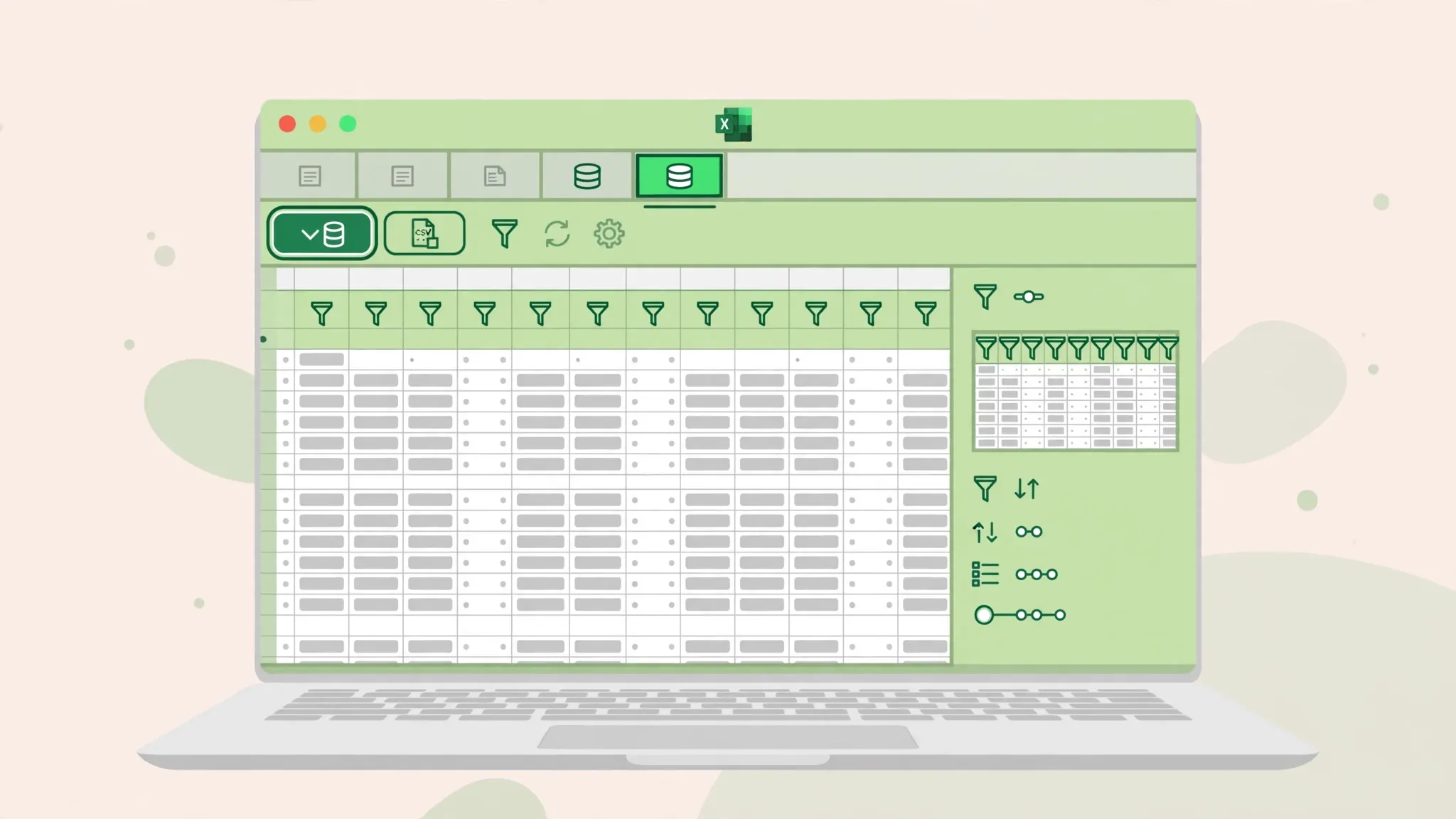
Reading and writing sheet data with Apps Script
Almost every automation boils down to: read data, do something, write results. The SpreadsheetApp service is your interface:
function readWriteDemo() {
  const sheet = SpreadsheetApp.getActiveSpreadsheet().getActiveSheet();
  const data = sheet.getDataRange().getValues(); // 2D array of all values
  Logger.log("Rows: " + data.length);
  sheet.getRange("A1").setValue("Processed"); // write one cell
  sheet.getRange("A1:Z1").setFontWeight("bold"); // format a range
}
Memorize this pattern: getActiveSpreadsheet() → getActiveSheet() (or getSheetByName("Sales")) → getRange("A1:D100") → getValues() to read or setValues() to write. Performance golden rule: read the whole block into an array once, process it in JavaScript, and write it back once — calling getValue() cell-by-cell in a loop is orders of magnitude slower. This single habit separates scripts that fly from scripts that crawl.
Project 1: auto-format every CSV import
The scenario: every week you import a CSV into Sheets (File → Import) and spend ten minutes formatting it. (If your CSVs need converting first, our free CSV to Excel converter produces clean files to practice with.) This script does the formatting in one click:
function formatImportedCsv() {
  const sheet = SpreadsheetApp.getActiveSheet();
  const range = sheet.getDataRange();
  // Bold headers with fill
  const headers = sheet.getRange(1, 1, 1, range.getNumColumns());
  headers.setFontWeight("bold").setBackground("#d9e2f3");
  // Freeze header row, add filter
  sheet.setFrozenRows(1);
  range.createFilter();
  // Autofit columns
  for (let c = 1; c <= range.getNumColumns(); c++) {
    sheet.autoResizeColumn(c);
  }
  SpreadsheetApp.getUi().alert("Import formatted!");
}
Import your CSV, run the function, and the sheet is presentation-ready. Attach it to a custom menu (covered below) and the whole ritual becomes: import → click menu → done. Extend it with your own rules — date formatting, conditional highlights for big orders, hiding helper columns — and it grows with you.
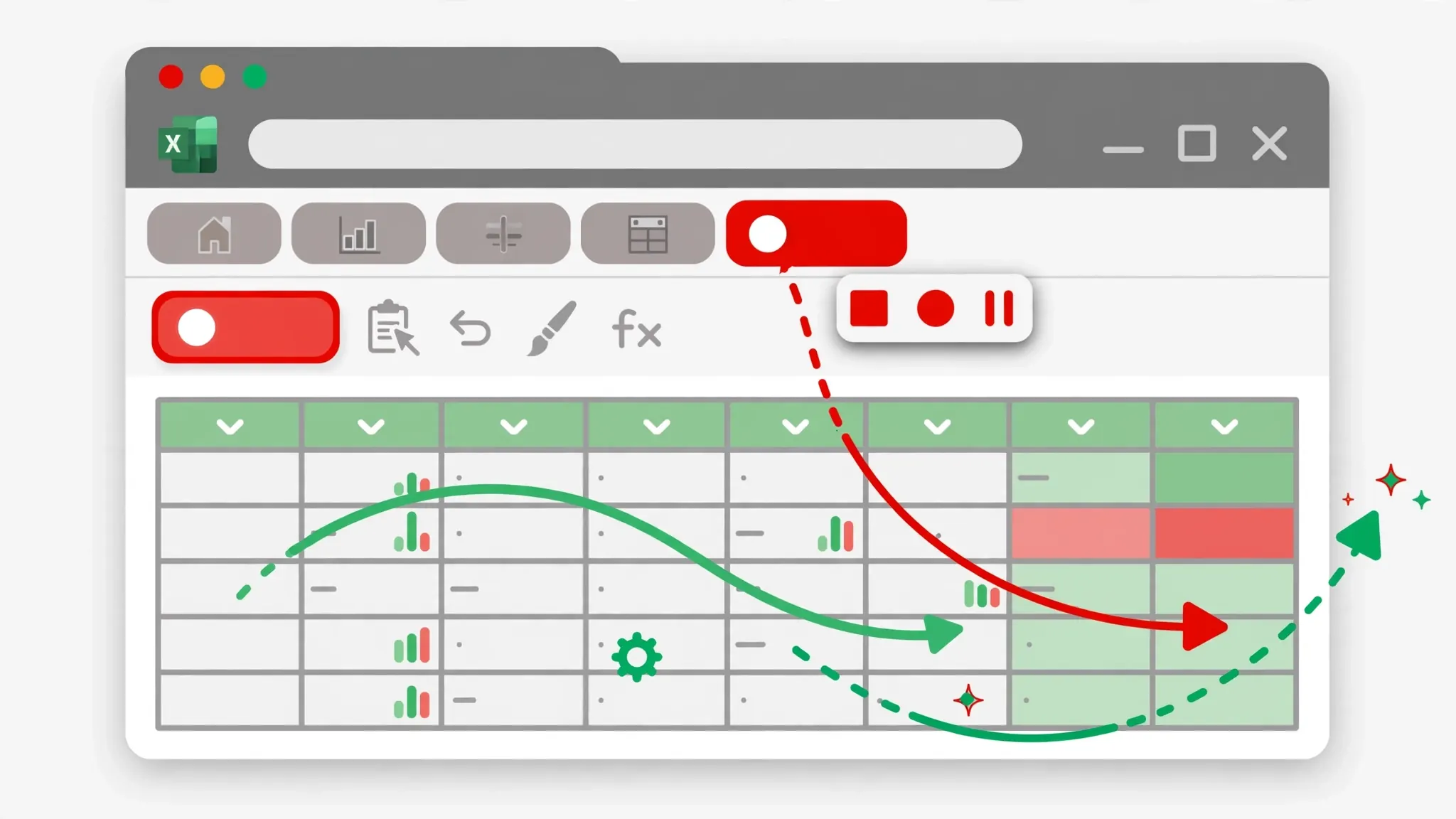
Project 2: email a PDF report automatically
The scenario: every Friday you email the sales summary to your team. This script exports the sheet as PDF and sends it:
function emailWeeklyReport() {
  const ss = SpreadsheetApp.getActiveSpreadsheet();
  const sheet = ss.getSheetByName("Summary");
  // Build a PDF export URL
  const url = "https://docs.google.com/spreadsheets/d/" + ss.getId()
    + "/export?format=pdf&gid=" + sheet.getSheetId();
  const token = ScriptApp.getOAuthToken();
  const pdf = UrlFetchApp.fetch(url, {
    headers: { Authorization: "Bearer " + token }
  }).getBlob().setName("Weekly-Report.pdf");
  GmailApp.sendEmail("team@example.com", "Weekly sales report",
    "Hi team,\n\nAttached is this week's sales summary.\n\nBest",
    { attachments: [pdf] });
}
Run it once manually to authorize Gmail and Drive scopes, verify the PDF looks right, then never do the Friday email dance again — especially once you add the trigger in Project 3. Replace the recipient and sheet name with your own, and consider pulling the week’s totals into the email body with a few getValue() calls for a professional touch.
Project 3: schedule tasks with time-driven triggers
Triggers are what make scripts truly automatic. To schedule any function:
- In the Apps Script editor, click the clock icon (Triggers) in the left sidebar.
- Add Trigger → choose your function (e.g.
emailWeeklyReport). - Set event source to Time-driven, then pick the cadence: every Monday 8–9 AM, daily, hourly, or monthly.
- Save. The function now runs on Google’s servers whether your laptop is open or not.
Combine triggers with the earlier projects and you have a self-running pipeline: Monday 8 AM, the script formats the weekend’s imported data and emails the PDF — while you are still having coffee. Other trigger types fire on spreadsheet edits, form submissions, or calendar events, enabling approval workflows and live dashboards. This is the heart of Google Sheets automation: write once, run forever.
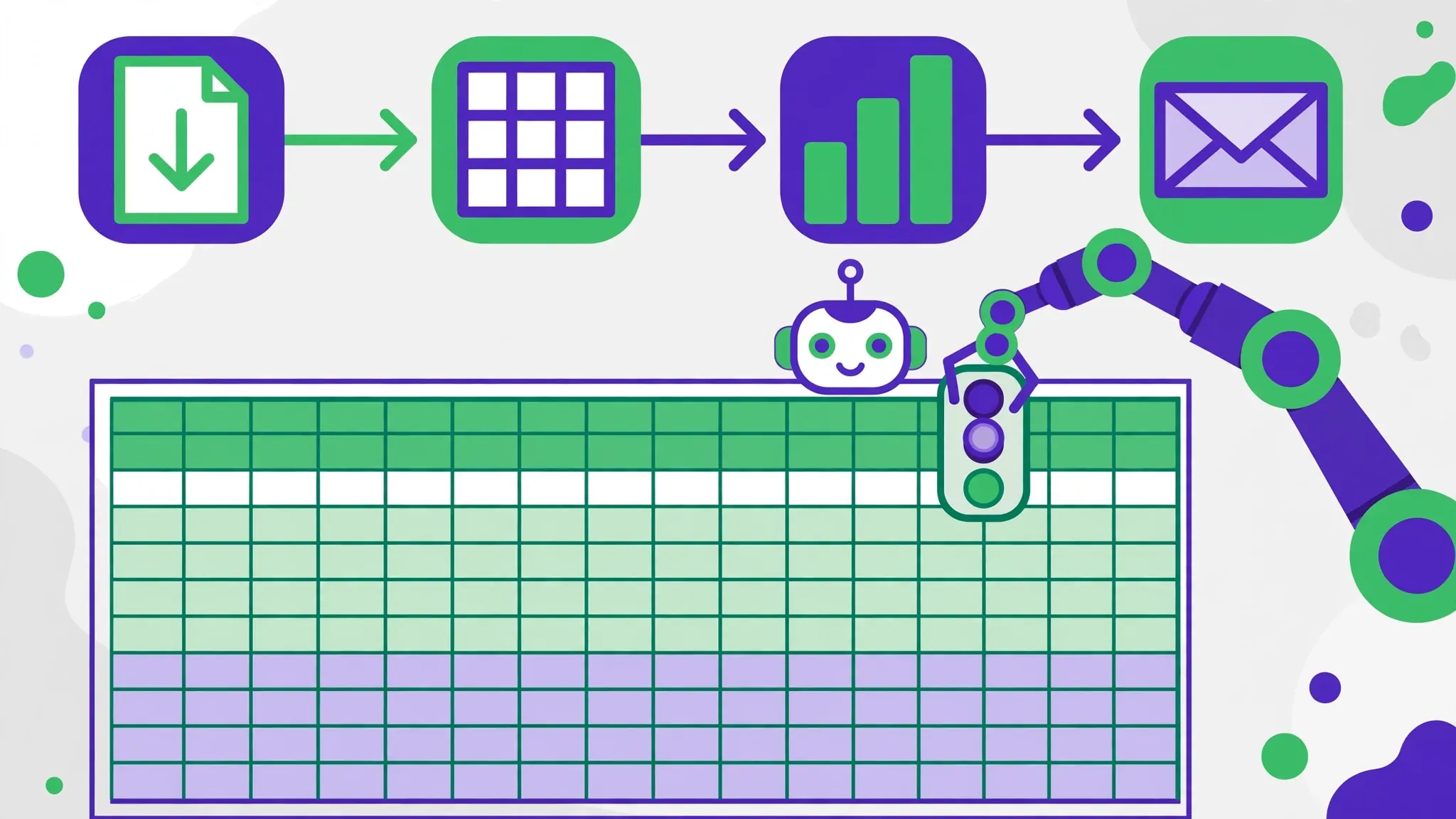
Menus, buttons, and making scripts friendly
Scripts your teammates can run beat scripts only you understand. Add a custom menu with a few lines:
function onOpen() {
  SpreadsheetApp.getUi().createMenu("⚡ Automation")
    .addItem("Format CSV import", "formatImportedCsv")
    .addItem("Email weekly report", "emailWeeklyReport")
    .addToUi();
}
onOpen() runs automatically whenever anyone opens the spreadsheet, adding your menu to the toolbar. For one-click access you can also insert a drawing (Insert → Drawing), then attach the script via the drawing’s three-dot menu → Assign script. Name functions clearly, add a short comment header to each explaining what it does, and your “automation department” becomes usable by the whole team — no training required.
Debugging Apps Script without tears
- Read the error banner. “Cannot read properties of null” usually means a sheet name or range did not match — check spelling and case.
- Use Logger.log liberally. Log variable values, then check Executions → Logs to see what your code actually saw.
- Run small pieces. Select a single function in the toolbar dropdown and run just that — do not debug a 200-line script all at once.
- Check executions. The Executions page shows every run, its duration, and failures with stack traces — essential for trigger debugging.
- Test triggers manually first. Run the function by hand until it works, then attach the schedule.
- Watch authorization scopes. Adding Gmail or Drive calls requires re-authorization; a script that worked yesterday may need fresh consent after you add a new service.
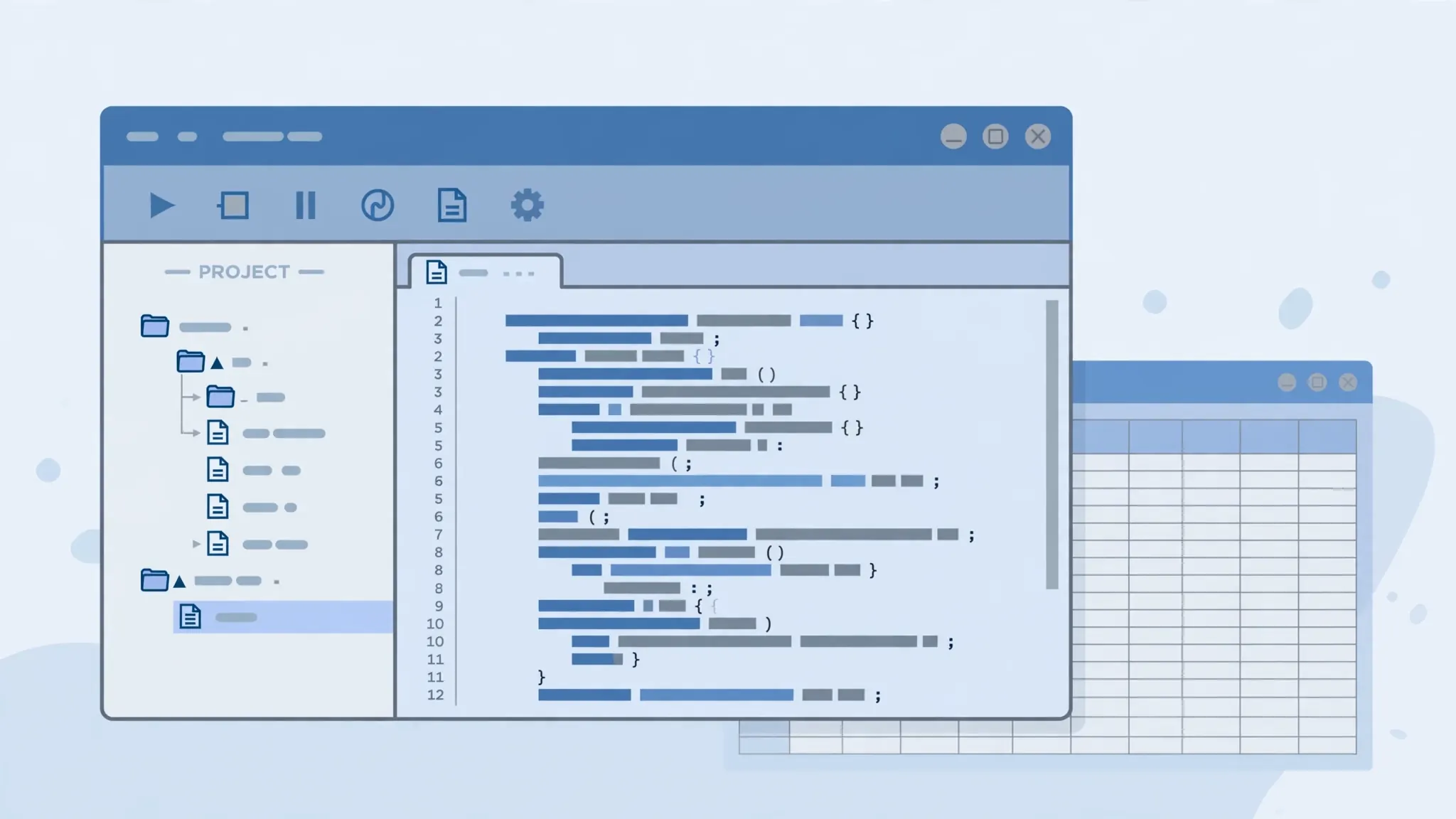
Apps Script limits, quotas, and when to use something else
Apps Script is generous but not infinite. Key limits: script runtime (minutes per execution — chunk very long jobs), daily quotas on emails, URL fetches, and Drive operations (plenty for automation, tight for bulk processing), and no direct access to the local file system (everything goes through Drive). When to use something else: processing millions of rows (use BigQuery or Python), sub-second interactive web apps (use a real web stack), or offline desktop work (use Excel VBA — see our VBA beginners guide). For the 95% case — formatting imports, emailing reports, scheduled cleanups, form-driven workflows — Apps Script is the right tool, free, and already in your browser.
Start today: open a sheet, write the formatter from Project 1, add the menu, and schedule one report. That single afternoon of work is the difference between doing spreadsheet chores forever and having them done for you. And if you are automating across both ecosystems, our Excel automation decision guide maps the full toolkit — because the best automators are bilingual.
Google Sheets Apps Script automate: putting it all together
You have the pieces — the editor, the JavaScript essentials, reading and writing data, three working projects, menus, triggers, debugging. Now let us assemble them into one capstone system that shows what Google Sheets Apps Script automate workflows look like in production: a self-running weekly sales pipeline.
The system: Monday-morning sales digest
Picture a small business — say, an online store in the US with a support contractor in India and a marketing freelancer in the UK. Every Monday at 8 AM local time, the owner gets an email: last week’s revenue, top 5 products, orders by region, and a PDF of the formatted summary sheet. Nobody touches a spreadsheet. Here is how the pieces fit:
- Data landing: the store platform emails a CSV export every Sunday night. A time-driven trigger runs
importWeeklyCsv()at 6 AM Monday: it finds the latest Gmail attachment, parses the CSV withUtilities.parseCsv(), and writes it into a “Raw” sheet — no manual import step at all. - Cleaning: the same function trims whitespace, standardizes region names via a lookup object, converts the date column to real dates, and deletes test orders — the automate Google Sheets data-cleanup pattern from Project 1, running headless.
- Formatting:
formatReport()applies the header styling, freezes panes, adds filters, and builds the summary: total revenue, order count, and a top-5 products table computed in JavaScript and written to a “Summary” sheet. - Delivery:
emailWeeklyReport()from Project 2 exports the Summary sheet as PDF and emails it with the key numbers in the body — “Revenue: $48,210 (↑12% vs last week)”. - Orchestration: a single Monday 7 AM trigger runs a
main()function that calls the three steps in order, wrapped in try/catch that emails the owner if anything fails instead of failing silently.
Why this architecture works
Notice the design principles: separation of concerns (import, clean, format, deliver are separate functions you can test independently), idempotency (running twice does not duplicate data — the import clears the Raw sheet first), observability (a “Log” sheet records each run’s timestamp, rows processed, and any errors), and graceful failure (errors notify a human instead of vanishing). These are professional software habits applied to a spreadsheet — and they are what separate a weekend script from infrastructure the business can rely on.
Your next 30 days
Week 1: build Project 1 on a real import and add the custom menu. Week 2: automate one email report with Project 2. Week 3: attach a time trigger and watch it run unattended — the magical moment. Week 4: pick one process from your own work and apply the capstone pattern: land, clean, format, deliver, notify on failure. By day 30 you will have removed a recurring chore from your life permanently — and you will see automation opportunities everywhere, because now you know the shape of the solution. That is the real outcome of learning to automate Google Sheets: not a script, but a new way of seeing repetitive work.
Ideas for your second Apps Script automation
Once the first script clicks, these proven ideas show the range of Google Sheets automation:
- Approval workflow: when a form submission adds a row, email the manager an approve/reject link; the click writes the decision back to the sheet via a web app deployment.
- Slack/Teams notifier: on a trigger schedule, scan for overdue tasks and post a summary to a webhook — the whole team stays informed with zero manual reporting.
- Multi-sheet consolidator: loop through every tab named like a month, append their rows into a master sheet, and rebuild the pivot — the Apps Script answer to monthly consolidation.
- Data validator: on every edit, check that emails look like emails and amounts are positive; highlight violations and email the sheet owner a daily digest.
- Calendar sync: read event rows from a sheet and create Google Calendar events, or vice versa — bridging planning spreadsheets with real schedules.
Each of these reuses the patterns from this guide — reading ranges into arrays, looping, calling Google services, triggers — recombined for a new purpose. That is the real skill you built: not three projects, but a vocabulary for automating Google Sheets tasks you have not even encountered yet. The official Apps Script reference lists every service; your imagination supplies the rest.
Frequently Asked Questions
What is Google Apps Script?
Google Apps Script is a JavaScript-based scripting platform built into Google Workspace. In Google Sheets it lets you automate tasks — formatting, data processing, emails, scheduled runs — with code that executes in Google’s cloud.
Is Apps Script free?
Yes. Apps Script is free with any Google account, including generous daily quotas for script runtime, emails, and API calls. Google Workspace paid plans raise those quotas.
Do I need to know JavaScript to use Apps Script?
Basic JavaScript helps, but this tutorial teaches the essentials as you go. If you can write spreadsheet formulas, you can learn enough JavaScript for practical sheet automation within a few days.
Can Apps Script send emails automatically?
Yes. Apps Script can send emails via GmailApp or MailApp, including PDF attachments of your sheet. Combined with time-driven triggers, this automates daily or weekly report distribution.
Can Apps Script run on a schedule?
Yes. Time-driven triggers run your functions hourly, daily, weekly, or monthly — for example, emailing a sales report every Monday at 8 AM without anyone opening the sheet.
Apps Script vs Excel VBA: which should I learn?
Learn Apps Script if your work lives in Google Sheets and the cloud; learn VBA if it lives in desktop Excel. The concepts (ranges, loops, conditions) transfer between them, so the second language is much easier.