
Every marketing team lives the same monthly ritual: log into Google Ads, screenshot the dashboard, log into Meta, screenshot that dashboard, paste numbers into slides, argue about which numbers are right, and ship a report everyone half-trusts. It is slow, error-prone, and it answers yesterday’s questions instead of informing tomorrow’s spend. Excel for marketing reports replaces the ritual with a system: ad-platform CSV exports flow into one standardized workbook, KPIs compute themselves, and the monthly report refreshes with a single click.
This guide builds a complete marketing report Excel template — a marketing dashboard Excel file with a proper KPI framework, an Excel marketing KPI tracker that handles every core metric from CTR to ROAS, multi-platform data blending, and a Power Query pipeline that automates the monthly refresh. Whether you run ads for a DTC brand in New York, manage client accounts at an agency in London, or do growth for a startup in Bangalore, the workflow is identical: exports in, truth out.
Why Excel for marketing reports beats screenshots and slide decks
Dashboards inside ad platforms are designed to make the platform look good, not to tell you the truth. Google Ads will happily show you a rising click count while your cost per acquisition quietly doubles; Meta’s default attribution window flatters its own numbers. An independent report — built from raw exports in a tool you control — is the only way to compare platforms honestly and to define metrics consistently.
Excel’s specific advantages for marketers: custom calculations (blended CAC, MER, contribution margin — metrics no platform shows natively), data blending (ad spend next to Shopify revenue next to CRM pipeline, in one table), offline analysis (the deep-dive that needs twenty pivots, not a dashboard), and auditability (every number traces to a row, which ends the “where did this come from?” meeting). Agencies love it because one template serves every client; in-house teams love it because the finance department already speaks spreadsheet.
The honest framing: Excel is the analysis layer, not necessarily the presentation layer. Build the truth in the workbook, then export the one-page summary as PDF or mirror key tiles in Looker Studio for live viewing. Teams that try to do everything in slides end up with pretty fiction; teams that do the math in Excel and present the conclusions end up trusted.
The KPI framework: what to track per channel
Before touching Excel, decide what matters. A useful marketing report Excel template tracks the same KPI spine for every channel, so comparisons are apples to apples:
- Spend — the input. Always the anchor of efficiency metrics.
- Impressions & Clicks — volume metrics; useful for diagnosing funnel stages.
- CTR (click-through rate) — clicks ÷ impressions. Measures creative/audience fit.
- CPC (cost per click) — spend ÷ clicks. Measures auction efficiency.
- Conversions — the counted outcome (purchase, lead, signup). Define it identically everywhere.
- CVR (conversion rate) — conversions ÷ clicks. Measures landing page and offer strength.
- CPA (cost per acquisition) — spend ÷ conversions. The efficiency headline.
- Revenue & ROAS — revenue ÷ spend. The business headline (where revenue data exists).
- Budget pacing — spend to date ÷ (monthly budget × elapsed fraction). Catches overspend early.
Two rules keep this honest. First, define conversions once: if Google Ads counts a purchase and Meta counts an add-to-cart as a “conversion,” your blended CPA is meaningless. Standardize the definition in a Definitions sheet — yes, literally write it down — and map each platform’s native metric to it during import. Second, separate leading from lagging indicators: CTR and CPC tell you what is happening now; CPA and ROAS tell you what happened after attribution settled. Report both, interpret them differently.
Building the marketing dashboard Excel: workbook structure
A reporting workbook that survives twelve monthly cycles needs strict layering. Five sheets, each with one job:
- Raw_Imports — one Excel Table per platform (
tbl_GoogleAds,tbl_Meta,tbl_TikTok), each exactly mirroring its CSV export columns. Never edit these tables by hand; they are overwritten monthly. - Staging — Power Query output: all platforms appended into one standardized table (
tbl_All) with uniform columns: Date, Platform, Campaign, AdGroup, Spend, Impressions, Clicks, Conversions, Revenue. All transformations (renames, channel labels, date fixes) happen in the query, documented in its applied steps. - Definitions — metric definitions, attribution windows, targets per channel, budget table. The report’s constitution.
- Dashboard — KPI tiles, charts, and the one-page summary. Reads only from
tbl_Alland Definitions. No raw data, no manual typing. - Pivots — the analysis scratchpad: pivot tables behind the dashboard charts, plus ad-hoc investigation space.

This layering is what makes the report automatable: because the Dashboard never touches raw imports directly, the monthly refresh only needs to replace the import tables and re-run the query. It is the same architecture behind a reliable sales tracking dashboard in Excel — raw, staging, presentation — applied to marketing data.
From ad-platform CSV exports to clean data
Every ad platform exports CSV, and every platform’s CSV is a special snowflake. Google Ads calls it “Cost,” Meta calls it “Amount spent,” TikTok calls it “Cost” — same concept, three names, different date formats for good measure. The normalization step is unglamorous and absolutely critical.
Export settings that save hours
Before downloading, set each platform’s report identically: date range = full calendar months (never “last 30 days” — month boundaries must align), granularity = daily for the data table (you can always aggregate up; you cannot disaggregate down), columns = the KPI spine above, and attribution = note the window (7-day click, 1-day view, etc.) in your Definitions sheet. Download, then convert each CSV with our free CSV to Excel converter — browser-based, so client spend data never leaves your machine — and load into the matching Raw table.

A note on sampled and estimated data
Not every export is complete truth. Google Analytics samples heavy reports, Meta models a growing share of conversions rather than measuring them, and iOS privacy changes mean a meaningful slice of mobile conversions is estimated. Your Excel report should carry a small “data notes” box on the Definitions sheet recording what is measured vs modeled per platform. When the CFO asks why platform-reported conversions exceed your CRM’s counted orders, the answer — “Meta includes modeled conversions; our CRM counts actuals” — should be one glance away, not a panicked investigation. Honest reports label their uncertainty; that honesty is precisely what makes stakeholders trust the rest of the numbers.
The normalization checklist (in Power Query)
- Rename platform-specific columns to the standard set (Cost → Spend, Amount spent → Spend…).
- Fix date formats to real dates — US platforms export MM/DD/YYYY, which misreads on UK-locale machines.
- Add a Platform constant column (“Google Ads”, “Meta”, “TikTok”) to each query before appending.
- Standardize campaign names: strip platform prefixes, unify capitalization (“Brand_Search” vs “brand search” break pivots).
- Handle currency: convert non-home currencies with a rates table, exactly like the multi-currency pattern in our freelancer invoice tracker.
- Append all platforms into
tbl_Alland load to the Staging sheet.
The Excel marketing KPI tracker: formulas that matter
With tbl_All standardized, every KPI is a formula away. These power the Excel marketing KPI tracker tiles on the dashboard — each takes a date range (the report month) via SUMIFS:
- Total spend:
=SUMIFS(tbl_All[Spend], tbl_All[Date], ">="&$B$2, tbl_All[Date], "<="&$C$2)where B2:C2 hold the month bounds. - CTR:
=SUMIFS(Clicks...)/SUMIFS(Impressions...)— always ratio of sums, never average of ratios (averaging daily CTRs is mathematically wrong). - CPC:
=Spend/Clicks; CPA:=Spend/Conversions— same ratio-of-sums discipline. - ROAS:
=SUMIFS(Revenue...)/SUMIFS(Spend...)— format as 4.2×. - MoM change:
=(ThisMonth-LastMonth)/LastMonthfor spend, CPA, ROAS — the trend story in three numbers. - Budget pacing:
=SpendToDate/(MonthlyBudget*DAY(TODAY())/DAY(EOMONTH(TODAY(),0)))— above 100% means overspending the pace. - Blended CAC:
=TotalMarketingSpend/NewCustomers— pull customer counts from your ecommerce order exports or CRM for the full-funnel truth.
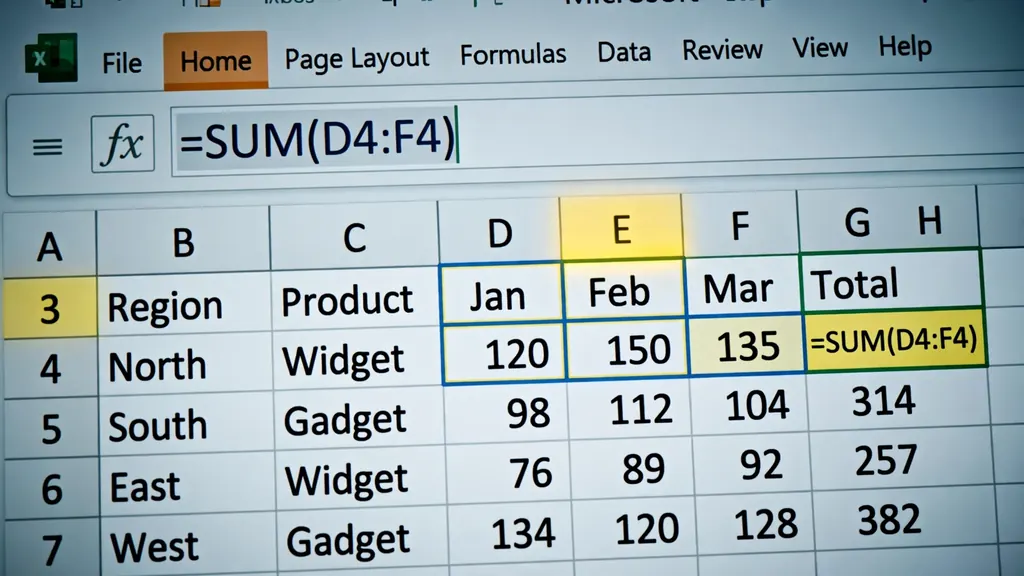
Guard every division with IFERROR — a new campaign with zero clicks should show “—”, not #DIV/0!. And keep targets beside actuals everywhere: a CPA of $42 means nothing until the tile next to it says the target is $35 (red) or $50 (green). Targets live in the Definitions sheet, referenced by every tile, so updating the Q4 targets is one edit.
Pivot tables: channel × campaign × month analysis
Pivot tables are where the report earns its “analysis” label. Three pivots on tbl_All answer 90% of stakeholder questions:
- Platform × Month (Platform in Rows, Month in Columns, Spend/CPA/ROAS in Values): the trend view — which channel is improving, which is decaying.
- Campaign leaderboard (Campaign in Rows, Spend/Conversions/CPA in Values, sorted by spend desc): where the money actually goes, and whether the biggest spenders earn their budget.
- Funnel diagnostic (Platform in Rows; Impressions, Clicks, CTR, CPC, CVR, CPA in Values): pinpoints where a channel breaks — low CTR is a creative problem, low CVR is a landing-page problem, high CPC is an auction problem. Different diagnoses, different fixes.
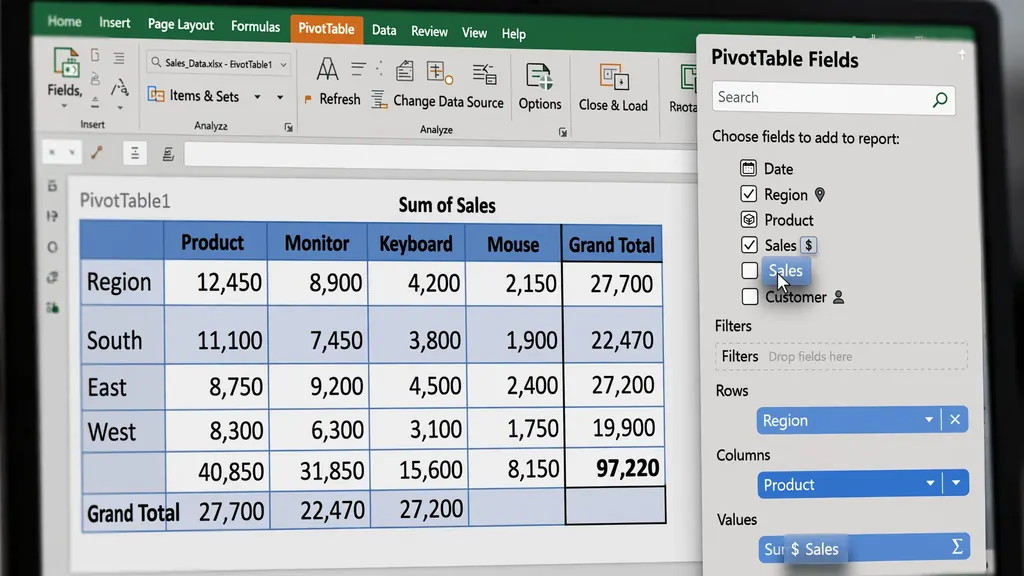
Add slicers for Platform and Month, connect them to all three pivots, and the dashboard becomes explorable: click “Meta” and every chart and tile filters. This interactivity is what turns a static monthly PDF into a tool stakeholders actually open — the same slicer technique that powers a finance dashboard in Excel.
Automating the monthly refresh with Power Query
This is the payoff for all that structure: the monthly report becomes a five-minute job. The Power Query setup from the exports section already encodes every transformation as replayable steps. The monthly routine:
- Download this month’s CSV exports with the identical settings as last month (same columns, same daily granularity).
- Convert each with the free CSV to Excel converter and paste into the matching Raw table (or point the query at the new files directly).
- Data → Refresh All. The queries re-run every rename, date fix, and append step;
tbl_Allextends; pivots, charts, and KPI tiles update. - Sanity-check three numbers: total spend vs the platform UIs, row count vs last month (a sudden drop means a failed export), and the date max (should be month-end).
- Export the Dashboard sheet as PDF and send it. Done.
The most common automation failure is column drift: a platform renames “Amount spent” to “Spend” in an update and the query breaks. Power Query flags the error explicitly — fix the rename step once and you are immune going forward. Keep a one-line changelog on the Definitions sheet (“2026-09: Meta renamed Amount spent → Spend”) so future-you understands the query’s history. As a final guardrail, add a validation query that compares this month’s total spend against the sum of the platform UIs and raises a flag if they differ by more than a rounding tolerance — catching silent export truncations before they reach stakeholders.
Presenting to stakeholders: the one-page report
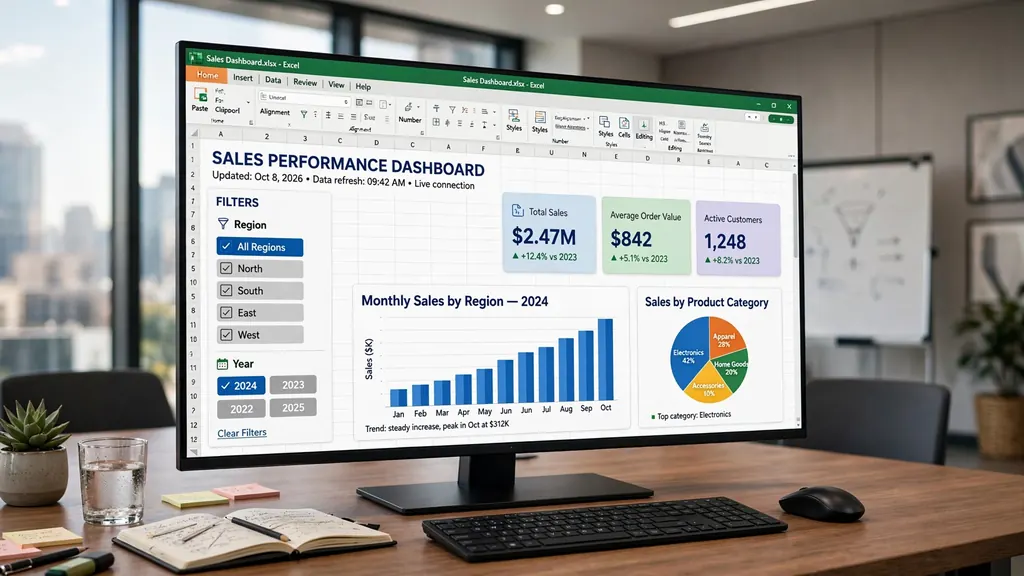
Executives do not read twelve-tab workbooks. They read one page. Design the Dashboard sheet as that page: KPI tiles across the top (Spend, Blended CPA, ROAS, MoM trend arrows), two charts in the middle (spend trend by platform; CPA by campaign leaderboard), and a three-bullet insight box at the bottom written by a human. Print area set to one landscape page; export to PDF.
The insight box is the whole point of the report. Numbers describe; insights prescribe. “Meta CPA rose 22% MoM driven by creative fatigue in the prospecting campaign — shifting 30% of budget to the two winning creatives” is a report. A table of numbers is a data dump. Write the three bullets after exploring the pivots, and make each one end with a decision or recommendation. If a bullet cannot end with “so we should…”, cut it.
The monthly narrative arc
Structure the story the same way every month so stakeholders learn to read it: (1) headline — are we on target? (2) what changed — the two or three movers, with causes; (3) what we are doing — budget shifts and tests launching. Consistency builds trust in the numbers; the numbers then earn you bigger test budgets. That is the real career value of excel for marketing reports: not the spreadsheet, but the credibility it manufactures month after month.
7 reporting mistakes that mislead stakeholders
- Averaging ratios. Average of daily CTRs ≠ monthly CTR. Always ratio of sums.
- Mixed attribution windows. Comparing 7-day-click Google Ads against 1-day-view Meta flatters whoever has the longer window. Standardize or disclose.
- Reporting spend without revenue. Efficiency metrics without business outcomes optimize for cheap clicks, not customers.
- Ignoring the calendar. MoM comparisons across different day counts or holiday shifts lie. Note the context or normalize.
- Vanity headlines. Impressions up 200% with CPA up 150% is not a win. Headline the business metric.
- No targets on the page. Every KPI needs its target beside it, or “good” is a matter of opinion.
- Manual monthly rebuilds. If the report takes a day to build, it will be late, wrong, or both. Automate the pipeline once.
Marketing data is only half the funnel: the revenue side lives in your store or CRM exports. Our ecommerce CSV guide covers turning order exports into the revenue truth your ROAS depends on, and the sales tracking guide extends the same dashboard discipline to the pipeline those leads become.
Frequently Asked Questions
How do I create a marketing report in Excel from Google Ads data?
Export your campaign performance as CSV from Google Ads, convert it to Excel in your browser, and paste it into a standardized data table. Add calculated columns for CTR, CPC, and conversion rate, then build pivot tables (channel x campaign x month) and charts on a dashboard sheet. With Power Query, the monthly refresh becomes one click.
What KPIs should a marketing dashboard in Excel include?
Start with spend, impressions, clicks, CTR, CPC, conversions, conversion rate, cost per acquisition, and ROAS or ROI. Add channel-level and campaign-level breakdowns, month-over-month trends, and budget pacing (spend vs planned). Fewer, consistently defined KPIs beat a wall of vanity metrics.
How do I automate my monthly marketing report in Excel?
Standardize your data table columns once, then use Power Query to import each platform’s CSV export with saved transformation steps (rename columns, fix dates, add channel labels). Each month you drop in the new exports and hit Refresh All — every pivot, chart, and KPI tile updates automatically.
How do I calculate ROAS in Excel?
ROAS = revenue attributed to ads / ad spend, e.g. =Revenue/Spend formatted as a multiple (4.2x) or percentage (420%). Pull revenue from your analytics or CRM export matched to the same campaigns and date range as the spend data — mismatched attribution windows are the most common ROAS error.
Can I combine Google Ads, Meta, and TikTok data in one Excel report?
Yes. Normalize each platform’s export to one standard column set (Date, Platform, Campaign, Spend, Impressions, Clicks, Conversions, Revenue), stack them with Power Query’s Append, and build all pivots and charts on the combined table. Consistent naming is the whole battle — standardize once, benefit forever.
Excel or Looker Studio for marketing reports — which is better?
Looker Studio wins for live, auto-updating client dashboards. Excel wins for deep analysis, custom calculations, offline work, and one-off investigations. Most agencies use both: Excel for the analysis layer and Looker Studio (or PDF exports from Excel) for client-facing presentation.