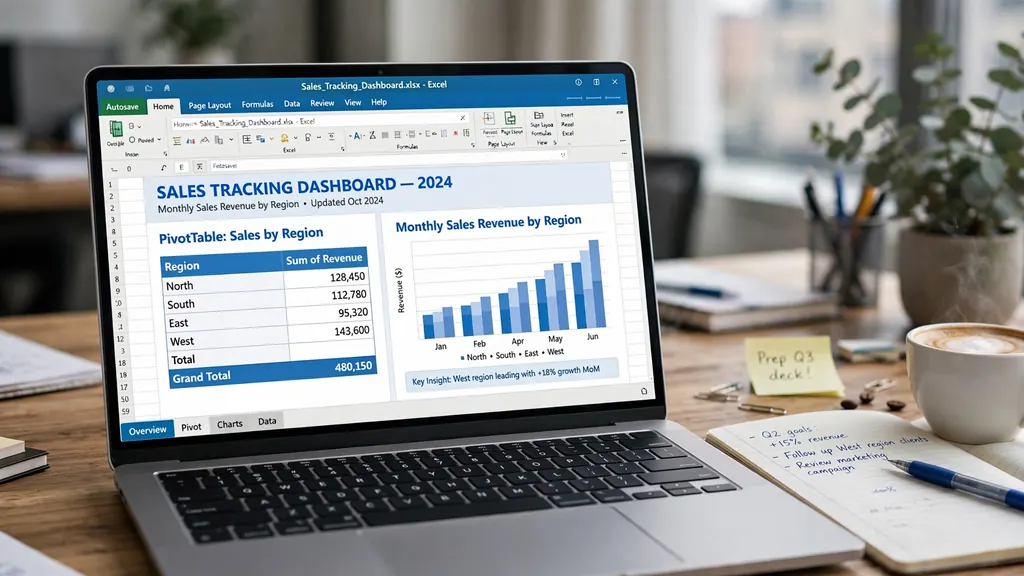
Every sale your business makes leaves a trace — a receipt, a POS entry, an order confirmation email. The problem is that those traces scatter everywhere, and by month-end nobody can answer the simplest questions: are we up or down, which rep is carrying the team, and which product actually makes money? That is exactly the gap that excel for sales tracking fills. With nothing more than a well-structured workbook, you can turn a pile of daily sales rows into a dashboard that answers those questions in seconds, updates itself as you add data, and costs nothing beyond the spreadsheet app you already have.
This guide walks you through the whole build, step by step. You will learn how to design a sales tracker Excel layout that survives real-world messiness, how to convert raw rows into a self-updating sales tracking spreadsheet, and how to assemble an Excel sales dashboard with pivot tables and charts that a manager can read at a glance. Along the way you will pick up the formulas that do the heavy lifting, a daily routine that keeps the numbers honest, and the mistakes that quietly break most trackers. Whether you run a retail counter in Texas, a distribution business in Manchester, or an online store in Mumbai, the method is the same — and by the end of this guide you will have a tracker you built yourself and fully understand.
Why Excel for sales tracking still beats paper logs and expensive CRMs
Sales teams have no shortage of software pitched at them. CRM platforms promise pipelines, forecasts, and AI insights — at a per-seat price that makes a five-person shop wince. Paper logs and notebooks are free but useless the moment you need a total. A spreadsheet sits in the sweet spot: flexible enough to match how your business actually sells, powerful enough to summarize thousands of rows instantly, and cheap enough that nobody needs budget approval.
The core reason spreadsheets win for small and mid-size operations is ownership of the logic. When your commission rule changes from 5% to 7% above quota, you edit one formula instead of filing a ticket with a software vendor. When you add a new product line or open a second location, you add a column or a filter value instead of reconfiguring a SaaS product. Teams that adopt excel for sales tracking usually start with a single sheet and grow it organically — and because the person who built it sits ten feet away from the people who use it, fixes happen in minutes.
There is also a data argument. Your sales data already lives in exports: the POS system at the counter, the ecommerce platform, the payment processor, the delivery app. All of them speak CSV, the plain-text format described by RFC 4180. Excel is the natural home for those exports because it converts, cleans, and summarizes them in one place. A CRM wants to own your data; a spreadsheet just works with it.
None of this means Excel replaces a CRM for a 50-person sales org with complex pipelines. But for tracking what was actually sold — the money that actually came in — a well-built workbook is faster to build, easier to audit, and far more transparent than a black-box report. Finance teams love it because every number can be traced back to a row. That traceability is the whole point, and it is what the rest of this guide builds toward.
Designing your sales tracker Excel layout: the raw data sheet
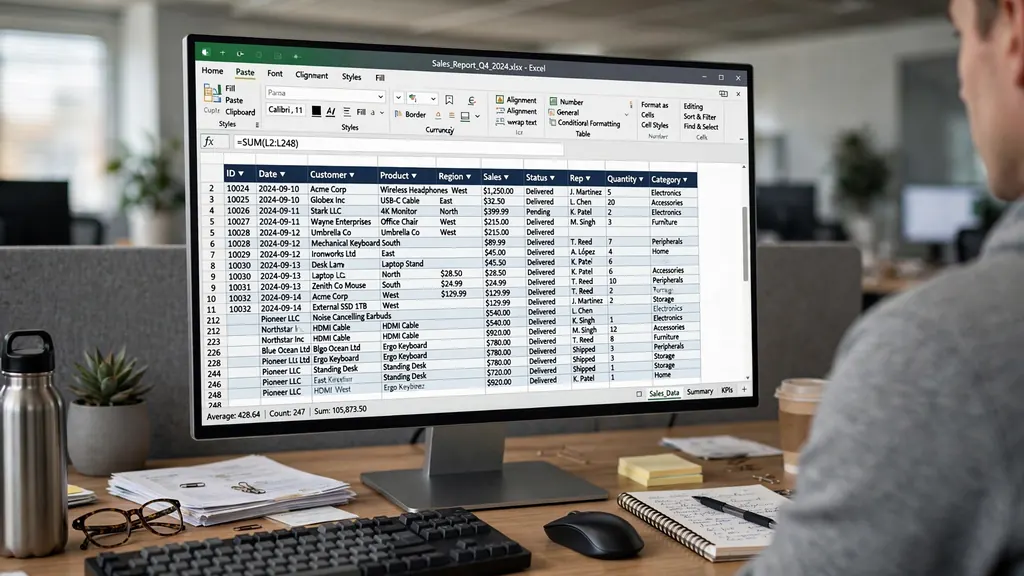
Every great dashboard is built on a boring foundation: one clean table where each row is a single sale and each column is a single fact about that sale. Get this sheet right and everything downstream — pivot tables, charts, commission math — becomes trivial. Get it wrong and you will fight the file forever.
The columns you actually need
Resist the urge to track everything. A sales data sheet needs eight to ten columns; more than that and data entry becomes a chore people skip. Start with this set:
- Date — the day the sale closed, as a real Excel date (not text). This powers every time-based analysis.
- Order ID / Receipt No — a unique identifier per transaction. Essential for spotting duplicates.
- Sales Rep — who closed it. Use a consistent dropdown list of names, never free text.
- Product / Service — what was sold, again from a controlled list.
- Quantity — units sold, as a number.
- Unit Price — price per unit, as a number with currency formatting.
- Region / Store — where the sale happened, from a dropdown.
- Channel — in-store, online, phone, wholesale. One word each, consistent spelling.
- Revenue — a formula:
=Quantity × Unit Price. Never type this by hand. - Notes (optional) — discounts, returns, or context. Keep it short.
Two rules make or break this sheet. First, one row per line item: if an order contains three products, that is three rows sharing one Order ID, not one row with three products crammed into a cell. Second, no merged cells, no blank spacer rows, no subtotal rows inside the data — those decorations belong on the dashboard, and they poison pivot tables.
Dropdowns beat typing, every time
The fastest way to corrupt a tracker is free-text entry. “Priya”, “priya”, and “P. Sharma” are three different people to a pivot table. Select each categorical column, go to Data → Data Validation → List, and point it at a small reference sheet holding your official lists of reps, products, regions, and channels. Entry becomes a click instead of typing, spelling variants disappear, and your summaries stay trustworthy. This five-minute setup prevents the most common data-quality disaster in small-business spreadsheets.
Dates: the silent killer
Dates deserve special attention because regions format them differently — the US writes 10/8/2026 (October 8), while the UK, India, and Australia read the same string as 10 August. If your team spans regions, or you import exports from platforms set to different locales, mixed date formats will silently mis-sort your timeline. Pick one format (ISO-style YYYY-MM-DD is unambiguous), apply it to the whole column via Format Cells → Date, and reject anything that arrives as text. When importing CSV exports, check the date column first; it is the column most likely to arrive wrong.
Turning sales rows into a self-updating sales tracking spreadsheet
A static range like A1:J500 is a trap: the moment row 501 arrives, your pivot tables and charts quietly ignore it. The fix is to convert the data range into an official Excel Table. Click anywhere in the data, press Ctrl+T (Cmd+T on Mac), confirm “My table has headers,” and give the table a name like tbl_Sales on the Table Design tab. From that moment on, the table auto-expands as you add rows, formulas in calculated columns fill down automatically, and every pivot table built on tbl_Sales includes new data after a single refresh.
This is the mechanism that makes a sales tracking spreadsheet feel alive. Your Revenue column formula, once entered in the first row of the table, propagates to every new row by itself. Banded rows and filter arrows come free, which makes the sheet readable and searchable without extra work. Pair the table with the dropdown validation from the previous section and you have an entry system that is both fast and nearly error-proof.
Adding calculated columns the smart way
Beyond Revenue, two calculated columns pay for themselves immediately. A Month column (=EOMONTH([@Date],0) or =TEXT([@Date],"yyyy-mm")) lets you group by month without touching the raw date. A Weekday column (=TEXT([@Date],"ddd")) reveals patterns like slow Mondays or strong Saturdays — genuinely useful for staffing a retail floor. Because these live inside the table, they extend themselves to every new row automatically.
Building the pivot-table engine of your Excel sales dashboard
A pivot table is the closest thing Excel has to magic: drag a field into Rows, another into Values, and thousands of sales rows collapse into a summary in seconds. Every number on your dashboard will come from pivot tables, so it pays to build them deliberately. Insert them on a dedicated sheet named Dashboard or Summary — never on top of the raw data.
- Click anywhere inside
tbl_Sales, then Insert → PivotTable → New Worksheet (rename itPivot_Monthly). - Drag Month into Rows and Revenue into Values. Right-click any revenue number → Summarize Values By → Sum (Excel sometimes defaults new numeric fields to Count; fix it once).
- Build a second pivot (
Pivot_Rep): Sales Rep in Rows, Revenue in Values, Month in Columns. You now have a rep-by-month matrix. - Build a third (
Pivot_Product): Product in Rows, Revenue and Quantity in Values, sorted largest to smallest. Your best and worst sellers, ranked. - Right-click any pivot → PivotTable Options → check “Refresh data when opening the file” so the dashboard is never stale.
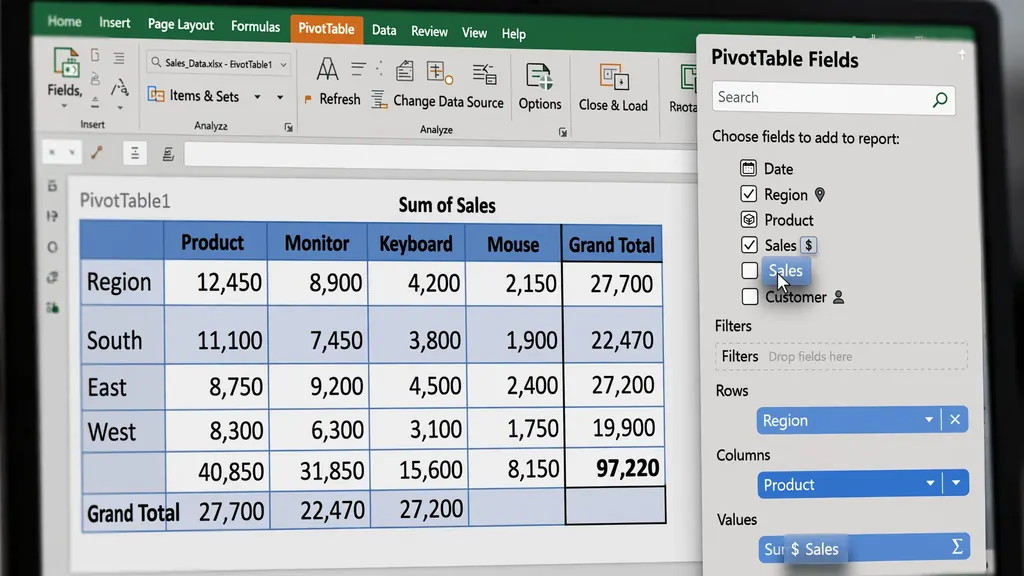
The real power of excel for sales tracking shows when these pivots compound. Add Channel as a Report Filter (or Slicer in newer Excel) on the monthly pivot, and you can flip between in-store, online, and wholesale performance with one click. Add a second Values field — Count of Order ID — next to Sum of Revenue, and you can see whether a revenue dip came from fewer orders or smaller baskets. Each of these takes under a minute once the table exists, which is why the table-first discipline from the previous section matters so much.
Slicers: the dashboard control panel
Slicers are the visual filter buttons that turn a static summary into something that feels like software. Select any pivot table → PivotTable Analyze → Insert Slicer, then tick Region and Channel. Right-click a slicer → Report Connections, and connect it to all three pivots so one click filters monthly trends, rep performance, and product rankings together. Arrange the slicers at the top of your Dashboard sheet and you have given your manager a control panel: pick “West + Online” and watch every number on the page respond. It is the single highest-impact five minutes in this entire build.
Charts that drive decisions: trends, leaders, and laggards
Pivot tables answer questions; charts make the answers impossible to ignore. You need exactly four charts on a sales dashboard — more is decoration. Build each one from a pivot table (select the pivot → Insert → PivotChart) so the chart refreshes and filters together with its source.
1. Monthly revenue trend (line or column chart)
Built from Pivot_Monthly, this is the heartbeat of the business. A twelve-month line immediately shows seasonality, growth, and anomalies. Add a simple moving average: right-click the data series → Add Trendline → Moving Average, period 3. When the actual line crosses below its own moving average two months running, that is an early warning no gut feeling would catch.
2. Rep leaderboard (bar chart)
Built from Pivot_Rep, sorted descending. Public leaderboards are controversial as management tools, but as information they are unmatched: everyone sees where they stand, and coaching conversations start from facts. Keep it to revenue and quota attainment; skip vanity metrics like call counts that reward activity over results.
3. Product mix (stacked column or pie)
Built from Pivot_Product. A pie chart works for five or fewer products; beyond that, a horizontal bar chart ranked largest to smallest is far more readable. This chart answers the inventory question — what to reorder, what to discount, what to discontinue. One retail client discovered through this exact chart that 20% of SKUs drove 80% of revenue, and cut their dead stock in half within a quarter.
4. Channel comparison (clustered column)
Online vs in-store vs wholesale, month by month. When the online bars start outgrowing the store bars, that is a strategic signal about where to invest — and it comes straight from data you were already collecting.
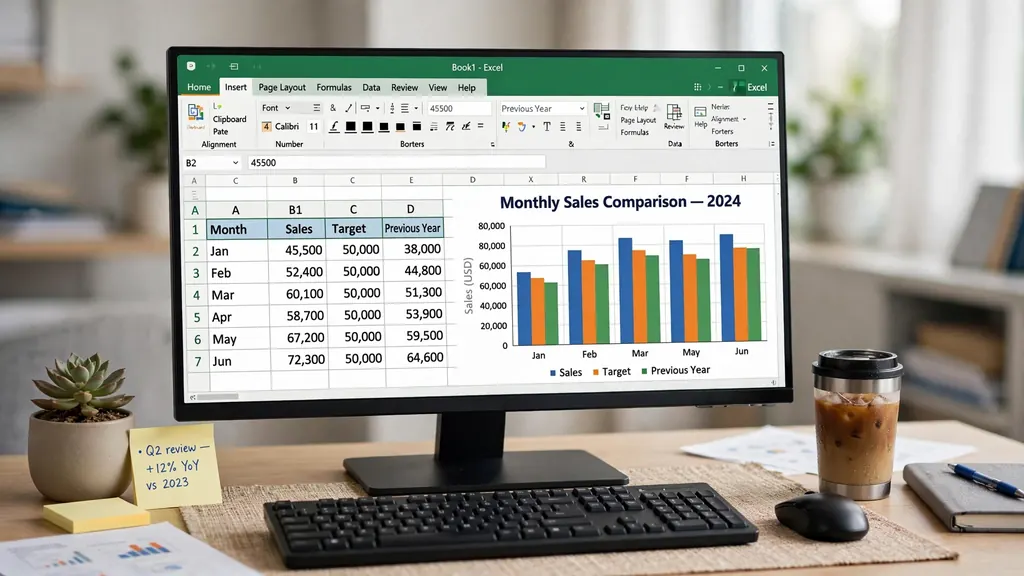
Keep chart formatting ruthless: one accent color for the key series, gray for the rest, data labels only on the most recent point, no 3D effects, no gradient fills. A dashboard is read in glances, and every decorative element steals a glance. If you want to go further with presentation polish, the same chart discipline applies to any finance dashboard in Excel — executives read both the same way.
The 8 formulas every sales tracker Excel file needs
Pivot tables do the summarizing, but formulas handle the logic pivot tables cannot: targets, commissions, growth rates, and lookups. These eight cover nearly every sales-tracking calculation. All of them assume your data lives in the tbl_Sales table, so copy them as written.
- Revenue per row:
=[@Quantity]*[@UnitPrice]— the calculated column everything else feeds on. - Month key:
=TEXT([@Date],"yyyy-mm")— groups any date into its month for pivots and lookups. - Total revenue with conditions:
=SUMIFS(tbl_Sales[Revenue],tbl_Sales[Region],"West",tbl_Sales[Channel],"Online")— the workhorse for “how much did X sell through Y”. - Rep lookup:
=XLOOKUP(A2,tbl_Sales[Order ID],tbl_Sales[Sales Rep],"Not found")— finds who closed any order instantly. (On older Excel,VLOOKUPorINDEX/MATCHdo the same job.) - Month-over-month growth:
=(ThisMonth-LastMonth)/LastMonth, formatted as %. Put it next to the monthly pivot for an instant health check. - Quota attainment:
=ActualSales/Quota— pair with conditional formatting (green above 100%, amber 80–100%, red below 80%) for a leaderboard that reads itself. - Tiered commission:
=IF(Attainment>1, Base*1.07, IF(Attainment>0.8, Base*1.05, Base))— adjust the tiers to your plan; the structure handles any commission scheme. - Running total:
=SUM($B$2:B2)copied down — shows cumulative revenue climbing toward the annual target, a surprisingly motivating chart when plotted.
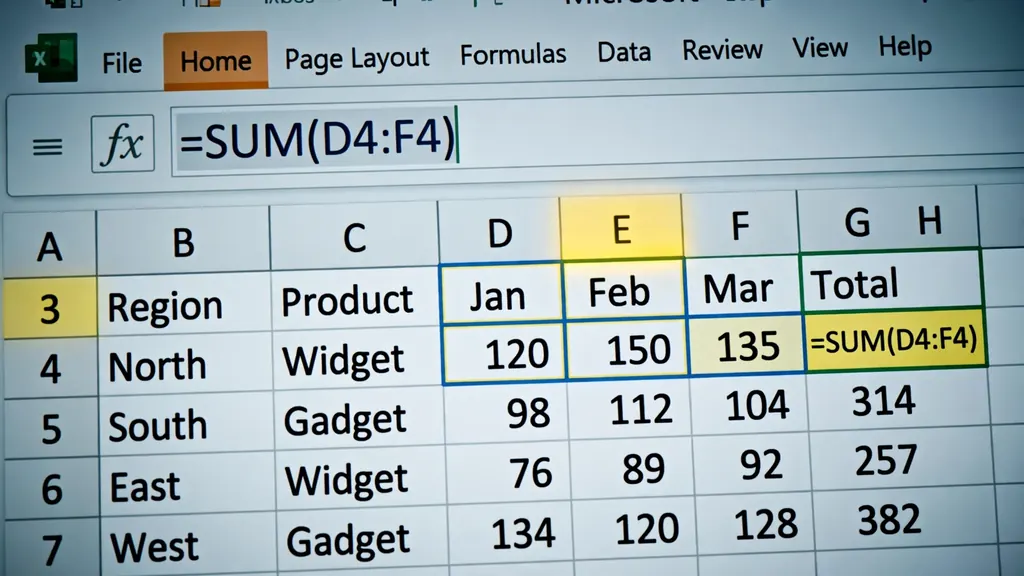
A word on where formulas live: keep calculation logic on the dashboard and summary sheets, never buried inside the raw data except for the per-row calculated columns (Revenue, Month, Weekday). When someone asks “where does this number come from,” the answer should be one click away, not a treasure hunt through hidden columns.
Importing CSV sales exports: from your POS or CRM into Excel
Here is where theory meets your actual business. Your point-of-sale system, ecommerce platform, and payment processor all export sales history as CSV — plain-text files where each line is a row and commas separate the columns, exactly as defined by RFC 4180. The gap between that export and your tracker is a conversion step, and it is the step where most people give up and go back to manual typing. Do not.
The fastest route: convert the CSV to a real Excel workbook with our free CSV to Excel converter — it runs entirely in your browser, so sensitive sales figures never leave your device — then copy the rows into tbl_Sales. Because the table auto-expands, pasting at the first blank row is enough; calculated columns and validations apply themselves. Refresh your pivots (Data → Refresh All) and the dashboard updates. The whole cycle takes under two minutes once you have done it twice.

For recurring imports, Power Query earns its place. Data → Get Data → From File → From Text/CSV, point it at your export, and use the Power Query editor to rename columns, fix date formats, and drop junk rows — once. Save the query, and next month you just hit Refresh: the same transformations replay on the new file automatically. This is how a weekly marketing report in Excel stays fresh too — the import pipeline is identical, only the columns differ. If your exports come from ad platforms rather than a cash register, the same CSV-to-Excel habit applies; marketers live on CSV exports from Google Ads and Meta, and the cleaning steps are the same.
Mapping columns without tears
Exports rarely match your tracker column-for-column. Your POS might call it “Transaction Date” while your table says “Date”. Build a tiny mapping step: paste the export into a staging sheet, add one row of your table’s column names above the export’s headers, then use a simple =XLOOKUP or copy-paste-values into the table. Keep a written note of the mapping (a comment in the staging sheet is enough) so next month’s import takes seconds instead of detective work. The golden rule: never restructure your tracker to match an export — always reshape the export to match your tracker.
A daily and weekly routine that keeps the tracker honest
A tracker is only as good as its freshest row. The build is the fun part; the routine is what makes it valuable. Fortunately the routine is small — five minutes a day, twenty minutes a week.
Daily (5 minutes, end of day)
Enter or paste the day’s sales into tbl_Sales. If you use dropdowns, this is genuinely fast — date, order ID, rep, product, quantity, price, done. Glance at the Revenue column for anything absurd (a $45,000 sale at a coffee shop is a typo, not a miracle). Save. That is the whole daily job, and it is the difference between a tracker and a wish.
Weekly (20 minutes, Monday morning)
Refresh all pivots and scan four things: last week’s revenue vs the week before, the rep leaderboard, the product ranking, and any returns or refunds entered as negative quantities. Note one sentence about what moved — “West region online sales up 18% after the email campaign” — in a small log sheet. Over months, that log becomes an institutional memory of what worked. Many teams pair this review with their finance dashboard check so sales and cash tell one consistent story.
Monthly (1 hour)
Reconcile the tracker’s monthly total against your bank deposits or accounting software. They should match within rounding; if they do not, you have either missed rows or double-counted — both worth finding. Archive the month: copy the file to a dated backup (Sales_2026-10.xlsx) so you always have a snapshot. Then set next month’s quotas on the leaderboard sheet and carry on.
7 mistakes that break sales trackers (and how to avoid them)
After helping dozens of small businesses set these up, the failure modes are remarkably consistent. Here are the seven that matter, in rough order of damage:
- Multiple “final” versions. Sales Tracker FINAL v3 (2).xlsx is how numbers die. One file, one table, in a shared folder with version history — or a dated monthly archive as described above.
- Typing instead of selecting. Free-text rep names and products create phantom duplicates in every pivot. Data Validation dropdowns, always.
- Totals typed inside the data. A “TOTAL” row at the bottom of the raw data gets counted by SUM and pivot tables alike. Summaries live on the dashboard sheet, never in the table.
- Dates as text. “Oct 8” typed casually will not sort, filter, or group. Real dates, one format, whole column.
- Building on a plain range. Without Ctrl+T, every new row risks falling outside your pivot’s source range. Tables auto-expand; ranges do not.
- One mega-sheet. Data, pivots, charts, and notes all crammed onto Sheet1 becomes unmaintainable within weeks. Separate sheets: Data, Dashboard, Pivots, Reference.
- Never reconciling. A tracker that drifts from reality is worse than no tracker, because people trust it. The monthly bank reconciliation is non-negotiable.
If your operation also sells online, the same tracker architecture extends naturally: your ecommerce CSV product and order exports paste into the same table with “Online” as the channel, and suddenly the dashboard shows the whole business in one view instead of two silos.
Frequently Asked Questions
How do I start with excel for sales tracking if my sales data is a mess?
Start by standardizing your raw rows into one table with fixed columns: Date, Order ID, Sales Rep, Product, Quantity, Unit Price, Region, and Channel. Convert it to an official Excel Table (Ctrl+T), fix dates and numbers, then build one pivot table on top. Clean structure first, dashboards second — everything else follows from that single clean table.
Should I use a sales tracker Excel template or build my own?
Templates are great for learning the layout, but building your own tracker takes under an hour and fits your exact columns, regions, and commission rules. A self-built tracker is easier to maintain because you understand every formula. Use a template as inspiration, then rebuild it with your own fields.
How do I track sales by salesperson in Excel?
Keep a “Sales Rep” column in your raw data table, then create a pivot table with Sales Rep in Rows and Sum of Revenue in Values. Add Month to Columns for a rep-by-month matrix, and use SUMIFS formulas for quota attainment percentages and commission calculations on a separate leaderboard sheet.
Can a sales tracking spreadsheet handle thousands of rows?
Yes. Modern Excel handles over one million rows per sheet, and a properly built tracker with Excel Tables and pivot tables stays fast with tens of thousands of sales rows. If you pass 100,000+ rows or need multi-file consolidation, switch the data engine to Power Query, which keeps the same dashboard on top.
How do I connect my POS or CRM exports to my Excel sales dashboard?
Most POS and CRM systems export CSV files. Convert the CSV to Excel format, paste or Power Query the rows into your raw data table, and every pivot table and chart refreshes automatically. Keep column names consistent between exports so the mapping never breaks.
Is Excel or Google Sheets better for sales tracking?
Excel wins for large datasets, pivot tables, and offline work; Google Sheets wins for real-time collaboration and simple sharing. For a single owner or a small team that reviews numbers weekly, Excel’s speed and pivot-table power make it the stronger sales tracking choice.