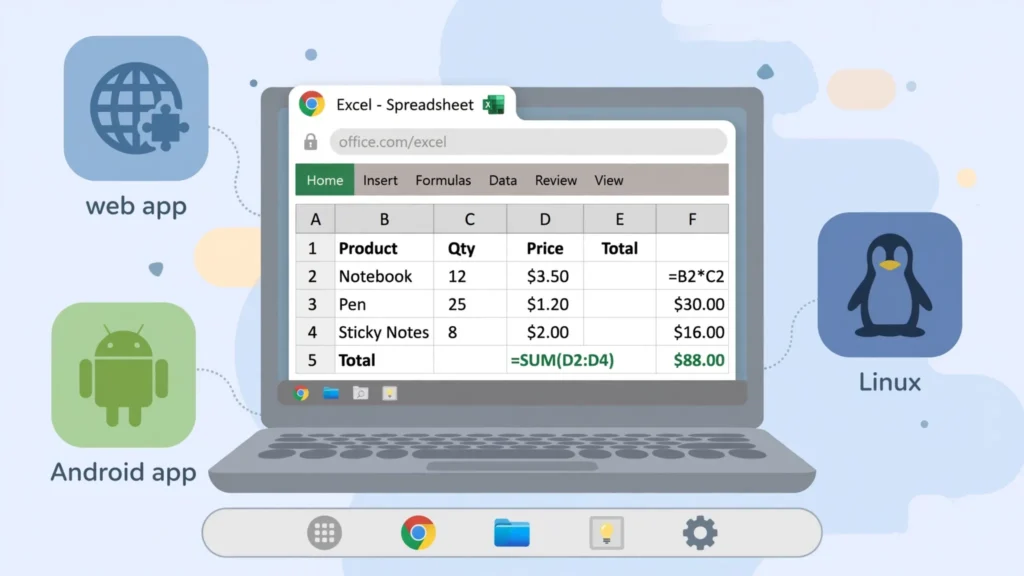
Chromebooks are everywhere in 2026 — classrooms, startups, and kitchen tables across the US, UK, India, Canada, and Australia — and the number-one question new owners ask is whether they can run Excel. The answer is yes, three times over. This guide covers every way to get Excel on a Chromebook: the free Microsoft Excel Chromebook web app (the recommended route), the Excel Chromebook app from the Play Store, and the Linux power-user path. You’ll learn how to use Excel on a Chromebook for real work — setup steps, CSV handling, offline options, and which method fits students, professionals, and data tinkerers.
The one thing you can’t do is install the Windows or Mac desktop Excel — ChromeOS doesn’t run traditional desktop software. But as this guide shows, that’s barely a limitation: the web app covers most real work, the Android app covers mobile-style editing and offline use, and Linux covers everything else. By the end, your Chromebook will be a more capable spreadsheet machine than many Windows laptops — most owners are genuinely surprised how little they miss once everything is set up properly.
Can you actually run Excel on a Chromebook?
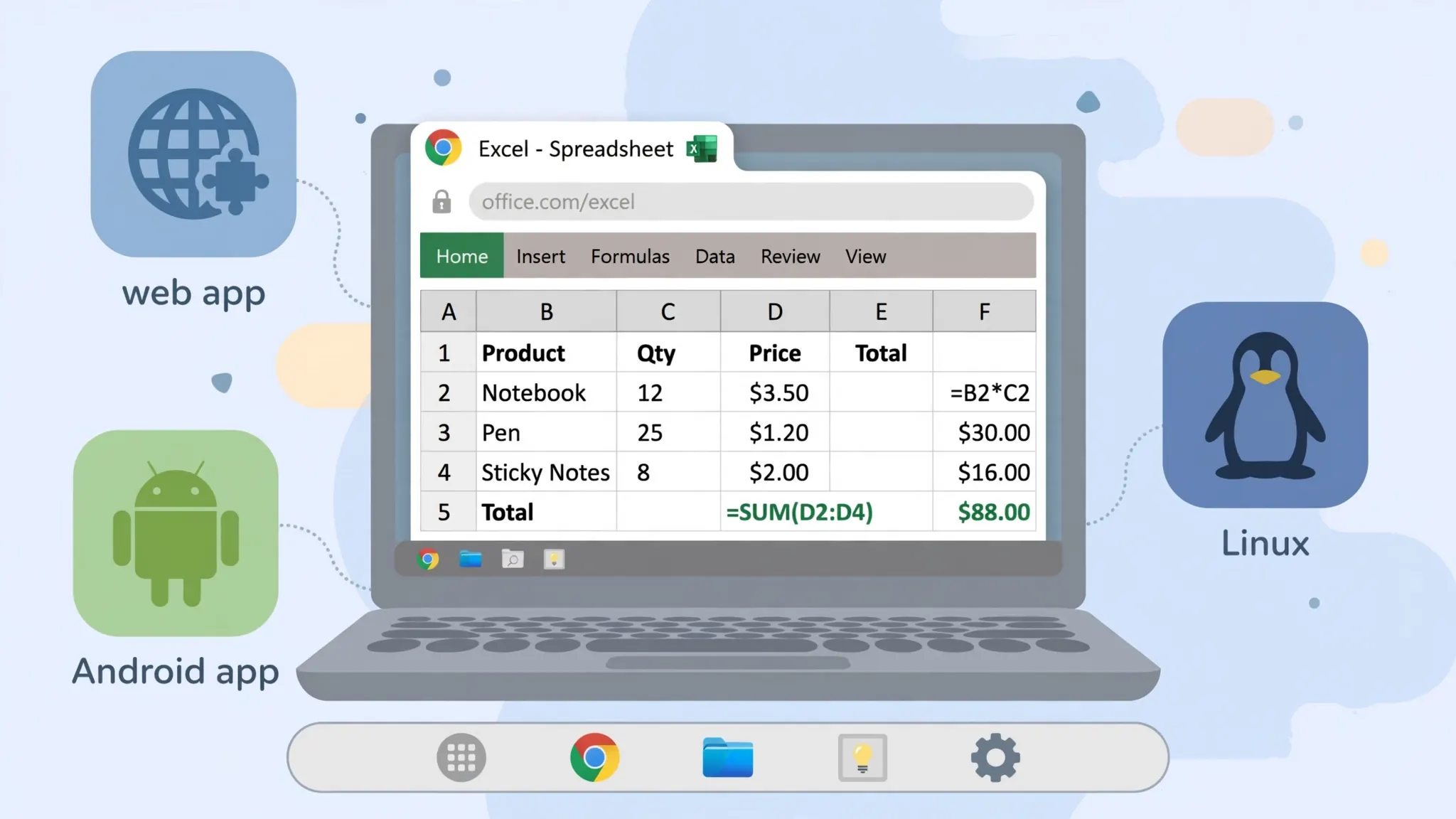
Yes — and the confusion comes from what “run Excel” means on ChromeOS. A Chromebook can’t install .exe or .dmg software, so the traditional desktop Excel is out. But Microsoft’s Excel ecosystem was designed for exactly this situation: the same workbooks, the same formulas, the same OneDrive storage, delivered through three ChromeOS-friendly doors.
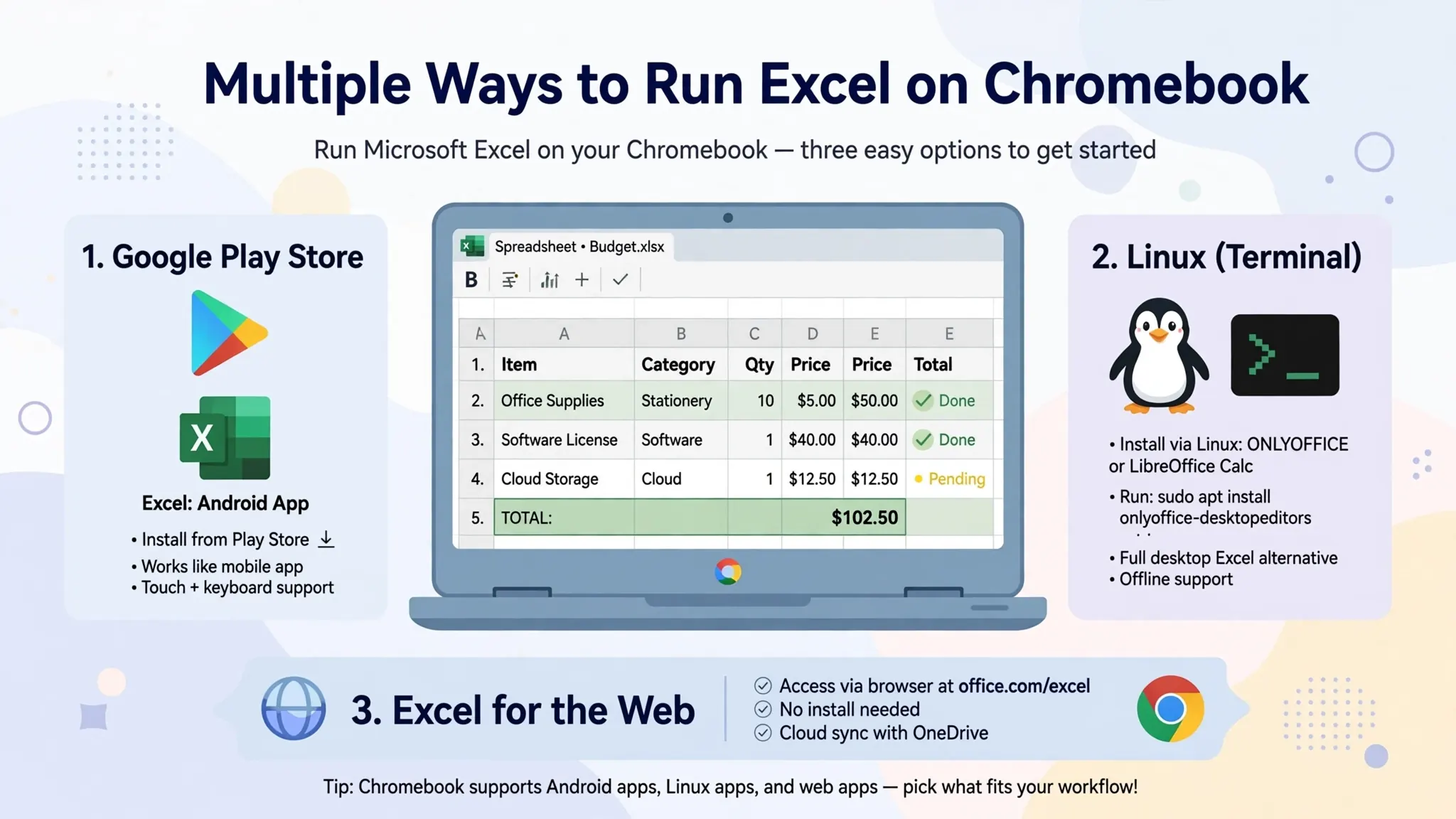
Door 1: Excel for the web at office.com — the full browser version, free with a Microsoft account. This is real Excel: formulas, charts, pivot tables, collaboration, autosave. On a Chromebook with a keyboard and mouse, it feels like desktop Excel for 90% of tasks. Door 2: the Android app from the Play Store — the same Excel mobile app from our Android tutorial, running natively on ChromeOS with touch or mouse. Door 3: Linux — Chromebooks with Linux support (most models from 2019 onward) run LibreOffice Calc, OnlyOffice Desktop, and even Python with pandas for automation.
Files move freely between all three via OneDrive, and a workbook created in any of them opens perfectly in desktop Excel on Windows/Mac later. The .xlsx format is the universal constant — the app is just the window you look through. Our Excel Online vs Desktop comparison details the web version’s capabilities and limits if you want the full picture.
Excel on Chromebook method 1: Excel for the web (recommended)
For most Chromebook owners, this is the answer. Excel for the web runs in Chrome, needs nothing installed, and delivers the most desktop-like experience available on ChromeOS.
- Open Chrome and go to office.com. Sign in with your Microsoft account (or create one free).
- Click the Excel icon, then New blank workbook.
- Work normally — the ribbon, formulas, charts, and formatting all behave like desktop Excel.
- Everything autosaves to OneDrive (5 GB free). Rename the file at the top.
- Optional: in Chrome’s menu, choose Save and share › Install page as app to pin Excel to your shelf like a native app.
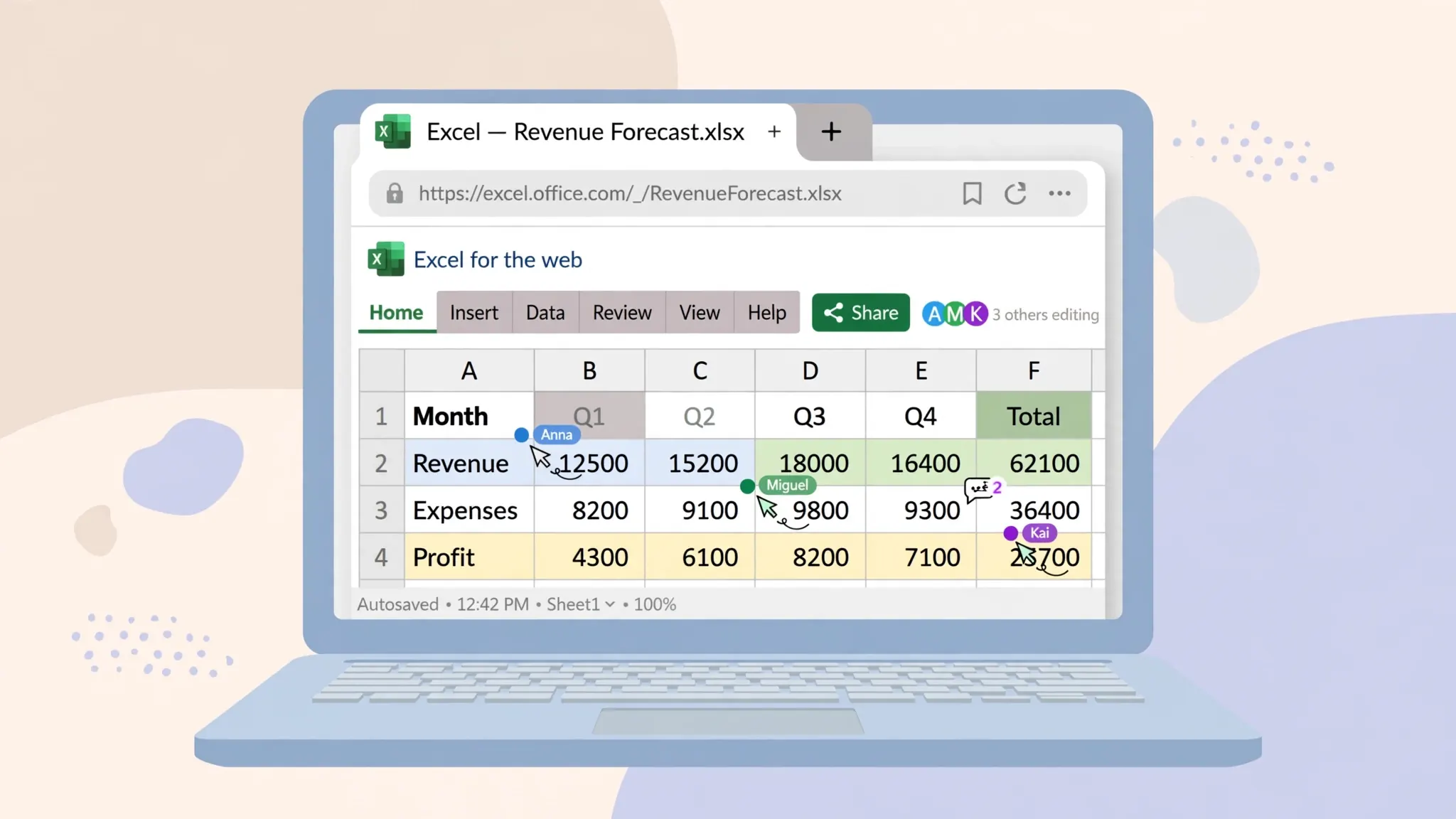
Why this wins on Chromebook specifically: ChromeOS is a browser with benefits, so a web app feels native rather than compromised. Keyboard shortcuts work (with a few ChromeOS remaps — Ctrl+Shift+T reopens closed tabs system-wide, so Excel’s strikethrough shortcut yields to the OS; use the ribbon button instead). Multiple people can co-author with live cursors. And performance is excellent for normal files — the heavy lifting happens on Microsoft’s servers, so even a $200 Chromebook handles respectable workbooks.
The limits to know: no VBA macros, limited Power Query authoring, no Power Pivot, and an internet connection is mandatory. For the complete accounting, see the Online vs Desktop guide — but note that on a Chromebook, “desktop” isn’t an option anyway, so the comparison that matters is web vs Android app vs Linux, covered next.
Method 2: The Excel Chromebook app from the Play Store
Most modern Chromebooks run Android apps, and the Excel Chromebook app — the same Microsoft Excel from the Play Store — installs like any Android app and runs in a resizable window. It’s the same app covered in our Excel Android app tutorial, now with a keyboard, mouse, and bigger screen.
- Open Settings › Apps › Google Play Store and enable it if needed.
- Open the Play Store, search “Microsoft Excel,” and install the official app.
- Launch it from the app shelf, sign in with your Microsoft account.
- Resize the window to taste — on a 14-inch Chromebook screen, the app’s tablet layout gives you a roomy grid and full ribbon tabs.
Where the Android app beats the web version on a Chromebook: offline editing (mark files available offline and work without Wi-Fi — the web app can’t do this), slightly better touch support on convertible 2-in-1 Chromebooks, and a snappier feel for quick edits since it runs locally. Where it loses: the interface is the mobile interface — simplified ribbons, fewer advanced dialogs — so complex formatting and deep features are clumsier than in the web app.
The practical setup most Chromebook power users land on: web app for building, Android app for offline and quick edits, both pointed at the same OneDrive files. They complement rather than compete.
Method 3: Linux apps — the power-user route
Chromebooks with Linux support (Settings › Advanced › Developers › Linux development environment — most 2019+ models qualify) unlock a third tier: real desktop Linux applications. This is the route for offline purists, automation nerds, and anyone who wants a full desktop spreadsheet without the web.
LibreOffice Calc (sudo apt install libreoffice-calc) is the headline act: a full offline spreadsheet with excellent XLSX compatibility, its own Text/CSV import wizard, and zero cost. It handles the files Excel for the web fumbles offline and reads legacy formats (including DBF — see our DBF to Excel guide). OnlyOffice Desktop Editors offers even closer Excel compatibility if Calc’s rendering bothers you. And Python (sudo apt install python3-pip, then pip install pandas openpyxl) brings full automation: our Python Excel guide runs verbatim in the Linux terminal, converting and formatting files with scripts.
For a closer-to-Excel feel without the cost, WPS Office’s Linux build also installs in the Crostini container and opens XLSX files with near-pixel Excel rendering — handy when Calc’s formatting drifts on a client’s workbook. And if you only need quick CSV viewing, the terminal’s sc-im spreadsheet opens multi-megabyte files in a blink.
Fair warnings: Linux apps look slightly alien next to ChromeOS’s clean aesthetic, file sharing between Linux and ChromeOS folders needs a trip through the “Linux files” mount, and setup takes comfort with a terminal. But for a student in India or a tinkerer in Canada squeezing maximum capability from a budget Chromebook, Linux is the cheat code that makes a $250 machine do $1,000 work.
Handling CSV files on a Chromebook
CSVs are the Chromebook’s natural data format — downloads, exports, shared files — and handling them well matters more here than on any other platform, because the import tooling is thinner.
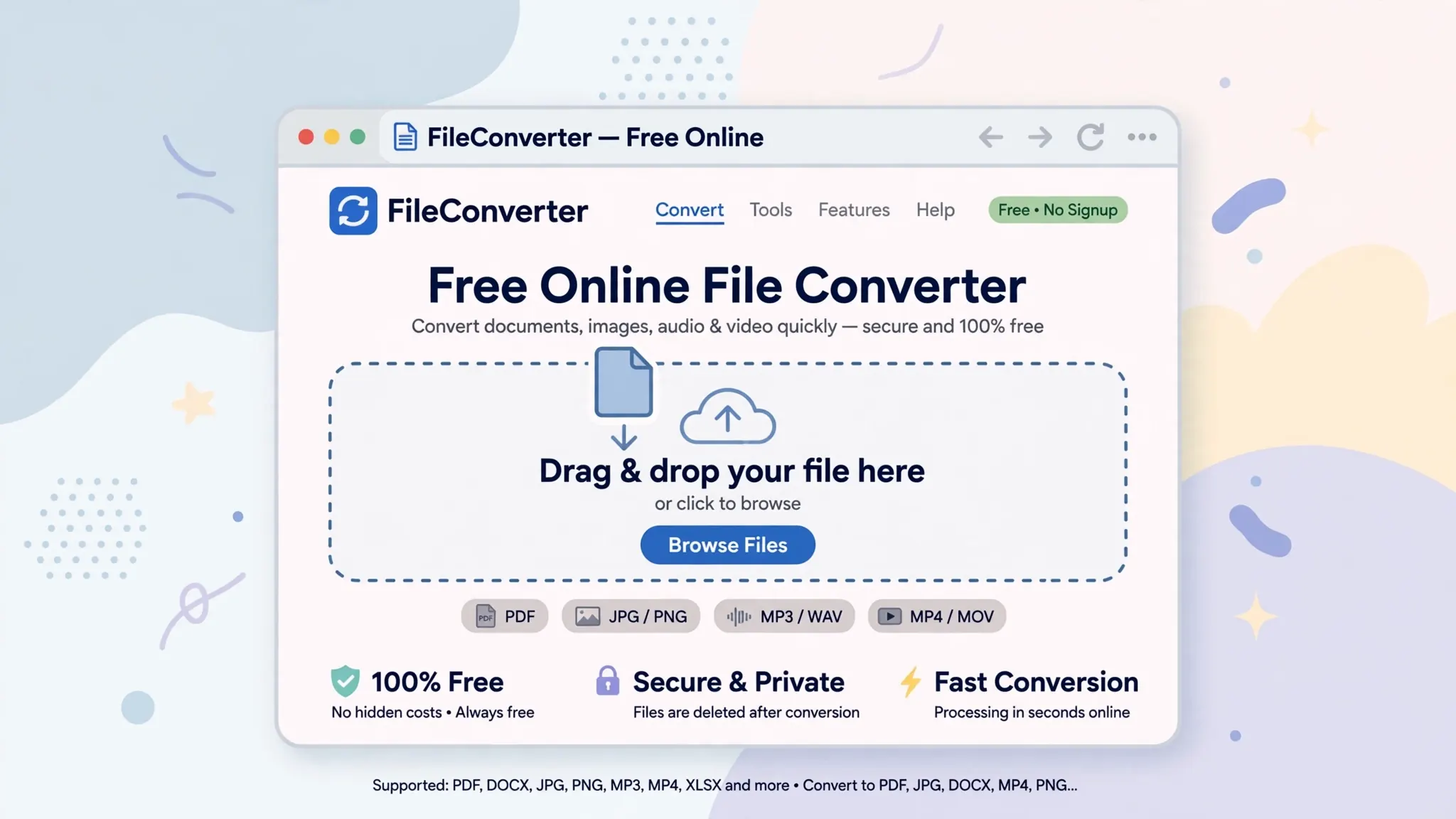
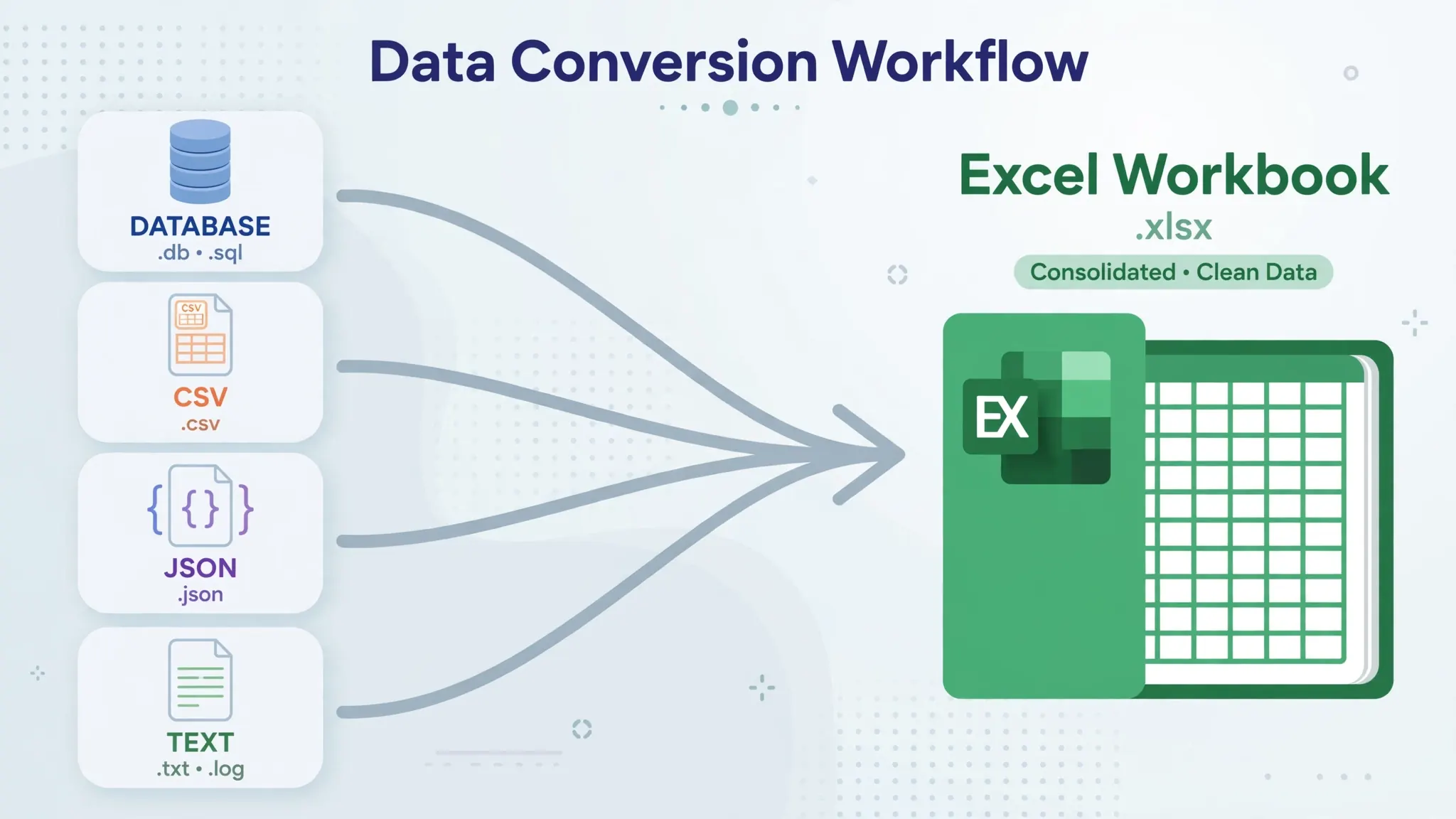
The clean route: convert first. Our free CSV to Excel converter runs entirely in the Chromebook’s Chrome browser: drop in the CSV, download a proper XLSX with correct types and encoding, then open it in Excel for the web or the Android app. This sidesteps every import-dialog limitation and is the method we recommend for anything beyond trivial files.
The direct route: upload the CSV to OneDrive and open it in Excel for the web — it renders as a worksheet you can then Save As to XLSX. For simple, clean, UTF-8 comma-delimited files this works fine. For semicolon-delimited European files, legacy encodings, or files with tricky quoting, the web import may mangle columns — convert first instead. (Our CSV to Excel Online guide covers the web import’s specifics.)
The Linux route: LibreOffice Calc’s Text Import dialog is genuinely excellent — delimiter preview, encoding selector, per-column types — arguably better than Excel for the web’s. If you enabled Linux for other reasons, route stubborn CSVs through Calc and save as XLSX.
Working offline: what works without Wi-Fi
Chromebooks have an offline reputation problem they don’t entirely deserve. Here’s the honest map for Excel work:
Excel for the web: no. It needs connectivity — full stop. Don’t plan around it offline. Android app: yes, with prep. Open the file once while online, tap … › Make available offline, and it edits fully offline, syncing when you reconnect. Linux apps: yes, completely. LibreOffice Calc is a real offline desktop app — the only Excel-adjacent experience on a Chromebook that works in airplane mode with zero preparation.
Practical advice: if your Chromebook travels (flights, field work, patchy campus Wi-Fi), install the Android app and mark your active files offline before leaving. The five minutes of prep saves the “I can’t open my budget at 35,000 feet” moment. And keep local copies that matter in the Chromebook’s Downloads folder too — belt and suspenders for important files.
Chromebook Excel for education: the classroom setup
Chromebooks dominate education — in many US school districts they’re the default student device — so it’s worth spelling out the classroom playbook explicitly. The good news for teachers and students: everything needed is free, and setup takes one class period.
For teachers: distribute workbooks via OneDrive share links or Google Classroom (upload the XLSX as material — students open it in the web app). Build assignments as templates with data-validation dropdowns and protected formula cells, so student work stays structured even on small screens. Grade with comments and @mentions directly in the shared file — no more collecting email attachments. For data-heavy subjects (statistics, science labs), the web app’s charts and pivot tables cover the curriculum; only advanced coursework needs anything more.
For students: sign in with your school Microsoft 365 account if provided (most schools offer it free — check with IT before assuming you need a personal account). Pin office.com to the shelf for one-click access. Learn three skills early — SUM/AVERAGE formulas, sorting and filtering, and one chart type — and you’ll handle 90% of assignments. Save everything to OneDrive, not Downloads: school Chromebooks get wiped or swapped, and local files don’t survive that.
Managed-device caveats: school IT often disables the Play Store and Linux on student Chromebooks. That’s fine — the web app needs neither, and it’s the method this guide recommends anyway. If a class genuinely needs offline work or Linux tools, that’s a conversation with the IT admin, not a workaround to attempt solo. And a final tip for parents buying a first laptop for school: a Chromebook plus the free web app covers the spreadsheet curriculum completely — there’s no need to pay for a Windows machine “for Excel.”
Which method should you choose?
Student / casual user: Excel for the web, exclusively. It’s free, it’s enough, and your schoolwork lives in OneDrive where teachers can access it. Professional / freelancer: web app as the daily driver + Android app for offline moments. Consider Microsoft 365 if you need the premium features or 1 TB of storage. Data tinkerer / developer: all three — web for speed, Android for offline, Linux with Python for automation. Offline-first / traveler: Android app with offline files, or Linux + LibreOffice for the full desktop feel without Wi-Fi.
The beautiful part: you’re never locked in. A workbook started in the web app opens in the Android app; a CSV converted in the browser lands in OneDrive; a Python script’s output opens everywhere. Pick the door that fits today’s task — Excel on Chromebook is a spectrum, not a single app. And if you later move to a Windows PC or Mac, everything you’ve built comes along untouched: same files, same formulas, same OneDrive library, zero migration needed.
Your 15-minute quick-start checklist
If you just unboxed the device, here’s the fastest path to a working spreadsheet setup. Minutes 0–3: sign in to office.com with a Microsoft account and open a blank workbook in the web app — confirm the ribbon, formulas, and saving all behave. Minutes 3–6: in Chrome, use the menu › Save and share › Install page as app to pin it to your shelf, so launching feels native. Minutes 6–10: enable the Play Store (Settings › Apps), install the Android spreadsheet app, sign in with the same account, and open the test workbook — verify it appears with your edits intact. Minutes 10–13: move any existing workbooks into OneDrive (drag them into onedrive.com), then open one from each app to confirm the round trip. Minutes 13–15: test your CSV workflow — convert one real file with the browser converter and open the result. If all five steps pass, your setup is complete and every future task is just “open the right door.” Most owners never need anything beyond this checklist; the Linux route waits patiently for the day curiosity strikes and you want to tinker.
Troubleshooting: Chromebook Excel problems
Play Store won’t enable. Some school/managed Chromebooks disable it — check with your admin. The web app needs no Play Store, so you’re still fully covered.
Excel web app feels slow. Close heavy tabs (Chromebooks share RAM aggressively), and for very large files, split the work: do the heavy import on a desktop once, then use the Chromebook for review and edits.
Keyboard shortcuts conflict with ChromeOS. Known collisions: Ctrl+Shift+T (reopen tab — ChromeOS wins), Alt+← (browser back). Use the ribbon buttons for those commands, or remap in ChromeOS Settings › Keyboard.
Files won’t open from Downloads in the web app. The web app reads from OneDrive, not local storage — upload the file first (drag it into onedrive.com), or open local files in the Android app instead.
Linux apps look tiny/blurry. Right-click the app icon › enable the high-DPI/scale flag for Linux apps in ChromeOS settings; most scaling weirdness disappears.
“This file needs a newer version.” Rare, but macro-heavy or Power-Pivot workbooks from desktop Excel may partially open. The fix is structural: keep the heavy machinery on a desktop, and keep Chromebook workbooks clean.
Frequently Asked Questions
Can you install Microsoft Excel on a Chromebook?
You can’t install the Windows/Mac desktop Excel, but you have three working options: Excel for the web in Chrome (free, recommended), the Excel Android app from the Play Store, or Linux apps like LibreOffice Calc via Crostini on supported Chromebooks.
Is Excel free on Chromebook?
Yes — Excel for the web is free with any Microsoft account, and the Excel Android app’s core features are free. You only need a paid Microsoft 365 subscription for premium features or the largest-screen tablets.
What’s the best way to use Excel on a Chromebook?
For most people, Excel for the web at office.com: full keyboard-and-mouse experience, real-time collaboration, autosave to OneDrive, and no installation. Add the Android app for offline editing on the go.
How do I open CSV files in Excel on a Chromebook?
Upload the CSV to OneDrive and open it in Excel for the web, or convert it first with a free browser-based CSV to Excel converter and open the resulting XLSX. The converter route gives cleaner results for tricky files.
Does Excel work offline on a Chromebook?
Excel for the web needs an internet connection. For offline work, use the Excel Android app with files marked available offline, or a Linux spreadsheet app like LibreOffice Calc, which runs fully offline.
Can I run the Linux version of Excel alternatives on Chromebook?
There’s no Linux build of Excel itself, but Chromebooks with Linux (Crostini) support run LibreOffice Calc, OnlyOffice, and Python with pandas/openpyxl — covering offline editing, Office compatibility, and automation.