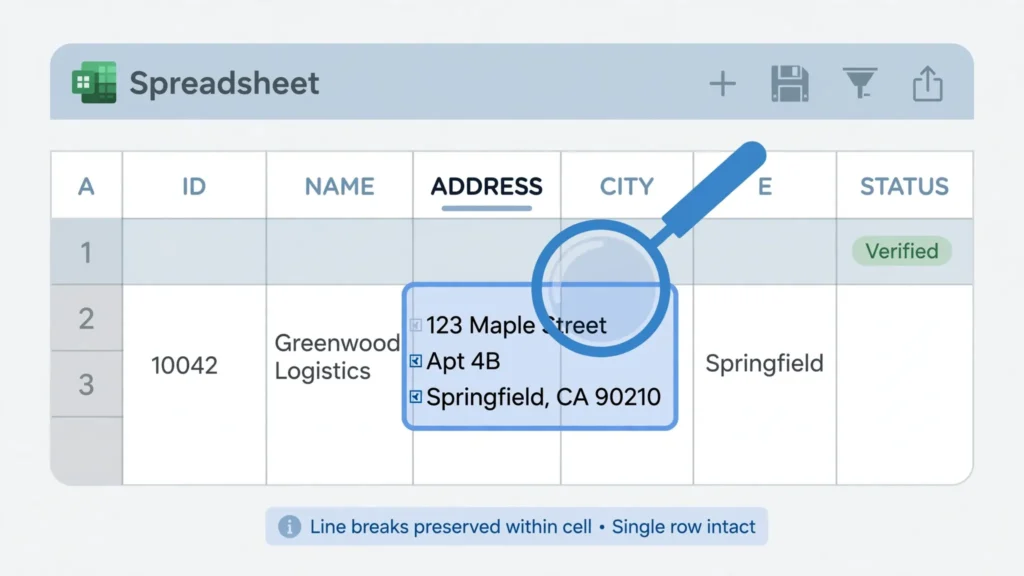
CSV line breaks inside fields are the reason a well-formed CSV file can still look broken to the untrained eye — and the reason a naive script can corrupt a perfect file in one pass. The idea is simple: an address like “123 Main St, Apt 4B, Springfield” is one logical value, but it reads far better on three lines. RFC 4180 allows exactly that: wrap the field in double quotes, and line breaks inside the quotes belong to the field, not to the row structure. Excel honors this beautifully, showing the address stacked in a single cell. But every tool that processes CSV by “splitting on newlines first, asking questions later” mangles these files — turning one address into three rows and shifting every column downstream into chaos.
This guide is the complete manual for multiline CSV fields. You will learn how the quoting rule makes embedded line breaks legal, why addresses, notes, and descriptions end up multiline in real exports, how Excel imports and displays them (including Wrap Text and row heights), the CHAR(10)/CHAR(13) toolkit for adding, finding, and removing line breaks in formulas, how parsers distinguish a line break inside a field from a row break, what breaks when tools get it wrong, and the decision framework for flattening versus preserving. Whether your CSVs come from CRMs in the US, address databases in the UK, or order systems in India, multiline fields will stop being a hazard and become a formatting feature you can rely on with confidence.
CSV line breaks inside fields: how the rule works
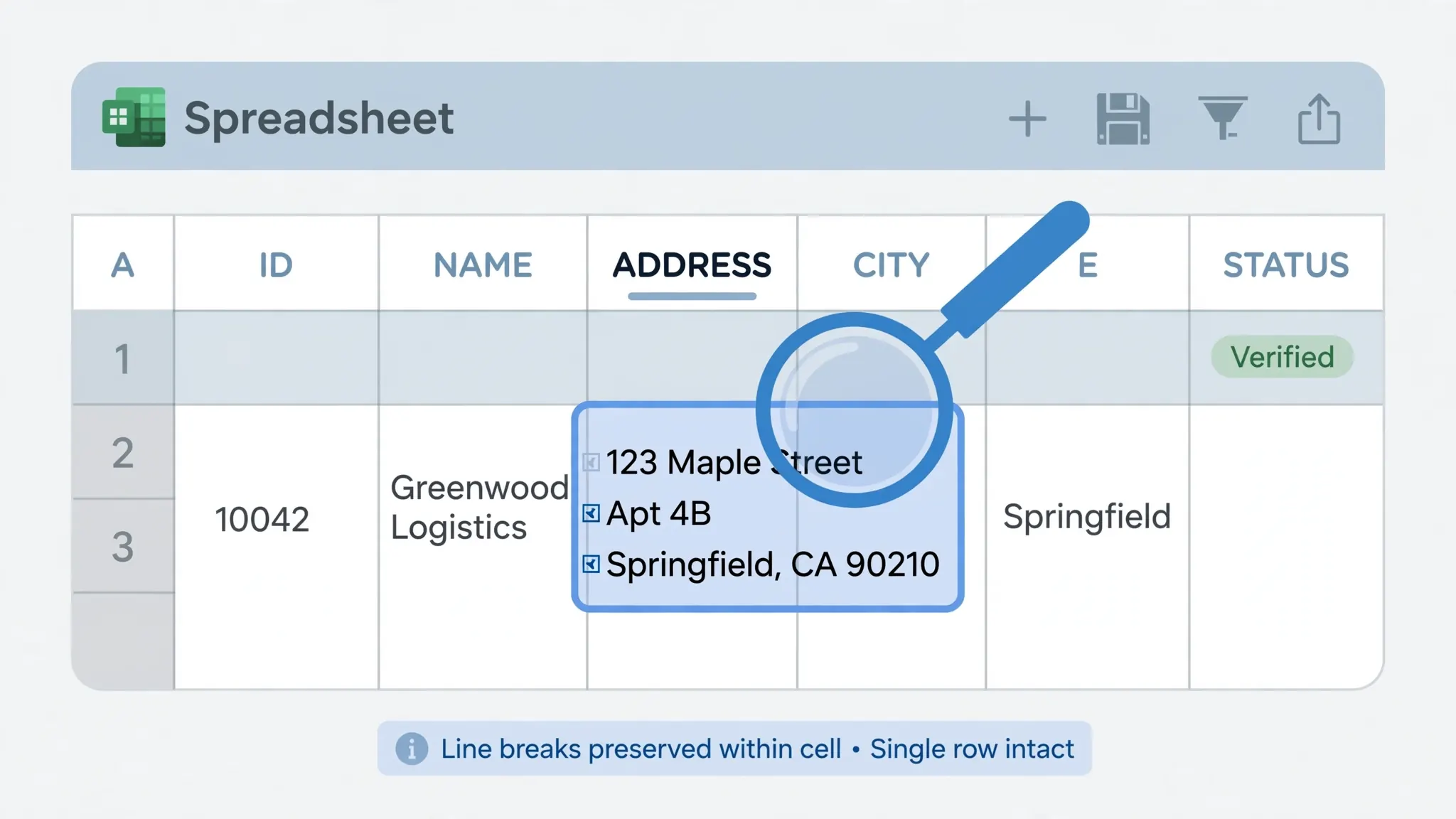
That is CSV line breaks inside fields in one paragraph: a line break inside a double-quoted field is data; a line break outside quotes is a row separator. The RFC 4180 specification states it plainly — fields containing line breaks (CRLF), double quotes, or commas should be enclosed in double quotes, and inside those quotes the line break is just another character of the field’s value.
In raw bytes, a multiline CSV row looks like this:
101,"123 Main St[LF]Apt 4B[LF]Springfield, IL 62701",350000
A correct parser reads the opening quote after 101,, then consumes everything — including the line feeds — until the closing quote, producing one field with three lines. An incorrect parser (split on newlines first) produces three “rows,” two of them with the wrong column count. The entire difference between a working and a broken pipeline is parse quotes before splitting rows — a rule so fundamental that every serious CSV library implements it, and so frequently violated by hand-rolled scripts that multiline fields remain a top-three CSV support issue.
Note the quoting connection: multiline fields only work when quoted. An unquoted line break is always a row break, no exceptions. This is why the quoting rules from our CSV double quotes escaping guide matter here too — the two features are two halves of the same mechanism. A CSV newline inside a quoted field is legal; the same newline outside quotes ends the row.
Why multiline fields exist: addresses, notes, and descriptions
Multiline fields are not a quirk — they reflect how humans actually write certain data. Postal addresses are the classic case: street, apartment, city/state/ZIP read naturally on separate lines, and address databases from the US, UK, Canada, and Australia routinely export them multiline. Notes and comments fields in CRMs and helpdesks preserve the user’s original line breaks — a support ticket’s description with paragraphs stays readable only if the breaks survive. Product descriptions from e-commerce platforms, multi-line survey responses, and legal/clinical notes all follow the same pattern.
Understanding why the breaks exist informs whether to keep them. Address line breaks carry mild structural meaning (the divisions are conventional, not semantic — “Apt 4B” on its own line vs after a comma changes nothing for a mail merge). Note-field breaks carry real meaning (paragraph divisions the author intended). Description breaks are presentational. When deciding to flatten (later section), weigh how much meaning the breaks carry for the consumer — not just whether the pipeline tolerates them.
CSV line breaks inside fields in Excel: import and display
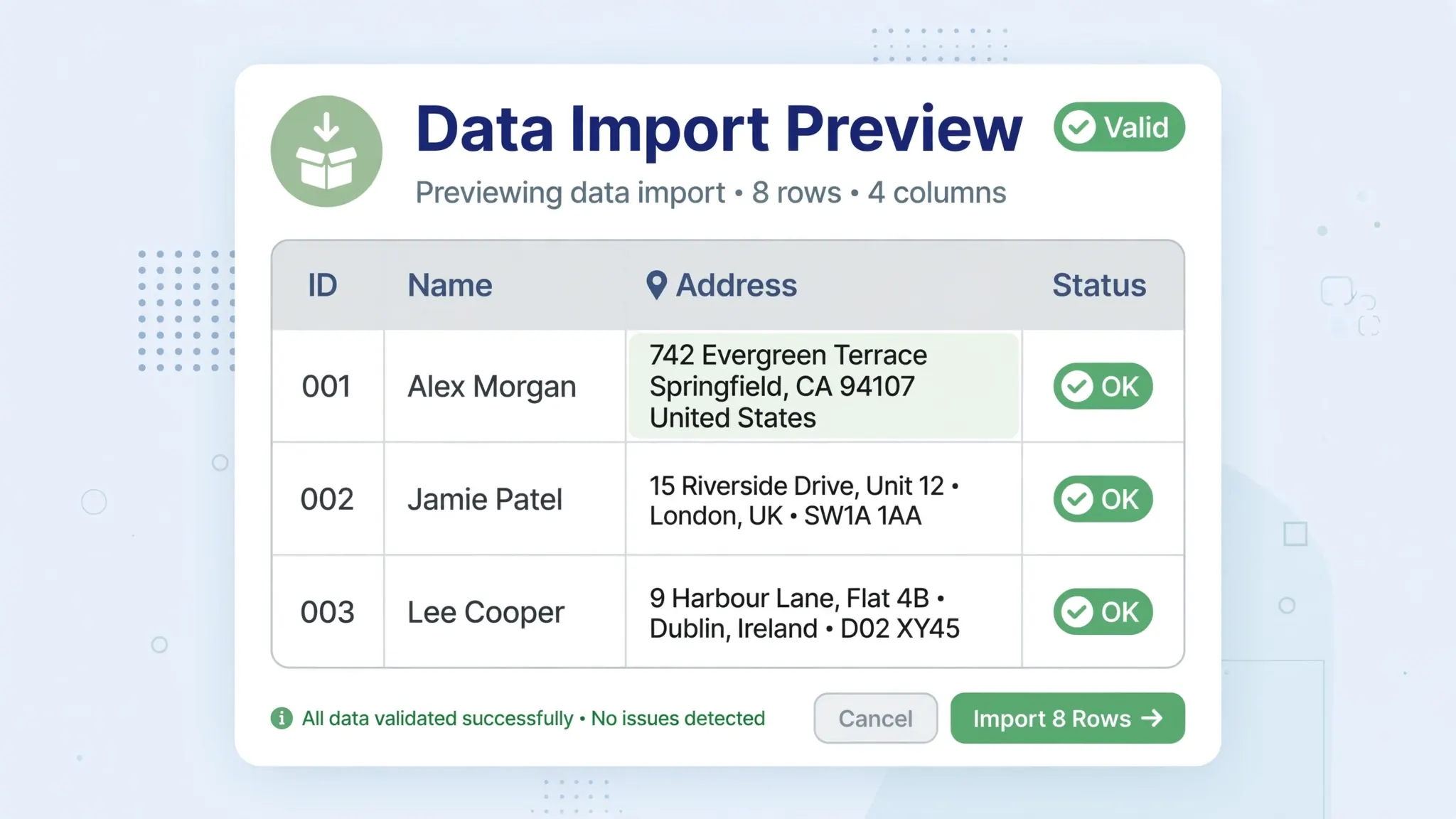
Excel handles quoted multiline fields correctly through every import path — double-click open, the Text Import Wizard, and Power Query all preserve them as multi-line cell content. What trips people up is display, not import: a cell containing line breaks shows as a single crowded line (or with odd overflow) until you enable Wrap Text and give the row enough height.
- Import the CSV normally (Data › From Text/CSV, or double-click if the encoding is fine). Multiline fields land in single cells — verify by clicking a cell and reading the formula bar, which shows the breaks clearly.
- Select the multiline column(s) and enable Wrap Text (Home tab › Alignment group).
- Set row heights: select the rows, right-click › Row Height, or double-click a row boundary for AutoFit. Without this, wrapped lines hide behind the row below.
- Check column widths — wrapped text in a narrow column creates tall rows; widening the column shortens them. Find the balance for your report.
Two display subtleties. First, print and PDF: wrapped multiline cells print as they display — check Print Preview, because AutoFit row heights sometimes need a nudge for page breaks. Second, merging and sorting: sorting a column of multiline addresses sorts by the full cell content (first line dominates, as expected); merging multiline cells concatenates with the breaks preserved.
The CHAR(10) toolkit: adding, finding, and removing line breaks in Excel
Inside Excel, line breaks are just characters — CHAR(10) (line feed, LF) on all modern systems, sometimes paired with CHAR(13) (carriage return, CR) in Windows-style CRLF pairs. These formulas cover every operation:
Adding a line break in a formula: =A1&CHAR(10)&B1 stacks two values in one cell. (Manual equivalent: Alt+Enter while editing.) Remember Wrap Text, or the break is invisible.
Adding a break only when needed: =A1&IF(B1<>"",CHAR(10)&B1,"") avoids a trailing empty line when B1 is blank.
Finding cells with line breaks: Find and Replace › Find what: press Ctrl+J (it inserts an invisible line break into the box) › Find All. Or filter with a helper column: =ISNUMBER(SEARCH(CHAR(10),A1)).
Removing all line breaks (flattening): =SUBSTITUTE(A1,CHAR(10)," ") — or with comma-space for addresses: =SUBSTITUTE(A1,CHAR(10),", "). For Windows CRLF pairs, strip both: =SUBSTITUTE(SUBSTITUTE(A1,CHAR(13),""),CHAR(10),", "). Our Excel SUBSTITUTE function guide covers this pattern in depth.
Counting lines in a cell: =LEN(A1)-LEN(SUBSTITUTE(A1,CHAR(10),""))+1 — the number of line breaks plus one. Useful for auditing how multiline a column really is before deciding to flatten.
Line breaks vs row breaks: how parsers tell them apart
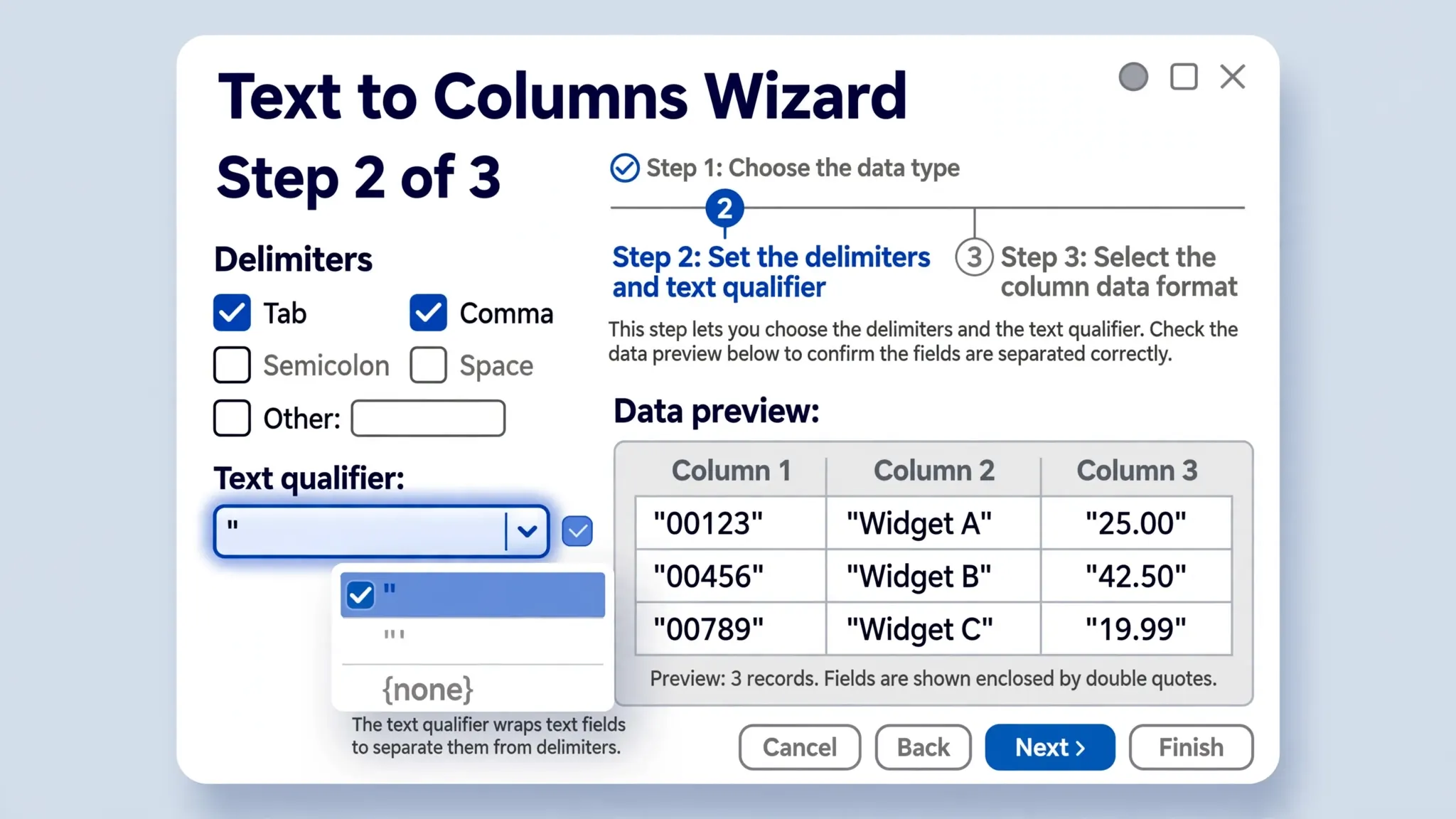
The parser’s algorithm is a tiny state machine: start outside a quoted field; a line break here ends the row. Enter a quoted field at the opening quote; now line breaks are data until the closing quote. That is the whole trick — quote state determines what a line break means.
This is why every correct CSV library (Python’s csv, Papa Parse, Power Query’s parser, Excel’s importer) reads character-by-character or with quote awareness, and why line-oriented tools (head, naive split("\n"), wc -l for “row counts”) lie about multiline files. wc -l on a CSV with multiline addresses reports more “lines” than there are rows — a classic source of “the file has 10,204 rows but the database loaded 9,871” confusion. (The database was right; wc -l counted physical lines, not logical rows.)
CRLF vs LF vs CR: RFC 4180 specifies CRLF (\r\n) as the row separator, but the real world uses all three. Inside quoted fields you may find any of them depending on the producing OS (Windows CRLF, Unix LF, old Mac CR). Good parsers accept all three as in-field data; when writing, CRLF is the safest choice for Excel compatibility. A file mixing all three usually indicates concatenated exports — normalize before parsing.

When line breaks break things: naive scripts and strict loaders
Multiline fields are legal, but not every consumer handles them. Know your downstream before shipping them.
Naive scripts — anything that does for line in open(f) then line.split(",") — shred multiline fields into phantom rows. If you maintain such a script, replace it with the csv module (two lines of change); if you consume output from one, the fix is on the producer’s side.
Strict database loaders vary: PostgreSQL COPY ... CSV handles quoted multiline fields correctly; MySQL LOAD DATA does too with proper LINES TERMINATED BY; but some ETL tools and older loaders reject embedded newlines outright or require an explicit option. Check the loader’s documentation for “embedded newline” or “multiline” support before assuming.
Spreadsheet-adjacent tools (Google Sheets import, LibreOffice, Apple Numbers) all handle multiline fields correctly — this is a solved problem in every real spreadsheet. The breakage lives in custom code and legacy loaders, not in mainstream tools.
Symptom diagnosis: “extra rows with shifted columns” = unquoted or misquoted breaks (fix the file); “import rejected / error on row N” = strict loader (flatten or configure the loader); “row count mismatch between wc -l and the database” = not actually a problem (count logical rows, not physical lines).
Flatten or preserve? The decision framework
Preserve multiline fields when: humans read the data (reports, mail merges, CRM views); the downstream parser is quote-aware (Excel, Sheets, Python csv, modern databases); the breaks carry meaning (paragraphs in notes, address formatting). Preservation keeps the data faithful to its source.
Flatten when: the downstream is a naive script or a strict loader that rejects newlines; the data feeds a system with single-line field constraints (some APIs, SMS gateways, label printers); or you are joining the field into a context where breaks are meaningless (a CSV cell with line break Excel exports to a system that strips them anyway — flatten deliberately rather than letting it happen accidentally).
How to flatten well: choose a separator that cannot appear in the data — , for addresses is conventional; | or // for notes where commas abound. In Excel: =SUBSTITUTE(SUBSTITUTE(A1,CHAR(13),""),CHAR(10),", "). In Python: value.replace("\r\n", ", ").replace("\n", ", ")".strip() — note the order: CRLF first, then lone LF, so Windows breaks don’t become double separators. Document the flattening so nobody mistakes , for original punctuation.
CSV line breaks inside fields are a feature, not a bug: quoted fields may legally span lines, Excel renders them as tidy multiline cells, and correct parsers keep every row intact. Respect the quote state, enable Wrap Text, reach for CHAR(10) when you need to operate on the breaks, test any new tool with a multiline sample file, and flatten deliberately — with a documented separator — when the downstream demands it. The phantom-row problem was never about your data being wrong; it was about a parser reading structure where there was only content. For the quoting rules that make all of this possible, see CSV double quotes escaping; for cleaning up the breaks with formulas, Excel SUBSTITUTE function.
Multiline CSVs across tools: Sheets, Numbers, LibreOffice, Python
Excel is not the only consumer of multiline CSVs, and the good news is that every mainstream tool handles them correctly — with small quirks.
Google Sheets: File › Import parses quoted multiline fields into multi-line cells automatically; Wrap Text is on by default for wrapped content, and row heights adjust themselves. Sheets is the most forgiving tool in this list — if a file looks right in Sheets but wrong elsewhere, the file is fine and the other tool is at fault.
Apple Numbers and LibreOffice Calc: both parse multiline fields correctly on import. LibreOffice’s Text Import dialog even shows multiline cells in its preview. Numbers occasionally needs a manual row-height nudge after import, same as Excel.
Python: the csv module handles multiline fields transparently — list(csv.reader(open("f.csv", newline=""))) yields the correct rows; note the newline="", which the docs require so the module sees the raw line breaks. With pandas, read_csv just works. The one gotcha: engine="python" vs the C engine differ in edge cases — for files with heavy quoting, the C engine (default) is both faster and stricter.
JavaScript (Papa Parse): handles multiline fields correctly including the tricky case of quotes adjacent to breaks. If you build CSV upload features, Papa Parse is the safe default — hand-rolled split("\n") parsing is the number-one source of multiline breakage on the web.
The pattern: every real CSV parser handles multiline fields; only hand-rolled line-splitting breaks them. When evaluating any new tool, the multiline test file is the fastest possible parser quality check. And when a vendor claims their export “isn’t compatible” with your importer, ask which of the two is doing naive line-splitting — the answer determines whose bug it is, and it is worth knowing before anyone writes a workaround.
The multiline CSV pre-flight checklist
Before a multiline CSV leaves your hands — to a colleague, a client, or a pipeline — run this checklist:
- Verify quoting: every field containing a line break is wrapped in double quotes, and inner quotes are doubled. Spot-check the raw text around the multiline fields.
- Round-trip it: re-import the file into a fresh workbook (or
pd.read_csv) and confirm row counts match and multiline cells are intact. - Check the consumer: will it be opened in Excel/Sheets (safe), a database loader (check multiline support), or a custom script (verify it uses a real CSV parser)?
- Decide flatten vs preserve using the framework above — and document the decision in the file’s README or the pipeline docs.
- Normalize line endings to CRLF for maximum Excel compatibility, especially if the file was assembled from mixed-OS sources.
- Carry the BOM if any field contains non-ASCII text and humans will open it in Excel on Windows — multiline fields and encoding issues love to arrive together.

Frequently Asked Questions
Can a CSV field contain a line break?
Yes. Per RFC 4180, a field wrapped in double quotes may contain line breaks (CRLF); they are part of the field, not row separators. Excel imports such fields as multi-line cells, and correct parsers keep the row intact.
Why does my CSV split into extra rows in Excel?
The line breaks are not inside quoted fields — either the quotes are missing or the file was produced by a writer that doesn’t quote multiline fields. Each unquoted line break is a row separator to the parser. Fix the source to quote multiline fields, or pre-process the file.
How do I remove line breaks from Excel cells?
Use =SUBSTITUTE(A1,CHAR(10),”, “) to replace line feeds with comma-space, or Find and Replace with Ctrl+J in the Find box (Ctrl+J inserts a line break). CHAR(13) covers carriage returns from Windows-style CRLF.
How do I add a line break inside an Excel cell?
Press Alt+Enter while editing the cell. In formulas, concatenate with CHAR(10): =A1&CHAR(10)&B1, and enable Wrap Text on the cell so the break displays on separate lines.
Do line breaks inside CSV fields survive conversion to Excel?
Yes — a correct CSV parser (Excel’s import wizard, Power Query, Python’s csv module, and our free converter) preserves quoted line breaks as multi-line cell content in the resulting .xlsx file.
Should I flatten multiline CSV fields or keep them?
Keep them when humans read the data (addresses, notes) and the downstream tools parse quotes correctly. Flatten to a separator (comma, semicolon, pipe) when feeding naive scripts, strict database loaders, or systems documented to reject embedded newlines.