The Excel SUBSTITUTE function is the formula you reach for when a spreadsheet column is almost right but not quite — product codes with stray dashes, names with double spaces, imported CSV data littered with odd characters, or dates stored as text with the wrong separators. Instead of hand-editing thousands of cells or running Find and Replace over and over, one formula swaps the unwanted text for the text you actually want, instantly and repeatably. If you have ever typed =SUBSTITUTE(A1,"-","") and watched a column of messy phone numbers clean itself up, you already know the feeling: it is one of those small Excel skills that quietly saves hours every month.
This guide is a complete tour of how to use SUBSTITUTE in Excel, from the basic three-argument form through the powerful instance_num argument that replaces only the Nth occurrence, to nested SUBSTITUTE formulas that perform a whole chain of replacements in a single cell. You will also learn the crucial difference in the SUBSTITUTE vs REPLACE debate — the two functions sound similar but solve different problems — plus the classic mistakes that make SUBSTITUTE formulas silently fail, and how the same techniques apply in Google Sheets. Whether you are cleaning a one-off export from your accounting software or building a repeatable data pipeline for weekly CSV reports from the US, UK, India, Canada, or Australia, this is the reference to keep bookmarked.
What the Excel SUBSTITUTE function does
At its core, SUBSTITUTE takes a piece of text, finds every occurrence of a specific old string inside it, and swaps each one for a new string. The official syntax, documented by Microsoft Support, is:
=SUBSTITUTE(text, old_text, new_text, [instance_num])
The four arguments are straightforward. text is the string you want to change — usually a cell reference like A1, but it can also be a literal string in quotes or even another formula’s result. old_text is the exact text you want to find, and new_text is what replaces it. Both are case-sensitive, a detail that trips up a surprising number of people. The fourth argument, instance_num, is optional: leave it out and every occurrence gets replaced; include it and only the Nth occurrence changes.
Two properties of SUBSTITUTE shape everything you do with it. First, it returns text — always. Even if the result looks like a number (=SUBSTITUTE("2026","0","1") gives "2126" as text), Excel treats the output as a text string until you convert it with VALUE() or a math operation. Second, SUBSTITUTE never modifies the original cell. It produces a new value in the formula’s cell, which means your source data stays intact — a genuine advantage over destructive Find and Replace when you want an audit trail of what changed.
Think of SUBSTITUTE as “search and replace, but as a formula.” The manual Find and Replace dialog (Ctrl+H) edits cells in place and forgets what it did. SUBSTITUTE, by contrast, is live: if the source cell changes, the cleaned result updates automatically. That makes it the right tool whenever the replacement logic needs to survive new data — weekly imports, shared templates, dashboards fed by CSV files.
How to use SUBSTITUTE in Excel: the basics
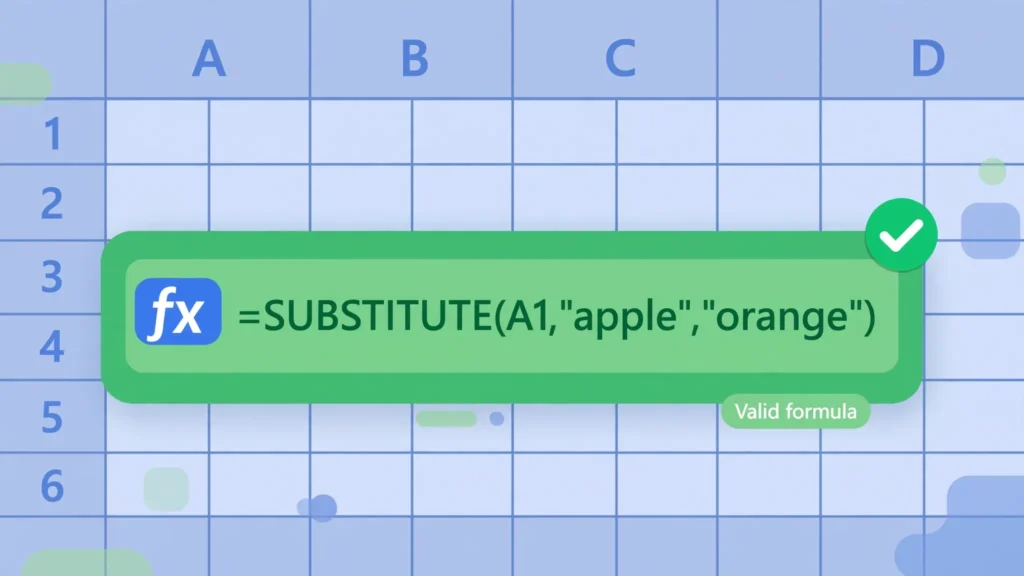
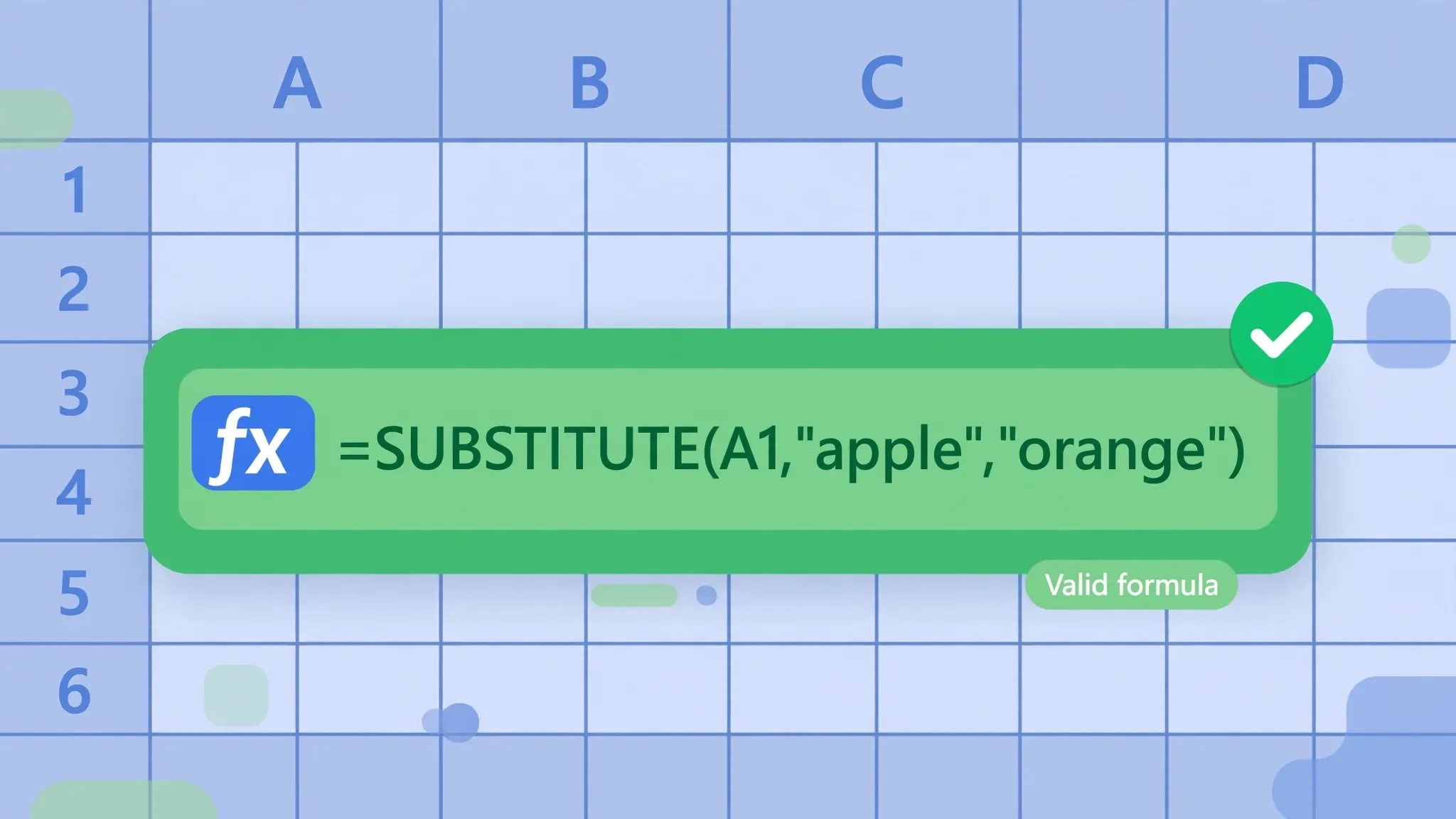
Learning how to use SUBSTITUTE in Excel takes about two minutes; mastering it takes a few realistic examples. Start with the simplest possible case. Suppose cell A1 contains apple and you want orange:
=SUBSTITUTE(A1,"apple","orange")
That is the whole pattern: tell Excel where to look, what to find, and what to put in its place. Here are the everyday variations that cover most real work.
Replacing one word with another
Product catalogs, survey responses, and CRM exports are full of inconsistent wording — “Ltd” vs “Limited”, “St.” vs “Street”, “US” vs “USA”. A column of company names can be standardized in seconds:
=SUBSTITUTE(A1,"Ltd.","Limited")
Drag the formula down and every “Ltd.” becomes “Limited” while the rest of each name is untouched. Because the match is literal, “Ltd” without the period would not match — precision is both the function’s strength and its main gotcha, which we will revisit in the mistakes section.
Removing unwanted characters entirely
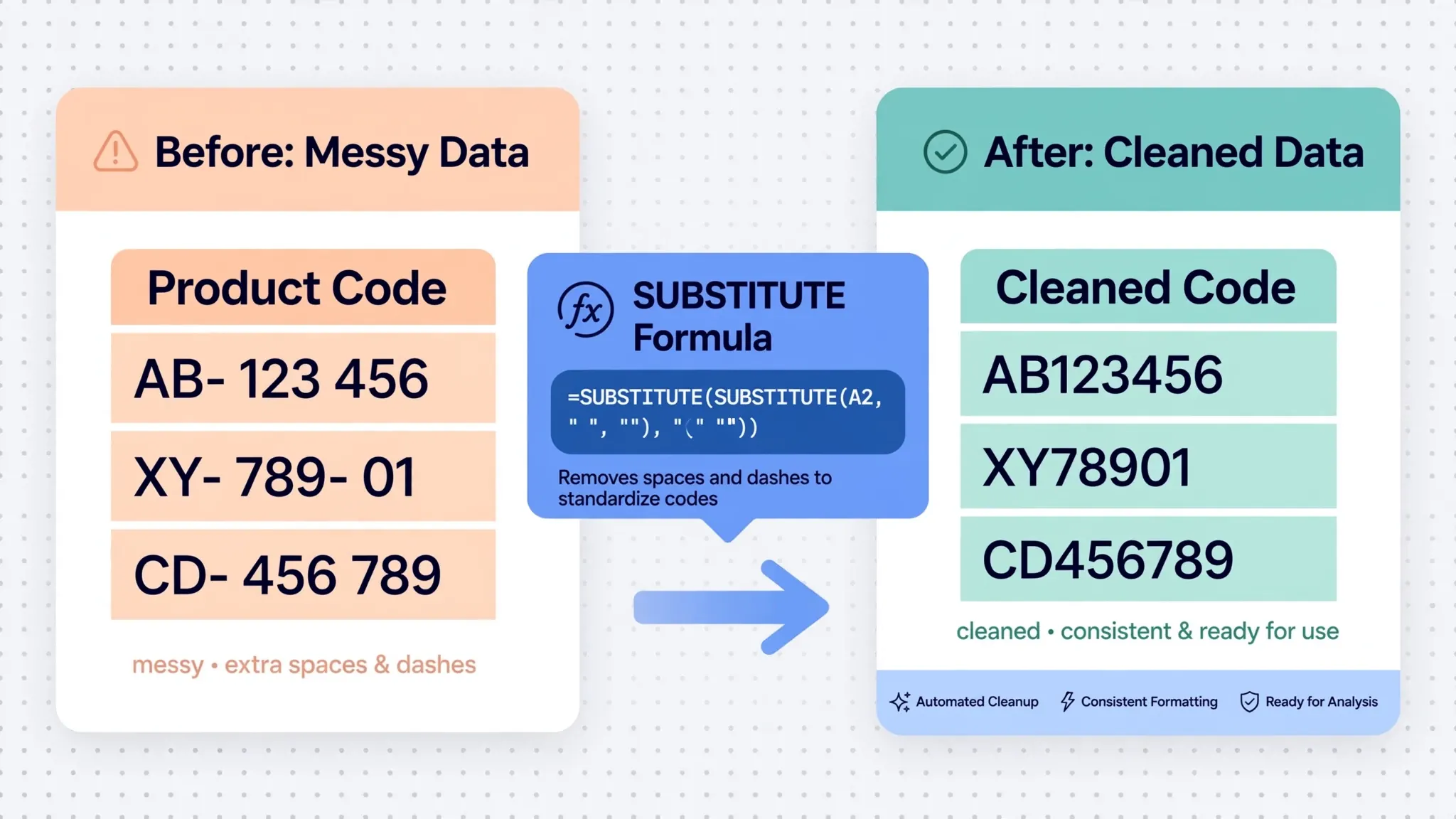
The single most-used SUBSTITUTE trick is deletion: set new_text to an empty string "" and the old text simply vanishes. Phone numbers with dashes, spaces, and parentheses become clean digit strings:
=SUBSTITUTE(SUBSTITUTE(SUBSTITUTE(A1,"-","")," ",""),"(","")
(That nested version is a preview of the nesting section — the single-step idea is =SUBSTITUTE(A1,"-","").) Deleting characters is how analysts strip currency symbols before converting to numbers, remove line clutter from imported addresses, and scrub the stray commas that break downstream CSV exports.
Fixing separators and delimiters
Dates arrive in every imaginable separator style: 2026/10/08, 2026.10.08, 2026-10-08. When a system needs one consistent format, SUBSTITUTE normalizes them:
=SUBSTITUTE(A1,"/","-")
Notice the pattern across all three examples: SUBSTITUTE shines when you can name exactly what needs to go. It does not guess, it does not use wildcards, and it does not do fuzzy matching — it performs precise, literal, repeatable surgery on text. When your data arrives from a CSV file, that precision is exactly what you want, because the quirks of exported data are usually consistent: the same stray character, in the same position, in every row. Our guide to CSV double quotes escaping covers a related cleanup scenario where quote characters inside fields need the same kind of systematic treatment.
The instance_num argument: replacing only the Nth occurrence
Here is where SUBSTITUTE goes from handy to genuinely powerful. The optional fourth argument, instance_num, tells Excel to replace only one specific occurrence of the old text and leave the rest alone. Suppose A1 contains banana and you run:
=SUBSTITUTE(A1,"a","o",2)
The result is bonana — only the second “a” changed. The first and third occurrences are untouched. Without that fourth argument, the same formula would produce bonono.
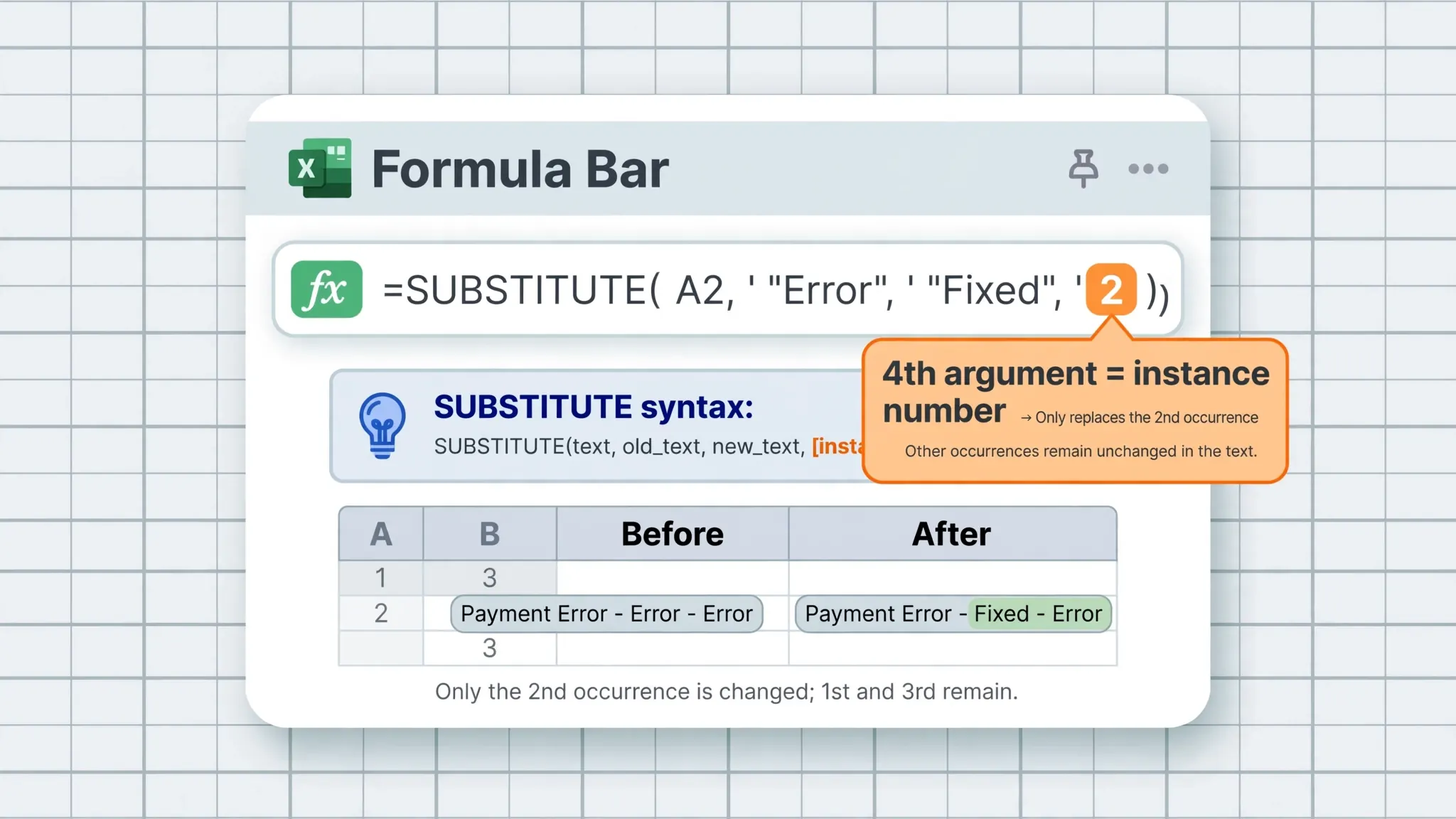
When does this matter in practice? More often than you would think. Consider invoice numbers like INV-2026-0042-US where you need to change only the second hyphen to a slash, producing INV-2026/0042-US. A plain SUBSTITUTE would hit both hyphens. With =SUBSTITUTE(A1,"-","/",2), you get exactly the one you want. Other classic cases: file paths where only one folder separator needs changing, addresses where the second comma separates the city from the state, and version strings like 1.2.3.4 where you need to bump a specific segment.
A useful mental model: think of instance_num as a sniper scope on top of SUBSTITUTE’s shotgun. The first three arguments define what to replace; the fourth defines which one. One caveat: if the instance number you ask for does not exist — say you request the 5th occurrence of a character that appears only twice — Excel quietly returns the original text unchanged. No error, no warning. That silent behavior is worth remembering when a formula “isn’t doing anything”: count your occurrences.
Combining instance_num with LEN for dynamic targeting
You can even compute which occurrence to hit. A neat trick for replacing the last occurrence of a character uses the difference in length before and after removing all occurrences:
=SUBSTITUTE(A1,"-",":",LEN(A1)-LEN(SUBSTITUTE(A1,"-","")))
The inner LEN(A1)-LEN(SUBSTITUTE(A1,"-","")) counts how many hyphens exist, and that count becomes the instance number — so the formula always targets the final hyphen, however many there are. This pattern appears constantly in file-path manipulation and in splitting “last name” from “first, middle, last” style strings.
Excel SUBSTITUTE function vs REPLACE: the crucial difference
The Excel SUBSTITUTE vs REPLACE question confuses almost everyone at first, because both functions “replace text” and their names sound interchangeable. The difference is fundamental: SUBSTITUTE replaces by content, REPLACE replaces by position.
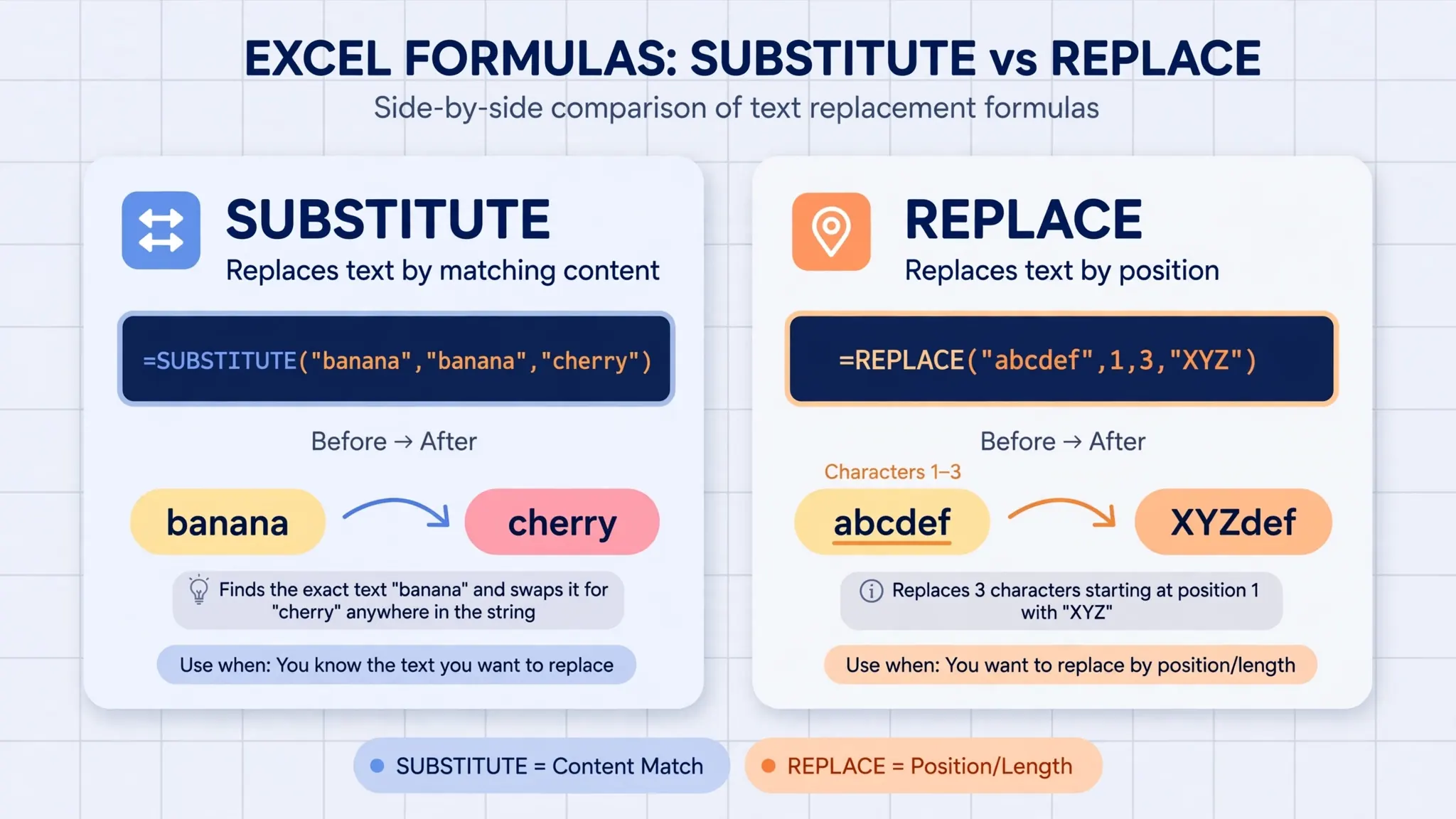
SUBSTITUTE asks what: “find this exact string wherever it appears and swap it.” REPLACE asks where: “starting at character 5, remove 3 characters and insert this instead.” Its syntax makes the positional nature obvious:
=REPLACE(old_text, start_num, num_chars, new_text)
So =REPLACE("banana",2,3,"XYZ") yields bXYZa — it never cared what the original characters were, only that they occupied positions 2 through 4.
When to use SUBSTITUTE
Choose SUBSTITUTE when you know the exact text to find but its position varies or is unknown. Cleaning inconsistent vendor names, swapping delimiters, removing specific words from sentences, normalizing units (“kg” to “kilograms”) — all content-based jobs. If you can describe the task as “everywhere you see X, put Y,” SUBSTITUTE is your function. It is also the safer default for imported data, because positional assumptions break the moment a source system adds a prefix or changes a format.
When to use REPLACE
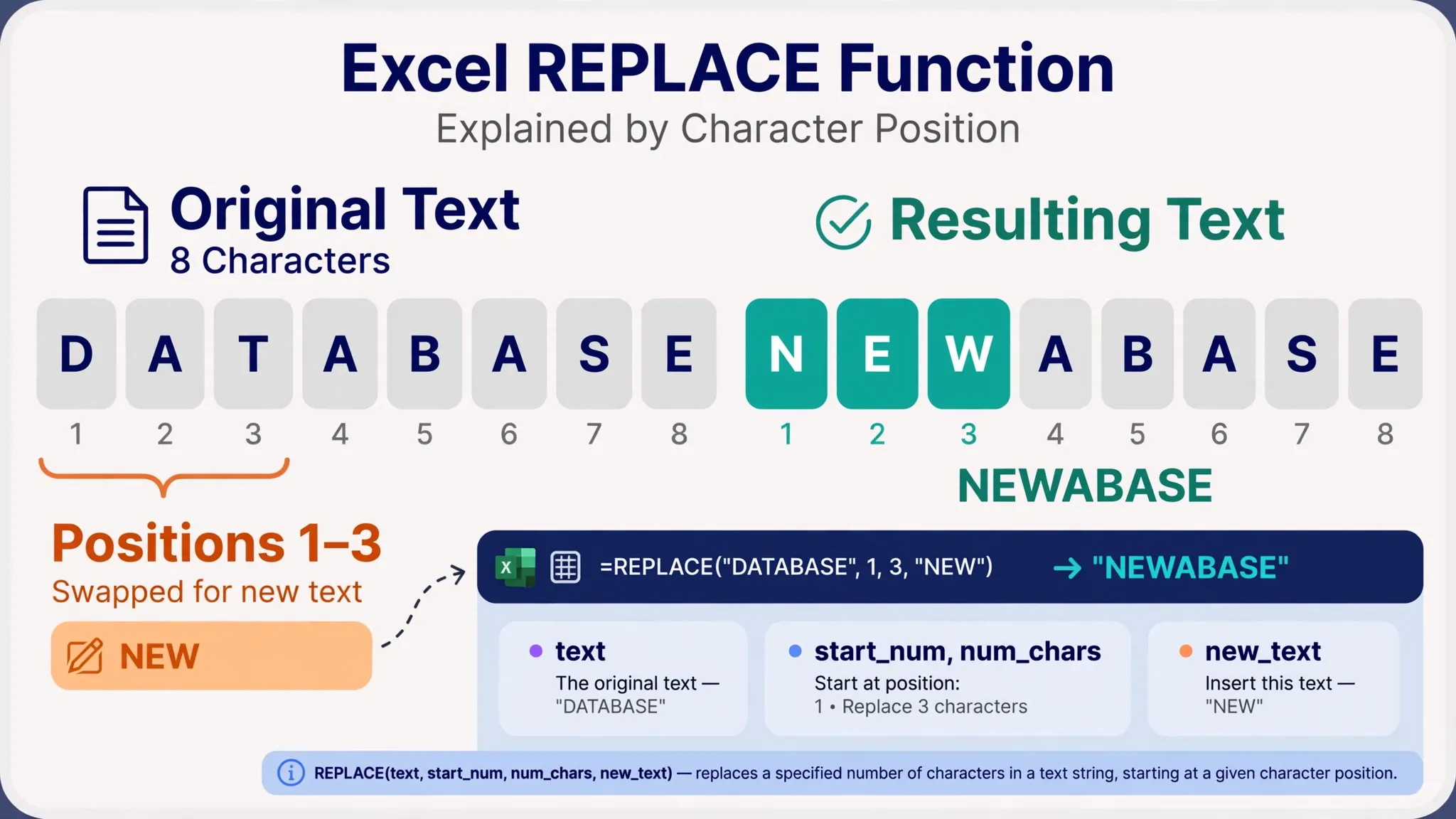
Choose REPLACE when the location is fixed but the content is unpredictable. Masking the middle digits of ID numbers (=REPLACE(A1,4,8,"********")), truncating codes to a fixed prefix length, or swapping area codes at the start of phone numbers are positional jobs. A good rule of thumb: if you find yourself writing SUBSTITUTE with a different instance_num for every row because the target keeps moving, you probably want REPLACE instead — or a combination where REPLACE handles the position and SUBSTITUTE handles the content.
Nesting SUBSTITUTE for multiple replacements in one formula
Real data is rarely dirty in just one way. Phone numbers arrive with dashes and spaces and parentheses; addresses mix abbreviations with inconsistent punctuation. CSV exports are the natural habitat of these quirks, and nesting SUBSTITUTE — placing one SUBSTITUTE inside another’s text argument — chains replacements so a single formula performs the whole cleanup:
=SUBSTITUTE(SUBSTITUTE(SUBSTITUTE(A1,"-","")," ",""),"(","")
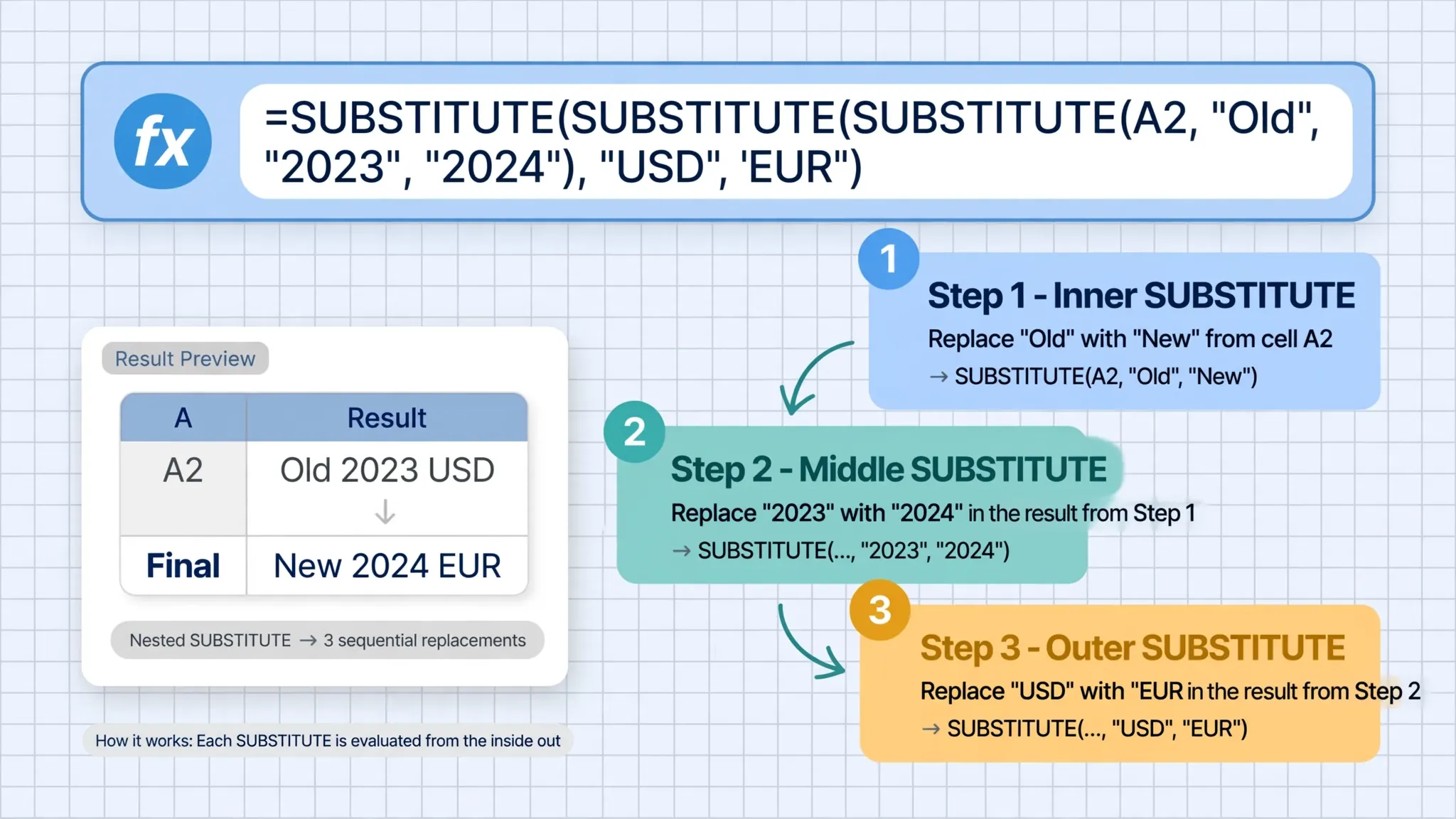
Read nested formulas inside-out. Excel evaluates the innermost SUBSTITUTE first (removing hyphens), feeds that result to the next layer (removing spaces), and so on outward. Each layer sees only the output of the layer inside it, which means the order of nesting can matter: if one replacement creates text that a later layer would match, you can get surprising double-replacements. When building long chains, work from the most destructive or most specific replacement inward.
A practical nested example: cleaning international phone numbers
Imagine a column of phone numbers from customers in the US, UK, India, Canada, and Australia, formatted every which way: +1 (555) 123-4567, 0044 20 7946 0958, +91-98765-43210. A cleanup chain might look like:
=SUBSTITUTE(SUBSTITUTE(SUBSTITUTE(SUBSTITUTE(A1," ",""),"-",""),"(",""),")","")
That strips spaces, hyphens, and parentheses in one pass. A further outer layer could normalize country prefixes: =SUBSTITUTE( ... ,"0044","+44"). For very long chains — ten or more replacements — consider whether a lookup table with XLOOKUP, or Power Query’s Replace Values step, would be more maintainable. Nested SUBSTITUTE is unbeatable up to about five layers; beyond that, readability collapses and debugging becomes guesswork.
Nesting SUBSTITUTE with other text functions
SUBSTITUTE rarely works alone in production formulas. The classic data-cleaning stack is TRIM (removes leading/trailing/double spaces), CLEAN (removes non-printing characters), and SUBSTITUTE (targets specific characters):
=TRIM(CLEAN(SUBSTITUTE(A1,CHAR(160)," ")))
This one-liner converts non-breaking spaces (character 160, the invisible culprit behind countless failed matches) to regular spaces, strips control characters, and trims the result. If you clean CSV imports regularly, memorize this pattern — it resolves a remarkable share of “the data looks fine but nothing matches” mysteries.
Real-world data cleaning: SUBSTITUTE on messy CSV imports
CSV files are the natural habitat of SUBSTITUTE. Exports from accounting systems, CRMs, and e-commerce platforms arrive with consistent quirks: a currency symbol glued to every amount, thousands separators that turn numbers into text, stray quote characters from sloppy quoting, or line-break characters hiding inside address fields. Because these quirks repeat identically in every row, one SUBSTITUTE formula fixes the entire column.
A frequent scenario: a CSV of order totals where amounts look like $1,234.56 — text, not numbers, because of the dollar sign and comma. Two nested SUBSTITUTEs strip both:
=VALUE(SUBSTITUTE(SUBSTITUTE(A1,"$",""),",",""))
The inner layers remove the symbols; VALUE() converts the cleaned text 1234.56 into a real number you can sum. Note the order: strip the currency symbol and thousands separators before converting, never after.
Another CSV classic is the double-encoded quote. When a source system escapes quotes incorrectly, fields arrive containing doubled quote marks ("") that should be single. A targeted =SUBSTITUTE(A1,"""","""") — old_text is two quote characters, new_text is one — repairs them. (The quoting rules behind this are worth understanding properly; our guide to CSV double quotes escaping explains the RFC 4180 standard these exports are supposed to follow.)
Multi-line addresses are a third case: some exports embed actual line breaks inside quoted CSV fields, which Excel displays as stacked lines in one cell. If your downstream system needs those flattened to commas, =SUBSTITUTE(A1,CHAR(10),", ") does it — CHAR(10) is the line-feed character. Our deep dive on CSV line breaks inside fields shows when to flatten and when to preserve them.
.xlsx than in raw .csv.7 common SUBSTITUTE mistakes (and how to fix them)
SUBSTITUTE formulas fail quietly — they return something, just not what you wanted. Here are the seven traps, roughly in order of how often they bite.
1. Case mismatch. SUBSTITUTE is case-sensitive: =SUBSTITUTE(A1,"ltd","Limited") will not touch “LTD” or “Ltd”. When standardizing mixed-case data, either match the exact casing or normalize first with UPPER()/LOWER() on both sides. This is the number-one reason a formula “does nothing.”
2. Expecting wildcards. Unlike Find and Replace, SUBSTITUTE does not understand * or ?. =SUBSTITUTE(A1,"*-","") looks for a literal asterisk followed by a hyphen. For pattern-based replacement you need Power Query, regular expressions (via VBA or the newer REGEX functions in Microsoft 365), or a helper column.
3. Invisible characters. Non-breaking spaces (CHAR(160)), trailing carriage returns (CHAR(13)), and zero-width characters look like ordinary spaces but do not match " ". Diagnose with =LEN(A1) (longer than it looks?) and =CODE(RIGHT(A1,1)) (what is that last character, really?).
4. Forgetting the result is text. After =SUBSTITUTE(A1,",","") turns "1,234" into "1234", SUM() over that column still returns 0 — because it is text. Wrap with VALUE() or multiply by 1 (=SUBSTITUTE(A1,",","")*1) to get a real number.
5. Replacing too much with no instance_num. Omitting the fourth argument replaces every occurrence. In 2026-10-08, swapping "-" for "/" hits both hyphens — which is what you want there, but in INV-2026-0042 it may not be. Always ask: should this replacement be global or targeted?
6. Nesting order side effects. In =SUBSTITUTE(SUBSTITUTE(A1,"a","b"),"b","c"), the inner layer’s new “b”s get caught by the outer layer and become “c”s. If replacements must be independent, apply them to the original text separately or choose non-overlapping intermediate characters.
7. Editing the source instead of the formula. Because SUBSTITUTE returns a new value, people sometimes “fix” data by editing A1 directly and then wonder why the formula column looks stale — it isn’t stale, it faithfully reflects the edited source. Keep the contract clear: source column stays raw, formula column is the cleaned version.
Alternatives: Flash Fill, Power Query, and Google Sheets
SUBSTITUTE is the right tool for formula-driven, repeatable text replacement — but it is not the only tool, and knowing the alternatives keeps you from hammering screws.
Flash Fill (Ctrl+E) is the fastest option for one-off cleanups. Type the desired result for two or three rows, press Ctrl+E, and Excel infers the pattern for the rest. It is brilliant for ad-hoc work but produces static values, not formulas — if the source data refreshes next week, you redo it by hand.
Power Query (Data › From Text/CSV) is the heavyweight choice for recurring imports. Its Replace Values step does what SUBSTITUTE does, but as a recorded transformation that replays automatically every time the CSV refreshes. For a weekly report from the same system, five minutes setting up a query beats maintaining a thicket of nested SUBSTITUTE formulas forever.
Google Sheets supports SUBSTITUTE with identical syntax, including instance_num — formulas copy across with no changes. Sheets also offers REGEXREPLACE, which Excel’s classic function set lacks, for pattern-based replacement. Teams split across Excel and Sheets can standardize on SUBSTITUTE as the common denominator.
The pragmatic rule: one-off mess → Flash Fill; logic that must live in the sheet → the Excel SUBSTITUTE function; recurring imports → Power Query; cross-platform templates → SUBSTITUTE (works everywhere). Master all four and you will never hand-clean a column again.
Frequently Asked Questions
What does the SUBSTITUTE function do in Excel?
SUBSTITUTE replaces old_text with new_text inside a text string. Without the optional instance_num argument it replaces every occurrence; with instance_num it replaces only the Nth occurrence. It is case-sensitive and does not support wildcards.
What is the difference between SUBSTITUTE and REPLACE in Excel?
SUBSTITUTE replaces text by matching its content (what the text says), while REPLACE replaces text by position (where it sits, using a start number and character count). Use SUBSTITUTE when you know the exact text to swap; use REPLACE when you know the location but not the content.
How do I replace only the second occurrence of a word in Excel?
Use the optional fourth argument: =SUBSTITUTE(A1,”old”,”new”,2). The instance_num argument tells Excel to replace only the second occurrence and leave the first and third untouched.
Can I use SUBSTITUTE to remove characters completely?
Yes. Pass an empty string as new_text: =SUBSTITUTE(A1,”-“,””) removes every hyphen. This is the standard trick for stripping dashes from phone numbers, slashes from dates stored as text, and commas from imported CSV data.
Why is my SUBSTITUTE formula not working?
The most common causes are case mismatches (SUBSTITUTE is case-sensitive), invisible characters like non-breaking spaces that don’t match what you typed, and expecting wildcards, which SUBSTITUTE does not support. Check with LEN() and CODE() to find hidden characters.
Does SUBSTITUTE work in Google Sheets?
Yes. Google Sheets supports SUBSTITUTE with the same syntax, including the optional instance_num argument, so formulas transfer directly between Excel and Sheets.