Somewhere in your week there’s a conversion you perform the same way every time: the overnight export lands, you open it, convert it, tidy it, save it — ten minutes you’ll never get back, repeated daily. When you schedule automatic CSV to Excel conversion in Windows, those ten minutes go to zero permanently. The recipe is gloriously boring: a tiny script that converts the file, and Windows Task Scheduler — the automation engine that’s shipped free with every copy of Windows for twenty years — running it on a timetable while you do literally anything else.
This guide walks you through the complete setup to auto convert CSV to Excel on a scheduled task: writing a robust little Python converter, testing it properly, wiring it into Task Scheduler with the right trigger, and adding the logging that tells you it actually ran. No expensive automation platforms, no cloud subscriptions — just built-in Windows machinery and about thirty lines of code.
What you are building: the anatomy of a scheduled conversion
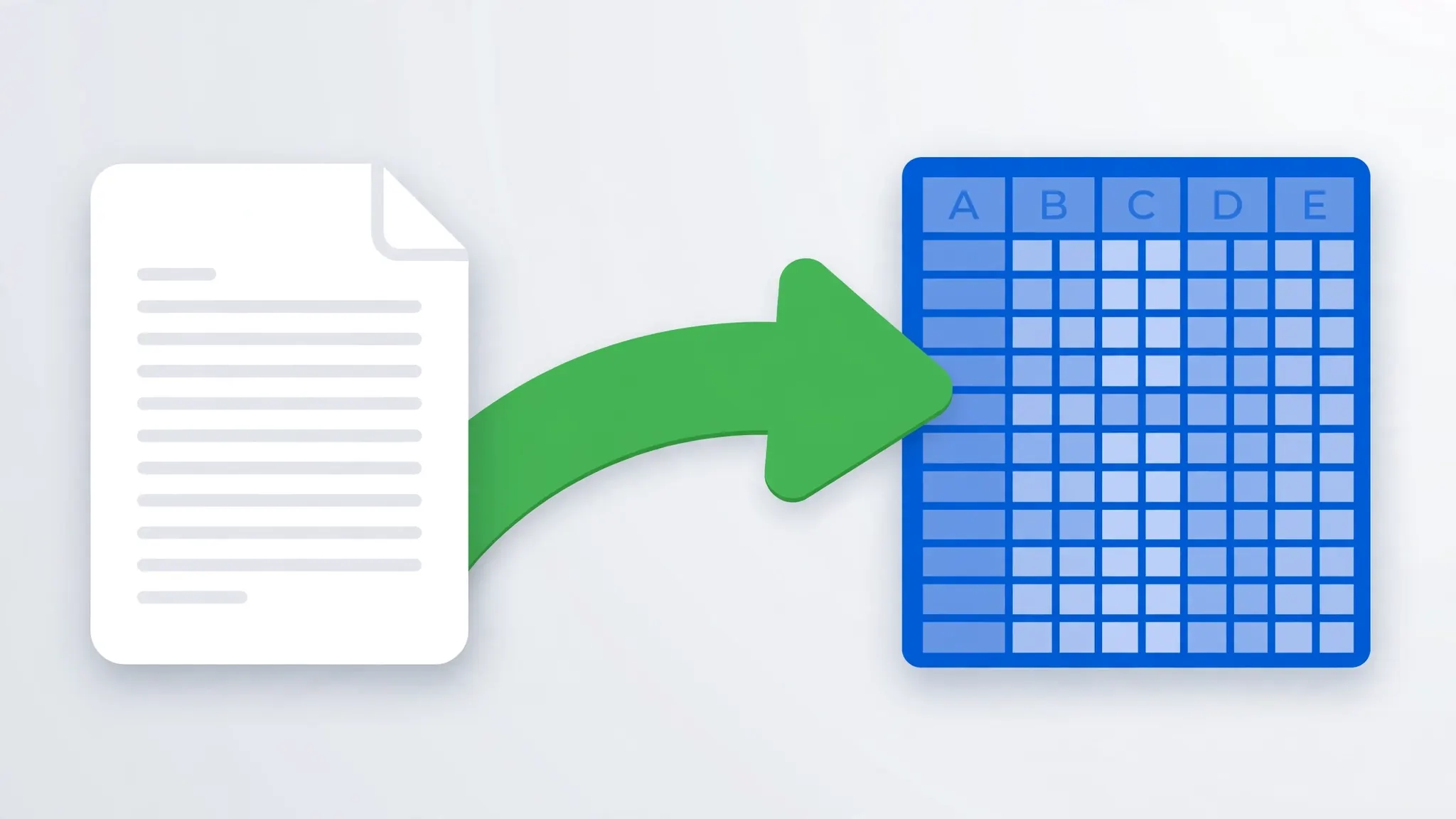
Before touching any tool, picture the system. It has four parts, and keeping them separate is what makes it maintainable:
1. The inbox. A folder where CSVs arrive — C:\Reports\inbox\. Your source system drops files here, or a download script fetches them. The scheduler never touches the source; it only reads this folder.
2. The script. A Python program that converts each CSV in the inbox to XLSX in an output folder, with sensible defaults (UTF-8, autofit columns, frozen header row). It moves processed files to an archive folder so they’re never converted twice.
3. The schedule. A Windows Task Scheduler entry that runs the script on a trigger — daily at 6 AM, say, or every hour during business hours.
4. The evidence. A log file recording what ran, when, and what it produced — plus an alert path for failures. A scheduled job you can’t observe is a liability, not an asset.

This architecture scales from one daily file to hundreds: the script loops over whatever’s in the inbox, so volume changes need no reconfiguration. It also composes with the fancier workflows on this site — the same scheduled script can append into a master workbook, apply conditional formatting, or save as binary XLSB for speed. Get the skeleton right and the upgrades are easy.
Step 1: Write the conversion script
Here’s a complete, production-sensible converter. It handles the inbox loop, UTF-8 with BOM detection, autofit columns, frozen panes, and archiving — the details that separate a demo from something you can trust at 6 AM:

import csv, logging, shutil
from datetime import datetime
from pathlib import Path
from openpyxl import Workbook
from openpyxl.utils import get_column_letter

INBOX   = Path(r"C:\Reports\inbox")
OUTBOX  = Path(r"C:\Reports\outbox")
ARCHIVE = Path(r"C:\Reports\archive")
LOG     = Path(r"C:\Reports\convert.log")

logging.basicConfig(filename=LOG, level=logging.INFO,
                    format="%(asctime)s %(levelname)s %(message)s")

def convert_one(csv_path: Path):
    wb = Workbook()
    ws = wb.active
    ws.title = "Data"
    # utf-8-sig handles files saved with a BOM; plain utf-8 otherwise
    with open(csv_path, newline="", encoding="utf-8-sig") as f:
        for row in csv.reader(f):
            ws.append(row)
    ws.freeze_panes = "A2"
    ws.auto_filter.ref = ws.dimensions
    for col in ws.columns:
        longest = max((len(str(c.value)) for c in col if c.value), default=0)
        ws.column_dimensions[get_column_letter(col[0].column)].width = min(longest + 2, 50)
    out = OUTBOX / (csv_path.stem + ".xlsx")
    wb.save(out)
    shutil.move(str(csv_path), ARCHIVE / csv_path.name)
    logging.info("Converted %s -> %s", csv_path.name, out.name)

def main():
    for d in (INBOX, OUTBOX, ARCHIVE):
        d.mkdir(parents=True, exist_ok=True)
    files = sorted(INBOX.glob("*.csv"))
    logging.info("Run started: %d file(s) in inbox", len(files))
    for csv_path in files:
        try:
            convert_one(csv_path)
        except Exception:
            logging.exception("FAILED on %s", csv_path.name)
    logging.info("Run finished")

if __name__ == "__main__":
    main()
Design decisions worth noting: utf-8-sig transparently handles both BOM and non-BOM files. The archive move makes the job idempotent — re-running converts nothing twice. Per-file try/except means one corrupt CSV can’t kill the whole batch. And every run writes a timestamped log line, which is your evidence trail. Save this as C:\Reports\csv_to_excel.py and install openpyxl once (pip install openpyxl).
Step 2: Test the script by hand before scheduling anything
This step is non-negotiable, and skipping it is how scheduled jobs earn their reputation for 3 AM disasters. Testing has three rounds:
Round 1 — happy path. Drop a representative CSV in the inbox (real shape, real quirks — not a toy file), run python C:\Reports\csv_to_excel.py from a terminal, and verify: the XLSX appears in the outbox, columns are fitted, the header is frozen, filters are on, the CSV moved to archive, and the log has clean INFO lines.
Round 2 — ugly inputs. Feed it the worst files your source produces: semicolon-delimited exports, a file with a BOM, one with blank lines, an empty CSV, a 200 MB monster. Watch what breaks now, while you’re awake and watching, and harden the script (delimiter sniffing via csv.Sniffer, row-count guards) before the scheduler ever sees it.
Round 3 — the scheduler’s environment. Scheduled tasks run with a different working directory and sometimes a different user. Test with full absolute paths everywhere (the script above already uses them) and run once from a plain cmd.exe with no virtualenv activated, mimicking exactly what Task Scheduler will invoke.
Only when all three rounds pass do you move to Step 3. Two weeks of manual runs before automating is the professional standard from our append guide — it applies doubly here, because a scheduled bug repeats on its own.
Step 3: Schedule automatic CSV to Excel conversion in Windows Task Scheduler
With a tested script in hand, the Task Scheduler setup takes five minutes:
- Press Win+R, type
taskschd.msc, press Enter. - In the right pane, click Create Basic Task. Name it
CSV to Excel daily conversion. - Set the Trigger: Daily, 6:00 AM (or whatever suits — see the triggers section below).
- Set the Action to Start a program. For Program/script, browse to your
python.exe(e.g.C:\Python312\python.exe— usewhere pythonto find it). In Add arguments, put the full script path:C:\Reports\csv_to_excel.py. In Start in, putC:\Reports. - On the final screen, check “Open the Properties dialog” and click Finish.
- In Properties › General, choose “Run whether user is logged on or not” (supply your password) so it runs overnight. Leave “Run with highest privileges” unchecked unless the script truly needs admin rights.
- In Properties › Settings, check “Run task as soon as possible after a scheduled start is missed” — this covers the laptop-was-asleep case.
- Click OK. Right-click the task › Run to fire it once manually and confirm the log shows a clean run.
The Start in field is the setting everyone forgets and the cause of half of all “works by hand, fails on schedule” mysteries: without it, the task’s working directory is C:\Windows\System32, and any relative path in your script resolves there. Our script uses absolute paths throughout, but setting Start in anyway is cheap insurance.
@echo off & "C:\Python312\python.exe" "C:\Reports\csv_to_excel.py" saved as run_convert.bat, with the task pointing at the .bat. Either works — pick the one your team will actually read.Choosing the right trigger for your workflow
Daily at 6 AM is the default, but Task Scheduler offers triggers for nearly every rhythm. Match the trigger to how the CSV actually arrives:
Daily / weekly. The classic: exports generated overnight by the ERP, ready by morning. Schedule 30–60 minutes after the source system’s generation time to absorb its delays — a task that runs before the file exists just logs “0 files” and wastes a cycle.
On a schedule, repeated. For intraday drops (hourly sales feeds), use “Daily” with “Repeat task every: 1 hour for a duration of: 12 hours.” The inbox/archive pattern handles the batching naturally.
At startup / on idle. Useful for workstation scenarios: convert whatever accumulated while the machine was off, the moment it boots.
On an event. Advanced but powerful: trigger on the Windows event logged when the source application finishes its export, or on a file-creation event via a custom watcher. This is the closest to true event-driven CSV to Excel automation on Windows without third-party tools.
What Task Scheduler can’t do natively: “when a file appears in this folder” isn’t a built-in trigger. The workarounds are polling (repeat every N minutes — simplest), a tiny folder-watcher script running continuously, or Power Automate Desktop’s folder trigger feeding the same Python script. For most teams, polling every 15–60 minutes is indistinguishable from instant and far simpler to debug.
Logging and alerts: proving the job ran
A scheduled job with no observability is a hope, not a system. You need three levels, in increasing order of effort:
Level 1 — the log file. Our script already writes timestamped lines per run and per file. Make reading it a habit: a weekly glance catches drift (file counts dropping, runtimes growing) before it becomes an incident. Rotate it occasionally — a 2 GB log file helps nobody.
Level 2 — Task Scheduler’s own history. Enable history on the task (right pane › Enable All Tasks History) and check the History tab plus Last Run Result. 0x0 means success; anything else is a lead — 0x1 usually means the script exited with an error, and the log file will say why.
Level 3 — proactive alerts. Have the script notify you on failure: the simplest robust option is writing a ALERT.txt in the outbox on exception, or sending an email via your SMTP server. For teams, posting to a Teams/Slack webhook takes ten lines with urllib and means the whole channel sees failures. Alert on failure only — alerting on success trains everyone to ignore the alerts.
One more observability habit that pays off: log a one-line run summary with counts — files converted, rows written, elapsed seconds. When the source system silently starts sending half-empty exports, the summary line is where you’ll notice: “3 files, 412 rows” where yesterday said “3 files, 48,210 rows.” Scheduled jobs fail quietly far more often than they fail loudly, and a summary line turns quiet failures into visible ones. Review the summary weekly; it takes ten seconds and it’s the cheapest monitoring you’ll ever set up.
Security and permissions: the unglamorous essentials
Scheduled tasks run with real privileges, so treat them with the respect that deserves:
Least privilege. Run the task as a dedicated service account (or your own account) with write access only to the inbox/outbox/archive/log paths — not as Administrator, not with “highest privileges,” unless something specifically requires it. A converter script needs file access, nothing more.
Locked machines and sleep. “Run whether user is logged on or not” covers logged-out machines, but sleep/hibernate still blocks execution — a sleeping laptop runs nothing. For a desktop that’s always on, no issue; for a laptop, either disable sleep during the task window (Power Options) or accept “run as soon as possible after missed” catching up at wake. Desktops beat laptops for scheduled work, every time.
No interactive tricks. A scheduled script must never open windows, pop dialogs, or drive Excel’s GUI via COM — there’s no desktop to draw on when nobody’s logged in. Stick to file-based libraries like openpyxl. (This is also why our script doesn’t use Excel itself: COM automation under a scheduler is a classic source of hung processes.)
Passwords and secrets. The task’s stored credential is your Windows password — change your password and the task breaks until you update it (Task Scheduler will tell you, cryptically, with 0x8007052e). Prefer managed service accounts where your IT supports them; they don’t have expiring passwords.
Going further: from scheduled conversion to scheduled reporting
Once the basic conversion runs hands-free, the natural next step is moving the finishing work into the script too. The converter above already adds filters, frozen panes, and fitted columns; extend it and the 6 AM job can deliver a genuinely finished report, not just a converted file. Add conditional formatting for KPI color scales, build a summary sheet with totals and week-over-week comparisons, or append the day’s rows into a running master instead of producing standalone files. Each upgrade is a few lines in the same script, tested the same way, logged the same way.
The end state teams arrive at looks like this: the source system drops its CSV overnight, the scheduled script converts, cleans, formats, and appends it, and stakeholders open a dashboard-ready workbook at 8 AM that nobody touched. The human work shifts from doing the conversion to designing the conversion — deciding what “finished” means, which is the interesting part anyway. Start with the dumb reliable converter in this guide; let the ambition grow one scheduled improvement at a time. And on the days you need a one-off file converted right now, the free CSV to Excel converter in your browser is still the fastest path — scheduling is for the repeats, not the exceptions.
Troubleshooting scheduled conversions
Task runs but nothing happens (0x1). Almost always a path problem: python.exe not found, script path with spaces unquoted, or a missing module in the scheduler’s Python environment. Copy the exact command from the task’s Action tab into a fresh cmd window and run it — reproduce, then fix.
“Works by hand, fails on schedule.” Working directory (set “Start in”), user context (different permissions), or environment variables (PATH missing Python). The holy trinity — check all three before anything exotic.
Last Run Result 0x8007052e. Stored password stale. Open the task properties, re-enter the password, done.
Files convert but look wrong. The script is fine; the input changed — delimiter, encoding, new columns. This is why Round 2 testing with ugly inputs matters, and why the log should record row/column counts per file for eyeballing.
Two tasks running simultaneously. Overlapping schedules on long-running conversions. Enable “Do not start a new instance” (Settings tab › “If the task is already running”) to serialize runs.
Log file locked / access denied. The task’s user lacks write permission on the log path, or a previous crashed run left the file handle open. Fix permissions; add log rotation.
Frequently Asked Questions
How do I schedule a CSV to Excel conversion in Windows?
Write a small conversion script (Python with openpyxl works well), test it manually, then open Task Scheduler, create a Basic Task with a daily trigger, and point its action at your script. Windows will run the conversion automatically on your schedule.
Can Task Scheduler run a Python script?
Yes. In the task’s action, set the program to your python.exe path and the argument to your script’s path — or wrap the call in a .bat file. Use full absolute paths for both the interpreter and the script.
Will the scheduled task run when I’m not logged in?
Yes, if you select ‘Run whether user is logged on or not’ and supply your password. The script must then avoid anything needing an interactive desktop — no GUI popups, no Excel COM automation that requires a visible session; stick to openpyxl-style file writing.
How do I convert multiple CSVs on a schedule?
Have the script loop over a watched folder: for each .csv file, convert it to .xlsx in an output folder, then move the processed CSV to an archive subfolder. The scheduled task then handles any number of files with no changes.
How do I know if the scheduled conversion failed?
Add logging to your script (Python’s logging module writing to a file), check Task Scheduler’s History tab and Last Run Result codes, and have the script email or write an alert file on exceptions. Silent failures are the number-one scheduled-task pitfall.
Is there a no-code way to auto-convert CSV to Excel daily?
Partly. Power Automate Desktop (free with Windows) can watch a folder and drive Excel to convert files, and Power Query’s From Folder with refresh-on-open handles the Excel side. But for reliability and logging, a small script plus Task Scheduler remains the most robust free option.