
A converted CSV is just numbers until someone makes them mean something — and nothing does that faster than color. When you apply conditional formatting when converting CSV to Excel, the workbook arrives with its story already told: losses glow red, wins shine green, the top 10% carry data bars, and the executive scanning the sheet on a phone grasps the situation in five seconds flat. Doing it at conversion time — rather than hand-formatting after every import — means every weekly export, every pipeline output, every API-generated file lands presentation-ready with zero extra clicks.
This guide shows you how to highlight cells while converting CSV to Excel two ways: the point-and-click method in Excel after import, and the Python + openpyxl method that bakes CSV to Excel color scales, data bars, and KPI rules into the file automatically. You’ll learn which rule types suit which data, the KPI patterns that communicate instead of decorate, and how to keep formatting fast on very large imports.

Why format at conversion time instead of afterward
Hand-formatting each import is a tax you pay forever: the same color scale re-applied to Monday’s export, Tuesday’s export, and every export after, with slight inconsistencies creeping in each time (was the threshold 90 or 95 last week?). Baking the rules into the conversion — whether via a recorded macro, a Power Query-loaded template, or a Python script — pays the formatting cost once and collects the benefit on every future file. The rules become part of the pipeline, not part of someone’s morning.
There’s a deeper reason too: rules attached at conversion time adapt to the data. A color scale defined as “min to max of this column” reshapes itself around each new export’s range automatically — no manual threshold updates when December’s numbers dwarf November’s. Contrast that with static cell coloring, which lies the moment the data changes. Conditional formatting is conditional; that’s the whole point, and it’s why it belongs in the automated step rather than the manual one.
Microsoft’s guide to conditional formatting covers the mechanics; this guide covers the strategy — which rules earn their place on converted CSV data and how to deploy them without hand-touching every file. The free CSV to Excel converter handles the data move in seconds; the formatting layer is what turns the result into a report.
The four rule types that matter for CSV data
Excel offers a dozen conditional-formatting flavors, but converted CSV data — typically numeric columns, status columns, and dates — needs just four:
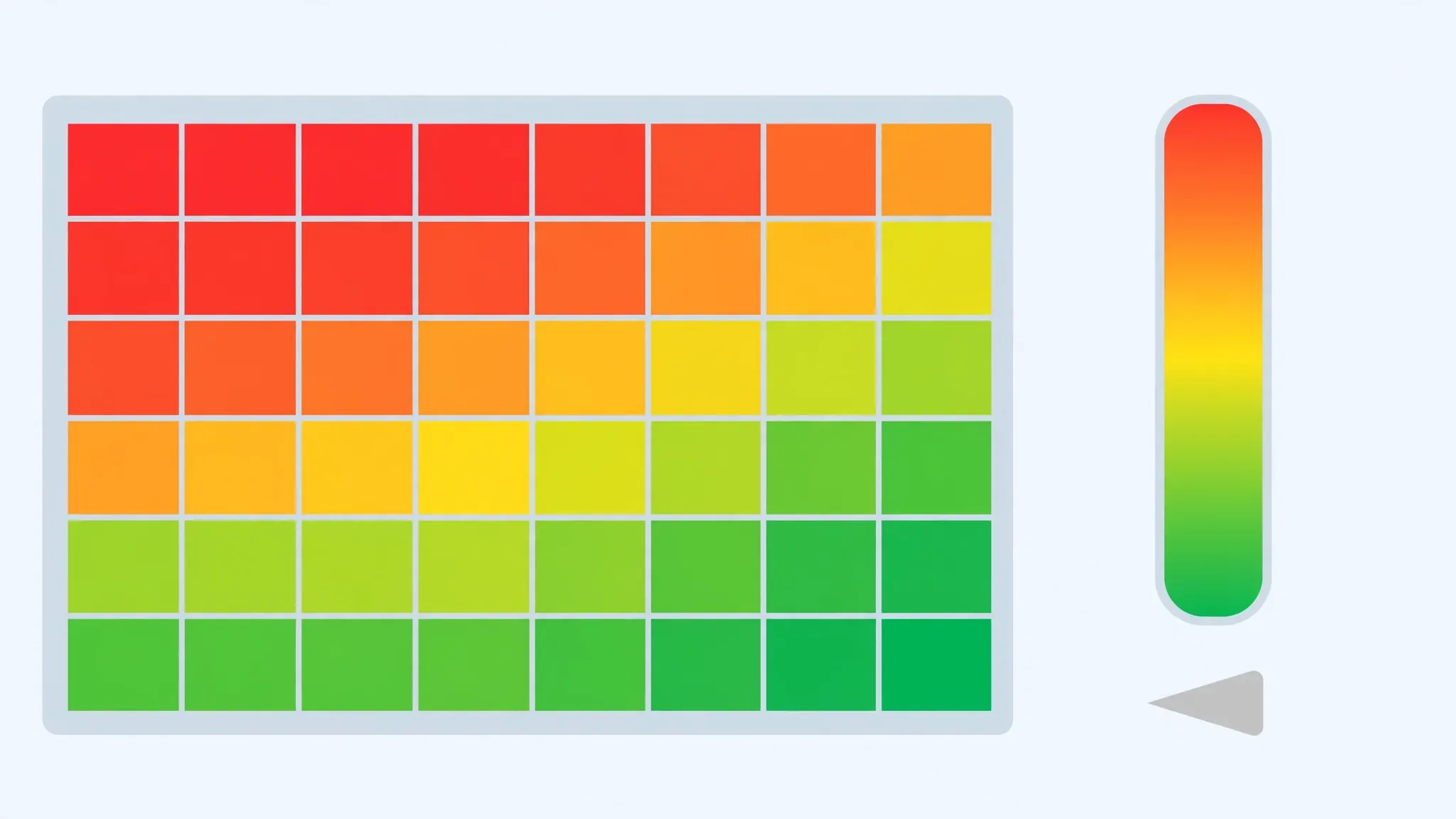
1. Color scales (2- or 3-color). The workhorse. Each cell’s background shades along a gradient from its value’s position between min and max — instant heatmap. Perfect for revenue columns, scores, temperatures, any “more is more (or less)” metric. The classic red-yellow-green KPI scale lives here.
2. Data bars. In-cell bar charts: the cell fills proportionally to its value. Brilliant for comparisons down a column (which region sold most?) because the eye compares bar lengths faster than it compares numbers. They don’t obscure the value — the number stays readable on top of its bar.
3. Icon sets. Arrows, flags, traffic lights per cell based on thresholds. Best for status-at-a-glance columns — up/down/flat trends, RAG (red-amber-green) project statuses. Use sparingly: a column of 10,000 traffic lights is noise, but a summary row of them is signal.
4. Highlight cell rules / formula rules. The precision tools: “greater than X,” “between A and B,” “equal to,” plus full formula rules for cross-column logic (“highlight the row where Duedate < TODAY()”). When the condition isn’t “relative to the column” but “against a business rule,” this is the one.
Method 1: Apply conditional formatting in Excel after import
For one-off or exploratory work, the ribbon method is fastest. Import your CSV (Data › Get Data › From Text/CSV gives the cleanest types), then:
- Select the numeric column you want to shade (click its letter, or select the data range).
- Go to Home › Conditional Formatting › Color Scales and pick the Green-Yellow-Red (or Red-Yellow-Green) scale.
- For a second column, try Data Bars instead — variety across columns aids scanning; identical scales everywhere blur together.
- To set exact thresholds: Conditional Formatting › Manage Rules › Edit Rule, and change Type from Automatic to Number/Percentile with your business cutoffs.
- For status text (“Overdue”, “Paid”): select the column, Highlight Cells Rules › Text that Contains, type the word, choose the red fill.
- File › Save As › XLSX. Rules live in the workbook — saving back to CSV discards them.
Two refinements that separate amateur from professional results. First, scope rules to the data, not the column: selecting the whole column (B:B) applies the rule to a million cells, slowing recalculation; selecting B2:B10432 applies it where data lives. Second, mind the rule order in Manage Rules — when rules overlap, the topmost wins (unless “Stop If True” is unchecked), so put your most specific rules first. A “value < 0 → red” rule above a general color scale gives you crisp exception highlighting inside a smooth gradient.
Recording it for next week
If this exact formatting repeats weekly, record the sequence once as a macro (Developer › Record Macro) and save the workbook as XLSB or XLSM. Next week’s import: paste data, run macro, done — the poor man’s version of the Python automation in Method 2, requiring zero code.
Method 2: Apply conditional formatting when converting CSV to Excel with Python
This is where openpyxl conditional formatting on CSV data shines: rules attached during conversion, identical on every file, zero manual work. The pattern — convert rows, then add rules to the ranges:

import csv
from openpyxl import Workbook
from openpyxl.formatting.rule import ColorScaleRule, CellIsRule, DataBarRule
from openpyxl.styles import PatternFill

wb = Workbook()
ws = wb.active

with open("kpi.csv", newline="", encoding="utf-8-sig") as f:
    reader = csv.reader(f)
    header = next(reader)
    ws.append(header)
    rev_idx = header.index("revenue")          # find columns by name, not position
    for row in reader:
        row[rev_idx] = float(row[rev_idx])     # real numbers, not text!
        ws.append(row)

last = ws.max_row
rev = f"{chr(65+rev_idx)}2:{chr(65+rev_idx)}{last}"  # e.g. C2:C5001

# 1. Red-yellow-green color scale on revenue
ws.conditional_formatting.add(rev,
    ColorScaleRule(start_type="min", start_color="F8696B",
                   mid_type="percentile", mid_value=50, mid_color="FFEB84",
                   end_type="max", end_color="63BE7B"))
# 2. Data bars on the units column (column B here)
ws.conditional_formatting.add(f"B2:B{last}", DataBarRule(start_type="num",
    start_value=0, end_type="max", color="638EC6"))
# 3. Hard rule: negative profit in column D gets a red fill
red = PatternFill(start_color="FFC7CE", end_color="FFC7CE", fill_type="solid")
ws.conditional_formatting.add(f"D2:D{last}",
    CellIsRule(operator="lessThan", formula=["0"], fill=red))

wb.save("kpi_formatted.xlsx")
Key techniques in this script: find columns by header name (immune to column reordering), cast to float during the write (so scales see numbers, not text — the prerequisite from the callout above), and build ranges from max_row (rules fit the data however many rows the CSV had). This is the engine inside any serious CSV to Excel API that promises “formatted output” — and inside every scheduled conversion that delivers finished reports.
KPI patterns: red-green shading that actually communicates
Color without intent is decoration. These are the patterns that make converted KPI data genuinely readable for the managers, clients, and stakeholders across the US, UK, India, Canada, and Australia who’ll open your files:
Variance vs target. The single most useful KPI pattern: a column of actuals, a column of targets, and a variance column with a 3-color scale centered at zero (red below, green above). One glance separates beats from misses. Implement with a formula rule or a color scale with mid_type="num", mid_value=0. This pattern earns its place on virtually every sales, budget, and operations report because it answers the only question stakeholders actually ask: are we ahead or behind, and by how much.
Top/bottom deciles. Instead of shading everything, highlight only what needs attention: “Top 10%” green, “Bottom 10%” red via Highlight Cells Rules › Top/Bottom Rules. On a 50,000-row export, twenty shaded rows beat fifty thousand shaded cells — attention is the scarce resource.
Aging and deadlines. Date columns with rules like “due in the past → red,” “due within 7 days → amber” turn an export into an action list. Use formula rules with TODAY() so the colors stay correct every day the file is opened — no re-running needed.
Exception flagging. Combine a subtle full-column scale (light grey-blue, low saturation) with aggressive cell rules for true exceptions (negative margins, failed statuses in solid red). The base layer gives texture; the exceptions punch through it. This two-layer approach is what professional dashboard designers do, and it works identically on converted CSV data.
Sparklines as the silent partner. Conditional formatting’s lesser-known sibling — sparklines (Insert › Sparklines) — draws a tiny trend chart inside a single cell next to each row. Pair a sparkline column with your color-scaled value column and each row tells two stories at once: where it stands (color) and where it’s heading (trend). For monthly CSV snapshots appended over time, sparklines turn a static export into a living performance history without a single chart object cluttering the sheet.
Performance: conditional formatting on 100,000+ rows
Conditional formatting has a well-earned reputation for slowing workbooks to a crawl — but the slowdown is almost always misapplication, not the feature itself. The rules for keeping it fast:
Scope tightly. A color scale on C2:C10432 evaluates ten thousand cells; the same scale on C:C evaluates a million. Always bound rules to the data range. In Python, build the range from max_row as the script above does.
Limit overlapping rules. Three rules on the same range means three evaluations per cell per recalc. Consolidate where possible — one color scale instead of five cell rules — and use “Stop If True” to short-circuit.
Prefer scales over thousands of individual formats. A single ColorScaleRule covering a range is one rule object; the equivalent via per-cell fills is ten thousand objects and a bloated, sluggish file. If your script loops cells setting fills directly, refactor to rules.
Volatile formulas in rules are poison. Formula rules using OFFSET, INDIRECT, or TODAY() recalculate constantly. TODAY()-based aging rules are worth it (they’re the point), but keep them to the columns that need them.
For truly massive converted files, consider the nuclear option: apply the formatting, then save as XLSB — the binary format’s faster calc engine noticeably smooths heavy-CF workbooks. And if a sheet is purely presentational, pasting the formatted result as values into a display sheet (keeping the live data elsewhere) eliminates recalculation cost entirely.

From CSV to boardroom: a complete KPI workbook recipe
Let’s assemble everything into one repeatable recipe — the workbook you’d build for a monthly business review from a raw CSV export. Start with the import: Data › Get Data › From Text/CSV, set column types deliberately (dates as Date, metrics as Decimal Number, IDs as Text), and load to an Excel Table. The Table gives you structure; now add meaning layer by layer.
Layer one — the heatmap: apply a subtle 2-color scale (light blue to deep blue, not red-green) to the primary metric column. Neutral palettes for the base layer keep the sheet calm. Layer two — the exceptions: cell rules that punch through, red fill for values below target, so problems are visible from across the room. Layer three — the trend: data bars on the month-over-month change column, giving every row its own micro-chart. Layer four — the summary: a Total Row with SUM and AVERAGE, plus three big KPI cells at the top using icon sets (green up / red down vs last month).
The result is a workbook where the CSV’s raw numbers have become a narrative: texture from the heatmap, urgency from the exceptions, direction from the bars, verdict from the icons. Build it once as a template with the rules pointing at Table columns (structured references keep them glued to the right data), and each month’s refresh repaints the whole story automatically. Save the template as XLSX — or XLSM if a macro drives the refresh — and the monthly review practically runs itself.
Troubleshooting conditional formatting on converted data
Rules apply but nothing changes color. The classic: numbers stored as text. The rule evaluates text as non-numeric and skips it silently. Convert the column (Text to Columns, or float-cast in Python) and the colors appear.
Colors look wrong / inverted. Check min/max assignment in the rule — a scale with min=red,max=green on a “cost” column (where low is good) inverts the meaning. Either flip the colors or reframe the metric.
Rules disappeared after reopening. You saved as CSV, or the file went through Google Sheets (which mangles complex CF on round-trip). Keep the master as XLSX.
Duplicate rules stacking up. Copy-pasting formatted ranges duplicates rules; paste enough and Manage Rules shows dozens of overlapping fragments. Fix: select all, Clear Rules, re-apply once cleanly — or in scripts, never add rules inside a row loop.
openpyxl wrote rules but Excel shows none. The range string was malformed (e.g., empty max_row math on an empty sheet) or the rule targeted text cells. Verify ws.dimensions covers data and that numeric columns hold numbers.
Whole sheet slowed to a crawl. Whole-column rule scope. Re-scope every rule to the data range via Manage Rules › Applies to, and the speed returns.
Data bars show but numbers vanished. The “Show Bar Only” option got ticked in the rule settings — it hides the values deliberately. Edit the rule and uncheck it unless you truly want bars alone.
Icon set thresholds ignore my cutoffs. Icon rules default to Percent type, which re-derives thresholds from the data. Switch Type to Number and enter your actual business thresholds — otherwise “red” means “bottom third of whatever arrived,” not “below target.”

Frequently Asked Questions
Can I add conditional formatting while converting CSV to Excel?
Yes. In Excel, import the CSV then use Home > Conditional Formatting to add rules. With Python, openpyxl lets you attach rules during conversion — ColorScaleRule, CellIsRule, and DataBarRule applied to the imported range before saving.
How do I highlight cells when converting CSV to Excel with Python?
After writing the CSV rows with openpyxl, add a rule like ws.conditional_formatting.add(‘B2:B1000′, CellIsRule(operator=’lessThan’, formula=[‘0’], fill=red_fill)). Save as XLSX and the highlighting is live on open.
Do color scales work on text data from a CSV?
No — color scales, data bars, and icon sets need numeric values. If your CSV numbers imported as text, convert the column to numbers first (Text to Columns, or parse them in Python before writing), then the scales will apply.
Will conditional formatting survive if I save back to CSV?
No. CSV stores plain text only, so all formatting is discarded on save. Keep the formatted version as XLSX (or XLSM/XLSB) and treat the CSV as the disposable source file.
Why is my spreadsheet slow after adding conditional formatting?
Overlapping or whole-column rules force Excel to evaluate formatting on every recalculation. Restrict rules to the actual data range, avoid stacking multiple rules on the same cells, and prefer color scales over hundreds of individual cell rules.
Can conditional formatting reference another column?
Yes, with formula-based rules. Select the target range and use ‘Use a formula to determine which cells to format’ with something like =$D2>1000 — the $ locks the column while the row stays relative, so each row is judged by its own D value.