
Here’s a ritual everyone who works with CSV files knows too well: you open the export, and every column is the same useless default width — dates show as ###, names are chopped mid-word, and you spend the next two minutes dragging column borders one by one like it’s 1997. Learning to autofit column width in Excel after opening CSV files ends that ritual permanently. AutoFit is Excel’s built-in “size each column to its content” command, and combined with a couple of shortcuts and import-time tricks, it turns a fiddly manual chore into something that takes two seconds — or zero seconds, if you automate it.
This guide covers every way to auto adjust column width for CSV data in Excel: the keyboard shortcut that fits all columns at once, the mouse double-click trick, how to set widths during import so you never fix them after, and the Python pattern that bakes perfect widths in at conversion time. You’ll also learn when autofit is the wrong answer (spoiler: one giant notes column ruins everything) and how to troubleshoot the cases where widths misbehave.

Why CSV columns always open at the wrong width
The root cause is the same one behind most CSV quirks: a CSV file stores no formatting whatsoever. No fonts, no colors, no filters — and no column widths. It’s plain text, full stop. So when Excel opens a CSV, it has zero information about how wide anything should be, and it falls back to the application default: 8.43 characters wide, the width Excel uses for a brand-new blank sheet.
That default is wrong in both directions. Short ID columns waste space; long description columns overflow into ### (for numbers and dates) or get visually truncated (for text). And because the CSV can’t remember your fixes, you repeat the border-dragging dance on every fresh export — Monday’s file, Tuesday’s file, the ad-hoc download from the CRM. Microsoft documents the width controls under changing column width and row height, but the documentation won’t tell you the strategic point: the goal isn’t to get faster at dragging, it’s to never drag at all.
The escape hatch, as with filters and Tables, is the workbook: convert once (the free CSV to Excel converter does it in seconds), set your widths in the XLSX, and save. The CSV stays the pristine source; the workbook is where presentation lives. Every technique below assumes that split — fix widths in the workbook, not in the disposable text file.
How to autofit column width in Excel after opening a CSV: the two-second fix
The Excel autofit all columns shortcut isn’t a single chord — it’s a ribbon key sequence — but it’s fast enough to feel like one: Alt+H, O, I. Press Alt, then H (Home tab), then O (Format menu), then I (AutoFit Column Width). In sequence, not together. Two seconds, all columns fitted.
- Open your CSV in Excel (or your converted XLSX).
- Press Ctrl+A to select the entire sheet.
- Press Alt+H, O, I — every column resizes to fit its longest value.
- Scan for the one absurdly wide column (there’s always one — see the troubleshooting section) and narrow it manually.
- File › Save As › XLSX so the widths stick.

On a Mac, the ribbon sequence differs — use ⌘+A to select all, then Format › AutoFit Column Width from the menu bar, or add the command to the Quick Access Toolbar for one-click access. And note the scope subtlety: with the whole sheet selected, AutoFit measures every column including empty ones far to the right (harmless — empty columns stay default). To fit only your data, select just the data columns first (click the first column letter, Shift+click the last), then run the sequence.
Make it truly automatic with a Personal Macro
If you open CSVs daily, even two seconds gets old. Record this once into your Personal Macro Workbook (Developer › Record Macro › Store in: Personal Macro Workbook, then perform the Ctrl+A / Alt+H,O,I steps and stop recording), assign it to Ctrl+Shift+A, and every CSV you ever open is one chord away from perfect widths. The macro lives in PERSONAL.XLSB, which Excel loads silently at startup — it works on any file, including CSVs, without touching the file itself. (Yes, the irony of using an XLSB to fix CSV widths is not lost on us — our XLSB guide explains the format.)
Autofit with the mouse: the double-click trick
No keyboard? The mouse method is nearly as fast once you know the gesture: double-click the boundary between two column headers. Excel autofits the column to the left of the boundary. To do all columns at once, select them first (Ctrl+A, or drag across the header letters), then double-click any boundary inside the selection — every selected column autofits simultaneously.
The same gesture works on rows: double-click a row-number boundary to autofit row height, which matters when you’ve turned on Wrap Text (see below) and rows need to grow to show wrapped content. And if you prefer precision over automation, drag a boundary to set an exact width — the tooltip shows the width in characters and pixels as you drag, so you can match columns deliberately rather than eyeballing.
Set column widths during import, not after
The most underused approach: fix widths while importing so there’s nothing to fix later. Both of Excel’s import paths give you leverage.
Text Import Wizard: widths via the destination
When you import via Data › Get Data › From Text/CSV › Transform Data, the Power Query editor lets you set each column’s data type before loading — and correct types are half the width battle (a real date column autofits sanely; a text-that-looks-like-a-date column doesn’t). After Close & Load, run the two-second autofit once, and every future Refresh of that query preserves your widths while reloading fresh data. Set it once, benefit forever.
Power Query: bake widths into the query output
For the fully hands-off version, build the import as a query that lands as an Excel Table — Tables remember column widths across refreshes, unlike plain ranges. The workflow: Get Data › From Text/CSV › Transform › set types › Close & Load To › Table. Autofit once. From then on, each refresh pulls the new CSV, the Table expands, and your widths hold. This is the “zero seconds” tier: the file maintains itself.
Legacy Text Import Wizard: a hidden width control
On Windows Excel, the legacy Text Import Wizard (Data › Get Data › Legacy Wizards › From Text, if enabled) still offers something the modern dialog doesn’t: explicit per-column data formats on its third screen. Setting a column to Text here prevents the classic import mangling — leading zeros surviving, long IDs dodging scientific notation — which in turn keeps autofit measurements honest. A column of 16-digit IDs imported as numbers displays as 1.02E+15 (short, misleading); imported as Text it shows all digits (correct width). Width problems are often type problems in disguise, and the wizard’s type screen fixes them at the root.
Set column width when converting CSV to Excel with Python
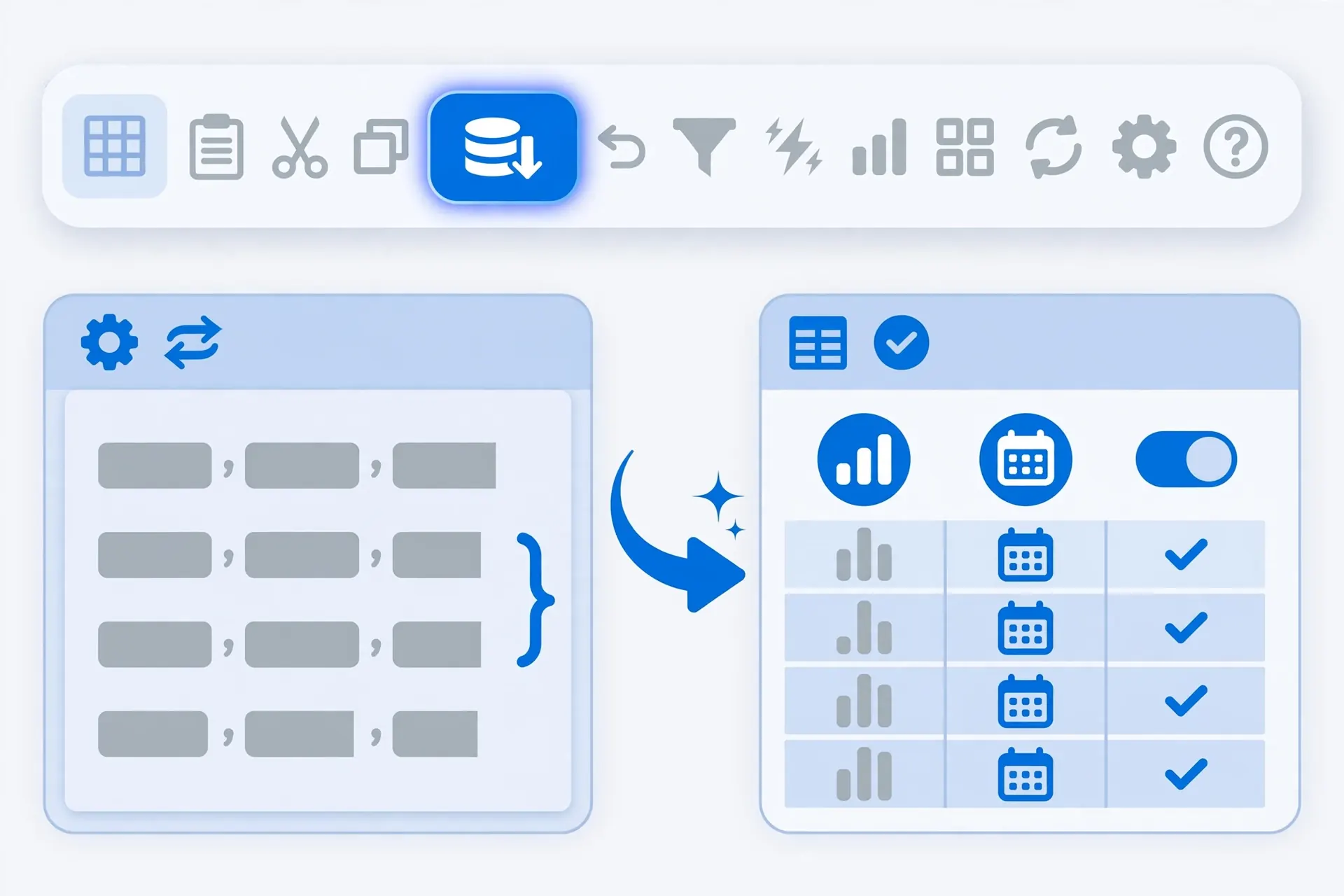
When conversions run in code, hard-coding widths is brittle (next month’s data is longer), but measuring widths is robust: size each column to its longest value plus padding. This is the standard openpyxl pattern:

import csv
from openpyxl import Workbook
from openpyxl.utils import get_column_letter

wb = Workbook()
ws = wb.active

with open("report.csv", newline="", encoding="utf-8") as f:
    for row in csv.reader(f):
        ws.append(row)

# Autofit: width = longest value in the column + 2 chars padding,
# capped at 50 so one monster cell can't blow out the layout
for col in ws.columns:
    max_len = max((len(str(c.value)) for c in col if c.value), default=0)
    ws.column_dimensions[get_column_letter(col[0].column)].width = min(max_len + 2, 50)

wb.save("report.xlsx")
The cap (min(..., 50)) is the important detail — without it, a single 2,000-character notes cell makes its column absurdly wide, the exact problem the troubleshooting section addresses. For the capped columns, add ws["F1"].alignment = WrapText (via openpyxl.styles.Alignment(wrap_text=True)) so the long content wraps instead of hiding. This pattern composes well with the other conversion-time upgrades: AutoFilter, conditional formatting, and frozen panes can all go in the same script, producing a fully finished workbook from a raw CSV in one run — the core idea behind any CSV to Excel API.
+2 padding accounts for cell padding and filter dropdown arrows. Dates and numbers need less padding than text; the uniform +2 is a fine default.Autofit vs fixed widths: when each one wins
AutoFit is the right default, but not the universal answer. Here’s the decision framework:
Autofit wins for exploratory analysis, one-off exports, and any data whose content length varies unpredictably — ad-hoc downloads, data-quality reviews, first looks at a new feed. It’s also right for narrow, predictable columns (IDs, dates, status codes) in recurring reports.
Fixed widths win for presentation and print: dashboards, client reports, anything where layout consistency matters more than showing every character. A report where the Name column is always 30 characters wide looks deliberate; one where it jumps between 18 and 47 depending on the month’s data looks accidental. Fixed widths also win for the problem columns — the notes field, the URL column, the JSON blob — where autofit produces nonsense.
The hybrid (and what most professionals actually do): autofit everything, then manually fix the 1–3 problem columns — narrow them, turn on Wrap Text, maybe set a fixed width. Thirty seconds of judgment on top of two seconds of automation. For recurring reports, save the result as a template: next month’s data pastes into pre-sized columns, and the layout never moves. Teams across the US, UK, India, Canada, and Australia that ship weekly Excel reports to stakeholders almost universally land on this hybrid — automation for the 95%, intention for the 5%.

Troubleshooting column widths on CSV imports
Numbers show as ### after opening. The column is too narrow for the values — autofit (Ctrl+A, Alt+H,O,I) fixes it instantly. If ### persists after autofit, the cell contains an error or the number format is fighting the width; check for that separately.
One column becomes enormously wide. A single long value (URL, paragraph, JSON) dictates the width. Narrow the column manually and enable Wrap Text (Alt+H,W), or double-click the row boundary to grow row height for the wrapped text.
Autofit does nothing. You’re likely autofitting a column whose cells are all empty in the measured range, or the sheet is protected. Also check: merged cells are ignored by AutoFit — unmerge first.
Widths reset every time I reopen the CSV. Expected — CSVs can’t store widths. Save as XLSX once and the widths persist; or set up the Power Query refresh workflow above for recurring files.
Dates still show ### after autofit. The “date” is actually text (or a number with a date format wider than the autofit measured). Convert to real dates first (Text to Columns), then autofit again.
Autofit is slow on huge sheets. Measuring 500k rows takes a moment. Select only the data columns (not the whole sheet) to limit the measurement range, or set widths in Python at conversion time instead.
Don’t forget row height: the other half of readability
Column width gets all the attention, but row height causes its own quiet misery — especially after you enable Wrap Text on those narrowed problem columns. A wrapped cell in a default-height row shows only the first line, with the rest hidden, which looks exactly like truncated data. The fix mirrors the column workflow: select the rows (or Ctrl+A for all), then double-click any row-number boundary to autofit heights, or use Alt+H, O, A (Format › AutoFit Row Height).
Two height-specific tips for CSV imports. First, autofit row height after setting column widths and wrap settings — height depends on width, so the order matters. Second, watch for the single giant row: one cell with ten lines of wrapped text makes its row tower over the sheet. For notes columns, consider a fixed row height with the full text available on click, rather than letting one verbose cell dictate the layout. In Python, ws.row_dimensions[n].height = 15 sets points directly (15 is Excel’s default), and openpyxl won’t auto-measure wrapped text height for you — set it deliberately or leave it to Excel’s own autofit on open. As a final polish, converting the range to an Excel Table keeps both widths and heights consistent as new CSV rows arrive.
Autofit on mobile: Excel for iOS and Android
CSV triage increasingly happens on phones — a supplier sends an export over WhatsApp, you open it in Excel mobile on the train. The good news: autofit exists there too, though the gesture differs. On both iOS and Android, tap a column letter to select the column (or tap the corner button to select all), then tap Format › Cell Size › AutoFit Column Width in the formatting menu. It’s buried two taps deep, which is why most mobile users never find it — but it works identically to desktop.
The practical advice for mobile: don’t fight wide CSVs on a 6-inch screen. Autofit, then hide the columns you don’t need (select › Hide), and freeze the header row so it stays put while you scroll. For anything beyond a quick check, hand the file to your desktop later — or better, run the Python conversion pattern above so the workbook arrives pre-fitted and phone-ready. Mobile Excel is a viewer with benefits; the heavy shaping still belongs on a real keyboard — and your future self will thank you.
Frequently Asked Questions
What is the shortcut to autofit all columns in Excel?
Select all with Ctrl+A, then press Alt+H, O, I (Format > AutoFit Column Width). Or double-click the boundary between any two column headers in the selection to autofit every selected column at once.
Why do CSV columns open too narrow in Excel?
CSV files store no column-width information at all — they are plain text. Excel opens every CSV with its default column width (8.43 characters), so any longer content shows as ### or gets cut off until you autofit or widen the columns.
Can I make Excel autofit columns automatically when opening a CSV?
Excel has no built-in auto-autofit for CSV opens, but you have three workarounds: a one-line VBA macro in your Personal workbook, importing via Power Query with widths set in the query, or converting with a Python script that sets column widths automatically.
How do I autofit columns with Python when converting CSV to Excel?
With openpyxl, loop over the worksheet’s columns after writing the CSV rows and set each column’s width to the length of its longest value plus a small padding: ws.column_dimensions[col_letter].width = max_length + 2. Save as XLSX and every column opens perfectly sized.
Why does autofit make some columns enormously wide?
One very long cell — a URL, a JSON blob, a notes field — forces the whole column to its width. Fix it by autofitting, then manually narrowing that column and turning on Wrap Text, or by setting a maximum width in your conversion script.
Does autofit work on merged cells?
No — Excel’s AutoFit ignores merged cells when measuring content width, which is one more reason to avoid merging cells in data tables. Unmerge first, then autofit, and the widths will calculate correctly.