
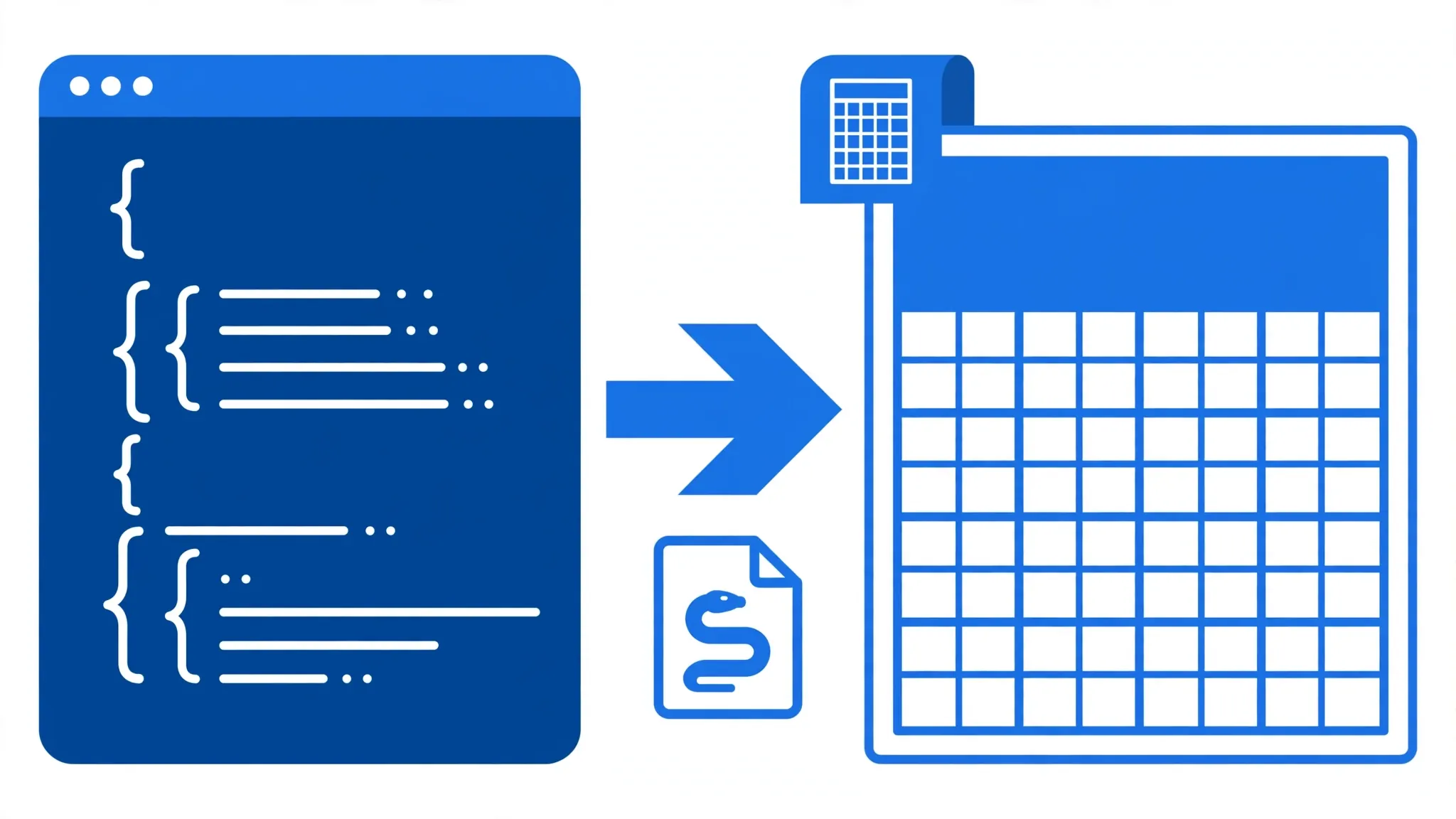
If you have ever double-clicked a .json file and wondered why Excel shows you a wall of braces, colons, and quoted text instead of a tidy table, you are not alone. Converting JSON to Excel is one of the most common data tasks in modern offices — APIs, web exports, analytics dashboards, and e-commerce platforms all speak JSON, while managers, accountants, and clients still live in spreadsheets. The good news is that you do not need expensive software or a computer science degree to bridge the two. In this guide you will learn four free, reliable methods to turn JSON into a clean Excel workbook: a browser-based JSON to XLSX converter for one-off jobs, Excel’s built-in Power Query JSON import for repeatable reports, Python with pandas json_normalize for developers and large files, and a Google Sheets route for Chromebook and mobile users.
You will also learn what JSON actually is (in plain English), how to handle the tricky part — nested JSON with objects inside objects and arrays inside arrays — and how to avoid the classic pitfalls like mangled phone numbers, lost leading zeros, and garbled non-English characters. By the end, you will be able to take any JSON file, flatten it sensibly, and produce a spreadsheet that anyone can read. Whether you are in New York reconciling Shopify orders, in London pulling Stripe data, in Mumbai exporting analytics, or in Sydney cleaning up a government open-data feed, the steps below work the same everywhere.

What Is JSON, and Why Won’t It Open Neatly in Excel?
JSON stands for JavaScript Object Notation. Despite the name, it is not really about JavaScript anymore — it is the universal language that web services use to exchange data. When you download a report from Google Analytics, export orders from WooCommerce, pull data from a REST API, or save settings from a web app, the file you get is very often JSON.
A JSON file stores data as key–value pairs grouped in objects (wrapped in curly braces {}) and lists (wrapped in square brackets []). Here is a tiny example:
[
  { "name": "Aarav Sharma", "city": "Mumbai", "orders": 14, "total_spent": 289.50 },
  { "name": "Emily Carter", "city": "Austin", "orders": 3, "total_spent": 59.99 }
]
This is called an array of objects — the friendliest possible shape for conversion, because each object becomes one spreadsheet row and each key becomes one column header. Real-world JSON, however, is rarely this polite. Objects nest inside objects ("address": { "city": "Mumbai", "zip": "400001" }), lists appear inside objects, and sometimes the whole file is a single giant object rather than a neat array. Excel’s grid is strictly two-dimensional — rows and columns — so nested structures must be flattened before they fit. That flattening step is where most conversions go wrong, and it is the main skill this guide teaches.
There is a second reason JSON confuses people: encoding and formatting. JSON files are almost always UTF-8 encoded, which is great for names like “José”, “François”, or “北京”. But if you open JSON by renaming it to .txt and using the wrong import settings, those characters can turn into mojibake (garbled symbols). The methods below all handle UTF-8 correctly when you follow the steps.
Finally, a note on the two target formats people usually mean by “Excel”: XLSX (the modern Excel workbook with multiple sheets and formatting) and CSV (a plain-text, single-sheet format). A JSON to XLSX converter gives you a real workbook; converting JSON to CSV is lighter and works everywhere. Choose XLSX when you need sheets, formatting, or precise data types, and CSV when you just need raw tabular data to feed another tool.
Method 1: Free Online JSON to Excel Converter (Fastest)
When you have a JSON file and need a spreadsheet in the next two minutes, an online converter is the fastest route. The best converters run entirely in your browser — your file never leaves your computer, which matters if the data is customer information, financial records, or anything covered by privacy rules like GDPR (UK/EU) or India’s DPDP Act.
- Open the converter. Head to the free CSV to Excel converter on csvtoexcel.site/ — it handles JSON input as well as CSV, and everything happens locally in your browser.
- Upload or paste your JSON. Drag the .json file into the upload area, or open it in a text editor (Notepad, TextEdit, VS Code) and paste the contents. If your JSON is an array of objects, the converter detects rows and columns automatically.
- Check the preview. Look at the first few rows. Make sure nested fields were flattened sensibly (more on that below) and that the column count looks right. If a column shows
[object Object], your JSON has deeper nesting — try Power Query or Python instead. - Download the XLSX. Click convert and save the .xlsx file. Open it in Excel, Google Sheets, or Apple Numbers to verify.
Online conversion is ideal for files under a few megabytes with simple or moderately nested structures. For files with heavy nesting, arrays you need exploded into rows, or anything above ~50 MB, jump to Method 2 or 3.
Method 2: Import JSON into Excel with Power Query
Power Query is Excel’s built-in data-transformation engine (available in Excel 2016 and later, including Microsoft 365, on Windows and Mac). It imports JSON natively and gives you a visual editor to flatten nested structures — and the whole import is refreshable, so when the JSON file updates next week, you click Refresh instead of redoing the work.
- Start the import. In Excel, go to the Data tab → Get Data → From File → From JSON. (In older Excel 2016 builds: Data → New Query → From File → From JSON.)
- Select your file. Browse to the .json file and click Import. The Power Query editor opens, showing the JSON as a document or list.
- Convert to a table. If you see a “List” of records, click To Table in the Transform tab (accept the defaults). Each JSON object becomes a row; each top-level key becomes a column.
- Expand nested columns. Columns containing nested objects show a small expand icon (two arrows) in the header. Click it, uncheck “Use original column name as prefix” if you want shorter names, and choose which sub-fields to keep. For arrays, the expand icon lets you expand to new rows — turning one row with five order items into five rows.
- Fix data types. Click the type icon at the left of each column header and set Text, Whole Number, Decimal, or Date as appropriate. This is where you protect phone numbers and ZIP codes: set them to Text before loading.
- Load it. Click Close & Load (Home tab). Your flattened JSON appears as a formatted Excel table.

Power Query also lets you filter rows, remove columns, merge queries, and handle errors before loading — all recorded as replayable steps. If you regularly work with JSON in Excel, learning the Power Query editor pays for itself within a week. Our companion guide on importing CSV with Power Query covers the same editor from the CSV side.
Method 3: Convert JSON to Excel with Python (pandas)
Developers, data analysts, and anyone dealing with large or deeply nested JSON should know the Python route. The pandas library reads JSON, flattens it with json_normalize, and writes real .xlsx files with openpyxl — all free and scriptable.
First, install the libraries (once):
pip install pandas openpyxlSimple flat JSON → Excel:
import pandas as pd

df = pd.read_json("orders.json")   # array of objects
df.to_excel("orders.xlsx", index=False)
print(df.head())
Nested JSON → Excel with json_normalize:
import pandas as pd
import json

with open("customers.json", encoding="utf-8") as f:
    data = json.load(f)

# Flatten nested dicts into dotted columns like address.city
df = pd.json_normalize(data, sep=".")

# If each customer has a list of orders you want as rows:
# df = pd.json_normalize(data, record_path="orders",
#                        meta=["name", "email"], sep=".")

df.to_excel("customers.xlsx", index=False)
The record_path parameter is the key trick: it “explodes” a nested array so each element becomes its own row, while meta carries the parent fields (name, email) down into every row. This mirrors Power Query’s “expand to new rows” exactly.
For very large JSON files (hundreds of megabytes), load in chunks or stream with ijson, and remember Excel’s hard limits: 1,048,576 rows and 16,384 columns per worksheet. A common pattern is to write one sheet per category, or to aggregate before exporting. For a deeper dive into Python-based spreadsheet work, see our guide on CSV to Excel with Python — the export half of the workflow is identical.
encoding="utf-8" in Python, and pandas writes UTF-8-safe XLSX by default. This keeps names in Hindi, Arabic, Chinese, or accented Latin scripts intact — something that breaks surprisingly often with default settings on Windows.Method 4: Convert JSON to a Spreadsheet with Google Sheets
Google Sheets cannot open a .json file directly the way it opens CSV, but two easy workarounds exist — handy on Chromebooks, tablets, or shared office machines where you cannot install anything.
Option A — convert first, then upload. Use the free online converter to turn your JSON into XLSX, then in Google Sheets go to File → Import → Upload and choose the file. Pick “Replace spreadsheet” or “Insert new sheet(s)”. Sheets preserves most formatting and formulas.
Option B — IMPORTDATA for JSON served as CSV. Some APIs let you request CSV output instead of JSON (look for a format=csv parameter). Then =IMPORTDATA("https://...") pulls it straight into a sheet. For true JSON endpoints, a tiny Apps Script can fetch and parse JSON into rows — search “Apps Script JSON to Sheets” for copy-paste templates.
Sheets is also a convenient middle step: import JSON-derived XLSX, clean it collaboratively, then download as .xlsx again via File → Download → Microsoft Excel. Our CSV to Google Sheets import guide walks through the delimiter and encoding options in the import dialog, which apply here too.

Handling Nested JSON: Flattening Explained
Flattening is the heart of JSON-to-Excel conversion, so it deserves a proper explanation. JSON has three structures that a flat grid cannot represent directly:
1. Nested objects
{ "name": "Priya", "address": { "city": "Bengaluru", "pin": "560001" } } — the fix is to promote inner keys into their own columns, typically named address.city and address.pin. Both Power Query’s Expand and pandas’ json_normalize do this automatically.
2. Arrays of values
{ "name": "Tom", "tags": ["vip", "newsletter", "uk"] } — you have two choices. Join them into one cell (“vip; newsletter; uk”) when the list is just metadata, or explode them into multiple rows when each item matters (e.g., order line items). Joining keeps the row count stable; exploding keeps the data analyzable. Pick based on what the spreadsheet is for.
3. Arrays of objects
The classic e-commerce shape: one order containing many line items. Exploding gives you one row per line item with the order fields repeated — exactly how a pivot table wants the data. This is the single most useful flattening pattern in business reporting.
Watch out for inconsistent keys: in real JSON, record 1 might have "phone" while record 2 does not. Good converters (and pandas, and Power Query) handle this by leaving blank cells — but some naive scripts crash or misalign columns. Always spot-check the row count after conversion: it should equal the number of objects (or exploded items) in your JSON.
Worked Example: From Nested JSON to Clean Table
Let’s convert a realistic nested JSON file — a small online store’s orders — step by step using Python, since it shows every decision explicitly. The same logic applies in Power Query.
The JSON (orders.json):
[
  {
    "order_id": "ORD-1001",
    "date": "2026-09-14",
    "customer": { "name": "Aarav Sharma", "email": "aarav@example.in", "phone": "09876543210" },
    "shipping": { "city": "Mumbai", "pin": "400001", "country": "IN" },
    "items": [
      { "sku": "TSH-BLU-M", "qty": 2, "price": 499.00 },
      { "sku": "CAP-RED", "qty": 1, "price": 299.00 }
    ],
    "coupon": null
  },
  {
    "order_id": "ORD-1002",
    "date": "2026-09-15",
    "customer": { "name": "Emily Carter", "email": "emily@example.com", "phone": "+1-512-555-0148" },
    "shipping": { "city": "Austin", "pin": "78701", "country": "US" },
    "items": [
      { "sku": "MUG-WHT", "qty": 4, "price": 12.50 }
    ],
    "coupon": "FALL10"
  }
]
The script:
import pandas as pd
import json

with open("orders.json", encoding="utf-8") as f:
    data = json.load(f)

# One row per line item; parent fields repeated via meta
df = pd.json_normalize(
    data,
    record_path="items",
    meta=["order_id", "date",
          ["customer", "name"], ["customer", "email"], ["customer", "phone"],
          ["shipping", "city"], ["shipping", "pin"], ["shipping", "country"],
          "coupon"],
    sep="."
)

# Keep phone/pin as text so Excel won't mangle them
df["customer.phone"] = df["customer.phone"].astype(str)
df["shipping.pin"] = df["shipping.pin"].astype(str)

# Friendly column names
df.columns = [c.replace("customer.", "").replace("shipping.", "ship_")
              for c in df.columns]

df.to_excel("orders_flat.xlsx", index=False)
print(df)
The result: three rows (two line items for ORD-1001, one for ORD-1002) with columns sku, qty, price, order_id, date, name, email, phone, ship_city, ship_pin, ship_country, coupon. Phone numbers like 09876543210 survive because we forced text type — note how the Indian mobile number keeps its leading zero, and the US number keeps its plus sign and dashes.

In Power Query, the equivalent is: import the JSON → To Table → expand items to new rows → expand customer and shipping records → set phone and pin columns to Text → Close & Load. Same table, no code.
Troubleshooting Common JSON-to-Excel Problems
Phone numbers turn into scientific notation
Excel sees 09876543210 as a number and displays 9.87654E+10, destroying the leading zero. Fix: set the column to Text in Power Query before loading, use .astype(str) in pandas, or in a pinch, format the column as Text in Excel and re-enter the values. Prevention beats repair here.
Non-English characters show as gibberish
This is an encoding mismatch — the file is UTF-8 but was read as Windows-1252 or similar. Re-import specifying UTF-8 (Power Query detects it automatically; in Python, pass encoding="utf-8"). If you already saved a mangled CSV, the original characters are lost — go back to the JSON source.
Dates land as text or in US format
JSON dates like "2026-09-14" (ISO 8601) are unambiguous — parse them explicitly. In Power Query, set the column type to Date; in pandas, use pd.to_datetime(). Be careful with ambiguous formats like 09/08/2026: the US reads September 8, the UK and India read 9 August. ISO format avoids this entirely, which is one more reason APIs prefer it.
The JSON is one giant object, not an array
Some exports wrap everything: { "status": "ok", "data": [ ... ] }. Point your tool at the inner array — in Power Query, click into the data record first; in pandas, use pd.json_normalize(data["data"]).
Conversion produces one column with [object Object]
Your converter did not flatten nesting. Switch to Power Query or pandas, which expand nested structures properly.
File is too big for Excel
Excel caps at about one million rows per sheet. For bigger JSON, filter or aggregate in Python first, or split across multiple sheets with pd.ExcelWriter. If the JSON is a newline-delimited stream (.jsonl / .ndjson), read it with pd.read_json("file.jsonl", lines=True) in chunks.
Which Method Should You Choose?
| Method | Best for | Handles nesting | Skill needed | Cost |
|---|---|---|---|---|
| Online converter | One-off files, quick jobs | Basic–moderate | None | Free |
| Power Query | Recurring reports, refreshable dashboards | Excellent | Beginner+ | Free (in Excel) |
| Python + pandas | Large files, automation, deep nesting | Excellent | Coding | Free |
| Google Sheets | Chromebooks, collaboration, no installs | Via conversion first | None | Free |
Short version: one file, right now → online converter; same report every week → Power Query; huge or messy data, or automation → Python; no Excel installed → Google Sheets. Many professionals combine them: prototype the flattening logic in Power Query, then automate it in Python when the job grows.
Pro Tips for Flawless JSON to Spreadsheet Conversions
- Validate the JSON first. Paste it into a JSON validator (or run
python -m json.tool file.json) before converting. One missing comma can silently truncate your data. - Inspect the shape. Is it an array of objects, a single object, or newline-delimited JSON? Knowing the shape tells you which tool settings to use.
- Protect text-like numbers early. Phone numbers, ZIP/PIN codes, SKUs, and IDs with leading zeros must be typed as Text before Excel touches them.
- Keep a copy of the raw JSON. Flattening is lossy — you choose which branches to keep. Archive the original so you can re-flatten differently later.
- Name sheets and tables clearly. “orders_2026-09_flat” beats “Sheet1” when someone opens the file six months later.
- Document the flattening choices. A one-line note (“items exploded to rows; tags joined with ‘;'”) in the workbook saves future confusion.
- Mind the 32,767-character cell limit. Excel truncates longer cell values; huge JSON blobs in one field need splitting.
- For scheduled jobs, script it. A ten-line Python script run by Task Scheduler (Windows) or cron (Mac/Linux) beats manual conversion every Monday morning.

Stuck on a particularly gnarly nested structure? join the discussion in our community forum — someone there has probably flattened the same JSON shape before.
Frequently Asked Questions
Can I convert JSON into a spreadsheet without installing anything?
Yes. A free online JSON to Excel converter runs entirely in your browser — upload or paste your JSON and download an .xlsx file. Our converter at csvtoexcel.site/ processes files locally on your device, so nothing is uploaded to a server.
How do I import JSON into Excel with Power Query?
In Excel, go to Data → Get Data → From File → From JSON. Select your file, and the Power Query editor opens. Use To Table and the Expand icons to flatten nested records into columns, then click Close & Load to bring the data into a worksheet.
What is the best way to flatten nested JSON for Excel?
For nested JSON, use Power Query’s Expand feature in Excel or pandas.json_normalize() in Python. Both turn nested objects into dotted column names like address.city, and arrays can be expanded into rows or joined with a separator depending on your needs.
Can I convert a large JSON file to Excel?
Yes, but Excel worksheets are limited to 1,048,576 rows and 16,384 columns per sheet. For files bigger than that, use Python with pandas to split the data across multiple sheets, filter it down, or aggregate it before exporting.
Will my data types survive the conversion?
Mostly yes, but watch for quirks: Excel may turn long numbers like phone numbers into scientific notation and drop leading zeros. Format those columns as Text before or during the import to preserve them exactly.
Is JSON to XLSX the same as JSON to CSV?
They are similar but not identical. XLSX keeps multiple sheets, formatting, and data types, while CSV is a plain-text format with one sheet and no formatting. Choose XLSX for reports and sharing, CSV for lightweight raw data.