
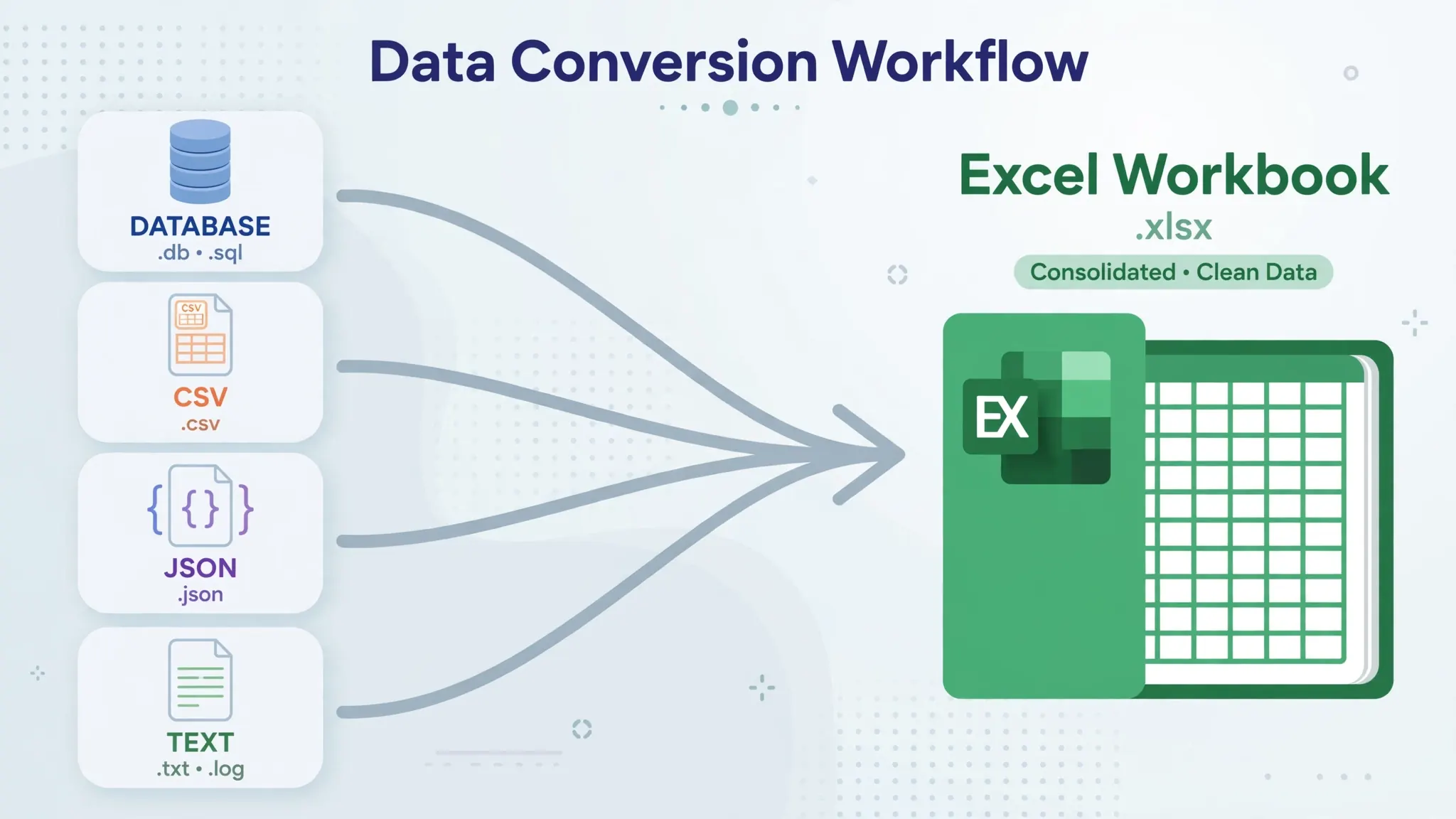
If you work with data long enough, the day comes when someone hands you a .parquet file and asks for a spreadsheet. Learning how to convert Parquet to Excel bridges two different worlds: the big-data engineering world, where Parquet is the standard columnar format for data lakes and analytics pipelines, and the business world, where Excel remains the universal way humans actually look at numbers. Excel can’t open Parquet files directly — double-clicking one gets you nowhere — but the conversion itself is straightforward once you know the tools. This guide walks you through four dependable methods: Python with pandas and PyArrow (the analyst’s favorite), a CSV intermediate step, Power Query inside Excel, and a quick online converter for small files.
You’ll also learn the two things that trip up first-timers: Parquet files are often bigger than Excel’s 1,048,576-row limit, and Parquet’s rich data types (timestamps with timezones, decimals, nested structures) don’t map one-to-one onto a spreadsheet grid. We’ll cover how to sample, split, and flatten data so the workbook you produce is clean, accurate, and actually useful to whoever asked for it — whether that’s a manager in New York, a client in London, or a data team in Bangalore sharing a slice of a pipeline with non-technical stakeholders.

What Parquet files are — and why analysts need them in Excel
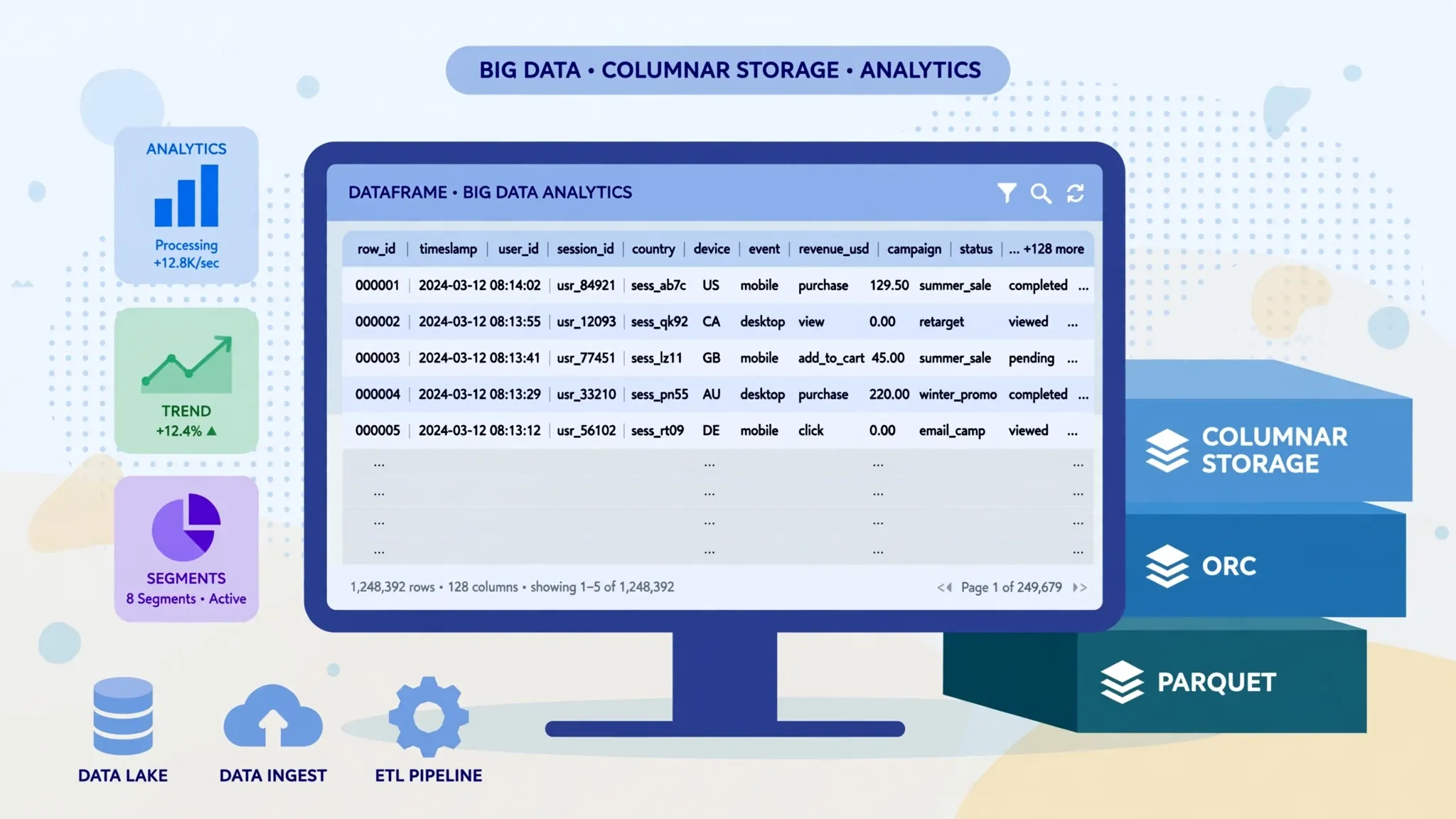
Apache Parquet is a columnar storage format designed for analytics: instead of storing data row by row like a CSV, it stores it column by column, which makes files dramatically smaller and queries dramatically faster. It’s the default output of tools like Apache Spark, and the standard format for data lakes on AWS, Azure, and Google Cloud — the Wikipedia overview of Apache Parquet covers the format’s history in depth. If your company has a “data platform,” there’s a good chance its tables are Parquet files sitting in cloud storage.
The friction point is human. Data engineers live in Parquet; everyone else lives in Excel. When the marketing lead wants to eyeball last quarter’s campaign data, when finance wants to reconcile pipeline numbers, or when an auditor wants a sample of transactions — they want a workbook, not a 2 GB columnar file and a Spark cluster. Converting a slice of Parquet data into XLSX is the handshake between those worlds, and it’s a routine part of analytics work in 2026.
Two realities shape every conversion. First, size: Parquet files routinely hold tens of millions of rows, while an Excel worksheet caps at 1,048,576 rows and 16,384 columns. You almost never convert the whole file — you filter, aggregate, or sample first. Second, types: Parquet supports timestamps with timezones, high-precision decimals, and nested structures (lists and structs inside a cell). Excel’s grid is flat and simple. A good conversion flattens and simplifies deliberately rather than letting the tool guess. Keep both realities in mind and every method below will behave.
Parquet to Excel: four dependable methods compared
Python (pandas + PyArrow) is the gold standard. Five lines of code read any Parquet file and write a formatted workbook; you get full control over filtering, types, and splitting across sheets. Requires a Python install — free, but a step if you’ve never used one.
Parquet → CSV → Excel is the universal fallback. Convert the Parquet file to CSV with a small script or command-line tool, then import the CSV into Excel with Data › From Text/CSV. Two hops, but every hop uses tools you already understand, and our CSV to Excel with Python guide covers the second half in depth.
Power Query (built into Excel for Windows and Excel for Mac) can pull data from files and transform it with a repeatable, refreshable query. It’s the best choice when the same Parquet export lands every week and you want a one-click refresh instead of a manual conversion.
Online converters handle small files in seconds with no installation. Fine for a quick look at a modest dataset; not the tool for gigabyte files or anything confidential.
Method 1: Convert Parquet to Excel with Python (pandas + PyArrow)
This is the method data analysts reach for first, and for good reason: it’s short, repeatable, and handles every edge case. Install the two libraries (pip install pandas pyarrow openpyxl — see the pandas documentation for setup help), then the core conversion is genuinely three lines. PyArrow does the Parquet reading, pandas holds the data in a familiar table, and openpyxl writes the workbook.
import pandas as pd

# Read the Parquet file (PyArrow engine handles the columnar format)
df = pd.read_parquet("sales_2026.parquet", engine="pyarrow")

# Optional: keep only what the spreadsheet needs
df = df[["order_id", "customer", "region", "amount", "order_date"]]

# Write to Excel — one clean workbook
df.to_excel("sales_2026.xlsx", index=False, sheet_name="Sales")
That covers the simple case. Real-world Parquet files need a little more care, and pandas makes each fix a one-liner. Filter rows before writing (df = df[df["region"] == "EMEA"]), flatten nested columns (df["tags"] = df["tags"].apply(lambda x: ", ".join(x)) turns a list column into readable text), and normalize timestamps (df["ts"] = pd.to_datetime(df["ts"]).dt.tz_convert("UTC").dt.tz_localize(None) drops timezone info Excel can’t represent). For formatting — bold headers, auto-sized columns, frozen panes — the techniques in our Python Excel guide apply directly to the DataFrame you just built.
Handling files that are bigger than Excel’s row limit
When the Parquet file holds 50 million rows and Excel holds 1,048,576 per sheet, you have three honest options. Aggregate: group the data in pandas (df.groupby("region")["amount"].sum()) and export the summary — most “give me the data” requests are actually “give me the numbers,” and a summary is what they wanted. Sample: take a representative slice (df.sample(n=500000, random_state=42)) for eyeballing and QA. Split: write chunks to separate sheets in one workbook. Never silently truncate — a workbook that quietly drops 49 million rows is worse than no workbook at all; always note in the file or your message what subset the spreadsheet contains.
Automating the weekly Parquet extract
The real payoff of the Python approach appears the second time you run it. Most teams don’t convert a Parquet file once — they convert the same kind of file every week, every morning, or after every pipeline run. Turning the script above into a scheduled job takes minutes and removes the most error-prone part of the process: the human remembering to do it, and doing it the same way each time.
Start by parameterizing the script: read the input path from a command-line argument (sys.argv[1]), derive the output name from it, and wrap the whole thing in a function with a try/except that logs failures instead of dying silently. Add the data-quality checks your stakeholders care about — row counts within an expected range, no nulls in key columns, dates inside the reporting window — and have the script raise loudly when something looks off. A conversion that fails noisily is infinitely better than a workbook that quietly contains last week’s data with this week’s file name.
Then schedule it. On Windows, Task Scheduler runs the script on whatever cadence you set and can email you the log. On macOS and Linux, a cron entry does the same in one line. If your Parquet files live in cloud storage, most teams add a download step at the top of the script (the AWS, Azure, and Google Cloud CLIs each do this in a single command) so the whole chain — fetch, convert, validate, deliver — runs unattended. Point the output at a shared OneDrive or Google Drive folder and the workbook is waiting in everyone’s inbox folder before the standup starts. Analysts in the US, UK, India, Canada, and Australia all run some version of this pattern; the details of the scheduler change, but the shape of the solution doesn’t. Once it’s running, the “can you send me the spreadsheet” request answers itself.
Method 2: Open a Parquet file in Excel via CSV
If Python feels like overkill but you still need to open a Parquet file in Excel, the CSV hop is the pragmatic middle path. Convert Parquet to CSV once with a tiny script or a command-line tool, then use Excel’s own import — which gives you the delimiter preview, encoding control, and per-column type settings that prevent mangled dates and vanishing leading zeros.
- Convert the Parquet file to CSV:
python -c "import pandas as pd; pd.read_parquet('data.parquet').to_csv('data.csv', index=False)"(needspip install pandas pyarrowonce). - In Excel, go to Data › From Text/CSV and select the CSV — don’t just double-click it.
- In the preview, confirm the delimiter is a comma and the encoding is UTF-8. Set ID/zip-code columns to Text to protect leading zeros.
- Click Load, then File › Save As › Excel Workbook (.xlsx).

Why bother with the intermediate CSV instead of writing XLSX directly? Two reasons: the CSV is inspectable in any text editor (handy when debugging a weird export), and Excel’s Text/CSV import dialog is the single best tool for catching type problems before they bake into a workbook. Data teams in the US and UK who hand spreadsheets to non-technical colleagues favor this route precisely because the preview catches the “why are all the dates wrong” moment early.
Method 3: Use Power Query to read Parquet data
Power Query — the Data › Get Data engine built into modern Excel — is the right tool when this conversion isn’t a one-off. If a fresh Parquet extract lands in a shared folder every Monday, a Power Query pulls it in, applies your transformations (filter rows, rename columns, fix types), and loads a clean table. Next Monday you hit Refresh and the workbook updates itself. Our Power Query CSV import guide walks through the query-building pattern step by step; the same clicks apply once your Parquet data is in a readable form.
One honest limitation: Power Query doesn’t read .parquet files natively in most Excel builds — the practical pattern is a tiny scheduled script that converts the Parquet extract to CSV, with Power Query pointed at that CSV. It sounds like extra machinery, but it separates concerns nicely: the script handles the big-data format, and Power Query handles the business logic (filters, merges, type fixes) in a way your successor can see and edit without touching code. For teams, that visibility is worth more than the elegance of a single script.
Method 4: The quick online Parquet to XLSX conversion
For a small file and a quick answer, nothing beats the browser. Drop the .parquet file into a converter, download the workbook, done. This is the right choice when you’re on a machine without Python, when the file is a few megabytes, and when the data isn’t sensitive.
- Open the free file-to-Excel converter in your browser.
- Upload your
.parquetfile (drag-and-drop works in Chrome, Edge, Safari, and Firefox). - Preview the detected columns — check that dates and numbers look right.
- Download the
.xlsxand spot-check a few rows against the source.
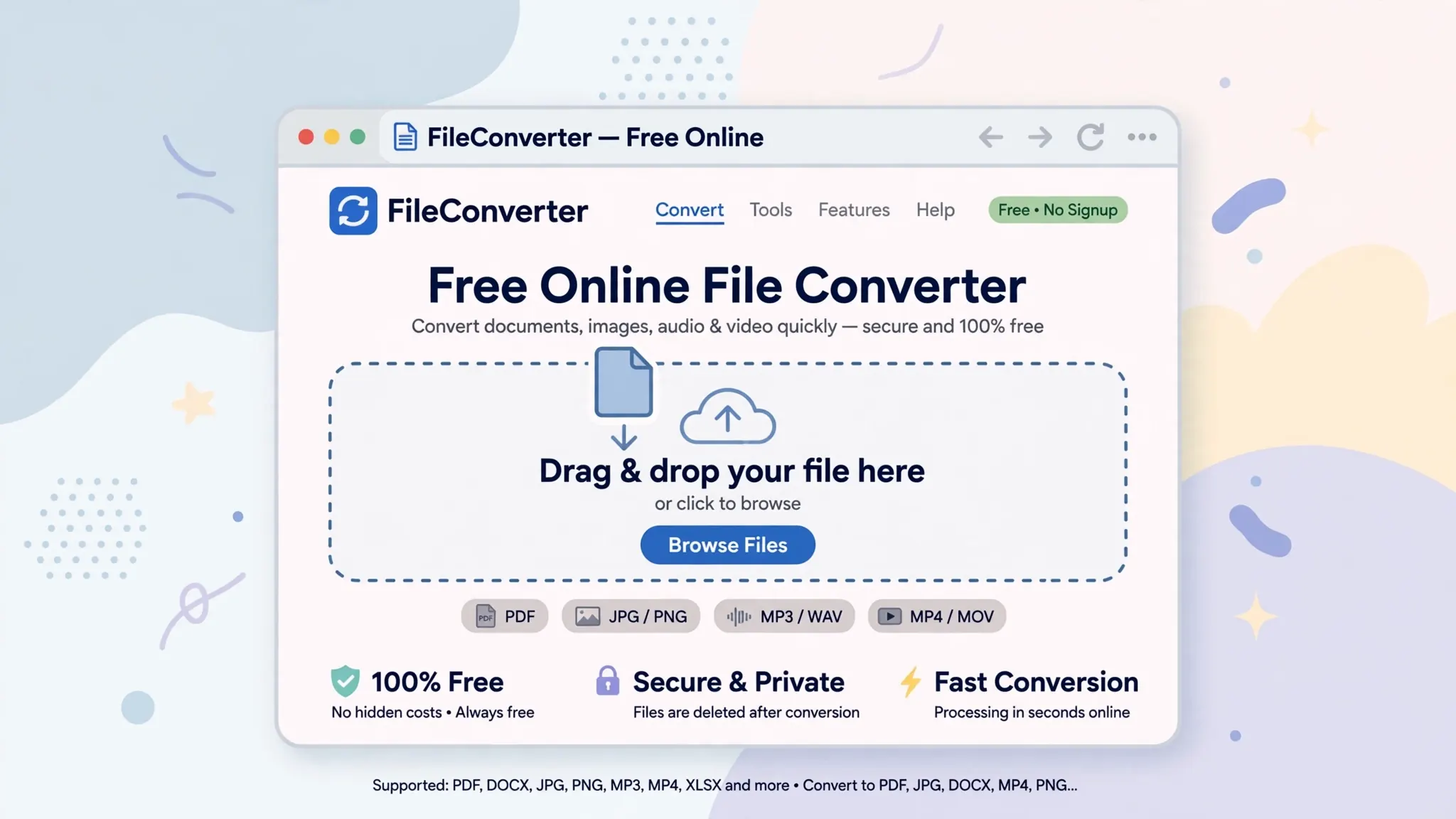
The limits are real: browser tools choke on gigabyte-scale files, they can’t filter or aggregate (you get the whole file or nothing, capped by Excel’s row limit), and your data passes through a third-party service. Treat online conversion as the “quick peek” tool and keep Python handy for anything serious. If you find yourself converting the same Parquet extract every week, that’s the signal to invest twenty minutes in the Method 1 script — it pays for itself by the second run.
Data-type and formatting checklist for Parquet exports
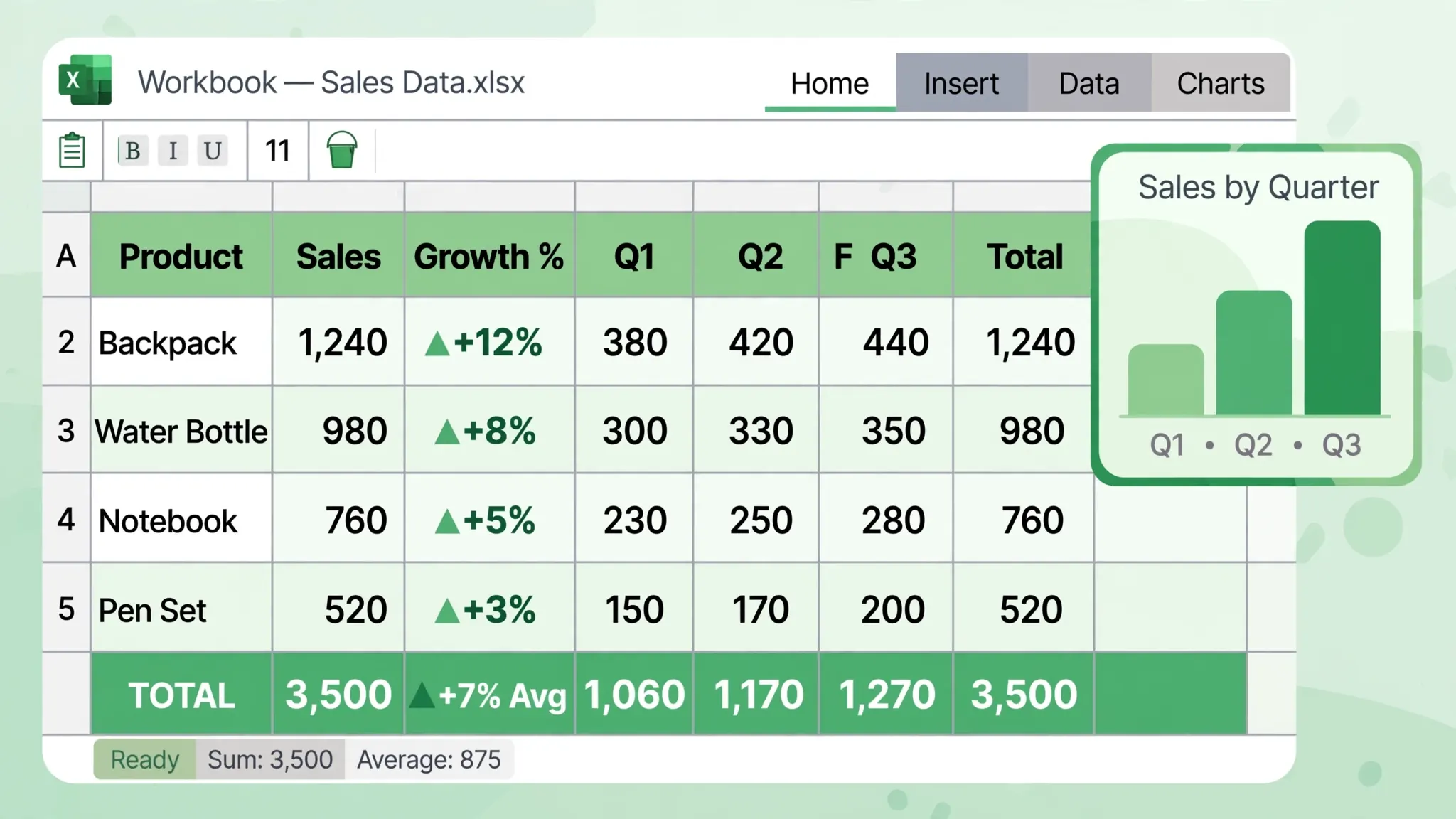
Run through this checklist before you share any Parquet-derived workbook — it catches 95% of the “the numbers look wrong” complaints.
Timestamps. Parquet timestamps often carry timezones; Excel has no timezone concept. Convert to one explicit zone (usually UTC or the business’s local time — US Eastern, UK GMT, IST for India) and strip the tz info so Excel stores a plain datetime. Note the chosen zone in a cover cell or the file name.
Decimals and floats. Parquet decimals are exact; Excel floats are binary approximations. Money columns should be rounded to two decimals in pandas before writing, and formatted as Currency in the workbook. A value like 19.99 survives fine; a 28-digit ledger balance does not — keep those as text if exactness matters.
Nested columns. Lists and structs have no spreadsheet equivalent. Flatten lists to comma-separated text and structs to dotted column names (address.city) before writing. If a column contains dicts, pd.json_normalize expands them into proper columns in one call.
Nulls. Parquet nulls become empty cells, which is correct. Watch for sentinel values — -1, 1900-01-01, empty strings — that the pipeline used as “missing” markers; convert them to real nulls or document them, or your recipient’s averages will be wrong.
Column names. Parquet pipelines love names like event_ts_utc and user_id_hashed. Rename to human labels (Event time (UTC), User ID) before writing — the five minutes it takes is the difference between a workbook people use and one they email back with questions.
Troubleshooting: common Parquet conversion problems
“No module named ‘pyarrow'”. Run pip install pyarrow — pandas needs it as the Parquet engine. On some systems you may need pip install --upgrade pip first.
MemoryError on a large file. Don’t read the whole file: use pd.read_parquet("big.parquet", columns=["a","b"]) to load only needed columns, or pyarrow.parquet.read_table(...).to_pandas() with filters to push the filtering down into the reader.
Dates show as numbers. Excel date serials again — the values converted fine, the column just needs a Date number format (Ctrl+1, pick Date).
Weird characters in text columns. Parquet is UTF-8 by design, so corruption usually happens at the CSV hop or in an old Excel. Write XLSX directly from pandas (never via CSV) and the text survives byte-for-byte.
The workbook opens but rows are missing. You hit the 1,048,576-row wall and something truncated silently. Go back to Method 1’s big-file section: aggregate, sample, or split — and label the workbook with what it contains.
Numbers lost precision. A 19-digit ID became 1.23457E+18. Read that column as string in pandas (dtype={"id": str} won’t work on parquet reads — instead do df["id"] = df["id"].astype(str) before writing) so Excel stores text, not a rounded float.
Which Parquet-to-Excel method fits your workflow?
Quick decision guide. Analyst comfortable with Python? Method 1, every time — it’s five lines, it’s repeatable, and it handles filtering, types, and splitting in one place. No Python, one file, right now? Method 4’s online converter for small files, or Method 2’s CSV hop when you want Excel’s import preview. Same extract every week? A scheduled Parquet→CSV script feeding a Power Query (Method 3) gives you a refreshable workbook the whole team can use without touching code.
Whatever you choose, remember the two non-negotiables: respect the row limit (filter or aggregate, never silently truncate), and flatten the fancy types before they reach the grid. Do those two things and your conversion produces workbooks people trust. For neighboring formats, see our guides to converting SQLite databases to Excel and the full Python Excel automation playbook — the pandas techniques transfer directly.
Frequently Asked Questions
Can Excel open a Parquet file directly?
Not natively — Excel has no built-in Parquet reader. Convert the file to XLSX or CSV first with Python (pandas + PyArrow), Power Query, or an online converter, then open the result in Excel normally.
What is the best Python code to convert Parquet to Excel?
Install pandas and pyarrow, then run: df = pd.read_parquet(‘data.parquet’); df.to_excel(‘data.xlsx’, index=False). For large files, read in chunks or filter columns first so the result fits Excel’s 1,048,576-row limit.
How do I convert a Parquet file that is bigger than Excel’s row limit?
Excel worksheets hold 1,048,576 rows. For bigger files, aggregate or sample the data in Python/pandas before writing, split it across multiple worksheets, or export to CSV and use Power Query to load only the slice you need.
Does converting Parquet to Excel lose data types?
It can. Parquet’s rich types (timestamps with timezones, decimals, nested structs) flatten into Excel’s simpler grid. Flatten nested columns to text, convert timestamps to a consistent timezone, and verify numeric precision before sharing the workbook.
Is there a free online converter for Parquet files?
Yes, several browser-based tools turn Parquet files into XLSX without installing anything. They suit small, non-sensitive files; for large datasets or private data, use the offline Python or Power Query methods in this guide.
Parquet vs CSV: which is better for Excel work?
Parquet is better for storage and analytics — smaller files, faster queries, real data types. CSV is better for interchange — everything opens it. Convert Parquet to XLSX when a human needs to review the data in Excel; keep Parquet as the archival format.