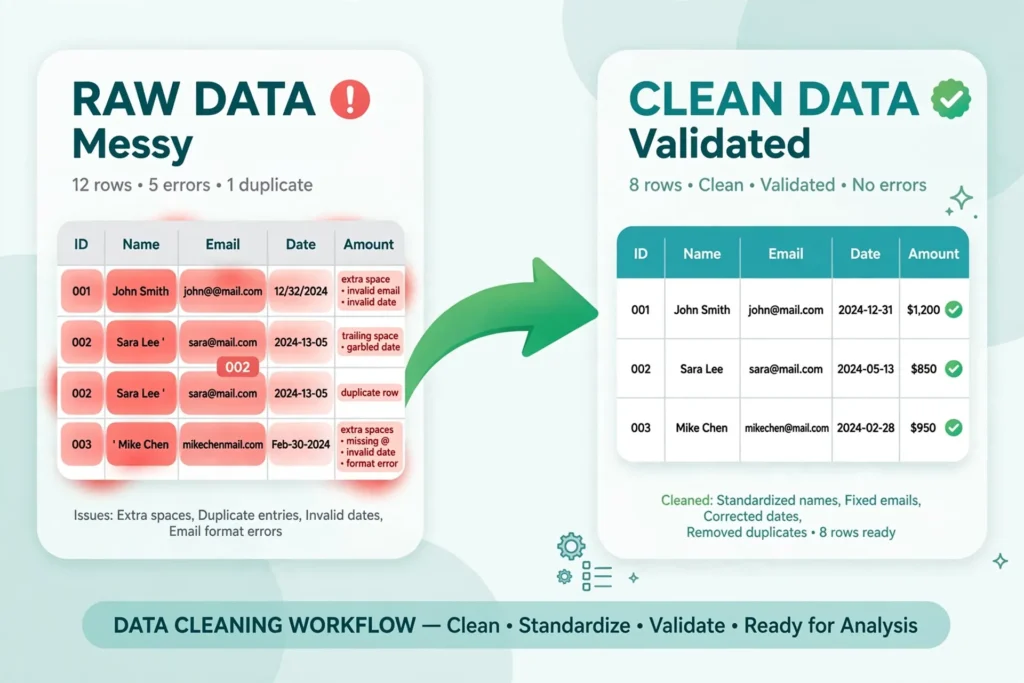
Knowing how to clean data in Excel is the difference between a spreadsheet you can trust and one that quietly lies to you. Every analyst has a story: the sales report that double-counted revenue because of duplicate rows, the customer list where “New York,” “new york,” and “New York” (two spaces) were treated as three different cities, the date column that sorted January after March because half the dates were text. Messy data doesn’t announce itself — it hides inside pivot tables and charts, and you discover it at the worst possible moment.
This Excel data cleaning tutorial gives you a complete, ordered workflow: ten steps, in the sequence that professionals actually use. You’ll learn how to clean messy data in Excel systematically — fixing structure before values, whitespace before duplicates, text before dates — so each step builds on a solid foundation instead of fighting the previous one. Along the way you’ll pick up the essential functions (TRIM, CLEAN, SUBSTITUTE, TEXTSPLIT, DATEVALUE), the Data-tab tools (Remove Duplicates, Text to Columns, Flash Fill), and the validation checks that prove your data is truly clean. If your starting point is a rough CSV export, our free online CSV to Excel converter gets it into a workbook in seconds — then this guide takes it from raw to reliable.

Why the order of operations matters when you clean data
Most people clean spreadsheets in whatever order the problems catch their eye: a duplicate here, a weird date there, a stray space somewhere else. That whack-a-mole approach feels productive, but it creates rework. Fix dates before trimming spaces, and you’ll redo the dates when TRIM changes text lengths. Remove duplicates before standardizing case, and “Smith” vs “SMITH” survive as separate rows. Split columns before removing blank rows, and your split overwrites data you meant to keep.
The professional sequence follows one principle: fix the container before the contents, and the coarse problems before the fine ones. Structure first (so tools work on a proper table), then blanks (so you’re not cleaning empty cells), then data types (so functions interpret values correctly), then whitespace (the invisible saboteur), then duplicates (which depend on clean comparisons), then text standardization, structural splits, missing values, dates and numbers, and finally validation. Data preparation in Excel done in this order means every step’s output is the next step’s clean input — no rework, no surprises. Wikipedia’s overview of data cleansing describes the same philosophy at a general level; here we make it concrete for Excel.
Before you start: the non-negotiable backup rule
Before step one, make a copy of the raw data. Right-click the sheet tab › Move or Copy › check “Create a copy,” or simply duplicate the file. Cleaning is destructive by nature — Remove Duplicates deletes rows permanently, Find & Replace rewrites values with no undo trail once the file is saved and closed. A pristine copy of the original is your time machine. Professionals also name their sheets by stage (“01_raw,” “02_cleaned”) so anyone opening the workbook can see the pipeline. It takes ten seconds and has saved more analyses than any function ever will.
Step 1: Fix the structure — one header row, no merged cells
A clean dataset is a rectangle: one row of unique headers at the top, one record per row, one field per column, no merged cells, no subtotal rows mixed into the data, no blank spacer columns for “readability.” Real-world exports violate all of this. Fix it first because every later tool — filters, Remove Duplicates, pivot tables — assumes a proper table.
- Delete title rows above the headers (“Sales Report Q3” sitting in row 1) — move that info to the file name or a cover sheet.
- Unmerge everything: select all (Ctrl+A), then Home › Merge & Center dropdown › Unmerge Cells. Fill the resulting blanks if they held repeated labels.
- Give every column a short, unique, single-line header with no special characters. “OrderDate” beats “Date of order (MM/DD) #”.
- Convert the range to an official Excel Table (Ctrl+T). Tables auto-expand, keep formulas consistent down columns, and make every later step easier.
Step 2: Remove blank rows and columns the safe way
Entirely empty rows and columns fragment your dataset: filters stop at the first gap, charts plot phantom series, and Ctrl+End jumps to row 1048576. But blanket-deleting every blank cell is dangerous — a blank inside a column of data is a missing value (step 8), not garbage. The safe target is fully empty rows and columns only. Select your table, press F5 › Special › Blanks, and check whether the highlighted cells form entire rows before deleting (right-click › Delete › Entire row). Our full guide to removing blank rows in Excel walks through the Go To Special vs filter decision in detail, including the traps that nuke good data.
Step 3: Set correct data types before you touch values
Excel treats text, numbers, and dates as fundamentally different things, and most cleaning functions behave differently depending on the type. A column of “numbers” stored as text won’t sum; dates stored as text won’t sort chronologically. Before editing values, set each column’s type deliberately: select the column, then Home › Number format dropdown, or Ctrl+1 for the Format Cells dialog. The rule is simple — declare the type first, then fix the values to match it. If a column resists (dates that stay left-aligned after formatting), that’s a signal the underlying values are text, which step 9 will fix. Getting types right early prevents the classic failure where TRIM or Find & Replace silently converts your data in ways you only notice in the final report.

Step 4: Trim extra spaces and invisible characters
Extra spaces are the most common invisible data killer. ” Mumbai” with a leading space is not equal to “Mumbai” — VLOOKUP fails, pivot tables split them into two cities, and Remove Duplicates keeps both. Worse, web exports often contain non-breaking spaces (CHAR(160)) that TRIM alone can’t remove. The fix, in a helper column: =TRIM(CLEAN(SUBSTITUTE(A2,CHAR(160)," "))), then paste as values over the original. Microsoft documents the CHAR(160) limitation on its TRIM function reference page. Do this before deduplication and standardization, because every later comparison depends on clean strings. Our dedicated guide to removing extra spaces in Excel covers the full trap list, including double spaces between words.
Step 5: Remove duplicate rows
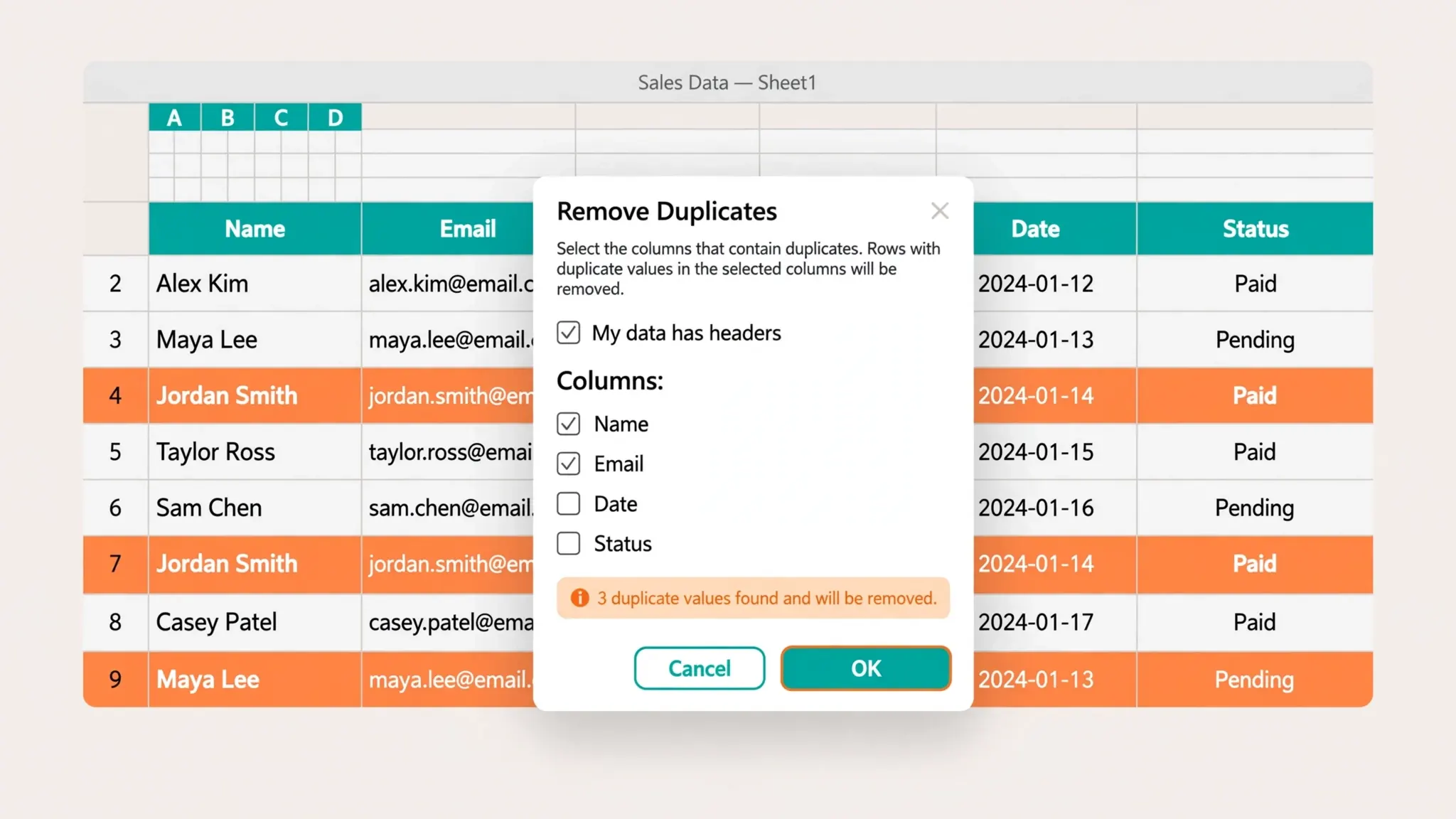
Now that strings compare cleanly, duplicates are safe to remove. Select any cell in the table and go to Data › Remove Duplicates. The dialog lets you choose which columns define a duplicate — keep all columns checked for exact-row duplicates, or uncheck columns (like an auto-generated ID or timestamp) when “duplicate” means “same customer and order.” Excel reports how many duplicates it removed and how many unique rows remain; sanity-check that count against your expectations. A critical warning: Remove Duplicates is permanent (no undo after save), which is why the backup from step zero exists. For recurring reports, consider the UNIQUE function or Advanced Filter instead — both produce a deduplicated copy and leave the source intact. Our comparison of Remove Duplicates vs UNIQUE vs Advanced Filter helps you pick the right tool per situation.
Step 6: Standardize text with Find & Replace and case functions
With structural problems gone, normalize the actual text values. The same entity written five ways — “St.”, “Street”, “ST”, “st”, “Str.” — will fracture every grouping and pivot. Attack this in two passes. First, Find & Replace (Ctrl+H) for known variants: replace “St.” with “Street” across the address column, using “Match entire cell contents” when you want whole-cell swaps only, and wildcards when patterns vary (our wildcards guide covers the *, ?, and ~ syntax). Second, normalize case with =UPPER(), =LOWER(), or =PROPER() in a helper column, then paste as values. PROPER is the usual choice for names and cities (“mumbai” → “Mumbai”), but watch it mangle things like “McDonald” or “3rd” — scan the results with a filter afterward. Standardizing now means steps 7–10 operate on canonical values.
Step 7: Split or combine columns
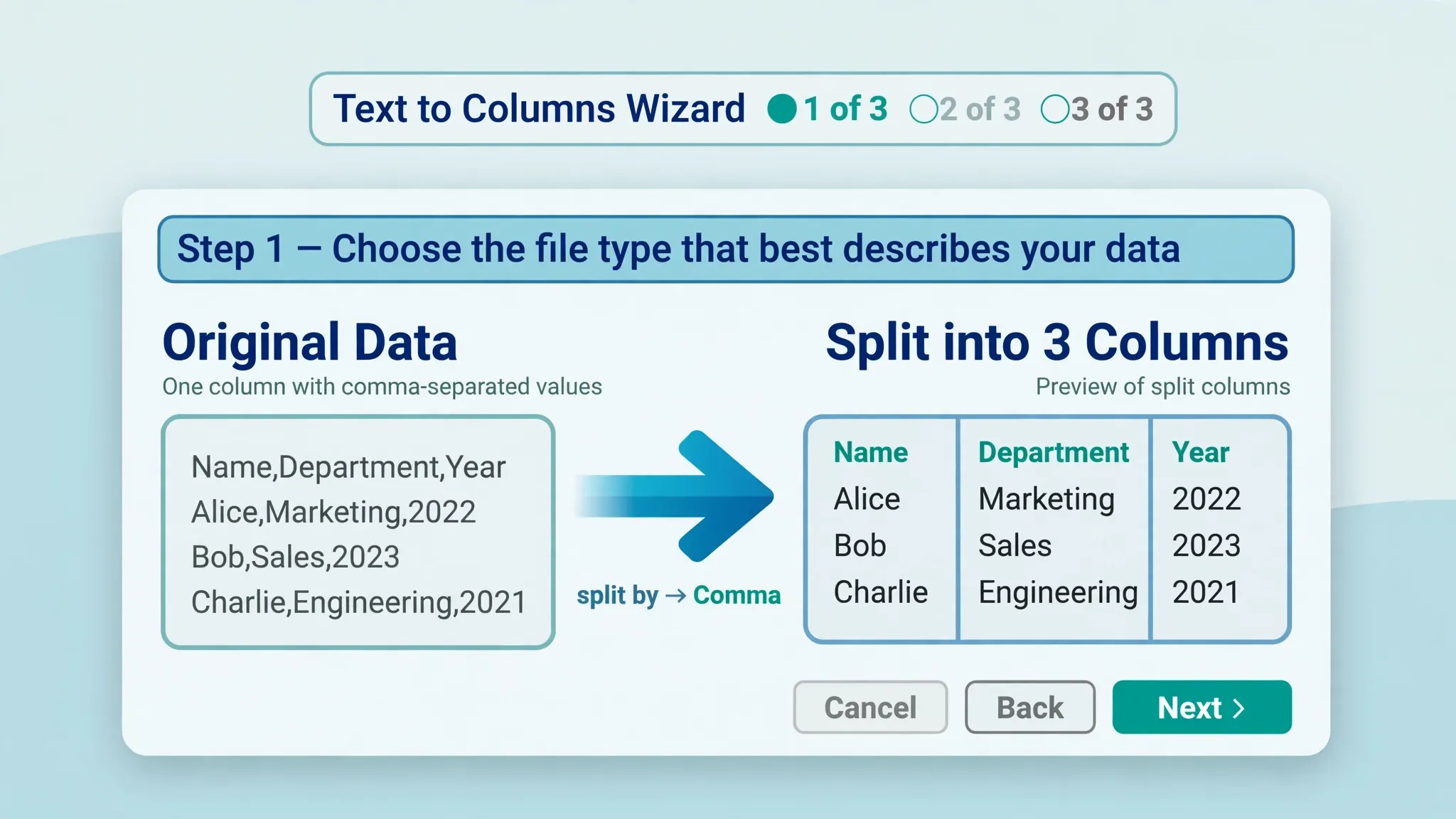
Messy exports love cramming multiple facts into one cell: “Smith, John” in a Name column, “Mumbai 400001” in City, “2024-01-15|Completed” in Status. One field per column is the rule, so split them. Data › Text to Columns handles delimiter-based splits (comma, space, pipe) through its three-step wizard — our Text to Columns walkthrough covers delimiters and fixed-width files. For pattern-based splits without a clean delimiter, Flash Fill (Ctrl+E) learns from one or two examples you type — see our Flash Fill examples for name-splitting and phone reformatting. Modern Excel also offers =TEXTSPLIT(), the formula version that updates dynamically. Going the other direction, combine fragments with =TEXTJOIN(" ",TRUE,...) or the & operator. Do splits after deduplication so you’re not splitting rows you’ll delete anyway.
Step 8: Handle missing values deliberately
Blank cells aren’t automatically a problem — they’re a decision you need to make explicitly. For each column with gaps, choose one policy: fill (e.g., carry down the last region name with Go To Special › Blanks › =↑ › Ctrl+Enter), flag (enter “Unknown” or “N/A” so the gap is visible and countable), impute (a median or mode for numeric analysis — document it), or leave blank (legitimate unknowns). What you must not do is leave the decision implicit, because downstream formulas treat blanks inconsistently: SUM ignores them, AVERAGE ignores them, but COUNT counts them as absent and some chart types plot them as zero. Use =COUNTBLANK(range) per column to inventory gaps before deciding, and add a “DataNotes” column documenting any imputation — your future self will thank you.
Step 9: Fix dates and numbers stored as text
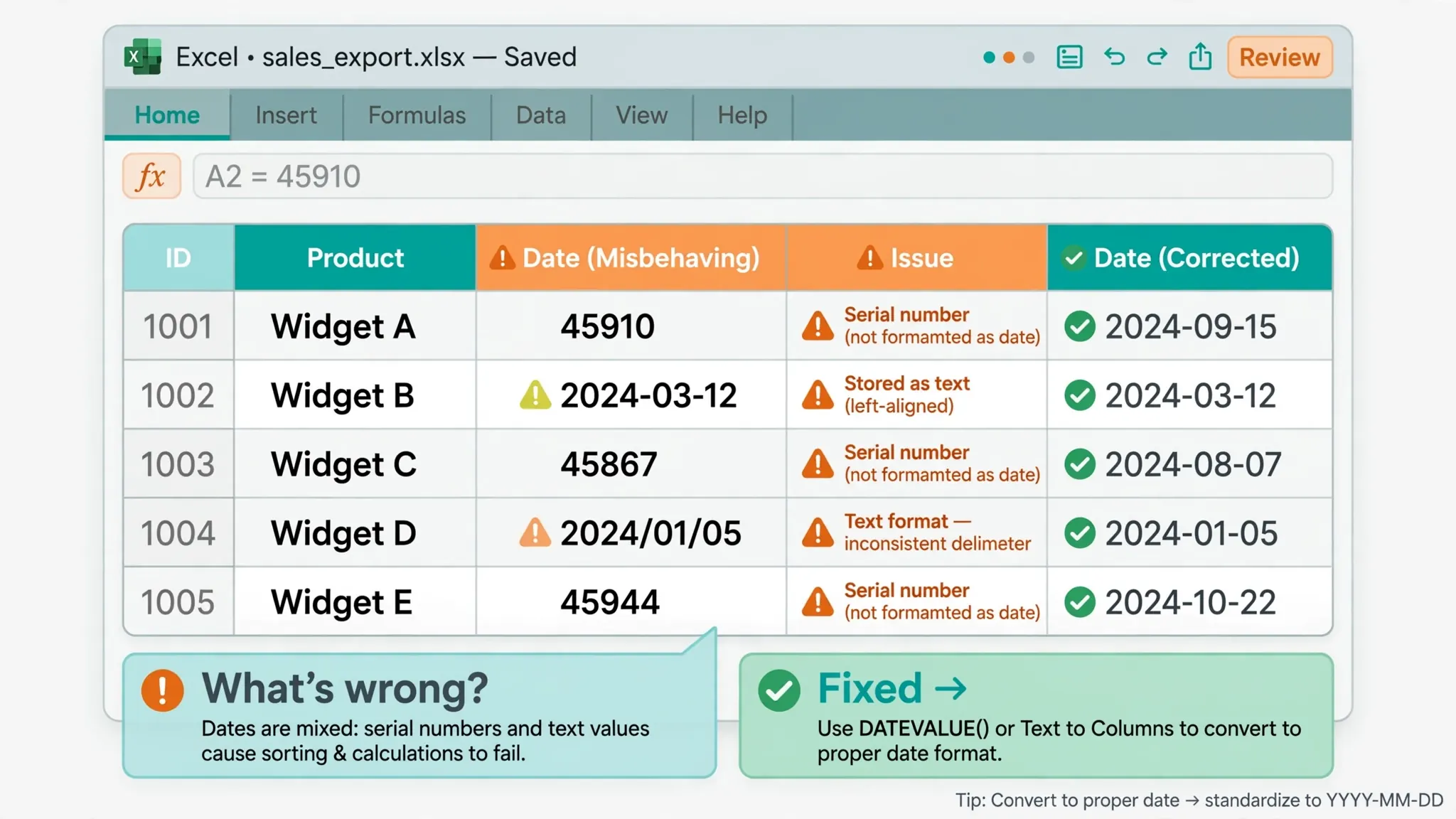
This is the step that breaks the most reports. Dates that look right but are stored as text won’t sort, won’t subtract, and will silently corrupt any time-based analysis — and mixed US/EU formats (“03/04/2026” meaning March 4 or April 3?) make it worse. Symptoms: dates align left, the green triangle warning appears, sorting puts October before February. Fixes: for a clean text-date column, =DATEVALUE() converts to a real date; for mixed formats, Data › Text to Columns › Step 3 › Date (DMY or MDY) forces Excel to reinterpret the text in the order you specify — the single most reliable fix for locale-mangled dates. Numbers stored as text get the green-triangle “Convert to Number” option, or multiply by 1 in a helper column. Our full guide to fixing date formats in Excel covers US vs EU order, serial numbers, and the DATEVALUE function in depth. Do this late in the workflow because earlier text operations (trimming, replacing) can disturb date-like strings.
Step 10: Validate everything with filters and checks
Cleaning without verification is just rearranging. Run these checks over the finished table:
- Filter-scan every categorical column. Click each AutoFilter dropdown and read the unique values — strays like “Mumbi” or “N/A ” jump out immediately.
- Highlight duplicates again. Home › Conditional Formatting › Highlight Cells Rules › Duplicate Values on key columns. Anything lit up needs a decision.
- Range-check numbers. Sort numeric columns ascending/descending or use MIN/MAX — a $999,999 salary or a negative age reveals typos.
- Count and reconcile. Compare row counts and key totals (SUM of amounts) against the raw backup. They should reconcile exactly unless you deliberately removed rows.
- Lock it down. Add Data › Data Validation to critical columns (dropdown lists for categories, date ranges for dates) so the next person who touches the sheet can’t reintroduce the mess.
When all five checks pass, your data is clean — genuinely, verifiably clean, not just “looks okay.” Save this version as the new baseline.
The fast lane: clean data in Excel with Power Query
Everything above works beautifully for a one-off file. But if the same messy export lands in your inbox every week — the same CRM dump, the same bank statement — redoing ten manual steps is madness. That’s what Power Query (Data › Get Data) is for: you perform the cleaning steps once in its visual editor — trim, split, change types, remove duplicates, fill down — and Power Query records them as a replayable recipe. Next week you drop in the new file and hit Refresh; the entire workflow reruns in seconds. The learning curve is one afternoon, and the payoff is every recurring report you’ll ever clean again. For ad-hoc work, the manual 10-step workflow in this guide stays faster; for anything repeating, invest in the query.
Once you know how to clean data in Excel manually, translating the same ten steps into Power Query takes one focused afternoon — and pays for itself on the first refresh.
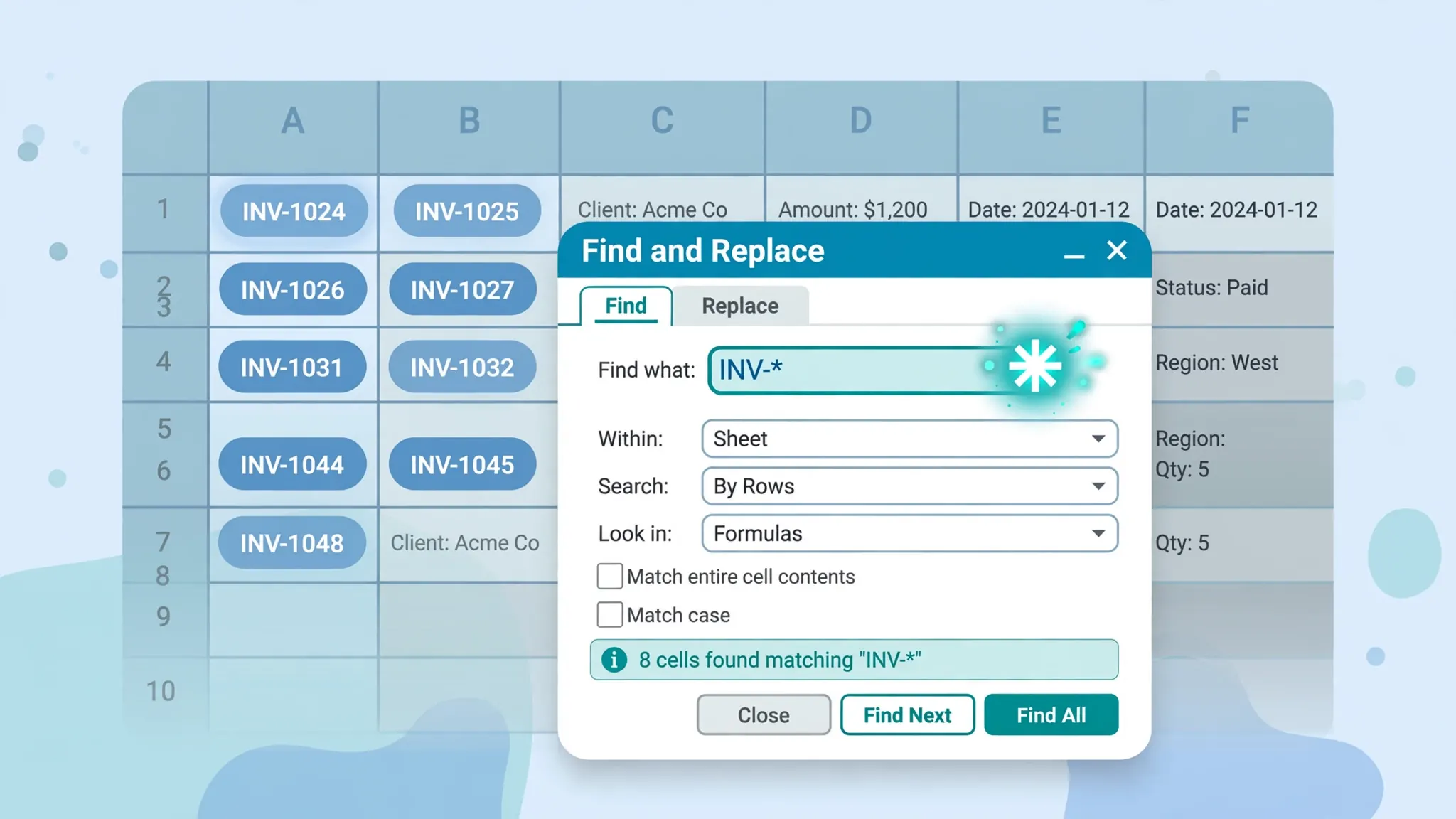
Your printable 10-step data cleaning checklist
Tape this to your monitor until the sequence is muscle memory. Each line is one pass over the data, in order — check them off and the dataset is trustworthy:
- Backup: duplicate the file or sheet; name stages 01_raw, 02_cleaned.
- Structure: one header row, unique headers, no merged cells, convert to Table (Ctrl+T).
- Blanks: delete fully-empty rows/columns via Go To Special › Blanks (inspect first).
- Types: set each column’s number format deliberately before editing values.
- Spaces:
=TRIM(CLEAN(SUBSTITUTE(A2,CHAR(160)," "))), paste as values. - Duplicates: Data › Remove Duplicates on the right key columns; verify the counts.
- Standardize: Find & Replace variants, then UPPER/LOWER/PROPER for case.
- Split/combine: Text to Columns, Flash Fill, or TEXTSPLIT — one field per column.
- Missing: fill, flag, or document every gap; COUNTBLANK to inventory.
- Dates/numbers: DATEVALUE or Text to Columns for text-dates; convert text-numbers.
- Validate: filter-scan categories, highlight duplicates, range-check numbers, reconcile totals, add Data Validation.
If you’re learning how to clean data in Excel for the first time, print the checklist above and work it top to bottom without skipping steps — the order is the method.
How long should cleaning data in Excel take?
Honest answer: the first time you run this workflow on a truly messy 10,000-row export, budget an hour — most of it in steps 6 and 9, the judgment calls no tool can make for you. The second time, thirty minutes. By the fifth, you’ll do it in fifteen while listening to a podcast, because the pattern is always the same: structure, spaces, duplicates, text, dates, validate. The real time-saver isn’t speed, it’s never redoing work — the ordered workflow means each pass sticks. And the moment a report becomes recurring, stop doing it manually: rebuild the ten steps once in Power Query and reduce “data cleaning day” to a single Refresh click. Teams in the US, UK, and India running weekly sales or finance exports report this as the highest-ROI Excel skill they ever learned — not a function, but a sequence.
Frequently Asked Questions
What is the first step when you clean data in Excel?
Make a backup copy of the raw data before changing anything — duplicate the sheet or the file. Cleaning steps like Remove Duplicates and Find & Replace are destructive, and a pristine original lets you compare results or restart if something goes wrong.
What is the correct order for cleaning data in Excel?
Fix structure first (headers, merged cells, blank rows), then data types, trim spaces, remove duplicates, standardize text, split or combine columns, handle missing values, fix dates and numbers, and validate last. Each step builds on clean output from the previous one, so you never redo work.
How do I clean messy CSV data after importing it into Excel?
Import with Data › From Text/CSV instead of double-clicking the file, so you can set the delimiter, encoding, and column types during import. Then run the workflow: trim spaces with TRIM (watch for CHAR(160) non-breaking spaces), remove duplicates, convert text-dates with DATEVALUE or Text to Columns, and finish with the validation checks in step 10.
Which Excel functions are most useful for data cleaning?
The core toolkit is TRIM and CLEAN (whitespace and non-printing characters), SUBSTITUTE (targeted replacements), TEXTSPLIT/TEXTBEFORE/TEXTAFTER (splitting), DATEVALUE and TEXT (dates), UPPER/LOWER/PROPER (case), and UNIQUE (deduplication lists). Pair them with the Data-tab tools: Remove Duplicates, Text to Columns, and Flash Fill.
Should I clean data with Excel formulas or Power Query?
For one-off cleanup, worksheet formulas and the Data tab tools are fastest. For repeating data — weekly exports, monthly reports — build the steps once in Power Query (Data › Get Data) and refresh with one click whenever new data arrives. The manual workflow teaches you the logic; Power Query automates it.
How do I verify my data is actually clean?
Filter-scan each categorical column’s unique values, highlight duplicates with conditional formatting, range-check numbers with MIN/MAX and sorting, reconcile row counts and totals against the raw backup, and add Data Validation to lock correct formats going forward. If every check passes, the data is ready to analyze.