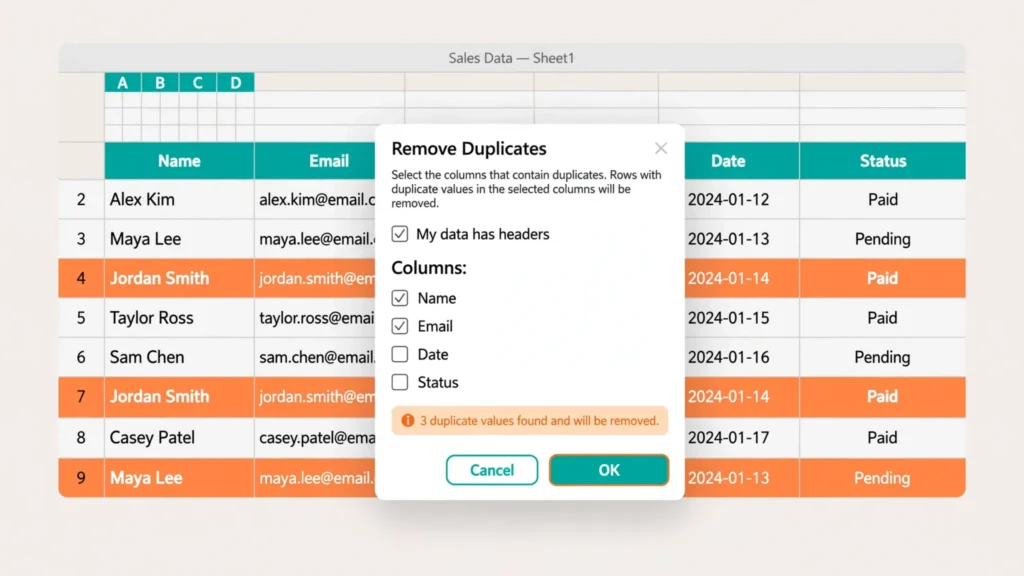
Duplicate rows are the silent inflators of every spreadsheet: the mailing list with the same customer three times, the sales export that counts one order twice, the attendance sheet where “John Smith” appears in two spellings. Excel gives you not one but three serious ways to deduplicate — the Remove Duplicates tool, the UNIQUE function, and Advanced Filter — and choosing the wrong one is how data gets destroyed or how hours get wasted. Each method answers a slightly different question, and this guide shows you exactly which to reach for.
You’ll learn how to use each method step by step, when the built-in Remove Duplicates tool is the right call versus when the UNIQUE function or an Advanced Filter unique-records extraction serves you better, and the pre-cleaning that all three require (because none of them can see through trailing spaces or mismatched data types). We’ll also cover partial deduplication on a single column, the “keep first vs keep last” problem, and how to deduplicate without risking your original data. If your duplicates arrived inside a messy CSV import, our free online CSV to Excel converter gets the file into a workbook cleanly — then the techniques below take over.
The three ways to deduplicate in Excel
Before the how, the what. Excel’s three deduplication methods differ along two axes: destructive vs non-destructive and static vs dynamic.
The Remove Duplicates tool (Data tab) deletes duplicate rows from your data, in place, permanently. It’s fast, it’s one click, and there’s no undo after you save and close. The UNIQUE function (=UNIQUE(range)) spills a live, deduplicated copy next to your data; the source never changes, and the result updates automatically when the source changes — but it needs Excel 365 or 2021+. Advanced Filter (Data › Advanced › “Unique records only”) sits in the middle: it can hide duplicates in place or copy unique rows to another location, leaving the original intact, and it works in every Excel version ever made.
The decision shortcut: cleaning a final dataset once? Use the Remove Duplicates tool (on a backup). Building a live dashboard or dropdown source? Use UNIQUE. Working in an older Excel, or need the unique list somewhere else without touching the source? Use Advanced Filter. Now the details.
Method 1: The Remove Duplicates tool (Data tab)
This is the method most people know, and it’s the right default for one-off cleanup of a finished dataset.
- Click any cell inside your data range (ideally a proper Excel Table, Ctrl+T).
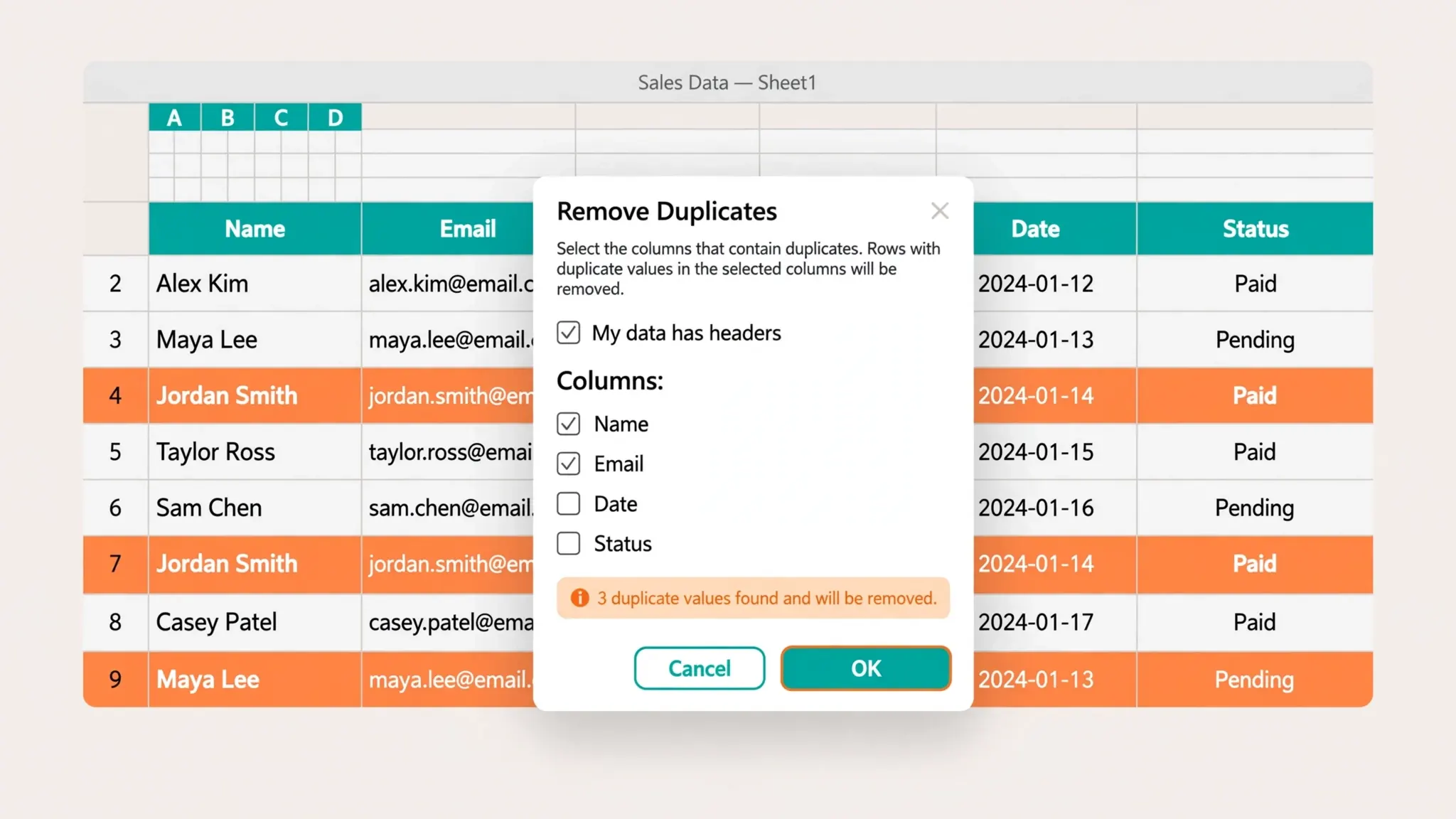
- Go to Data › Remove Duplicates. Excel auto-selects the current region.
- In the dialog, check “My data has headers” if your first row is headers (it usually is).
- Choose the columns that define a duplicate. All checked = entire rows must match exactly. Uncheck columns you want ignored (more on this below).
- Click OK. Excel reports: “X duplicate values found and removed; Y unique values remain.”
Read that confirmation message carefully — it’s your audit trail. If it says 0 duplicates removed and you expected 40, don’t just shrug; something is preventing the match (see the troubleshooting section below). And remember the cardinal rule: this is permanent. Work on a copy, or at minimum make sure you can close without saving. Microsoft’s own guide to finding and removing duplicates gives the same warning: copy the original to another worksheet first.
What counts as a “duplicate”?
Excel compares the displayed values of the checked columns, not formulas or formatting. Two cells showing “£50” match even if one is a formula and the other a typed value. But “50” as text does not match 50 as a number, and “Smith ” (trailing space) does not match “Smith.” Case, interestingly, is ignored — “SMITH” and “smith” count as duplicates. These comparison rules explain nearly every “it didn’t work” complaint.
Method 2: The UNIQUE function (dynamic arrays)
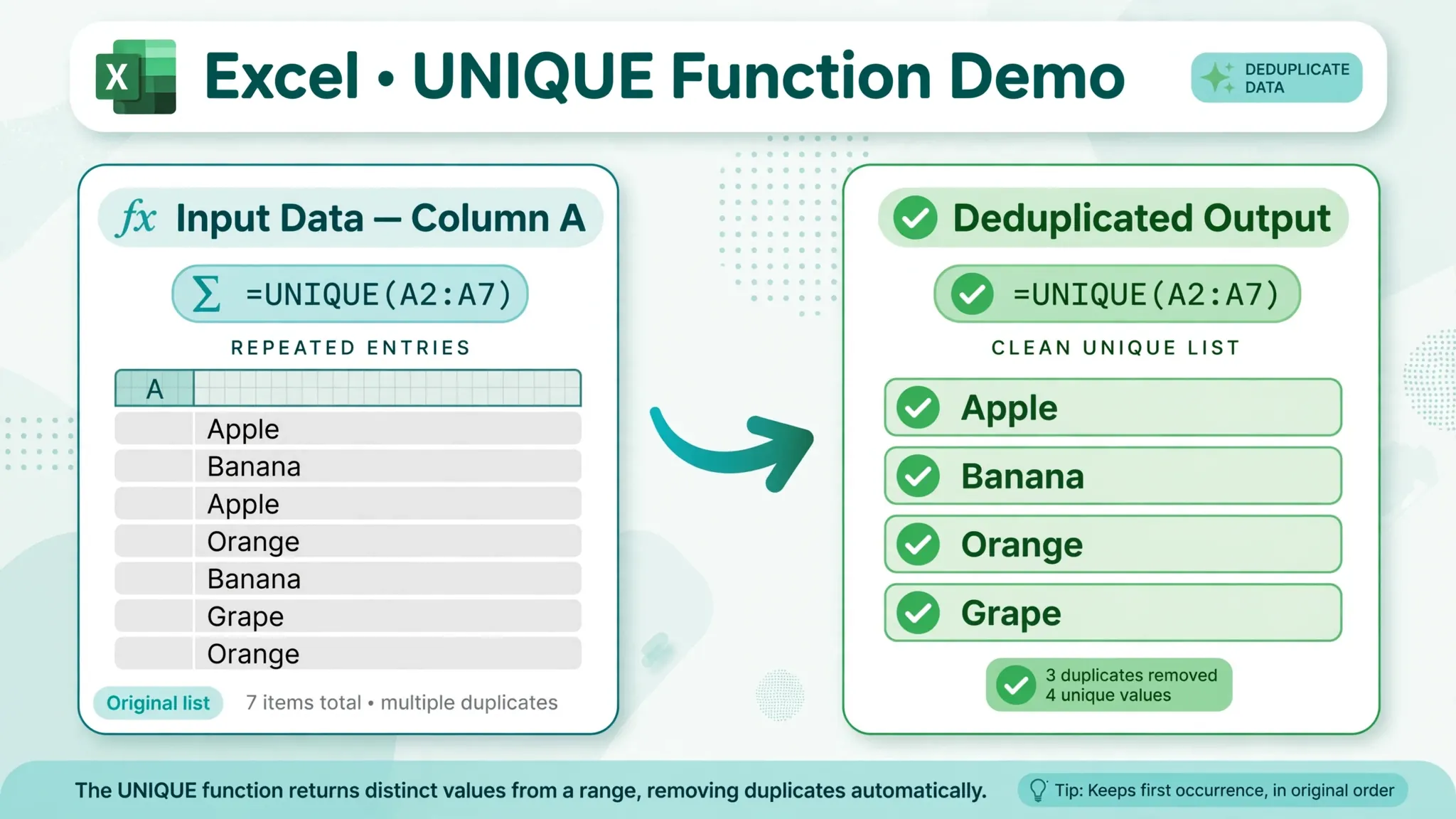
If you have Microsoft 365 or Excel 2021+, UNIQUE is the most elegant deduplication method ever added to Excel. Type =UNIQUE(A2:A1000) in an empty cell and the unique values spill down automatically. Add rows to the source, and the spill grows. Delete a duplicate, and it vanishes from the result. Nothing is ever deleted; the function is a live view.
The full syntax is =UNIQUE(array, [by_col], [exactly_once]). The third argument is the hidden gem: =UNIQUE(A2:A1000,,TRUE) returns only values that appear exactly once — perfect for finding orphans or true singletons. Combine it with SORT for an alphabetized unique list: =SORT(UNIQUE(A2:A1000)). Common uses: building validated dropdown sources, distinct customer counts (=ROWS(UNIQUE(...)) or =COUNTA(UNIQUE(...))), and dashboard tables that must never contain duplicates no matter how the source grows.
Limitations to know: UNIQUE needs empty cells below/right for its spill — a #SPILL! error means something’s blocking it. It also returns values, not row positions, so if you need “delete these rows” rather than “show me the unique list,” pair it with MATCH or fall back to the tool. And in shared workbooks opened by colleagues on Excel 2019 or older, the formula shows as an error for them — Advanced Filter is the compatible fallback.
Method 3: Advanced Filter with Unique records only
Advanced Filter is the veteran method — available since Excel 97, and still the best choice when you need a unique list somewhere else without touching the source, in any Excel version.
- Select your data range (or click inside it).
- Go to Data › Advanced (in the Sort & Filter group).
- Choose “Copy to another location” — this is what makes it non-destructive.
- Set List range to your data (Excel usually guesses right) and Copy to to a single empty cell where the unique list should start.
- Tick “Unique records only” and click OK.
Excel copies only the unique rows to your chosen location, headers included. The original data is untouched. Two practical notes: the “Copy to” cell must be on the same sheet, and Advanced Filter evaluates whole rows (or the columns in your List range) — for single-column uniqueness, set the List range to just that column. Unlike UNIQUE, the result is a static snapshot: re-run the filter when the source changes. For a monthly report where you extract this month’s unique customers to a summary tab, that re-run takes five seconds.

Remove Duplicates Excel Advanced Filter: head-to-head comparison
Here’s the full comparison so you can choose in seconds:
If you arrived here searching for “remove duplicates excel advanced filter”, here’s the one-paragraph version: the built-in tool deletes duplicates permanently and is fastest for final cleanup; UNIQUE spills a live deduplicated view without touching the source; and Advanced Filter copies unique records elsewhere without deleting anything. The rest of this guide is about choosing correctly between them.
Remove Duplicates tool: destructive (deletes in place) · static one-time result · works in all Excel versions · fastest for final cleanup · no undo after save. Best for: one-off cleanup of a finished dataset (on a backup copy).
UNIQUE function: non-destructive (source untouched) · dynamic, auto-updating spill · needs Excel 365/2021+ · #SPILL! if blocked. Best for: live dashboards, dropdown sources, distinct counts.
Advanced Filter: non-destructive when copying elsewhere · static snapshot · works in every Excel version · can filter in place too. Best for: older Excel versions, extracting unique lists to another location, one-click monthly routines.
Notice the pattern: the question isn’t “which is best” but “what happens to the source, and does the result need to update itself?” Answer those two and the choice makes itself. Many professionals use all three weekly — the tool for imports, UNIQUE for dashboards, Advanced Filter for compatibility with colleagues on old versions.
Why Excel says “0 duplicates found” when you can see them
This is the number-one deduplication support question, and the answer is always invisible differences. Run this diagnostic checklist:
- Trailing/leading spaces. “Acme Ltd” vs “Acme Ltd ” — use
=TRIM()(and kill CHAR(160) non-breaking spaces) first. Our spaces guide covers the full decontamination. - Text vs numbers. “1001” stored as text ≠ 1001 as a number. Green-triangle cells are the tell; convert with “Convert to Number” or Text to Columns.
- Hidden characters. Line breaks (CHAR(10)) and non-printing characters from web exports —
=CLEAN()removes them. - Different date representations. “01/03/2026” as text vs a real date serial — they look identical but never match.
- Wrong columns checked. If an ID or timestamp column is checked, every row looks unique. Uncheck columns that legitimately differ between true duplicates.
The professional habit: before any deduplication, run the data through the 10-step cleaning workflow — trim, types, standardization — then deduplicate. It feels slower; it’s dramatically faster than debugging phantom duplicates.
Deduplicating on one column (partial duplicates)
Often “duplicate” doesn’t mean “identical row” — it means “same customer,” “same email,” or “same order ID” even when other columns differ. In the Remove Duplicates dialog, click Unselect All and tick only the key column (e.g., Email). Excel keeps the first occurrence of each email and deletes the entire rows of the rest. With Advanced Filter, set the List range to just that column before filtering. With UNIQUE, it’s simply =UNIQUE(B2:B5000) on the key column — then use XLOOKUP to pull the surviving rows’ other details if needed.
Warning: single-column dedup deletes whole rows based on one field. If two rows share an email but have different order amounts, the second order’s data is gone. When in doubt, deduplicate on the natural key combination (Email + OrderDate) rather than one column.
Keep first vs keep last occurrence
All three methods keep the first occurrence and drop later ones. That’s perfect when the first record is the original and later ones are accidental re-entries. But sometimes you want the latest — the most recent status update per customer, the newest price per product. The trick: sort first, then deduplicate. Sort by your timestamp column newest-first, then run Remove Duplicates — now the “first” occurrence Excel keeps is actually the latest record. The same applies to Advanced Filter and UNIQUE (sort the source range first, or wrap in SORT). This sort-then-dedupe pattern is one of the most useful two-step moves in Excel, and it works in every version.
Highlight duplicates before you delete: conditional formatting
Professionals rarely deduplicate blind — they look at the duplicates first. Home › Conditional Formatting › Highlight Cells Rules › Duplicate Values paints every repeated value in your chosen color, instantly revealing the shape of the problem: are there a handful of accidental double-entries, or is the entire list duplicated (a double-import)? For multi-column logic, use a formula rule instead: select the table, choose “Use a formula to determine which cells to format,” and enter =COUNTIFS($A$2:$A$1000,$A2,$B$2:$B$1000,$B2)>1 to highlight rows duplicated on the A+B combination. This preview step answers the question Remove Duplicates can’t: which rows are the duplicates, and do they look like true dupes or legitimate repeats (two orders from the same customer on different dates)? Ten seconds of highlighting routinely prevents ten minutes of regret.
Deduplicating with Power Query: the repeatable method
When the same messy export arrives weekly, none of the three manual methods is the right answer — Power Query is. Load the data with Data › From Table/Range, select the key column(s), and click Home › Remove Rows › Remove Duplicates. Power Query records it as a step (“Removed Duplicates”) in the Applied Steps pane, alongside your trim, type-change, and fill steps. Next week you paste in the new export and hit Refresh — the entire deduplication replays identically. Two advantages over the manual tool: the step is visible and editable (change the key columns later without redoing everything), and it’s non-destructive by design (the source file is never touched; the query outputs a clean table). For anyone cleaning recurring data, this is the endgame: build the dedupe logic once, in the open, and never think about it again.
Putting it together: a realistic deduplication scenario
Imagine a 12,000-row customer export from a CRM, merged from US and UK systems. Here’s the full play: 1) highlight duplicates with conditional formatting on the Email column — you discover 900 highlighted rows. 2) TRIM the email and name columns (trailing spaces from the UK system are hiding matches). 3) Standardize case with LOWER on emails. 4) Now run Remove Duplicates on Email only — 1,400 duplicates removed (more than the highlight showed, because cleaning revealed hidden matches). 5) Sort by LastUpdated descending first if you want to keep the newest record per email. 6) Spot-check 20 surviving rows against the backup. Total time: under ten minutes for a job that “manual review” would have made an all-day project. The lesson generalizes: clean first, deduplicate second, verify third — that’s the complete remove duplicates Excel Advanced Filter workflow in action, in that order, every time.
Advanced Filter with criteria ranges: conditional deduplication
Advanced Filter’s most underused power is the criteria range — deduplicating only rows that meet conditions. Example: from an orders table, extract unique customers who ordered in 2026. Set up a small criteria range mirroring your headers (e.g., cells Z1:Z2 with “OrderDate” in Z1 and >=1/1/2026 in Z2), then Data › Advanced › Copy to another location › List range: your table › Criteria range: Z1:Z2 › tick Unique records only › Copy to: an empty cell › OK. The result: unique rows filtered by your condition in a single operation — no helper columns, no two-step filter-then-dedupe dance. Criteria ranges support wildcards too (North* under Region), multiple AND conditions (same row), and OR conditions (separate rows). This turns Advanced Filter from a simple deduper into a query tool: unique customers per region, distinct products above a price threshold, deduplicated leads from a specific campaign. The Remove Duplicates tool can’t do any of this — it has no notion of conditions — and UNIQUE needs a FILTER wrapper (=UNIQUE(FILTER(A2:D1000,C2:C1000>=DATE(2026,1,1)))) to match it. If your deduplication ever comes with a “but only where…” qualifier, reach for Advanced Filter’s criteria range first.
Deduplicating very large datasets without freezing Excel
Remove Duplicates on 500,000+ rows can lock Excel for minutes — or crash 32-bit installs. Three strategies for big data: 1) Sort first, then use a helper formula. Sort by the key column, then in a helper column enter =A2=A1 — TRUE flags every duplicate after the first in one linear pass. Filter for TRUE and delete those rows. This is O(n log n) for the sort plus one linear scan: dramatically faster than the dialog on huge ranges. 2) Power Query. Load via Data › From Table/Range (or straight from the CSV — Power Query streams data without loading it all into the grid), Remove Duplicates on the key, Close & Load. The query engine is built for this and handles millions of rows. 3) Chunk it. Split the file, dedupe each chunk, then dedupe the combined survivors — duplicates can’t hide across chunks if you dedupe the union afterward. Whichever route, never run the dialog on the full half-million rows as your first attempt — try the helper-formula method on a 10,000-row sample first to validate your key columns, then scale up.
Frequently Asked Questions
What is the difference between Remove Duplicates and Advanced Filter in Excel?
Remove Duplicates permanently deletes duplicate rows from your data in place. Advanced Filter with “Unique records only” hides duplicates or copies unique rows elsewhere without deleting anything. Use the tool for final cleanup on a backup copy; use Advanced Filter when the original must stay intact.
How do I use Advanced Filter to remove duplicates in Excel?
Select your data, go to Data › Advanced, choose “Copy to another location,” set the List range and a Copy-to cell, tick “Unique records only,” and click OK. Excel copies only unique rows to the new location, leaving the source untouched. It works in every Excel version.
Does the UNIQUE function remove duplicates permanently?
No — =UNIQUE(range) returns a dynamic spill range that updates automatically when the source changes and never modifies the source. Add ,,TRUE as the third argument to show only values appearing exactly once. Requires Microsoft 365 or Excel 2021+.
Why does Remove Duplicates say 0 duplicates removed when I can see duplicates?
Invisible differences block the match: trailing or non-breaking spaces, text-vs-number type mismatches, hidden characters, or a checked ID/timestamp column that makes every row unique. Clean with TRIM/CLEAN, unify data types, and uncheck non-key columns, then try again.
How do I remove duplicates based on one column only in Excel?
In the Remove Duplicates dialog, click Unselect All and tick only the key column (e.g., Email). Excel keeps the first occurrence of each value in that column and deletes the other rows. For safety, sort by timestamp first if you want to keep the latest record per key.
How can I remove duplicates in Excel without losing data?
Either work on a copy of the sheet, or use a non-destructive method: Advanced Filter with “Copy to another location,” or the UNIQUE function. Both give you a deduplicated list while the original data stays exactly as it was.