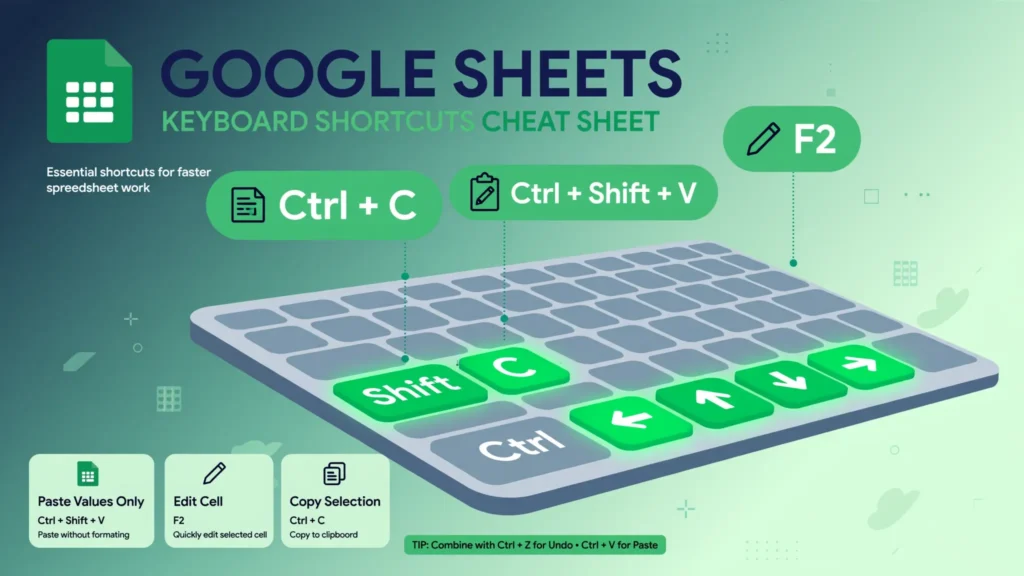
The right Google Sheets keyboard shortcuts turn spreadsheet drudgery into flow. Anyone can click through menus, but data work is repetition — fill this formula down 2,000 rows, paste these values without the formatting, jump to the bottom of the dataset, freeze the header — and every repetition is a tax that shortcuts eliminate. Learn twenty-five key combinations and a weekly CSV cleanup that took forty minutes starts taking twelve.
This is not a dump of all 200+ Sheets shortcuts (Google’s official list already exists for that). It is the curated set that pays rent for data workers: navigating huge imported tables, filling formulas, pasting values, formatting fast, and searching. You will get the essential Google Sheets shortcuts cheat sheet below, the fill down shortcut Google Sheets users ask about most, Mac equivalents, Excel-compatibility mode, and fixes for shortcuts that refuse to fire. Whether you are cleaning CSVs in the US, building reports in the UK, or reconciling accounts in India, these are the keys worth memorizing.
Why keyboard shortcuts matter more for data work than anywhere else
Writing a document is linear — you type, you format occasionally. Data work is the opposite: the same five operations repeated hundreds of times across thousands of rows. Each menu round-trip costs three to five seconds; each shortcut costs under one. Multiply by a few hundred repetitions and the math is brutal: the shortcut user finishes the cleanup while the menu user is still on row 400.
There is a second, subtler benefit: shortcuts keep your hands on the keyboard, which keeps your eyes on the data. Every time you reach for the mouse, your visual focus breaks — and in a 10,000-row import, broken focus is where errors breed. The fastest data cleaners you will ever watch barely touch the mouse. They also make fewer mistakes, because a key combination is deterministic in a way that “click the third item in that menu” is not.
Memorizing all of them at once is a mistake. Learn five this week — the fill and paste ones — and add a few more each week. Within a month the list below will feel like native language.
The 25 Google Sheets keyboard shortcuts that matter
Grouped by job, ordered by payoff. (On Mac, swap Ctrl for ⌘ unless noted — the full Mac mapping is in its own section below.)
Navigation (move through big imports without scrolling)
Ctrl+Home / Ctrl+End — jump to the first/last cell of the sheet. Ctrl+↑↓←→ — jump to the edge of the current data region (the fastest way to find where your data actually ends). Ctrl+Shift+↑↓←→ — extend the selection to that edge (selects a whole column of data in one press). Ctrl+Backspace — scroll back to the active cell when you are lost deep in a sheet. Alt+↓ — move to the next sheet tab.
Editing essentials
Ctrl+Z / Ctrl+Shift+Z — undo/redo (Sheets’ version history makes these safer than you think). Ctrl+C, Ctrl+X, Ctrl+V — copy, cut, paste. Delete — clear contents (keeps formatting; use this, not retyping blanks). F2 — edit the cell in place with the cursor at the end of the contents. Ctrl+Enter — fill the selected range with the current entry (type once, select the column chunk, fill).

Fill and formulas
Ctrl+D — fill down. Ctrl+R — fill right. Ctrl+; — insert today’s date. Ctrl+Shift+; — insert the current time. Ctrl+~ — toggle showing all formulas (audit mode: instantly see which cells are computed).
Formatting
Ctrl+B / Ctrl+I / Ctrl+U — bold, italic, underline. Ctrl+Shift+1–6 — format as decimal, time, date, currency, percentage, exponent. Ctrl+\ — clear formatting (the emergency reset when a paste wrecks your styles).
Sheets, find, and file
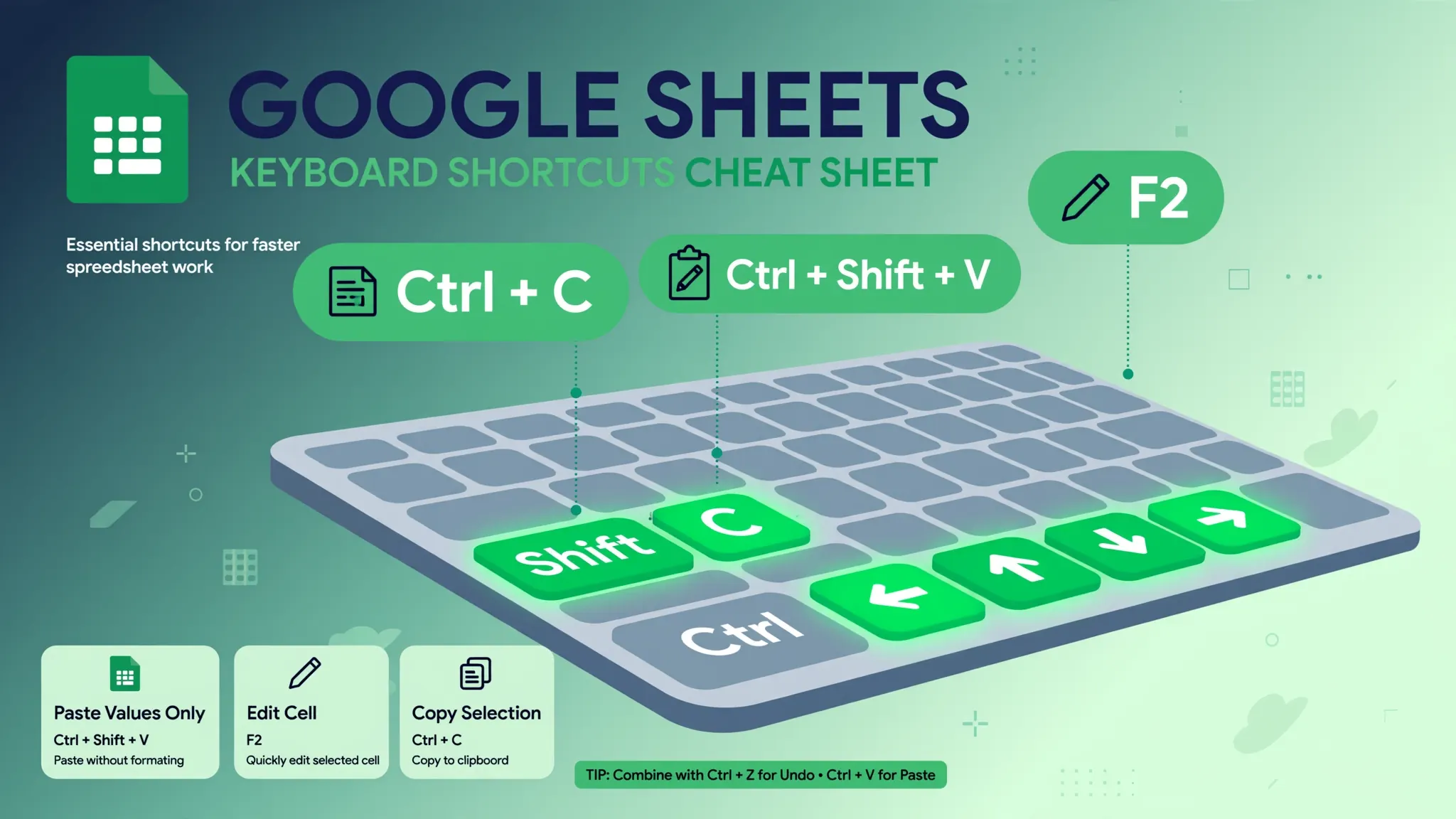
Ctrl+F — find in sheet. Ctrl+H — find and replace. Ctrl+Shift+V — paste values only. Ctrl+/ — open the full shortcut overlay (the built-in cheat sheet). Shift+F11 — insert a new sheet.
That is twenty-five. Everything else in Sheets’ shortcut list is either niche or a slower synonym of something above.
Fill down and friends: the data worker’s power moves
The fill down shortcut Google Sheets users search for most is Ctrl+D, and it deserves its fame: write a formula once in the top cell, select downward as far as the data goes (Ctrl+Shift+↓ does that in one press), hit Ctrl+D, and the formula fills the whole range with references adjusted per row. Two combinations, zero dragging, zero risk of the fill handle stopping one row short.
Its siblings: Ctrl+R fills right across columns (copying a monthly formula across twelve month columns). Ctrl+Enter fills the current value or formula into every cell of the selected range at once — brilliant for stamping a category down a column. And do not forget the fill handle’s best trick: double-click the little square at the cell’s bottom-right corner and Sheets auto-fills down to match the neighboring data column — no selection needed.

Real-world shortcut combos for data work
Single shortcuts are trivia; combinations are the payoff. Here are three recipes that show up constantly in real data work. Recipe 1 — fill formulas down a fresh column: click the first formula cell, Ctrl+Shift+↓ selects to the last data row, Ctrl+D fills down, then Ctrl+Shift+V pastes values over the formulas if you want static results — four keystrokes, a whole column done. Recipe 2 — audit a sheet in seconds: Ctrl+` (backtick) toggles formula view so you see every formula at once instead of its results; press it again to return to values. Recipe 3 — rearrange columns without the mouse: Ctrl+Space selects the entire column, Ctrl+X cuts it, click the destination header, Ctrl+V pastes — columns reordered in seconds, no dragging, no dropped cells.
Paste special: Ctrl+Shift+V and beyond
Ctrl+Shift+V — paste values only — is the single most career-improving key combination in spreadsheets. Copy a column of VLOOKUP results and paste normally, and you carry the formulas (and their fragility) along. Paste with Ctrl+Shift+V and you get clean, static values — safe to sort, safe to share, safe to export. Make it muscle memory before anything else on this page.
The full paste-special menu (Edit › Paste special) holds the rest: paste format only (steal styling without touching values), paste formula only, paste transposed (rows become columns — the quick reshape), and paste data validation only (copy a dropdown rule without its cell’s content — see our data validation dropdown guide). The menu shows each option’s own shortcut; the values-only one is the one worth memorizing cold.
Shortcuts that pair with dropdowns and data validation
A few combinations punch above their weight once your sheet uses validation: Alt+↓ opens the dropdown on the active validated cell (no mouse needed to pick); Ctrl+Alt+R opens the filter dropdown on a filtered header; and Ctrl+; stamps today’s date into date-validated cells. If you build sheets with lots of data validation dropdowns, Alt+↓ alone will save you hundreds of clicks a week.

Lesser-known Google Sheets hotkeys worth stealing
Beyond the core 25, these Google Sheets hotkeys earn their keep in specific jobs. Ctrl+Alt+Shift+H opens version history — the time machine for “who broke this formula.” Ctrl+K inserts a link. Alt+Enter puts a line break inside a cell while editing (the manual version of CHAR(10)). Ctrl+Shift+F toggles compact controls for more grid space. Alt+/ opens the menu search — type “freeze” and jump straight to the command without remembering where it lives. And Ctrl+Alt+T converts a range to a table with one press.
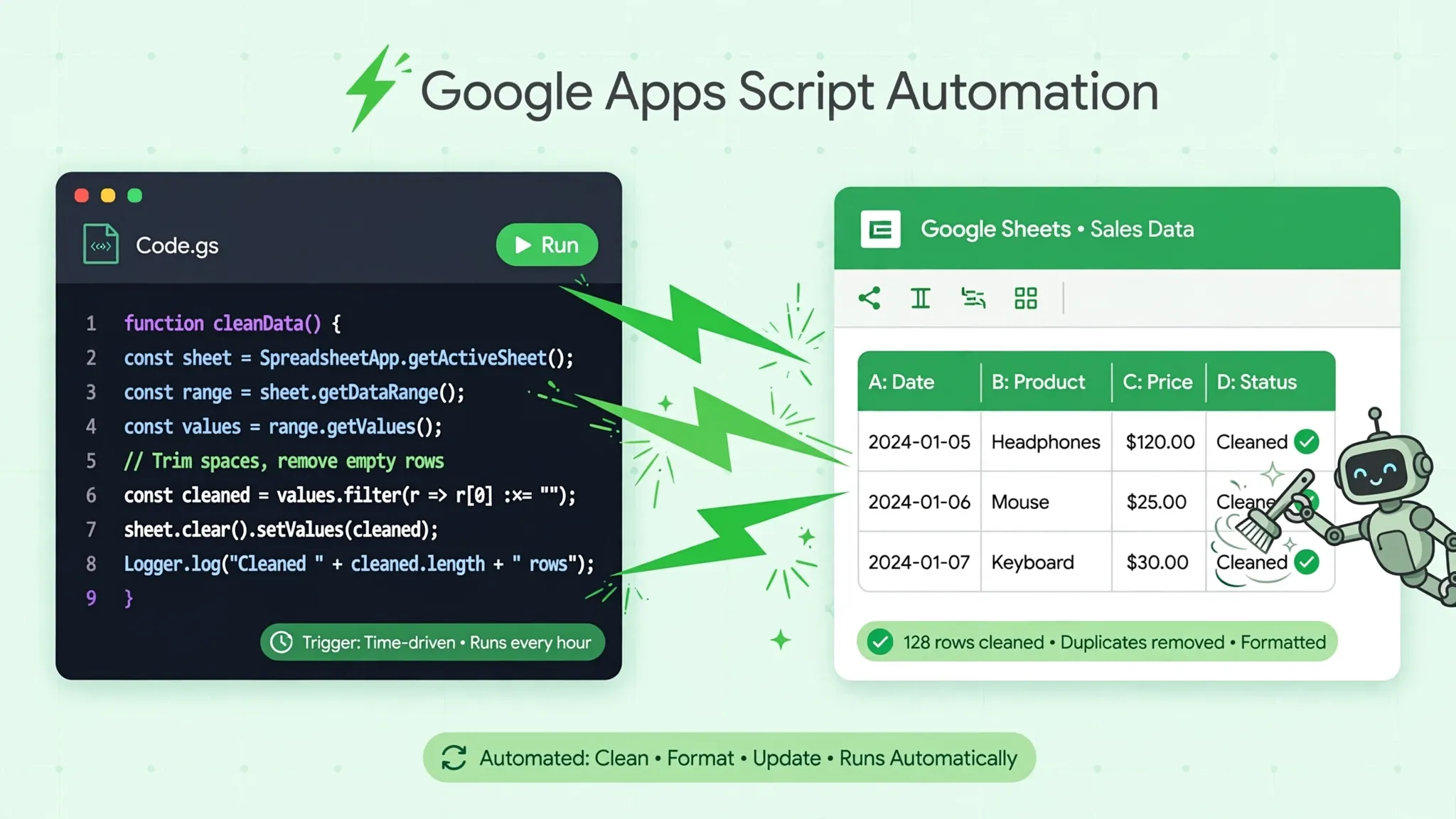
When even shortcuts feel slow, that is the signal to automate: record the keystroke sequence once as a macro and replay it forever. Our Apps Script tutorial shows how a recorded macro becomes a one-click cleanup for recurring CSVs.
Mac users: the same shortcuts with Command
On macOS, nearly every Ctrl shortcut becomes ⌘: ⌘+D fills down, ⌘+Shift+V pastes values, ⌘+/ opens the overlay. The exceptions to memorize: Ctrl+Space (select column) and Shift+Space (select row) stay Ctrl/Shift-based on Mac, and a few combinations involving Alt become Option. If a shortcut from a tutorial does nothing on your Mac, try it with ⌘ first — that fixes it nine times out of ten.
Enable compatible spreadsheet shortcuts (Excel muscle memory)
Coming from Excel and missing its key bindings? Sheets has a compatibility mode: open Help › Keyboard shortcuts and toggle on Enable compatible spreadsheet shortcuts at the bottom. This remaps a subset of shortcuts to their Excel equivalents. It does not cover everything — some Excel bindings collide with browser-reserved keys and simply cannot exist on the web — but it smooths the transition for the most-used ones. Give it two weeks, then try turning it off; most converts find Sheets’ native bindings win on balance.
Troubleshooting: when shortcuts do not work
Nothing happens at all. The browser ate the keystroke. Combinations like Ctrl+T (new tab), Ctrl+W (close tab), and Ctrl+N (new window) are reserved by the browser and Sheets cannot override them. Use the menu path or the compatible-shortcuts alternative instead.
Shortcut does something unexpected. A browser extension may have claimed the binding (password managers and screenshot tools are frequent culprits). Test in an incognito window with extensions off to confirm.
Shortcuts work on Windows but not your Chromebook/Mac. Check the platform mapping — Mac uses ⌘, and some Chromebooks remap function keys. The Ctrl+/ overlay shows the correct bindings for your current platform.
Ctrl+D fills the wrong direction. Fill down fills from the top cell of the selection downward. If your formula is at the bottom, select upward instead — or move the formula to the top first.
Paste values pasted formulas anyway. You pressed Ctrl+V, not Ctrl+Shift+V. Undo and redo with Shift held. After a week of practice the Shift becomes automatic.
The one-week shortcut learning plan
Do not try to learn twenty-five shortcuts in a day. Here is a plan that actually sticks, built around real data work:
Monday — fill and paste. Learn Ctrl+D (fill down), Ctrl+R (fill right), and Ctrl+Shift+V (paste values). Do an entire day’s formula work with just these three. They are the highest-ROI keys on this page.
Tuesday — navigation. Add Ctrl+arrow keys (jump to data edges) and Ctrl+Shift+arrow keys (select to edges). Open your biggest import and move around without touching the scroll bar. Pair with a frozen header row so jumps stay oriented.
Wednesday — search. Ctrl+F to find, Ctrl+H to find-and-replace. Run a full cleanup pass — normalize a column’s values — using only the dialog’s keyboard flow (Tab between fields, Alt+A for Replace All on Windows).
Thursday — dates and formats. Ctrl+; stamps today, Ctrl+Shift+1–5 formats numbers, dates, currency, percentages. Format an entire messy import without opening the Format menu once.
Friday — the keyboard-only challenge. Take a real CSV import and do the whole cleanup — import, trim, split, fill, format, freeze — without touching the mouse. You will be slow the first time and dramatically faster by the third. That is the whole game: deliberate practice on real work, not drills.
Coming from Excel? Bring your muscle memory
Excel veterans switching to Sheets hit two frictions: different keys and different names. The keys are fixable — enable Help › Keyboard shortcuts › Enable compatible spreadsheet shortcuts and a chunk of Excel bindings start working. The names take a week: Sheets’ “fill down” is Excel’s fill down, “paste values only” is paste-special-values, “Create a filter” is AutoFilter. Same ideas, slightly different labels.
The keys that trip converts most: Excel’s F4 (repeat last action / toggle references) behaves differently in Sheets; Excel’s Alt-letter menu sequences do not exist on the web (use Alt+/ menu search instead); and Ctrl+Enter fills the selection in Sheets versus confirming array formulas in old Excel. None of these are worse — they are just different, and the compatible-shortcuts toggle smooths the worst of it.

One honest note: no compatibility mode can fix browser-reserved keys. Ctrl+T, Ctrl+W, and Ctrl+N belong to the browser forever. The sooner you stop reaching for them in Sheets, the sooner the new bindings feel native.
Printable cheat sheet: the 25 at a glance
Tear-off reference — the full set from this guide, grouped for practice:
Navigate: Ctrl+Home / Ctrl+End (sheet edges) · Ctrl+arrows (data-region edges) · Ctrl+Shift+arrows (select to edge) · Ctrl+Backspace (back to active cell) · Alt+Down (next sheet). Edit: Ctrl+Z / Ctrl+Shift+Z (undo/redo) · Ctrl+C/X/V (copy/cut/paste) · Delete (clear contents) · F2 (edit in place) · Ctrl+Enter (fill selection). Fill & formulas: Ctrl+D (fill down) · Ctrl+R (fill right) · Ctrl+; (today’s date) · Ctrl+Shift+; (current time) · Ctrl+~ (show formulas). Format: Ctrl+B/I/U (bold/italic/underline) · Ctrl+Shift+1–6 (number formats) · Ctrl+\ (clear formatting). Find & file: Ctrl+F (find) · Ctrl+H (find and replace) · Ctrl+Shift+V (paste values) · Ctrl+/ (shortcut overlay) · Shift+F11 (new sheet). On Mac, swap Ctrl for ⌘ except where noted in the Mac section above.
Shortcuts on tablets and touch devices
No physical keyboard? You still have options. With an external keyboard attached to a tablet, nearly all desktop combinations work — the Ctrl+/ overlay confirms the mappings for your device. Without one, use the Sheets app’s touch equivalents: the fill handle (drag the dot at the cell corner) replaces Ctrl+D for small ranges; the three-dot menu holds find-and-replace; and selecting a column then using the toolbar’s format buttons replaces the Ctrl+Shift+number formats. Touch workflows favor the app’s menus over memorized keys — save the 25 for desktop, and on tablets lean on the fill handle, the Explore button, and voice-to-text for data entry. The one touch habit worth building: double-tap a cell to edit, single-tap to select — mixing those up is the source of most tablet editing frustration.
Frequently Asked Questions
What is the fill down shortcut in Google Sheets?
Ctrl+D (Command+D on Mac) fills the selected range down from the top cell. Select the formula cell plus the cells below it, press Ctrl+D, and every cell gets the formula with adjusted references.
What is Ctrl+Shift+V in Google Sheets?
Paste values only. It pastes the displayed values without formulas or formatting — the essential shortcut when copying calculated results into a clean column.
How do I see all keyboard shortcuts in Google Sheets?
Press Ctrl+/ (Command+/ on Mac) to open the built-in shortcut overlay, or go to Help › Keyboard shortcuts. It lists every shortcut grouped by category.
Is there a Google Sheets shortcuts cheat sheet I can print?
Yes — Google’s official shortcut list (Help › Keyboard shortcuts) can be your reference, and this guide’s 25-shortcut list above works as a printable cheat sheet covering the shortcuts that matter most for data work.
Why do some Google Sheets shortcuts not work in my browser?
Browsers reserve certain key combinations (like Ctrl+T for a new tab). Sheets cannot override those. Also check that compatible spreadsheet shortcuts are enabled under Help › Keyboard shortcuts if you expect Excel-style bindings.
Where can I find the full list of Google Sheets keyboard shortcuts?
Google maintains the complete official list in the Docs Editors Help center under Keyboard shortcuts for Google Sheets. Press Ctrl+/ inside any sheet for the quick overlay version.