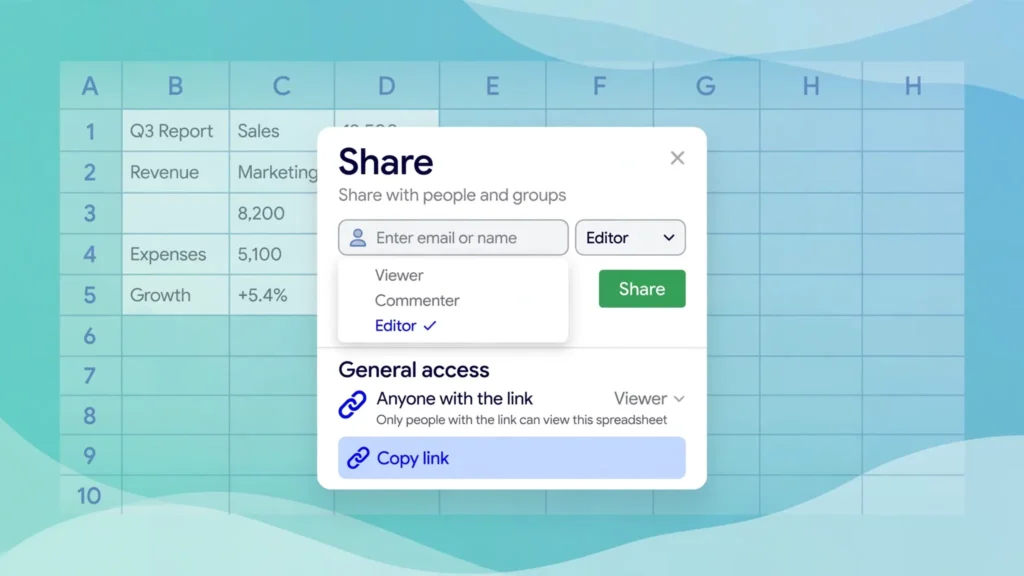
Learning how to share a Google Sheet the right way is one of those skills that looks trivial until it goes wrong. One careless click on “Anyone with the link — Editor” and your carefully built budget tracker becomes a public playground; one overly cautious “Restricted” setting and your client in Toronto can’t open the report you promised them. Google Sheets sharing is powerful precisely because it is granular: you decide exactly who gets in, what they can do once inside, and which corners of the sheet are off-limits. The problem is that most people never look past the big green Share button.
This guide fixes that. You’ll learn how to share a Google Sheet step by step, what each permission level (Viewer, Commenter, Editor) actually allows, how to create a safe view-only link, how to lock sensitive ranges with sheet protection while the rest of the file stays editable, and the mistakes that cause most sharing disasters — from accidental public links to editors who “helpfully” rearrange your formulas. Whether you’re collaborating with a team in London, sending a price list to customers in Mumbai, or publishing a public dataset for readers in New York, you’ll know exactly which settings to choose. And if you ever need to move a shared sheet into Excel format for an offline colleague, our free online CSV to Excel converter handles the file conversion in seconds.
Why Google Sheets sharing settings deserve your attention
Google Sheets lives in the cloud, which means every sheet you create has a shareable identity from the moment it’s born. Unlike an Excel file sitting on your desktop — where “sharing” means emailing a copy — a shared Google Sheet is a single living document that many people can touch at once. That simultaneity is the magic: your colleague in Sydney edits the forecast while you watch the numbers update in real time. It is also the risk. Because there is only one copy, a wrong permission doesn’t create a wrong copy — it damages the original.
Consider three everyday scenarios. A marketing manager in Chicago shares the campaign budget with her agency as Editors so they can add spend rows — and an intern at the agency accidentally sorts only column C, scrambling every row’s alignment. A teacher in Manchester posts an “Anyone with the link” view-only link to a class resource sheet, not realizing viewers can download and re-share it. A freelancer in Delhi grants a client Editor access to an invoice tracker, and the client deletes the formula column because “it looked empty.” All three disasters trace back to the same root cause: permissions chosen in two seconds without understanding what they mean.
The good news is that Google’s permission model is genuinely well designed once you learn it. There are four roles — Viewer, Commenter, Editor, Owner — plus two access scopes (Restricted and Anyone with the link), plus range-level protection, plus expiration dates, plus a nuclear option for downloads. Master these and you can collaborate fearlessly: interns get comment-only access, clients get view-only links, your co-founder gets full editor rights, and your formula columns stay locked no matter what. Google’s own guide to sharing files from Google Drive documents the mechanics; this article adds the judgment — which settings to pick for which situation, and why.
How to Share a Google Sheet: step-by-step
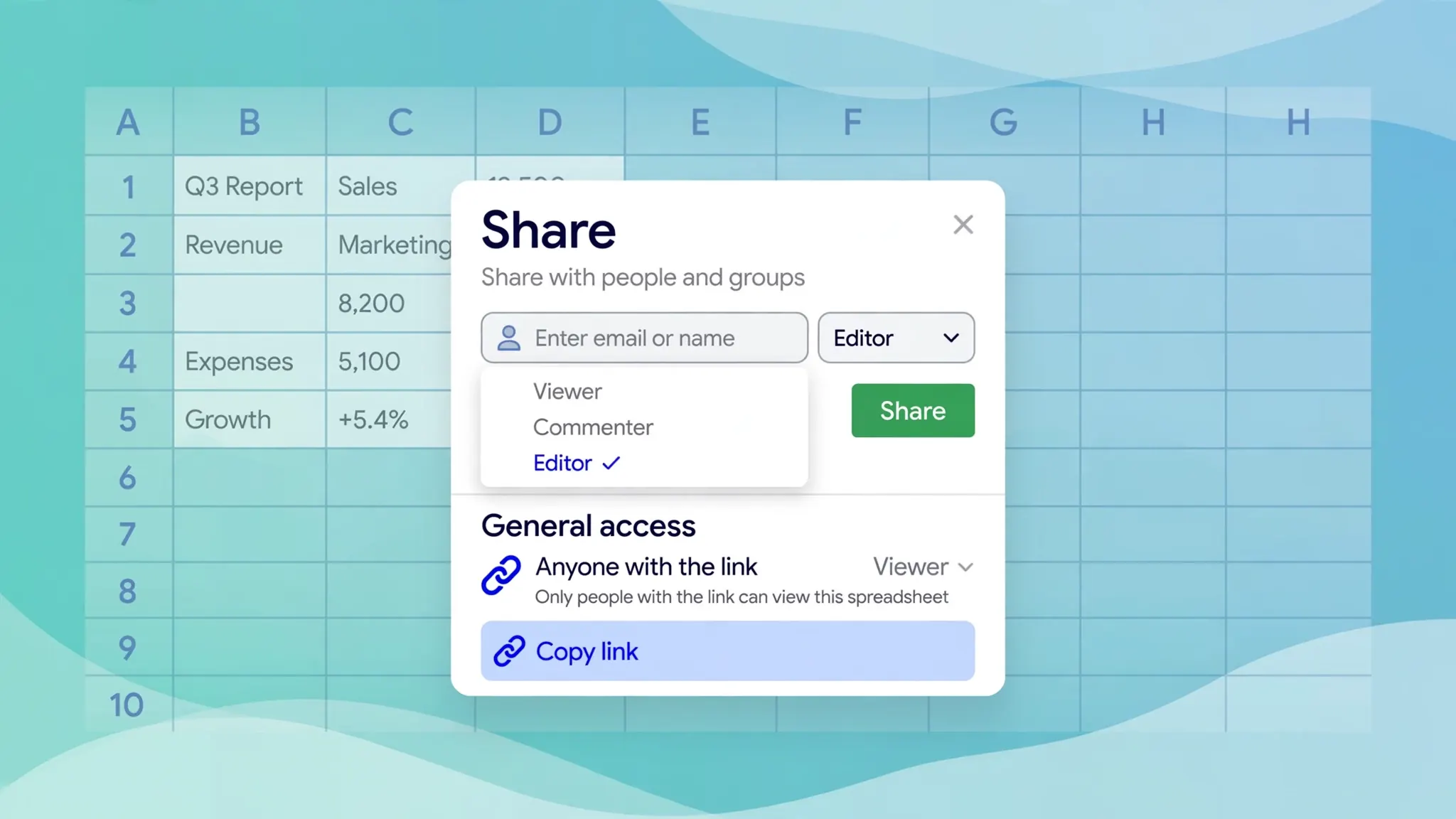
Before the strategy, the mechanics. Here is the exact click path for sharing any Google Sheet, on desktop or mobile:
- Open the sheet and click the blue Share button in the top-right corner. (On the mobile app, tap the three dots or the person icon, then Share.)
- Add specific people: type names or email addresses into the “Add people” field. Google suggests contacts as you type.
- Choose a role from the dropdown next to each person: Viewer, Commenter, or Editor. The role you pick applies to that person.
- Decide on the notification: leave “Notify people” checked to send an email invitation with your message, or uncheck it to add them silently (useful for large teams).
- Click Send. The person gets access immediately.
- For link sharing: in the same dialog, under “General access,” change Restricted to Anyone with the link, pick the role (usually Viewer), then click Copy link.
That’s the whole operation — six clicks, maybe twenty seconds. Everything that follows in this guide is about choosing the right role and the right scope in steps 3 and 6, because those two choices determine whether your collaboration runs smoothly or ends in a data-recovery exercise.
Google Sheets share permissions explained: Viewer vs Commenter vs Editor
The heart of Google Sheets share permissions is a simple ladder with four rungs. Understanding exactly what each rung allows — and, more importantly, what it doesn’t — is the single most valuable thing in this guide.
Viewer: read-only access
A Viewer can open the sheet, read every cell, use filters and sort views (their own temporary views, which don’t affect others), and — critically — download, print, and copy the file by default. They cannot change any cell, cannot add comments, and cannot see the version history in detail. Choose Viewer when someone needs the information but has no business changing it: clients reviewing a report, stakeholders checking a dashboard, the public viewing a published dataset. If the download default bothers you (it should, for sensitive data), the Share dialog’s settings gear lets you disable downloading, printing, and copying for viewers and commenters.
Commenter: feedback without edits
A Commenter gets everything a Viewer gets, plus the ability to add comments and suggest changes (in “Suggesting” mode, their edits appear as suggestions you can accept or reject). They still cannot modify cell values directly. This is the perfect role for reviewers: your manager can flag the wrong number in the Q3 forecast without being able to “fix” it themselves; a client can comment on a proposal draft without rearranging it. In our experience, Commenter is the most underused role — most people jump straight from Viewer to Editor and skip the safe middle ground.
Editor: full change access
An Editor can change values, formatting, add or delete sheets, insert rows and columns, and use most features — with two important limits. Editors cannot change sharing settings by default (the owner can grant that in advanced settings), and they cannot delete the file. But make no mistake: an Editor can overwrite your data, delete rows, break formulas, and rearrange structure. Grant Editor only to people you trust with the integrity of the file — co-owners of the work, not casual contributors. A useful rule of thumb: if someone needs to change fewer than a dozen cells regularly, they probably need Commenter access plus a conversation, not Editor.
Owner: full control
The Owner (usually whoever created the sheet) can do everything: change permissions, transfer ownership, delete the file, and override protections. Ownership can be transferred to another person — essential when someone leaves a team. Note the limits Google imposes: a single file can be shared with up to 600 individual email addresses, and only 100 people can edit simultaneously.
Share Google Sheet view only: the read-only link done right
The single most common sharing request we hear is some version of: “I want to share my Google Sheet as view only — people should see it but not touch it.” Here’s the precise recipe:
- Click Share, and under “General access” select Anyone with the link.
- Set the role dropdown to Viewer. This is the critical step — the default is often Viewer, but always verify.
- Click the settings gear (top-right of the Share dialog) and uncheck “Viewers and commenters can see the option to download, print, and copy.” This closes the biggest view-only loophole.
- Click Copy link and distribute it — email, Slack, your website, wherever it needs to go.
A view-only link is ideal for price lists, public schedules, published research data, and read-only dashboards. Anyone with the link can open it in a browser without even signing in to Google (they appear as anonymous viewers). But remember the honest limitation: a truly determined person can still screenshot or retype visible data — no web-based view-only mode can prevent that. What the settings do prevent is casual bulk copying and the accidental “I thought I could edit this” confusion.
One more pro tip for view-only sharing: if your sheet contains tabs the audience shouldn’t see (raw data, workings, notes-to-self), hide those tabs or move them to a separate file before sharing. Viewers can unhide hidden tabs, so hiding is obscurity, not security — for genuinely sensitive tabs, keep them in a different spreadsheet entirely and use IMPORTRANGE to pull only the safe results into the shared file.
Google Sheets protect range: lock cells while the sheet stays shared
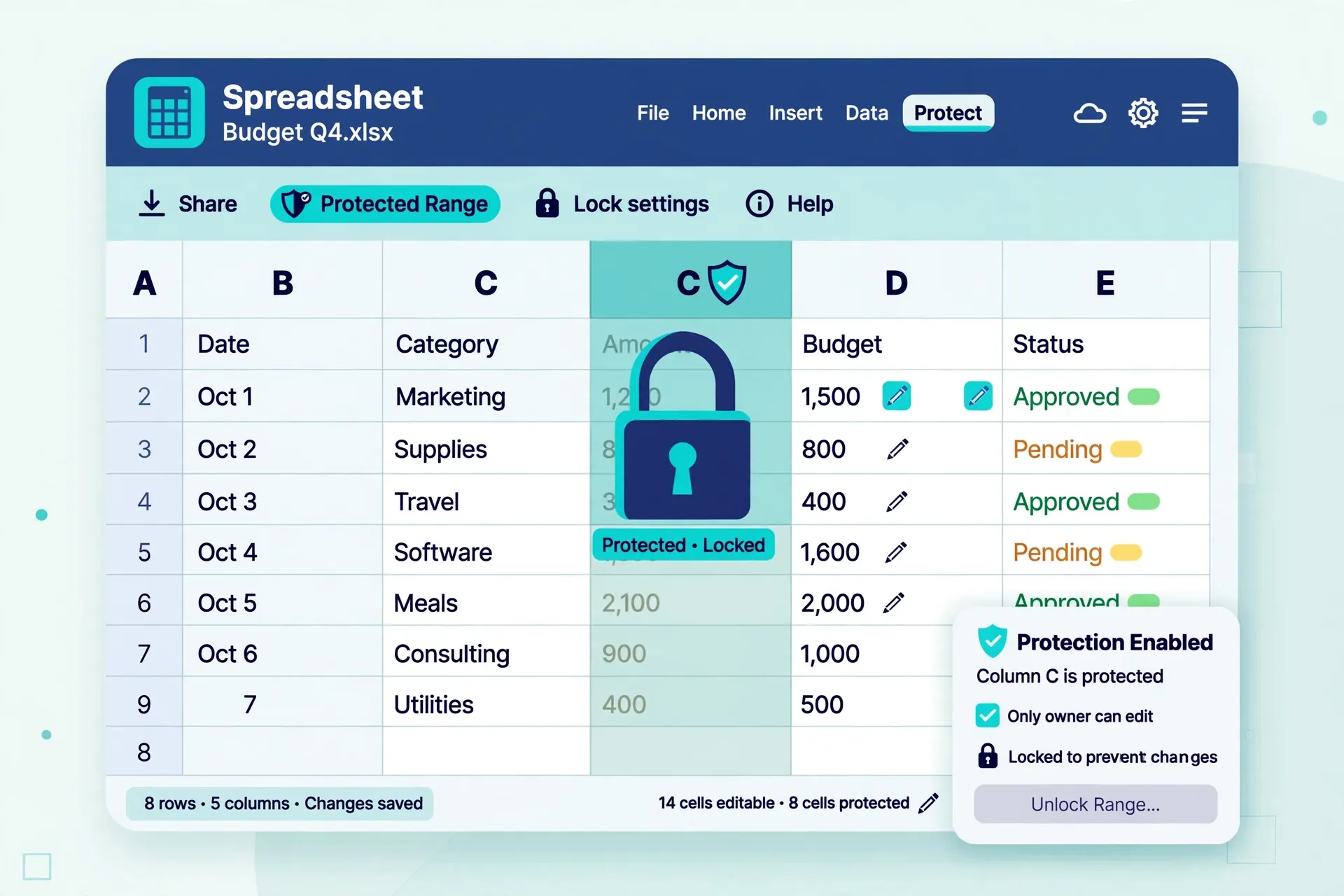
Here’s the scenario that breaks most collaborations: you want the team to fill in their hours in column D, but column E contains the payroll formulas — and someone always “fixes” a formula. The answer is to use Google Sheets’ protect range feature, which locks specific cells or entire sheets even for people who have Editor access to the file.
- Select the cells or range you want to lock (for example, your formula column).
- Go to Data › Protect sheets and ranges. A sidebar opens on the right.
- Click Add a sheet or range, give the protection a clear name like “Payroll formulas — do not edit,” and confirm the range.
- Click Set permissions. Choose “Restrict who can edit this range” and select only yourself (or the small group allowed).
- Optionally check “Show a warning when editing this range” instead of a hard block — useful when you want to discourage but not forbid edits.
When a restricted editor tries to change a protected cell, they get a clear “You are trying to edit a protected cell” message. A few practical notes from real-world use: protections apply per-sheet, so repeat the process for each tab with sensitive content; the sheet owner can always override protections (there’s no lock that binds the owner); and protected ranges are visible in the sidebar, so name them descriptively — “Q3 formulas v2” beats “Range1.” One caveat: editors can still copy protected cells and paste values over them elsewhere — protection guards the original cells, not the ideas in them.
Protection pairs beautifully with the other cleaning steps in a shared workflow. Before you open a sheet to collaborators, it’s worth running through an Excel data cleaning workflow on any imported data — trimming stray spaces, fixing dates, removing duplicates — because messy source data plus multiple editors equals chaos squared. The same logic applies to removing extra spaces that sneak in from CSV imports before the sheet goes live.

Link sharing vs sharing with specific people
Google Sheets offers two fundamentally different ways to grant access, and choosing between them is a security decision, not just a convenience one.
Sharing with specific people (Restricted)
You add email addresses one by one; only those accounts can open the file. This is the default and the safest option. Use it for anything containing personal data, financials, unreleased plans, or client information. The audit trail is clean — the Share dialog always shows exactly who has access — and revoking one person doesn’t affect anyone else. The downside is friction: every new collaborator needs an invitation, and people outside your organization need a Google account for edit access.
Anyone with the link
Whoever holds the URL gets in, with whatever role you set (almost always Viewer). This is frictionless — perfect for public resources, wide distribution, and embedding in websites — but the link itself becomes the credential. Anyone who receives it can forward it. If a view-only link to your pricing sheet ends up on a competitor’s Slack, there’s no alarm; it just works for them too. Mitigations: use Viewer role, disable downloads, and periodically rotate sensitive links by toggling back to Restricted and re-enabling link sharing (which generates a fresh URL).
There’s also a middle path many teams miss: share the sheet with a Google Group (mailing list) instead of individuals. Add the group’s address once, and membership changes in the group automatically update sheet access — when someone leaves the team and leaves the group, they lose the sheet too. For organizations, this is the only sane way to manage access at scale.
Advanced sharing: expiration dates, ownership transfer, and publishing
Access expiration dates
For work and school Google accounts, you can set an expiration date on anyone’s access: in the Share dialog, click the dropdown next to a person’s role and choose “Add expiration.” The person loses access automatically on that date — no follow-up email needed, no forgotten permissions lingering for months. Use it for contractors, interns, auditors, and anyone whose involvement has a known end date. Personal (gmail.com) accounts don’t get this feature, which is one more reason teams eventually move to Workspace.
Transferring ownership
When the sheet’s owner leaves, ownership must move or the file becomes an orphan nobody fully controls. In the Share dialog, click the dropdown next to the new owner’s name and select “Transfer ownership” (the current owner must initiate it). The new owner gets full control; the old owner drops to Editor. Plan this before offboarding, not after — recovering an orphaned file owned by a deleted account is a support-ticket ordeal.
Publishing to the web
Separate from sharing, File › Share › Publish to web creates a standalone read-only web page (or embeddable HTML) of your sheet that updates as the sheet changes. Published pages don’t require sign-in and can be embedded in websites — but they also get indexed by search engines if you choose the public option, so never publish anything sensitive. Think of publishing as broadcasting and link-sharing as narrowcasting.
7 costly sharing mistakes to avoid
1. “Anyone with the link — Editor” for a public audience. The classic catastrophe. Link-shared editing is occasionally useful (a public signup sheet), but one malicious or clumsy visitor can wipe the file. Default to Viewer; escalate deliberately.
2. Forgetting that viewers can download. As covered above, the download/print/copy default is ON. For sensitive view-only shares, turn it off in the Share dialog’s settings gear.
3. Sharing the wrong tab. People share the file when they meant to share one tab’s results. Viewers see every tab. Split sensitive workings into a separate spreadsheet.
4. No protected ranges on formula columns. If editors touch the sheet, lock every formula, lookup table, and config cell first. This one precaution prevents the majority of “the sheet broke itself” incidents.
5. Leaving ex-employees and old contractors with access. Audit sharing quarterly: Share dialog › review “People with access” › remove anyone who shouldn’t be there. Or use expiring access from the start.
6. Sorting or filtering without a filter view. When multiple people view a sheet, one person’s sort rearranges it for everyone. Teach collaborators to use Data › Create a filter view — personal sorts that don’t disturb others.
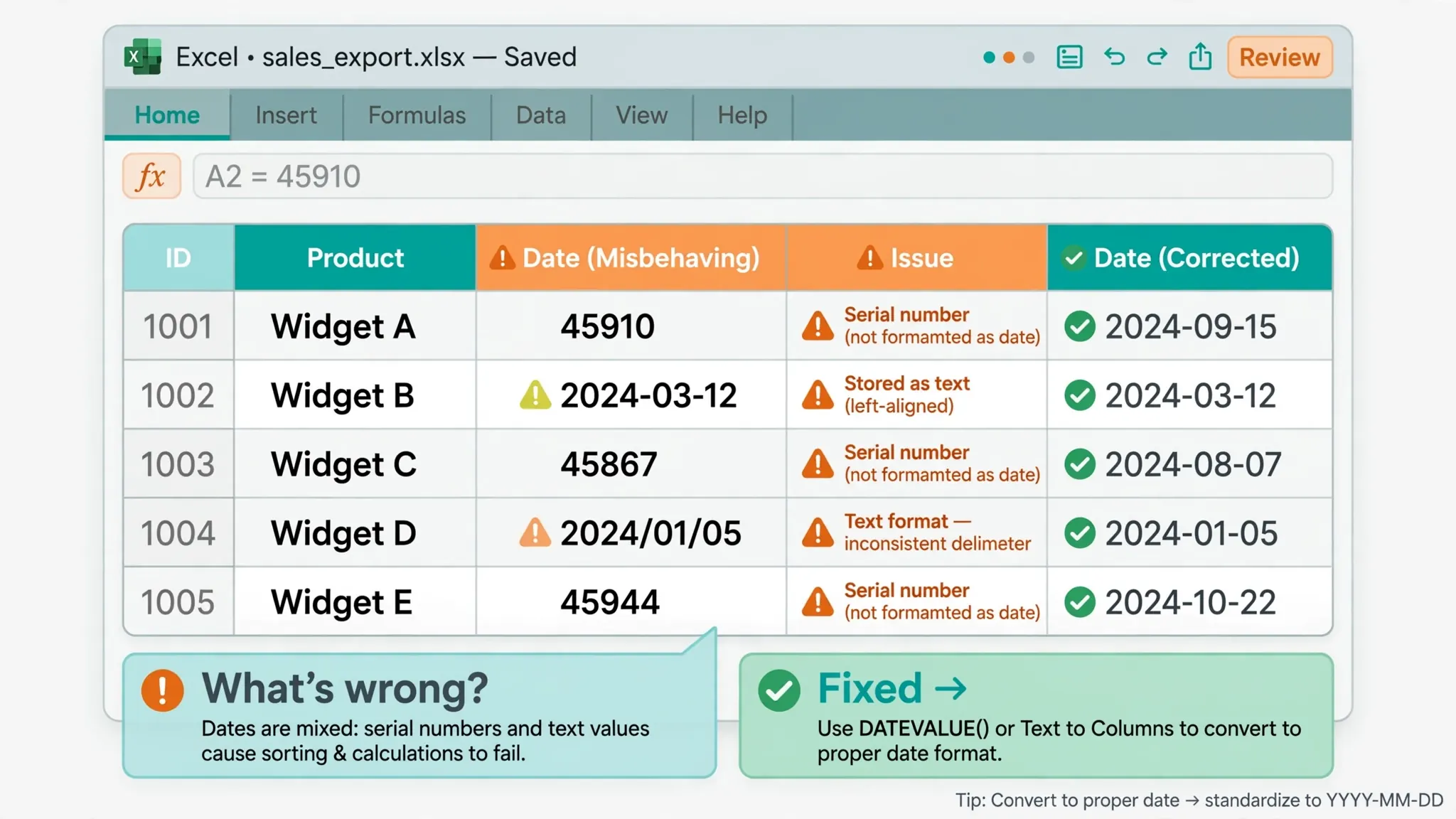
7. Sharing before cleaning. Inconsistent names, duplicate rows, and text-formatted dates in a shared sheet generate a special kind of multi-person confusion. Run the data through a cleanup pass first — our guides to splitting text into columns and fixing dates cover the two most common pre-share repairs.
How to stop sharing or change access later
Sharing is never permanent. To remove one person: open Share, find them under “People with access,” click their role dropdown, and choose Remove access — it takes effect instantly, even if they’re viewing the sheet right now. To downgrade someone (Editor to Commenter, say), use the same dropdown and pick the new role. To kill link sharing entirely: change “General access” back to Restricted; every link-shared visitor loses access immediately, while individually-added people keep theirs.
If something already went wrong — an editor deleted a week’s work — don’t panic. Google Sheets keeps a full version history (File › Version history › See version history) with named, timestamped snapshots and per-editor color coding. You can restore any earlier version in two clicks, or copy a single range from an old version into the current sheet. Version history is the ultimate safety net, and it’s one of the strongest arguments for collaborating in Sheets rather than emailing Excel files around.
Finally, a closing principle worth taping to your monitor: share with the least privilege that gets the job done, and protect everything structural. Viewers view, commenters comment, editors edit — and formulas stay locked regardless. Follow that, audit quarterly, expire temporary access, and Google Sheets sharing becomes what it was designed to be: the fastest way for a group of people to work on one true set of numbers.
Frequently Asked Questions
How do I share a Google Sheet with view-only access?
Open the sheet, click Share, and under General access choose Anyone with the link with the role set to Viewer. Copy the link and send it out. For maximum safety, click the settings gear in the Share dialog and disable downloading, printing, and copying for viewers and commenters — that closes the biggest loophole in view-only sharing.
What is the difference between Viewer, Commenter, and Editor in Google Sheets?
A Viewer can only read the sheet (and download it by default). A Commenter can read and add comments or suggestions but cannot change cells. An Editor can modify values, formatting, and structure. Only the Owner can change sharing settings or delete the file. Pick the lowest role that lets the person do their job.
Can someone with a view-only Google Sheets link download my file?
Yes — by default, viewers and commenters can download, print, and copy the spreadsheet. To prevent this, open the Share dialog, click the settings gear icon, and uncheck “Viewers and commenters can see the option to download, print, and copy.” Note that screenshots and retyping are still possible; no web viewer can fully prevent copying visible data.
How do I protect a range in Google Sheets so editors cannot change it?
Select the cells, go to Data › Protect sheets and ranges, click “Add a sheet or range,” name it, confirm the range, then click “Set permissions” and restrict editing to yourself or a chosen group. Editors without permission will see a warning if they try to change those cells. This is the best way to lock formula columns in a shared sheet.
How do I stop sharing a Google Sheet or remove someone’s access?
Click Share, find the person under “People with access,” open their role dropdown, and choose Remove access — it applies instantly. To revoke link sharing for everyone, change “General access” back to Restricted. If data was already damaged, use File › Version history to restore an earlier snapshot.
Can I share a Google Sheet with someone who does not have a Google account?
Yes. Set General access to Anyone with the link and send them the link — they can open and read the sheet in any browser without signing in, appearing as an anonymous viewer. Edit access, however, requires a Google account, so anonymous visitors are limited to the Viewer or Commenter roles.