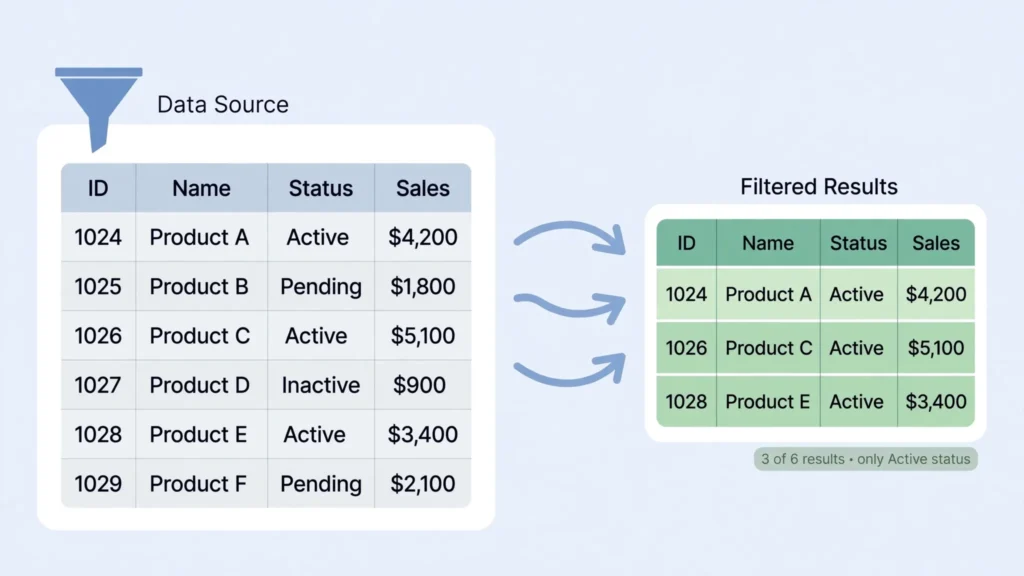
The filter button on the toolbar hides rows. The Google Sheets FILTER function does something far more powerful: it builds a live, self-updating extract of your data somewhere else in the workbook — one that feeds charts, feeds other formulas, and never needs re-clicking. This guide teaches you how to filter data in Google Sheets with the FILTER formula: the syntax, multi-condition logic, and the FILTER+SORT+UNIQUE combos in Google Sheets that replace entire reporting workflows.
If you have ever filtered a table, copied the visible rows to a new sheet, and then repeated the whole ritual next week when the data changed, this function is your liberation. Write the Google Sheets filter formula once; it re-runs itself forever. Operations teams in the US, UK, India, Canada, and Australia use FILTER-driven dashboards as living reports — open the sheet, and the numbers are already current.
We will go from the two-argument basics to boolean AND/OR logic, date and text matching, the SORT/UNIQUE/SORTN power combos, ten copy-paste recipes, and a full error-fix section. By the end, manual filter-copy-paste will feel like churning butter.
Google Sheets FILTER Function: Syntax and First Example
=FILTER(range, condition1, [condition2, ...])
- range — the rows/columns to return (e.g.
A2:E5000). - condition1, condition2, … — TRUE/FALSE tests, each the same height as the range. A row is returned only if all conditions are TRUE (AND logic by default).
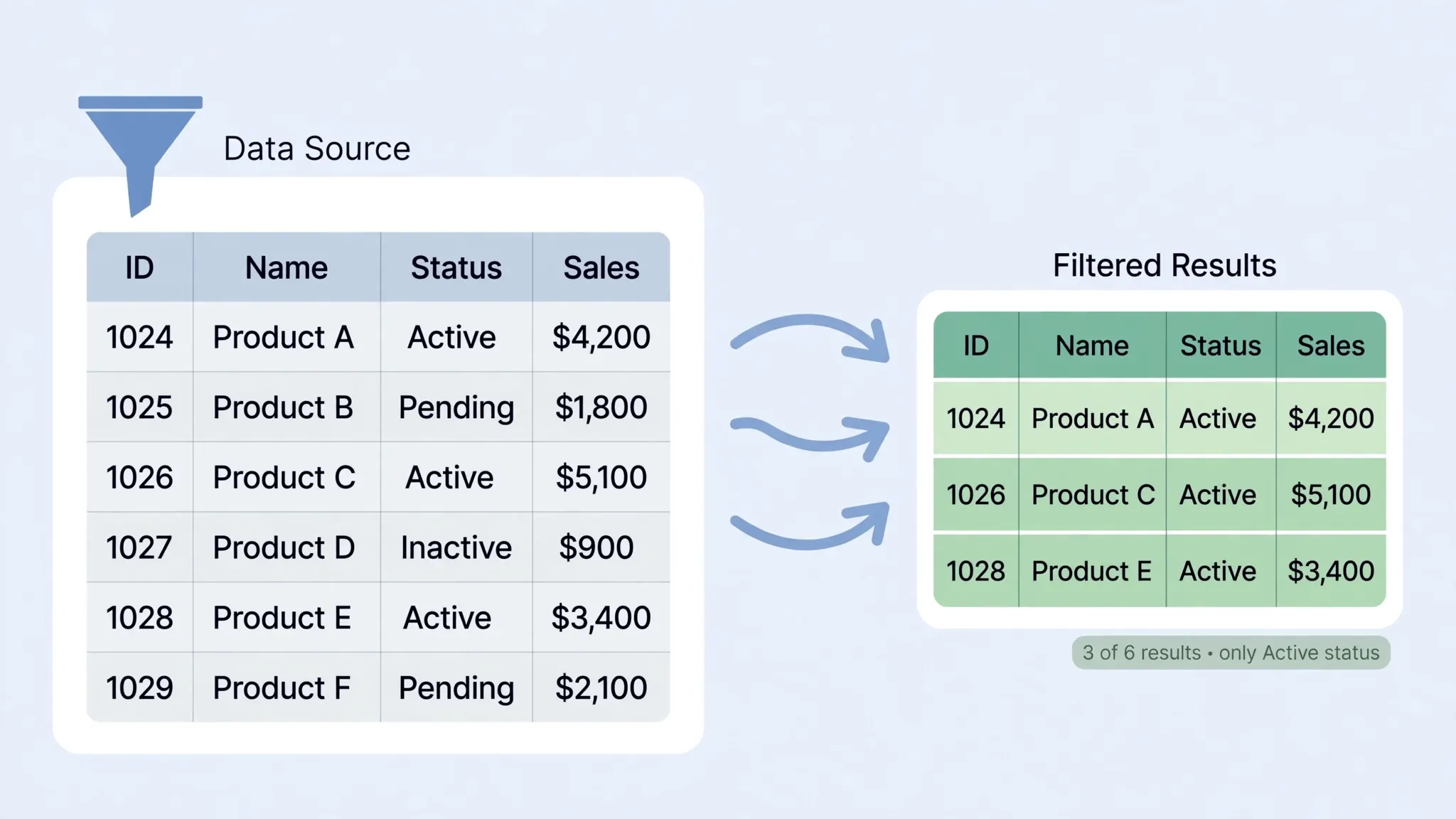
Example — sales data with Region in B: =FILTER(A2:E5000, B2:B5000="West") returns every West row, all five columns. The condition B2:B5000="West" produces a column of TRUE/FALSE values; FILTER keeps the TRUE rows. Google’s function reference lists the formal spec, but this mental picture — “keep rows where the test is true” — is all you need.

Spill rules: the result needs empty space below (and right, if returning multiple columns). If anything blocks it, you get #REF!. Put FILTER outputs on dedicated sheets or in clearly reserved areas — never directly under data that might grow into them.
How to Filter Data in Google Sheets with FILTER: Multi-Condition Patterns
Multiple conditions as separate arguments mean AND: =FILTER(A2:E, B2:B="West", E2:E>1000) — West and revenue over 1000. For OR, add the boolean arrays with +: =FILTER(A2:E, (B2:B="West")+(B2:B="East")) — West or East. For NOT, use <> or wrap in NOT().
The boolean arithmetic behind this: TRUE behaves as 1, FALSE as 0. Multiplying conditions is AND (1×1=1; anything×0=0); adding is OR (any 1 gives ≥1, which FILTER treats as TRUE). Combining both: =FILTER(A2:E, ((B2:B="West")+(B2:B="East"))*(E2:E>1000)) — (West or East) and revenue over 1000. Parentheses are load-bearing here; get them right and complex logic reads cleanly.
=FILTER(A2:E, B2:B=G1, E2:E>G2) where G1 holds a region dropdown and G2 a threshold. Colleagues change two cells and the whole report re-filters. Add Data → Data validation dropdowns to G1 and it feels like a real app.FILTER with Dates, Numbers, and Text Matching
- Numbers:
=FILTER(A2:E, E2:E>=5000). Ranges:(E2:E>=1000)*(E2:E<=5000). - Dates:
=FILTER(A2:E, A2:A>=DATE(2026,1,1))— compare against real dates (DATE() or a date cell), never text strings. This month:(A2:A>=EOMONTH(TODAY(),-1)+1)*(A2:A<=EOMONTH(TODAY(),0)). - Exact text:
=FILTER(A2:E, C2:C="Priya Sharma")— case-insensitive by default in Sheets. - Partial text:
=FILTER(A2:E, REGEXMATCH(D2:D, "Pro"))— REGEXMATCH unlocks contains/starts-with/patterns. Case-sensitive; wrap the range inLOWER()and the pattern in lowercase for insensitive matching. - Blanks/non-blanks:
=FILTER(A2:E, C2:C<>"")keeps rows with a rep assigned;=FILTER(A2:E, C2:C="")finds the unassigned ones — great for data-quality sweeps.
The CSV type trap: imported CSVs often store numbers and dates as text, and text “5000” fails numeric comparisons silently (no match, no error). Standardize types at import — our free CSV to Excel converter preserves them — or coerce in-formula with VALUE()/DATEVALUE().
FILTER + SORT + UNIQUE Combos in Google Sheets
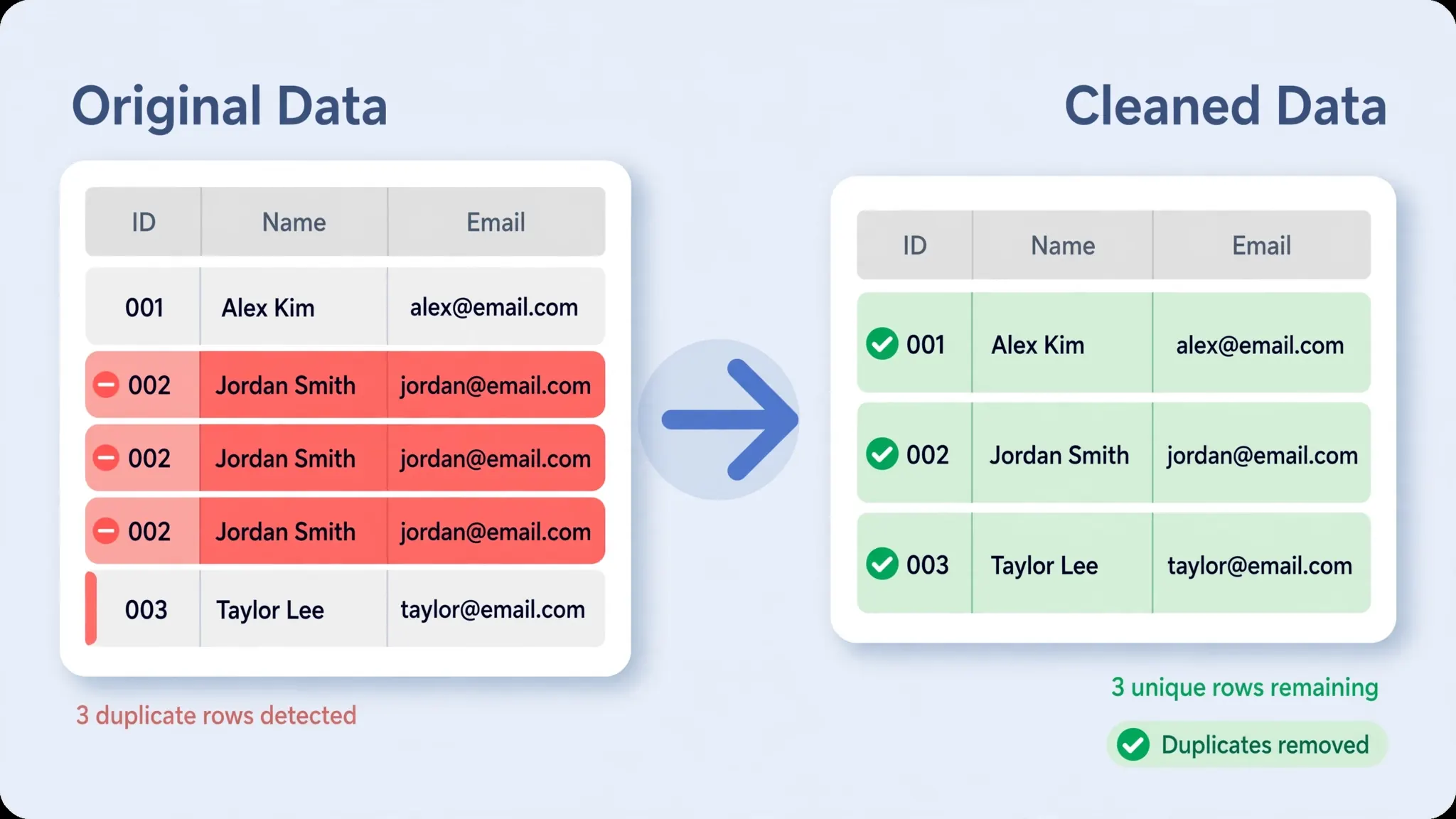
FILTER extracts; SORT orders; UNIQUE deduplicates. Nested, they are a reporting engine:
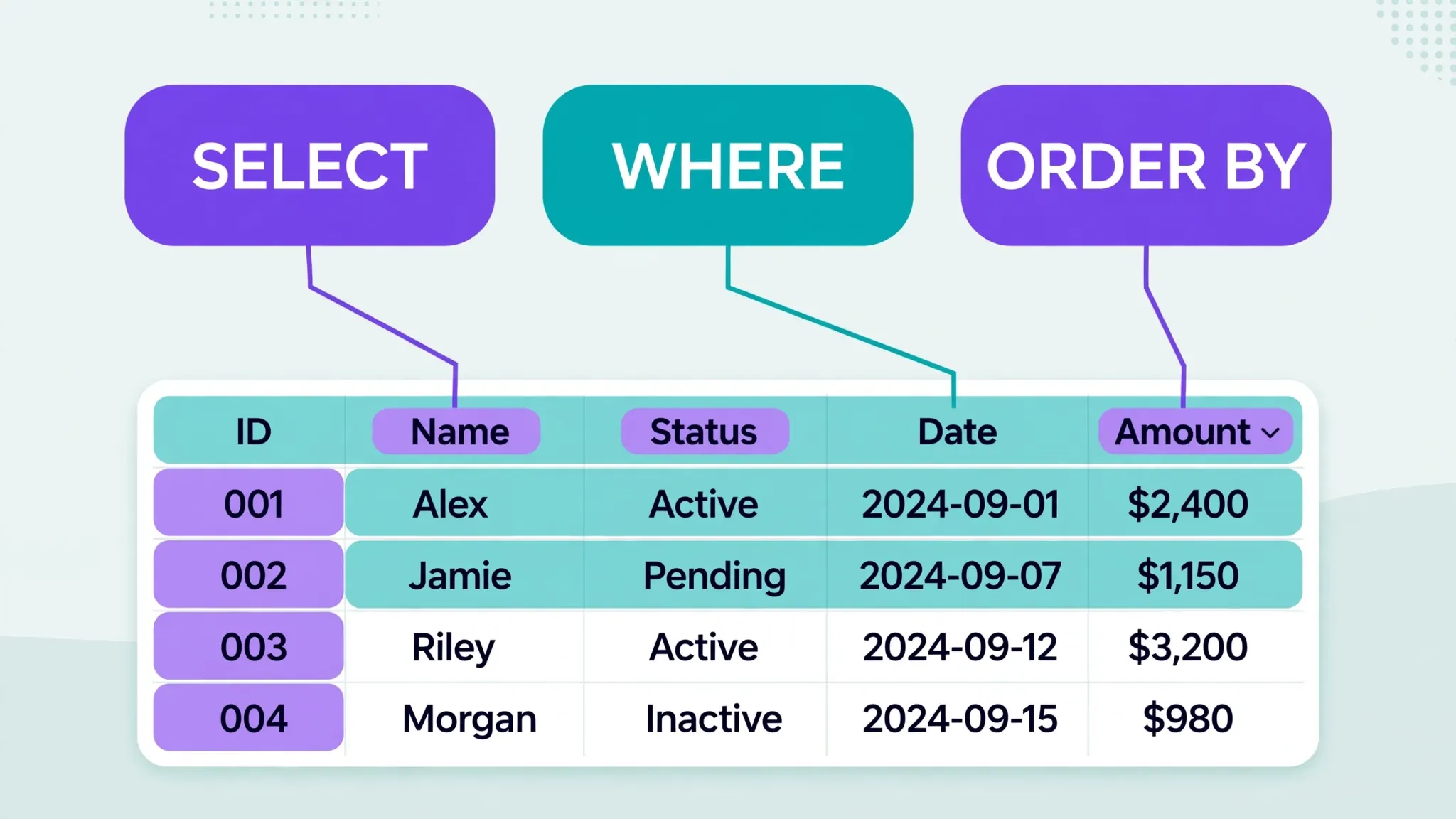
=SORT(FILTER(A2:E, B2:B="West"), 5, FALSE) — West rows, revenue descending.
=UNIQUE(FILTER(C2:C, B2:B="West")) — distinct reps in the West (a dynamic dropdown source!).
=SORT(UNIQUE(FILTER(C2:C, B2:B="West"))) — the same list, alphabetized.
=SORTN(FILTER(A2:E, B2:B="West"), 10, 0, 5, FALSE) — top 10 West rows by revenue in one function (SORTN = sort + limit).
SORTN deep cut: =SORTN(range, n, display_ties_mode, sort_column, ascending). The ties mode matters: 0 shows exactly n rows; 1 shows n plus ties. Leaderboards want mode 1 (nobody wants to be cut by a tie); “top 10 sample” wants mode 0. Our deduplication guide covers UNIQUE in full.
The Google Sheets Filter Formula Playbook: 10 Recipes
Data in A2:E (Date, Region, Rep, Product, Revenue). Copy, paste, adapt:
- Region extract:
=FILTER(A2:E, B2:B="West") - Big deals this year:
=FILTER(A2:E, A2:A>=DATE(2026,1,1), E2:E>10000) - Rep’s pipeline:
=FILTER(A2:E, C2:C=G1)(G1 = name input) - Unassigned rows (data quality):
=FILTER(A2:E, C2:C="") - Product search:
=FILTER(A2:E, REGEXMATCH(D2:D, "(?i)"&G2))(case-insensitive contains) - Top 10 by revenue:
=SORTN(A2:E, 10, 0, 5, FALSE) - Distinct product list:
=SORT(UNIQUE(D2:D)) - Recent 30 days:
=FILTER(A2:E, A2:A>=TODAY()-30) - West or East, big only:
=FILTER(A2:E, ((B2:B="West")+(B2:B="East"))*(E2:E>5000)) - Everything except internal:
=FILTER(A2:E, NOT(REGEXMATCH(D2:D, "(?i)internal")))
Recipe 5’s (?i) is regex for case-insensitive — one of the handiest tokens in Sheets. Recipe 8’s TODAY()-30 makes the report self-maintaining: it always means “the last 30 days” with zero edits.
FILTER vs QUERY vs Pivot Tables
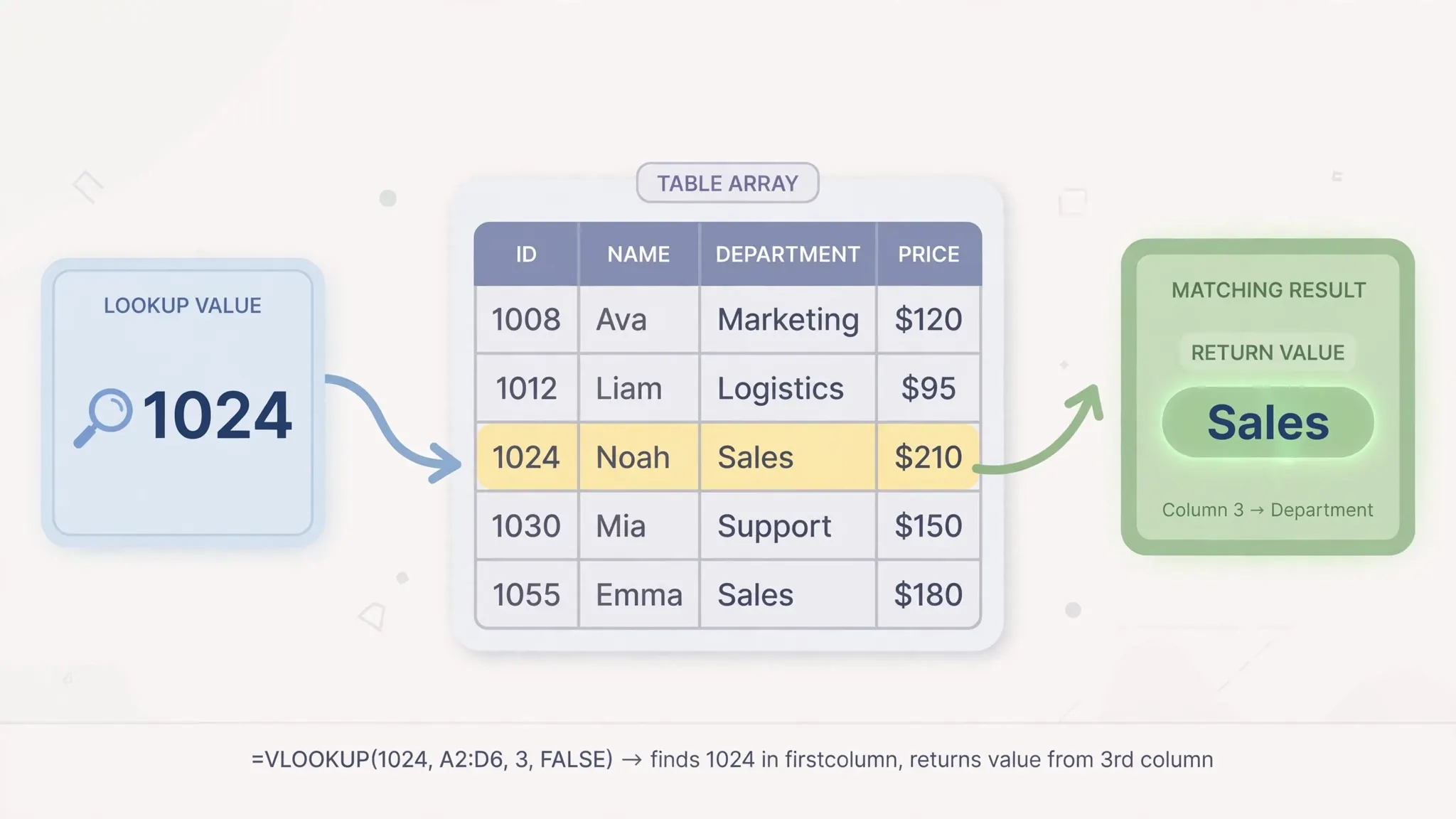
QUERY (tutorial) does everything FILTER does plus aggregation, column reordering, and LIMIT — in SQL dialect. Choose FILTER when conditions are simple and you want maximum readability; choose QUERY when you need GROUP BY or when the team speaks SQL. Pivot tables (tutorial) win for interactive exploration by non-technical users but cannot feed downstream formulas; FILTER outputs can. VLOOKUP/XLOOKUP return single values; FILTER returns all matches — complementary, not competing (see our VLOOKUP guide and XLOOKUP guide).

FILTER Errors and Fixes
- #N/A “No matches” — zero rows matched. Either correct (wrap in
IFNA(..., "No matches")for display) or a sign your conditions are too strict / data has type issues. - #REF! array not expanded — blocked spill area. Clear below/right of the formula.
- “FILTER has mismatched range sizes” — range is
A2:E5000but a condition isB2:B4999. Heights must match exactly — use whole columns (B:B) or identical bounds. - Wrong results, no error — text-vs-number mismatch in conditions (the CSV type trap), or hidden spaces. TRIM the column.
- Slow recalculation — FILTER over whole columns (
A:E) on huge sheets. Bound the ranges (A2:E50000) or pre-filter with QUERY. - Dates won’t match — comparing a date column to a text string. Use DATE() or reference a real date cell.
=(B2="West")*(E2>1000) filled down shows 1s and 0s per row. When the pattern of 1s looks wrong, you have found the broken condition without guessing.Building a Search Box with FILTER and REGEXMATCH
The most delightful FILTER application is a live search box. Put an input cell at the top of a dashboard sheet (say G1, labeled “Search products”), and below it: =FILTER(A2:E, REGEXMATCH(D2:D, "(?i)"&G1)). Type “pro” and every product containing “pro” appears instantly — case-insensitive thanks to (?i). Empty search box? REGEXMATCH(x, "(?i)") matches everything, so the full table shows — the correct default behavior with zero extra logic.
Level it up with multi-field search: =FILTER(A2:E, REGEXMATCH(B2:B&" "&C2:C&" "&D2:D, "(?i)"&G1)) searches region, rep, and product simultaneously. Add a second input for minimum revenue: =FILTER(A2:E, REGEXMATCH(D2:D, "(?i)"&G1), E2:E>=G2). Wrap the whole thing in IFNA for the empty state: =IFNA(FILTER(...), "No products match your search."). In under five minutes you have built what feels like a web app — and colleagues will ask how you did it.
REGEXMATCH treats the search text as a pattern, so special characters like . or * in the search box act as regex. For a bulletproof search box, escape the input: =FILTER(A2:E, REGEXMATCH(D2:D, "(?i)"®EXREPLACE(G1, "[.^$*+?()\[\]{}\\|]", "\\$0"))) — intimidating, but it makes every character literal. Or sidestep regex entirely with SEARCH: =FILTER(A2:E, ISNUMBER(SEARCH(G1, D2:D))) — simpler, case-insensitive, no escaping needed. Prefer SEARCH for user-facing boxes; save REGEXMATCH for pattern work.
FILTER Over Live Feeds: IMPORTRANGE and IMPORTDATA
FILTER composes beautifully with the IMPORT family, turning remote data into local answers. =FILTER(IMPORTRANGE("url","Orders!A2:E"), IMPORTRANGE("url","Orders!B2:B")="West") extracts West orders from another file — live. =FILTER(IMPORTDATA("https://example.com/prices.csv"), INDEX(IMPORTDATA("https://example.com/prices.csv"),,3)>100) filters a web CSV by its third column. The pattern is always the same: import, then filter — the import is just another range.
The performance-conscious version imports once into a staging sheet and filters the local copy: two IMPORTRANGE calls per row of logic becomes one import plus cheap local FILTERs. On a dashboard with a dozen filtered views of the same source, the staging pattern is the difference between “snappy” and “calculating…”. See our IMPORTRANGE tutorial and IMPORTDATA guide for the import side; FILTER is the lens you look through afterward.
FILTER Performance on Large Datasets
FILTER is fast — but whole-column references (A:E) force Sheets to evaluate a million rows per condition, and five conditions means five million cell-tests per recalculation. On sheets with tens of thousands of rows, bound your ranges: A2:E50000 instead of A:E. The speedup is dramatic because Sheets skips everything outside the bounds entirely.
Other optimizations: compute expensive conditions once in a helper column (a single REGEXMATCH column, then FILTER on its TRUE/FALSE values — the regex runs once per row instead of once per FILTER call); prefer = and > comparisons over REGEXMATCH where possible (regex is 10–100x slower than direct comparison); and avoid volatile functions like NOW() or RAND() inside conditions — they force recalculation on every edit anywhere in the workbook. For genuinely big data (100k+ rows), do the heavy filtering in QUERY (which optimizes internally) or move the dataset to BigQuery and use Connected Sheets.
Diagnosing slowness: duplicate the sheet, delete half the FILTER formulas, and feel the difference. Binary-search your formulas — disable half, test, repeat — until you find the expensive one. It is almost always a whole-column REGEXMATCH or a volatile function hiding in a condition.
Case Study: Support Ticket Triage Dashboard
A support team drowns in 2,000 tickets a month across a shared sheet (Ticket ID, Date, Agent, Priority, Category, Status, Hours). Their triage dashboard — one sheet, zero manual work — runs entirely on FILTER. Open criticals: =FILTER(A2:G, D2:D="Critical", F2:F<>"Resolved") — the morning standup view. My queue: =FILTER(A2:G, C2:C=$G$1, F2:F<>"Resolved") where G1 is the agent’s name via dropdown — personalized workload per agent. Stale tickets: =FILTER(A2:G, B2:B<TODAY()-7, F2:F<>"Resolved") — untouched for a week, the manager’s escalation list.
Each view is wrapped in SORT for usefulness — stale tickets sorted oldest-first (SORT(..., 2, TRUE)), criticals by priority then age. A summary strip on top uses COUNTIFS on the same conditions (=COUNTIFS(D:D,"Critical",F:F,"<>Resolved")) for the KPI numbers. The whole dashboard is five FILTER formulas and four COUNTIFS — no scripts, no pivot rebuilds, no “who has the latest version” confusion.
What made it stick: the conditions reference input cells (agent dropdown, date threshold), so the dashboard adapts without formula edits; every view shows a friendly IFNA message when empty (“No stale tickets — nice work!”); and the raw ticket sheet is append-only — agents add rows, never edit the dashboard. Six months later it still runs untouched. That is the FILTER promise realized: build the lens once, look through it forever.
FILTER with Named Ranges and Multiple Sheets
FILTER formulas get unreadable when ranges stretch across sheets: =FILTER(Orders!A2:G5000, Orders!B2:B5000="West") repeated ten times is a maintenance hazard. Named ranges (Data → Named ranges) fix it: name A2:G5000 on the Orders sheet OrdersAll and column B OrderRegion, and the formula becomes =FILTER(OrdersAll, OrderRegion="West") — self-documenting and immune to column inserts shifting your references.
Named ranges also centralize maintenance: when the data grows past row 5000, you update the named range once and every FILTER using it follows. For living datasets, define the named range with a formula-friendly open end or pair it with a QUERY that auto-expands. Cross-workbook FILTER (over IMPORTRANGE) benefits most — =FILTER(IMPORTRANGE("url","Orders!A2:G"), ...) becomes far less error-prone when the import lives in a named staging range.
One caution: named ranges are workbook-global, so Region on two sheets collides. Prefix by sheet (Orders_Region) as a naming convention from day one. Future collaborators — and future-you at 11 PM — will be grateful for the explicitness.
FILTER with Checkboxes: Toggleable Views
Pair FILTER with checkbox cells for toggleable dashboard views. Put checkboxes in G1:G3 labeled “West”, “East”, “Central”, then: =FILTER(A2:E, IF(G1,B2:B="West",FALSE)+IF(G2,B2:B="East",FALSE)+IF(G3,B2:B="Central",FALSE)). Check boxes to include regions; uncheck to exclude. When all are unchecked, the IFs yield FALSE everywhere and the result is empty — wrap in IFNA with a “Select at least one region” message.
This pattern generalizes: checkboxes for categories, a dropdown for the sort column, a numeric input for the threshold — each control feeds one FILTER argument, and the dashboard recomputes live. The formula looks complex, but each piece is simple, and the result feels like software. For shared sheets, protect the formula cells and leave only the controls editable: colleagues get an app-like experience with zero risk of breaking the logic.
FILTER vs Filter Views: Sharing Without Collisions
Google Sheets has one more filtering mechanism worth knowing: filter views (Data → Filter views → Create new filter view). Unlike the toolbar filter — which changes the view for everyone — filter views are personal: you filter, sort, and slice without disturbing collaborators. They are saved, named, and shareable via URL.
So when do you use a filter view versus a FILTER formula? Filter views for personal exploration of shared data — “let me look at just my region for a minute.” FILTER formulas for persistent, shared logic — dashboard extracts everyone sees. They compose, too: build a FILTER formula, then create a filter view on its output for personal slicing of the extract. And critically, filter views do not create new ranges — charts and formulas still see the unfiltered data — while FILTER outputs are first-class ranges that feed downstream logic. Different tools, different jobs; the professionals use both daily.
Frequently Asked Questions
What is the FILTER syntax in Google Sheets?
=FILTER(range, condition1, [condition2, ...]). The range is what to return; each condition is a TRUE/FALSE array of matching height. Rows where all conditions are TRUE are returned as a live spill.
How is FILTER different from the filter button?
The toolbar filter only changes the view. The Google Sheets FILTER function creates a live result range elsewhere that updates automatically and can feed charts and other formulas.
Why does my FILTER return #N/A?
No rows matched all conditions. Wrap it: =IFNA(FILTER(...), "No matches") — or loosen the conditions and check data types.
Can I use OR logic in FILTER?
Yes: add boolean arrays with + — =FILTER(A2:E, (B2:B="West")+(B2:B="East")). Multiply for AND, add for OR.
How do I sort FILTER results?
Wrap in SORT: =SORT(FILTER(A2:E, B2:B="West"), 5, FALSE). The FILTER+SORT+UNIQUE combos in Google Sheets from this guide cover sorted unique lists and top-N extracts too.
FILTER vs QUERY — which should I use?
FILTER for readable simple-to-medium conditions; QUERY for aggregation, reordering, and LIMIT. Learn both — they overlap, and the right pick is the one your team will maintain.