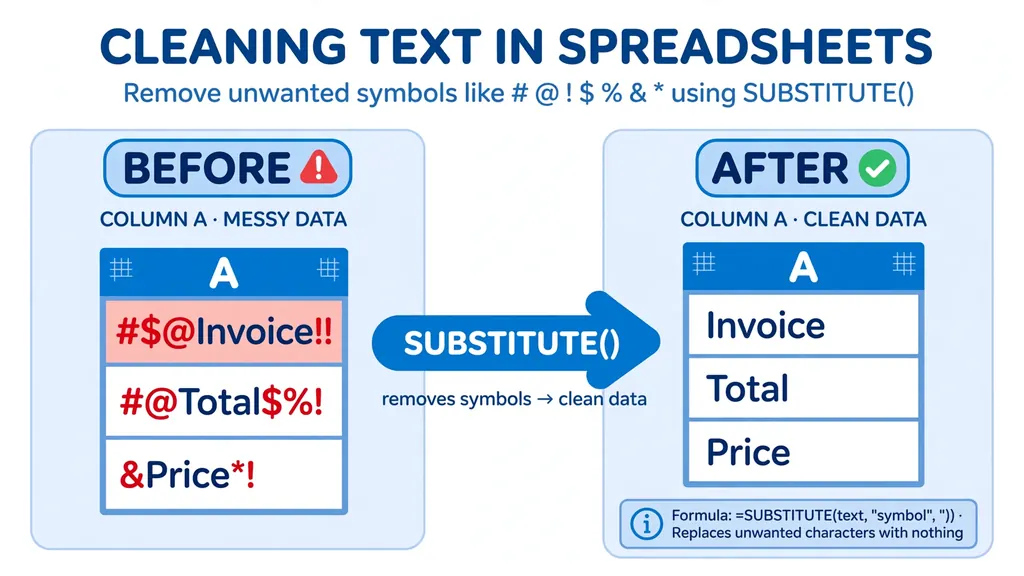
If you need to know how to remove special characters in Excel, you’ve probably just opened an export that looks like it survived a keyboard explosion: customer names with stray # symbols, product codes wrapped in ***, phone fields full of parentheses and dots, and currency columns mixing $, €, and ₹ at random. These symbols break sorting, sabotage VLOOKUP, and turn clean reports into visual noise.
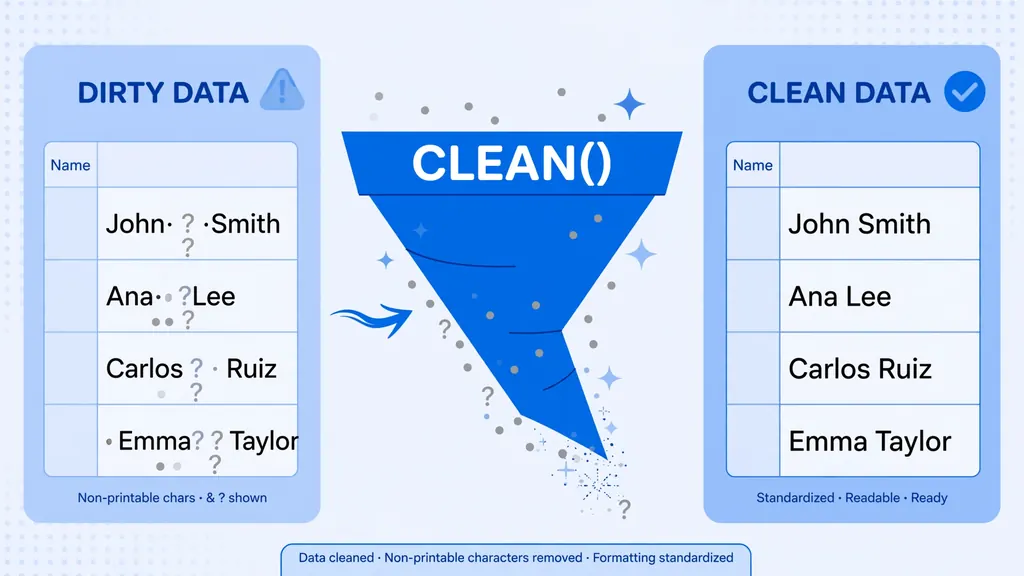
Special characters cause a special kind of frustration because they’re visible — unlike the invisible control characters we chase with CLEAN — yet removing them one by one is mind-numbing. A thousand-row vendor list with random @ and ! characters would take all afternoon by hand. With the right formulas, it takes one.
This guide covers five reliable ways to remove special characters in Excel: SUBSTITUTE chains (the classic Excel remove special characters formula), a reusable nested cleaner pattern, Flash Fill for pattern-based cleanup, Power Query’s bulk replace, and a selective approach that keeps the symbols you actually want. We’ll also show how stray symbols sabotage matching — and how to stop them at the source.
What counts as a “special character” in Excel
“Special character” means different things in different messes. For data cleaning, it usually means any character that isn’t a letter, digit, space, or the specific punctuation your field needs: the # @ ! $ % ^ & * ( ) _ + = { } [ ] | \ : ; " ' < > , . ? / ~ ` crowd, plus currency symbols, bullets (•), arrows (→), and emoji that snuck in from web forms. Some are harmless decoration; others are actively destructive — # can confuse CSV parsers, " breaks quoted fields, and @ in the wrong place derails email validation.
The right removal strategy depends on the goal. Stripping everything non-alphanumeric is easy but destroys legitimate punctuation like hyphens in phone numbers and apostrophes in names (O’Brien becomes OBrien — nobody wants that). The professional approach is almost always selective: define which characters each column is allowed to contain, and remove the rest. That selectiveness is what Methods 2 and 5 are about.
Method 1: SUBSTITUTE chains — the Excel remove special characters formula
The Excel SUBSTITUTE function replaces every occurrence of one text string with another: =SUBSTITUTE(text, old_text, new_text). To remove a character, substitute it with an empty string "". To remove several characters, nest the calls — each SUBSTITUTE cleans up after the previous one:
=SUBSTITUTE(SUBSTITUTE(SUBSTITUTE(A2,"#",""),"@",""),"!","")
This is the canonical Excel remove special characters formula: it strips #, @, and ! from A2 in one pass. Add more nestings for more characters. The standard workflow:
- Survey the junk: scan the column (or use a quick pivot) to list which symbols actually appear. Don’t guess — target what’s there.
- Build the chain in a helper column, nesting one SUBSTITUTE per symbol.
- Fill down, then copy and Paste Special > Values over the originals.
Nesting gets unwieldy past six or seven symbols, which is why Method 2 exists. But for a quick, targeted cleanup — say, stripping $ and commas from a currency column before converting to numbers — a short chain is the fastest tool in the box. For the invisible half of the junk drawer (tabs, line breaks, control codes), pair it with our guide to the Excel CLEAN function.
Method 2: A reusable nested cleaner pattern
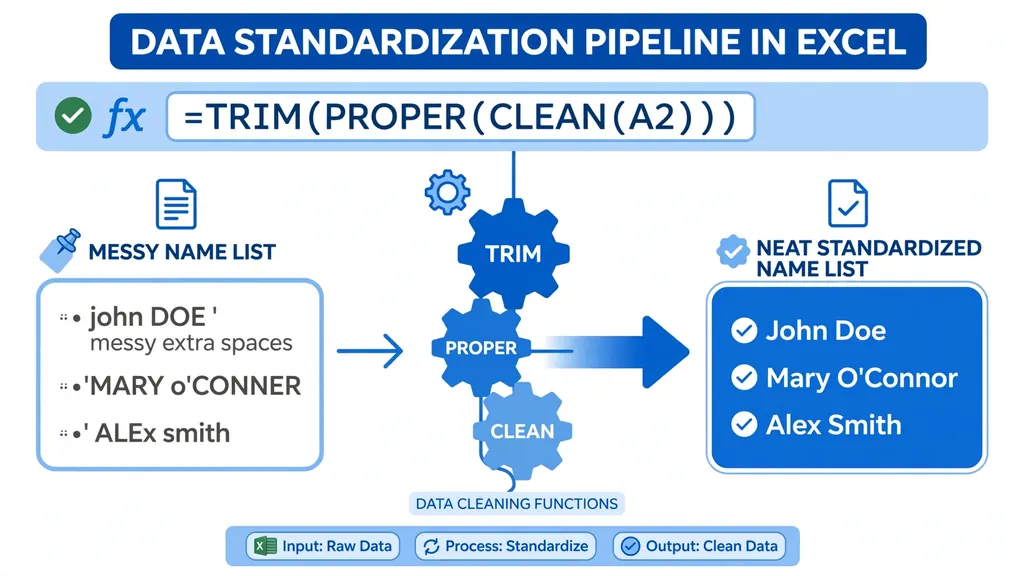
When the symbol list is long, a different structure keeps the formula readable: strip characters in layers, from most to least common, and finish with TRIM to collapse the gaps. Here’s a production-style pattern for cleaning product codes that should contain only letters, digits, and hyphens:
=TRIM(SUBSTITUTE(SUBSTITUTE(SUBSTITUTE(SUBSTITUTE(A2,"#",""),"@",""),"$",""),"_","-"))
Notice the last substitution converts underscores to hyphens rather than deleting them — normalizing rather than just erasing. That’s the mindset shift from removal to standardization: decide what each column should look like, then transform toward it. Our guide on how to standardize data in Excel builds this idea into a full workflow.
In Microsoft 365, you can go further with REDUCE and TEXTSPLIT for a true “allowlist” cleaner that keeps only permitted characters — but for most teams, a well-built SUBSTITUTE chain plus TRIM handles 95% of cases with formulas everyone on the team can read. Readability matters: the person maintaining your spreadsheet in six months will thank you for the boring, obvious formula.
Method 3: Flash Fill for pattern-based cleanup
When the junk follows a pattern but varies too much for a fixed chain — order numbers like ORD#4521!, ORD@4522$, ORD-4523 — Flash Fill (Ctrl+E) can learn the transformation from examples. Type the cleaned result for the first two or three rows (“ORD4521”, “ORD4522”, “ORD4523”), select the next empty cell, and press Ctrl+E. Excel detects the pattern and fills the rest.
Flash Fill is brilliant for one-off cleanups of a few hundred rows, and it needs no formulas. Its limits: it’s a one-time transformation (new rows don’t auto-clean), it occasionally misreads ambiguous patterns (always spot-check), and it struggles with wildly inconsistent junk. For anything recurring or over a few thousand rows, prefer formulas or Power Query.
Method 4: Power Query replace for #@!$% junk
For recurring files, Power Query’s Replace Values beats formula chains on both speed and maintainability. Load via Data > From Text/CSV, then select the column and use Transform > Replace Values once per symbol — each step is recorded separately in the Applied Steps pane, so the “formula” reads as a clean list instead of a nested monster.
- Load the data with Data > From Text/CSV and click Transform Data.
- Select the messy column, then Transform > Replace Values: enter the symbol in “Value To Find”, leave “Replace With” empty.
- Repeat for each symbol. Each becomes its own named step.
- Add a Trim step (Transform > Format > Trim) at the end.
- Close & Load. Next week’s file cleans itself.
Power Query also handles the “remove everything except” case elegantly: add a custom column with Text.Select([Column1], {"a".."z","A".."Z","0".."9"," ","-"}) to keep only letters, digits, spaces, and hyphens. That’s the allowlist approach in one line of M code — far cleaner than a twenty-deep SUBSTITUTE nest.
Method 5: Keep the good symbols, remove the bad ones
Blanket removal is a blunt instrument. A name column needs apostrophes (O’Brien) and hyphens (Smith-Jones); an email column needs @ and dots; a phone column needs +, spaces, and hyphens. The selective approach: clean in two passes.
- Pass 1 — normalize: convert variant symbols to the canonical one.
=SUBSTITUTE(SUBSTITUTE(A2,"_","-"),"–","-")turns underscores and en-dashes into plain hyphens. - Pass 2 — remove the true junk: strip only symbols that are never legitimate in that column.
Write the allowed-characters rule as a comment in the header row or a documentation sheet — “Phone: digits, +, spaces, hyphens, parentheses only” — so the next person knows the policy. This is standardization thinking applied to symbols, and it’s what separates a one-time cleanup from lasting data quality.
Stray symbols that break matching and lookups
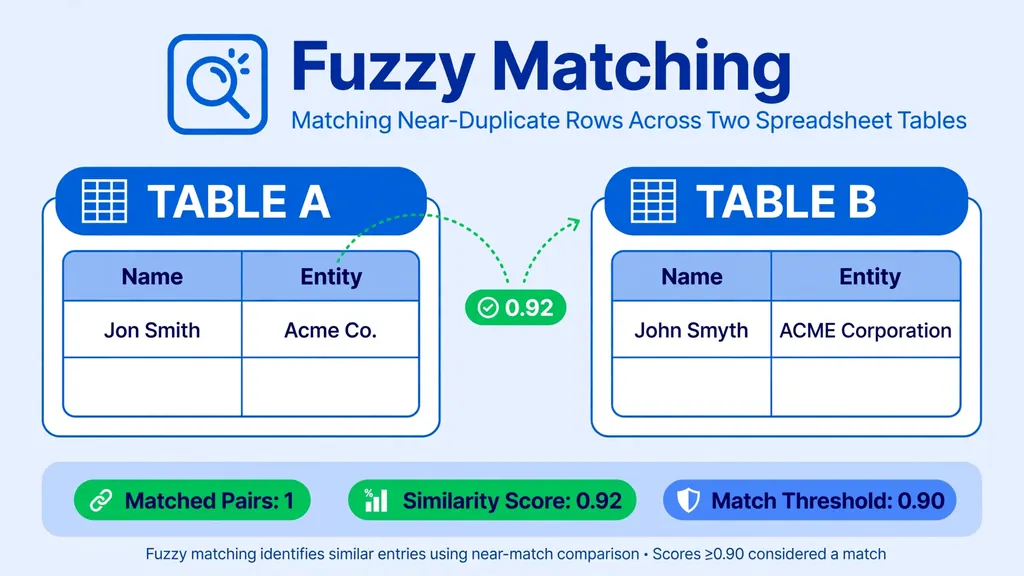
Symbols don’t just look bad — they silently break joins. “Acme Corp.” vs “Acme Corp” vs “#Acme Corp#” are three different strings to VLOOKUP, XLOOKUP, and every join algorithm. If you’re merging two lists and matches are mysteriously missing, normalize symbols on both sides before matching: same SUBSTITUTE chain, same TRIM, both tables.
For near-duplicates that differ by more than symbols — “Acme Corporation” vs “ACME Corp.” — exact matching can’t help at all, and that’s where fuzzy techniques take over. Our guide to Excel fuzzy lookup covers matching similar-but-not-identical text with Microsoft’s free add-in.
Preventing symbol soup at the source
Every symbol you scrub by hand is a process failure upstream. The durable fixes:
- Validate at entry: use Data > Data Validation to restrict what can be typed — dropdown lists for categories, custom formulas rejecting
#@!$%in name fields. - Fix the export: if a vendor’s CSV arrives full of decorative symbols, ask for a clean feed. One email beats a weekly scrub.
- Standardize web forms: strip or reject special characters in the form itself, not in Excel after the fact. The Unicode standard defines thousands of lookalike characters — catching them at entry is far easier than cleaning them later.
- Document the allowed set per column so everyone entering or exporting data follows the same rules.

Troubleshooting
My SUBSTITUTE chain removed letters I wanted to keep
You substituted too broadly — e.g. removing “.” also hit decimal points or email dots. Scope each chain to the column’s allowed set (Method 5), and test on a copy first.
Symbols reappear after refresh
The source regenerates them. Move the cleanup into Power Query (Method 4) so it replays on every refresh.
After removing symbols, numbers still won’t calculate
The cells are likely still stored as text — removing symbols doesn’t change the data type. Follow up with Paste Special > Multiply by 1 or the green-triangle Convert to Number, as covered in our guide on converting text to numbers in Excel.

How to remove special characters in Excel with REDUCE (Microsoft 365)
Modern Excel offers a cleaner answer to how to remove special characters in Excel than nested SUBSTITUTE chains: REDUCE iterates over a list, applying each step to an accumulator. Define your junk characters once as an array, and REDUCE strips them all:
=REDUCE(A2,{"#","@","!","$","%","^","&","*"},LAMBDA(acc,char,SUBSTITUTE(acc,char,"")))
Reading it: start with A2, and for each character in the list, substitute it with nothing, carrying the result forward. Adding a new symbol means appending one array item — no re-nesting, no counting parentheses. It’s the most maintainable formula approach to remove special characters in Excel, and it reads almost like a sentence: “reduce this cell by removing each of these characters.”
For the inverse — an allowlist that keeps only permitted characters — combine REDUCE with a character test, or use Power Query’s Text.Select from Method 4. Allowlist thinking (“these characters may stay”) beats denylist thinking (“remove these”) whenever you can define what’s valid: it’s shorter, safer, and self-documenting. When you need to know how to remove special characters in Excel at scale, the allowlist is the professional grade.
Removing special characters from numbers and dates
Symbols in numeric fields need extra care, because the goal isn’t just clean text — it’s a calculable value. The pattern: strip, then coerce. For a price column mixing “$1,250”, “€999”, and “1 499,00”:
- Strip symbols:
=SUBSTITUTE(SUBSTITUTE(SUBSTITUTE(A2,"$",""),"€","")," ","")— remove currency symbols and spaces. (Add each symbol your data actually contains.) - Coerce: wrap in
--or VALUE:=--SUBSTITUTE(...). - Verify: the status bar must show Sum, and
=ISNUMBER()spot checks must return TRUE.
For dates with decorative junk (“**2026-01-15**”, “Date: 03/04/2026”), strip first, then parse with DATEVALUE or Text to Columns set to the right date order. Never convert a dirty date-text directly to a serial number — strip to a clean date string first, so what you parse is what you meant. Our text-to-numbers guide covers the coercion half in depth.
Special characters in CSV exports: quotes, delimiters, and encoding
Some “special characters” aren’t dirt — they’re CSV syntax. A comma inside a field (“Acme, Inc.”) must be wrapped in quotes; a literal quote inside a field must be doubled (“say “”hi”””). When Excel mangles these on import — splitting “Acme, Inc.” into two columns — the file’s quoting is broken, and no SUBSTITUTE chain fixes structural damage. The remedies, in order: re-export with proper quoting from the source system; import via Data > From Text/CSV (its parser handles quotes correctly); or convert with a parser that respects RFC 4180 quoting rules, like our free CSV to Excel converter.
Also watch encoding: symbols like €, £, and — (em dash) arriving as “€” or “£” are mojibake — an encoding mismatch, not dirty data. Stripping them destroys information; the fix is re-importing as UTF-8. Diagnose before you delete: if the “junk” follows a pattern (every € became €), it’s encoding. Random junk is dirt; systematic junk is a signal.
Cleaning emoji and Unicode symbols
Modern data brings modern junk: emoji in customer names (⭐ John ⭐), arrows (→), bullets (•), smart quotes (” “), and em dashes (—) from web forms, chat exports, and mobile apps. SUBSTITUTE handles each one if you can type it — copy the exact character from the cell into your formula: =SUBSTITUTE(A2,"⭐",""). For a batch, list the offenders in a column and use REDUCE to iterate: =REDUCE(A2, JunkList, LAMBDA(acc,c,SUBSTITUTE(acc,c,""))).
Smart quotes and dashes deserve normalization rather than removal: =SUBSTITUTE(SUBSTITUTE(SUBSTITUTE(A2,""","""),""","""),"—","-") converts curly quotes to straight and em dashes to hyphens — usually what you want for downstream systems that choke on Unicode punctuation. And a warning: some “symbols” are actually letters in disguise — the Turkish dotless ı, the German ß, accented characters. Never blanket-strip non-ASCII; normalize the punctuation, preserve the letters. When names span languages, as they do in data from India, the UK, Canada, and beyond, aggressive symbol removal mangles real names. Targeted beats total.
When formulas aren’t enough: regex and Power Query M
Excel’s worksheet functions can’t do pattern matching (“remove all punctuation”) — for that you need regex, available via Power Query’s M language or VBA. In Power Query, a custom column with Text.Select([Col], {"a".."z","A".."Z","0".."9"," ","-","'"}) is effectively a regex allowlist without regex syntax. True regex arrives via Text.Remove combinations or, in Microsoft 365’s latest builds, the new REGEXREPLACE worksheet function — =REGEXREPLACE(A2,"[^a-zA-Z0-9 ]","") strips everything but letters, digits, and spaces in one call.
If your Excel has REGEXREPLACE, it largely retires SUBSTITUTE chains for symbol removal — one pattern replaces twenty nestings. If not, Power Query’s Text.Select is the closest equivalent. Either way, keep the old chains in your toolkit: they’re the most portable solution across every Excel version your colleagues might open the file in.
Auditing symbols before you remove them
Before stripping anything, inventory what’s actually there — blind removal destroys data. A quick audit: copy the column to a scratch sheet, use Find & Replace to delete letters and digits (replace [a-zA-Z0-9 ] via Power Query’s Text.Select inverse, or sort a helper column of extracted symbols), and eyeball the unique symbol set. You’ll often find the “chaos” is just three symbols repeated — a 3-deep SUBSTITUTE chain, not a 20-deep one. Audit first, and the cleanup designs itself. Document the symbol policy per column alongside your other standards, so the next import gets the same treatment without re-auditing.
Frequently Asked Questions
What is the Excel formula to remove special characters?
Use nested SUBSTITUTE functions: =SUBSTITUTE(SUBSTITUTE(SUBSTITUTE(A2,”#”,””),”@”,””),”!”,””) removes #, @, and ! from A2. Add one nesting per character. For long lists, Power Query’s Replace Values or Text.Select allowlist is more maintainable.
How do I remove symbols from Excel cells without a formula?
Use Find & Replace (Ctrl+H): enter the symbol in “Find what”, leave “Replace with” empty, and Replace All. Repeat per symbol. For pattern-based cleanup, type two or three cleaned examples and press Ctrl+E for Flash Fill.
How does the Excel SUBSTITUTE function work?
SUBSTITUTE(text, old_text, new_text) replaces every occurrence of old_text with new_text. To delete characters, use “” as new_text: =SUBSTITUTE(A2,”$”,””) removes all dollar signs. An optional fourth argument targets only the nth occurrence.
Can I remove all special characters at once in Excel?
Yes — in Power Query, add a custom column with Text.Select([Column], {“a”..”z”,”A”..”Z”,”0″..”9″,” “}) to keep only letters, digits, and spaces. With formulas, nest SUBSTITUTE calls for each symbol, or in Microsoft 365 use REDUCE with a character list.
How do I keep hyphens and apostrophes but remove other symbols?
Use the selective two-pass approach: first normalize variants (underscores and en-dashes to hyphens), then strip only symbols that are never legitimate in that column. Never blanket-remove from name, email, or phone columns.
Why do special characters break VLOOKUP?
Because lookups compare exact strings: “Acme Corp.” with a period doesn’t equal “Acme Corp” without one. Normalize symbols identically on both lookup tables before matching — same SUBSTITUTE chain, same TRIM — so the strings actually match.