If you’ve ever wondered how to convert text to numbers in Excel, you’re in good company. It’s one of the most common spreadsheet headaches on the planet: you open a file, type =SUM(A2:A50), and Excel cheerfully reports zero — even though the column is full of numbers. Or your pivot table refuses to group, your chart plots nothing, and VLOOKUP acts like the values don’t exist. The culprit is almost always the same: numbers stored as text.
Excel is strict about data types. A cell can look like 1,250 but behave like the word “apple” if Excel thinks it’s text. Text doesn’t add, sort, or chart the way numbers do. This usually happens when data arrives from somewhere else — a CSV export from your accounting software, a download from a bank or CRM, a copy-paste from a web page — and Excel imports the digits as text strings instead of real values. It also happens when someone types an apostrophe before a number, or when a cell was formatted as Text before the data was entered.
In this guide you’ll learn exactly how to convert text to numbers in Excel with six methods that work in every modern version, from Excel 2016 to Microsoft 365 and Excel for the web. We’ll start with the fastest one-click fix, walk through the Excel VALUE function, Paste Special, Text to Columns, locale-proof formulas, and Power Query — then show you how to stop the problem from coming back. Whatever shape your data is in, one of these will get you real, calculable numbers.

Why your numbers are stored as text in Excel
Before fixing anything, it helps to know what you’re dealing with. When you open a CSV file — say, a sales export from Shopify or a bank statement — Excel guesses each column’s data type as it imports. If even one cell in a column contains something non-numeric (a currency symbol, a thousands separator your locale doesn’t expect, a stray space, or the word “N/A”), Excel may decide the whole column is text and import every value as a string. A free CSV to Excel converter that preserves data types can avoid this entirely, but if you’re already staring at a broken sheet, read on.
Other classic causes include a leading apostrophe (Excel’s “treat this as text” marker, invisible unless you look at the formula bar), cells pre-formatted as Text before entry, and copy-pasting from web pages or PDFs, which drags in invisible characters like non-breaking spaces. Numbers from systems in the US, UK, India, Canada, or Australia usually share the same period-decimal format, but imports from continental Europe — where 1.234,56 means one thousand two hundred thirty-four — routinely land as text on an English-locale machine.
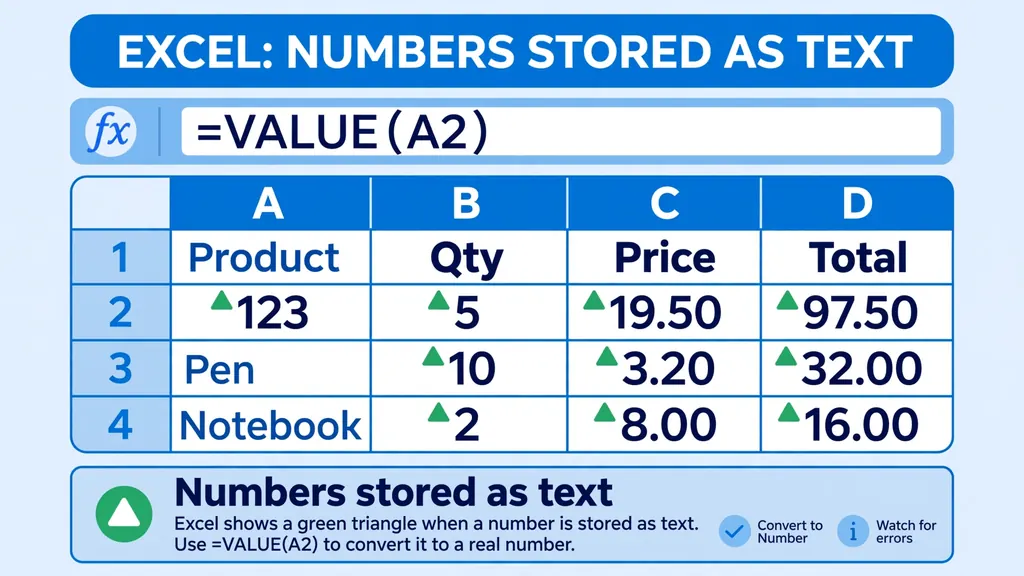
How do you confirm the diagnosis? Select a suspect cell and glance at the alignment: by default, text hugs the left edge and real numbers hug the right. More reliably, use =ISTEXT(A2) — TRUE means text — or check the status bar: select a column of real numbers and Excel shows Average, Count, and Sum at the bottom. If it only shows Count, you’ve got text. And of course, the green triangle in the cell’s top-left corner is Excel waving a flag that says “this number is stored as text.”

Method 1: Fix Excel text to number with the green-triangle menu
The fastest fix for a straightforward Excel text to number conversion is the one Excel itself suggests. When cells show the green triangle, select the whole range, click the yellow warning icon that appears, and choose Convert to Number. Done — the entire selection becomes real numbers in one click.
- Select the range containing the text-numbers (click the column header to grab the whole column).
- Click the warning icon (the yellow diamond with an exclamation mark) that appears next to the selection.
- Choose “Convert to Number” from the menu. Excel rewrites every cell as a genuine numeric value.
This works beautifully when the text is clean — plain digits, possibly with a decimal point. It fails silently when cells contain spaces, non-breaking spaces, or other invisible characters; those cells simply stay as text while their neighbors convert. If some cells don’t budge, don’t fight it — move to Method 2 or Method 3, which are more forgiving.
Method 2: Convert with the Excel VALUE function
The Excel VALUE function is the classic formula-based answer: it takes a text string that represents a number and returns the number. Its syntax is dead simple — =VALUE(A2) — and Microsoft’s documentation confirms it accepts any text in a number, date, or time format Excel recognizes.
In practice, you write the formula in a helper column next to your data, fill it down, then copy the results and Paste as Values back over the originals (or into their final home). A typical workflow:
- Add a helper column beside your text-numbers and enter
=VALUE(A2)in the first row. - Double-click the fill handle (the little square at the cell’s bottom-right corner) to fill the formula down.
- Copy the helper column, right-click the original range, and choose Paste Special > Values.
- Delete the helper column. Your data is now real numbers.
VALUE is picky about one thing: the text must look like a number to Excel. =VALUE("1,250") returns 1250, and =VALUE("4:30") returns the time’s serial value — but =VALUE("$1,250") actually works too (returning 1250), while =VALUE("1,250 USD") throws a #VALUE! error because of the trailing letters. If you’re hitting #VALUE!, the next methods handle dirtier text.

Method 3: Paste Special — multiply everything by 1
This is the old analyst’s trick and still one of the most reliable ways to convert text to numbers in Excel, because arithmetic forces Excel to reinterpret the text. Multiplying by 1 (or adding 0) coerces every text-number into a genuine number — and unlike VALUE, it doesn’t need a helper column.
- Type 1 in any empty cell and copy it (Ctrl+C).
- Select your text-numbers and press Ctrl+Alt+V to open Paste Special.
- Choose Multiply (under Operation) and click OK.
- Delete the 1 you typed earlier. Every cell is now a number.
The math-coercion idea also works inside formulas: =A2*1, =A2+0, or the double-negative =--A2 all convert text to numbers on the fly. These are handy when you want a formula column that stays live rather than a one-time conversion. One warning: cells containing truly non-numeric text (like “N/A” or blank-padded entries) will show #VALUE! after the multiply — which is actually useful, because it pinpoints the cells that need manual attention.
Method 4: The Text to Columns trick
Text to Columns is designed to split one column into several, but if you run it without splitting anything, it simply re-parses the column — and re-parsing converts text-numbers to numbers. It’s the best choice when an entire column needs converting and you don’t want helper columns or arithmetic.
- Select the column of text-numbers.
- Go to Data > Text to Columns. The wizard opens.
- Choose Delimited, click Next, uncheck all delimiters, click Next.
- Set the column data format to General (the default) and click Finish.
Excel rewrites the column in place as real numbers. A bonus of this method: the third wizard screen lets you set the format to Date if your “numbers” are actually dates stored as text — a two-birds situation that VALUE can’t handle. The catch is that Text to Columns works on one column at a time and rewrites in place, so make a backup copy of the sheet first if the data matters.
Method 5: NUMBERVALUE and math shortcuts for stubborn text
When your text-numbers come from a different locale — a German export with 1.234,56 formatting, or Indian statements mixing ₹ symbols — VALUE gives up. That’s where NUMBERVALUE shines: it converts text to numbers in a locale-independent way and lets you declare the decimal and group separators yourself, as documented in Microsoft’s NUMBERVALUE reference.
| Formula | What it handles | Example result |
|---|---|---|
=NUMBERVALUE(A2,",",".") |
European format 1.234,56 → 1234.56 | 1234.56 |
=NUMBERVALUE(A2) |
Uses your system’s locale separators | Varies by region |
=--SUBSTITUTE(A2,"$","") |
Strips a currency symbol, then coerces | 1250 |
=--TRIM(CLEAN(A2)) |
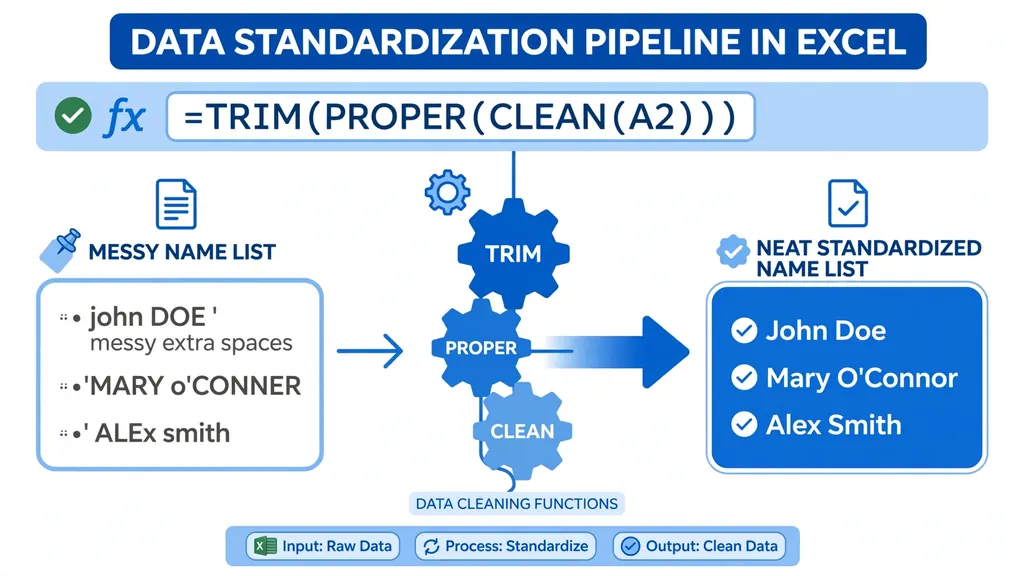
Removes spaces and invisible characters first | Clean number |
Notice the last two rows: the real power move is cleaning first, converting second. Wrapping your reference in TRIM (extra spaces) and CLEAN (invisible control characters) removes the junk that blocks conversion, and the double-negative coerces the result. If you deal with messy imports regularly, our guide to the Excel CLEAN function goes deep on stripping non-printable characters. This clean-then-convert pattern is also the backbone of standardizing data in Excel before any analysis.
Method 6: Set the column type in Power Query
If the same broken export lands in your inbox every week, stop fixing it by hand — fix the pipeline instead. Power Query (Data > From Text/CSV, or Data > Get Data) lets you declare each column’s type once, and every future refresh converts automatically.
- Load the file with Data > From Text/CSV instead of double-clicking it.
- Click Transform Data to open the Power Query Editor.
- Select the number column, then use Transform > Data Type > Decimal Number (or Whole Number).
- Handle errors: any cell that can’t convert shows “Error” — right-click to replace errors or remove them.
- Click Close & Load. The clean table lands in your workbook, and refreshing repeats the whole conversion.
Power Query also surfaces conversion problems visibly instead of silently: a column header showing “ABC123” (text) versus “1.2” (number) tells you the type at a glance. For recurring reports this is the professional answer — one setup, zero repeated effort.
Stop numbers stored as text from coming back
Converting once is satisfying; never converting again is better. Most numbers-stored-as-text problems are born at import time, so a small prevention routine pays off fast:
- Import, don’t double-click. Use Data > From Text/CSV and set column types in the preview — Excel’s import wizard is far smarter than its double-click guesser. Plain CSV files carry no type information, so the importer is your only chance to get types right.
- Format cells as General (not Text) before pasting data in.
- Strip the apostrophes. If a source system prefixes values with
', a quick Find & Replace of'with nothing (or the Paste Special multiply trick) clears them. - Standardize your sources. Ask whoever sends the exports for consistent formatting — no currency symbols in amount columns, one decimal style, no merged “N/A” placeholders.
- Convert at the source. If you publish files for others, run them through a converter that writes real Excel types. Our free CSV to Excel converter runs entirely in your browser and produces .xlsx files with proper numeric types.

Troubleshooting: when Excel still won’t convert
Sometimes a column resists every method above. In our experience, one of these is always the culprit:
Invisible characters
Non-breaking spaces (CHAR(160)) from web pages defeat TRIM, and control characters from mainframe exports defeat VALUE. Try =--SUBSTITUTE(A2,CHAR(160)," ") for the spaces, and =CLEAN(A2) for control characters. If a cell looks empty but =LEN(A2) returns more than 0, invisible junk is present.
Currency symbols and letters mixed in
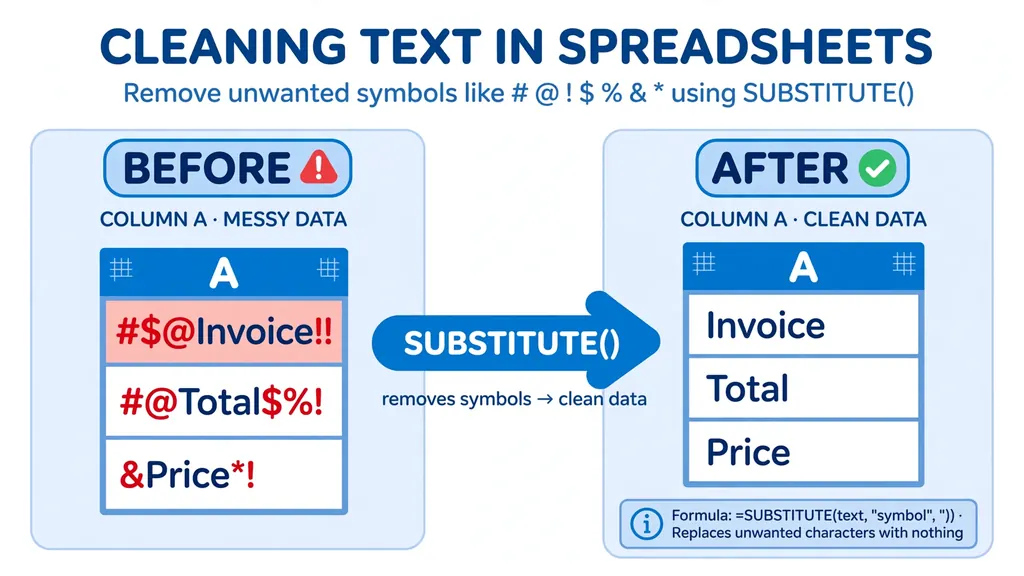
$1,250 converts fine, but 1,250 USD or Rs. 1,250 won’t. Strip the letters with SUBSTITUTE chains first — our guide on removing special characters in Excel covers this — then convert.
Dates pretending to be numbers
If your “numbers” are actually dates like 03/15/2026 stored as text, don’t convert them to numbers — convert them to dates with Text to Columns (set format to Date) or =DATEVALUE(A2). Converting a date-text to a serial number and leaving it is how people end up with 45789 where March should be.
Locale mismatch
On a US/UK machine, 1.234,56 is text; on a German machine it’s a number. NUMBERVALUE with explicit separators is the fix, or change the import’s locale in the Text Import Wizard. Teams across the US, India, and Europe hit this constantly when sharing files — agree on one decimal style per report.
How to convert text to numbers in Excel: choosing the right method
With six methods on the table, the real question about how to convert text to numbers in Excel becomes: which one fits your situation? The answer depends on three things — how dirty the data is, whether this is a one-time fix or a recurring file, and how comfortable you are with formulas versus clicks.
| Method | Best when | Speed | Handles dirty text? |
|---|---|---|---|
| Green-triangle Convert to Number | Clean text-numbers, quick fix | Seconds | No |
| VALUE function | You need a formula column | Minutes | Partially |
| Paste Special multiply by 1 | Whole columns, one-time | Seconds | Partially |
| Text to Columns | One column, in-place, no helpers | A minute | Partially |
| NUMBERVALUE / clean-then-convert | Locale issues, symbols, spaces | Minutes | Yes |
| Power Query column types | Recurring reports | Setup once | Yes, visibly |
Our default recommendation: for a one-off file, try the green-triangle fix first, fall back to Paste Special multiply if some cells resist, and reach for the clean-then-convert formulas when you see #VALUE! errors. For anything that arrives weekly or monthly, invest the ten minutes in Power Query — future-you will be grateful every single refresh. And whatever method you pick, verify with the status bar: select the converted column and confirm Excel shows Average and Sum, not just Count.
Converting across multiple sheets at once
When the same text-number problem spans several sheets, group them first: hold Ctrl and click multiple sheet tabs, then run Paste Special > Multiply or Text to Columns once — the operation applies to the same range on every grouped sheet. Ungroup immediately afterward (right-click a tab > Ungroup Sheets) to avoid accidental edits. For workbooks with dozens of sheets, a Power Query “From Folder” consolidation that converts types once beats sheet-by-sheet fixes entirely.
Watch out: text that looks like numbers but means something else
One more trap when you convert text to numbers in Excel: not every numeric-looking string should become a number. ZIP codes (“02139” — the leading zero matters), phone numbers, product SKUs, and credit-card numbers are identifiers, not quantities. Converting “02139” to the number 2139 corrupts it permanently. Before bulk-converting a column, ask: will anyone ever do math on this? If the answer is no, format it as Text deliberately and leave it alone. Conversion is for values you’ll sum, average, or chart — identifiers stay text, by design.
Frequently Asked Questions
Why is my SUM returning 0 when the column has numbers?
Because the “numbers” are actually text. Excel’s SUM ignores text cells entirely, so a column of numbers stored as text sums to zero. Select the column and use the green-triangle “Convert to Number” option, or Paste Special > Multiply by 1, and SUM will start working.
How do I convert text to numbers in Excel without a formula?
Use the green-triangle error menu (select range > warning icon > Convert to Number), the Paste Special multiply-by-1 trick, or Data > Text to Columns with the General format. All three convert in place with no helper column.
What is the Excel VALUE function used for?
The Excel VALUE function converts a text string that represents a number, date, or time into a real numeric value. For example, =VALUE(“1250”) returns 1250. It’s the formula-based way to convert text to numbers in Excel, most useful inside larger formulas or helper columns.
Why does VALUE return a #VALUE! error?
VALUE fails when the text isn’t in a format Excel recognizes as a number — trailing letters (“1250 USD”), multiple decimal points, or invisible characters. Clean the text first with TRIM and CLEAN, strip symbols with SUBSTITUTE, then apply VALUE.
How do I convert text to numbers in Excel for a whole column at once?
Select the entire column and use Paste Special > Multiply by 1, or run Data > Text to Columns and finish with the General format. For recurring imports, set the column type in Power Query once and every refresh converts automatically.
Can I convert currency text like “$1,250” to a number?
Yes — VALUE handles a leading currency symbol fine (=VALUE(“$1,250”) returns 1250). For symbols it doesn’t recognize, or trailing text like “USD”, strip them first with =SUBSTITUTE(A2,”$”,””) and then coerce with — or VALUE.