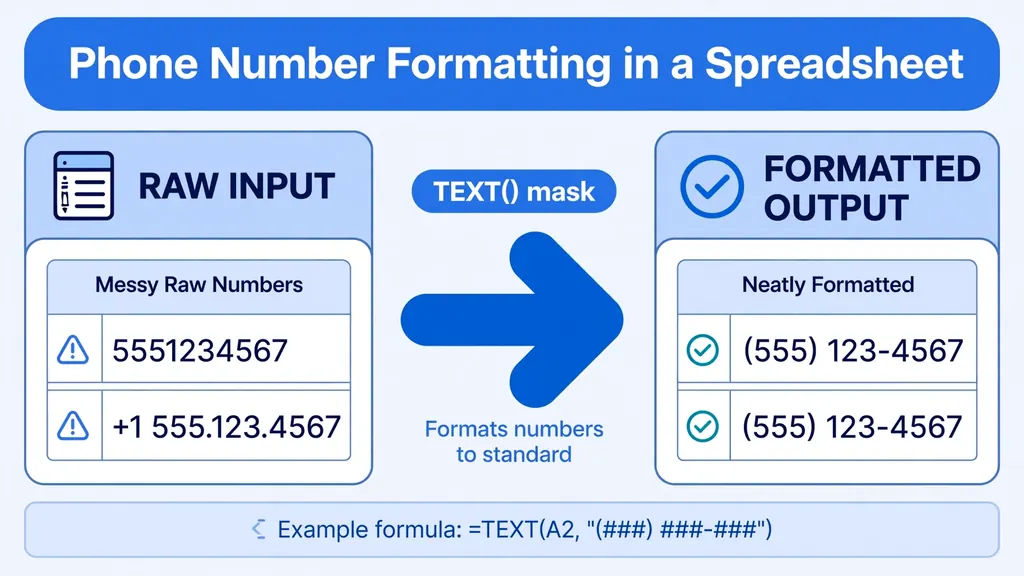
Phone numbers are deceptively hostile data. They look like numbers but behave like text: leading zeros vanish (“020 7946 0018” becomes 2079460018), plus signs confuse Excel, and every source formats them differently — dots in one export, dashes in another, spaces in a third, country codes present or absent at random. If you’ve ever wondered how to format phone numbers in Excel without losing digits or breaking exports, this guide is for you.
The core insight: a phone number is an identifier, not a quantity. You’ll never add two phone numbers together, so Excel’s math-friendly number type is the wrong tool — what you want is text storage with standardized display. Get that separation right (store digits, display masks) and every downstream use — dialing, SMS exports, CRM imports, mail merges — just works.
In this guide you’ll learn how to format phone numbers in Excel four ways: custom number-format masks (display without touching values), the TEXT function for formula-generated formatting, Flash Fill for pattern cleanup, and Power Query for recurring files. We’ll cover US and international formats, the leading-zero trap, validation, and how to strip the symbol soup that imports bring along.
Why phone numbers break in Excel
Four traps, all common:
- Leading zeros vanish. Excel sees 02079460018 as a number and drops the zero. UK, Indian (mobile numbers starting with 0), and many European numbers are corrupted on import. The fix is storing as text — but then formatting needs formulas, not number formats.
- The plus sign. “+1 5551234567” typed into a General cell is treated as text (good) but inconsistently (bad) — and CSV parsers sometimes mangle it.
- Mixed separators. Dots, dashes, spaces, parentheses, and “ext.” notations vary by source, breaking dedupe and matching (“555.123.4567” ≠ “(555) 123-4567” to Excel).
- Length lies. A 10-digit US number under the North American Numbering Plan and a 10-digit Indian mobile number are different beasts — format rules must be per-country, not universal.
The professional policy: store canonical digits as text, display with masks, validate length per country. Everything below implements that policy.
Method 1: Custom number-format masks
When your numbers are pure digits stored as numbers (US-style, no leading zeros), custom number formats are the cleanest way to get an Excel phone number format: the display changes, the value stays numeric and sortable.
- Select the phone column and press Ctrl+1 to open Format Cells.
- Go to Custom and enter a mask in the Type box.
- Click OK — 5551234567 now displays as (555) 123-4567.
Useful masks:
| Mask | Displays 5551234567 as | Notes |
|---|---|---|
(###) ###-#### |
(555) 123-4567 | Classic US format |
###-###-#### |
555-123-4567 | Excel phone number dashes variant |
###.###.#### |
555.123.4567 | Dot style |
+1 (###) ###-#### |
+1 (555) 123-4567 | With country code baked in |
Remember the golden rule: formats don’t export to CSV — only raw values do. If a downstream system needs the dashes as literal characters, generate them with the TEXT function (Method 2) in an export column instead of relying on display formatting.
Method 2: The TEXT function — format phone numbers with a formula
To format phone numbers in Excel with a formula — producing actual text like “(555) 123-4567” that survives CSV export — use TEXT:
=TEXT(A2,"(###) ###-####")
TEXT converts the value to text using the mask, so the result is literal characters: dashes, parentheses, and all. Variants for common needs:
- Dashes only:
=TEXT(A2,"###-###-####")→ 555-123-4567 - International with country code in another column:
="+"&B2&" "&TEXT(A2,"### ### ####") - From messy text: first strip non-digits —
=TEXT(--TEXTJOIN("",1,IFERROR(MID(A2,ROW(INDIRECT("1:"&LEN(A2))),1)*1,"")),"(###) ###-####")in Microsoft 365 extracts digits then masks (or clean with the strip-first recipe below, then apply TEXT).
The TEXT approach is the right one for export columns, mail merges, and SMS lists — anywhere the formatted characters must exist in the data, not just on screen. Google Sheets’ TEXT documentation covers the same mask syntax if you work cross-platform.

Method 3: Flash Fill for quick pattern cleanup
When a column mixes formats — some “(555) 123-4567”, some “555.123.4567”, some “5551234567” — and you want them uniform, Flash Fill (Ctrl+E) is the fastest one-off fix. Type the desired format for two or three rows, press Ctrl+E in the next cell, and Excel generalizes the pattern across the column.
Flash Fill shines on a few hundred rows of moderately consistent mess. Always spot-check the results (it can misread ambiguous patterns), and for anything recurring, graduate to TEXT formulas or Power Query.
Method 4: Power Query for recurring files
For the weekly lead list that always arrives messy, build the cleanup once in Power Query: load with Data > From Text/CSV, add a custom column that strips non-digits with Text.Select([Phone], {"0".."9"}), then format. Power Query can’t apply Excel-style display masks directly, but it can build the formatted text:
"(" & Text.Start([Digits],3) & ") " & Text.Middle([Digits],3,3) & "-" & Text.End([Digits],4)
Set the column type to Text (never Whole Number — leading zeros!), Close & Load, and every refresh repeats the full cleanup. For international lists, branch the formatting by country-code column with a conditional column.
Strip the symbol soup first
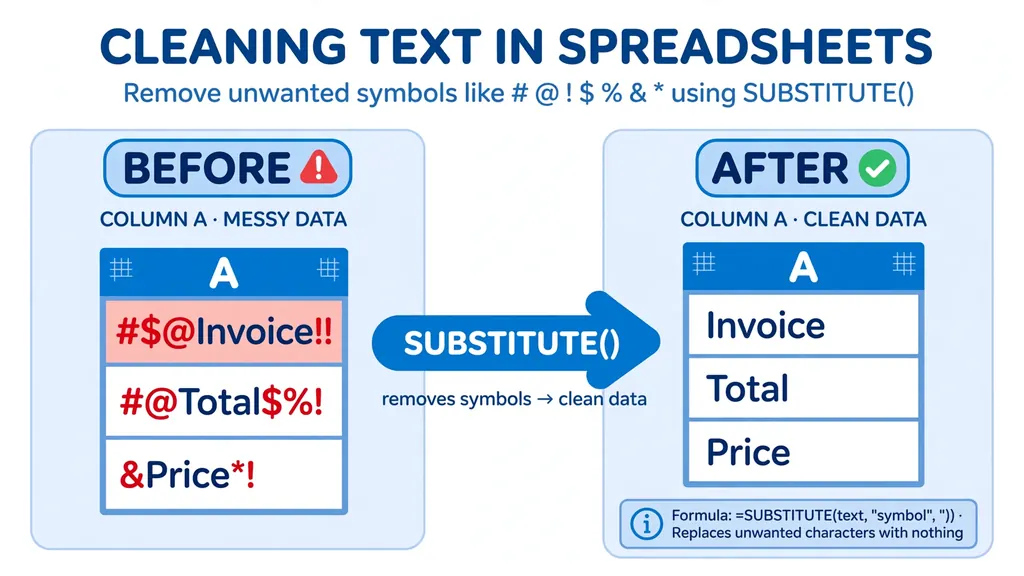
Before any mask or TEXT formula works, the cell must contain only digits (plus a leading + if you keep country codes). Imports arrive with parentheses, dots, spaces, “ext”, and worse. The strip-first recipe:
- Remove common separators with a SUBSTITUTE chain:
=SUBSTITUTE(SUBSTITUTE(SUBSTITUTE(SUBSTITUTE(A2,"(",""),")",""),"-","")," ",""), adding “.” and “/” as needed. - Handle extensions: cut at “x” or “ext” —
=LEFT(B2,FIND("x",B2&"x")-1)drops “x123” suffixes safely. - Apply your mask or TEXT formula to the clean digits.
For the broader symbol-removal toolkit, see our guide on removing special characters in Excel.
International numbers: country codes and E.164
For lists spanning countries, adopt E.164 — the international standard: + followed by country code and national number, no spaces or dashes (+15551234567, +442079460018, +919876543210). Store E.164 as text in one column; generate pretty display formats per country in others.
| Country | Digits | Display example |
|---|---|---|
| US/Canada (+1) | 10 | (555) 123-4567 |
| UK (+44) | 10 after code | 020 7946 0018 |
| India (+91) | 10 | 98765 43210 |
| Australia (+61) | 9 after code | 0412 345 678 |
Keep a country-code column separate from the national number — concatenating at export time (="+"&B2&C2) beats parsing a combined field apart later. And validate: E.164 numbers max out at 15 digits, a cheap sanity check that catches most corruption.
Beyond phones: standardize the whole contact record
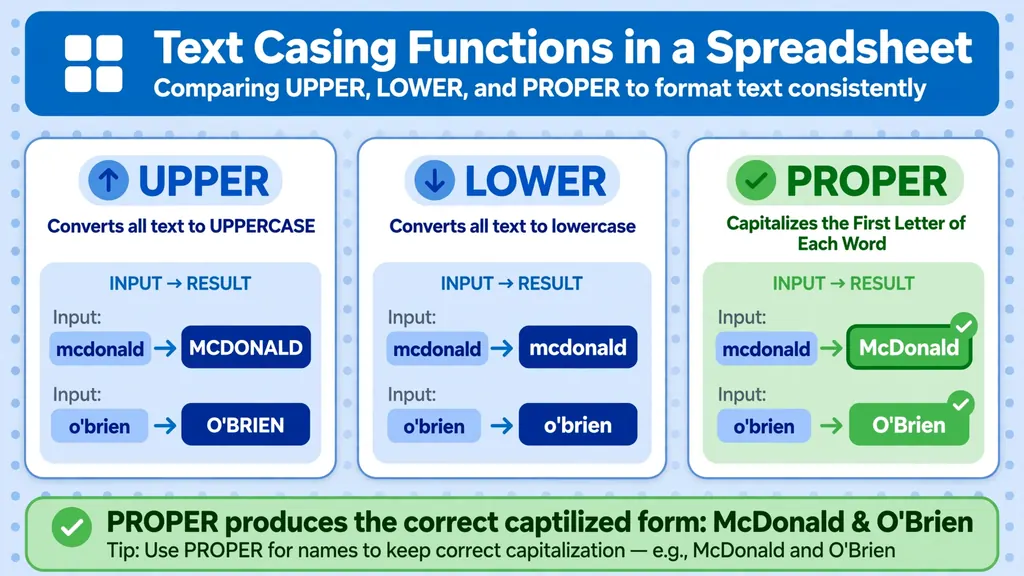
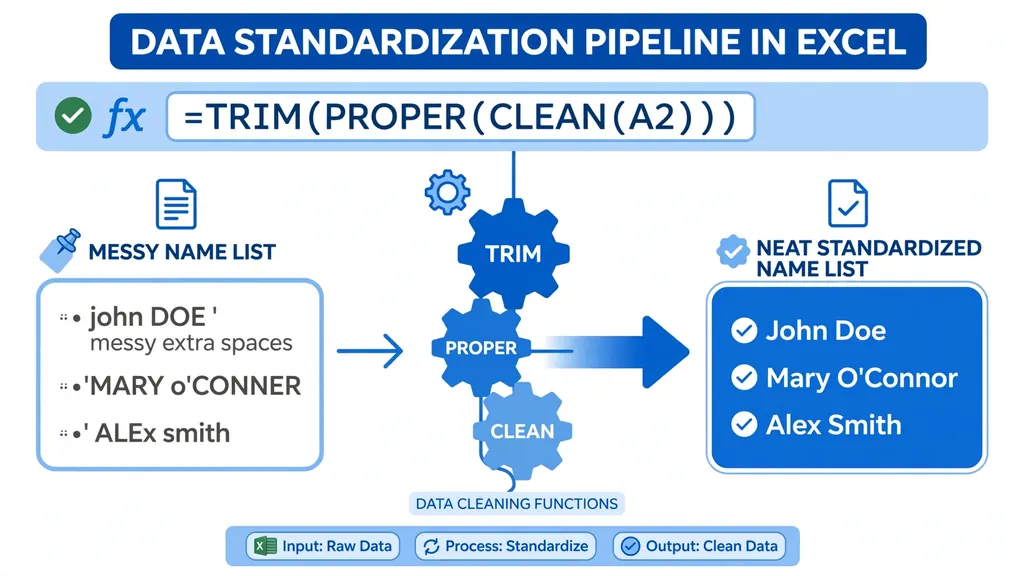
Phone formatting lives inside contact-data quality. While you’re at it: normalize name casing (PROPER for display, UPPER for matching keys), lowercase emails, and apply the TRIM + CLEAN stack to address fields. Our PROPER function guide handles the name-casing edge cases, and standardizing data in Excel covers the full-record workflow. A contact list with clean phones but “JOHN DOE” / “john doe” / “John Doe” names still won’t dedupe.
Validating phone fields
Add these checks to your data cleaning checklist for any phone column:
- Length check:
=LEN(A2)=10(per country) flags truncated or padded numbers. - Digits-only check: after stripping, no letters should remain.
- Leading-zero audit: for countries with significant leading zeros, verify the first digit survived import.
- Data Validation on entry: Data > Data Validation > Custom with
=AND(ISNUMBER(A2),LEN(A2)=10)(or a text-length rule for text-stored numbers) stops bad phones at the keyboard.

Troubleshooting
My mask shows ########## instead of the number
The column is too narrow — widen it. If it shows the mask literally, the cell is formatted as Text; convert to General/Number first, then apply the mask.
Leading zeros disappeared on import
They’re gone from the values — re-import with the column set to Text (Data > From Text/CSV > Transform > set type to Text), or recover from the source. Then store as text permanently.
TEXT formula returns the mask instead of digits
The source cell contains text, not a number. Wrap it: =TEXT(--A2,"(###) ###-####") coerces first. If — errors, strip non-digits first.
CSV export lost my formatting
Expected — CSV stores values, not formats. Generate an export column with TEXT() producing literal “(555) 123-4567” text, and export that.
How to format phone numbers in Excel for bulk SMS and dialing
Marketing and sales teams often need phone lists formatted for specific tools — and each tool wants something different. Here’s how to format phone numbers in Excel for the three most common destinations:
- Bulk SMS gateways almost universally want E.164:
+15551234567, no spaces or dashes. Build it with="+"&B2&C2(country code + national digits), stored as text. - Auto-dialers typically want plain digits, sometimes with the country code, sometimes without — check the tool’s spec, then generate the exact variant in a dedicated export column. Never reformat your master column for one tool’s quirk.
- Mail merge / printed lists want the pretty human format:
=TEXT(A2,"(###) ###-####")for US numbers, or per-country display masks.
The pattern: one canonical stored form (E.164 text), plus per-destination export columns generated by formula. When the SMS vendor changes its required format, you edit one formula — not ten thousand cells.
Formatting phone numbers with area-code logic
Sometimes formatting depends on the number itself: US toll-free numbers (800, 888, 877…) might need a “Toll-free: ” prefix, or numbers from a specific area code route differently. A lookup-driven approach beats nested IFs:
=XLOOKUP(LEFT(A2,3), AreaCodes[Code], AreaCodes[Label], "") & " " & TEXT(A2,"(###) ###-####")
This prepends the area code’s label (from a small reference table) to the masked number. The same technique handles country-specific masks: look up the country, return its mask pattern, and apply it — a clean way to format international lists where one mask can’t fit all.
Phone number formats around the world
Phone conventions vary enormously, and getting them wrong signals carelessness to customers. Key formats analysts encounter:
| Country | National format | Excel approach |
|---|---|---|
| US / Canada | (555) 123-4567 | Mask (###) ###-#### on numeric values |
| UK | 020 7946 0018 | Store as text (leading zero!); mask 000 0000 0000 |
| India | 98765 43210 | 10 digits; mask 00000 00000; +91 for E.164 |
| Australia | 0412 345 678 | Store as text (leading zero); mask 0000 000 000 |
| Germany | 030 123456 | Variable length — store as text, minimal masking |
The UK/India/Australia rows share the critical lesson: leading zeros are data. Any workflow that converts these to numbers has already corrupted them — which is why the import-as-text discipline from the troubleshooting section matters more than any mask. When in doubt about a country’s format, store E.164 and format for display; you can always derive pretty from canonical, never the reverse.
Common phone-formatting mistakes
- Formatting the master column for one export: keep the canonical digits pristine; generate per-destination columns.
- Using number formats on text-stored numbers: masks only affect numeric values. Text-stored numbers need TEXT(), not Ctrl+1.
- Assuming 10 digits everywhere: validate length per country, not globally.
- Forgetting the “+” is text: “+1555…” forces text storage — good for E.164, but remember downstream tools must accept the plus.
Storing phone numbers: text vs number vs custom format
The storage decision drives everything else. Here’s the definitive breakdown:
| Storage | Pros | Cons | Use when |
|---|---|---|---|
| Text (“5551234567”) | Preserves leading zeros and +; exact digits | No number-format masks; needs TEXT() for display | International lists, UK/India/Australia numbers, E.164 |
| Number (5551234567) | Custom masks work; sorts numerically | Drops leading zeros; 15-digit precision limit | US-only lists with no leading zeros |
| Number + mask | Pretty display, calculable value | Format lost on CSV export | Internal reports viewed in Excel |
| Text + TEXT() export col | Exact digits AND pretty export | Extra column | Anything leaving Excel (CSV, SMS, merge) |
Our recommendation for mixed or international data: store as text, always. The minor inconvenience of TEXT() for display is nothing compared to silently losing leading zeros — corruption you might not notice until a campaign fails. For pure-US internal reporting, number + mask is fine and prettier. Either way, decide once per dataset and document it; a phone column that’s text in one sheet and numeric in another is a join failure waiting to happen.
Deduping phone lists: normalization before matching
Phone-based dedupe fails for the same reason name dedupe fails: format variance. “(555) 123-4567”, “555.123.4567”, “+1 5551234567”, and “5551234567” are one number in four costumes — Remove Duplicates sees four rows. The fix is a normalized key column: strip to digits, standardize the country code (add the default country code where missing, or strip all country codes for a national list), and dedupe on the key.
=IF(LEFT(digits,1)="+", digits, "+1"&digits) — normalize every number to E.164 with a default country code, then dedupe on that column. For international lists, inferring the country code is riskier; there, dedupe on digits-only and manually review the ambiguous ones. And remember the fuzzy lookup option for the truly messy cases — though for phones, exact matching on normalized digits beats fuzzy matching nearly every time. Phones are identifiers; identifiers deserve exactness.
Phone numbers and two-factor authentication lists
A growing use case: cleaning phone lists for 2FA/OTP delivery, where formatting errors mean undelivered codes and locked-out users. The requirements are strict — E.164 with no spaces, valid country codes, no landlines where mobile is required. Build the pipeline accordingly: strip to digits, validate country code against a reference table, drop numbers failing length checks into a review sheet, and export E.164 text. Test with a small batch before the full send; carriers reject malformed batches wholesale, and “most of them delivered” is a failure mode. For OTP lists, the validation section’s checks aren’t optional — they’re the whole job.
Migrating phone data between systems
CRM migrations are where phone formatting goes to die: System A stored “(555) 123-4567”, System B wants E.164, and the export-import round trip mangles both. The safe migration pattern: export raw, normalize to E.164 text in a staging workbook (strip, validate, country-code), verify counts and spot-check 100 rows, then import the canonical form and let System B format for display. Never migrate formatted display strings — they’re System A’s presentation, not your data. And keep the staging workbook: when the migration team asks “what happened to these 400 numbers?”, the review sheet has the answer.
Phone terminology glossary
E.164: the international standard — plus sign, country code, national number, max 15 digits. NANP: the North American Numbering Plan (US, Canada, Caribbean): 10-digit national numbers with area codes. National vs international format: national drops the country code (020 7946 0018); international keeps it (+44 20 7946 0018). Mask: a display pattern like (###) ###-####. Canonical form: the single stored representation everything derives from — make it E.164 text.
Frequently Asked Questions
How do I format phone numbers in Excel with dashes?
For display only: select the column, press Ctrl+1, go to Custom, and enter ###-###-#### — 5551234567 displays as 555-123-4567. For literal dashes that survive CSV export, use =TEXT(A2,”###-###-####”) in a helper column instead.
What is the Excel phone number format for US numbers?
The classic US Excel phone number format mask is (###) ###-####, which displays 5551234567 as (555) 123-4567. Apply it via Format Cells > Custom. It works on numeric values; for text-stored numbers use the TEXT function with the same mask.
How do I use the TEXT function to format phone numbers?
=TEXT(A2,”(###) ###-####”) converts the value in A2 to the text “(555) 123-4567”. Unlike number formats, the result contains literal formatting characters, so it survives CSV export, mail merge, and copy-paste into other systems.
How do I keep leading zeros in phone numbers in Excel?
Store the numbers as text: format the column as Text before entering data, or set the column type to Text during import (Data > From Text/CSV). If zeros were already dropped on import, re-import — formatting can’t restore lost digits.
How do I format international phone numbers in Excel?
Store E.164 format (+country code + number, no spaces) as text in one column, keep the country code separate, and generate per-country display formats with TEXT() or conditional formulas. Validate total length (max 15 digits per E.164).
Why do my phone numbers show as scientific notation?
Long digit strings in General format get converted to scientific notation (5.55E+09) and lose precision beyond 15 digits. Format the column as Text before entry or import to preserve every digit exactly.