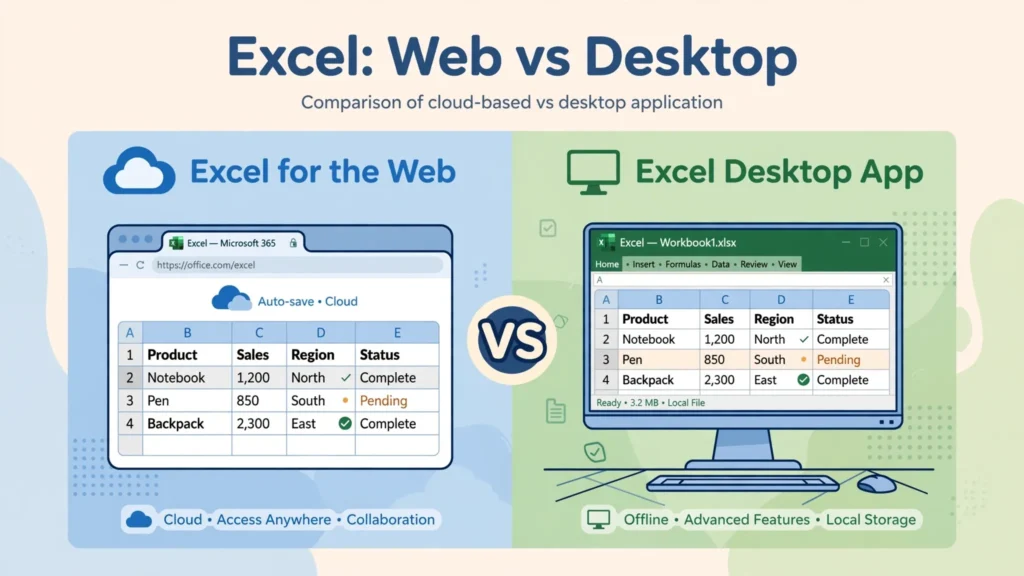
Microsoft gives you two Excels now — the free browser version (officially “Excel for the web,” still widely called Excel Online) and the full desktop app — and choosing between them isn’t obvious. This Excel Online vs Desktop comparison settles it feature by feature: where the desktop app’s power (VBA macros, Power Query, Power Pivot) justifies its cost, where the web version’s collaboration and anywhere-access win outright, how each handles CSV imports, and what the real Excel Online limitations are in 2026. By the end you’ll know exactly which to open for any given task — and why most experienced users end up using both.
A quick naming note before we dive in: Microsoft rebranded “Excel Online” to “Excel for the web” a while back, but the old name stuck in everyday speech — this guide uses both interchangeably, and search engines treat them as the same product. The Excel web vs desktop question below covers the Microsoft 365 desktop apps on Windows and Mac, the free web app at office.com, and how files flow between them via OneDrive — with concrete recommendations for students, freelancers, teams, and data-heavy roles.

Excel Online vs Desktop at a glance
Here’s the 60-second summary before the deep dive. Excel for the web is free, runs in any modern browser on any device (including Chromebooks, tablets, and library computers), autosaves everything to OneDrive, and lets multiple people edit the same workbook simultaneously with visible cursors. It covers the core 80%: entering data, formatting, common formulas, sorting, filtering, charts, and basic pivot tables.
The desktop app (Microsoft 365 or Office 2024) is the complete Excel: VBA macros, full Power Query, Power Pivot data models, the complete add-in ecosystem, advanced charting, and the horsepower to chew through hundred-thousand-row files without breaking a sweat. It works fully offline and gives you the granular import dialogs — Text/CSV with encoding and type control — that data work demands.
The mental model that serves most people: web for collaborating and quick edits, desktop for building and heavy lifting. A budget you maintain solo and share with a partner? Either works. A 200,000-row sales dump needing Power Query cleanup and a macro-driven report? Desktop, no contest. A shared project tracker five teammates update daily? The web version is genuinely better — that’s what it was built for.
Where the desktop app wins: power features
VBA and macros. The single biggest desktop exclusive. VBA (Visual Basic for Applications) automates anything: custom functions, report generation, data cleanup routines, integrations with other Office apps. The web version can run Office Scripts (the modern JavaScript-based automation) but cannot run classic VBA macros at all — and decades of business-critical spreadsheets depend on VBA. If your workflow includes a macro-enabled .xlsm file, desktop isn’t optional.
Power Query and Power Pivot. Desktop Excel’s Data › Get Data engine builds repeatable, refreshable data pipelines — import a CSV, clean it, merge it, load it — that rerun with one click. The web version can refresh existing queries but authoring complex ones needs desktop. Power Pivot (the in-memory data-modeling engine behind serious dashboards) is desktop-only, full stop.
Add-ins and advanced tooling. The desktop supports the full COM/VSTO add-in ecosystem — Solver’s advanced modes, Analysis ToolPak’s full suite, third-party analytics add-ins — while the web supports only modern Office Add-ins from the store. Niche but decisive for specialists: statisticians, quants, and engineers often live in desktop-only add-ins.
Everything offline and everything big. Desktop Excel doesn’t care about your internet connection or browser tab limits. It opens multi-hundred-megabyte workbooks, recalculates massive models locally, and prints with pixel-level control. The web version is improving yearly, but physics favors installed software for heavy files.
Where Excel for the web wins: collaboration and access
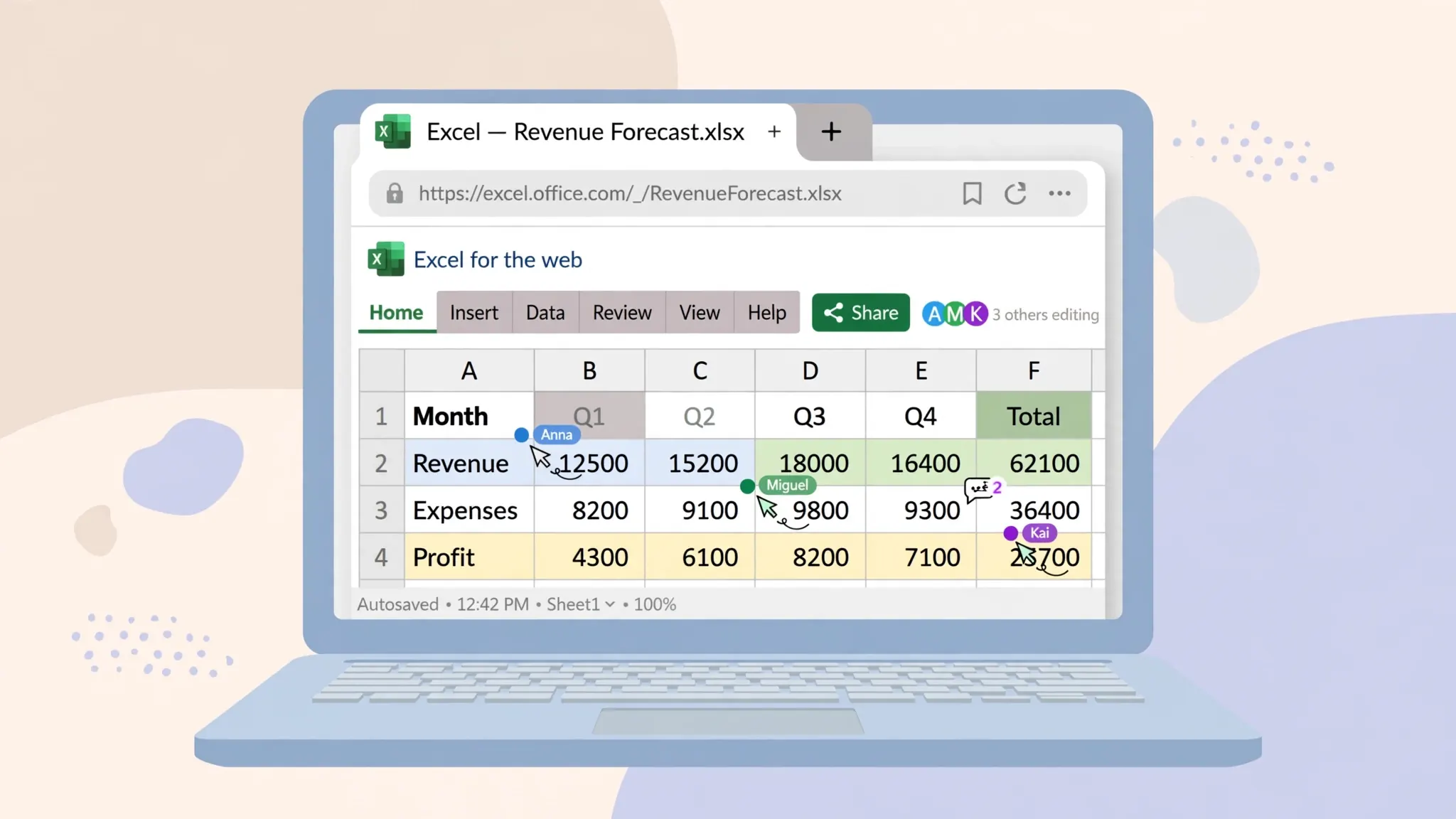
Real-time co-authoring. This is the web version’s killer feature and the reason whole teams switched. Multiple people editing one workbook simultaneously, each with a colored cursor and name flag, changes synced in seconds, built-in comments and @mentions, full version history with one-click restore. Desktop Excel can co-author files stored on OneDrive, but the web experience is smoother — it’s the native habitat.
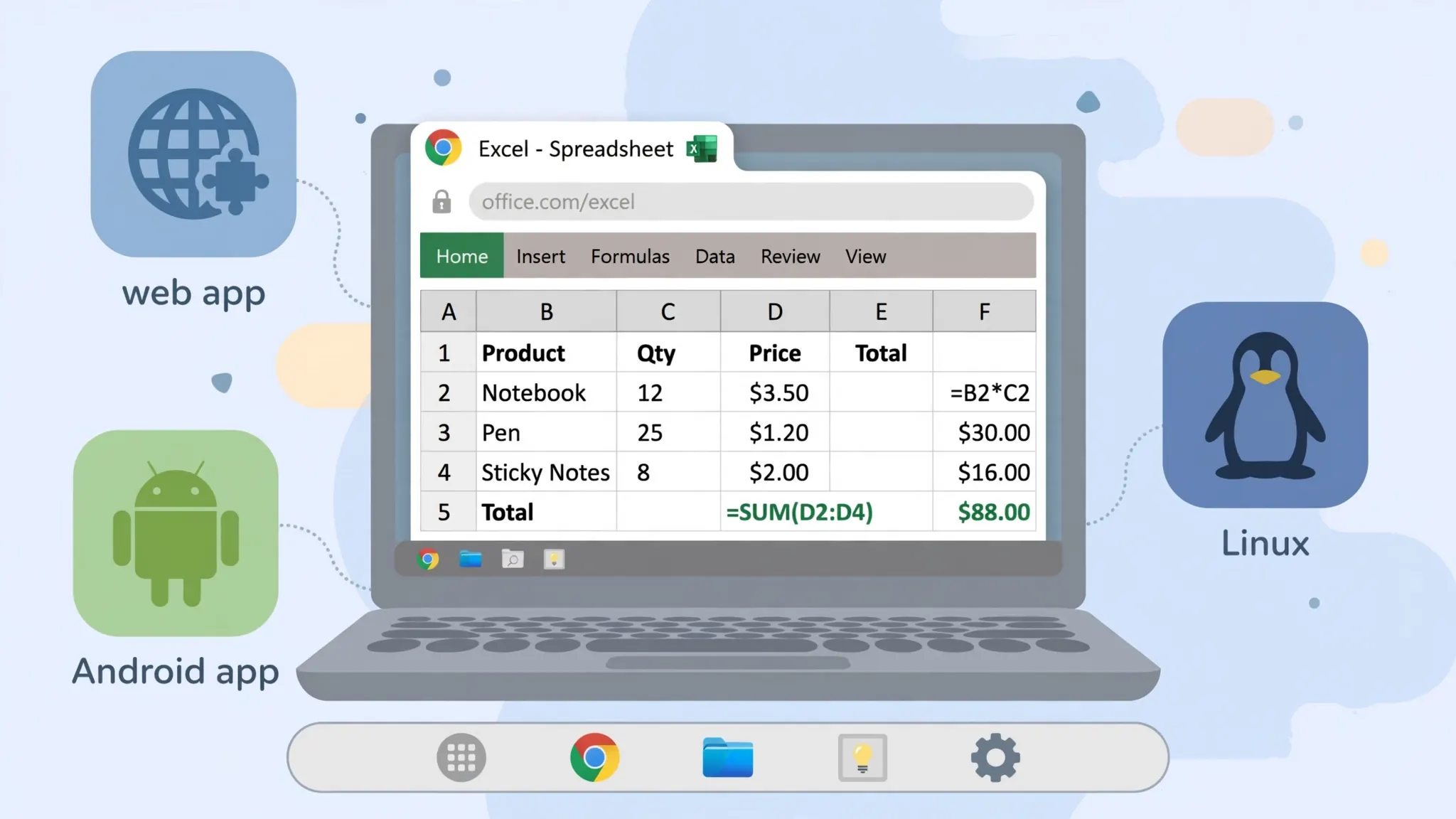
Zero install, any device. Borrowed laptop, Chromebook, iPad, library PC, a phone in a pinch — if it runs a modern browser, it runs Excel for the web. For students, freelancers hopping between machines, and anyone whose IT department locks down installs, this is freedom. Our Excel on Chromebook guide leans on exactly this: the web app is Excel on a Chromebook for most users.
Autosave and version history. Every keystroke saves to OneDrive automatically; the version history records who changed what and when, restorable in two clicks. No more “I forgot to save” disasters, no more budget_final_FINAL_v3.xlsx filename archaeology. Desktop Excel offers autosave too, but only for OneDrive/SharePoint files — the web version makes it the default state of existence.
Sharing without attachments. Share a link instead of emailing a file: view-only or edit links, expiry dates, password protection on business plans. Recipients always see the current version. Anyone who’s debugged a “which version is right?” email thread across the US, UK, and India time zones knows this alone justifies the web app.
CSV handling: Excel web vs desktop import compared
For this site’s core audience, the Excel web vs desktop CSV story matters. Desktop: Data › From Text/CSV opens the gold-standard import dialog — delimiter detection with manual override, file-origin (encoding) selector, per-column data-type assignment, and a live preview. It’s the tool that prevents mangled dates, stripped leading zeros, and mojibake. For messy real-world CSVs, nothing else comes close.
Web: opening a CSV in Excel for the web is quick — upload to OneDrive, open, and it renders — but import control is thinner: delimiter and encoding options are limited compared to desktop, and very large CSVs hit browser-side performance walls sooner. For a clean, UTF-8, comma-delimited file it works perfectly; for a semicolon-delimited European export with Latin-1 encoding, you’ll fight it.
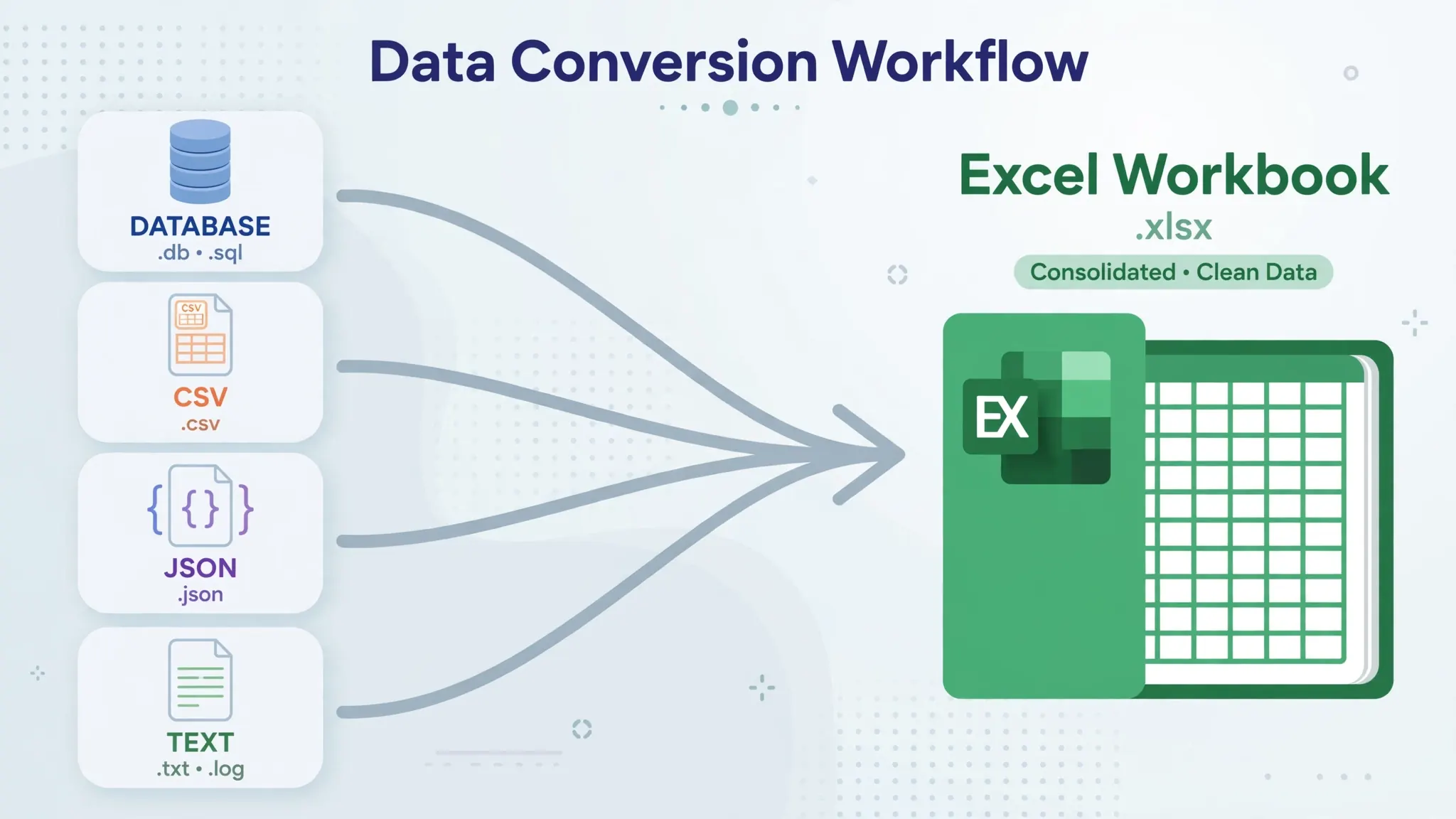
Practical advice: import tricky CSVs on desktop, then save to OneDrive — the cleaned workbook opens beautifully on the web afterward. And for one-off conversions where you don’t want the import dialog at all, our free browser converter turns CSV into XLSX in seconds, no Excel needed. For the deep dive on desktop import technique, see CSV to Excel in Microsoft 365.
Performance, file size, and offline access
Desktop Excel recalculates locally using your CPU and RAM — a modern laptop chews through hundreds of thousands of formula cells without complaint. The web version recalculates on Microsoft’s servers and streams the result to your browser; it’s impressively fast for normal files but shows strain on heavy models, array-heavy sheets, and files above ~50–100 MB. As a rule of thumb: under 10 MB and a few thousand rows, you won’t feel a difference; above that, desktop pulls ahead, increasingly so.
Offline access is binary: desktop works on a plane, in a basement, during an outage; the web version needs connectivity, full stop. (The mobile apps offer limited offline via synced files, covered in our iPad and Android guides.) If your work happens where Wi-Fi doesn’t — field sites, flights across the Atlantic, rural areas — desktop or mobile apps are the answer.
Printing and PDF export also favor desktop: full page-setup control, print titles, scaling finesse. The web version prints adequately for simple sheets but frustrates anyone producing client-facing reports. Small thing until it’s your deadline.
Cost and licensing: what you actually pay for
Excel for the web: free. A Microsoft account costs nothing, office.com costs nothing, and you get 5 GB of OneDrive storage. For students, casual users, and anyone whose spreadsheet needs are modest, the price-to-value ratio is unbeatable.
Desktop: Microsoft 365 subscription or one-time purchase. Microsoft 365 Personal/Family (roughly $70–$100/year in the US, with regional pricing varying across the UK, Canada, Australia, and India) bundles the desktop apps with 1 TB of OneDrive and continuous updates. Office 2024 Home & Business is a one-time purchase (higher upfront, no subscription, but frozen features — no new capabilities after purchase).
The honest economics: if you use VBA, Power Query authoring, or offline heavy files at all regularly, the subscription pays for itself in the first week you don’t fight a limitation. If you don’t, the free web version plus 5 GB is genuinely enough — don’t let anyone upsell you. And note the middle path: the mobile apps (iOS/Android) are free for viewing and light editing, surprisingly capable, and sync through the same OneDrive.
Excel Online vs Desktop for students, freelancers, and teams
The right choice depends heavily on who you are — the same feature gap matters enormously to one person and not at all to another.
Students. Start with the free web version, full stop. Coursework — lab reports, statistics assignments, group projects — lives comfortably inside Excel for the web’s capabilities, and the collaboration features are exactly what group work needs: everyone edits the same workbook, version history settles “who broke the formula” disputes, and nothing needs installing on a locked-down school laptop. Check whether your school provides Microsoft 365 Education (most do, free) — if so, install the desktop app too and enjoy both. Either way, save everything to OneDrive from day one; losing a term paper to a dead laptop is a preventable tragedy.
Freelancers and solo professionals. Your calculus is about clients, not colleagues. If clients send you workbooks to review and return, the web version handles 90% of it — and share-links beat email attachments for looking professional. But the moment you build models, clean messy CSV exports, or automate reports, desktop pays for itself. Many freelancers in the US, UK, Canada, and Australia settle on the Microsoft 365 Personal subscription as a business expense: the desktop power plus 1 TB of OneDrive (which doubles as client-file backup) is cheap insurance. If cash is tight, the honest starter kit is the free web app plus our browser-based CSV converter for the import jobs the web app fumbles.
Teams and businesses. This is rarely an either/or decision — it’s a licensing and workflow design question. Standardize on OneDrive/SharePoint storage so files are reachable from both versions, then let roles decide the app: analysts and finance get desktop (they’ll hit VBA, Power Query, or file-size walls otherwise), while sales, support, and operations live happily in the web app’s shared trackers. Train everyone on the hybrid basics — share links not attachments, version history before big edits, and a naming convention for files — and most “Excel problems” turn out to be workflow problems the tools already solve. IT departments take note: the web version dramatically reduces “install Excel on this machine” tickets, which is a quiet cost saving of its own.
Data-heavy roles (analysts, accountants, researchers). You need desktop — accept it early and stop fighting the web version’s limits. Your days involve Power Query, hundred-thousand-row files, precise CSV imports with encoding control, and probably a macro or two inherited from a predecessor. The web app remains useful to you as a viewer and sharer: publish the finished dashboard to OneDrive, share the link, let stakeholders poke at it in their browsers while the heavy machinery stays on your machine.
Which should you use? A decision framework
Run through these questions in order; the first “yes” decides it.
Do you use VBA macros or .xlsm files? → Desktop. Non-negotiable. Do you build Power Query pipelines or Power Pivot models? → Desktop. Do you work with files over ~50 MB or hundreds of thousands of rows? → Desktop. Do you need to work offline regularly? → Desktop (or mobile apps). Do multiple people edit the same workbook? → Web (even if you also keep desktop for the heavy parts). Do you switch devices constantly or use a Chromebook? → Web. Is cost the deciding factor? → Web — it’s free and excellent.
Notice how the questions split: power and scale point to desktop, people and places point to web. Most knowledge workers in 2026 answer “yes” to at least one question on each side — which is exactly why the hybrid workflow below is the real answer for the majority.
The hybrid workflow: using both together
Here’s how experienced users actually work in 2026: build on desktop, share on web. Construct the model, the Power Query pipeline, the macro-driven report on the desktop app where the power tools live. Save it to OneDrive. Then review it on the web from your tablet on the couch, share the link with colleagues who co-author in their browsers, and check the numbers on your phone. One file, every device, each Excel playing to its strength.
- Save your workbook to OneDrive (File › Save As › OneDrive) — this is the step that unlocks everything.
- Do heavy work (imports, queries, macros, big calculations) in the desktop app.
- For reviews and quick edits, open office.com in any browser — same file, zero sync friction.
- Share via Share › link (not attachment) so everyone edits the live copy.
- Use Version History (File › Info › Version History) as your safety net before big changes.
Two caveats for hybrid life: avoid editing the same cells simultaneously in desktop and web (co-authoring handles it, but conflicts resolve clumsily), and remember that VBA macros sleep while the file is open on the web — they run again when opened on desktop. One more practical tip: pin your most-used workbooks in the Office.com start page and in the desktop app’s recent list, so the “which version did I open this in last time” question never arises — with OneDrive as the single source of truth, it genuinely doesn’t matter. With those understood, the Excel Online vs Desktop debate dissolves: it’s not either/or, it’s each where it excels.
Frequently Asked Questions
Is Excel Online the same as the desktop Excel app?
No. Excel for the web (Excel Online) is a free browser version with core features and excellent collaboration; the desktop app is the full-powered installed version with VBA, Power Query, Power Pivot, and complete offline capability. Files move freely between them.
What are the main Excel Online limitations?
Excel Online can’t run VBA macros, has limited Power Query and no Power Pivot, supports fewer add-ins, struggles with very large files, and needs an internet connection. It’s ideal for viewing, light editing, and co-authoring — not for heavy modeling.
Is Excel Online free?
Yes — Excel for the web is free with any Microsoft account at office.com, including 5 GB of OneDrive storage. The desktop app requires a Microsoft 365 subscription or a one-time Office purchase.
Can I open the same file in Excel Online and desktop?
Yes, seamlessly. Store the workbook on OneDrive or SharePoint, open it in either version, and changes sync both ways. This hybrid workflow — heavy work on desktop, quick edits and sharing on web — is how most teams operate.
Does Excel Online support Power Query and pivot tables?
Pivot tables: yes, you can create and refresh basic ones in Excel for the web. Power Query: limited — you can refresh existing queries but building complex new ones needs the desktop app. Power Pivot data models are desktop-only.
Which is better for CSV files: Excel Online or desktop?
Desktop, for tricky files — its Text/CSV import dialog gives delimiter, encoding, and per-column type control. Excel Online opens CSVs quickly but with fewer import options. For simple clean CSVs, the web version is perfectly fine.