Excel Office Scripts are Microsoft’s answer to a simple question: what should macros look like in a world where Excel lives in the browser? If you have ever recorded a VBA macro on your desktop and then discovered it will not run in Excel for the web — or tried to share an automation with a colleague on a Mac or Chromebook — you have felt the gap Office Scripts were built to close. They are small TypeScript programs that automate workbooks stored in OneDrive or SharePoint: formatting reports, cleaning data, building charts — the classic macro jobs — but running in the cloud, on any device, on a schedule, with no desktop Excel required.
This Office Scripts tutorial covers everything you need to evaluate and adopt them: what Office Scripts are and how they work, the honest Office Scripts vs VBA comparison (including what VBA still does better), the license requirements, how to record your first script with the Action Recorder, enough TypeScript to read and write real scripts, a hand-written report formatter you can adapt, how to share and run scripts with your team, how Power Automate turns scripts into scheduled Excel online automation, the limitations to know before you commit, and a practical migration path from VBA. Whether you are an operations lead in the US standardizing on the web, a finance team in the UK, or a mixed-device team in India or Australia, you will know exactly where Office Scripts fit.
What are Office Scripts?
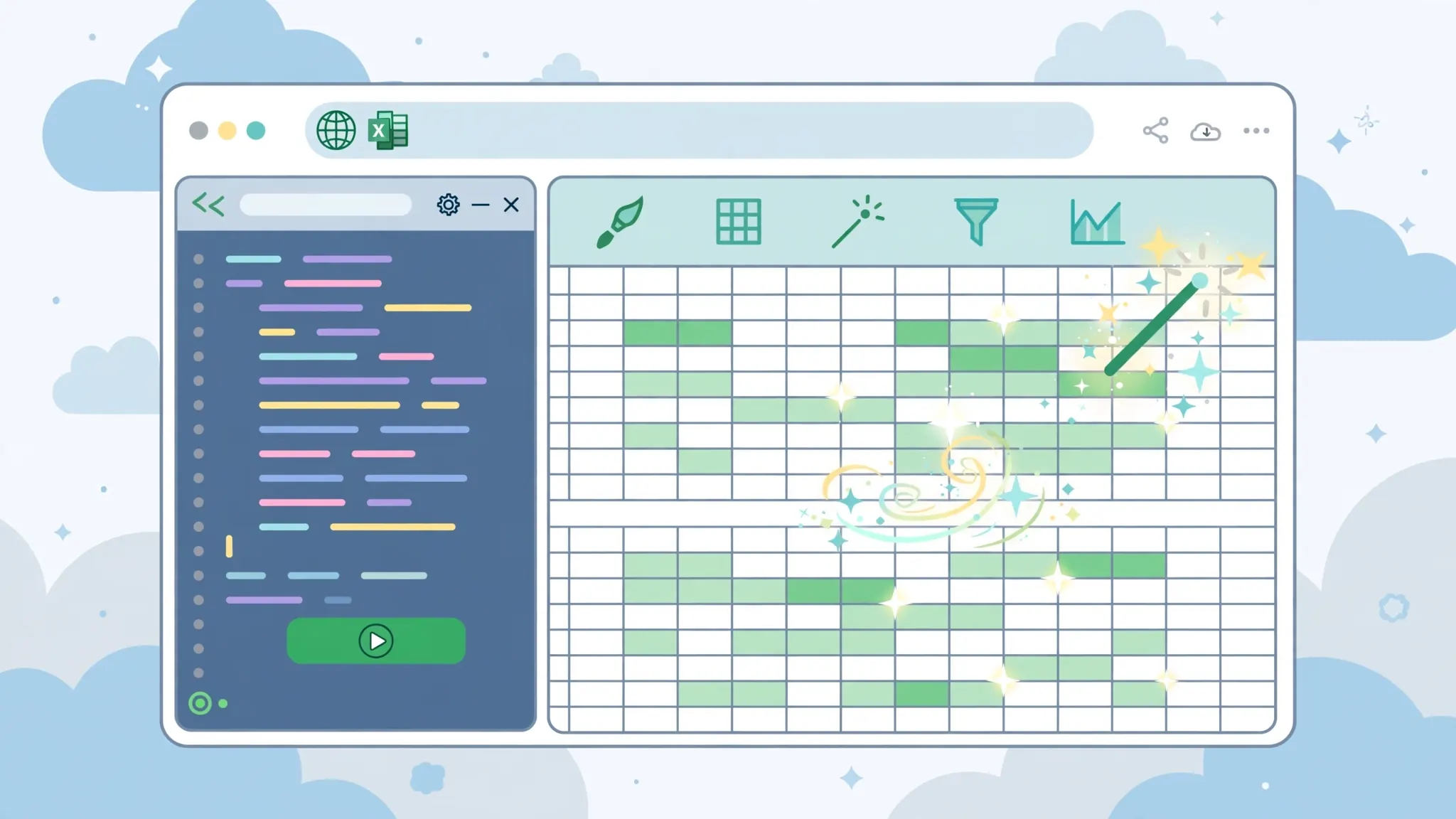
Office Scripts are automation scripts written in TypeScript (a typed variant of JavaScript) that run against Excel workbooks stored in OneDrive or SharePoint. You create them in Excel for the web via the Automate tab: either record your actions with the Action Recorder — the cloud equivalent of VBA’s macro recorder — or write code directly in the built-in Code Editor. Running a script replays those actions on the workbook: formatting cells, inserting rows, creating charts, reading and writing values.
Three properties make them fundamentally different from VBA macros. First, they run server-side in the Microsoft cloud, not inside a desktop app — so the same script runs identically on Windows, Mac, Linux, and Chromebooks. Second, they are shareable by design: scripts live alongside the workbook and can be shared with teammates who run them with a button click. Third, they plug into Power Automate, which means scripts can run on schedules and triggers with nobody opening Excel at all. Microsoft’s official Office Scripts documentation is the authoritative reference for the API.
Office Scripts vs VBA: the honest comparison
The Office Scripts vs VBA debate is really a “horses for courses” discussion, not a winner-takes-all fight:
- Where they run: VBA runs in desktop Excel (Windows/Mac), offline. Office Scripts run in Excel for the web against cloud workbooks. Mixed-device or browser-first team? Scripts win. Offline desktop power user? VBA wins.
- Depth: VBA reaches deeper — UserForms, Windows API calls, deep application events, decades of libraries. Office Scripts cover the mainstream automation surface (ranges, formatting, tables, charts) but not the exotic corners.
- Language: VBA is a 1990s language with a gentle learning curve; TypeScript is modern, with better tooling, but assumes more programming comfort. JavaScript developers will feel at home in Scripts immediately.
- Scheduling: VBA needs Task Scheduler plus a machine left on; Office Scripts plus Power Automate run on Microsoft’s servers on any schedule — no machine required.
- Sharing: VBA travels in
.xlsmfiles that trigger security warnings; Scripts are shared from the Automate tab with permission controls and an audit trail. - Cost: VBA is included in every desktop Excel; Scripts need a qualifying Microsoft 365 business/enterprise license.
Microsoft’s strategy is clear — Scripts are the future for cloud workflows — but VBA is not going away; far too much of the world’s Excel depends on it. Pragmatic teams learn both and choose per scenario, exactly as our Excel automation decision guide recommends.
Getting started: requirements and where to find Office Scripts
Checklist before you start:
- License: a Microsoft 365 business, enterprise, or qualifying education plan. (Consumer Personal/Family plans do not include Office Scripts.)
- Location: the workbook must live in OneDrive or SharePoint — Scripts cannot run on local-only files.
- Browser: open the workbook in Excel for the web (office.com).
- Find it: the Automate tab on the ribbon holds the Action Recorder, Code Editor, and your script gallery.
Your first script: recording actions in Excel on the web
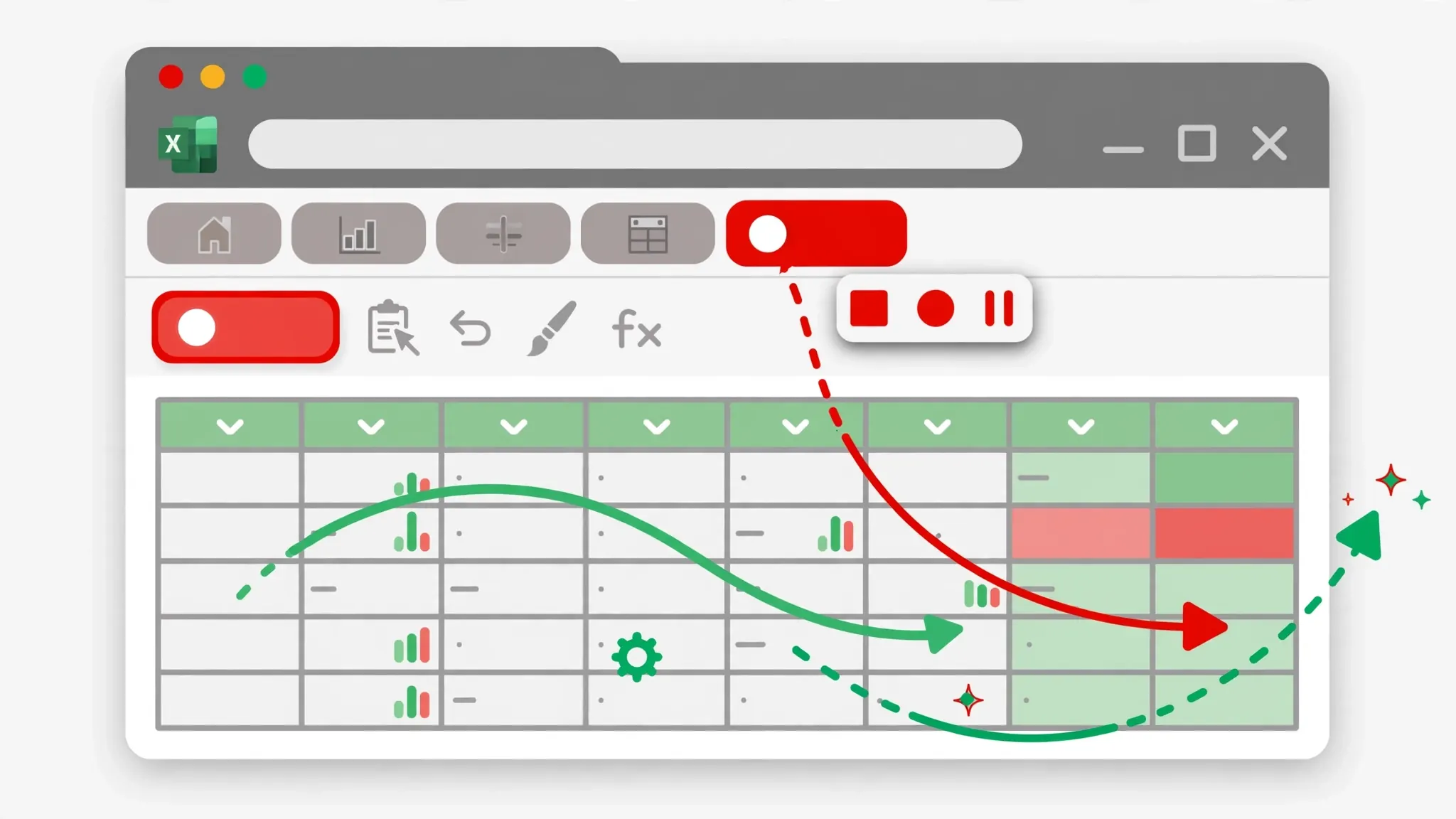
The Action Recorder is the zero-code on-ramp — the Office Scripts tutorial starting point for non-programmers:
- Open a workbook in Excel for the web (use a copy of a real report, or convert a CSV with our free CSV to Excel converter and upload it).
- Automate → Record Actions. The recorder starts capturing.
- Do the formatting job: bold the header row, autofit columns, add filters, freeze the top row, apply a header fill color — the same routine from our macros tutorial.
- Stop recording and save the script with a clear name like “Format monthly report”.
- Test it: undo the formatting (or open a fresh file), select the script in the gallery, and click Run. Seconds later, the formatting appears.
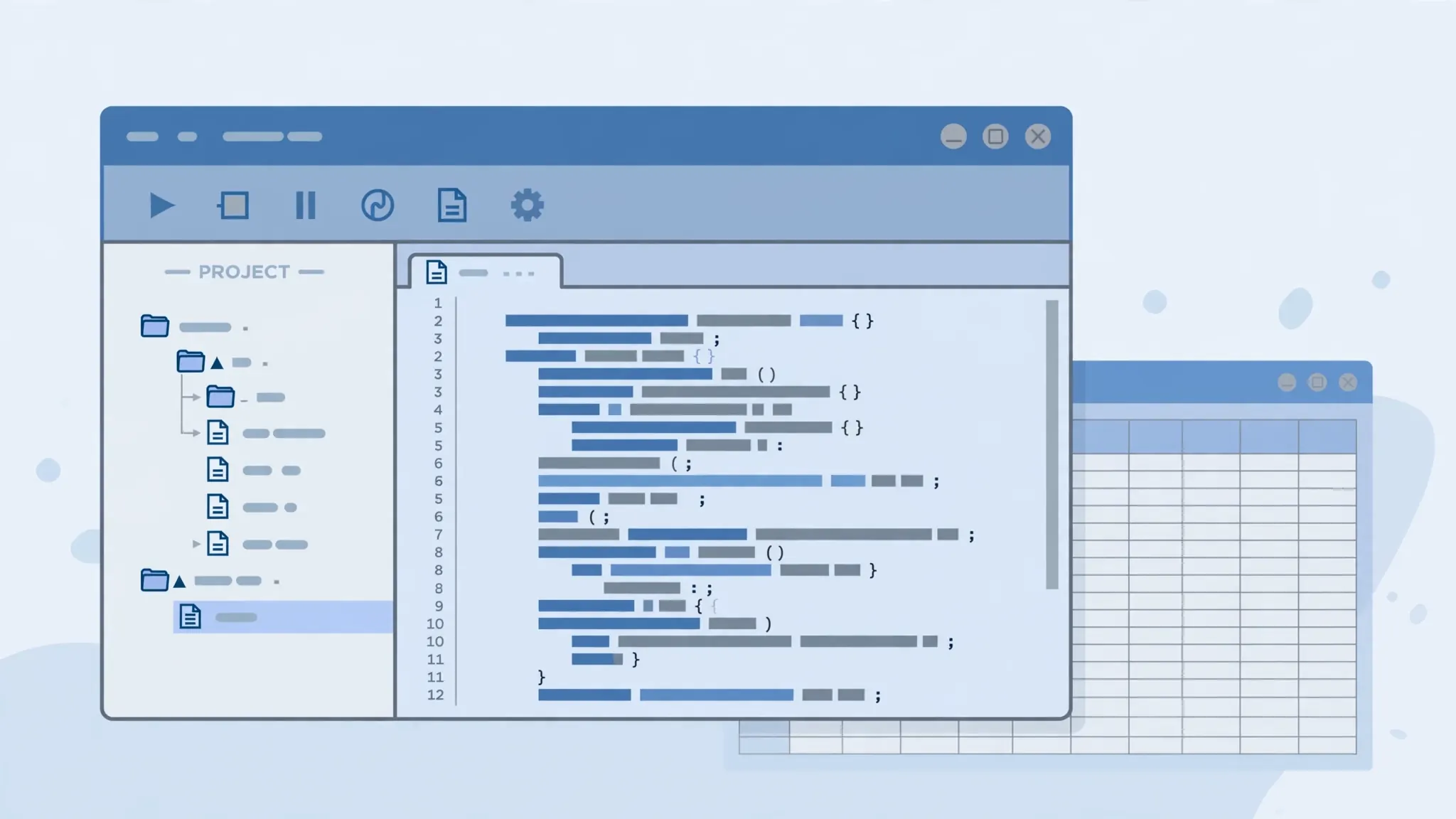
Now click the script’s Edit button. The Code Editor shows the TypeScript the recorder generated — your Rosetta Stone for learning the language from your own actions.
Reading a script: TypeScript basics for Excel users
A recorded script looks something like this (simplified):
function main(workbook: ExcelScript.Workbook) {
  let sheet = workbook.getActiveWorksheet();
  let headerRange = sheet.getRange("1:1");
  headerRange.getFormat().getFont().setBold(true);
  sheet.getUsedRange().getFormat().autofitColumns();
}
Read it piece by piece: function main(workbook…) is the entry point — every script starts here, and workbook is your handle on the file. let declares variables. Dots navigate objects just like VBA (sheet.getRange("1:1") mirrors Range("1:1")`). getFormat().getFont().setBold(true) is the TypeScript way of saying "make it bold." If you know any JavaScript, you already know 80% of Office Scripts; if you know VBA, the concepts (objects, ranges, loops, conditions) transfer directly and only the syntax is new.
Writing your first script by hand: the report formatter
Let us go beyond recording with a hand-written script that formats any monthly report — including logic the recorder cannot express, like "only highlight big orders":
function main(workbook: ExcelScript.Workbook) {
  let sheet = workbook.getActiveWorksheet();
  let used = sheet.getUsedRange();
  // Header formatting
  let headers = sheet.getRange("1:1");
  headers.getFormat().getFont().setBold(true);
  headers.getFormat().getFill().setColor("D9E2F3");
  used.getFormat().autofitColumns();
  sheet.getAutoFilter().apply(used);
  sheet.freezePanes("A2");
  // Highlight orders over 1000 in column B
  let values = sheet.getUsedRange().getValues();
  for (let i = 1; i < values.length; i++) {
    let amount = values[i][1];
    if (typeof amount === "number" && amount > 1000) {
      sheet.getCell(i, 1).getFormat().getFill().setColor("FFC7CE");
    }
  }
}
The structure mirrors VBA: get the sheet, format the headers, then loop rows with a condition. Key translations for VBA users: getRange("1:1") instead of Range("1:1"), for loops instead of For…Next, if instead of If…End If, and zero-based row/column indexes (getCell(i, 1) is row i, column B). Paste this into the Code Editor, save, and run it on a test workbook — you just wrote real TypeScript automation.
Automating Excel on the web: sharing and running scripts
Scripts truly shine in teams. From the Automate tab you can share a script with colleagues — they see it in their own gallery for workbooks they can access, and run it with one click. Better yet, add a button: in Excel for the web you can insert a button shape linked to a script, giving non-technical teammates a big friendly "Format Report" control. Because scripts run against the cloud workbook, everyone gets identical results regardless of device — the Windows desktop, the MacBook, the Chromebook in the warehouse all behave the same. For Excel online automation across a distributed team, this consistency is the killer feature.

Supercharging scripts with Power Automate
A script that needs a human click is good; a script that runs itself is transformative. Power Automate provides the triggers: on a schedule ("every Monday at 8 AM"), on file events ("when the supplier CSV lands in this OneDrive folder"), or from other apps (a Teams message, a form submission). The flow pattern is simple: trigger → "Run script" action pointing at your workbook and script → follow-up actions (save as PDF, email it, post to Teams).
A concrete example for automating Excel on the web: the sales CSV arrives by email every Friday. A flow saves the attachment to OneDrive (overwriting last week's file), runs your cleanup-and-format script on the workbook, converts the result to PDF, and emails it to the team. Total human effort: zero. The script handles the Excel logic; Power Automate handles the when and the what next. Our Excel automation guide shows how this fits into full reporting pipelines.
Office Scripts limitations you should know
- Cloud workbooks only. No OneDrive/SharePoint, no Scripts. Local files are out.
- License-gated. Business/enterprise Microsoft 365 required; consumer plans excluded.
- API surface is narrower than VBA. No UserForms, no application-level events, no calling external libraries — mainstream automation is covered, exotic scenarios are not.
- No offline execution. Scripts need the Microsoft cloud; a plane without Wi-Fi means no automation.
- Execution time limits. Long-running scripts can time out — chunk huge jobs or pre-process with another tool.
- Debugging is basic.
console.logand careful testing; nothing like VBA's mature step-through debugger yet.
None of these are deal-breakers for typical reporting automation — but know them before you bet a critical process on Scripts alone.
Migrating from VBA: what transfers and what doesn't
If you have a VBA library (perhaps built after our VBA beginners guide), here is the pragmatic migration map. Transfers well: formatting routines, data-cleanup loops, report builders, chart creation — the concepts map almost one-to-one, and rewriting them is a great way to learn TypeScript. Does not transfer: UserForms and custom dialogs (rebuild as Power Apps or web forms), Windows API calls, application events, anything offline, and macros that drive other desktop applications. The smart strategy: do not rewrite working VBA. Write new automations in Office Scripts when the scenario is cloud-based, and migrate old macros only when the business value justifies it — for example, when a critical report must run on a schedule with no desktop involved.

Excel Office Scripts: should you adopt them in 2026?
By now you understand what Excel Office Scripts do. The remaining question is strategic: should you — or your team — invest in them now? Here is a decision framework.
Adopt now if…
- Your work already lives in OneDrive/SharePoint. If workbooks are in the cloud anyway, Scripts add automation with zero infrastructure change.
- Your team is multi-device. Windows desktops, MacBooks, Chromebooks in the warehouse — Scripts run identically everywhere, which VBA cannot promise.
- You need scheduled, unattended runs. A script plus a Power Automate flow replaces "someone's laptop must be on with Task Scheduler" — a fragile pattern that breaks on holidays.
- You have JavaScript talent nearby. If anyone on the team knows JavaScript or TypeScript, Scripts have essentially no learning curve for automation logic.
- Auditability matters. Shared scripts with permission controls and run history beat
.xlsmfiles emailed around when compliance asks questions.
Hold off if…
- You are on consumer Microsoft 365. No business license, no Scripts — the decision is made for you.
- Your automations are deeply desktop. UserForms, application events, driving other desktop apps, offline factory-floor PCs — VBA remains the only answer.
- You have a huge working VBA library. Do not rewrite what works. Add Scripts for new cloud scenarios and let the VBA estate retire naturally.
The pragmatic path forward
For most organizations in 2026, the answer is "both, deliberately": keep VBA for desktop depth, adopt Office Scripts for cloud workflows, and let each new automation's home be decided by where its workbook lives and who runs it. Start with one pilot — a weekly report that currently depends on someone's laptop — rebuild it as a script plus a scheduled flow, and measure the reliability difference. That single success story will do more to settle the Office Scripts vs VBA debate in your team than any amount of reading. And if your automation journey is just beginning, our Excel automation decision guide will help you place Scripts correctly in the bigger toolkit.
Excel Office Scripts: your first-week learning plan
A structured week turns Excel Office Scripts from a concept into a skill:
- Day 1: confirm your license includes Scripts and open a workbook in Excel for the web. Find the Automate tab.
- Day 2: record your first script with the Action Recorder — format a real report. Run it twice to prove it is repeatable.
- Day 3: open the recorded code and read it. Change one color value and re-run. You just edited TypeScript.
- Day 4: type the hand-written report formatter from this guide into the Code Editor. Add the "highlight big orders" loop and watch it work.
- Day 5: share the script with a colleague and add a button to the sheet. Let someone else run your automation.
- Day 6: build a Power Automate flow that runs the script when a file is added to a OneDrive folder. Your first unattended automation.
- Day 7: schedule it. A weekly flow that formats and delivers a report with zero human clicks is the graduation ceremony.
By day 7 you will have recorded, edited, written, shared, triggered, and scheduled — the complete lifecycle. That is more hands-on Office Scripts tutorial experience than most people get in a year of intending to learn it. From here, the official documentation becomes genuinely useful, because you will read it with working context instead of abstract curiosity.
The bottom line: Excel Office Scripts will not replace every macro you own, and they do not need to. They need to solve one painful cloud workflow — the report that depends on someone's laptop, the formatting nobody has time for, the Friday email that always goes out late. Solve that one, and the platform proves itself. Everything after is momentum.
Frequently Asked Questions
What are Office Scripts in Excel?
Office Scripts are TypeScript-based automations that run on Excel workbooks stored in OneDrive or SharePoint. You can record them with the Action Recorder or write them by hand, then run them in Excel for the web or via Power Automate.
Are Office Scripts replacing VBA?
Office Scripts are Microsoft's strategic direction for cloud automation, but they do not replace desktop VBA. VBA remains deeper and works offline; Office Scripts work in the browser and integrate with Power Automate. Most organizations will use both.
Do I need a special license for Office Scripts?
Office Scripts require a Microsoft 365 business or enterprise license (or education plans that include it). They are not available in consumer Microsoft 365 Personal/Family plans or perpetual-license Excel.
Can Office Scripts run on a schedule?
Yes. Through Power Automate, an Office Script can run on a schedule (daily, weekly), when a file is created or modified, or when triggered by another event — with no one opening Excel.
Do Office Scripts work on Mac?
Yes. Because Office Scripts run in Excel for the web, they work identically on Mac, Windows, Linux, and Chromebooks — anywhere with a browser. This is a major advantage over VBA for mixed-device teams.
Can I convert VBA macros to Office Scripts?
There is no automatic converter. Simple formatting and data-manipulation macros translate conceptually (ranges, loops, conditions exist in both), but you rewrite the code in TypeScript and adapt to the Office Scripts API, which differs from VBA's object model.