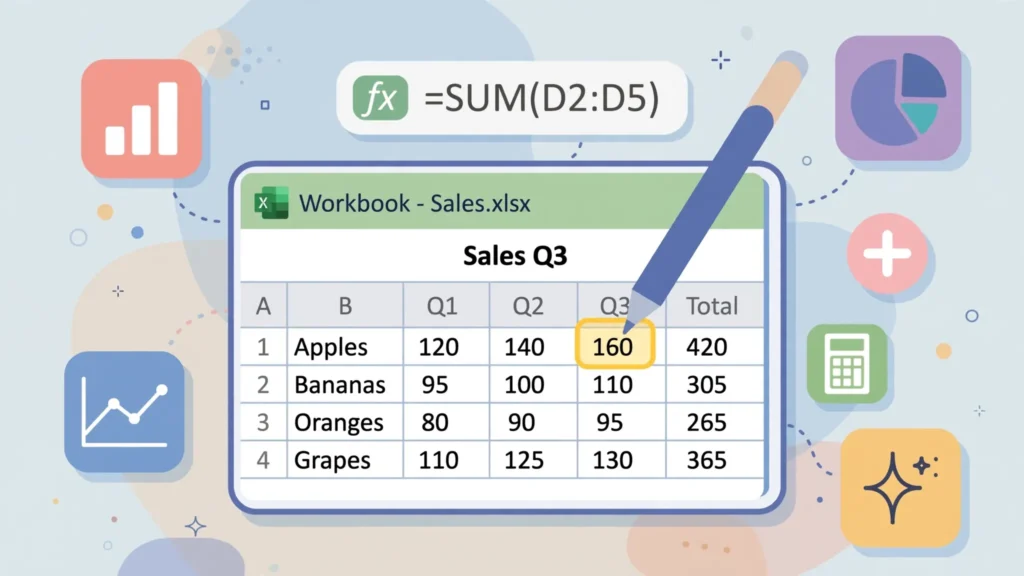
The iPad has quietly become a legitimate spreadsheet machine — and this Excel iPad tutorial will take you from install to confident in one sitting. Whether you’re wondering how to use Excel on iPad for the first time or you’re a desktop user adapting to touch, you’ll learn how to install and set up the Microsoft Excel for iPad app, master the touch interface, enter and edit data with your finger or Apple Pencil, write real formulas, import CSV files, and sync everything through OneDrive so your work follows you to every device.
The Excel iPad app is far more capable than its “mobile” label suggests: the full formula library, charts, conditional formatting, and real-time collaboration all work. Its limits versus desktop are real but narrow — mostly around VBA, Power Query authoring, and very large files — and this guide maps exactly where they are so you never hit one by surprise. Grab your iPad and follow along; every step works on any recent iPad running a current iPadOS.
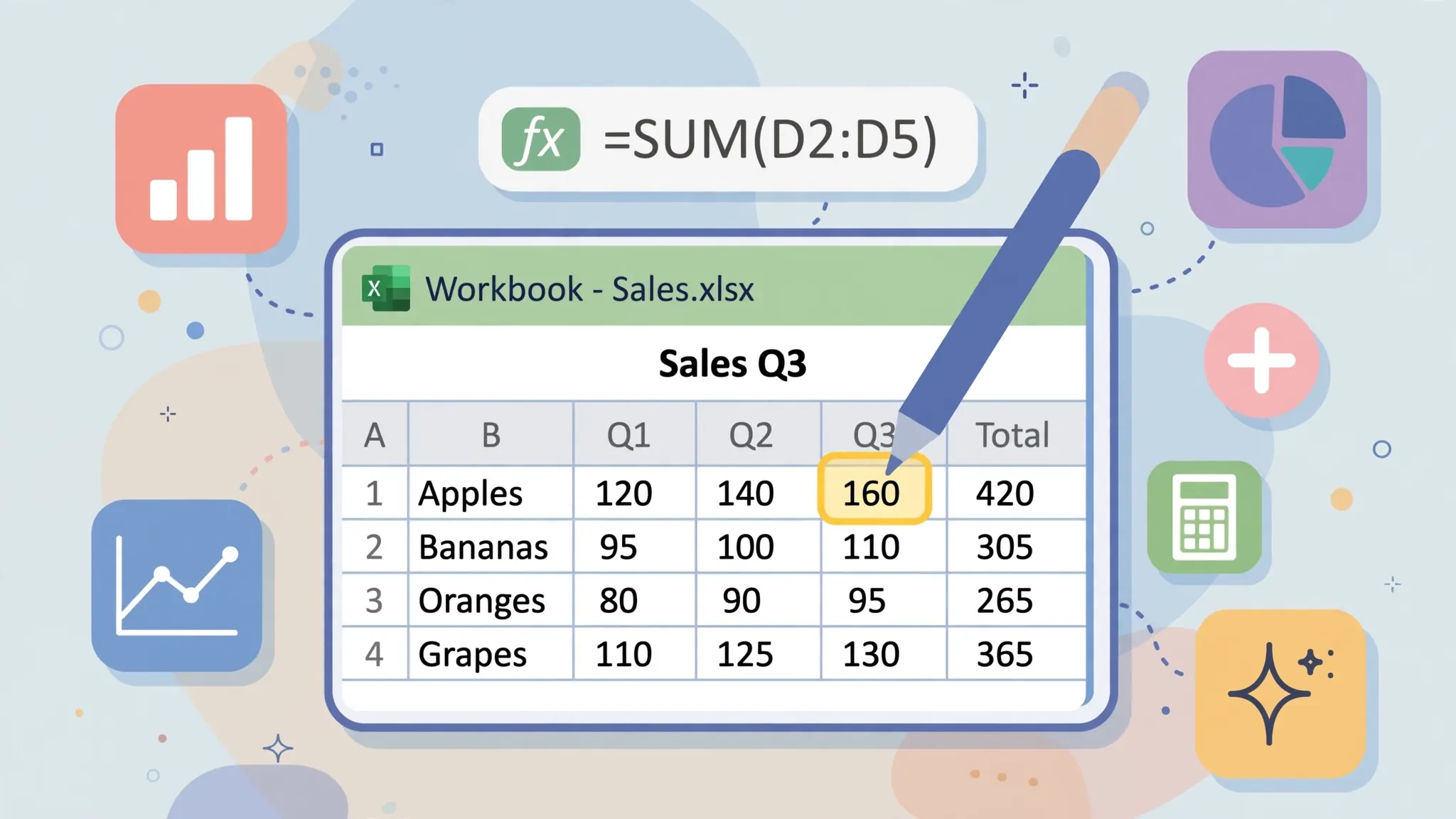
Getting Microsoft Excel for iPad set up
Open the App Store on your iPad, search “Microsoft Excel,” and install the official app (green icon, “Microsoft Corporation” as the developer — beware of similarly named paid clones). It’s free to download. Sign in with a Microsoft account — free accounts work; the app runs in a capable free tier for viewing and light editing.
The licensing detail that confuses everyone: on iPads with screens 10.1 inches and larger (most iPads, including the standard iPad and all iPad Pros), full editing requires a Microsoft 365 subscription. On smaller iPads (iPad mini), core editing is free. In practice: students often get Microsoft 365 free through school, many employers provide it, and the subscription also unlocks desktop Excel and 1 TB of OneDrive — if you do any serious spreadsheet work, it’s the single subscription worth having. Without it, you can still view workbooks, and light edits work, but you’ll hit paywalls on advanced features.
After signing in, connect your storage: OneDrive is built in (and where autosave lives), but you can also add Dropbox, Box, and browse the iPad’s Files app. If you use an Apple Pencil, pair it in Settings › Apple Pencil — Excel picks it up automatically for selection precision and the Draw tab’s inking tools. A keyboard case (Apple’s Magic Keyboard or any Bluetooth keyboard) transforms the experience for heavy typing, but everything below works with touch alone.
Excel iPad tutorial: your first spreadsheet in 10 minutes
Let’s build a small travel-expense sheet — the perfect first project because it uses entry, formulas, and formatting in miniature.
- Open the Excel app and tap + New blank workbook.
- Tap cell A1 and type
Trip Expensesusing the on-screen keyboard. Tap the checkmark ✓ to confirm. - In row 3, enter headers: A3
Item, B3Cost, C3Paid by. - Add rows:
Hotel,Flights,Mealswith costs in column B. - Tap the cell below your last cost, tap ƒx, and choose SUM — Excel suggests the range; tap ✓. Your first iPad formula.
- Select the header row (drag across A3:C3), open the Home tab, and tap Bold. Select the costs, tap Number Format › Currency.
- The file autosaves to OneDrive — check the filename at the top and rename it
Trip Expenses. Done.
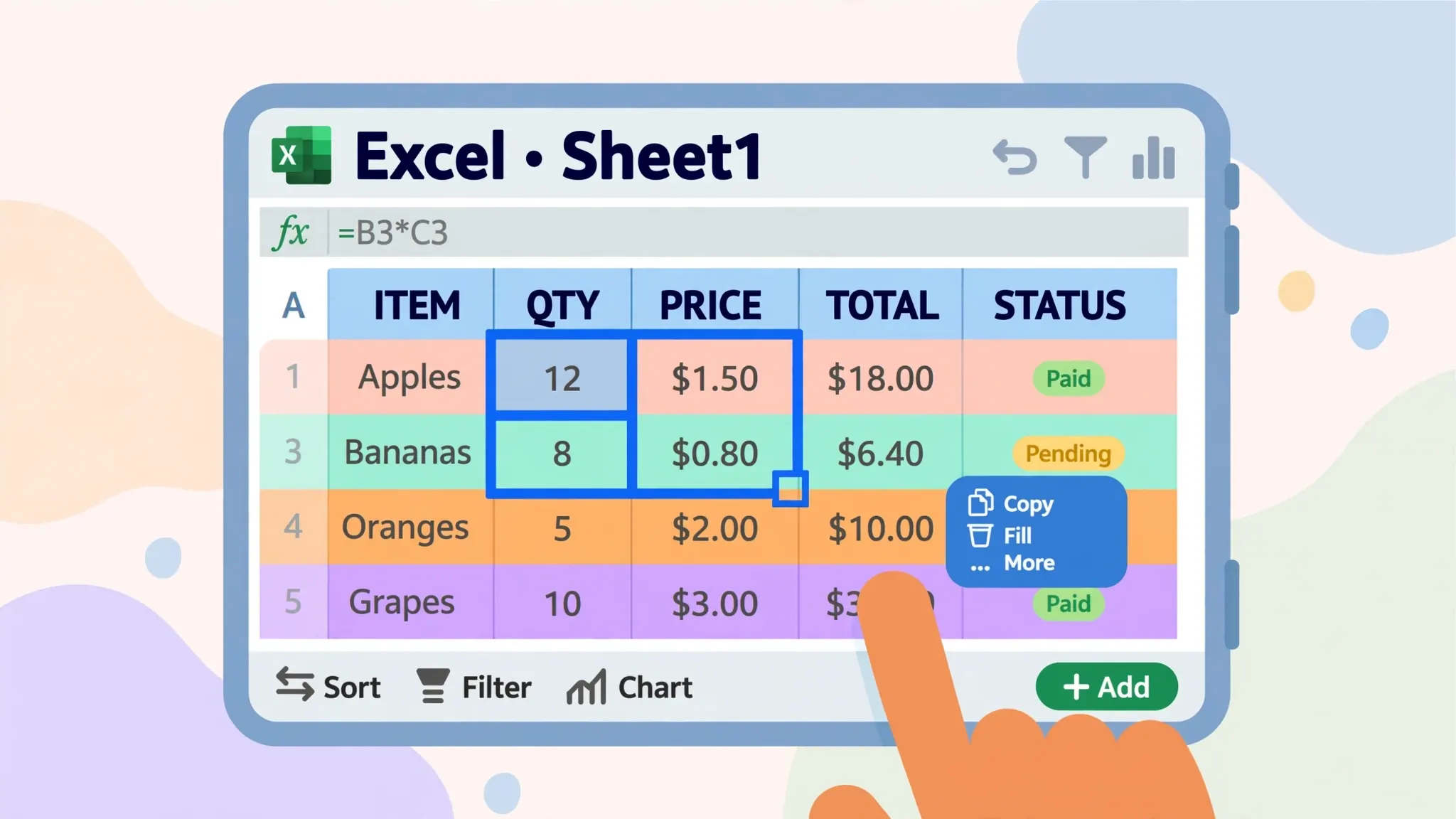
Notice the rhythm: tap to select, type, confirm with ✓. It feels odd for about five minutes if you’re a desktop user, then it clicks — pun intended. The autosave in step 7 is worth internalizing: on iPad, there is no Save button to forget. Your work is safe the moment you type it, as long as you’re signed in and online.
The touch interface: ribbon, formula bar, and keyboard
The iPad ribbon is the desktop ribbon redesigned for fingers: same tabs (Home, Insert, Draw, Formulas, Data, Review, View), larger touch targets, and the most-used commands surfaced first. Tap a tab to open it; tap the tab again (or the ^ chevron) to collapse it and reclaim screen space — on an 11-inch iPad in portrait, you’ll collapse it often.
The formula bar sits above the grid as on desktop: tap the ƒx button to open the function browser, which lists every function by category with a description and argument helper. The on-screen keyboard gains an Excel-specific row: numbers and symbols one tap away, plus quick keys for =, $, and common operators — a thoughtful touch that removes the keyboard-switching dance of phone spreadsheets.
Key gestures to internalize: single tap selects a cell; double-tap edits it; tap-and-hold opens the context menu (cut/copy/paste/fill); drag the green handles to extend a selection; two-finger tap… doesn’t undo here (that’s three-finger swipe left, the iPadOS undo gesture — or the ↩ button in the top bar). Pinch to zoom the grid when cells feel cramped.
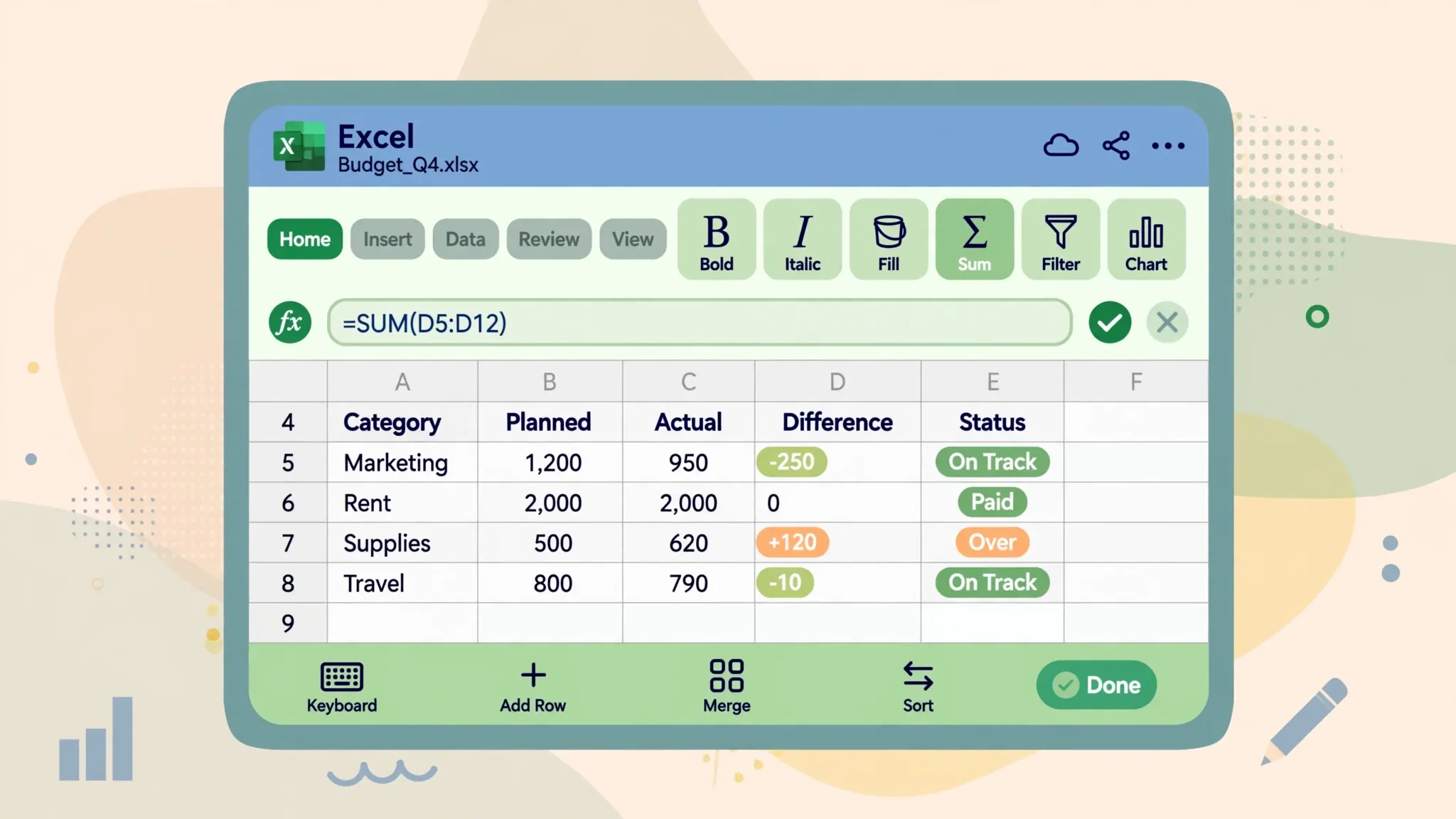
Entering and editing data with touch and Apple Pencil
Data entry on iPad is genuinely pleasant once you learn the flow. Tap a cell, type, tap ✓ or tap the next cell — Excel advances intelligently. For rapid column entry, type a value, tap ✓, and Excel moves down; the rhythm becomes tap-type-tap-type and you can fill dozens of rows quickly. The fill handle (the dot at the selection’s corner) drags to copy values or extend series — drag it down a date column and Excel continues the dates automatically.
Apple Pencil earns its keep in three places. First, precision selection: tapping tiny cells with a fingertip misfires; the Pencil never does. Second, the Draw tab: circle a number, draw an arrow to a problem cell, handwrite a note in the margin — invaluable when reviewing someone else’s workbook. Third, Scribble: handwrite in any cell and iPadOS converts it to typed text, which is surprisingly practical for quick annotations during meetings.
Editing existing content: double-tap a cell to place the cursor exactly where you want it (Pencil users get pixel precision here), or select the cell and edit in the formula bar up top — often easier for long formulas. To delete, select and tap the keyboard’s delete key, or use the context menu’s Clear. And remember: with autosave on, every edit is permanent immediately — there’s no “close without saving” escape hatch, so the version history (File › History) is your undo for yesterday’s mistakes.
Formulas and functions on the iPad
Here’s the pleasant surprise: the iPad app runs the complete Excel function library — all 400+ functions, including XLOOKUP, FILTER, SORT, UNIQUE, and the dynamic-array engine. A workbook built on desktop calculates identically on iPad; formulas aren’t a “lite” experience at all.
Writing them by touch takes technique. Tap ƒx to browse functions by category (Math, Logical, Text, Date…), tap one to insert it, and the argument helper guides you through each input — tapping a range reference lets you then tap-drag the actual cells to fill it in, which is honestly easier than typing B2:B20 on a keyboard. For quick totals, select a range of numbers and glance at the status bar — it shows Sum, Average, and Count instantly, no formula needed.
Start with the big five: =SUM(), =AVERAGE(), =IF(), =VLOOKUP() or =XLOOKUP(), and =COUNTIF(). The argument helper plus tap-to-select ranges makes even nested IFs manageable. One iPad-specific tip: when a formula gets long, rotate to landscape or use the formula bar’s expand handle — editing a 200-character formula in a cramped bar is nobody’s idea of fun.
Importing CSV files on iPad
CSVs reach iPads through email attachments, downloads, and shared links — and getting them into Excel cleanly is a core skill. The golden rule: open from inside Excel, don’t just tap the file.
- Get the CSV into the Files app (save attachments there) or into OneDrive.
- Open Excel, tap Open › Browse, and navigate to the CSV.
- Excel parses it into a worksheet — check that columns split correctly and characters look right.
- Immediately Save As › Excel Workbook (.xlsx) — don’t keep working in the CSV, which can’t store formatting or formulas.
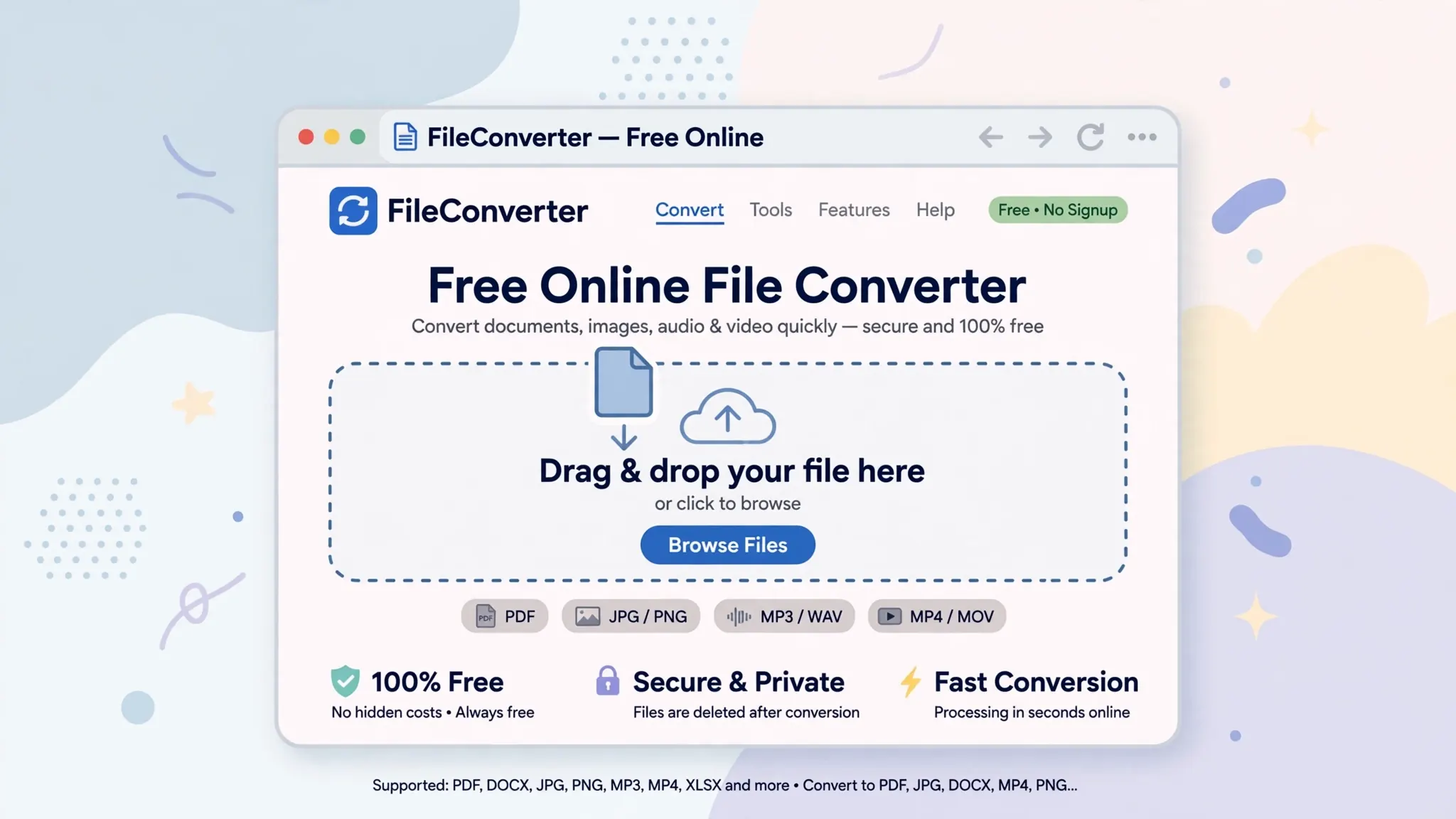
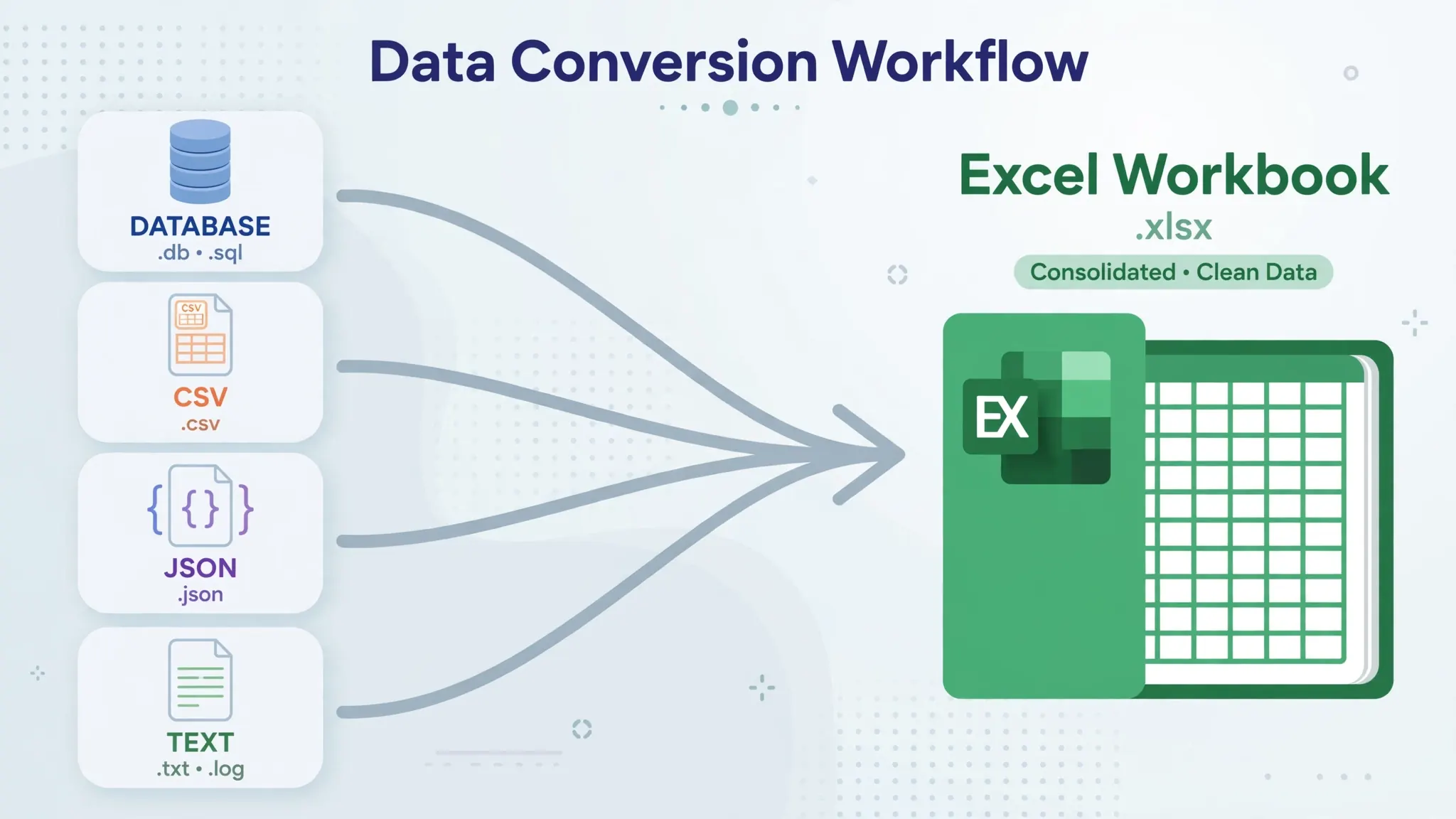
If a CSV opens with everything in one column or garbled characters, the iPad app’s import options are thinner than desktop’s — the fix is to convert it properly first. Our free online converter runs in the iPad’s Safari: upload the CSV, download a clean XLSX, open it in Excel. For the full desktop import technique (useful when you’re back at a computer), see CSV to Excel on iPhone — the iOS techniques transfer directly.
Saving, syncing, and collaborating with OneDrive
OneDrive is the iPad app’s superpower. Files save there automatically; open the same file on your Mac or PC later and everything’s current — formatting, formulas, charts, all of it. The Recent list in the app shows files across all your devices, so the “email it to myself” dance dies completely.
Collaboration works exactly like the web version: Share › send a link (view or edit), and co-authors’ cursors appear live with name flags as they type. Comments and @mentions thread properly. For students sharing group-project workbooks or families managing a shared budget across iPads and computers in the US, UK, or Australia, this is the workflow that makes the iPad a first-class citizen rather than a viewer.
Offline matters too: mark important files Available Offline (tap the … next to a file › Make Available Offline) before flights or field work. Edits queue locally and sync when you’re back online. Without this step, opening a OneDrive file with no connection gives you a sad error instead of your data — a two-second precaution worth building into habit.
iPad Excel limitations vs the desktop app
Honest accounting of what the iPad app can’t do, so you plan around it. No VBA macros — macro-enabled workbooks open, but macros don’t run (Office Scripts offer partial automation on business plans). No Power Query authoring — you can refresh some existing queries, but building data pipelines needs desktop. No Power Pivot data models. Add-ins are limited to the modern store selection.
Performance has a ceiling: the app handles tens of thousands of rows gracefully but chokes where desktop shrugs — hundred-thousand-row files with heavy formulas will beach-ball an iPad. Very large workbooks are better built on desktop and reviewed on iPad. Printing is serviceable but less controllable than desktop’s page setup. And a few advanced chart types and form controls are view-only.
The practical takeaway: the iPad app covers creating, editing, analyzing, and sharing for the vast majority of real work — budgets, trackers, lists, reports, dashboards built from reasonable data. Reserve desktop for the heavy machinery (macros, Power Query, giant files). Our Online vs Desktop comparison maps the same divide in more detail, and the iPad app sits closest to the web version in capability.
Who the iPad app is perfect for
Three groups get outsized value from Excel on iPad. Students — the iPad is already the lecture-hall device, and the Excel app turns it into a lab-report and statistics machine. Group projects shine here: share the workbook link, and four students in different dorms co-author the same analysis with live cursors, no “which version did you edit” chaos. If your university provides Microsoft 365 (most do), the subscription question disappears entirely.
Field and frontline workers — inventory counts, site inspections, sales visits, event check-ins. The iPad goes where laptops don’t, and a well-designed workbook (big touch targets, data validation dropdowns instead of free typing, a Dashboard sheet summarizing the day) becomes a data-collection tool anyone can use. Set the file to Available Offline before leaving Wi-Fi, collect all day, and watch it sync when you’re back.
Executives and reviewers — the people who consume spreadsheets more than they build them. Reviewing a budget on the couch with Apple Pencil annotations, approving a forecast on a flight, checking the sales dashboard over morning coffee: the iPad app is the consumption device Excel always wanted. Pair it with the desktop app (or a colleague) for the heavy building, and the division of labor feels natural rather than limiting.
Troubleshooting: when Excel on iPad misbehaves
App crashes on a large file. Close other apps to free RAM, or split the workbook — the iPad app isn’t a desktop replacement for 100k-row models. As a workaround, build the heavy sheet on desktop and keep an iPad-friendly summary sheet in the same file.
Changes aren’t syncing. Check you’re signed into the right Microsoft account, that OneDrive has connectivity, and that the file isn’t open with conflicting edits elsewhere. Pull down on the file list to force a refresh.
Keyboard covers the cell I’m editing. Undock the keyboard (pinch it) and drag it aside, or use a floating keyboard — the full keyboard hiding the active row is the classic iPad spreadsheet annoyance.
Formulas show errors that work on desktop. Usually a locale issue (list separators differ by region — check iPadOS Settings › General › Language & Region) or a function that needs recalculation — close and reopen the workbook to force a full recalc.
Apple Pencil draws instead of selecting. The Draw tab is active — switch back to Home, or toggle “Draw with touch” off so the Pencil selects and fingers draw (or vice versa, per your preference).
Your next steps
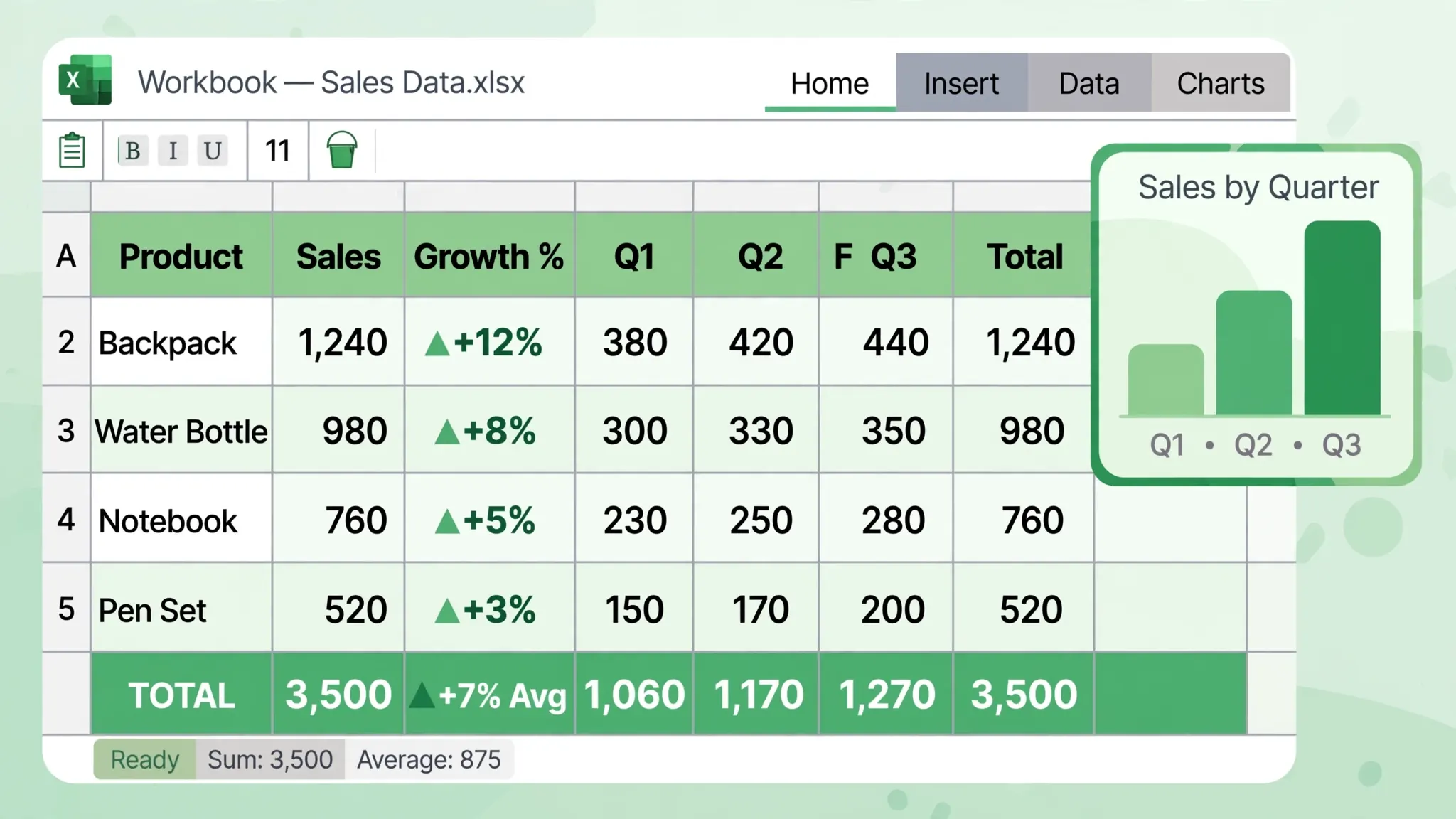
You now know how to set up the app, build a workbook by touch, write formulas, import CSVs, and sync through OneDrive — the complete Excel iPad tutorial foundation. The highest-value next skills: pivot tables (select data › Insert › PivotTable — summarize thousands of rows by touch), conditional formatting (make insights visual), and XLOOKUP (the modern lookup).
Then make the iPad earn its portability: take it to the next meeting and take notes directly in a shared tracker, review a budget on the couch with Apple Pencil annotations, or build a packing list on the plane with offline files. The iPad stops being “the device I view spreadsheets on” the week you create something real on it. For the desktop side of your workflow, our Online vs Desktop guide shows how the pieces fit together — and for the phone in your pocket, see our Excel Android app tutorial for the same skills on a smaller screen.
Frequently Asked Questions
Is Microsoft Excel for iPad free?
The Excel iPad app is free to download and lets you view and lightly edit workbooks. Full editing on iPads with screens 10.1 inches and larger requires a Microsoft 365 subscription; smaller iPads get more editing features free.
Can you use Excel on iPad without a keyboard?
Yes. The Excel iPad app is designed for touch: tap to select cells, double-tap to edit, drag the fill handle, and use the on-screen formula keyboard. A keyboard (or Apple Pencil) speeds things up but isn’t required.
How do I open a CSV file in Excel on iPad?
Save the CSV to the Files app or OneDrive, then open it from Excel’s Open screen — or tap the CSV in Files/Mail and choose Open in Excel. For the cleanest import, open Excel first, use Open › Browse, and let Excel parse the file.
Does Excel on iPad support formulas and pivot tables?
Yes to formulas — the full function library (SUM, IF, VLOOKUP, XLOOKUP and hundreds more) works on iPad. Pivot tables can be viewed and refreshed; creating complex new ones is easier on desktop but possible for simple cases.
Can I use Apple Pencil with Excel on iPad?
Yes. Apple Pencil works for precise cell selection, drawing and annotating with the Draw tab’s inking tools, and handwriting that converts to text with Scribble. It’s genuinely useful for reviewing and marking up sheets.
How do I sync Excel files between iPad and computer?
Save to OneDrive from the Excel iPad app (sign in with your Microsoft account). The same file then opens in desktop Excel, Excel for the web, and the iPhone app with changes synced automatically.