
Freelancing has a cash-flow problem disguised as an admin problem. The work gets done, the invoice goes out, and then… silence. Was it invoice #47 or #48 that Acme Corp never paid? Which clients always pay late? How much did you actually earn last quarter? Without a system, these questions get answered by scrolling through sent emails at midnight. An excel invoice tracker for freelancers answers them in seconds: every invoice numbered, every payment status visible, every quarter’s income totaled and ready for your accountant.
This guide builds a complete freelancer invoice Excel template — an invoice tracking spreadsheet with bulletproof numbering, payment-status workflows, late-payment chasing tools, multi-currency handling, and tax-ready summaries. It is Excel for freelancers at its most practical: the boring infrastructure that makes sure you get paid. Whether you design in Berlin, code in Bangalore, write in Toronto, or consult in Sydney, the mechanics of getting paid are the same everywhere.
Why an Excel invoice tracker for freelancers beats memory and shoeboxes
Invoicing software is excellent — and costs $15–30/month forever. For a freelancer sending five to twenty invoices a month, that subscription buys features (recurring billing, client portals, automatic dunning) that mostly go unused, while the core need — knowing who owes you what — is served perfectly by a spreadsheet you build in an hour and own forever.
The deeper win is integration with the rest of your freelance finances. Your invoice tracker feeds your budget spreadsheet in Excel (expected income), your tax summaries (actual income), and your cash-flow forecast (when money lands). Invoicing software keeps this data in its silo; a spreadsheet puts it at the center of your financial life, queryable with the same SUMIFS you already know.
There is also a professionalism argument that surprises people: nothing about a spreadsheet tracker looks amateur to clients. Clients see your invoice documents (which you can generate from the tracker data with a simple mail-merge-style sheet); they never see the tracker itself. What they experience is invoices that arrive promptly, follow-ups that are polite and precise (“Invoice INV-2026-014 for $2,400 was due October 1”), and zero billing errors — the actual markers of professionalism.
Invoice numbering systems that scale
Invoice numbers are legal documents’ fingerprints: unique, sequential, and permanent. Many jurisdictions require sequential numbering with no gaps — the UK’s HMRC, EU VAT rules, India’s GST invoicing rules, and Australia’s tax invoice requirements all expect it. A numbering mess is not just sloppy; it can be non-compliant.
The standard pattern is INV-YYYY-NNN: INV-2026-001, INV-2026-002, and so on, resetting each year. It sorts correctly, reads clearly on the invoice itself, and the year prefix prevents the “which #14?” problem across years. Alternatives: client-coded (ACME-2026-003) if you invoice few clients heavily, or plain sequential (0001…) if your accountant prefers minimalism. Pick one and never deviate.
- Put the last used number in a
Settingssheet cell (e.g.,LastInvoice = 14). - New invoices take
="INV-"&YEAR(TODAY())&"-"&TEXT(Settings!$B$2+ROW()-ROW($A$2)+1,"000")— or simpler, type the next number manually and let the sheet validate it. - Add a duplicate check: conditional formatting with
=COUNTIF($A:$A,$A2)>1highlighting any repeated number in red. - Never delete an invoice row. Voided or cancelled invoices keep their number with status “Voided” — the sequence stays unbroken and auditable.
Building the invoice tracking spreadsheet: columns that matter
One Excel Table named tbl_Invoices holds everything. Fourteen columns, no more:
- Invoice No — the sequential identifier from the system above.
- Client — validated dropdown from a Clients sheet. Consistent names power all client-level analysis.
- Issue Date — when sent. Real date.
- Due Date — formula default:
=IssueDate + Termswhere Terms (14/30 days) lives on the Settings sheet or per-client. - Description — short project reference (“Homepage redesign — phase 2”).
- Amount — subtotal before tax.
- Tax/VAT — computed:
=Amount × TaxRate, with the rate per client (0% for export clients, 20% UK VAT, 18% GST, etc.). - Total —
=Amount + Tax. This is what the client owes. - Currency — dropdown (USD, EUR, GBP, INR…). See the multi-currency section.
- Status — dropdown: Draft, Sent, Partially Paid, Paid, Overdue, Voided.
- Date Paid — filled when money arrives; drives all “actual income” math.
- Amount Paid — for partial payments; Balance Due = Total − Amount Paid.
- Payment Method — bank transfer, PayPal, Wise, Stripe. Useful for fee analysis.
- Notes — follow-up history (“reminded Oct 5, promised Oct 12”).
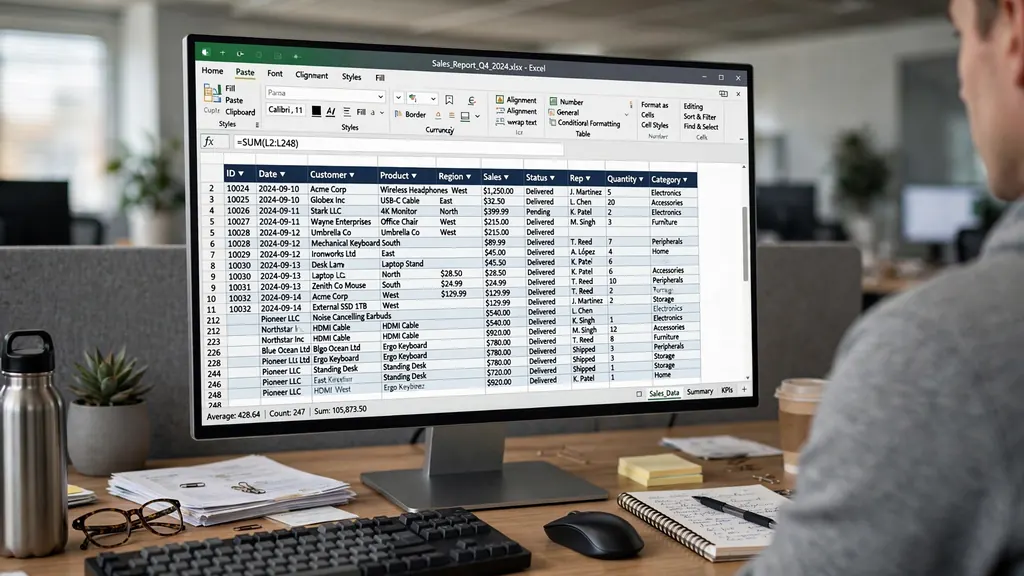
A companion Clients sheet holds one row per client: name, contact email, payment terms, tax rate, currency, and lifetime totals via SUMIFS. When onboarding a new client, you add one row here and the invoice dropdowns update everywhere. That Clients sheet doubles as your relationship ledger — sort by lifetime value and you know exactly which relationships deserve the most care.
Payment status workflows: from sent to paid
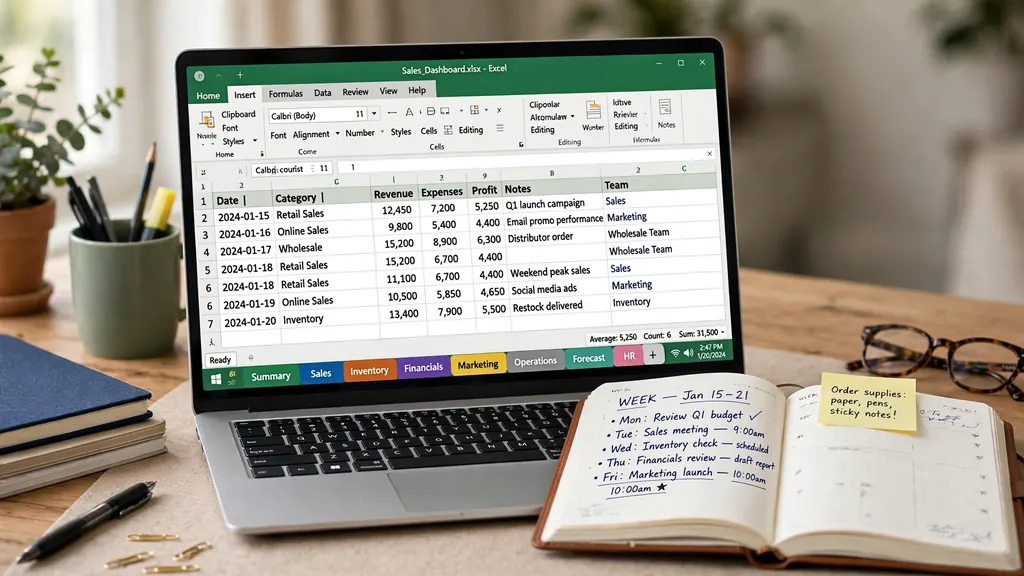
Status is the tracker’s heartbeat. The discipline is simple: every invoice moves through Draft → Sent → Paid, with Partially Paid and Overdue as branches. Update statuses the moment things happen — when you send, when money lands — not in a monthly batch. A tracker updated in real time is a tool; one updated monthly is archaeology.
Automate the overdue detection so nothing slips: a Days Overdue helper column with =IF(OR([@Status]="Paid",[@Status]="Voided"),"",TODAY()-[@DueDate]) shows positive numbers only for unpaid invoices past due. Conditional formatting paints the Status cell red when days overdue exceeds 0, amber when the due date is within 7 days. Open the file each Monday, filter to red and amber, and you have your collections to-do list without thinking.
Partial payments, handled cleanly
When a client pays half, do not mark the invoice Paid and do not split it into two rows. Record Amount Paid, let Balance Due (= Total − Amount Paid) compute, and set status to Partially Paid. The aging formulas treat the remaining balance as outstanding from the original due date. One row per invoice, always — the number’s integrity depends on it.
Chasing late payments with data: the aging report
An aging report buckets unpaid invoices by how overdue they are — the standard tool of every accounts-receivable department, and trivially easy in Excel. On a Summary sheet, build four buckets with SUMIFS on the unpaid balance:
- Current (not yet due): due date ≥ today.
- 1–30 days overdue: the polite-reminder zone.
- 31–60 days: the firm-follow-up zone; consider late fees now.
- 60+ days: the escalation zone — pause further work until resolved.
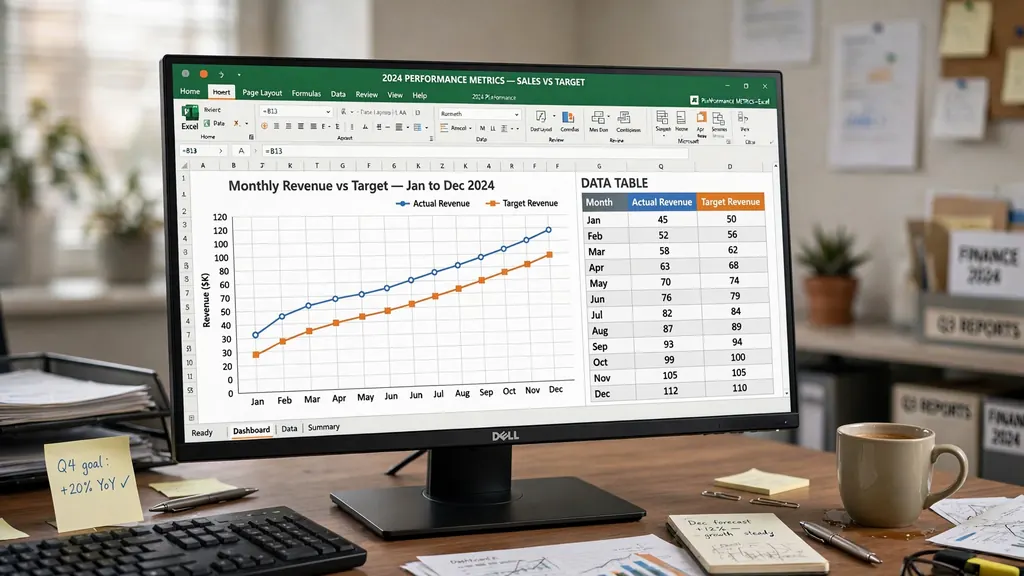
The formula pattern: =SUMIFS(tbl_Invoices[BalanceDue], tbl_Invoices[DaysOverdue], ">0", tbl_Invoices[DaysOverdue], "<=30"), adjusted per bucket. Present it as a small table with a bar chart — the visual of $8,400 sitting in the 60+ bucket focuses the mind wonderfully. Add a per-client version (rows = clients, columns = buckets) and chronic late-payers reveal themselves: the client with $12k lifetime value but $6k perpetually in 31–60 days is telling you their “standard terms” are fiction. That insight, drawn from your own invoice tracking spreadsheet, should inform your next contract’s payment terms — or your decision to fire the client.
Tax-ready income summaries: quarterly and annual
Tax time is where the tracker pays for itself in full. A Tax sheet with SUMIFS formulas produces everything your accountant asks for, organized the way tax authorities think: by period and by category.
Quarterly income (for estimated payments)
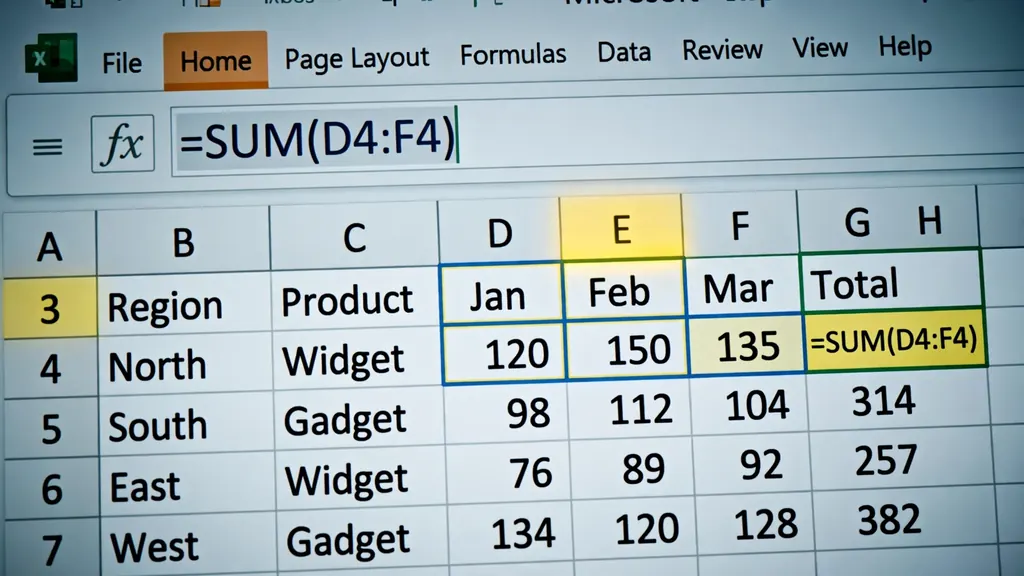
Four rows (Q1–Q4), each: =SUMIFS(tbl_Invoices[HomeAmount], tbl_Invoices[DatePaid], ">="&quarter_start, tbl_Invoices[DatePaid], "<="&quarter_end, tbl_Invoices[Status], "Paid") — note it sums by date paid, not invoice date, because most freelancers are cash-basis taxpayers. Beside it, a set-aside cell (= quarterly income × your estimated rate, often 25–30%) tells you what to reserve. US freelancers making quarterly estimated payments, UK freelancers facing payments on account, and Australians with PAYG instalments all need exactly this number.
The annual summary
One page per tax year: total paid income, income by client (the 1099-MISC / equivalent threshold check — in the US, clients paying you $600+ report it), tax/VAT collected vs remitted, and business expenses from your expense log. Export it as a PDF for your accountant and watch their face change: organized clients get faster, cheaper tax preparation. Pair this with the expense-tracking habits from our Excel budgeting guide — income without expenses is only half the tax picture.
Invoicing in multiple currencies
Freelancers increasingly bill across borders — a designer in Lisbon invoicing clients in USD, GBP, and EUR in the same month. The rule: record in the invoice currency, report in your home currency. The Currency column holds the invoice’s native currency; a Home Amount column converts it via a small exchange-rate table on the Settings sheet.
The rate table is simple: Currency in column A, Rate-to-home in column B, updated monthly (or per invoice for precision — use the rate on the payment date for tax accuracy in most jurisdictions). Home Amount = =XLOOKUP([@Currency], Rates[Currency], Rates[Rate]) * [@Total]. All summary formulas — quarterly tax, annual totals, client lifetime value — read Home Amount, so multi-currency chaos collapses into one clean number. A note column records which rate date was used, keeping the audit trail intact.
Watch the hidden cost: payment-platform FX spreads. If Wise converts at 1.08 and PayPal at 1.05 on the same day, that 3% difference is real money on a $5,000 invoice. Your Payment Method column plus a quick pivot table reveals which rail costs you most per year — data that pays for the tracker by itself.
Importing payment platform CSV exports
PayPal, Stripe, and Wise all export transaction CSVs — the raw truth of what actually landed in your accounts. Reconciling these against your tracker monthly catches the discrepancies that cost real money: a client who “paid” but the transfer never arrived, a platform fee higher than expected, a duplicate charge.
The workflow: download the month’s CSV from the platform, convert it with our free CSV to Excel converter (browser-based, so your financial data never leaves your device), and paste it into a BankImport staging sheet. Then match: an XLOOKUP from the tracker to the import by amount and date flags each invoice as confirmed-paid. Unmatched tracker rows are your chase list; unmatched import rows are income you forgot to invoice (it happens more than anyone admits).
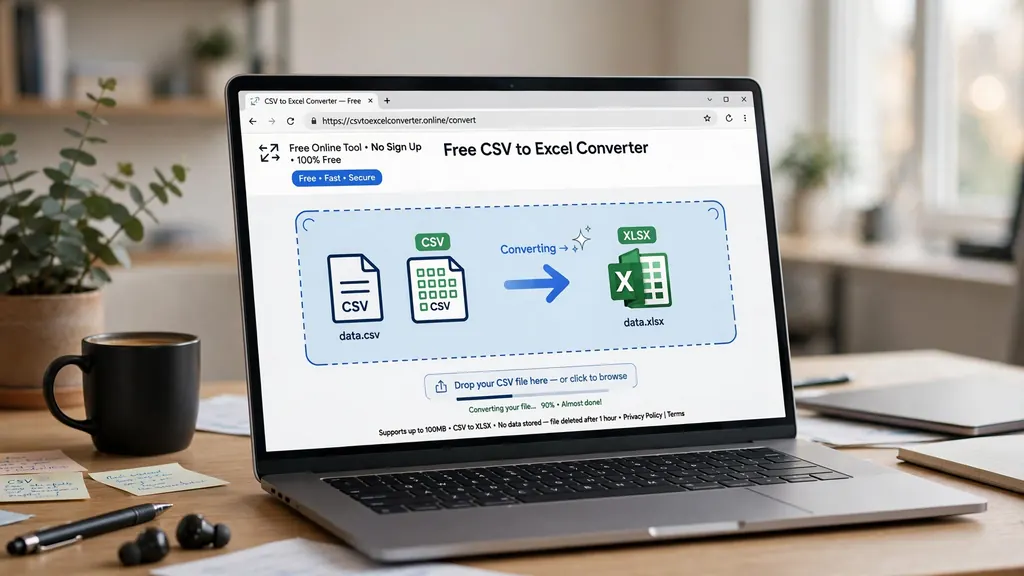
One formatting trap: PayPal’s CSV uses one signed Amount column (negatives for fees), while Stripe splits gross and fee columns. Normalize during import with a calculated Net column (= gross − fee) so your matching logic stays uniform. After two months you will have the mapping memorized, and reconciliation becomes a ten-minute monthly habit — the same habit that keeps a sales tracking spreadsheet honest.
Generating the invoice document from your tracker
The tracker records invoices; clients need to receive them. Build an Invoice sheet that renders a professional invoice from any tracker row: your business name, address, and tax ID at the top; client details pulled by XLOOKUP on the invoice number; a line-item table (description, quantity, rate, amount); subtotal, tax, and total; payment terms and bank details at the bottom. A dropdown cell selects the invoice number, and every field populates via formulas — one template, infinite invoices.
Keep the design clean and printable: set the print area to the invoice block, use a simple two-color header, and export to PDF for sending (never send editable Excel files as invoices). Include everything the client’s accounts-payable department needs to pay you without emailing questions: the invoice number, issue and due dates, a clear total in the correct currency, and your payment details. Every back-and-forth “could you resend with your bank details?” adds a week to payment — the invoice document is a collections tool disguised as stationery.
For line items beyond a single row, add an Items table (Invoice No, Description, Qty, Rate) and let the invoice sheet FILTER the matching rows. This handles multi-line project billing cleanly while the tracker keeps one row per invoice. Save each sent PDF in a dated folder (Invoices/2026/INV-2026-014.pdf) — when a client claims they “never received it,” you resend in thirty seconds with the timestamp as evidence.
7 invoicing mistakes freelancers make
- Invoicing late. Every day you delay sending the invoice is a day added to the payment wait. Invoice within 24 hours of delivery, always.
- Vague payment terms. “Due upon receipt” is ignored; “Net 14, 1.5% monthly late fee thereafter” is respected. Put terms on the invoice and in the tracker.
- No follow-up system. Hoping clients pay on time is not a system. The Monday red-and-amber review is the system.
- Mixing currencies in totals. Summing USD and EUR amounts as if they were one currency produces fiction. Home Amount column, always.
- Forgetting the tax set-aside. Spending the full invoice amount and discovering the tax bill in April is the classic freelancer crisis. Reserve 25–30% per payment.
- Deleting voided invoices. Gaps in numbering raise audit questions. Void, never delete.
- No late-fee policy. You do not have to enforce it every time, but having it in your terms changes the conversation at day 31.
Getting paid is the foundation; knowing where the money goes is the next layer. Once invoices flow reliably, the same SUMIFS skills build a monthly budget tracker in Excel — and if you sell products as well as services, our ecommerce CSV guide covers the order-export side.
Frequently Asked Questions
How do I number invoices as a freelancer in Excel?
Use a sequential system like INV-2026-001, incrementing with each invoice. In Excel, generate the next number with a formula referencing the previous row’s number, or keep a settings cell with the last used number. Never reuse or skip numbers — sequential numbering is a legal requirement in many countries and makes audits painless.
What columns should a freelancer invoice tracker have?
Invoice number, client, issue date, due date, description, amount, currency, tax/VAT, total, status (draft/sent/paid/overdue), date paid, and payment method. That set covers sending, chasing, and tax reporting — everything else is optional.
How do I track unpaid invoices in Excel?
Use a Status column with data validation (Sent, Partially Paid, Paid, Overdue) plus a Days Overdue formula (=TODAY()-DueDate for unpaid invoices). Conditional formatting highlights overdue rows in red, and an aging summary shows totals in 0-30, 31-60, and 60+ day buckets for your weekly chase list.
How do I calculate quarterly taxes from my invoice tracker?
Add a summary sheet with SUMIFS formulas totaling paid income per quarter, subtract tracked business expenses, and apply your estimated tax rate to get each quarter’s set-aside. The tracker gives you the income side; pair it with an expense log for the full picture your accountant needs.
Should I use Excel or invoicing software like FreshBooks?
Invoicing software wins if you send many invoices and want automatic reminders and online payments. Excel wins on cost (free), flexibility, and privacy — and for freelancers sending under ~20 invoices a month, a spreadsheet tracker plus simple invoice documents is more than enough.
How do I handle invoices in multiple currencies in Excel?
Record each invoice in its native currency with a Currency column, then add a converted “Home Amount” column using a lookup table of exchange rates. SUMIFS on the home-currency column gives accurate totals for tax reporting regardless of how many currencies you bill in.