Learning how to convert CSV to Excel is one of those small skills that pays off forever. CSV files are how data travels — exports from databases, analytics platforms, banks, and online stores all arrive as CSV. But CSV is a terrible format to work in: no formatting, no formulas, no multiple sheets. This tutorial shows you three reliable methods to convert any CSV into a proper Excel workbook, plus how to fix every common problem along the way.
Method 1: Convert CSV to Excel online (fastest)
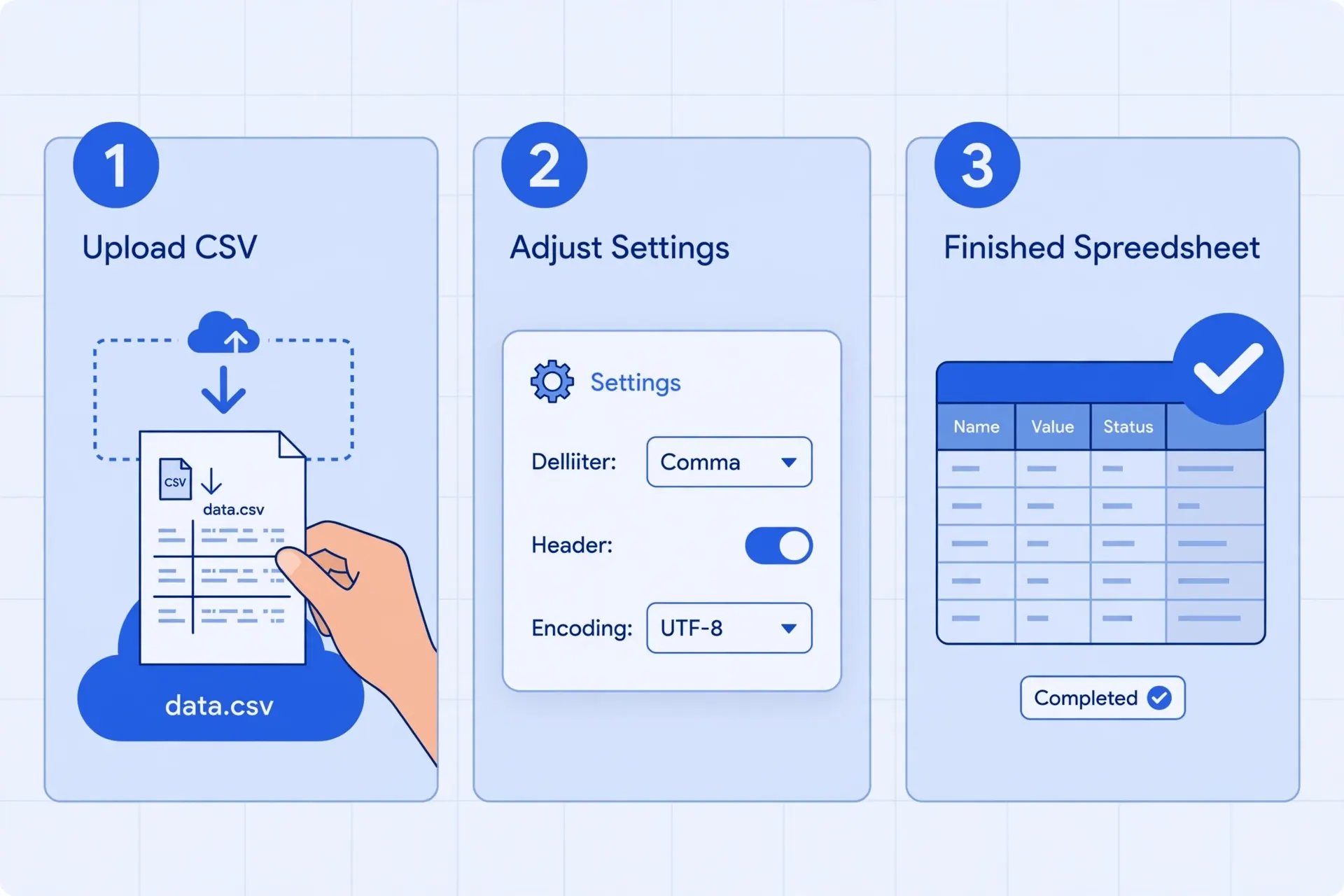
If you just need it done, this is the method. A good online CSV to Excel converter does the whole job in your browser:
- Open the converter below (or on our homepage). No signup, no install.
- Drag in your CSV file. The tool auto-detects whether it uses commas, semicolons, tabs, or pipes, and reads it as UTF-8.
- Check the 10-row preview. Confirm the columns split the way you expect. Set a worksheet name if you like.
- Click Convert and download. A genuine .xlsx workbook downloads instantly — open it in Excel, Sheets, or Numbers.
Total time: about ten seconds. Your file never leaves your device, so this method is safe for sensitive data like financial exports.
Method 2: Convert CSV to Excel in Microsoft Excel
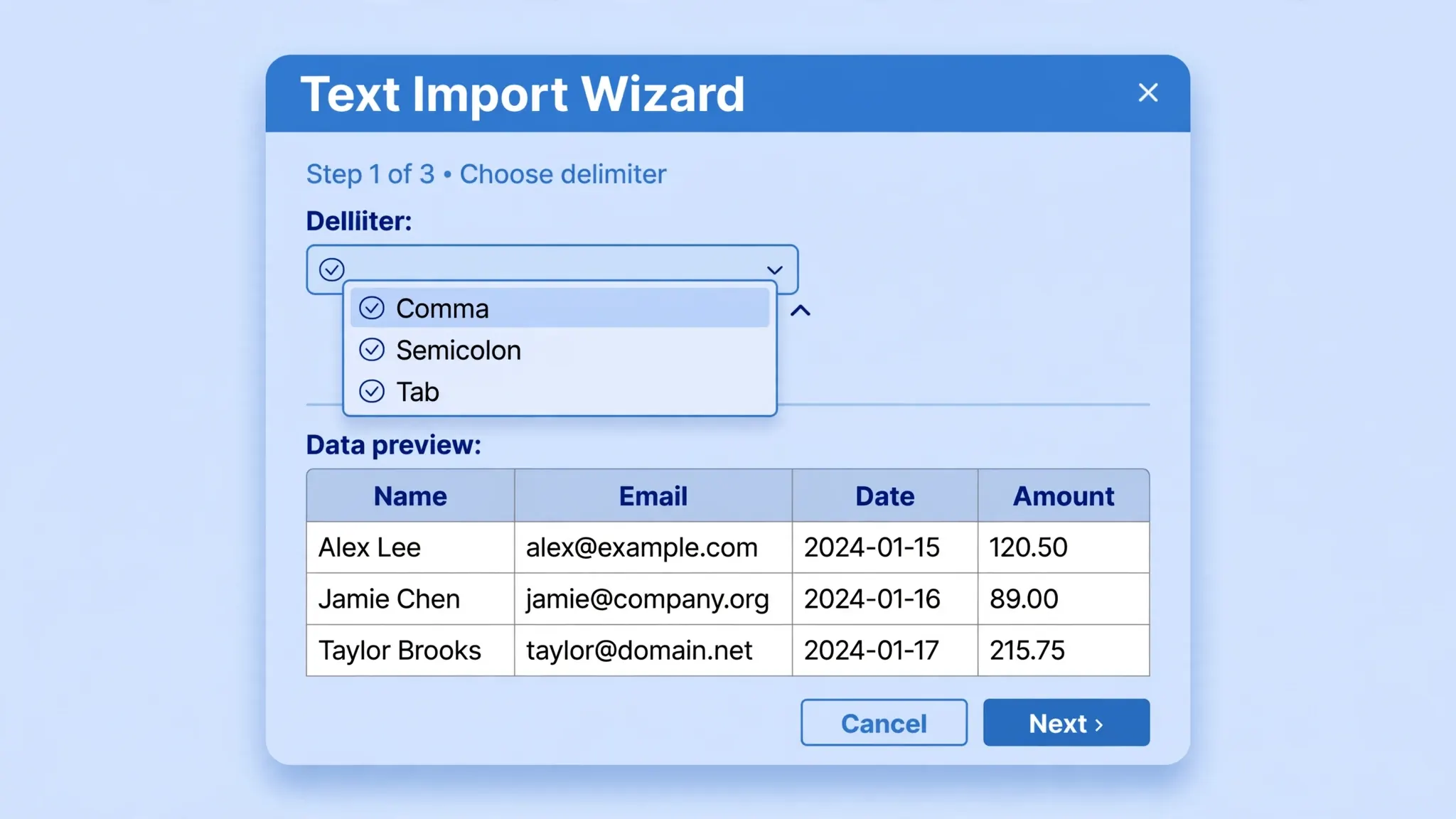
When the data matters — a client report, financial records — use Excel's own import for maximum control:
- Open Excel to a blank workbook. Go to the Data tab.
- Click From Text/CSV (or Get Data → From File → From Text/CSV).
- Select your CSV file and click Import.
- In the preview dialog, verify the delimiter (change it if columns look wrong) and the File Origin/encoding (use 65001: UTF-8 if characters look garbled).
- Click the data-type icon above any critical column — set ID numbers, zip codes, and phone numbers to Text to protect leading zeros.
- Click Load, then File → Save As → Excel Workbook (*.xlsx).
Method 3: Convert CSV to Excel with Google Sheets
No Excel installed? No problem:
- Go to Google Drive and click New → File upload, then select your CSV.
- Right-click the uploaded file → Open with → Google Sheets.
- Check the columns; use Data → Split text to columns if anything landed in one column.
- File → Download → Microsoft Excel (.xlsx). Done.
This method is perfect on Chromebooks and shared computers. One note: complex number formatting sometimes shifts slightly between Sheets and Excel — fine for 99% of files, worth a glance for financial ones.
Try it now: built-in converter
Troubleshooting: when conversion goes wrong
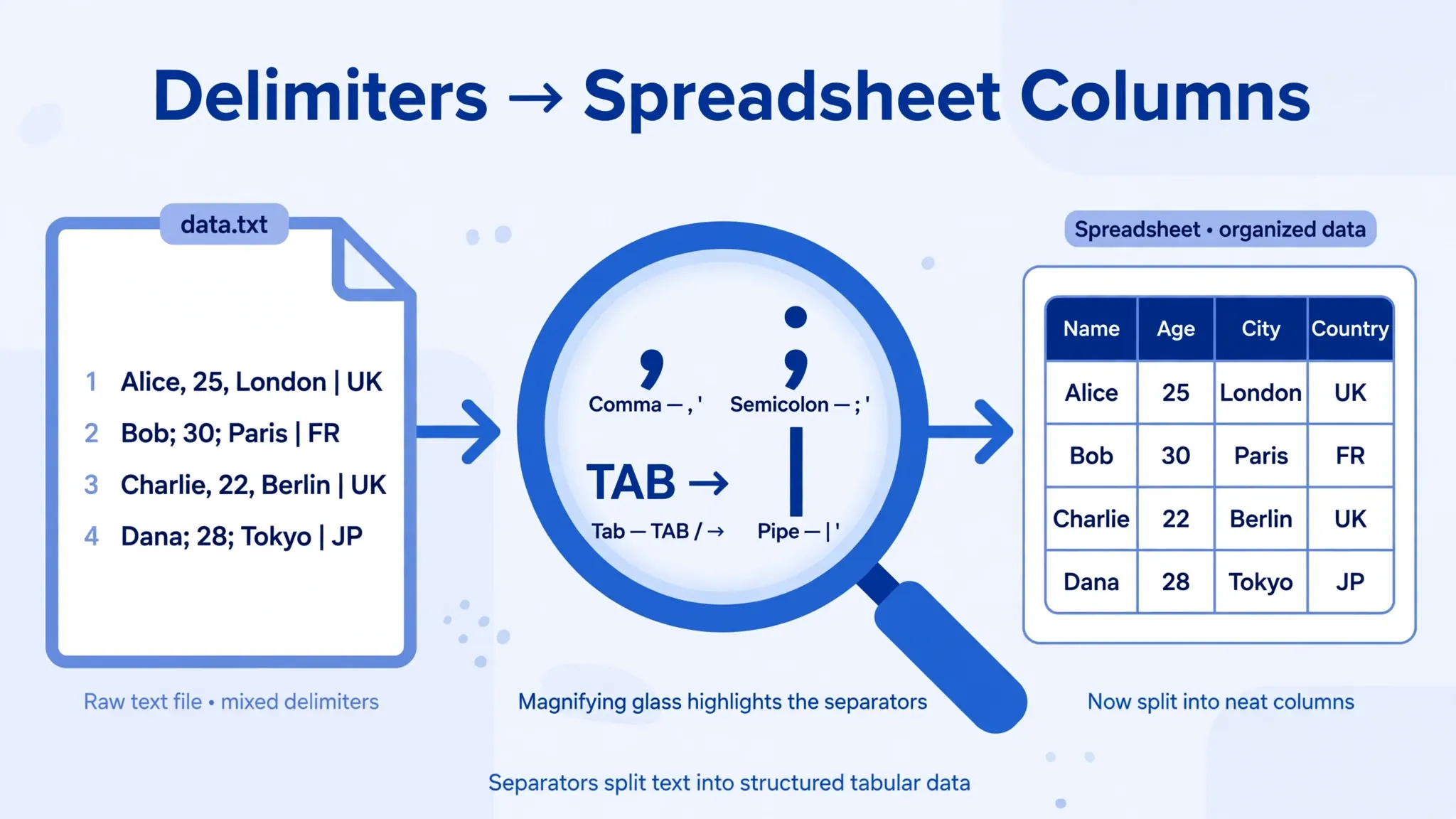
Everything in one column? Delimiter mismatch. Re-import and choose the right delimiter (semicolon for European files). Our one-column fix guide has the two-minute solution.
Weird characters (José)? Encoding mismatch. Re-import with File Origin set to UTF-8, or make sure the source file was saved as UTF-8 with BOM. See fixing CSV encoding in Excel.
Leading zeros gone? The column was read as numbers. Re-import it as Text — and keep the original CSV, because stripped zeros can't be recovered. Full guide: keeping leading zeros.
Dates flipped? US (M/D/Y) vs rest-of-world (D/M/Y) locale confusion. Set the date format explicitly during import. Details in fixing CSV dates.
Tips for a perfect conversion
- Keep the original CSV until you've verified the Excel file — conversions are easy to redo, lost data isn't.
- Check the row count: Excel caps sheets at 1,048,576 rows. Bigger files need splitting first.
- Standardize on UTF-8 with BOM when you control the export — it prevents most character issues.
- Name sheets meaningfully when converting multiple files ("Sales_Q1", not "Sheet1").
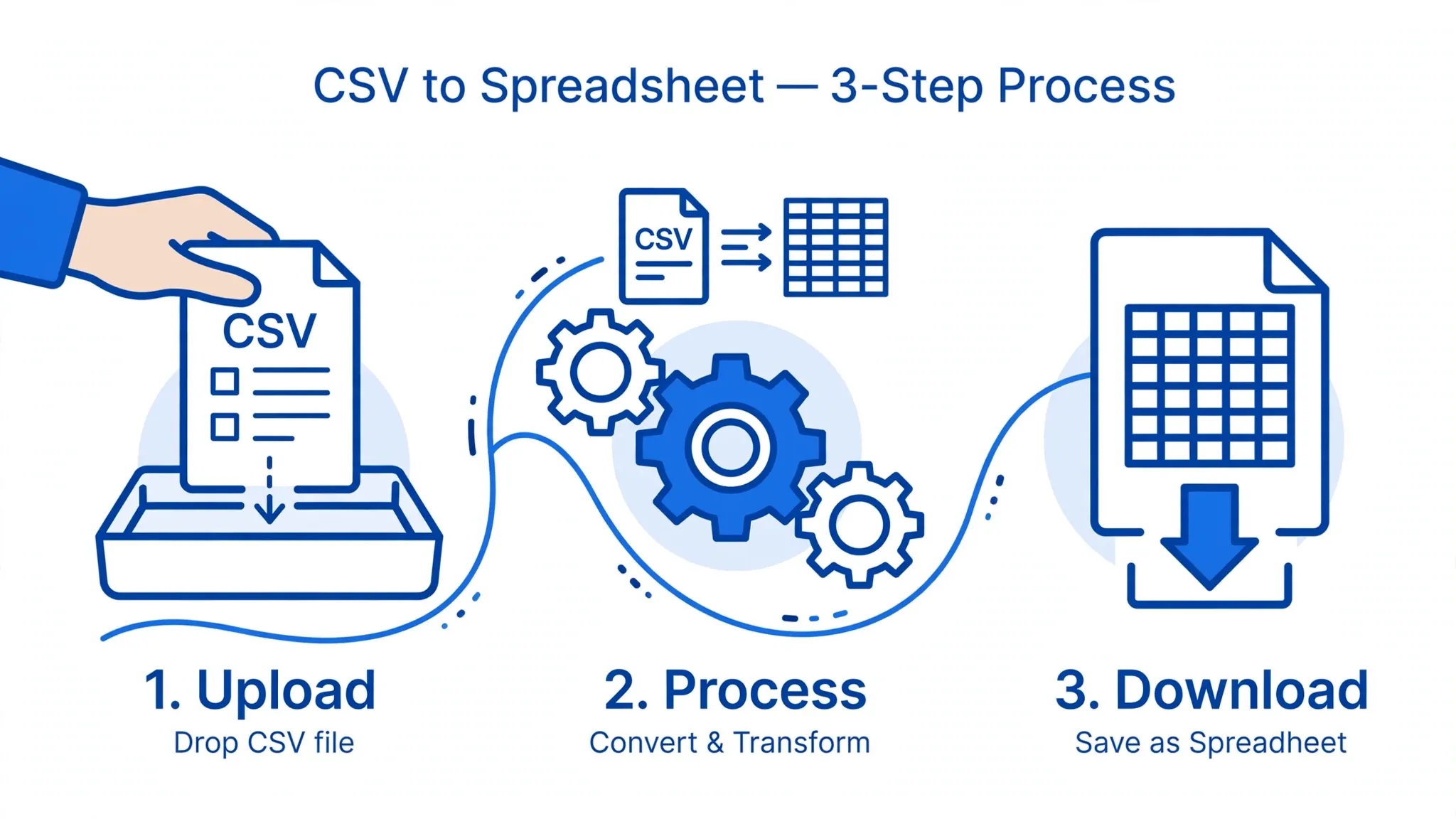
Pro tips for a flawless conversion
A few habits separate a clean convert CSV to Excel workflow from a messy one. First, always keep the original CSV untouched — work on a copy, so a bad import never destroys your source data. Second, decide your column types before importing: ID numbers, zip codes, and phone numbers should be forced to Text, while dates should use an unambiguous format like YYYY-MM-DD to dodge US/UK ordering confusion. Third, if your file uses semicolons (common in European and Indian exports where the comma is a decimal separator), tell the importer explicitly rather than hoping for auto-detect. Finally, after every conversion, spot-check the row count and scroll the first and last rows — five seconds of verification beats an hour of debugging a report built on truncated data.
Frequently Asked Questions
How do I convert CSV to Excel?
The fastest way: drag the CSV into the free converter above and download the XLSX. For maximum control, use Excel's Data > From Text/CSV import and set delimiters and data types before loading.
How do I convert CSV to Excel without losing data?
Import instead of double-clicking, set critical columns to Text (IDs, zip codes), verify encoding is UTF-8, and check row counts after conversion.
Why does my CSV open in one column?
Delimiter mismatch — your file probably uses semicolons or tabs while Excel expects commas. Choose the correct delimiter during import.
Can I convert CSV to Excel on my phone?
Yes — open the converter above in your mobile browser, upload the file, and download the XLSX. No app needed.
How do I convert a large CSV to Excel?
Excel caps each sheet at 1,048,576 rows. Split larger files first, or use Power Query to summarize without loading every row.